

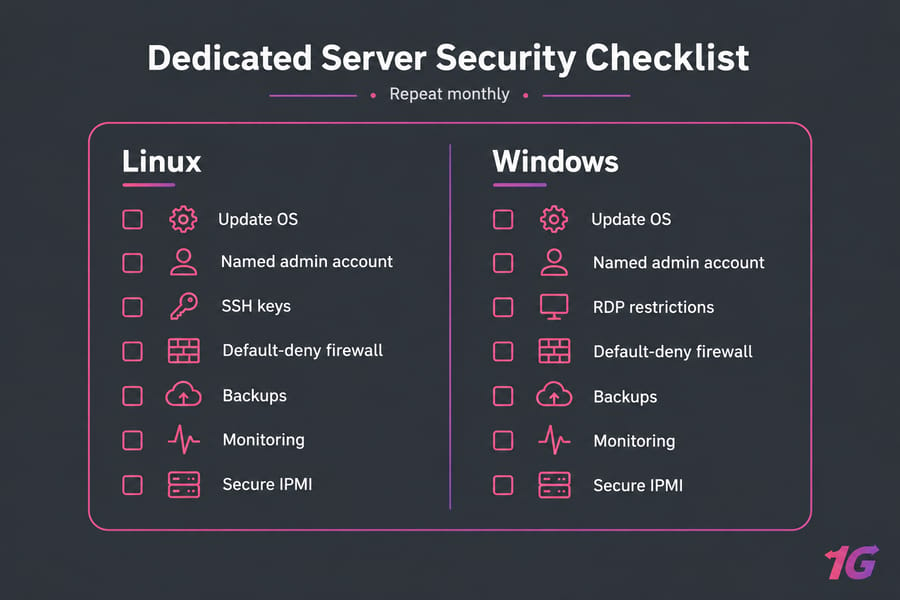
To secure a dedicated server, work in order of impact. Patch the OS first. Then replace default logins with a named admin account, lock down SSH or RDP, put a default-deny firewall in front of everything, and set up off-server backups you've proven you can restore. After that it's maintenance: you repeat those same steps every month.
What dedicated server security means
A dedicated server is single-tenant hardware. No other customer shares your CPU, RAM, or disks, so a noisy or compromised neighbor isn't a concern. That isolation stops at the hardware, though. A brute-forced root password or a web app nobody has patched in a year still lets an attacker in.
Hosting runs on a shared responsibility model. The provider handles the building, power, physical access, and network edge. On an unmanaged server you own everything from the OS up: accounts, services, patches, firewall rules, backups. The split is the same if you're weighing bare metal vs dedicated server options. The bare metal server security best practices guide and the article on how to secure servers cover the general principles in more depth.
| Layer | Shared hosting | VPS | Unmanaged dedicated |
| Physical and data center | Provider | Provider | Provider |
| Hypervisor or hardware | Provider | Provider | Provider (hardware), you (IPMI access) |
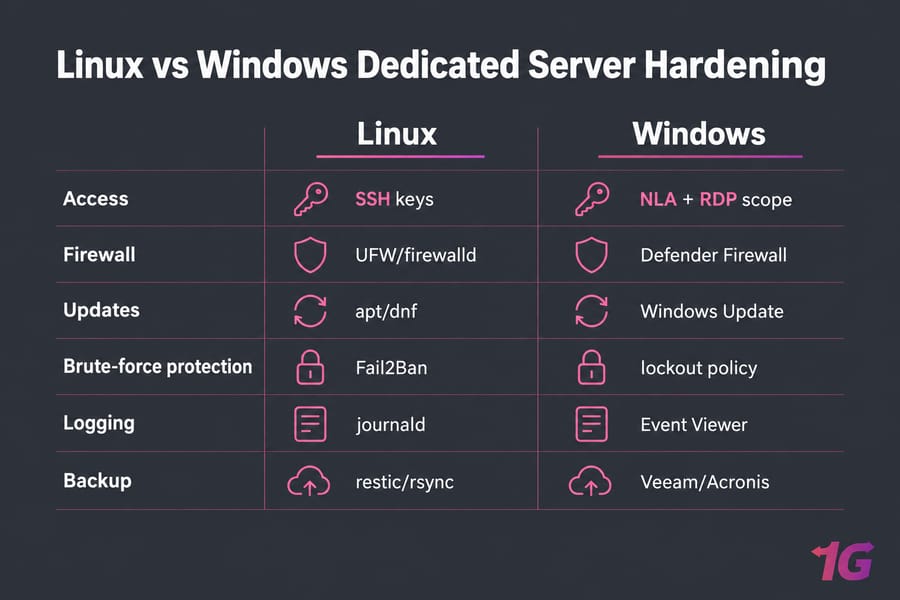
| OS patching and hardening | Provider | You | You |
| Applications, users, backups | Mostly you | You | You |
Dedicated server security checklist: the first 30 minutes
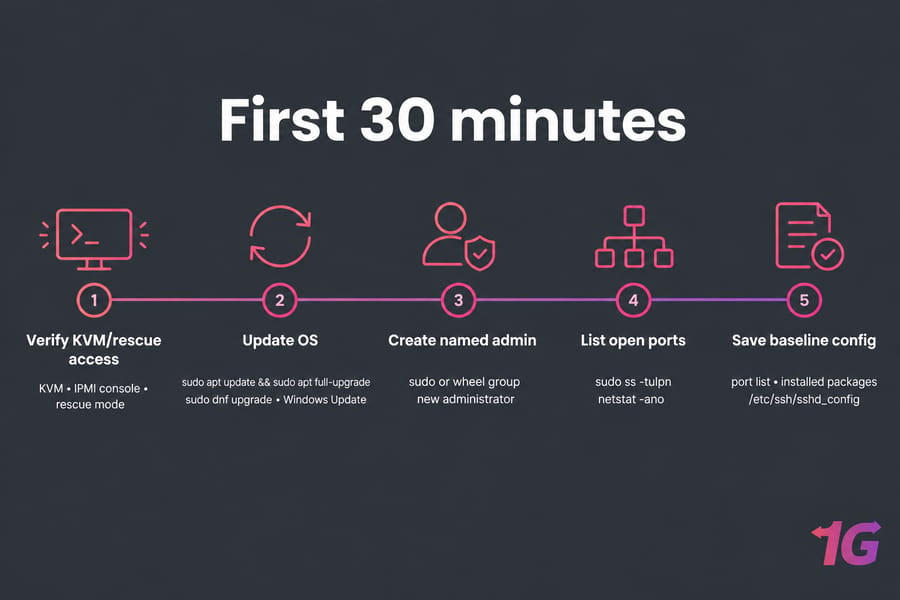
Before changing anything, have ready your admin credentials, access to the provider panel and its KVM or rescue console, the OS name and version, a backup destination, and a written note on how you'll get back in if you lock yourself out.
- Open the provider's KVM, IPMI console, or rescue mode and confirm it works. If you break SSH or RDP later, that's your way back in.
- Update the OS. Run
sudo apt update && sudo apt full-upgradeon Debian/Ubuntu orsudo dnf upgradeon AlmaLinux/Rocky. On Windows, run Windows Update until nothing is left, then reboot. - Create a named admin account. On Linux, add a user to the
sudoorwheelgroup. On Windows, create a new administrator and stop using the built-in Administrator for daily work. - List open ports with
sudo ss -tulpnon Linux (see how to check Linux open ports) ornetstat -anoon Windows (see checking open ports in Windows). Investigate every listener you can't explain. - Save a baseline: the port list, installed packages, and copies of key configs such as
/etc/ssh/sshd_config. You'll compare against it later to see what changed.
If you're unsure how to make the first connection, the guide on how to log in to a server covers SSH and RDP clients.
Secure server access with SSH, RDP, and least privilege
Most compromises of internet-facing servers come in through the login path.
How to secure SSH on a Linux dedicated server
Switch to key-based authentication (if the idea is new, read what SSH keys are). Generate a key on your workstation with ssh-keygen -t ed25519, copy it with ssh-copy-id user@server, then set these lines in /etc/ssh/sshd_config:
PermitRootLogin no
PasswordAuthentication no
PubkeyAuthentication yes
AllowUsers youradmin
Check the syntax with sudo sshd -t, then restart the SSH service. Keep your current session open and test the new login from a second terminal. Only disable password authentication once key login works, or you'll be opening the KVM console to fix it.
OVHcloud's guide lists changing the SSH port as an early step. It cuts the automated scans in your logs but does nothing against an attacker who runs a port scan, so treat it as noise reduction and do it after keys, firewall restrictions, and patching.
How to secure RDP on a Windows dedicated server
RDP open to the whole internet on port 3389 attracts constant brute-force attempts. Require Network Level Authentication (NLA), so users authenticate before a session opens, and limit the RDP firewall rule to your office or VPN IP addresses. The articles on what the RDP port is and changing your RDP password cover the mechanics.
How MFA, allowlists, and jump hosts reduce risk
An IP allowlist does more than any other single change here, because attackers can't brute-force a service they can't reach. If your IP changes often, put admin access behind a VPN (WireGuard or OpenVPN) or a jump host and expose only that entry point. Add MFA wherever it's supported: the provider panel, your control panel, and the VPN.
| Control | Linux (SSH) | Windows (RDP) | Priority |
| Strong authentication | Ed25519 keys, passwords off | NLA, long unique passwords | High |
| No default admin | PermitRootLogin no, use sudo |
Named admin, built-in account disabled or renamed | High |
| Network restriction | Firewall allowlist or VPN | Firewall scope limited to known IPs or VPN | High |
| Brute-force protection | Fail2Ban or CrowdSec | Account lockout policy | Medium |
| Port change | Optional | Optional | Low |
Dedicated server firewall setup and attack surface reduction
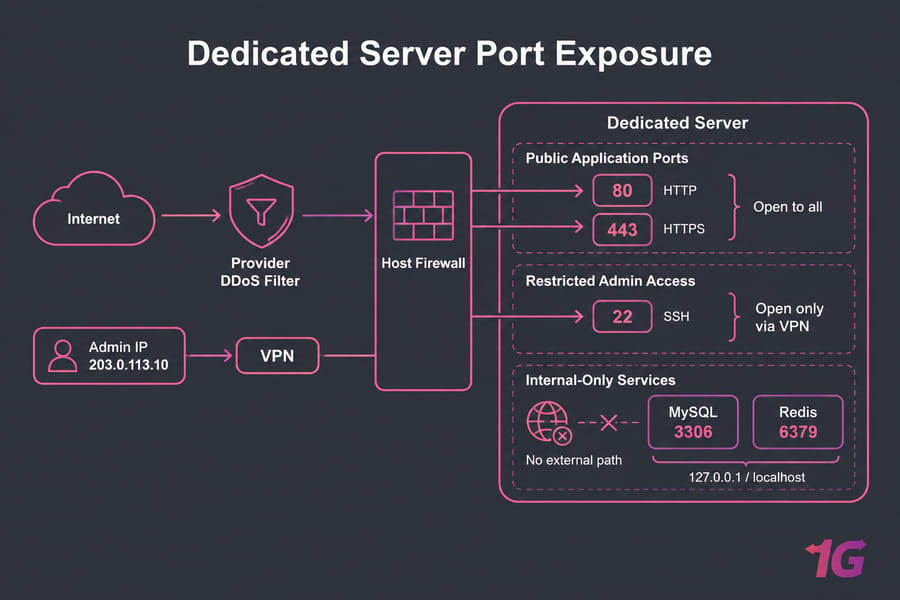
Block all inbound traffic by default and open only the ports your server needs. A typical web server needs 80 and 443 open to everyone and 22 open only to your IP. Nothing else should accept inbound connections.
sudo ufw default deny incoming
sudo ufw default allow outgoing
sudo ufw allow from 203.0.113.10 to any port 22 proto tcp
sudo ufw allow 80,443/tcp
sudo ufw enable
On AlmaLinux or Rocky, firewalld does the same with zones (see configuring firewalld). For both tools, see how to configure a server firewall.
Services also need to listen in the right place. Databases, Redis, and admin dashboards belong on 127.0.0.1 or a private interface, never the public IP. Remove or disable daemons you don't use, such as FTP, mail servers you never set up, and leftover sample apps. Keep public application ports separate from admin ports so you can lock down admin access without touching customer traffic.
A host firewall can't absorb a volumetric attack, because the traffic fills your uplink before it reaches the server. That takes upstream filtering from the provider; see DDoS-protected hosting and the guide on preventing DDoS attacks.
Patch management and vulnerability reduction for dedicated servers
NIST SP 800-123 treats patching, backups, log monitoring, and periodic security testing as ongoing work, not setup tasks. Outdated public-facing software is one of the easiest ways in, because exploits for known CVEs are often public.
- Apply security updates weekly, and patch critical CVEs in internet-facing services within days.
- On Linux,
unattended-upgrades(Debian/Ubuntu) ordnf-automaticcan install security updates automatically. Test updates for production databases first and schedule reboots in a maintenance window. See how to update Linux. - On Windows, keep a Patch Tuesday routine and track the OS support lifecycle (see Windows Server upgrades).
- Patch control panels and their plugins too, following the guides on how to make cPanel secure and secure CyberPanel.
- Once a month, scan your public IP from outside (for example with
nmap) and check the CVE lists for each exposed service.
Linux dedicated server security best practices
The controls are the same on every distro; package names and defaults differ. For distro-specific steps, see how to secure an Ubuntu server, secure a Debian server, secure AlmaLinux, or secure Rocky Linux.
SSH keys, sudo, and disabling direct root login
Do admin work as a named user with sudo, so every privileged command is logged against a person. Run applications under their own service accounts, such as www-data or a dedicated appuser, never as root. Keep config files that contain secrets at 600 or 640 permissions.
UFW, iptables, firewalld, or nftables: what to use
Use what your distro ships: UFW on Ubuntu, firewalld on RHEL-family systems. Both are front ends to nftables or iptables. If you write raw nftables rules, don't also run a front end that overwrites them.
Fail2Ban, audit logs, and service isolation
Fail2Ban reads auth logs and bans IPs after repeated failures. Enable the sshd jail, add jails for other public logins (mail, panel, WordPress), and check bans with sudo fail2ban-client status sshd. Review /var/log/auth.log or journalctl -u sshd for logins you don't recognize.
SELinux or AppArmor basics
These mandatory access controls limit what a process can touch even after it's compromised. RHEL-family systems use SELinux; Ubuntu uses AppArmor. Leave them enforcing, and when something breaks, fix the policy (audit2allow, semanage) instead of disabling the whole system.
If you're starting fresh, Linux dedicated servers come with root access, so you can apply all of this from day one.
Windows dedicated server security best practices
Windows has good built-in tools, but several are off or loosely configured out of the box. See also these dedicated Windows server security tips.
RDP hardening, NLA, and IP restrictions
Turn on NLA in System Properties, then Remote. In Windows Defender Firewall with Advanced Security, edit the inbound Remote Desktop rules and set Remote IP addresses on the Scope tab to your allowlist. Add an account lockout policy so password guessing stalls after a few tries.
Windows Firewall and Microsoft Defender
Keep the firewall on for all profiles and review the inbound rules, since installers often add ones you don't need. Leave Microsoft Defender Antivirus running with real-time protection and current signatures. Disable legacy protocols you don't need, starting with SMBv1.
Windows LAPS and local admin password rotation
Windows LAPS rotates local admin passwords automatically, and Microsoft's Windows LAPS documentation lists its benefits as "protection against pass-the-hash and lateral-traversal attacks." It's built into Windows Server 2025, and Windows Server 2019 and 2022 get it with the April 11, 2023 update or later. On a standalone server with no directory to manage LAPS, give every machine its own long admin password and store it in a password manager.
Apply Windows Server security baselines
Microsoft's Windows Server 2025 security baseline has more than 300 settings and is deployed with the OSConfig PowerShell module. You pick the scenario that matches the server's role; a standalone dedicated server usually fits the workgroup member profile. OSConfig also corrects drift when a setting changes later. Test the baseline before production, because it can block legacy apps.
Windows dedicated servers come with full admin access for this kind of configuration.
Dedicated server backup, monitoring, and logging
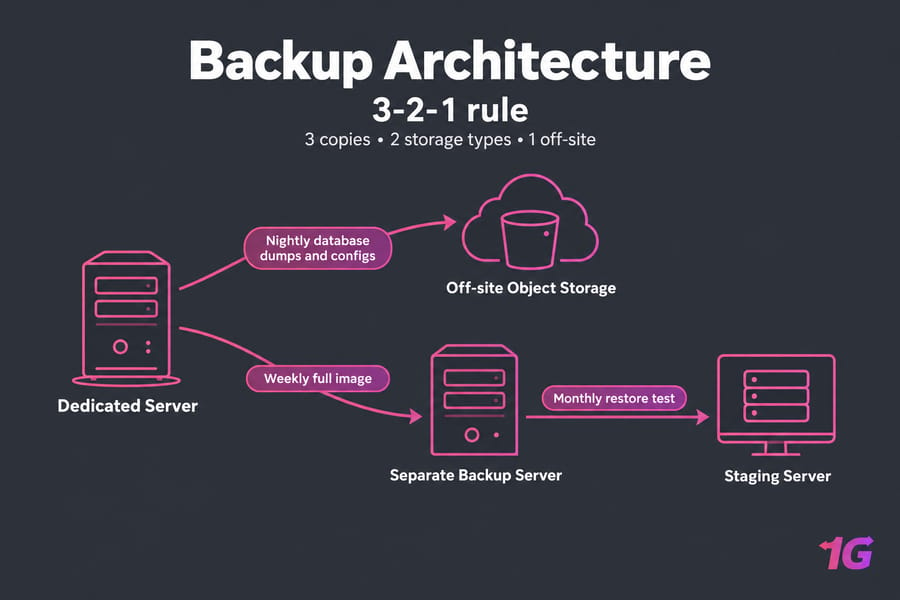
Hardening lowers the odds of a breach; backups decide how bad one gets. Follow the 3-2-1 rule: three copies of your data, on two kinds of storage, with one copy off the server and ideally off-site. A backup on the server's second disk won't survive ransomware or a compromised root account.
- Back up databases (as dumps, not live files), application code, uploads, configs, SSL keys, and automation scripts.
- Take full images where rebuilding from scratch would be slow.
- Run
rsync, restic, or Veeam/Acronis on a schedule. See the bare metal server backup guide, scheduling automatic Linux backups, and Windows Server Backup. - Restore one backup to a test machine every month.
Send syslog or Windows Event Viewer logs to a second machine, either a SIEM such as Wazuh or a simple log server, so an attacker can't wipe them. Alert on failed and successful admin logins, disk above 85%, sustained high CPU or RAM, stopped services, new listening ports, and certificate expiry. Prometheus and Grafana handle the resource metrics. More detail is in Linux monitoring best practices.
Common dedicated server security mistakes to avoid
| Mistake | Better approach |
| SSH or RDP open to every IP | Allowlist, VPN, or jump host |
| IPMI, iDRAC, or iLO on default credentials and a public IP | Change defaults, restrict to VPN or a private network |
| Apps running as root or Administrator | Separate low-privilege service accounts |
| Relying on a port change for security | Keys, firewall, patching first |
| Extra panels and plugins "just in case" | Install only what you use |
| Backups that were never restored | Monthly restore test |
Out-of-band management is the riskiest item on that list, because it gives full control of the machine (power, console, OS reinstall) below the operating system's own defenses. Read what IPMI is, then change iDRAC default credentials or reset the Supermicro IPMI default password before anything else on the box goes live.
Managed vs unmanaged dedicated server security responsibilities
| Task | Unmanaged | Managed |
| Physical security, power, network | Provider | Provider |
| OS patching | You | Provider assists |
| Firewall and access setup | You | Provider assists |
| Monitoring and incident response | You | Shared |
| Application code and users | You | You |
Unmanaged dedicated servers suit you if you're comfortable with everything above and have time to keep it up. If nobody on your team will watch alerts at 2 a.m. or patch every week, managed dedicated server hosting hands that routine work to the provider. The full breakdown is in managed vs unmanaged dedicated servers.
Final dedicated server hardening checklist
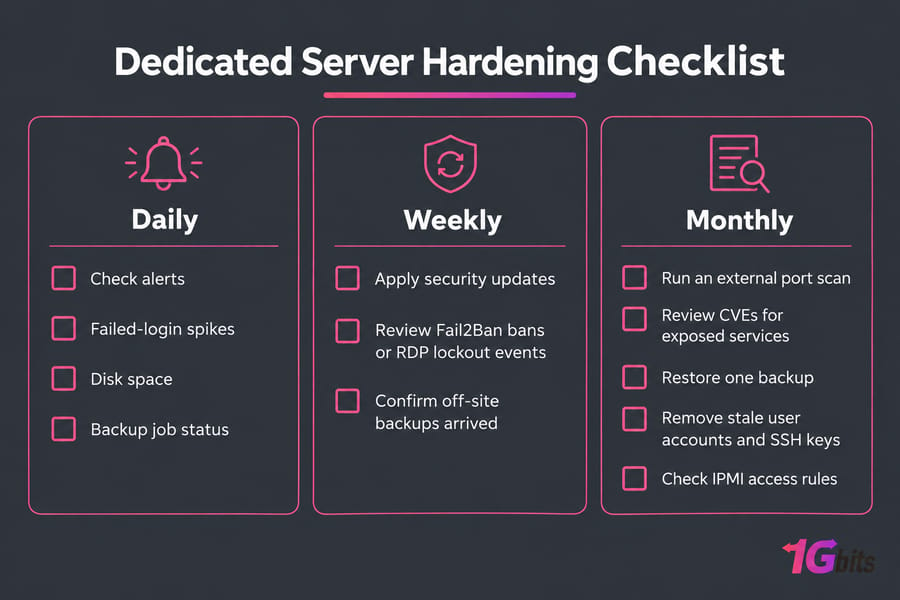
- Daily: check alerts, failed-login spikes, disk space, and backup job status.
- Weekly: apply security updates, review Fail2Ban bans or RDP lockout events, and confirm off-site backups arrived.
- Monthly: run an external port scan, review CVEs for exposed services, restore one backup, remove stale user accounts and SSH keys, and check IPMI access rules.
- Quarterly: compare current configs against your baseline and rotate admin and IPMI credentials.
If the server handles payment data, health records, or anything under a compliance framework, get an outside audit rather than relying on a checklist. When you're ready to deploy, buy a dedicated server with Linux or Windows and full root/admin access, and contact 24/7 support if you get stuck during setup.

Leave A Comment