
![Best Security Features for Storage Servers [2026]](https://1gbits.com/cdn-cgi/image/width=1200,quality=80,format=auto/https://s3.1gbits.com/blog/2026/10/security-features-for-storage-servers-main.webp "Best Security Features for Storage Servers [2026]")
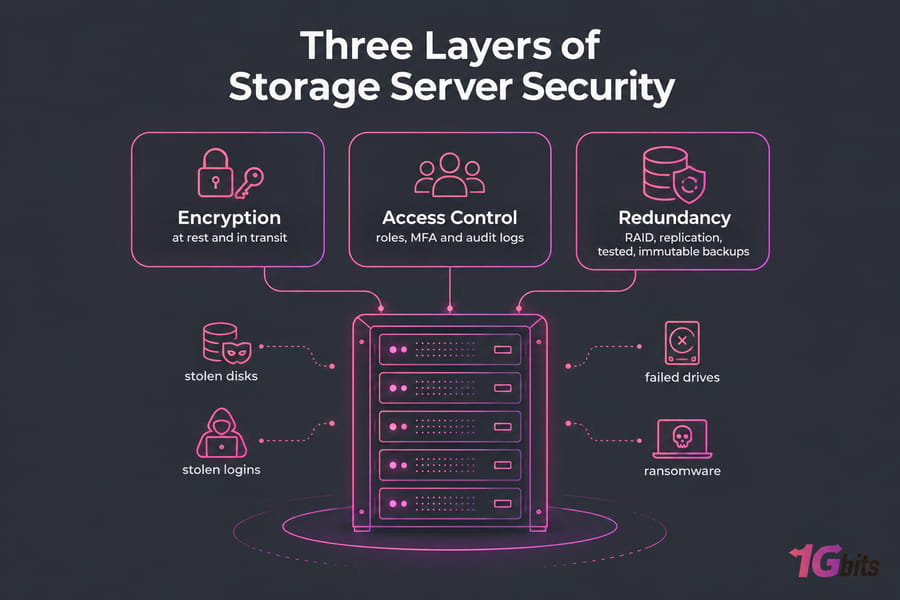
The best security features for storage servers come down to three layers. The first is encryption at rest and in transit. The second is access control built on roles, MFA and audit logs. The third is redundancy, which pairs RAID and replication with tested, immutable backups. With all three in place, you're protected against stolen disks, stolen logins, failed drives and ransomware. If one is missing, the other two won't save you.
I've seen the same setup for years: big drives, RAID, a strong root password, and nothing else. Then one phished account or a failed rebuild shows how weak it was.
Key takeaway: A storage server is only as secure as its weakest layer: keys, permissions or recovery.
What Is Storage Server Security and Why Does It Matter?
Storage server security is the set of controls that keeps stored data private, unchanged and available. That's the classic CIA triad: confidentiality, integrity, availability. If you're new to the hardware, start with what is a storage server and come back.
What threats put storage servers at risk?
- Unauthorized access: stolen passwords, leaked keys, exposed shares.
- Ransomware: it now goes after backups and snapshots as well as live files.
- Drive failure: every drive fails eventually.
- Misconfiguration: for example, an SMB share open to "Everyone."
- Insider misuse and physical theft.
Why storage workloads need different security controls than general servers
If you lose a web server, you can redeploy the code. A storage server holds things you can't recreate, like contracts, customer records and years of backups. General hardening is the minimum. On top of it you need key management, fine-grained permissions, and audit logs that show who touched what.
Storage Server Encryption Features You Should Never Skip
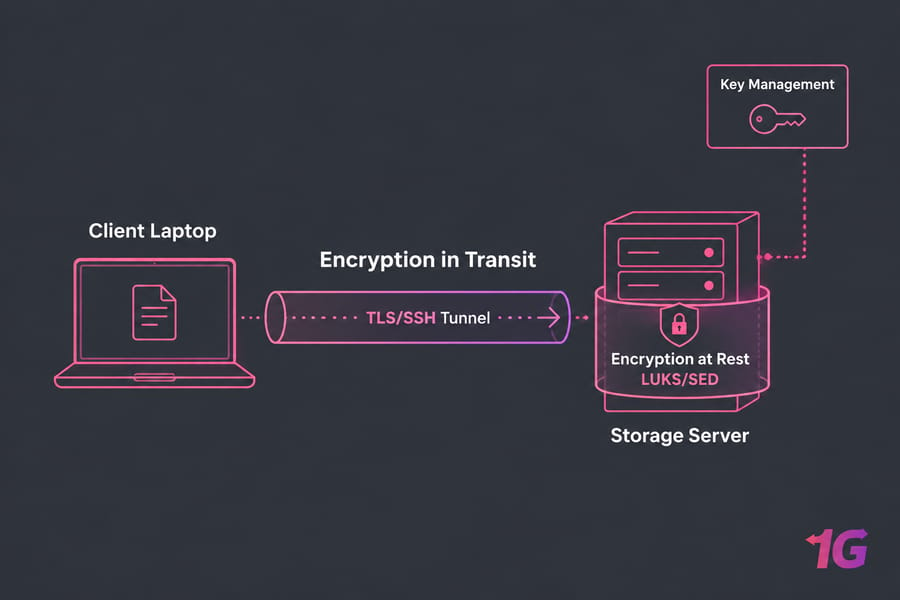
Encryption makes data useless to anyone who steals a disk or intercepts traffic without the key. You need to cover data in two states: at rest and in transit.
Encryption at rest: full-disk, file-level, and self-encrypting drives
On Linux, LUKS is the standard tool for full-disk encryption. The current cryptsetup defaults (LUKS2, AES-XTS, Argon2id) are a good starting point. BitLocker does the same job on Windows Server. Both usually use AES-256, and on CPUs with AES-NI the speed cost is barely noticeable.
Self-encrypting drives (SEDs) handle encryption inside the drive itself. That costs no CPU, but you're trusting firmware you can't inspect. File-level encryption makes sense when only a few folders hold regulated data.
| Feature | Protects | Best For | Trade-Off |
| Full-disk (LUKS, BitLocker) | Everything on the volume if disks are stolen or retired | Most storage servers | Data is readable once the volume is unlocked and mounted |
| File/folder-level | Specific sensitive data | File shares that mix sensitive and ordinary data | More admin work, and it's easy to miss files |
| Self-encrypting drives | Drive contents at the hardware level | High-throughput arrays | Depends on the quality of the vendor's firmware |
| In transit (TLS 1.2+/1.3, SSH) | Data moving between client and server | All remote access and replication | Certificates and keys need upkeep |
Encryption in transit: TLS, SSH, SMB signing, and secure transfer protocols
Any web panel or API should use at least TLS 1.2, and ideally TLS 1.3. If you need a free certificate, here's how to install a Let's Encrypt SSL certificate on Linux. Use SFTP over SSH for file transfers, never plain FTP. Windows shares should run SMB 3.x with signing or encryption turned on.
NFS needs extra care. Plain NFS trusts any client with the right IP address and user ID, which is risky. Use NFSv4 with Kerberos and the krb5p option if you want traffic encrypted. The plain krb5 option only checks identity and doesn't encrypt anything.
Why key management matters as much as encryption itself
Here's the thing: a LUKS passphrase saved in a text file on the same server protects nothing. These are the rules I follow:
- Store keys away from the data they protect: in a vault, an HSM, or at least on a different system.
- Only a small, named group of people should be able to read or use keys.
- Change keys and passphrases on a schedule, and whenever someone with access leaves.
- Choose on purpose between keys you manage yourself (more control) and keys your provider manages (less work).
Remember too that encryption won't stop an attacker who's already logged in, because the volume is unlocked. Access control has to handle that.
Access Control Features That Secure Sensitive Storage Data
Encryption protects the data, and access control decides who can use it. Weak access control is behind a large share of real breaches.
RBAC vs ACLs: which access model fits your storage server?
Role-based access control (RBAC) gives permissions to roles like "finance-read" or "backup-operator," then puts users into those roles. Access control lists (ACLs) attach permissions directly to files and folders. Most setups use both: RBAC for the general structure and ACLs for exceptions. The risk is that exceptions pile up until nobody knows why an intern can read the payroll folder.
| Role | Allowed Actions | Risk Level |
| Storage admin | Manage volumes, shares, users | High: needs MFA and a named account |
| Backup operator | Run and read backups; can't delete immutable copies | Medium-high |
| Department user | Read and write their own team's share | Medium |
Least privilege, MFA, and privileged admin separation
Least privilege means each account gets only the access it needs. Never use a shared "admin" login. Microsoft's storage guidance prefers individual identities over shared keys, because individual accounts can be audited and revoked. You can't trace a shared login back to one person.
For SSH, turn off password logins and use SSH keys instead. If you haven't done that before, here's how to generate an SSH key. Add MFA to every admin panel, VPN and IPMI console. Keep admin accounts separate from the accounts people use every day.
Pro tip: Give every admin a named account and require MFA for admin-level actions.
Audit logs and access reviews for ongoing visibility
Log sign-ins, permission changes and bulk file operations. Send those logs to a separate system, like a SIEM or log server, so attackers can't erase them. Review ACLs every quarter and whenever someone changes roles. It's tedious, but it catches permissions that have quietly grown, which attackers look for.
Redundancy Features That Improve Storage Server Resilience
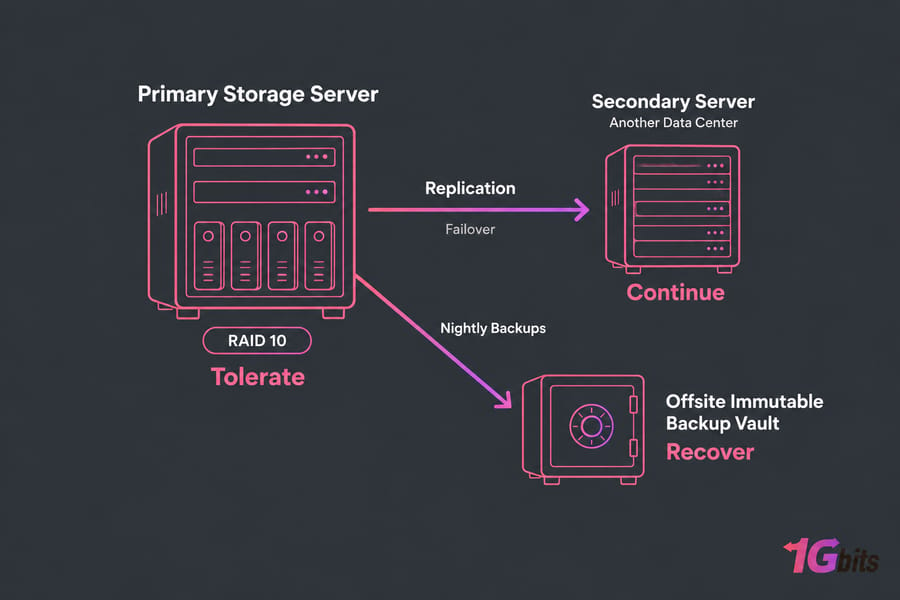
Redundancy is about availability: getting through failures. It covers three jobs. RAID helps you tolerate a dead drive, replication helps you continue serving, and backups help you recover.
RAID for hardware fault tolerance
RAID keeps the server running when a drive dies:
- RAID 1 mirrors data across drives.
- RAID 10 mirrors and stripes, so it's faster.
- RAID 6 survives two drive failures and loses less capacity.
- RAID 0 has no redundancy at all.
Our guide to RAID 0 vs RAID 10 covers the trade-offs. This overview of RAID controllers and levels explains hardware vs software RAID.
Replication and failover for service continuity
Replication copies your data to a second server, ideally in another data center. If the main server dies, you switch to the copy and keep serving files. That switch is called failover. Cloud providers sell storage copied across regions for this reason. You can build something similar with ZFS send/receive or DRBD.
Backups, snapshots, and immutability for recovery
Redundancy cuts downtime, and backups bring lost data back. They do different jobs. Follow the 3-2-1-1-0 rule:
- 3 copies of your data
- 2 different types of storage
- 1 copy offsite
- 1 copy immutable or fully offline
- 0 errors when you test restores
Immutable backups can't be changed or deleted until their retention period ends, not even by an admin. That makes them your best protection against ransomware.
See our guides on bare metal server backup and how to schedule automatic backups for a Linux server.
Warning: RAID improves uptime but doesn't replace backups. If you delete a file on RAID 1, it's gone from both disks instantly.
RAID vs Backup vs Replication: What Each One Protects
Mixing up RAID and backup is the most common mistake I see. Here's what each one covers:
| Control | Protects Against | Not Enough For | Priority |
| RAID | One or two drive failures | Deletion, corruption, ransomware, losing the whole site | Must-have |
| Snapshots | Quick rollback after accidental deletion | Losing the disks or server (snapshots live on the same storage) | Strongly recommended |
| Replication | Server or site outages; gets you back online fast | Corruption or ransomware (it copies those too) | For workloads that can't go down |
| Backup | Deletion, corruption, rolling back to an earlier state | Fast failover; ransomware can hit it if it's writable | Must-have |
| Immutable backup | Ransomware, malicious deletion by an admin | Fast recovery on its own (restores take time) | Must-have for business data |
What RAID does not protect against
RAID won't help with deletion, corruption, ransomware, a controller failure that scrambles the array, or a fire. It copies every bad change to every disk.
When snapshots help and when they are not enough
Snapshots are great when someone overwrites a report by mistake, and they keep data loss to a few minutes. But they sit on the same storage pool as your data. Lose the pool and you lose the snapshots, and an attacker with root access can delete them.
The safest layered protection model
Use all of them together. Two targets guide the setup:
- RTO (recovery time objective): how quickly you must be back online. This decides whether you need replication.
- RPO (recovery point objective): how much recent data you can afford to lose. This decides how often you back up.
Quick summary: RAID keeps you running when a drive fails. Replication keeps you online. Backup gets your data back.
Additional Storage Security Features Worth Prioritizing
A secure storage server needs a few more things on top of the main three.
- Network isolation and firewalls. Only open SMB, NFS and admin ports to private networks or specific IP addresses. Here's how to configure a firewall on your server.
- VPN or private management access. IPMI and web consoles should never be reachable from the public internet.
- Patching and firmware. Update the OS, RAID controller, drives and BMC every month.
- Monitoring and SIEM. Set alerts for drive health warnings, degraded arrays, failed logins, and sudden waves of renamed files. That last one is a common sign of ransomware.
- Physical security and secure wiping. Lock racks if you host the hardware yourself, and securely erase or destroy old drives.
For general hardening, our guide on how to secure servers covers the operating system basics.
How to Choose the Best Secure Storage Server for Your Use Case
Start by writing down:
- how sensitive your data is
- any compliance rules you must meet
- your uptime target and your RTO/RPO
- who needs access
Then work out the size you need. Our guide on how much storage server capacity you need helps here. Keep in mind that RAID 10 halves your usable space.
| Use Case | Must-Have Controls | Recommended Redundancy | Hosting Fit |
| Small business file storage | Full-disk encryption, separate account per user, SMB 3 encryption, MFA for admins | RAID 1/10 + nightly offsite backup | Storage VPS or entry-level dedicated server |
| Backup repository / archive | Immutable retention, separate logins, encrypted transfers | RAID 6 + a second offsite copy | High-capacity dedicated storage server |
| App and database storage | Encryption at rest, strict RBAC, audit logs, SIEM | RAID 10 + replication + failover + backups | Dedicated server, often managed |
Encryption adds a little CPU load, so choose processors with AES-NI. If nobody on your team will patch firmware and check logs every month, a managed server is the safer choice. See managed vs unmanaged dedicated servers for an honest comparison.
Do you need several terabytes and full control over encryption and RAID? Then a dedicated storage server is a better fit than a general VPS. 1Gbits' storage server solutions are built for that.
Need a storage server with security and redundancy built in? Choose hardware that supports encryption, access control and redundancy from the start. Explore storage servers.
Common Storage Server Security Mistakes to Avoid
Assuming encryption alone is enough
Encryption won't stop an attacker who's already logged in. Storing keys next to the data cancels it out completely.
Confusing redundancy with backup
People lose data on "redundant" storage all the time because they had RAID but no offsite or immutable copy. And a backup you've never tested might not work, so run restore tests.
Over-permissioning users and shared admin accounts
Shared logins make it impossible to tell who did what. ACLs that nobody reviews only grow. Combine that with SMB, NFS or IPMI ports open to the internet and late firmware patches, and attackers have an easy way in.
For more on the hardware side, read our bare metal server security best practices.
Storage Server Security Checklist for Buyers and Admins
Must-have controls before deployment
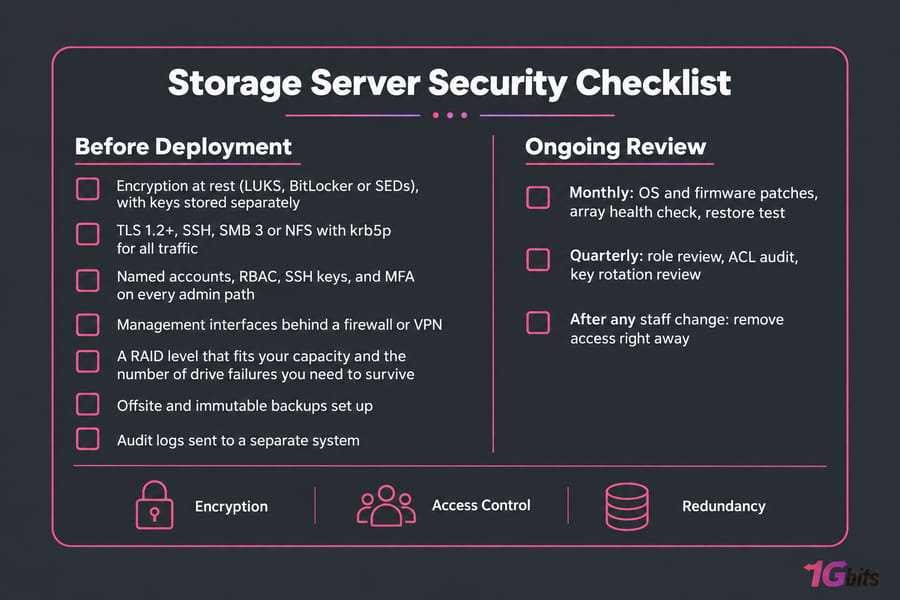
- Encryption at rest (LUKS, BitLocker or SEDs), with keys stored separately
- TLS 1.2+, SSH, SMB 3 or NFS with krb5p for all traffic
- Named accounts, RBAC, SSH keys, and MFA on every admin path
- Management interfaces behind a firewall or VPN
- A RAID level that fits your capacity and the number of drive failures you need to survive
- Offsite and immutable backups set up
- Audit logs sent to a separate system
Ongoing review items after deployment
- Monthly: OS and firmware patches, array health check, restore test
- Quarterly: role review, ACL audit, key rotation review
- After any staff change: remove access right away
Not sure what fits? Ask the 1Gbits team to match these controls to a server.
Final Thoughts: Build Security Into Storage From Day One
The storage server security features that matter most are standard ones. Encrypt data at rest and in transit, and keep the keys safe. Control access with roles, MFA and logs. Build redundancy that survives drive failures, keeps you online, and lets you recover through immutable, tested backups. Used together, these layers keep your business running when something goes wrong.
Adding security after launch is painful. Compare 1Gbits storage-ready server options and build it in from the start.

Leave A Comment