
Most people ask for a number: how many cores, how many gigs, how many terabytes. That's fair. But proper server sizing starts with a different question: what does your workload do at its busiest? This guide answers "how much storage server capacity do you need" by sizing CPU, RAM, and disk space from real workload behavior, not from whatever sits in the middle of a price list.
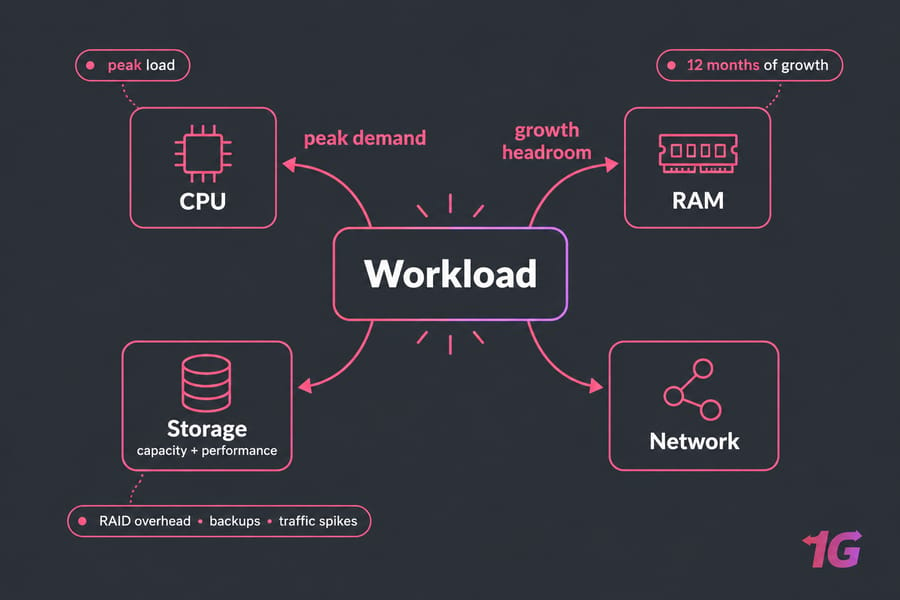
Quick answer: Start with your workload. Estimate peak CPU demand, active memory use, and both storage capacity and disk performance. Then add headroom for growth, RAID overhead, backups, and traffic spikes. Most sizing mistakes come from planning for average usage when you should be planning for peak load and 12 months of growth.
What Server Sizing Means for CPU, RAM, and Storage Capacity
Server sizing means matching hardware to the job. If you're still getting clear on what a server actually does, think of it as four resources: CPU, memory, storage, and network. Only one of them will be your bottleneck, and your job is to find out which one.
Both ways of getting it wrong cost you. Buy too much and you're paying every month for cores that sit idle. Buy too little and you get swap thrashing, slow queries, and a disk that fills up at 3 a.m. I've watched teams buy a 32-core box for a database that really just needed more RAM. It was expensive, and it didn't fix anything.
What Information You Need Before Sizing a Server Workload
Good server capacity planning starts with numbers you've measured yourself. You can't guess these, so check your monitoring or set up monitoring on your current VPS first.
- Baseline vs peak: average CPU, RAM, and disk I/O, plus the busiest hour of your busiest week.
- Growth rate: how fast your data and traffic grew over the last 6–12 months.
- Concurrency: the number of simultaneous users, sessions, or jobs.
- Active data: the "hot dataset," meaning the data your workload touches constantly.
- Protection needs: redundancy, how long you keep backups, and how long your backup window can be.
How to Size Server CPU Cores for Your Workload
The first question is whether your workload is serial or parallel. Web servers, VM hosts, and encoding jobs spread across many cores. Game servers and some single-threaded apps care more about clock speed, and adding cores barely helps them. If you want to compare processors, see this rundown of the best server CPUs.
Cores needed ≈ (peak busy cores × growth factor) ÷ target utilization (0.7)
Example: 4 cores at 85% peak = 3.4 busy cores
3.4 × 1.3 growth = 4.4 → ÷ 0.7 ≈ 6.3 → choose 8 cores
One caveat: a vCPU on a shared VPS isn't the same as a dedicated core. If a noisy neighbor causes CPU steal, your numbers stop meaning much. When you need consistent performance, look for dedicated CPU resources.
How Much Server RAM Do You Need for Stable Performance
RAM is usually the first thing that actually runs out. Databases want their hot dataset in memory. Web stacks stack up PHP workers, caches, and Redis. Virtualization hosts need the sum of every guest's memory plus overhead for the host itself.
RAM ≈ OS (1–2 GB) + app processes + DB buffer/hot set + cache
      then add 20–25% memory headroom
VM host ≈ sum of guest RAM + 4–8 GB host overhead (more if using ZFS)
Pro tip: Swap is disk space the OS uses when RAM runs out. If you see steady swap activity under normal load, you're already undersized. Swap is fine as an emergency buffer, but it can't stand in for real memory.
How Much Disk Space Do You Need on a Server
This is where people get caught out. Raw capacity is the sum of all your drives. Usable capacity is what's left after RAID takes its share, and it's always smaller. For background, see this primer on RAID levels and controllers.
Usable needed = (current data × growth multiplier + OS/logs + snapshots/backups) ÷ 0.8
Example: 4 TB data × 1.4 growth = 5.6 TB
+ 0.8 TB snapshots/logs = 6.4 TB → ÷ 0.8 = 8 TB usable
That ÷ 0.8 keeps 20% of the disk free. Disks that run near full get fragmented, snapshots fail, and databases can crash outright. You get 8 TB usable from either 4×4 TB in RAID 10 or 4×4 TB in RAID 6. They behave very differently, though, as the table shows:
| RAID Level | Min Drives | Usable Capacity | Performance | Best Use |
| RAID 1 | 2 | 50% | Good reads | OS, small servers |
| RAID 10 | 4 | 50% | Excellent read/write | Databases, VM hosts |
| RAID 5 | 3 | (N−1) drives | Slower writes | Read-heavy SSD arrays |
| RAID 6 | 4 | (N−2) drives | Slowest writes | Large HDD backup/archive |
(RAID 0 gives you no redundancy at all, and RAID 0 vs RAID 10 explains why that matters.)
NVMe vs SSD vs HDD: Choosing the Right Server Storage
Storage capacity and storage performance are two separate problems. Capacity is measured in TB. Performance is measured in IOPS (input/output operations per second), latency (how long each request takes), and throughput (MB/s). This guide on what IOPS means covers the details.
| Media | Random IOPS | Cost per TB | Best For |
| NVMe | Hundreds of thousands | Highest | Databases, VMs, busy apps |
| SATA SSD | Tens of thousands | Medium | Web hosting, mixed workloads |
| HDD | ~100–200 per drive | Lowest | Backups, archives, media libraries |
NVMe is close to mandatory for databases and VM hosts. For 40 TB of backups written sequentially, though, HDDs are still the sensible choice. For more depth, compare NVMe vs SSD and SSD vs HDD.
Server Sizing Examples by Workload Type
Treat these as starting points and then adjust based on what your monitoring shows. I'd rather give you a realistic baseline than a spec that claims to fit every scale.
| Workload | CPU | RAM | Storage | Notes |
| Website / app | 2–4 cores | 4–8 GB | 80–200 GB NVMe | Scales with PHP workers and caching |
| Database | 8+ fast cores | 32–128 GB | NVMe, RAID 10 | RAM should hold the hot set |
| Storage / backup | 4–8 cores | 16–32 GB | 20–100+ TB HDD, RAID 6 | Capacity matters more than IOPS |
| Virtualization host | 16–32 cores | 64–256 GB | NVMe, RAID 10 | Sum of guests + host overhead |
| Media server | 8+ cores (transcoding) | 16 GB | Large HDD pool + SSD cache | Bandwidth matters a lot |
| Game server | 4 high-clock cores | 8–16 GB | 100 GB NVMe | Single-thread speed wins |
For game-specific numbers, see Minecraft server requirements. Streaming setups are covered in bandwidth and storage for streaming, and backup targets in what a storage server is.
VPS vs Dedicated Server vs Storage Server Sizing Decisions
| Factor | VPS | Dedicated Server | Storage Server |
| Resource isolation | Shared hardware | Full machine | Full machine |
| Cost | Lowest | Higher | Low per TB |
| Storage expansion | Limited | Moderate | Many drive bays |
| Best fit | Small, predictable apps | High, steady load | Backups, file serving |
If a VPS keeps hitting its limits or CPU steal becomes a regular problem, it's time for dedicated hardware. VPS vs dedicated server breaks down the trade-offs. For shared storage architectures, read NAS vs SAN vs dedicated storage server.
Server Capacity Planning Mistakes to Avoid
- Sizing by averages. A 30% average can hide a 95% peak.
- Forgetting RAID overhead. With RAID 10, 8 TB raw is only 4 TB usable.
- No free-space reserve. A full disk can take a server down faster than almost anything else.
- Treating more TB as more speed. A bigger HDD won't fix high latency.
Already struggling? Work through these common server performance bottlenecks.
Scale Up or Scale Out When Your Server Reaches Limits
Scaling up (vertical) means adding CPU, RAM, or disks to one machine. It's simple, and it's usually the right first step for databases and other stateful workloads. Scaling out (horizontal) means adding more nodes behind a load balancer. That suits stateless web apps and gives you redundancy, but you pay for it in operational complexity. Either way, plan the move ahead of time so you can scale your server without downtime.
How to Choose the Right 1Gbits Plan for Storage Server Sizing
Once you've run the numbers, matching them to a service type is fairly simple:
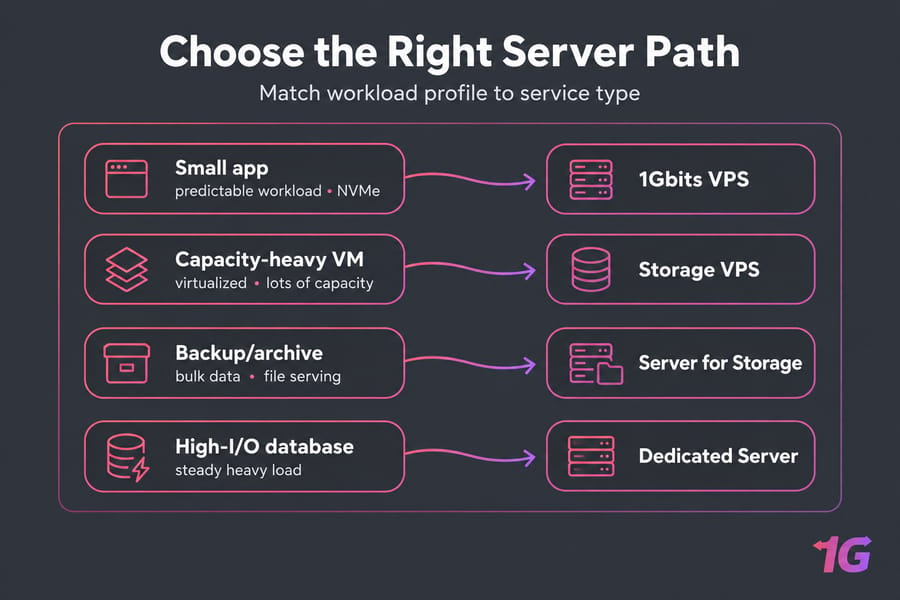
- Small or medium predictable workloads: an NVMe 1Gbits VPS.
- Virtualized workloads that need lots of capacity: a storage VPS.
- Bulk data, backups, file serving: a dedicated server for storage.
- High I/O or steady heavy load: a dedicated server. After you deploy it, optimize dedicated server performance to get the most out of it.

Leave A Comment