
Bare metal server backup is the process of creating recoverable copies of a physical server's operating system, applications, settings, and data so the entire machine can be restored after failure, corruption, or attack. Unlike simple file backups or VM snapshots, bare metal backup supports full system recovery on the same — or replacement — hardware. That's the whole point. You're not just copying files. You're capturing the machine.
I've watched teams lose entire weekends to a backup they thought was complete. It wasn't. They had the database. They didn't have the boot loader, the network configs, or the licensing keys for the app stack. Three days of downtime. So before you trust your current setup, read through this. We'll cover what to back up, how to do it on Linux and Windows, the tools that actually support bare metal restore, and the planning that separates a real recovery from a panicked rebuild.
Bare metal backup in plain English
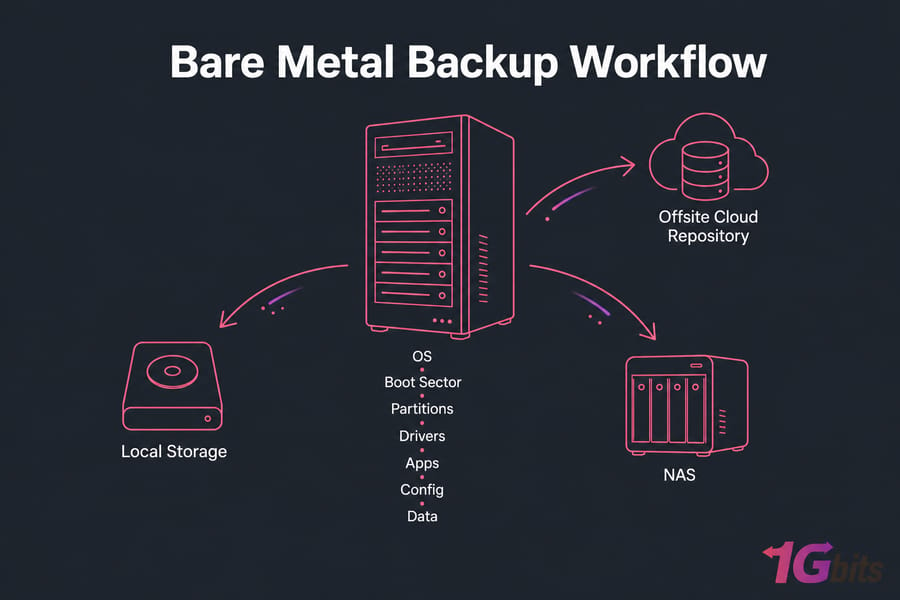
A bare metal backup captures the full state of a physical machine — operating system, boot sector, partitions, drivers, installed apps, configuration files, and data — into a recoverable image. When disaster hits, you can boot a rescue environment, point it at that image, and rebuild the entire server. Same server. Different server. Doesn't matter (much). The OS comes back as it was.
That's different from a file backup, which only grabs documents and folders. And it's different from a VM snapshot, which only works inside a hypervisor. Bare metal means no hypervisor in the middle. You're talking directly to the hardware.
What's actually included in a full physical server backup
- The boot loader (GRUB on Linux, BCD on Windows) and EFI partition
- All system partitions and OS files
- Installed applications and their dependencies
- Configuration files — /etc on Linux, registry on Windows
- Databases (captured in a consistent state, not mid-write)
- User data, websites, mail stores, logs
- Network settings, firewall rules, SSL certificates
- Drivers and hardware-specific kernel modules
Bare metal restore vs file restore
File restore is granular. Lost a single config? Pull it back. Bare metal restore is total. The server died, the disk is fried, and you need everything back on new hardware by morning. Both matter. You'll usually want both — image-based recovery for catastrophic failures, file-level for the "I deleted the wrong directory at 2am" moments. For background on the hardware side, see our take on bare metal vs dedicated server.
Why Dedicated Server Backup Is Non-Negotiable
Here's the uncomfortable truth: dedicated server owners carry more backup responsibility than anyone else. Shared hosting customers get backups (sort of) from their provider. VM users have snapshots and live migration. You? You own the metal. The buck stops at your console.
The failure scenarios are familiar but worth listing:
- Hardware failure — RAID controllers die, disks throw bad sectors, PSUs blow at the worst times
- Ransomware — encrypts every file it can reach, including your "backup" sitting on a mounted share
- Accidental deletion — the classic
rm -rfwith a misplaced space - Failed updates — kernel upgrade bricks the boot process
- Filesystem corruption — power loss mid-write, journal damage
And downtime is expensive. Even small ecommerce sites lose four-figure sums per hour offline. Game servers lose players who don't come back. Internal business apps stall payroll, billing, support. The cost isn't just lost revenue — it's customer trust, which takes far longer to rebuild than a server does.
RAID gives you uptime. Backup gives you recovery. They are not the same thing, and one cannot replace the other.
If you're serious about resilience, pair your backup plan with our guide on bare metal server security best practices and a documented server disaster recovery plan.
Bare Metal Backup vs Snapshots vs RAID vs Replication
This is where most people get confused — and where most failed recoveries start. Each of these protects against something different. None of them, alone, is enough.
| Protection Type | Hardware Failure | Ransomware | Accidental Deletion | OS Corruption | Offsite Friendly |
| RAID | Partial (disk only) | No | No | No | No |
| Snapshot | No | Sometimes | Yes (recent) | Yes (recent) | Rarely |
| Backup | Yes | Yes (if offsite/immutable) | Yes | Yes | Yes |
| Replication | Yes | No (copies the damage) | No (copies the deletion) | No (copies the corruption) | Yes |
RAID keeps the server running when a disk dies. That's availability, not data protection. Snapshots are fast point-in-time captures, but they usually live on the same storage — encrypt that storage with ransomware and your snapshots go with it. Replication mirrors your server to another location in near real-time, which is great for failover, terrible for "we just got ransomwared at 3pm and it spread to the replica by 3:01pm."
For deeper context on RAID, see what RAID controllers do and our RAID levels comparison.
The right answer? Layer them. RAID for uptime. Snapshots for quick rollback. Backup for survival. Replication for geographic disaster recovery if your budget allows.
What to Include in a Full Server Backup Plan
If you can't list every component of your server from memory, you can't back it up reliably. Here's the working checklist I've used for years.
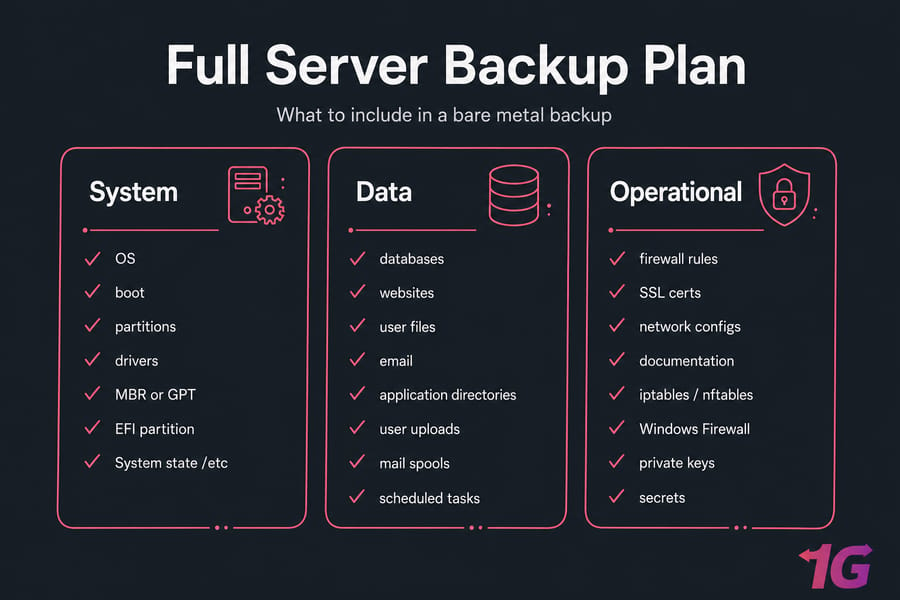
System layer
- Partition table and boot sector (MBR or GPT)
- EFI partition on UEFI systems
- Operating system, kernel, drivers
- System state (Windows) or
/etctree (Linux)
Data layer
- Databases — and capture them with a consistent dump or app-aware backup, not a raw file copy mid-transaction
- Websites, application directories, user uploads
- Mail spools, message queues, cache that actually matters
- Application config files (often outside the standard locations)
- Scheduled tasks: cron jobs on Linux, Task Scheduler on Windows
Operational layer
- Firewall rules (iptables, nftables, Windows Firewall)
- Static IP and network interface configs
- SSL certificates and private keys (store separately, encrypted)
- Secrets — API keys, license files, SSH keys
- Infrastructure documentation: who owns what, how it boots, where the rescue media lives
One thing people forget: don't blindly back up every cache and temp directory. You'll bloat your backup repository and slow your restore. Exclude things like /tmp, browser caches, package manager caches, and rotating log archives that don't matter for recovery.
For Linux scheduling, our walkthrough on scheduling automatic backups for Linux server is a good follow-up.
Image-Based vs File-Level: Which Backup Method Wins?
Short answer: both, used together. Long answer follows.
| Method | What It Captures | Best For | Recovery Speed | Main Limitation |
| Full image | Entire disk, block by block | Disaster recovery baseline | Fast (single restore) | Large storage footprint |
| Incremental image | Changes since last backup | Daily ongoing protection | Slower (chain restore) | Broken chain = lost recovery |
| Differential image | Changes since last full | Weekly mid-point backups | Moderate | Grows large between fulls |
| File-level | Individual files/folders | Granular restores | Very fast per file | No OS recovery |
| Replication | Live mirror of state | Failover/HA | Near-instant | Copies corruption too |
Block-level vs file-level
Block-level backups read raw disk blocks. They're fast, capture everything (including the boot sector), and are ideal for image-based recovery. File-level backups walk the filesystem and copy files individually. Slower, but you can pluck a single config out of last Tuesday's backup without restoring an entire server.
The pro tip most people skip: combine them. Take a weekly full image. Take daily incrementals. Run a separate file-level or app-aware backup on your databases every hour (or every 15 minutes for transaction logs on busy systems). That gives you fast disaster recovery and fine-grained restoration.
The 3-2-1-1-0 rule
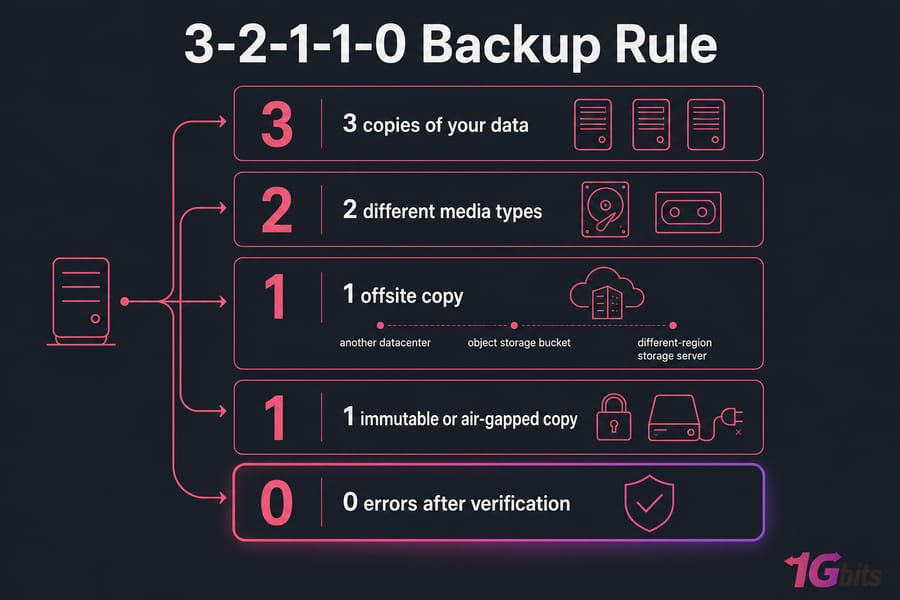
The classic 3-2-1 has evolved. Today's version: 3 copies of your data, on 2 different media types, with 1 offsite, 1 immutable or air-gapped, and 0 errors after verification. That last zero is the one teams skip and it's the one that bites hardest.
For your offsite copy, you've got options: another datacenter, an object storage bucket, or a dedicated storage server in a different region. Also see our overview of cold data storage for long-term retention thinking.
Building a Recovery Strategy Around RPO and RTO
Backup frequency is the wrong question to start with. The right question: how much data can you afford to lose, and how long can you stay down? Those are RPO and RTO.
- RPO (Recovery Point Objective) — the maximum acceptable data loss, measured in time. RPO of 1 hour means you can lose up to 1 hour of data.
- RTO (Recovery Time Objective) — the maximum acceptable downtime. RTO of 4 hours means you must be back online within 4 hours.
Map these to your workloads:
| Workload | Typical RPO | Typical RTO | Backup Cadence |
| Static marketing site | 24 hours | 8 hours | Daily file + weekly image |
| Ecommerce platform | 15 minutes | 1 hour | Hourly DB + daily image |
| Database-heavy SaaS | 5 minutes | 30 minutes | Continuous TX logs + daily image |
| Game server | 1 hour | 2 hours | Hourly state + daily image |
| Internal business app | 4 hours | 8 hours | 4-hour incremental + weekly full |
Retention examples
A reasonable mid-market retention policy looks like this: daily backups kept for 7 days, weekly backups kept for 4 weeks, monthly backups kept for 12 months. Enterprise or compliance-heavy environments often extend monthlies to 7 years. Just remember — retention costs storage, and storage costs money.
Test your restores. Seriously.
A backup you've never restored is a hypothesis, not a backup. Run a full restore drill at least quarterly. After any major infrastructure change, run another. Document who owns recovery, where the credentials live, and what the runbook looks like at 3am when the person who built the system is asleep.
Linux and Windows Server Backup Workflows
The two camps need different toolchains. Pretending otherwise is how people end up with half-working backups.
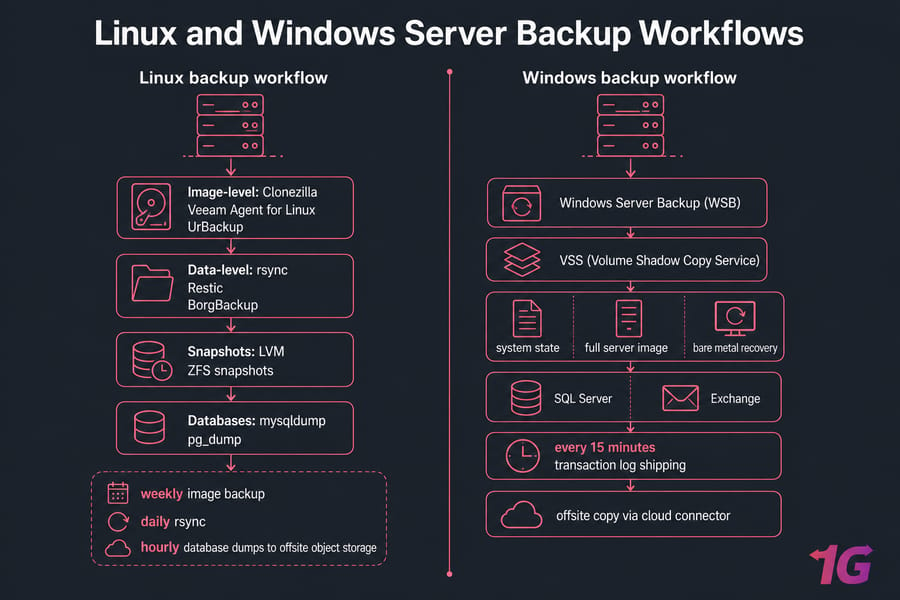
Linux server backup workflow
On Linux, you'll typically combine tools:
- Image-level: Clonezilla for cold backups, or Veeam Agent for Linux / UrBackup for hot image-based protection
- Data-level: rsync for incrementals, Restic or BorgBackup for deduplicated, encrypted offsite copies
- Snapshots: LVM or ZFS snapshots for crash-consistent point-in-time captures before backup runs
- Databases:
mysqldump,pg_dump, or app-aware plugins — never just copy the raw data files of a running database
The hybrid pattern I recommend: weekly Clonezilla or Veeam image backup, daily rsync of changed data, hourly database dumps shipped to offsite object storage with Restic. It's not glamorous, but it works.
Windows Server backup workflow
Windows has native bare metal recovery support, which makes life easier in some ways. Windows Server Backup (WSB) can capture system state, full server image, and bare metal recovery in one job. VSS (Volume Shadow Copy Service) handles application-aware consistency for SQL Server, Exchange, and other VSS-aware apps.
The typical Windows pattern: nightly bare metal recovery backup via WSB or Veeam Agent, application-aware backups for SQL Server every 15 minutes (with transaction log shipping), and an offsite copy via cloud connector. Boot recovery from Windows installation media, choose "Repair," select system image recovery, point at your backup. For more detail, work through our dedicated Windows Server backup guide.
The hybrid approach
Whether you're on Linux or Windows, the winning pattern is the same:
- Periodic image backup (weekly full, daily incremental) for fast disaster recovery
- Frequent app-aware data backup for databases and stateful apps
- At least one immutable offsite copy
Running both flavors? Look at our Linux dedicated server and Windows dedicated server options for hardware that fits each workflow.
The Best Bare Metal Backup Software (Honest Comparison)
I'll be blunt: most "best backup software" lists are affiliate-driven. Here's a tool matrix based on what each one actually does, with the trade-offs nobody mentions.
| Tool | OS Support | Bare Metal Restore | App-Aware | Offsite | Best For |
| Veeam Agent | Linux + Windows | Yes | Yes | Yes | Mid-market to enterprise |
| Acronis Cyber Protect | Linux + Windows | Yes | Yes | Yes | All-in-one with security features |
| Bacula | Linux + Windows | Yes (with config) | Limited | Yes | Open-source enterprise scale |
| UrBackup | Linux + Windows | Yes | Limited | Manual | SMB, self-hosted, free |
| Clonezilla | Mostly cold-boot | Yes | No | Manual | One-shot disk imaging |
| Windows Server Backup | Windows only | Yes | VSS-aware | Limited | Free Windows baseline |
| Restic / Borg | Linux + Windows | No (file only) | No | Yes | Encrypted offsite data backup |
| rsync | Linux primarily | No | No | Manual | File-level sync only |
A note on rsync: I love rsync. I use it daily. But rsync alone is not a bare metal backup solution. It copies files. It doesn't capture the boot loader or the partition layout. If you're relying on rsync as your only backup, you have a file backup — not bare metal protection.
What to look for
- Does it actually support bare metal restore — including to dissimilar hardware?
- Does it offer application-aware backups for your databases?
- Built-in encryption (AES-256 at minimum) and deduplication?
- Scheduling and central management for multi-server fleets?
- Native offsite/cloud target support?
- Does it verify backups automatically, or do you have to script it?
Common Bare Metal Backup Mistakes
I've seen all of these in production. Multiple times. Don't be the next case study.
- Storing backups on the same physical server. Disk dies, backup dies with it. This shouldn't need saying. It does.
- Never testing restores. The backup runs green every night. Restore fails because the agent version changed six months ago and nobody noticed.
- No encryption. Your offsite backup is sitting in someone else's datacenter. Encrypt it. AES-256, keys stored separately.
- No retention pruning. Backups pile up, storage fills, jobs start failing silently. Define retention. Enforce it.
- Backing up databases as raw files. A backup of a running MySQL data directory is a corrupted database in waiting. Use
mysqldump, Percona XtraBackup, or a VSS-aware tool. - Backing up corrupted systems repeatedly. If your system has a problem and you keep overwriting good backups with bad ones, you're not protected — you're just storing the disease.
- Relying only on RAID or replication. Already covered, but worth repeating.
- No documented rescue access. When the server is down, you need IPMI/iDRAC/KVM credentials, rescue media, and the runbook. Document it now, not at 3am.
If security is on your mind, our guides on securing your servers pair well with this.
When Managed Support Makes More Sense
Some teams should not be managing backups manually. If any of these sound like you, consider managed infrastructure:
- You're the only sysadmin and you're on vacation next month
- You've never successfully restored a full bare metal backup
- Your backup runs are silently failing and you only check them monthly
- You need offsite storage in a different geographic region for compliance
- You don't have a documented recovery runbook
1Gbits offers managed dedicated server hosting with backup-ready infrastructure, plus storage server solutions for your offsite repository. If you'd rather run the metal yourself, our bare metal and dedicated servers come with full root access and 24/7 support when you need help.

Leave A Comment