
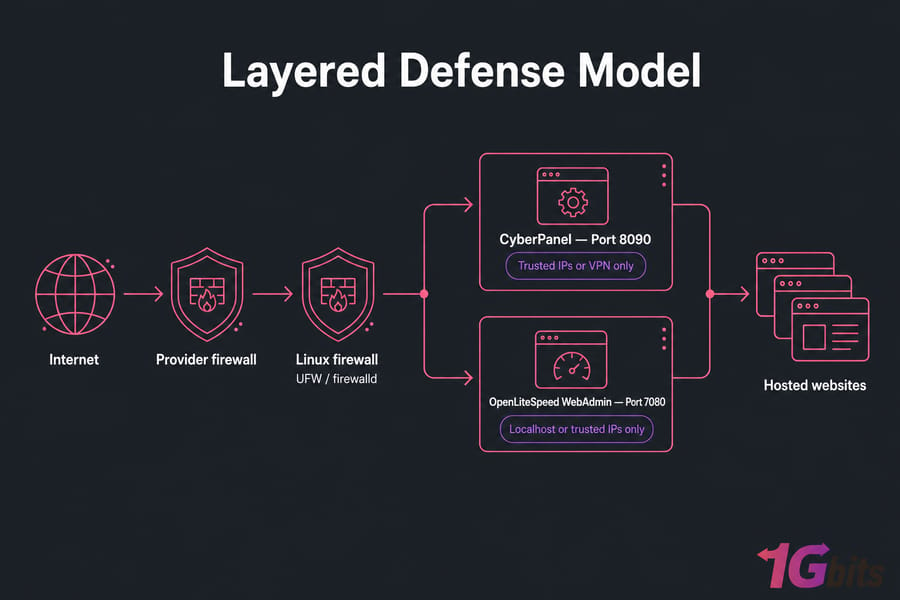
Learning how to secure CyberPanel isn't about one setting. It's about layers. The panel account, the management network, the Linux host underneath, and every website you host — each one is a door someone could push on. Get one wrong and the rest barely matter.
How to Secure CyberPanel: What to Lock Down First
Here's the honest truth I tell people: no control panel is "secure by default forever." CyberPanel security means keeping the software patched, restricting who can reach it, watching the logs, and having backups you've actually tested. Skip any of those and you're gambling.
CyberPanel should run on an isolated Linux VPS with root access, dependable snapshots, and a provider console. Those three things let you patch, restrict network access, and recover safely when a firewall or SSH change blows up in your face. And it will, occasionally.
For broader context on hardening the underlying server, start with these VPS security fundamentals. If you're still deciding between panels, our take on CyberPanel vs cPanel is worth a read.
Which CyberPanel ports should be public?
Most beginners leave the management ports wide open. Big mistake. Here's the exposure I recommend.
| Service | Port | Recommended Exposure |
| HTTP | 80/TCP | Public if hosting websites |
| HTTPS | 443/TCP | Public |
| CyberPanel | 8090/TCP | Trusted IPs or VPN only |
| OpenLiteSpeed WebAdmin | 7080/TCP | Localhost or trusted IPs only |
| SSH | 22/TCP | Trusted IPs or rate-limited |
| DNS | 53/TCP+UDP | Public only if authoritative DNS |
| Database | 3306/TCP | Local/private network only |
Reducing exposed services beats fiddling with port numbers every time. Changing a port just cuts scanner noise — it doesn't fix a vulnerability.
Back Up First, Then Check for Compromise
Before you touch a single setting, give yourself a way back. Take a provider snapshot if your host supports it, then create a separate application and data backup. Store at least one copy off the CyberPanel server. Open the backup file to confirm it's actually readable — an unverified backup isn't a backup.
Now write down the basics: OS release, CyberPanel version, public IP, which services are running, and your current firewall state. Then check the official CyberPanel advisories and the CISA Known Exploited Vulnerabilities catalog for anything affecting your version.
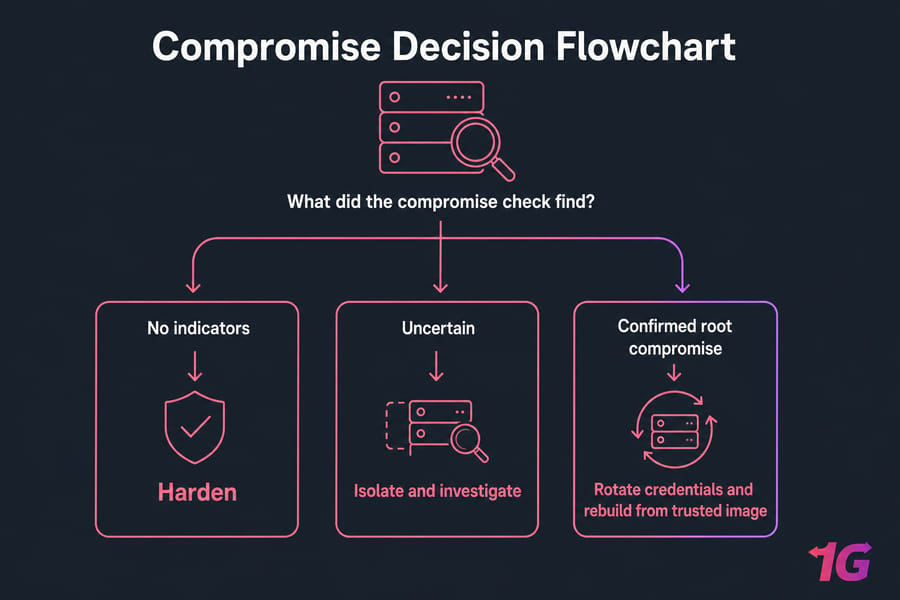
While you're at it, look for trouble: unexpected admin accounts, weird cron jobs, unfamiliar SSH keys in authorized_keys, strange processes, recently modified web files, or outbound connections you can't explain. If root looks compromised, don't try to scrub it clean. Rebuild from a trusted image instead. A password change won't fix a rooted box — full stop. Here's what to do if your VPS is hacked.
Update CyberPanel and the Linux OS
Patching closes the holes attackers already know about. Check your installed CyberPanel version against what's available, read the release notes for breaking changes, and use only the upgrade method in the current official CyberPanel documentation. Back up first, always.
For the operating system, keep the commands separate by distro — mixing them causes chaos:
# Ubuntu/Debian (run as root or sudo)
apt update
apt upgrade

# AlmaLinux / Rocky Linux
dnf check-update
dnf update
Kernel or core library updates usually need a reboot to take effect. After updating, confirm the panel login, your websites, mail, DNS, and scheduled jobs all still work. For a deeper walkthrough, see how to update your Linux distribution. Automatic security updates are worth enabling on most setups, but test them on a non-critical box first.
Secure CyberPanel Login and Accounts
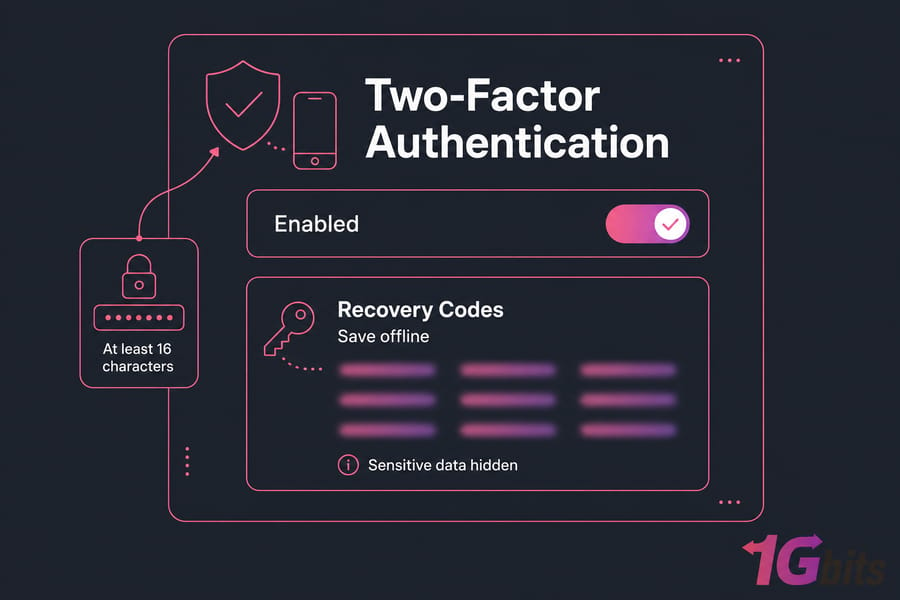
Change the initial admin credentials immediately. Use a unique, generated password of at least 16 characters — never reuse one. Store it in a password manager, and if you need help, here's how to create a strong, unique password.
Enable two-factor authentication if your CyberPanel version supports it, and save the recovery codes offline. Don't share the main administrator login. Instead, create named accounts with only the permissions each person needs — owner, staff, developer — and remove dormant accounts when someone leaves.
Login throttling and Fail2ban help, but they supplement strong auth, they don't replace it. And a CAPTCHA alone is not real protection. Log out after you're done, never ignore TLS warnings, and keep the panel off the open internet.
Protect Ports 8090 and 7080
Even a strong password shouldn't guard an interface every IP on earth can reach. Port 8090 is the CyberPanel panel; 7080 is the OpenLiteSpeed WebAdmin. Neither belongs open to the world.
Lockout warning: Always permit SSH from your trusted IP before enabling restrictive rules. Keep a second SSH session open and confirm the provider console works first.
On Ubuntu with UFW, allow your address before locking things down:
# Ubuntu (sudo)
ufw allow from YOUR_TRUSTED_IP to any port 22
ufw allow 80,443/tcp
ufw allow from YOUR_TRUSTED_IP to any port 8090
ufw allow from YOUR_TRUSTED_IP to any port 7080
ufw enable
On AlmaLinux or Rocky with firewalld, use a source-restricted zone for the management ports instead of opening them globally. Provider-level filtering can block junk before it ever reaches the host, so confirm you can manage network rules independently from the local firewall. One catch: CyberPanel manages some firewall settings itself, so watch for conflicts between rule managers. See our full guide on how to configure a firewall on your VPS.
If your VPS has a public IPv6 address, remember your rules must cover IPv6 too. Restricting IPv4 while leaving the same service open on IPv6 fixes nothing.
Need a Clean VPS for a Secure CyberPanel Deployment?
Start with isolated resources, full root access, fast storage, and 24/7 support. A CyberPanel VPS hosting plan gives you a purpose-built environment while keeping control over firewall rules, SSH, and updates.
Harden SSH Access
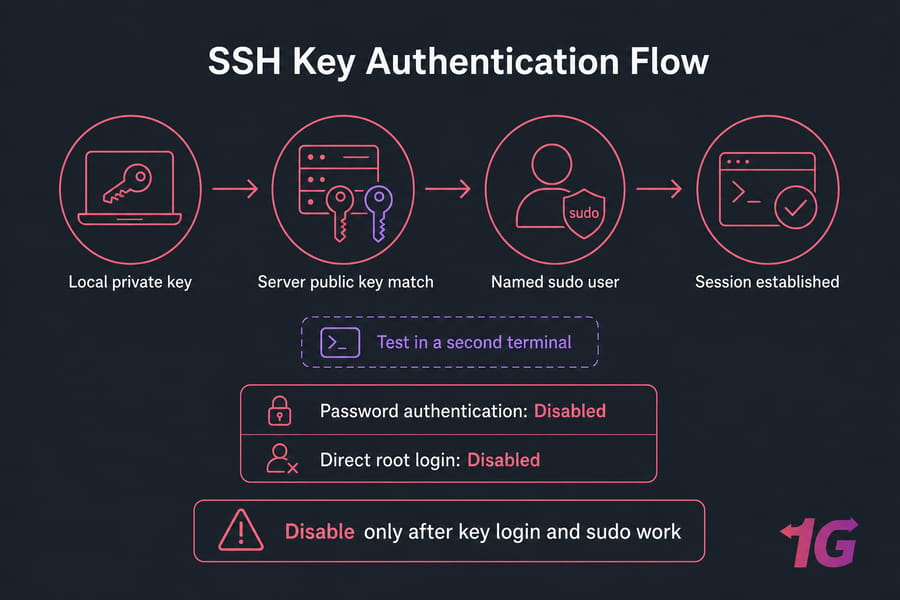
SSH is root-level access to the whole box, so treat it carefully. Generate a key locally (here's how to generate an SSH key), copy the public key to a named sudo user, and test it in a second terminal before changing anything.
Only after key login and sudo both work should you disable direct root login safely and turn off password authentication. Validate your config before reloading:
sshd -t   # syntax check, must return nothing
systemctl reload sshd
Add Fail2ban to slow brute-force attempts. A passphrase protects a stolen private key, and changing the SSH port mostly just reduces log noise. Keep that provider console handy for recovery.
Enable SSL and Protect Hosted Websites
Give the panel a dedicated hostname like panel.example.com, point its A/AAAA record correctly, and issue a trusted certificate through CyberPanel's current workflow. Don't bypass certificate warnings — ever. Verify the hostname, issuer, chain, and expiry.
Panel SSL and website SSL are different things. One protects your admin session; the other protects visitor traffic to each hosted site. You need both. Our guide to install a Let's Encrypt certificate covers the fundamentals.
Enable ModSecurity with the OWASP Core Rule Set where supported, but deploy blocking rules gradually and watch for false positives. A WAF filters malicious requests; it's not a patching substitute. Same with malware scanners — detection isn't prevention.
Use SFTP instead of FTP, never assign 777 permissions, and isolate sites with separate users and database credentials. Keep WordPress core, themes, and plugins current, and delete unused sites and staging copies. See how to secure WordPress on a VPS.
Backups and Monitoring
Follow a 3-2-1 approach: multiple copies, different storage, at least one off-server. Never keep your only backup under the same root account you're trying to protect, and encrypt anything sensitive.
| Frequency | Task |
| Daily | Application/database backup |
| Weekly | Full backup to offsite storage |
| Monthly | Restoration test |
Snapshots are great for rollback but often share the same failure domain, so don't call a snapshot your backup. Set up automated jobs following our guide to schedule automatic Linux backups. Then review Linux logs — auth logs, CyberPanel activity, OpenLiteSpeed and web errors, plus Fail2ban events. Add alerts for disk usage, certificate expiry, service outages, and repeated login failures.
If you'd rather not run patching, firewalls, and recovery yourself, a managed VPS option handles the server layer for you.
Verify Your CyberPanel Security
Don't assume — test. List listening services and match each port to a real service:
ss -tulpnThen scan the public IP from another machine to confirm 8090 and 7080 are unreachable from untrusted networks. Learn the tool via our check open ports on Linux guide.
| Test | Expected Result |
| External Nmap scan | 8090, 7080 filtered/closed |
| Root SSH login | Denied |
| Panel SSL check | Valid chain, correct host |
| 2FA recovery | Works with saved codes |
| Backup restore | Site + DB restore cleanly |
One clean scan isn't permanent proof. Rerun these checks monthly and after every major update.
Common CyberPanel Security Mistakes
| Mistake | Risk | Fix |
| 8090/7080 open globally | Panel takeover | Restrict to trusted IPs/VPN |
| Outdated CyberPanel | Known exploits | Patch on a schedule |
| Firewall without recovery route | Lockout | Allow SSH first, keep console |
| Public MySQL | Data theft | Bind to localhost |
| Local-only backups | Total loss on compromise | Keep offsite copies |
| Trusting a rooted server | Persistent access | Rebuild from trusted image |
For the wider picture, our Linux server security guide ties these habits together.
Build CyberPanel on a Server You Can Control
Hardening is easier when the VPS gives you root access, reliable networking, and recovery-console access. Explore CyberPanel VPS hosting, or pick managed VPS hosting if you'd like help running the server layer.
People Also Read:

Leave A Comment