

Plex buffering and playback issues almost always come down to one question: is the server sending the file as it is, or converting it on the fly? Plex's own support docs put most buffering down to two causes. Either the network can't move the data fast enough, or the server can't transcode it fast enough. Smart TV apps, image-based subtitles, and remote relay connections are usually what push a stream into one of those two problems, so the fastest fix is to check whether the stream is Direct Play or Transcode, then adjust quality, networking, or server resources to match.
You'll need your Plex admin account, the Plex Web App dashboard, the device that's buffering, and access to your router or server (plus SSH or RDP if you host Plex on a VPS or dedicated server). If you're still setting things up, start with how to install Plex Media Server.
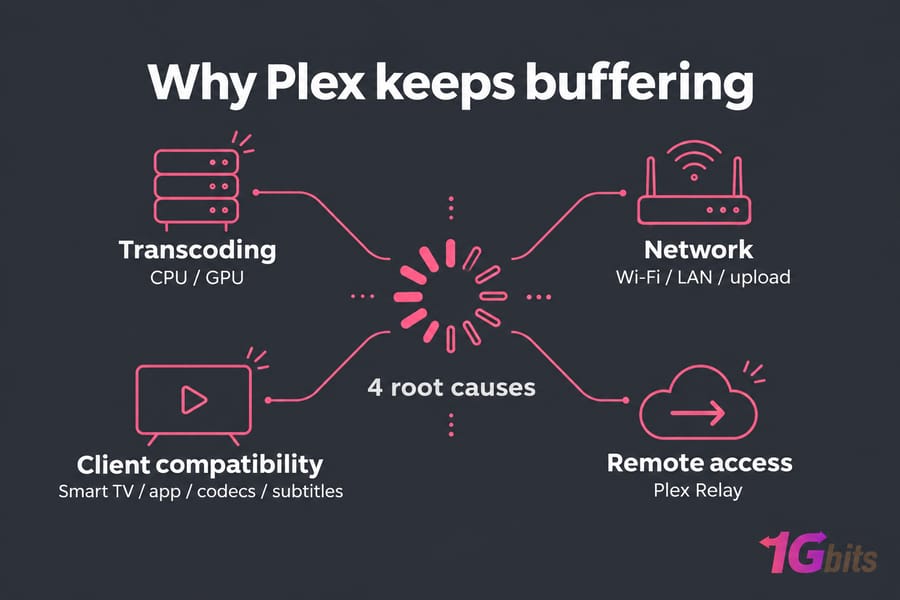
Why Plex keeps buffering: the 4 root causes
- The server can't transcode fast enough, so the CPU or GPU falls behind real time.
- The file's bitrate is higher than your Wi-Fi, LAN, or upload connection can carry steadily.
- The TV or app can't decode the video, audio, or subtitle format, so Plex transcodes it.
- Remote access falls back to Plex Relay, which caps bandwidth hard.
Plex's error text can mislead you. A message saying your connection isn't fast enough can appear on a local stream when the buffer runs dry, even though your internet connection has nothing to do with it.
Buffering vs stuttering vs playback error
Buffering means playback stops while a spinner refills the buffer, which points to throughput or transcode speed. Stuttering means the picture keeps moving but drops frames or judders, more often a client decode or refresh-rate issue. A playback error, or a conversion error such as "This server is not powerful enough to convert video," means Plex failed outright, and that's almost always a transcoding problem.
Why the same file can work on one device and fail on another
Each client supports a different set of codecs. A 4K HEVC movie with TrueHD audio might Direct Play on an Nvidia Shield and need a full transcode on an older smart TV. Same file, same server, completely different CPU load.
How to diagnose Plex playback issues before changing settings
- Open Plex Web, go to Settings, then Dashboard, and watch the Now Playing / Active Streams panel.
- Play the file that buffers on the device that buffers.
- Read the stream details. Each video, audio, and subtitle line shows Direct Play, Direct Stream, or Transcode, and the panel shows whether the connection is local or remote.
- Note whether the problem happens at home, away from home, or both.
- Play the same file on a second client, such as the web app or a phone.
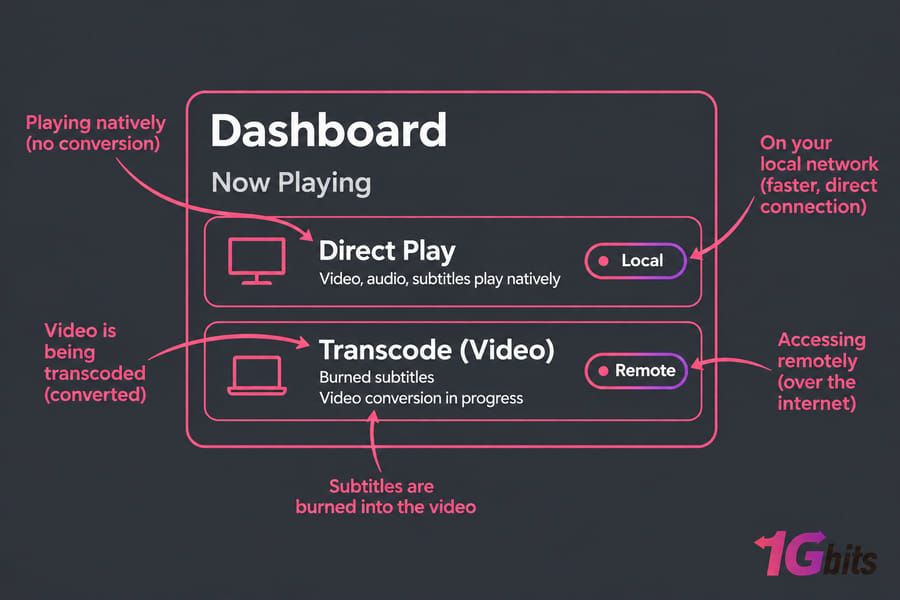
If only one device fails, look at that client's codec support or its app. If every device buffers on the same file, the problem is the server, the storage, or the network. If one file misbehaves everywhere, open its "..." menu and choose Analyze so Plex has accurate media info. On a Linux host, top or htop during playback shows whether the Plex Transcoder process is maxing out the CPU.
| Symptom | Likely cause | First test | Best fix |
| Buffers on every device, CPU near 100% | Transcode too heavy | Check Dashboard for Transcode | Fix compatibility, enable hardware acceleration |
| Smooth with subtitles off, buffers with them on | Subtitle burn-in | Switch to an SRT track | Use text subtitles |
| Fine at home, buffers remotely | Upload speed or relay | Check Remote Access status | Fix port forwarding, set upload speed |
| Buffers on one smart TV only | Client codec support | Play on web app or phone | Use a stronger client |
| Buffers on Wi-Fi, fine wired | Wireless throughput | Connect with Ethernet | Wire the client or improve the AP |
| Buffers only during scans or backups | Background load | Pause scheduled tasks | Reschedule maintenance |
| 4K buffers, 1080p is fine | Bitrate or 4K transcode | Check bitrate in stream info | Direct Play 4K or keep 1080p copies |
Direct Play vs transcoding: why Plex may be the bottleneck
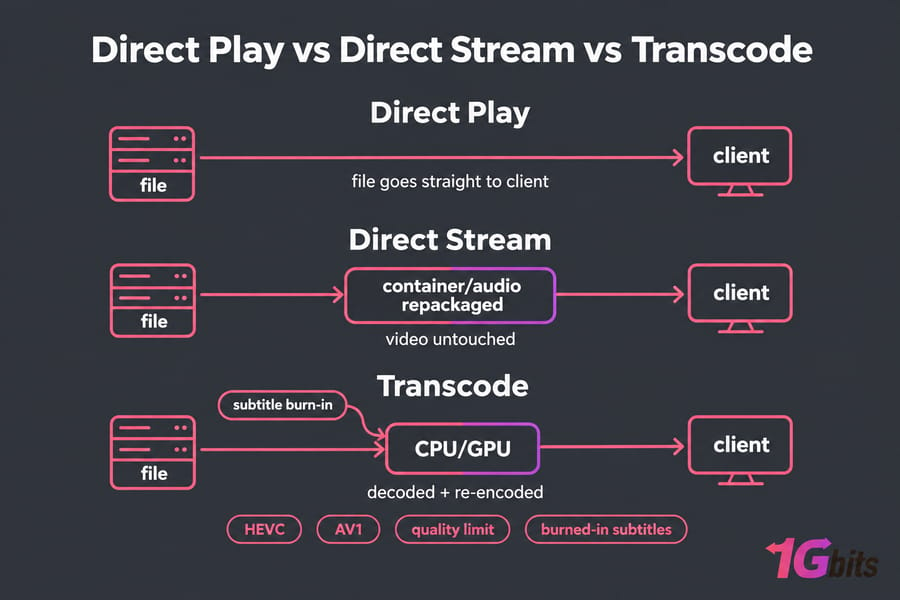
A Plex stream runs in one of three modes:
| Mode | Server load | Network demand | Typical trigger |
| Direct Play | Minimal | Full original bitrate | Client supports everything in the file |
| Direct Stream | Low | Near-original bitrate | Container or audio needs repackaging |
| Transcode | High (CPU or GPU) | Reduced bitrate | Video codec, subtitles, or quality limit |
Video transcoding means decoding every frame and encoding it again in real time. A modern CPU handles one 1080p H.264 transcode fine, but a 4K HEVC stream with burned-in subtitles can swamp the same machine. See Plex server hardware requirements for sizing.
What triggers video transcoding
The usual triggers are a codec the client can't decode (HEVC or AV1 on older devices), a bitrate above the client's quality setting, or subtitles that need burning in. Lowering the quality setting can backfire: choosing 4 Mbps on a 20 Mbps file tells Plex to transcode, which saves bandwidth but adds server load.
How audio transcoding causes playback issues
Audio transcodes are lighter, but TrueHD and DTS-HD tracks often get converted for TVs and soundbars that can't pass them through. On a weak NAS, a DTS-to-AAC conversion on top of other work can be enough to cause stalls.
How subtitles force burn-in and increase CPU load
When a client can't render a subtitle format, Plex draws the subtitles directly into the video. That forces a full video transcode even if the video itself would Direct Play.
If you see "server is not powerful enough to convert video," the transcode can't keep up with real time. Fix whatever is causing the transcode first and upgrade the hardware second.
Plex network bandwidth problems and local streaming fixes
Buffering on your local network has nothing to do with your internet plan. A Blu-ray remux can peak well above its average bitrate, and weak Wi-Fi, a mesh node two hops away, or a busy 2.4 GHz band can drop below that peak for a few seconds and drain the buffer. Plex also notes that very high bitrates can overwhelm the playback app's memory on some devices.
Wi-Fi vs Ethernet for Plex
Ethernet is the most reliable fix for local buffering. If a cable isn't practical, put the client on 5 GHz near the access point, or wire the server so only one side of the link is wireless.
Bitrate, upload speed, and why speed tests can mislead
An internet speed test measures your link to a nearby test server, not the path from your Plex server to your TV. Compare the file's bitrate (in Plex's media info) with the real throughput between the two devices. If those figures are new to you, read up on what Mbps means and what latency is.
Router, LAN congestion, and other background traffic
- Pause cloud backups, torrents, and large file copies during playback.
- Try a different switch port or access point to rule out failing hardware.
- Lower the client's quality setting for one test. If buffering stops, the network is your bottleneck.
Plex remote streaming buffering and relay mode fixes
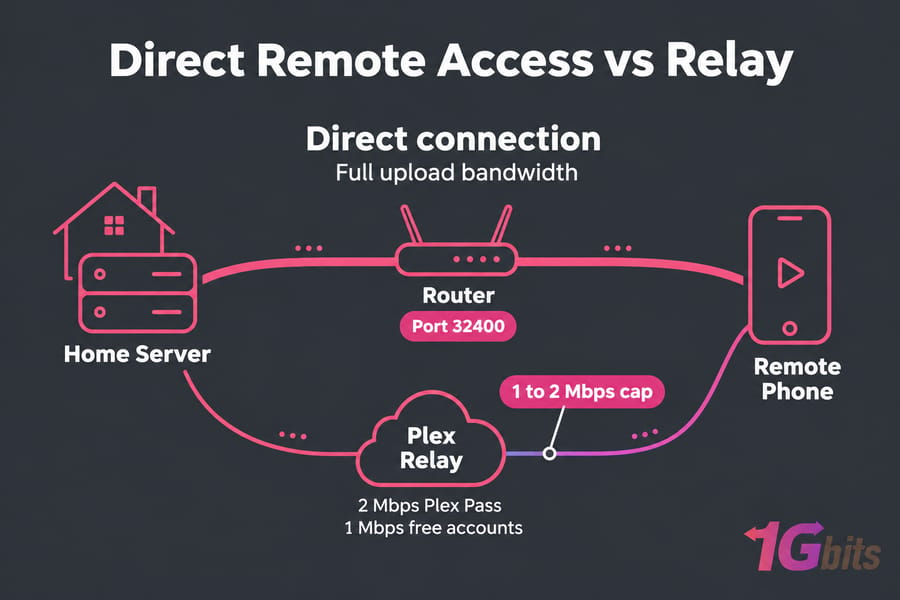
On remote streams, your home upload speed is the ceiling. A 1 Gbps download plan with 20 Mbps upload can't Direct Play a 40 Mbps 4K file to anyone outside your house.
How Plex Relay affects playback
When a client can't connect directly to your server, Plex routes the stream through its relay service. Relay is limited to 2 Mbps for Plex Pass users and 1 Mbps for free accounts, so nearly every relayed stream gets transcoded down to low quality. Soft, blocky video for remote users plus heavy CPU usage usually means relay.
Remote access settings to review
- Settings, then Remote Access, should show "Fully accessible outside your network." If it doesn't, forward port 32400 (the default) on your router.
- Enter your real measured upload speed in the Internet upload speed field.
- Set "Limit remote stream bitrate" below that upload speed, with headroom for several users streaming at once.
- Remote streaming of personal media now depends on Plex Pass or a Remote Watch Pass, so an account issue can look like a playback failure.
For a full walkthrough, see how to optimize Plex remote access.
Bandwidth and transcoding limits that can throttle streams
The server's own bandwidth and transcoding limits can pause playback if you allocate too little bandwidth per stream. If those look right and upload is still the constraint, hosting Plex in a data center with symmetric, high-bandwidth connectivity takes the home ISP out of the path.
Plex subtitle, codec, and container compatibility fixes
Smooth with subtitles off and buffering with them on means a burn-in transcode, and the subtitle format decides whether it happens.
Best subtitle formats for smoother playback
| Subtitle type | Format | Risk of burn-in | Best use |
| SRT | Text | Low | Default choice for most libraries |
| ASS/SSA | Styled text | Medium (depends on client) | Anime with styled signs |
| PGS | Image (Blu-ray) | High on many clients | Strong clients like Shield or Apple TV |
| VOBSUB | Image (DVD) | High | Replace with SRT where possible |
If an SRT version of an image-based track exists, use it.
HEVC, H.264, MKV, MP4, and client compatibility
H.264 plays almost everywhere. HEVC (H.265) and AV1 save space but depend on the client's hardware decoder. Containers matter less than people think: MKV and MP4 both work on capable clients, though some TV apps handle MP4 more reliably. If you remux or re-encode files yourself, install FFmpeg to do it without quality loss on the video track.
Smart TV codec limitations to watch for
Many TVs can't decode DTS or TrueHD, and some reject certain HEVC profiles or high-bitrate files. To isolate the problem, test the file with subtitles off, then with a different audio track, then as a lower-bitrate version, and finally on a different client.
Plex client device issues: smart TVs, streaming boxes, and web apps
Built-in smart TV apps tend to have weaker codec support and less memory than dedicated streaming boxes. If Plex buffers on only one TV, suspect the app before the server.
| Device type | Direct Play strength | Common issues |
| Nvidia Shield | Very broad, including lossless audio passthrough | Higher price |
| Apple TV 4K | Strong video support | Some lossless audio and image-subtitle handling varies |
| Roku / Fire TV | Good for H.264 and HEVC on newer models | Limited audio passthrough, image subtitles |
| Smart TV apps | Varies by brand and year | DTS/TrueHD, PGS, memory limits |
| Plex Web (browser) | Depends on the browser | Transcodes many HEVC and multichannel audio files |
When clearing app cache or updating the client helps
If a client that used to work starts buffering, update the app, clear its cache, reinstall it, and power-cycle the device. Auto-adjust quality and quality suggestions behave differently on each platform, so check the client's own playback settings instead of assuming they match the web app.
Plex server hardware transcoding fixes
If every client buffers on a file that has to transcode, the server is underpowered for the workload. Plex's support docs single out NAS devices here, because many use low-power CPUs built for file serving.
When the server is not powerful enough to convert video
Watch CPU usage during playback. If it stays pinned with one 4K transcode or several 1080p streams, you've hit the ceiling. Look for competing processes too, such as other containers, downloads, and backups. Put the transcoder temporary directory on fast storage with free space (NVMe is ideal), since a full or slow disk stalls transcodes.
Hardware transcoding and Plex Pass considerations
Hardware-accelerated streaming moves the encode to an Intel Quick Sync iGPU or an Nvidia GPU, which cuts CPU load dramatically. It requires Plex Pass. Enable it under Settings, then Transcoder, then "Use hardware acceleration when available." Your choice of OS for Plex Server affects how easily it detects the GPU.
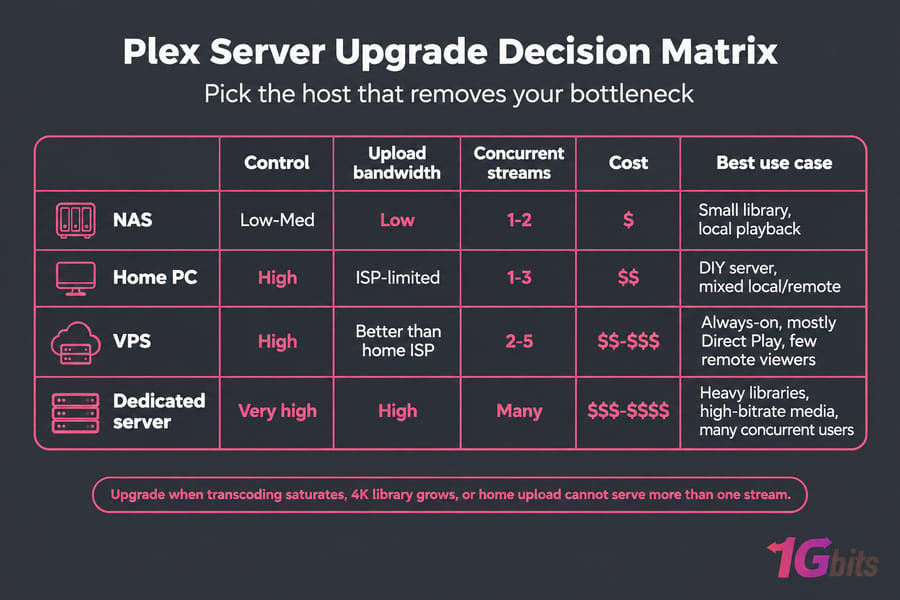
NAS vs mini PC vs VPS vs dedicated server for Plex
| Host type | Best for | Weakness | When to upgrade |
| NAS | Direct Play libraries at home | Weak CPU for transcoding | Frequent transcodes or 4K |
| Old desktop / mini PC | Cheap Quick Sync transcoding | Limited by home upload speed | Several remote users |
| VPS | Always-on, lighter remote streaming | Shared resources, usually no GPU | Heavy concurrent transcodes |
| Dedicated server | Large libraries, many users | Higher cost | Rarely; scale storage or bandwidth |
If you've confirmed a server-side bottleneck, such as a maxed NAS CPU or an upload link that can't feed your users, a data center host removes both at once. Compare Plex hosting options built for streaming workloads.
Advanced Plex settings that affect buffering
- Playback quality. Original or Maximum avoids quality-triggered transcodes but needs the full bitrate. Auto-adjust quality helps on unstable remote links and is unnecessary on a wired LAN.
- Transcoder quality. "Prefer higher speed encoding" lowers the CPU cost on weak servers.
- Transcoder temporary directory. Check that it exists, is writable, and has plenty of free space.
- Scheduled tasks. Thumbnail generation, intro detection, and media analysis load the CPU even when nobody is watching, so move them overnight.
- Antivirus. Real-time scanning of media and Plex data folders slows reads. Add exclusions for those folders instead of disabling protection.
If you host Plex yourself, the guides on VPS performance bottlenecks and how to improve your VPS server speed apply directly. DIY builders can also create a Linux streaming server from scratch, and once streams are stable, secure a Plex server that's exposed to the internet.
When to upgrade your Plex server or hosting
Settings changes stop helping when the transcoder keeps saturating, several remote users stream at once, your 4K library keeps growing, the NAS is always maxed out, or your home upload can't serve more than one stream. No host guarantees zero buffering, but the right one removes the bottleneck you've identified.
A VPS suits lighter, always-on Plex use, mostly Direct Play for a few remote viewers, with better network routes than a home ISP. You can buy VPS hosting sized to your library.
A dedicated server fits heavy libraries, high-bitrate media, and many concurrent users, with dedicated CPU, more storage, and NVMe for the transcode directory. Match RAM and cores to your peak transcode count, and bandwidth to the sum of your users' bitrates. For more on sizing, read about choosing the right server for streaming, or go straight to dedicated server hosting.
Final troubleshooting checklist for Plex buffering
Fix it now:
- Check the Dashboard and note Direct Play, Direct Stream, or Transcode.
- Play the same file on a second client.
- Turn subtitles off or switch to an SRT track.
- Try a different audio track.
- Connect the client with Ethernet.
- Confirm remote streams aren't on relay.
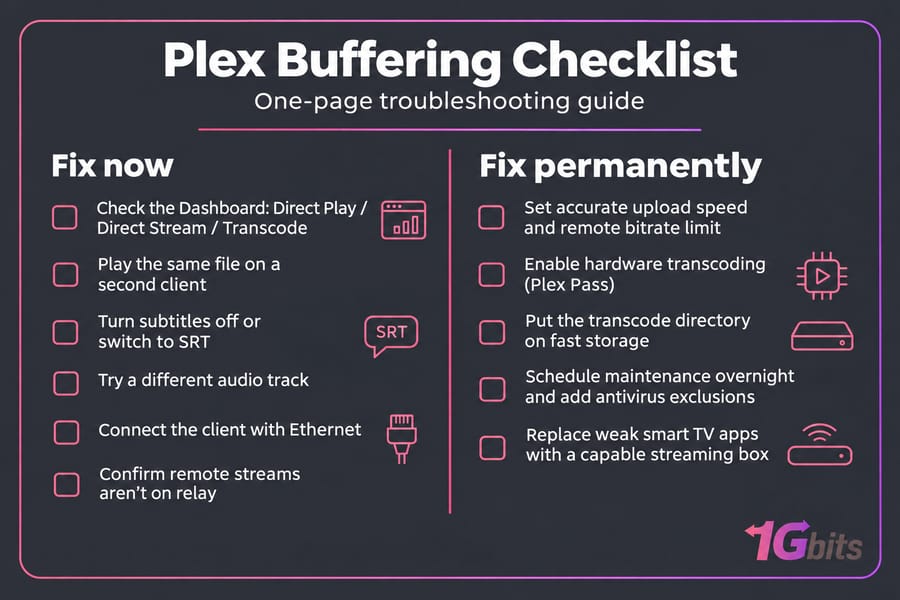
Fix it for good:
- Set an accurate upload speed and remote bitrate limit.
- Enable hardware transcoding (Plex Pass) and put the transcode directory on fast storage.
- Schedule maintenance tasks for overnight and add antivirus exclusions.
- Replace weak smart TV apps with a capable streaming box.
If transcodes still saturate the server after all of that, or your upload link can't serve your users, the hardware is the limit. A server for Plex with dedicated CPU, NVMe storage, and high-bandwidth connectivity gives you headroom for more users.

Leave A Comment