
If you want to know how to secure an Ubuntu server without locking yourself out, here's the short version: patch it, stop logging in as root, switch SSH to keys, close every port you don't need, and keep backups you've actually tested. Each step below works on Ubuntu 22.04 LTS and 24.04 LTS, and each one comes with a way to check it worked.
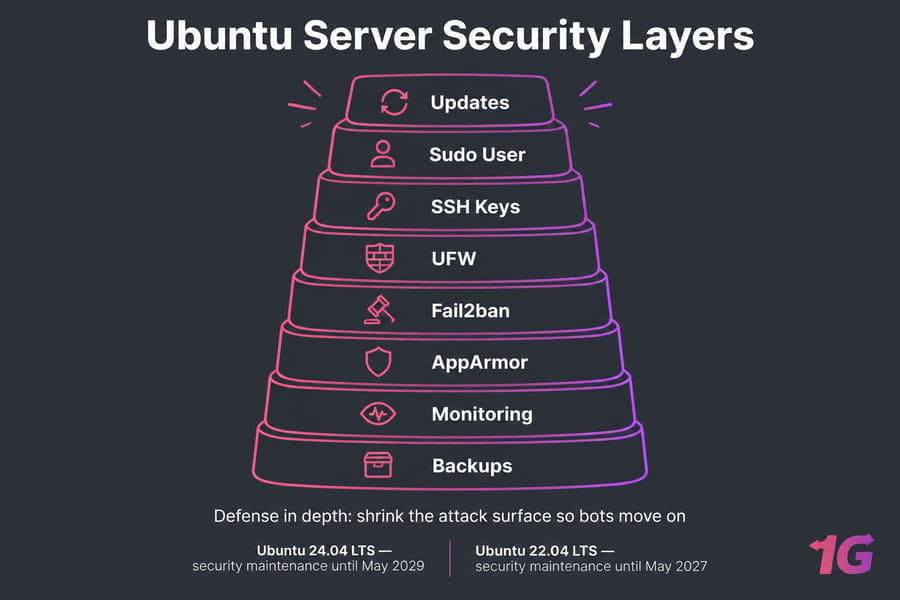
Quick answer: Update packages, create a sudo user, set up SSH keys, turn off root and password logins, enable UFW, install Fail2ban, confirm automatic security updates are running, check AppArmor, remove unused services, and keep tested backups.
Ubuntu Server Security Basics: What "Secure" Really Means
"Secure" doesn't mean unhackable. It means you've made a break-in costly enough that bots move on. Put a fresh VPS on a public IP and they usually start guessing SSH passwords within minutes.
Canonical's defaults are solid. AppArmor and automatic security updates are already on. But production servers still need you to shrink the attack surface yourself. And stay on a supported LTS release: 24.04 gets standard security maintenance until May 2029, and 22.04 until May 2027. New to the distro? Here's what Ubuntu is, and here are broader Linux server security best practices.
Before Ubuntu Server Hardening: Rollback First
- Keep a second SSH session open the whole time you're changing SSH or firewall settings.
- Take a snapshot, and find your provider's web console or rescue mode before you need it.
- Check your version:
lsb_release -a(more on how to check your Ubuntu version). - Write down your listening ports:
sudo ss -tulpn(see how to check open ports on Linux).
On production boxes, change one thing at a time during a maintenance window.
Step 1: Update Ubuntu and Apply Security Patches
sudo apt update && sudo apt upgrade -y
sudo apt autoremove
[ -f /var/run/reboot-required ] && echo "Reboot needed"
Reboot after kernel updates. See also: how to update Linux securely and the apt-get command guide.
Step 2: Create a Non-Root Sudo User
Least privilege, in practice: do your daily work as a normal user and only borrow root powers when you need them.
sudo adduser amin
sudo usermod -aG sudo amin
su - amin -c "sudo whoami"   # should print: root
Don't delete root. Just stop logging in as root. Need more detail? See how to create a user on Ubuntu, add a user to sudoers on Ubuntu, and what sudo privileges are.
Step 3: SSH Hardening on Ubuntu
Ubuntu's docs recommend Ed25519 keys. Create one on your local machine (SSH keys explained, or how to generate an SSH key):
ssh-keygen -t ed25519
ssh-copy-id amin@your_server_ip
Now test it from a new terminal (how to SSH). Warning: don't turn off password logins until this key login works.
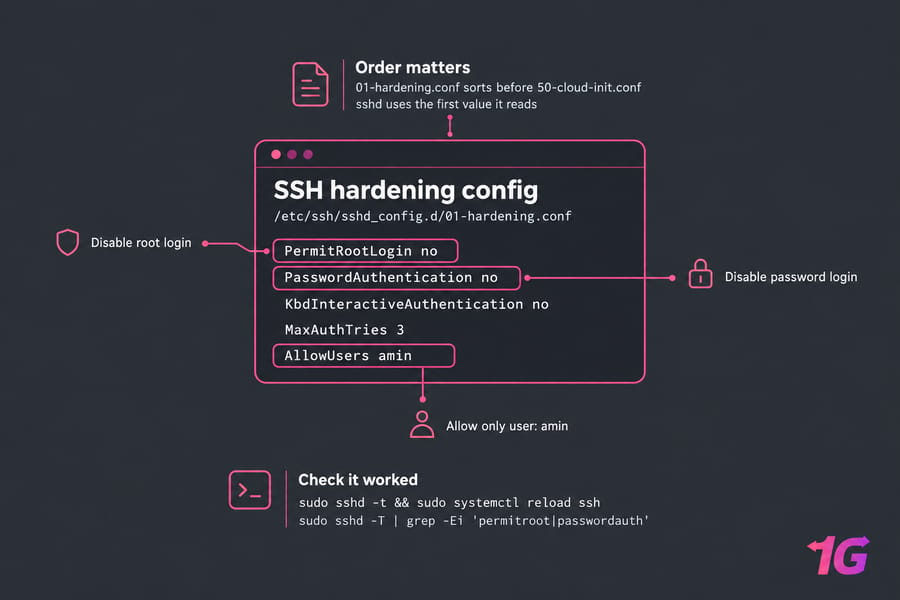
Here's a gotcha I see a lot. Cloud images often include 50-cloud-init.conf with PasswordAuthentication yes. sshd uses the first value it reads, so your drop-in file has to sort before that one:
# /etc/ssh/sshd_config.d/01-hardening.conf
PermitRootLogin no
PasswordAuthentication no
KbdInteractiveAuthentication no
MaxAuthTries 3
AllowUsers amin
sudo sshd -t && sudo systemctl reload ssh
sudo sshd -T | grep -Ei 'permitroot|passwordauth'Keep your old session open until a brand-new login works. For more, see how to disable root login in Linux. You can change the SSH port to cut log noise, but that hides SSH, it doesn't protect it. On 24.04, SSH uses socket activation, so a port change also needs systemctl daemon-reload and systemctl restart ssh.socket.
Step 4: Ubuntu Firewall Setup With UFW
UFW is Ubuntu's default firewall tool. Allow SSH before you enable it, or you'll cut off your own session.
sudo ufw default deny incoming
sudo ufw allow OpenSSH      # or: ufw allow from YOUR_IP to any port 22
sudo ufw allow 80,443/tcp
sudo ufw enable
sudo ufw status numbered| Port | Service | Public? |
| 22 | SSH | Yes, ideally IP-limited |
| 80 / 443 | HTTP / HTTPS | Yes |
| 3306 / 5432 / 6379 | MySQL / PostgreSQL / Redis | No, bind to localhost |
| 2375 | Docker API | Never |
A provider-level firewall adds a second layer. Guide: configure a firewall on your VPS.
Step 5: Install Fail2ban on Ubuntu
Fail2ban watches your logs and bans IPs that keep failing to log in. It works alongside keys and UFW. It doesn't replace either one.
sudo apt install fail2ban
# /etc/fail2ban/jail.local
[sshd]
enabled = true
maxretry = 5
findtime = 10m
bantime = 1h

sudo systemctl restart fail2ban
sudo fail2ban-client status sshd
Banned yourself? Run fail2ban-client set sshd unbanip YOUR_IP from the console. Also useful: fixing SSH connection refused errors and these common SSH commands.
Step 6: Confirm unattended-upgrades Works
unattended-upgrades is installed by default and applies security updates daily. Minimal images sometimes skip it, so check:
sudo dpkg-reconfigure -plow unattended-upgrades
cat /etc/apt/apt.conf.d/20auto-upgrades
ls /var/log/unattended-upgrades/
Allowed sources and auto-reboot rules live in /etc/apt/apt.conf.d/50unattended-upgrades.
Step 7: Verify AppArmor and Reduce Attack Surface
AppArmor is mandatory access control. Each program's profile limits which files and capabilities it can touch. It's on by default and even more central to the security model on 24.04. Check that it's running:
sudo aa-statusThen disable services you don't use and purge leftover packages. Keep phpMyAdmin, databases, Redis, and the Docker API off the public internet. One catch: ports Docker publishes skip UFW entirely, so bind them to 127.0.0.1 (Docker on Ubuntu). If you need CIS-level compliance, look at the Ubuntu Security Guide (USG).
Step 8: Monitoring, Port Audits, and Backups
| Task | Command / Action | Frequency |
| Audit listening ports | sudo ss -tulpn |
After every install |
| Failed SSH logins | journalctl -u ssh | grep Failed |
Weekly |
| Off-server backups | Files plus database dumps | Daily |
| Restore test | Restore to a test VPS | Monthly |
A backup you've never restored is just a guess. See the Linux logs guide, how to monitor network traffic in Linux, how to schedule automatic backups for a Linux server, and bare-metal server backup.
Common Ubuntu Security Mistakes
| Mistake | Safer Alternative |
| Relying on a changed SSH port | Keys + Fail2ban + UFW |
| Turning off passwords before testing keys | Test key login in a second session first |
| Services listening on 0.0.0.0 | Bind to 127.0.0.1 |
| Skipping updates because "it's stable" | Keep unattended-upgrades on |
| Never testing restores | Do a restore drill every month |
If the worst has already happened, here's what to do if your VPS gets hacked. For other operating systems, see how to secure servers.
Ubuntu Server Security Checklist and Next Steps
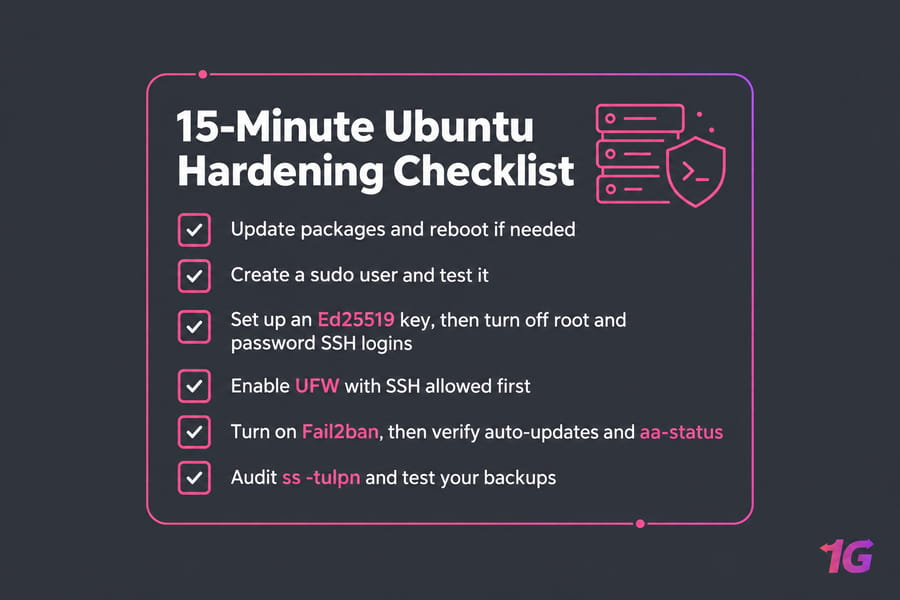
- Update packages and reboot if needed
- Create a sudo user and test it
- Set up an Ed25519 key, then turn off root and password SSH logins
- Enable UFW with SSH allowed first
- Turn on Fail2ban, then verify auto-updates and
aa-status - Audit
ss -tulpnand test your backups
That's how to secure an Ubuntu server for most workloads. Don't want to handle patching yourself? A managed VPS takes that off your plate. If you'd rather start clean with full root access, get an Ubuntu VPS or a Linux VPS.

Leave A Comment