
Whether you're troubleshooting network issues, securing a Windows server, or configuring your firewall, knowing how to check open ports in Windows is essential. Open ports can reveal services listening for connections and could indicate potential vulnerabilities if left unmanaged. In this guide, we'll walk you through everything from using CMD, PowerShell, and Task Manager to third-party tools like Nmap, helping you monitor and list all open ports in Windows 10, 11, and Server editions. If you're new to server management, start with our guide on Windows Server administration for the bigger picture.
If you need the fast version, use netstat -ano in Command Prompt, Get-NetTCPConnection in PowerShell, or open Resource Monitor for a GUI view. Those three methods cover most real-world cases, from checking port 443 on a web server to figuring out why port 8080 is already taken. I've tested the commands in this guide on Windows 11 and Windows Server 2022, and the same core workflow also applies to Windows 10, Server 2016, and Server 2019.
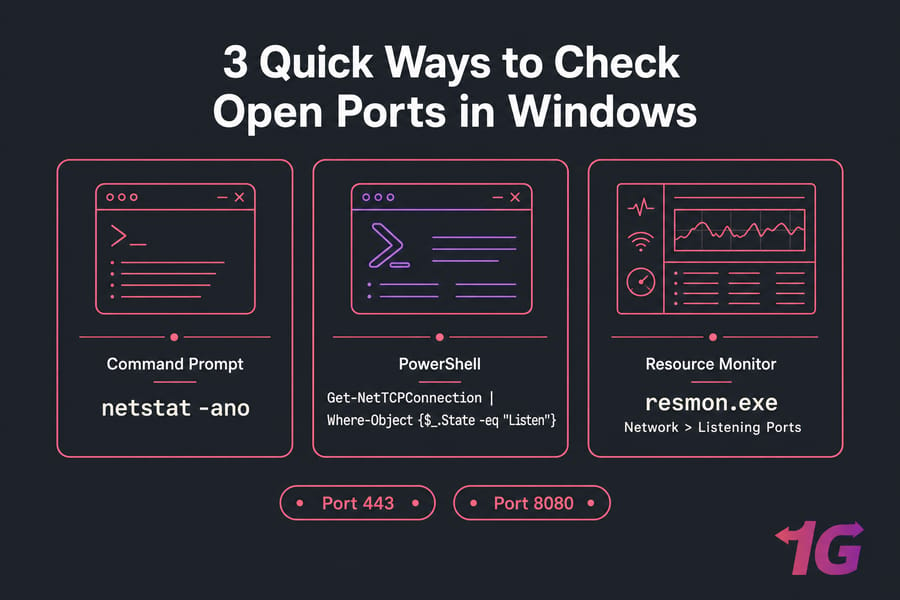
For a quick GUI path, press Start, type Resource Monitor, open it, then go to Network > Listening Ports.
If you're working on a server, especially a VPS, you may also want related reading on how to use Nmap and practical VPS security. Those matter once you've confirmed a port is exposed.
What Are Open Ports and Why Should You Check Them?
In the context of computer networks, open ports in Windows refer to communication endpoints that allow inbound or outbound connections to services running on your system. Each port is assigned a number and a specific protocol (TCP or UDP), and it's tied to a service or application. For example:
-
Port 80 (HTTP): Used by web servers to serve unencrypted web pages.
-
Port 443 (HTTPS): Commonly used for secure web communication.
-
Port 3389 (RDP): Allows remote access to a Windows machine using Remote Desktop Protocol.
While many of these ports are necessary for your system or server to function properly—especially on platforms like Windows VPS—they can become entry points for malicious activity if not monitored regularly. Attackers often scan systems for open ports to identify potential vulnerabilities. An unused but open port might be exploited to gain unauthorized access or disrupt services.
So what does "open" actually mean? In plain English, it usually means a service is available on that port and can accept traffic. But you'll see a few different states, and they don't all mean the same thing.
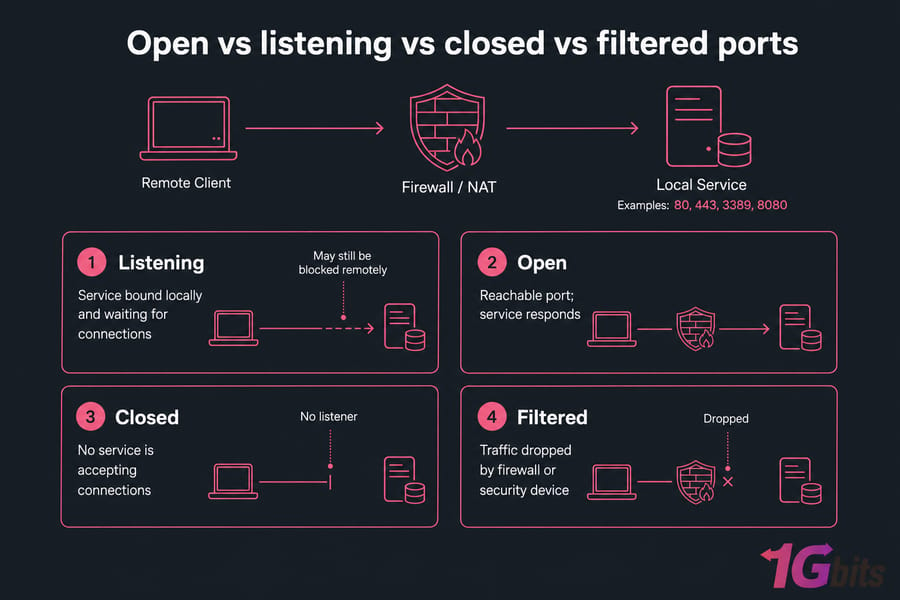
Open vs listening vs closed vs filtered ports
Listening means a local service has bound to the port and is waiting for connections. In Windows command output, this is the state you'll usually care about first.
Open often means the port is reachable and a service responds. Locally listening is one clue, but not the whole story. A port can be listening on localhost and still be blocked remotely by Windows Defender Firewall, NAT, or antivirus.
Closed means nothing is accepting connections on that port. The system may respond with a reset or simply show no service bound there.
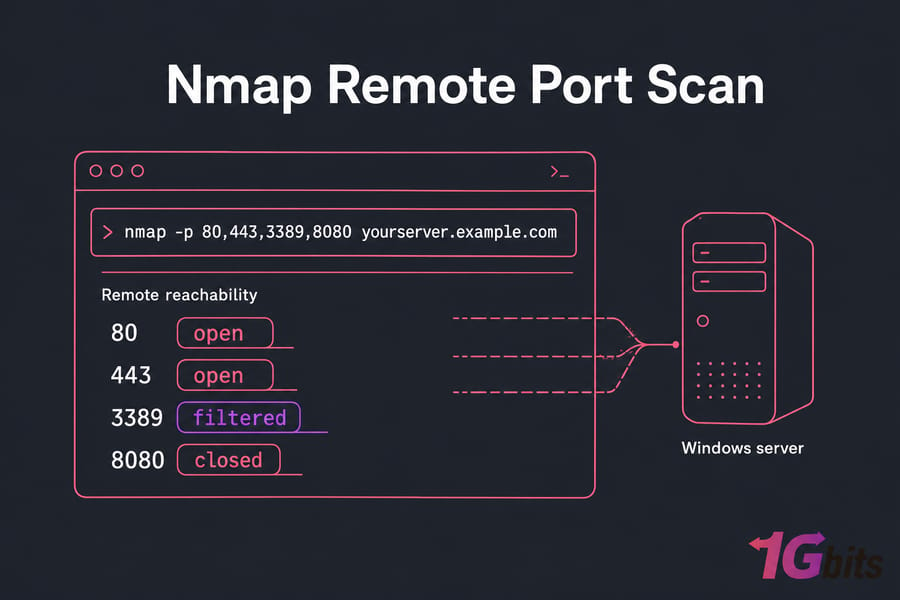
Filtered usually means a firewall or security device is dropping traffic, so the scanner can't tell for sure if the service behind it is available. Nmap reports this well. Native Windows tools don't always make the distinction obvious.
And yes, TCP and UDP behave differently. TCP usually shows clear states like LISTENING or ESTABLISHED. UDP is connectionless, so you won't see a TCP-style listening state in the same way.
This is particularly important if you're managing a Windows VPS, where open ports could impact both performance and security. Regularly checking and controlling open ports helps ensure only trusted services are accessible. For a deeper dive into specific port risks, read about what Windows TCP port 135 is and why it's often targeted.
Common Windows ports: 80, 443, 3389, 8080
| Port | Common Service | Why You'd Check It |
| 80 | HTTP | Verify IIS, Apache, or Nginx is serving plain web traffic |
| 443 | HTTPS | Confirm SSL/TLS web service is listening |
| 22 | SSH | Check secure shell access on Windows OpenSSH or mixed environments |
| 25 | SMTP | Validate mail server service or relay configuration |
| 53 | DNS | Check DNS server bindings for TCP or UDP |
| 3389 | Remote Desktop | Test RDP availability on a Windows VPS or server |
| 8080 | Alternate HTTP / app service | Troubleshoot dev servers, panels, proxies, and web apps |
How to Check Open Ports in Windows Command Line
The most direct way to check open ports in Windows is via the Command Prompt (CMD). Here's how to do it:
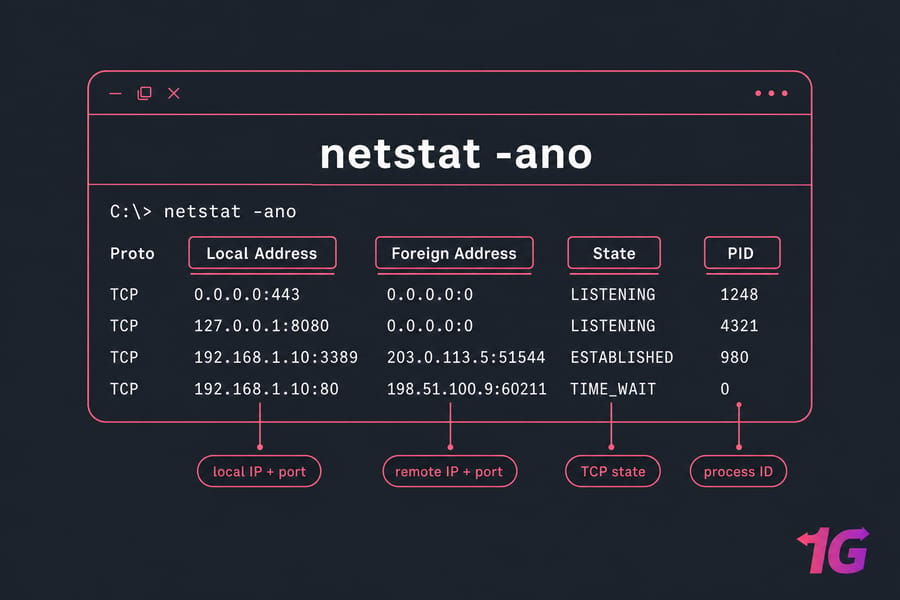
Run netstat -ano
In the command prompt window, type:
netstat -ano
This command shows active connections and listening ports, along with the PID, or process ID, of the owning process.
Here's how to read the output:
- Proto: TCP or UDP
- Local Address: the local IP and local port, such as
0.0.0.0:443or127.0.0.1:8080 - Foreign Address: the remote IP and remote port
- State: for TCP, you may see LISTENING, ESTABLISHED, TIME_WAIT, and more
- PID: the process ID using that socket
If the Local Address is 0.0.0.0:443, the service is listening on all IPv4 interfaces. If it's 127.0.0.1:443, it's bound only to localhost, which means remote users won't reach it. That's a common gotcha.
Show listening ports only
netstat -ano | findstr LISTENING
This trims the noise and shows only TCP listening ports. It's one of the easiest ways to check listening ports in Windows when you don't care about established sessions.
Check a specific port like 80, 443, 3389, or 8080
netstat -ano | findstr :80
netstat -ano | findstr :443
netstat -ano | findstr :3389
netstat -ano | findstr :8080
This is the quickest way to check if a port is in use in Windows. If you see output for the port, something is bound or connected there. If you see LISTENING, a service is actively waiting on it.
Want more detail, including the executable name? Try this from an elevated Command Prompt:
netstat -abno
How to Check Which Process Is Using a Port in Windows
This is one of the most useful checks on the page. And honestly, it's the section many people were looking for all along.
Find the PID with netstat -aon | findstr
netstat -aon | findstr :443
Look at the last column. That's the PID.
Match the PID in Task Manager
Open Task Manager, go to the Details tab, and look for the matching PID. If you don't see the PID column, right-click the header row and enable it.
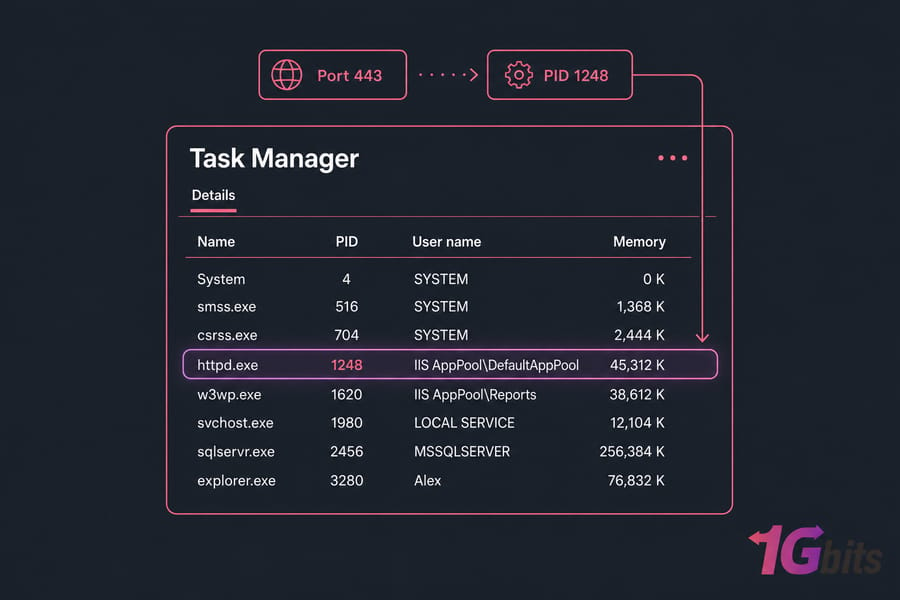
Use tasklist to identify the process
tasklist /FI "PID eq 1248"
Replace 1248 with your actual process ID. You'll get the image name for the owning process, which makes it much easier to diagnose conflicts.
How to Check Open Ports in Windows Using PowerShell
PowerShell is my preferred option on modern Windows servers. It gives you structured output, filters better than old text parsing, and is much nicer when you need to export results for auditing. If you're not sure which version you're running, here's how to check your PowerShell version.
List listening TCP ports
Get-NetTCPConnection | Where-Object {$_.State -eq "Listen"}
This lists listening TCP ports only. It's the PowerShell equivalent of checking listening ports in Windows with netstat.
Check a specific port
Get-NetTCPConnection -LocalPort 3389
Get-NetTCPConnection -LocalPort 443
Get-NetTCPConnection -LocalPort 8080
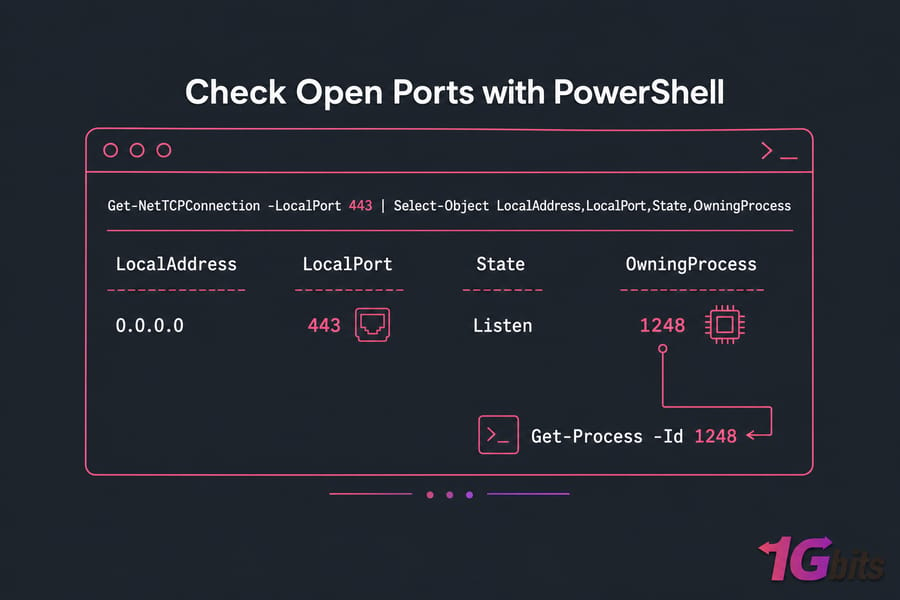
Find the owning process
Get-NetTCPConnection -LocalPort 443 | Select-Object LocalAddress,LocalPort,State,OwningProcess
Get-Process -Id 1248
Check UDP ports with PowerShell
Get-NetUDPEndpoint
Get-NetUDPEndpoint | Select-Object LocalAddress,LocalPort,OwningProcess
This shows bound UDP ports in Windows. If you're checking DNS on port 53 or another UDP-based service, this is usually the cleanest built-in method.
How to Check Open Ports in Windows Using Resource Monitor
For those who prefer a GUI-based method, Resource Monitor is perfectly fine. I still use it when I want a quick visual list of listening ports and the image name beside them.
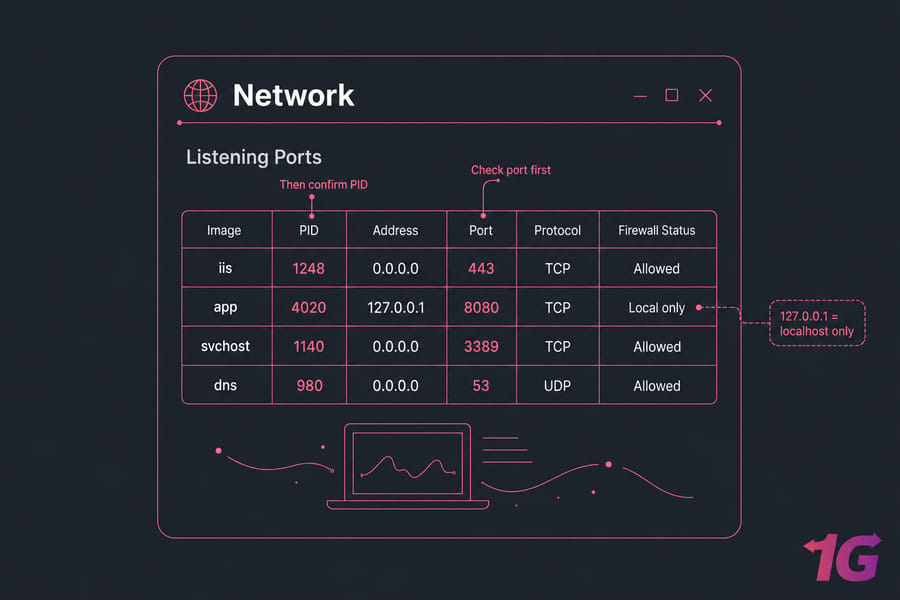
Open the Listening Ports panel
Press Start, type Resource Monitor, and open it. Then go to Network > Listening Ports.
You'll see the process image, PID, address, port, protocol, and firewall status. For a lot of people, that's easier than reading raw sockets output.
How to Check All Open Ports in Windows with CurrPorts or TCPView
Native Windows tools are enough most of the time. But when you're troubleshooting lots of sockets, or want live updates without running commands over and over, third-party GUI tools help.
CurrPorts vs TCPView
| Tool | Best For | Strength | Caution |
| CurrPorts | Quick port audits | Simple list of open ports and processes | Use the official vendor site only |
| TCPView | Live troubleshooting | Real-time updates and trusted Sysinternals source | Still a third-party download, so follow change controls |
How to Check All Open Ports in Windows Server 2016/2019/2022
On Windows Server, the commands are basically the same. The difference is context: you're usually checking services that matter to uptime, access, or exposure to the internet. If you're planning a fresh deployment, review Windows Server installation basics first.
Best commands for server admins
netstat -ano | findstr LISTENING
Get-NetTCPConnection | Where-Object {$_.State -eq "Listen"}
Get-NetUDPEndpoint
How to verify RDP port 3389
netstat -ano | findstr :3389
Get-NetTCPConnection -LocalPort 3389
If nothing is listening on 3389, Remote Desktop may be disabled, the RDP service may be down, or the port may have been changed. If you need to enable it first, here's how to enable RDP on Windows.
How to export results for audits
netstat -ano > C:\Temp\open-ports.txt
Get-NetTCPConnection | Export-Csv -Path C:\Temp\tcp-connections.csv -NoTypeInformation
Get-NetUDPEndpoint | Export-Csv -Path C:\Temp\udp-endpoints.csv -NoTypeInformation
How to Check If a Port Is Open on a Remote Server
Use Test-NetConnection
Test-NetConnection -ComputerName 192.168.1.10 -Port 443
Test-NetConnection -ComputerName yourserver.example.com -Port 3389
Use Telnet
telnet yourserver.example.com 443
Use Nmap for deeper scans
nmap -p 80,443,3389,8080 yourserver.example.com
How to Check UDP Ports in Windows
Using netstat -ano -p udp
netstat -ano -p udp
This lists UDP endpoints and their owning PIDs.
Using PowerShell
Get-NetUDPEndpoint
Get-NetUDPEndpoint | Where-Object {$_.LocalPort -eq 53}
Why UDP results look different from TCP
TCP is connection-oriented, so the OS tracks states like LISTENING and ESTABLISHED. UDP is connectionless. A service can bind to a UDP port and receive packets without ever showing that same state language.
How to Check If a Port Is Blocked by Windows Firewall
Review inbound rules
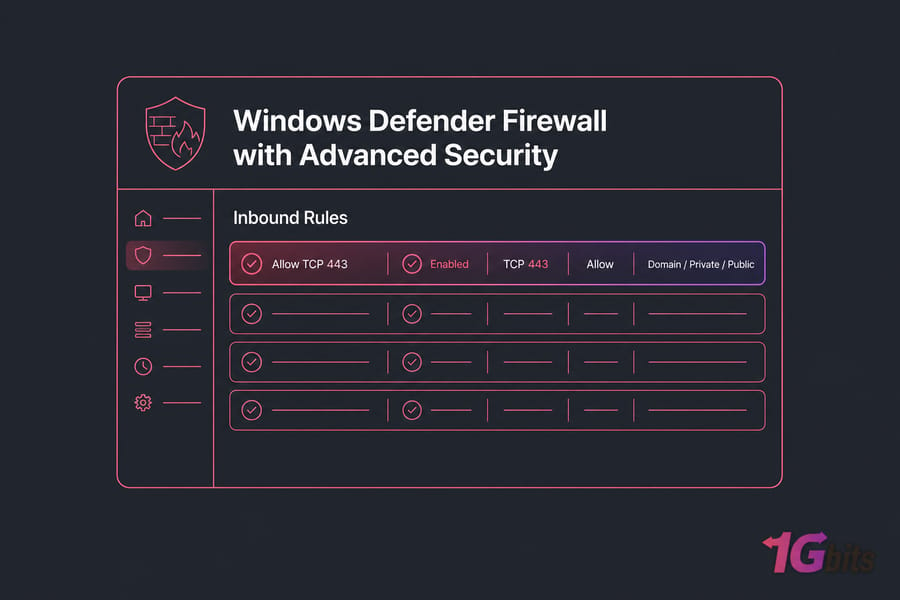
Open Windows Defender Firewall with Advanced Security and click Inbound Rules. Look for rules that allow or block the port or the application tied to that port.
Review outbound rules
Outbound rules matter less for hosting inbound services, but they still matter in locked-down environments. Check Outbound Rules if an app needs to initiate connections out.
Listening locally but blocked remotely
If netstat or PowerShell shows the service listening, but Test-NetConnection from another machine fails, check these in order:
- Windows Defender Firewall inbound rule
- Third-party antivirus or endpoint protection
- Cloud firewall or VPS provider security group
- NAT or port forwarding on the edge router
- Whether the service is bound only to localhost
How to Open or Close a Port in Windows Firewall
Allow a port
In Windows Defender Firewall with Advanced Security, create a new inbound rule, choose Port, select TCP or UDP, enter the port number, and allow the connection.
Block or remove a rule
To close an exposed port, disable or delete the inbound rule that allows it. You may also need to stop or reconfigure the service that's listening.
Security best practices
Only allow the ports you actually need. Restrict RDP 3389 by source IP when possible. Disable services you don't use. Audit exposed ports regularly. For dedicated environments, also see security tips for dedicated Windows servers.
Troubleshooting: Why a Port Doesn't Show as Open
The service is not running
If nothing is listening on the expected port, check whether the service actually started. A stopped IIS site, failed application pool, crashed Java app, or disabled RDP service will leave the port closed.
The port is already in use
If your app won't start, another process may already own the port. Use:
netstat -aon | findstr :80
tasklist /FI "PID eq 1234"
Firewall, antivirus, or NAT is blocking access
A local listening port is not proof of remote reachability. Windows Defender Firewall, third-party security tools, cloud ACLs, and routers can all block traffic.
You need admin privileges
Some commands and views need elevation, especially netstat -b and some process lookups. If the output looks incomplete, rerun Command Prompt or PowerShell as Administrator. Also, on a hosted system, provider-side networking can matter. If you're troubleshooting public access on a VPS or dedicated machine, it's worth checking your broader server management setup and any port forwarding or networking rules.
Netstat vs PowerShell vs Resource Monitor vs Nmap
You've got about four methods that really matter here. All of them work. But they don't solve the exact same problem.
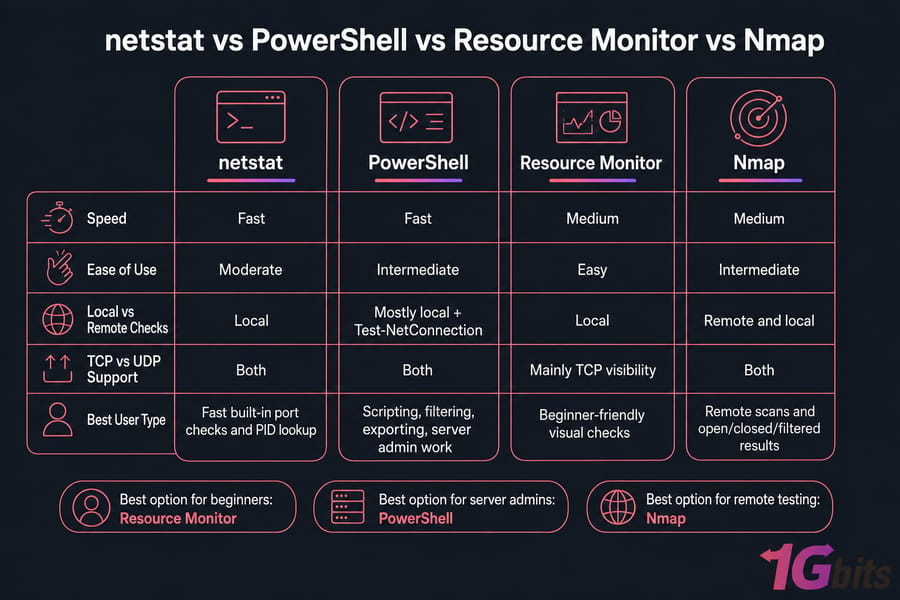
| Method | Best For | GUI or CLI | TCP/UDP | Local or Remote |
| netstat | Fast built-in port checks and PID lookup | CLI | Both | Local |
| PowerShell | Scripting, filtering, exporting, server admin work | CLI | Both | Mostly local, plus remote testing with Test-NetConnection |
| Resource Monitor | Beginner-friendly visual checks | GUI | Mainly local visibility | Local |
| Nmap | Remote scans and open/closed/filtered results | CLI | Both | Remote and local |
Why It's Important to Monitor Open Ports
You may ask: "Why should I spend time checking which ports are open?" The answer lies in the three major benefits of monitoring open ports in Windows—security, troubleshooting, and optimization.
1. Security: Prevent Unauthorized Access
Each open port on your system is like a door into your digital environment. If it's unlocked and unguarded, it's an opportunity for a hacker to exploit. Malware, ransomware, and botnets often exploit open ports to infiltrate systems, especially in unpatched or misconfigured setups.
2. Troubleshooting: Identify and Resolve Network Issues
Open ports are directly tied to running services. If a service isn't working properly—like a website failing to load or a remote desktop connection timing out—it could be due to a blocked or closed port. By auditing open ports, you can identify port conflicts between applications, ensure critical ports are open and reachable, and verify firewall rules are correctly configured.
3. Optimization: Reduce the Attack Surface
Most users and even some administrators leave ports open by default after installing certain software or enabling services. Over time, this results in unused or forgotten ports remaining accessible. Closing these unused ports can improve system performance, strengthen security, and simplify firewall and network configurations.
How to Check Whether Port is Open or Not in Linux?
Although this article primarily focuses on how to check open ports in Windows TCP, it's useful to understand how the process works in Linux as well—especially for users managing hybrid environments or transitioning between systems.
1. Using ss (Socket Statistics)
ss -tuln
2. Using netstat
netstat -tuln
These commands are often used during Linux server audits, troubleshooting, or security hardening processes. For the full Linux walkthrough, see this guide on how to check open ports in Linux. It's useful if you're comparing Windows and Linux server behavior side by side.
Final Thoughts
If you just want the shortest path, start with netstat -ano. If you want cleaner filtering and exports, use PowerShell. If you want to know whether the port is reachable from outside the machine, use Test-NetConnection or Nmap.
And don't stop at finding open ports. Review whether they should be open at all. That's the part many people skip, and it's usually the part that matters most.
If you're running public services on a VPS or Windows Server, keep your firewall rules tight, reduce unnecessary exposure, and audit ports on a schedule. That simple habit catches a surprising amount of mess before it becomes a security incident. For full control over your port configuration and firewall rules, a Windows VPS gives you the isolation and admin access you need.
Summary: Mastering Port Monitoring in Windows
By now, you should be confident in how to check open ports in Windows server 2019 using different methods whether it's CMD, PowerShell, GUI tools, or even advanced scanners like Nmap. Knowing what ports are open helps you maintain system security, troubleshoot applications, and optimize performance.
✅ Whether you're using Windows 10, 11, or any Server edition, monitoring ports is a best practice for every system admin or power user.
🛡️ Want a secure and high-performing environment? Choose a Windows 11 VPS or Windows 10 VPS for desktop flexibility, or a Windows dedicated server for maximum performance and full hardware control.

Leave A Comment