
If you want the short answer to which version of BlueStacks is best for Windows, install BlueStacks 5. It's still the right pick for most Windows 10 and Windows 11 users, especially for gaming. Pick BlueStacks Desktop if you want a full Android desktop for running several apps side by side. Inside BlueStacks 5, start new instances on Pie 64-bit and move to Android 13 only when an app needs it. This advice is current as of November 2026.
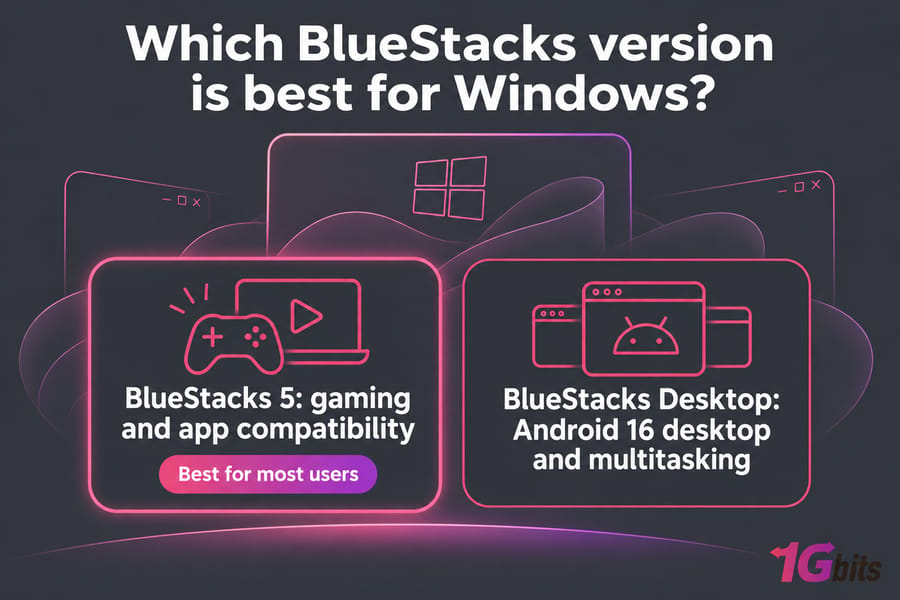
Best BlueStacks version for Windows: the short answer
You're making two choices: which BlueStacks product to install, and, if you pick BlueStacks 5, which Android instance to run inside it. The second matters almost as much as the first, because a game that won't install on one Android version often runs fine on another.
| Your situation | Install | Android instance | Why |
| Mid or high-end gaming PC | BlueStacks 5 | Pie 64-bit, or Android 13 if the game needs it | Built for games, with keymapping and Multi-Instance Manager |
| Multitasking with Android apps | BlueStacks Desktop | Android 16 (fixed) | Each app gets its own resizable window |
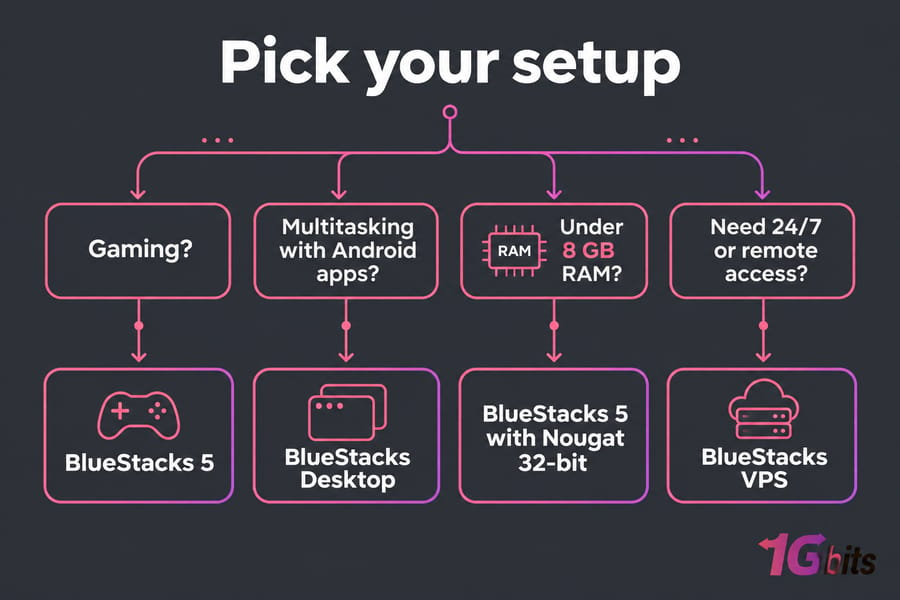
| Low-end PC (4 to 8 GB RAM) | BlueStacks 5 | Nougat 32-bit or Pie 64-bit | Desktop needs 8 GB just to install |
| Testing several apps at once | BlueStacks 5 | One instance per Android version you need | Multi-Instance Manager runs instances in parallel |
The best choice for most users
BlueStacks 5 is the safer default. It runs on 4 GB of RAM, supports several Android versions, and the 5.22 release notes still list fixes for individual games on specific instances, so compatibility work is ongoing.
When BlueStacks Desktop is the better option
Choose Desktop if you use Android apps for work (messaging, notes, AI agent automation) and want them open side by side, the way you use regular Windows programs.
When BlueStacks 5 is still the safer pick
Choose BlueStacks 5 if you mainly game, have less than 12 GB of RAM, or need an older Android version for a particular app. If you're also weighing the separate BlueStacks X product, read our BlueStacks 5 vs BlueStacks X comparison.
BlueStacks Desktop vs BlueStacks 5: key differences
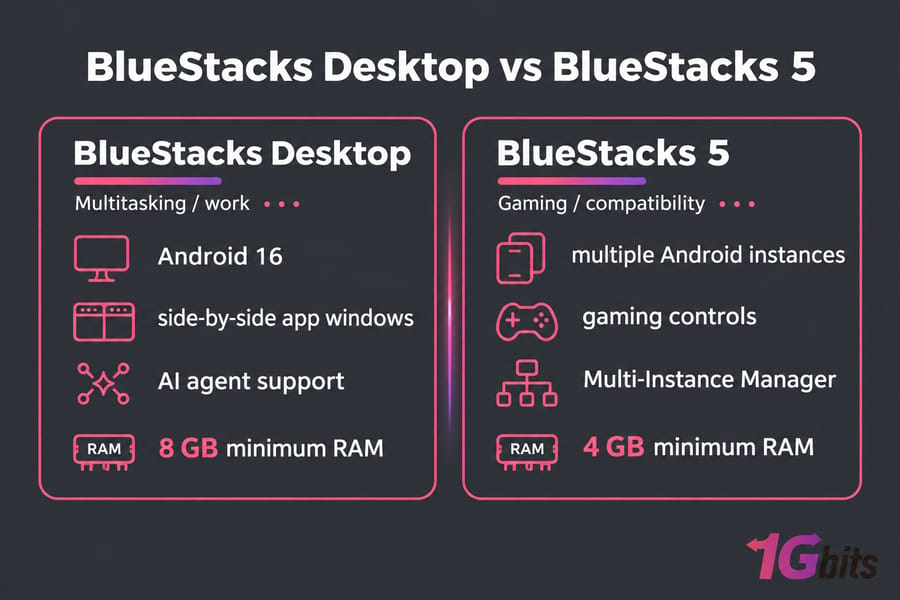
BlueStacks Desktop came out on October 22, 2026. It runs Android 16 as a complete Android desktop on your Windows PC (a Mac version exists too). BlueStacks 5 is the older Android app player, and BlueStacks still develops and markets it mainly for gaming.
| Feature | BlueStacks Desktop | BlueStacks 5 |
|---|---|---|
| Main purpose | Android desktop for work and multitasking | Android app player, mainly for gaming |
| Android version | Android 16 | Nougat 32-bit, Pie 64-bit, Android 13 (beta); existing Android 11 and Nougat 64-bit instances |
| App windows | Separate, resizable windows; full screen, maximized, split screen, windowed | One app at a time per instance |
| Minimum RAM | 8 GB (12 GB+ recommended) | 4 GB |
| AI agents | Works with computer-use agents such as Claude and Codex | Not a focus |
| Multiple Android versions | No | Yes, through Multi-Instance Manager |
| Hyper-V | Supported; hypervisor errors fixed in 16.0.2 | Works with Hyper-V on or off from version 5.20 |
| Latest version (Nov 2026) | 16.0.2, released November 11, 2026 | 5.22.x |
BlueStacks Desktop for multitasking and Android workspace use
Desktop treats Android apps like Windows programs. You can open a chat app, a notes app and a banking app in their own windows, then resize and tile them. BlueStacks also built it for AI workflows, so agents like Claude and Codex can switch between Android apps and complete tasks inside them. Being the newest product doesn't make it the right one for everyone, though: on an 8 GB laptop, Desktop is right at its minimum.
BlueStacks 5 for gaming and app compatibility
BlueStacks 5 is still better for games. You get keymapping, performance modes, graphics renderer choices and the option to run each game on whichever Android version it supports best. Desktop does a different job, so it doesn't make BlueStacks 5 obsolete.
Can you install both on the same Windows PC?
Yes. BlueStacks says installing Desktop doesn't require removing BlueStacks 5, so you can game on 5 and work in Desktop. Our guide on how to install and use BlueStacks on Windows covers the setup steps.
Best BlueStacks version by PC type and use case
RAM is the most reliable way to decide, because it sets how many instances you can run and whether Desktop will install at all.
| RAM | Recommended setup | Performance mode |
| 4 to 8 GB | BlueStacks 5, one instance, Nougat 32-bit or Pie 64-bit | Low Memory if you keep other apps open |
| 8 to 12 GB | BlueStacks 5 for gaming; Desktop works but sits near its floor | Balanced |
| 12 to 16 GB | Either product, or both installed | Balanced |
| More than 16 GB | BlueStacks 5 with several instances, plus Desktop if you want it | High Performance for dedicated gaming |
Best BlueStacks for gaming on Windows
Use BlueStacks 5 on Pie 64-bit, or Android 13 when a newer game asks for it. If FPS matters most, close your browser and switch the instance to High Performance mode.
Best BlueStacks for general Android apps
For a few everyday apps, BlueStacks 5 on Pie 64-bit is enough. If an app refuses to install, the APK probably needs a different Android version, and making a new instance fixes that faster than reinstalling.
Best BlueStacks for multitasking
Desktop fits better when you want several apps visible together. To test the same app on several Android versions, or to run parallel game accounts, use BlueStacks 5's Multi-Instance Manager. If BlueStacks isn't what you need at all, see our roundup of the best Android emulators.
Best BlueStacks for older or weaker PCs
Stick with BlueStacks 5 and a light instance, since Desktop's 8 GB minimum rules it out on many older machines. The low-end section below covers the settings.
Best BlueStacks Android version: Pie 64-bit, Android 11, or Android 13?
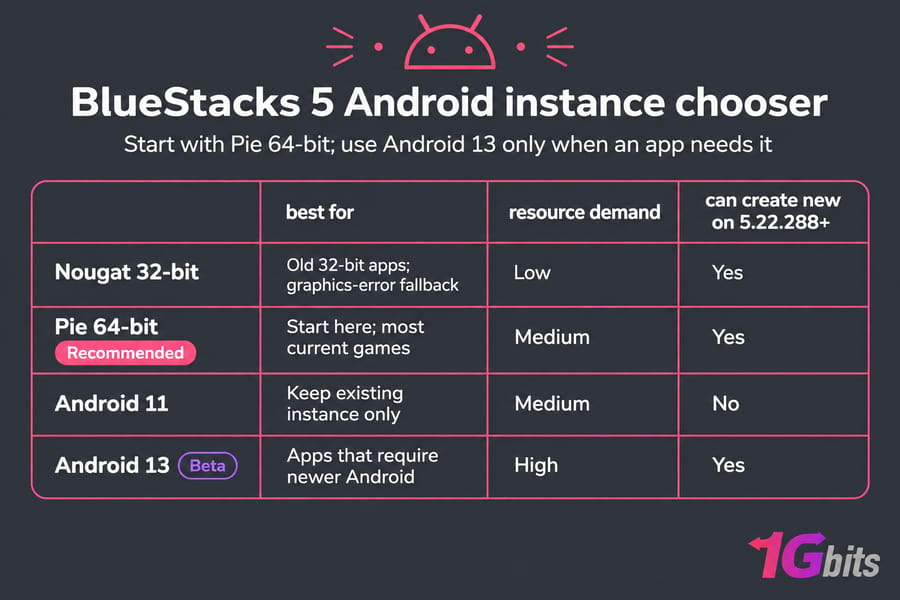
Each BlueStacks 5 instance runs one Android version, and you create new ones from Multi-Instance Manager. One change catches people out: from BlueStacks 5.22.288 onward, you can't create new Nougat 64-bit or Android 11 instances. Instances you created earlier still work, but older guides that tell you to "pick Android 11" won't help on a fresh install.
| Instance | Best for | Resource demand | Graphics renderers (5.22.70+) |
| Nougat 32-bit | Older apps, weak GPUs, graphics launch errors | Lowest | OpenGL, DirectX |
| Pie 64-bit | Default for most games and apps | Moderate | Vulkan, OpenGL |
| Android 11 | Existing instances only on 5.22.288+ | Moderate | Vulkan, OpenGL |
| Android 13 (beta) | Newer apps that require a recent Android version | Higher | Vulkan, OpenGL |
When to use Nougat 32-bit
Use it for old 32-bit apps, or when BlueStacks shows a graphics error at launch. BlueStacks' own fix for that error is to update GPU drivers, create a Nougat instance and set "Graphics engine mode" to Performance. Nougat instances can still use DirectX, which helps on older integrated graphics.
When to use Pie 64-bit
Start here. Most current games accept Android 9, and BlueStacks still ships Pie-specific fixes (the 5.22 notes include a black-screen fix for one title on Android Pie). Use the Vulkan + OpenGL renderer, which BlueStacks recommends because most games now require Vulkan.
When to use Android 11
Keep an existing Android 11 instance if your game runs well on it. On a new install of 5.22.288 or later, choose Pie 64-bit or Android 13 instead.
When to use Android 13
Pick Android 13 when an app's Play Store listing or APK requires a newer Android release. It's still labelled beta, so if a game misbehaves there, test it on Pie before blaming your PC.
If one app fails, create a different instance before you reinstall anything. BlueStacks' "incompatible APK" error almost always means the app wants a different Android version. For other failures, see how to fix BlueStacks not working on Windows 10/11.
Best BlueStacks version for Windows 11 and Windows 10
The recommendation is the same on both. Your Windows build and drivers matter more than which Windows you run.
What Windows 11 users should install
Install the latest BlueStacks 5 for gaming, and add Desktop if you want an Android workspace. If you connect over Remote Desktop, update to at least 5.22.100, which fixed crashes and white screens after RDP reconnects on Windows 11 24H2.
What Windows 10 users should install
The same BlueStacks 5 build works, but check your version first (run winver), because the Hyper-V-compatible BlueStacks 5 needs Windows 10 version 1903 or newer. Update your graphics drivers before installing, since outdated drivers cause many launch failures. If you'd rather run Windows remotely, 1Gbits has Windows VPS plans with Windows 10 and Windows 11 options.
Hyper-V support and version compatibility
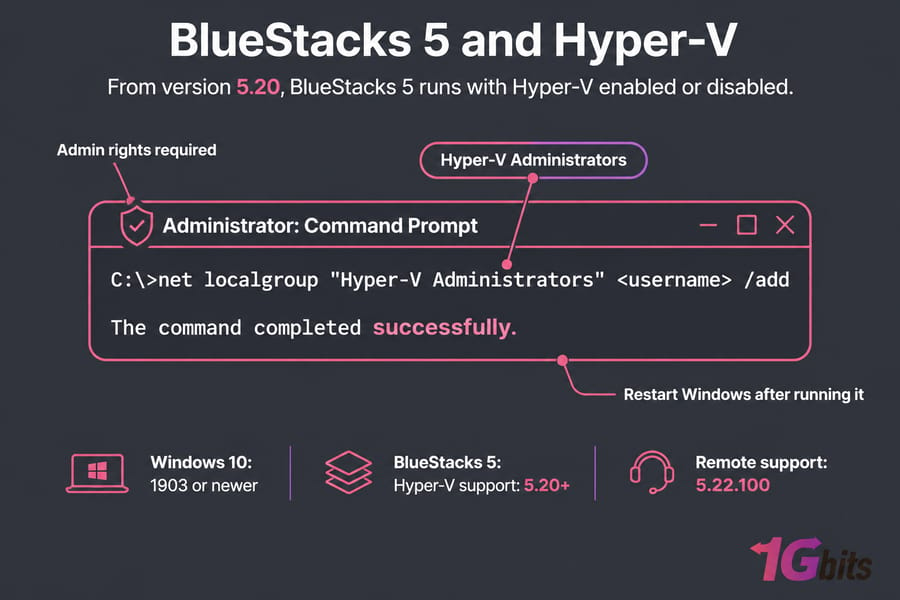
From version 5.20, BlueStacks 5 runs with Hyper-V enabled or disabled. If Hyper-V is on when you download from the official site, the installer gives you the Hyper-V-compatible build automatically. You'll also need admin rights and membership in the Hyper-V Administrators group:
net localgroup "Hyper-V Administrators" <username> /addRestart Windows after running it.
Best BlueStacks version for low-end PC performance
On a low-end PC, use BlueStacks 5. BlueStacks lowered Desktop's minimum to 8 GB in version 16.0.2 but still recommends 12 GB or more, while BlueStacks 5 installs on 4 GB.
Minimum hardware that can still work
A 4 GB PC can run BlueStacks 5 with one light instance and nothing else open. Simple and casual games should be playable; heavy 3D titles will stutter. At 8 GB you have room for one instance alongside a browser. BlueStacks recommends 8 GB+, an SSD, virtualization enabled and a multi-core CPU with a single-thread benchmark score above 1000.
Settings that improve BlueStacks speed
- Enable virtualization (Intel VT-x or AMD-V) in BIOS/UEFI.
- Start on Nougat 32-bit or Pie 64-bit, not Android 13.
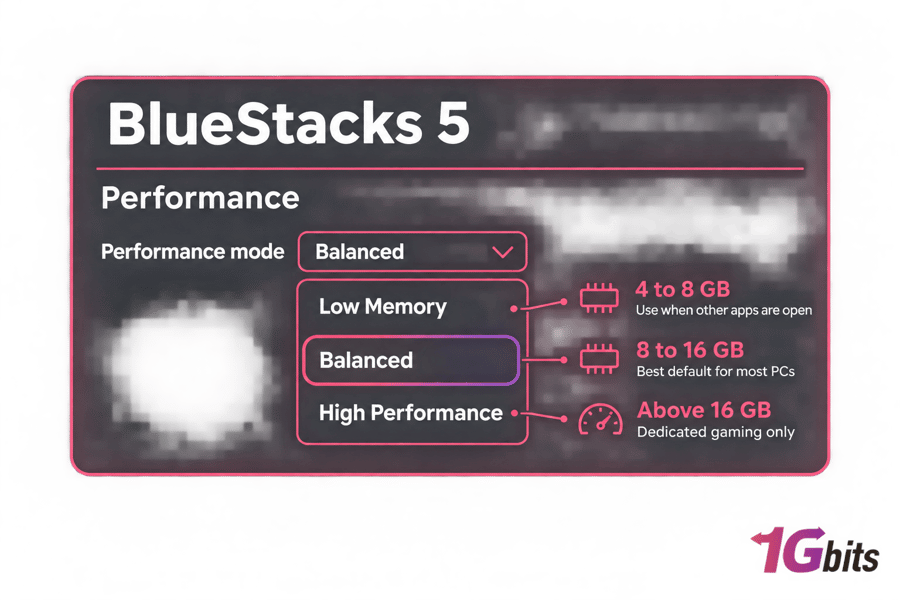
- Use Low Memory mode when other apps are open, Balanced on 8 to 16 GB, and High Performance only above 16 GB for dedicated gaming.
- Lower in-game resolution and the FPS cap before changing anything else.
- Run one instance. New instances default to Low Memory because that mode is meant for running several at once.
| Do | Don't |
| Update GPU drivers from Intel, AMD or NVIDIA | Install Desktop on a 4 GB laptop |
| Install BlueStacks on an SSD | Run High Performance mode with Chrome open |
| Try another instance before reinstalling | Assume Android 13 is faster because it's newer |
When to stop tweaking and switch to a VPS
If you've tried a lighter instance, Low Memory mode and lower FPS and the game still lags, your hardware is the limit. A remote server with more RAM and CPU fixes that without buying a new PC: you can explore BlueStacks VPS plans or use an Android VPS to run Android itself on a server.
BlueStacks system requirements for Windows users
| Requirement | BlueStacks Desktop | BlueStacks 5 (Hyper-V enabled) |
| Windows | Windows PC (Mac version also available) | Windows 10 version 1903+ or Windows 11 |
| Processor | Not listed separately | Intel or AMD |
| RAM | 8 GB minimum, 12 GB+ recommended | 4 GB minimum (disk space doesn't count as RAM) |
| Storage | Not listed separately | 5 GB free |
| Other | Hyper-V supported from 16.0.2 | Admin account, current graphics drivers, Hyper-V Administrators group |
BlueStacks Desktop requirements
RAM is the requirement that decides it. Before version 16.0.2 you needed more than 8 GB to install, so if an earlier attempt failed, try the current installer.
BlueStacks 5 requirements
4 GB gets BlueStacks 5 running, but it won't make heavy games smooth. If you're unsure how much memory you need for gaming plus everyday use, read how much RAM you need for your PC. If you're running BlueStacks on a server OS, check the Windows Server minimum requirements first.
Graphics, RAM, and virtualization tips
Get drivers straight from your GPU vendor rather than relying on Windows Update alone. Check Task Manager's Performance tab for "Virtualization: Enabled". If it says Disabled, turn it on in your BIOS.
Common mistakes when choosing a BlueStacks version
Confusing BlueStacks X with BlueStacks 5
BlueStacks X (the 10.x line) is a separate product, and BlueStacks now files its release notes under "older". The BlueStacks Store you see when downloading games is part of BlueStacks 5, which is what you want for playing Android games locally. Old BlueStacks 4 advice is out of date too; BlueStacks says version 5 uses up to 50% less RAM than version 4 in its own three-instance test.
Picking the wrong Android instance
The newest instance isn't the best one for every app. Match the instance to the app's requirement, and remember you can't create new Android 11 instances on 5.22.288+.
Ignoring Windows and Hyper-V settings
Virtualization turned off in BIOS, a skipped Hyper-V Administrators step and old drivers are the most common causes of black screens and failed launches. Fix those before you switch versions.
Should you use BlueStacks on a VPS instead of a local PC?
A VPS makes sense when your PC is the bottleneck or when BlueStacks has to keep running while your PC is off.
| Factor | Local PC | VPS |
| Upfront cost | Hardware you already own | Monthly plan |
| Uptime | Stops when your PC sleeps or shuts down | Runs 24/7 |
| Scaling RAM/CPU | Buy new parts | Upgrade the plan |
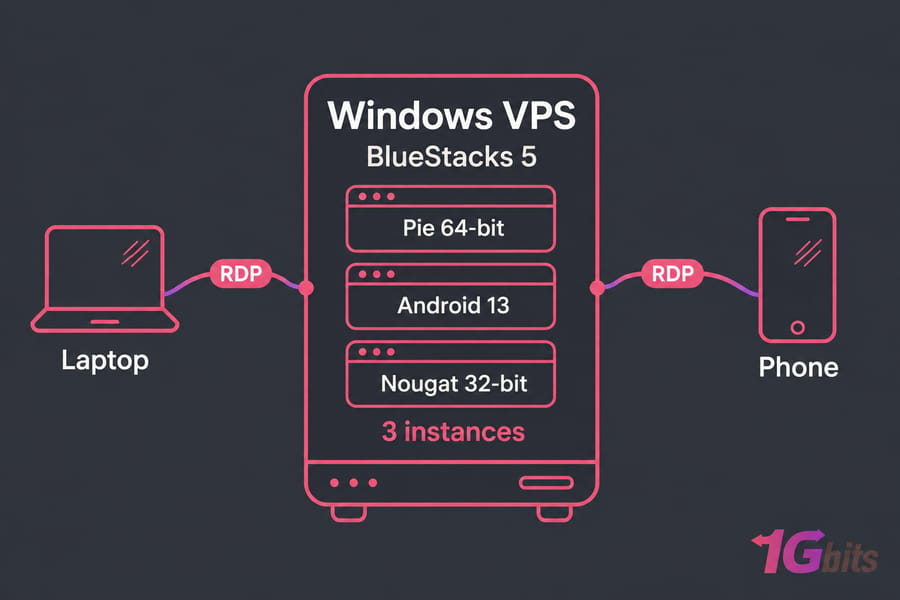
| Remote access | Needs extra setup | RDP from any device |
| Multiple instances | Limited by home hardware | Limited by plan size |
| Latency for live play | None | Depends on your distance to the data center |
Who benefits from a BlueStacks VPS
It's worth it if your PC has little RAM, you run always-on automation or app testing, you need multiple instances, or you want to reach the emulator from a laptop or phone. If you mainly play competitive games live on a decent PC, a VPS only adds latency.
Windows VPS vs Android VPS for emulators
A Windows VPS runs BlueStacks just as your PC does, with the same instance choices covered above. An Android VPS skips the emulator and runs Android directly, which suits automation and testing better than gaming. Our guide on how to run an Android emulator on a VPS walks through both setups.
Recommended hosting paths on 1Gbits
Start with a BlueStacks VPS for one or a few instances. For large multi-instance farms, an Android dedicated server gives you the whole machine, and for graphics-heavy games across many instances, use a GPU dedicated server. All of these give you admin access and resources you can scale.
Most Windows users should install BlueStacks 5 and start on Pie 64-bit, or use Nougat 32-bit and Low Memory mode on a low-end PC. If your PC still can't keep up, or BlueStacks needs to run around the clock, view emulator hosting options on a BlueStacks VPS.

Leave A Comment