

A dedicated server gives you full access to physical resources, but simply having powerful hardware does not guarantee maximum performance. CPU usage, RAM availability, storage speed, server configuration, database queries, network traffic, and application processes can all affect how efficiently your server runs.
If your server is becoming slow, taking longer to respond, or struggling during traffic spikes, the first step is to find the actual bottleneck. Once you know whether CPU, memory, storage, software, database, or network performance is causing the problem, you can optimize that specific area instead of changing settings randomly.
In this guide, we'll cover practical ways to optimize dedicated server performance, from choosing the right hardware to configuring the operating system, web server, PHP, database, caching, network, and dedicated server hosting.
Choose the Right Dedicated Server Configuration
Performance starts with the server configuration itself. Before spending time tuning software, make sure the hardware is suitable for your workload. When comparing dedicated server providers such as 1Gbits, don't look only at the advertised processor and RAM. Check the storage technology, network capacity, available configurations, and whether the resources match your actual workload. If you're still deciding between hosting models, compare dedicated server and VPS hosting to see which fits your needs.

CPU
The CPU processes instructions from your operating system, applications, databases, and other services. A processor with more cores can handle more simultaneous tasks, while higher clock speeds can benefit workloads that depend heavily on single-core performance.
The right CPU depends on what you are running:
- Websites with many concurrent requests may benefit from multiple cores.
- Database-heavy applications need enough processing capacity for queries.
- Video encoding and other compute-intensive workloads can benefit from higher CPU performance.
- Virtualization workloads may require more cores and processing capacity.
Don't assume that constantly high CPU usage automatically means you need a more powerful processor. First identify which processes are consuming CPU resources. Tools such as top and htop on Linux can help identify processes responsible for high CPU usage. If one application is consuming most of the CPU, optimizing that application may provide a bigger improvement than upgrading the entire server. For guidance on selecting the right hardware, read how to choose a dedicated server based on your workload.
RAM
RAM provides fast working memory for the operating system, applications, databases, and caching systems.
When available memory is too low, the server may start relying heavily on swap or disk storage. Because disk storage is slower than RAM, this can significantly affect application performance.
Monitor:
- Total memory usage
- Available memory
- Swap usage
- Application memory consumption
- Database memory usage
If your server regularly runs out of memory, first check for unnecessary processes or memory leaks. If the workload genuinely requires more memory, adding RAM can provide a better solution. For database-heavy workloads, additional RAM can also allow more frequently accessed data to remain in memory.
SSD/NVMe Storage
Storage performance directly affects workloads that frequently read and write data.
Traditional HDDs generally have higher latency than SSDs, while NVMe SSDs can provide significantly faster storage performance.
SSD or NVMe storage is particularly useful for:
- Databases
- High-traffic websites
- Application servers
- Large file operations
- Workloads with frequent read/write operations
Monitor disk I/O and latency before deciding whether storage is causing a bottleneck. Also avoid allowing storage capacity to become critically low. Leave enough free space for temporary files, logs, databases, system operations, and application data.
Network Bandwidth
Network bandwidth determines how much data your server can send and receive. A powerful CPU and fast SSD cannot compensate for a saturated network connection. Consider your expected traffic, concurrent users, file downloads, and peak bandwidth requirements.
Also monitor network latency and packet loss. A connection can have plenty of bandwidth but still perform poorly if latency or packet loss is high.
For websites with visitors in different geographic locations, a CDN for content delivery can reduce the amount of static content that must be delivered directly from the server.
Optimize the Operating System and Kernel
The operating system manages CPU, memory, processes, networking, storage, and other server resources. Start by removing unnecessary software and background services. Every unnecessary process consumes some amount of system resources. Choosing the best operating system for dedicated servers is the first step; you can also review the differences between Linux vs Windows dedicated server environments before tuning.
Keep the operating system and installed packages updated. Updates can include performance improvements, bug fixes, and security patches.
You should also review resource limits for workloads that handle many concurrent connections. For example, applications and web servers may need appropriate file descriptor limits when handling large numbers of open files or network connections.
Avoid changing kernel parameters simply because a particular value is recommended online. Kernel tuning should be based on your workload and measured performance.
A safer process is:
- Measure the current server performance.
- Identify the bottleneck.
- Change one relevant setting.
- Test the server.
- Compare the result with the original baseline.
This makes it easier to determine whether the change actually improved performance.
Optimize Your Web Server
The web server is responsible for receiving HTTP requests and delivering responses.
Common options include NGINX, Apache, and LiteSpeed. Each provides different configuration options for handling connections, workers, processes, and requests.
Review settings such as:
- Worker processes
- Maximum connections
- Keep-alive connections
- Request timeouts
- Process limits
- Static file delivery
Don't simply increase connection or worker limits. More workers do not always mean better performance. If the server doesn't have enough RAM or CPU to support them, increasing these values can actually make performance worse.
Optimize PHP-FPM and Application Performance
PHP-based websites can benefit significantly from proper PHP-FPM configuration. PHP-FPM manages PHP worker processes that execute application code. If there are too few workers, requests may wait. If there are too many, the server may run out of memory.
Configure PHP-FPM Workers
Review PHP-FPM settings such as:
- pm
- pm.max_children
- pm.start_servers
- pm.min_spare_servers
- pm.max_spare_servers
The most important value is often pm.max_children, but it should be based on available memory and the average memory consumed by each PHP worker.
For example, if each PHP worker consumes a significant amount of RAM, setting an extremely high worker count can cause memory exhaustion.
Monitor PHP-FPM processes during peak traffic and adjust the configuration based on actual usage.
Use OPcache
OPcache stores compiled PHP code in memory. This means PHP does not need to compile the same scripts repeatedly for every request. For production applications, configure OPcache with enough memory and an appropriate number of cached scripts.
OPcache can reduce PHP processing overhead and improve application response times, especially for websites receiving frequent requests.
Optimize Background Jobs
Background jobs can consume CPU, memory, and database resources without being visible to website visitors.
Review cron jobs and scheduled tasks regularly.
Look for jobs that:
- Run more frequently than necessary
- Process large amounts of data
- Generate unnecessary database queries
- Consume excessive CPU
- Run during peak traffic
Where possible, schedule resource-intensive tasks during periods of lower traffic.
Optimize Your Database
Database performance is often one of the biggest factors affecting dynamic websites and applications. A slow query can consume CPU, memory, and disk resources and may also cause application requests to wait.
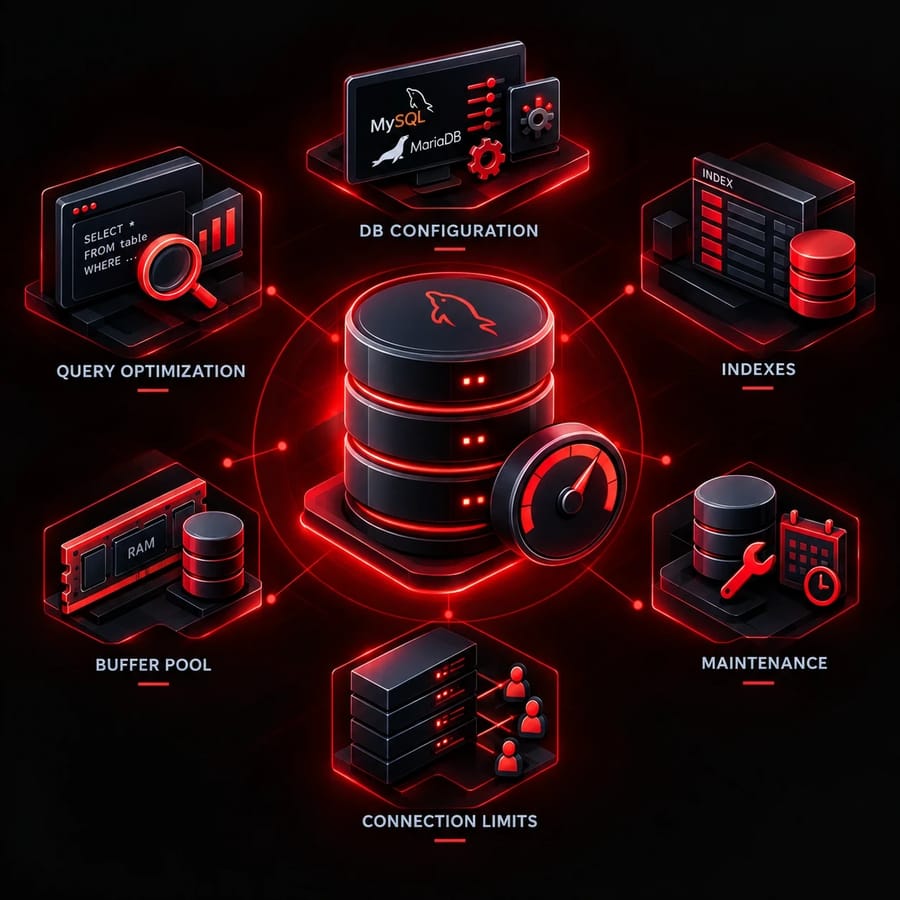
Optimize MySQL and MariaDB
Configure MySQL or MariaDB according to your available hardware and workload.
Important areas include:
- InnoDB buffer pool
- Database connections
- Temporary tables
- Storage configuration
- Slow query logging
Don't copy a database configuration from another server without considering differences in RAM, CPU, storage, and workload.
Optimize Database Queries
Identify slow queries before attempting to optimize them. Use slow query logs and query execution plans to find inefficient operations.
Common problems include:
- Full table scans
- Unnecessary joins
- Large result sets
- Repeated queries
- Missing indexes
Focus on queries that are executed frequently or consume significant resources.
A small improvement to a frequently executed query can have a larger effect than optimizing a query that runs only once per hour.
Optimize Database Indexes
Indexes help databases find required data faster, reducing query processing time and improving overall application performance.
Consider indexes for columns frequently used for:
- Filtering
- Searching
- Joining
- Sorting
However, adding indexes to every column is not a good strategy. Indexes consume storage and can increase the work required for insert and update operations.
Review query patterns first, then add indexes where they provide a measurable benefit.
Optimize InnoDB Buffer Pool
The InnoDB buffer pool keeps frequently accessed database pages in RAM. A properly sized buffer pool can reduce disk reads and improve database performance. However, don't allocate all available RAM to MySQL. Your operating system, web server, PHP processes, caching systems, and other applications also need memory.
The correct configuration depends on how much RAM the server has and what else is running on it.
Optimize Database Connection Limits
Database connections consume resources. If the connection limit is too low, application requests may wait for an available connection. If it is too high, the server may consume excessive RAM and CPU.
Monitor actual connection usage and configure limits according to your workload.
Also investigate applications that create unnecessary connections. Poor connection management can cause problems even when the configured database limit is reasonable.
Regular Database Maintenance
Regular database maintenance helps prevent unnecessary resource usage.
Depending on your workload, maintenance may include:
- Removing obsolete data
- Reviewing unused indexes
- Checking database health
- Reviewing slow queries
- Archiving old records
- Analyzing database performance
Always create a reliable backup before performing operations that could affect important data.
Implement a Caching Strategy
Caching reduces repeated processing by storing frequently requested content or data.
Without caching, the server may repeatedly execute the same application code and database queries for similar requests.
Page Caching
Page caching stores generated pages so they can be served without executing the entire application stack every time. This works particularly well for pages that don't change frequently.
For dynamic websites, make sure personalized pages and frequently changing information are excluded from inappropriate caching.
Use Redis or Memcached
Redis and Memcached can store frequently accessed information in memory.
They can reduce database queries and improve application response times.
Common uses include:
- Session storage
- Object caching
- Frequently accessed database results
- Temporary application data
Choose the caching system based on your application's requirements and memory availability.
Use a CDN
A CDN stores static content on servers distributed across different locations. When a visitor requests an image, CSS file, JavaScript file, or other cached asset, the content can often be delivered from a location closer to the user.
This can reduce:
- Origin server bandwidth usage
- Network latency
- Number of requests reaching the dedicated server
A CDN is especially useful when your audience is spread across multiple regions.
Optimize Images, Files, and Front-End Resources
Large files can slow down page delivery and increase bandwidth usage. Images are often a major source of unnecessary page weight. Compress images and resize them according to their actual display dimensions. Avoid uploading a huge image when the page only needs a much smaller version.
You can also reduce the size of HTML, CSS, and JavaScript files through compression and appropriate optimization.
Clean up unnecessary files such as:
- Old temporary files
- Unused assets
- Outdated backups
- Unnecessary logs
- Duplicate data
Be careful when deleting server files. Some logs and system files may be needed for troubleshooting or normal operation.
Optimize Network Performance
Network performance depends on bandwidth, latency, connection handling, and traffic patterns.
Start by monitoring:
- Bandwidth utilization
- Network latency
- Packet loss
- Connection counts
- Network errors
If bandwidth is consistently saturated, determine whether the problem is caused by legitimate traffic, large file delivery, backups, or another process.
TCP and connection queue settings can also affect how the server handles incoming connections. These settings should be tuned based on measured traffic rather than changed blindly.
If most visitors are located far from your server, choosing a server location close to your users can also help reduce network latency.
Secure Your Dedicated Server
Security and performance are closely connected. A compromised server may run unwanted processes, generate unexpected traffic, or consume resources without your knowledge. Start with a properly configured firewall and follow dedicated server security best practices. A dedicated IP can also help with access control and service isolation; if you're unsure which option fits, review the difference between dedicated IP vs shared IP.
Allow only the ports and services your applications actually require.
Use intrusion detection or security monitoring to identify suspicious activity.
Regular backups are also important. Store important backups separately from the main server so a hardware failure or security incident does not affect both the original data and its backup.
Run vulnerability scans regularly to identify outdated software and known security problems.
Keeping internet-facing services patched reduces the risk of attacks that can lead to downtime or resource consumption.
Monitor Server Performance
You cannot reliably optimize what you don't measure. Linux server monitoring helps you identify resource bottlenecks and determine whether an optimization actually improved performance. If you're deciding how much support you need, understanding managed vs unmanaged dedicated server options can help you plan monitoring responsibilities.
Monitor CPU and RAM Usage
Monitor CPU usage over time rather than reacting to individual spikes. A short CPU spike may be normal during backups or scheduled tasks. Consistently high usage is more likely to indicate a bottleneck.
For RAM, monitor available memory and swap activity. Heavy swap usage can indicate that the server doesn't have enough memory for its current workload.
Monitor Disk I/O and Network Usage
Monitor disk read/write activity and latency.
High disk activity may come from:
- Database operations
- Backups
- Logging
- File processing
- Temporary files
Network monitoring can reveal bandwidth saturation and unexpected traffic increases.
Monitor Server Logs
Server logs provide useful information about errors, failed requests, slow operations, and unusual activity.
Review relevant:
- Web server logs
- Application logs
- Database logs
- System logs
Automated log monitoring can make it easier to identify recurring issues.
Set Performance Alerts
Create alerts for important thresholds such as:
- High CPU usage
- Low available RAM
- High disk usage
- High disk I/O
- Network saturation
- Application errors
The goal is to detect a problem before it turns into downtime or a noticeable slowdown for users.
Load Testing and Capacity Planning
Load testing helps you understand how your dedicated server behaves when traffic increases. Instead of waiting for a real traffic spike to expose a weakness, you can simulate expected workloads and measure the results. For compute-heavy deployments, bare metal hosting for AI workloads shows how raw hardware choices affect performance under sustained load.
Identify Performance Bottlenecks
During a load test, identify which resource reaches its limit first.
For example:
- CPU reaches sustained high utilization
- RAM becomes exhausted
- Database connections reach their limit
- Storage I/O becomes saturated
- Network bandwidth reaches capacity
Once you identify the bottleneck, focus your optimization efforts there.
Measure Server Capacity
Capacity planning helps you understand how much traffic your current infrastructure can handle.
Test your application at different load levels and record:
- Response times
- Error rates
- CPU usage
- RAM usage
- Database performance
- Network usage
This gives you a better idea of when your current server will need additional resources.
Follow a Dedicated Server Optimization Checklist
A consistent process makes server optimization easier and reduces the risk of making unnecessary changes.
Measure Current Performance
Create a baseline before changing anything.
Record important metrics such as:
- CPU usage
- RAM usage
- Disk I/O
- Network usage
- Application response time
- Database performance
Without a baseline, it is difficult to know whether an optimization actually helped.
Identify the Main Bottleneck
Find the resource or application component causing the performance problem. For example, if CPU usage is normal but disk I/O is consistently saturated, upgrading the processor is unlikely to solve the problem.
Optimize Hardware and Software
Apply changes according to the bottleneck.
| Problem | Possible Solution |
| High CPU usage | Optimize processes or upgrade CPU |
| Insufficient RAM | Reduce memory usage or add RAM |
| Slow storage | Use SSD/NVMe storage |
| Slow database queries | Optimize queries and indexes |
| High application load | Implement caching |
| Network saturation | Increase capacity or optimize content delivery |
This approach prevents unnecessary server upgrades.
Test and Monitor the Changes
After making an optimization, test the server again. Compare the new results with your original baseline. Don't assume that a configuration change improved performance simply because the server appears faster. Use measurable data and continue monitoring after deployment.
When Should You Scale Up, and When Does the Architecture Need to Change?
Optimization can extend the useful capacity of a dedicated server, but every server eventually reaches a physical or architectural limit.
The key is knowing when further tuning is no longer the most practical solution.
When to Upgrade Server Resources
Consider upgrading when a particular resource consistently reaches its limit despite optimization. You can start by reviewing the best dedicated server providers to compare available configurations.
For example:
- CPU remains heavily utilized
- RAM is consistently insufficient
- Storage cannot handle the required I/O
- Network bandwidth is repeatedly saturated
Upgrade the resource responsible for the bottleneck instead of automatically moving to a much larger server.
When to Change the Server Architecture
A larger dedicated server is not always the answer. If traffic continues to grow, you may need to distribute workloads across multiple systems. This often starts with load balancing across multiple servers or moving some infrastructure to colocation hosting. If you go that route, review how to choose a colocation provider before committing.
Depending on the application, this could include:
- Multiple application servers
- Load balancing
- A separate database server
- Dedicated caching infrastructure
- CDN-based content delivery
Changing architecture makes sense when a single server has become a limiting factor or when you need better scalability and availability.
Conclusion
Optimizing dedicated server performance is an ongoing process that starts with identifying the resources or configurations causing slowdowns. Choosing the right CPU, RAM, SSD/NVMe storage, and network capacity provides a strong foundation. From there, optimizing the operating system, web server, PHP-FPM, database, caching, files, and network settings can improve speed and resource efficiency. A dedicated IP address can also simplify access control and service isolation. Regular monitoring and load testing help you find bottlenecks before they affect users. If your server continues reaching its limits despite optimization, upgrading resources or changing the architecture may be necessary.
If you're planning to deploy a high-performance environment or replace an underperforming setup, choosing the right dedicated server provider makes a measurable difference. A properly configured dedicated server gives you full control over CPU, RAM, storage, and network resources — which is exactly what you need when optimization alone isn't enough. For production workloads that demand consistent speed and reliability, explore 1Gbits dedicated server plans to find a configuration that matches your performance requirements.
People are also reading:

Leave A Comment