
Firewalld is the default firewall manager on CentOS, and it's the tool you'll use to open ports, group interfaces into zones, and keep everything except SSH and your app locked out. This guide is command-first, version-aware, and written for a remote server you can't afford to lose access to.
Quick Answer: Configuring firewalld on CentOS
Firewalld is CentOS's dynamic firewall manager. Install it with sudo dnf install firewalld, start it using sudo systemctl enable --now firewalld, and add a permanent rule with sudo firewall-cmd --zone=public --add-service=http --permanent. Run sudo firewall-cmd --reload, then verify with sudo firewall-cmd --zone=public --list-all.
Warning: Keep your current SSH session open the whole time. Test every change from a second terminal before you reload or reboot. Confirm you have console or recovery access from your provider panel first — I've watched people lock themselves out of a production box in under 30 seconds.
What Is Firewalld on CentOS and How Does It Work?
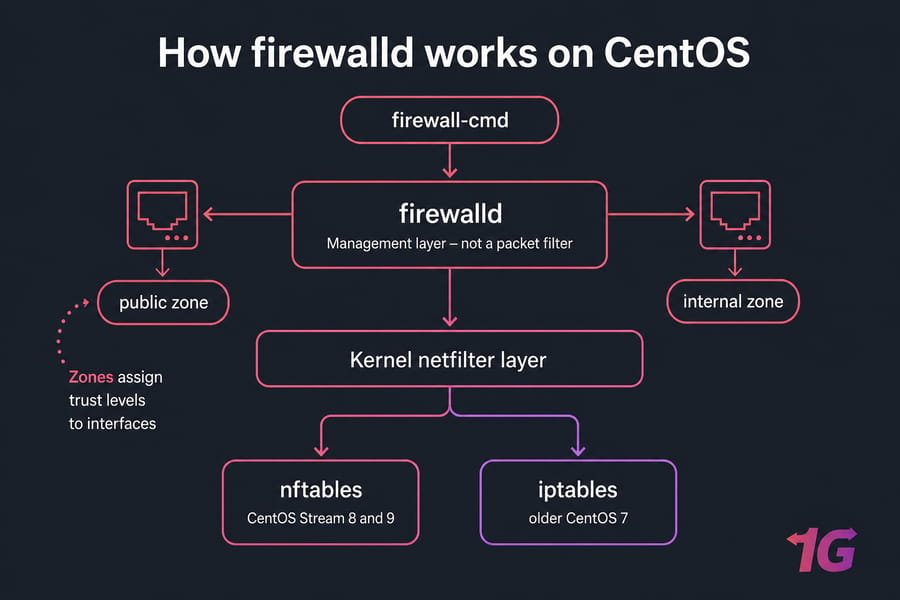
Firewalld isn't a packet filter. It's a management layer that writes rules into the kernel's netfilter subsystem — through iptables on older CentOS 7 setups, and through nftables on CentOS Stream 8 and 9. You talk to it with firewall-cmd; it handles the messy backend syntax.
Two concepts matter more than anything else. Zones assign a trust level to an interface or a source network. And every rule exists in one of two states:
| Behavior | Runtime | Permanent |
| Active immediately | Yes | No — needs a reload |
| Survives reload/reboot | No | Yes |
| Command pattern | --add-service=http | --add-service=http --permanent |
The other distinction: a service is a named definition (http, https, ssh) that may bundle several ports; a port rule opens one raw port or range. If you're new to host firewalls in general, our guide on how to configure a firewall on any VPS covers the concepts platform-agnostically.
Read: What is CentOS
CentOS Firewall Compatibility by Version
CentOS Linux 7 reached end of life on June 30, 2024. CentOS Linux 8 died even earlier, at the end of 2021. Neither gets security patches. Run cat /etc/centos-release and firewall-cmd --version, or check your CentOS version the thorough way, before you copy any command.
| Release | Status | Package manager | Likely backend |
| CentOS Linux 7 | EOL (June 30, 2024) | yum | iptables |
| CentOS Linux 8 | EOL | dnf | nftables |
| CentOS Stream 8 | Legacy | dnf | nftables |
| CentOS Stream 9 | Current | dnf | nftables |
The firewall-cmd workflow is basically identical across all four. For a new internet-facing server, pick CentOS Stream 9, or look at the AlmaLinux and Rocky Linux alternatives — both are RHEL rebuilds with long support windows and the same firewalld tooling.
How to Install and Enable Firewalld on CentOS
Check what's already there first. Some minimal images ship without it; others have it installed but stopped.
rpm -q firewalld
sudo systemctl status firewalld
sudo firewall-cmd --state
Install it — dnf on Stream 8/9, yum on legacy CentOS 7:
sudo dnf install firewalld
sudo yum install firewalld
Then start it and set it to come up at boot:
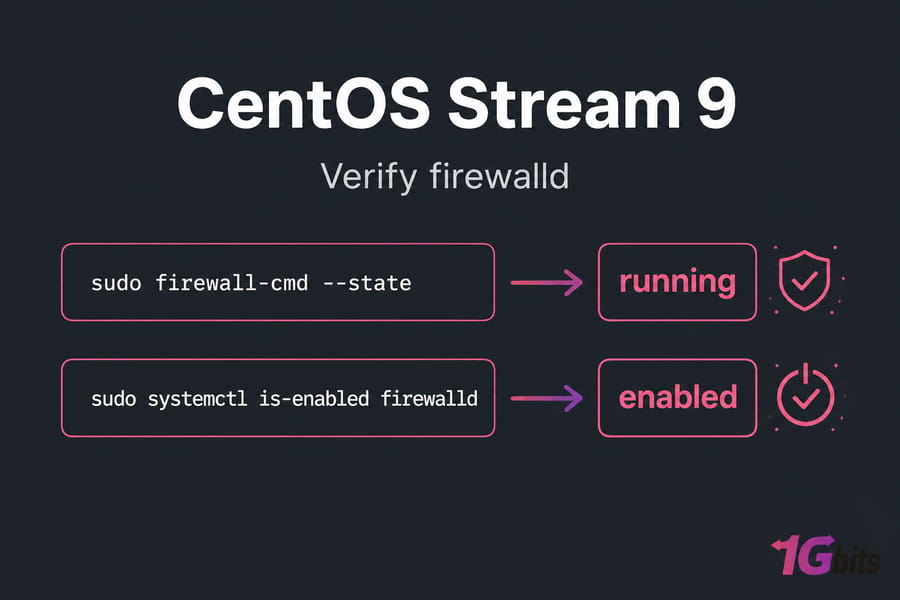
sudo systemctl enable --now firewalld
sudo firewall-cmd --state
sudo systemctl is-enabled firewalld
You want running and enabled. Before you touch a single rule, confirm the port sshd actually uses (check sshd_config — don't assume 22), and make sure your zone allows it. If you're still getting comfortable with remote access, here's how to connect to a server with SSH.
Firewalld Zones Explained for CentOS Servers
sudo firewall-cmd --get-default-zone
sudo firewall-cmd --get-active-zones
sudo firewall-cmd --zone=public --list-all
Nine zones ship by default: drop and block reject everything inbound, public is the sane default for an internet-facing NIC, external adds masquerading, dmz and work and home and internal sit in the middle, and trusted accepts everything. Never put a public interface in trusted.
Assign an interface or a source network like this:
sudo firewall-cmd --zone=public --change-interface=ens3 --permanent
sudo firewall-cmd --zone=internal --add-source=10.0.0.0/8 --permanent
sudo firewall-cmd --reload
Your interface probably isn't eth0. On modern CentOS it's usually ens3 or enp1s0. Check with ip -br addr. And always pass --zone= explicitly, even when it matches the default — ambiguity is how rules end up in the wrong place.
How to Open Ports and Services in CentOS Firewalld
Test in runtime, verify, then repeat with --permanent. That's the safe order.
sudo firewall-cmd --zone=public --add-service=http
sudo firewall-cmd --zone=public --add-service=https
sudo firewall-cmd --zone=public --list-services
Happy? Persist it:
sudo firewall-cmd --zone=public --add-service=http --permanent
sudo firewall-cmd --zone=public --add-service=https --permanent
sudo firewall-cmd --reload
Raw ports, a UDP port, and a range:
sudo firewall-cmd --zone=public --add-port=8080/tcp --permanent
sudo firewall-cmd --zone=public --add-port=51820/udp --permanent
sudo firewall-cmd --zone=public --add-port=5000-5010/tcp --permanent
sudo firewall-cmd --reload
sudo firewall-cmd --zone=public --query-port=8080/tcp
Running a non-standard SSH port? Add it before removing the old one, and read up on how to change the SSH port securely. Two gotchas: --permanent alone changes nothing until you reload, and --runtime-to-permanent commits every runtime change currently loaded, including experiments you forgot about.
Need a Linux VPS You Can Fully Control?
Deploy on a Linux VPS with root access, flexible locations, and full control over firewalld, SSH, and custom ports.
Firewalld Rich Rules for IP-Based Access Control
Rich rules let you scope access by source address. Replace 203.0.113.10 — that's an IANA documentation address, not yours.
sudo firewall-cmd --zone=public \
  --add-rich-rule='rule family="ipv4" source address="203.0.113.10/32" service name="ssh" accept' \
  --permanent

sudo firewall-cmd --zone=public \
  --add-rich-rule='rule family="ipv4" source address="203.0.113.0/24" port port="3306" protocol="tcp" accept' \
  --permanent

sudo firewall-cmd --reload
sudo firewall-cmd --zone=public --list-rich-rules
Add logging with rate limiting: append log prefix="ssh-drop" level="info" limit value="3/m" drop to the rule string. For IPv6 sources, switch to family="ipv6" — an IPv4-only allowlist leaves the v6 door wide open if the interface has a global address. Need repeatable multi-port definitions? Drop a custom XML service into /etc/firewalld/services/ instead of stacking rules.
How to Remove or Close Firewalld Rules
| Task | Add | Remove |
| Service | --add-service=http | --remove-service=http |
| Port | --add-port=8080/tcp | --remove-port=8080/tcp |
| Source | --add-source=10.0.0.0/8 | --remove-source=10.0.0.0/8 |
Same zone, same object, plus --permanent and a reload. Rich rules must be removed with the byte-identical rule string:
sudo firewall-cmd --zone=public \
  --remove-rich-rule='rule family="ipv4" source address="203.0.113.10/32" service name="ssh" accept' \
  --permanent
sudo firewall-cmd --reload
Made a runtime mess? A plain reload discards uncommitted runtime changes and restores the permanent config. Just never remove your own SSH access.
Troubleshoot Firewalld When a CentOS Port Is Still Closed
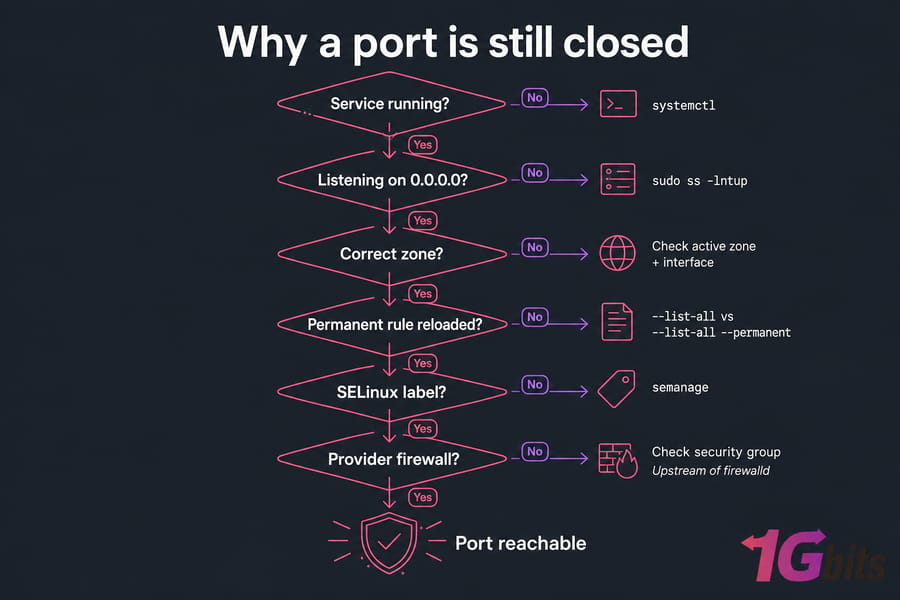
A firewall rule permits traffic. It doesn't start your app or change what address it binds to. Work through these in order:
- Is the service running? Check with systemctl.
- Is it listening publicly, or on 127.0.0.1 only? Run sudo ss -lntup — and here's more on how to check open ports in Linux.
- Confirm the active zone and interface, then compare runtime against permanent: --list-all versus --list-all --permanent.
- Read the logs: sudo journalctl -u firewalld --since "30 minutes ago".
- Test from outside — nc -vz your-ip 8080, or test ports with Nmap.
- Check SELinux port labeling with semanage. Don't run setenforce 0 and call it fixed.
- Check your provider's firewall or security group. It filters upstream of the guest OS, independently of firewalld.
Running containers? Docker writes its own netfilter rules and can publish ports that bypass your zone expectations. Don't flush chains manually to "clean up."
CentOS Firewall Best Practices
- Default deny. Open only what a running service actually needs.
- Restrict admin ports and databases by source IP or subnet — never expose MySQL/MariaDB to 0.0.0.0/0.
- Keep IPv4 and IPv6 policies aligned.
- Harden SSH properly: SSH key authentication, fail2ban, patching. A non-standard port cuts log noise, nothing more.
- Back up /etc/firewalld/ and take a snapshot before major changes.
- Remember a host firewall won't stop a volumetric DDoS — that needs upstream scrubbing.
- Migrate EOL CentOS boxes. Broader guidance lives in our Linux server security practices.
Firewalld Command Cheat Sheet
firewall-cmd --state
firewall-cmd --get-default-zone
firewall-cmd --get-active-zones
firewall-cmd --zone=public --list-all
firewall-cmd --zone=public --add-service=https --permanent
firewall-cmd --zone=public --add-port=8080/tcp --permanent
firewall-cmd --zone=public --remove-port=8080/tcp --permanent
firewall-cmd --zone=public --list-rich-rules
firewall-cmd --reload
ss -lntup
Build Your Next Server on a Secure Linux VPS
Start with a supported distribution and full administrative access. Browse CentOS server options, compare VPS plans, or keep learning with more CentOS tutorials.

Leave A Comment