
Ubuntu permission denied errors usually mean your user lacks the right privilege, ownership, or execute permission for a file, folder, command, or service action. The safe fix is to identify whether you need sudo, a chmod change, a chown update, or a group adjustment instead of reaching for dangerous shortcuts like 777.
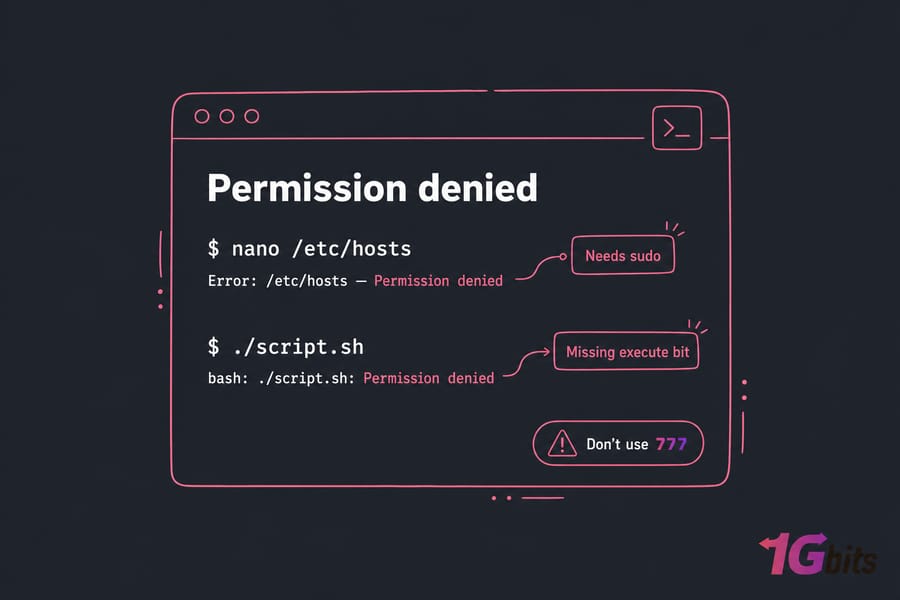
If you manage your own server, you've probably hit this at the worst possible moment. I've seen it during package installs, web deployments, and 2 a.m. config edits. On self-managed Linux VPS hosting, these errors are common, but they're usually fixable once you know which layer is blocking you.
New to Ubuntu? Before diving into permissions, here's the full introduction: What is Ubuntu?
Before you change anything, make sure you have terminal or SSH access, a sudo-capable account or alternate root access, and a recent backup or snapshot if you're considering recursive permission changes.
What does "permission denied" mean in Ubuntu?
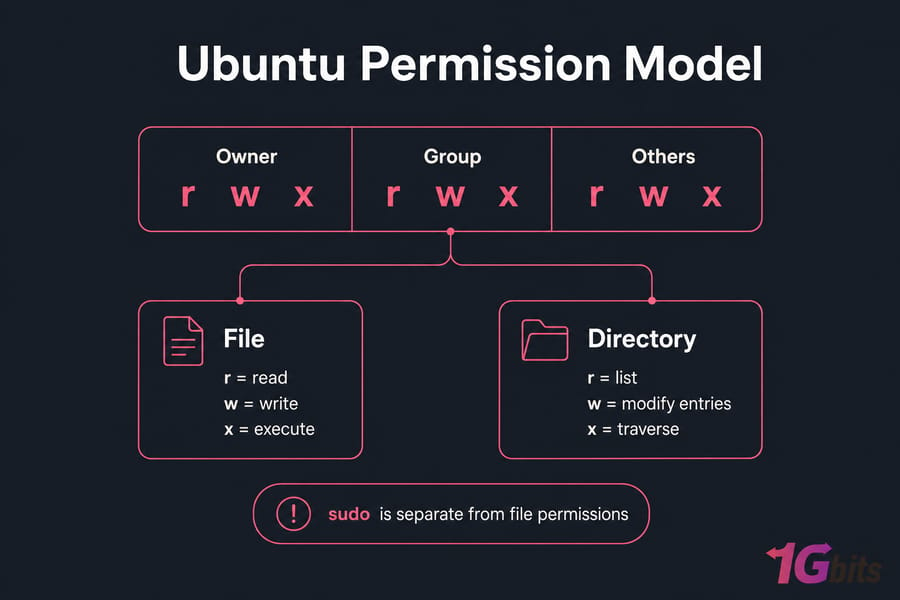
In Ubuntu, permission denied is a symptom, not one problem. Linux permissions check who you are, what group you're in, and what rights exist on the target file, directory, or action.
That shows up in a few common ways: you try to edit a file in /etc, restart a service, install packages, write to /var/www, or run a shell script. Ubuntu blocks the action because you're not the owner, your group doesn't allow it, the execute bit is missing, or the task needs sudo privileges.
And yes, sudo is separate from file mode bits. That's where beginners get tripped up.
- Ownership: who owns the file and which group it belongs to
- Permissions: read, write, execute for owner, group, and others
- Sudo privileges: whether your user can perform admin tasks at all
If you want more background, these guides on sudo in Linux and Ubuntu permissions help. But first, diagnose the exact cause.
How to diagnose Ubuntu permission denied errors first
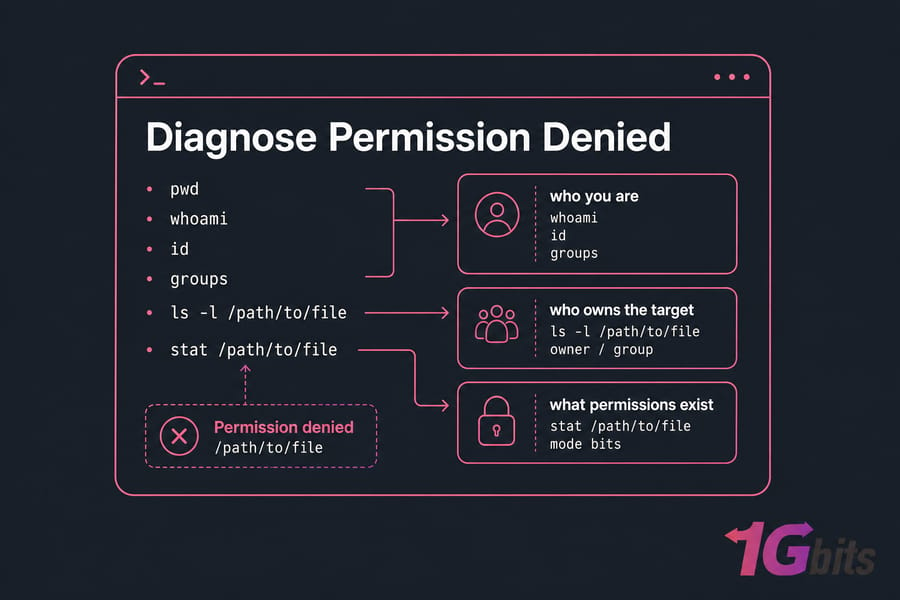
Don't guess. Seriously. Randomly running chmod is how people make a small issue much worse.
Start with the exact command that failed, then inspect your identity and the target:
pwd
whoami
id
groups
ls -l /path/to/file
stat /path/to/file
Ubuntu basic commands are enough for this part. You're checking three things: who you are, who owns the target, and what permissions exist.
| Symptom | Likely Cause | Command to Check | Safe Fix |
Can't edit /etc/hosts |
Missing admin rights | groups |
Use sudo or fix sudo access |
apt update fails |
No sudo / lock file access | whoami |
Run with sudo |
| Can't write to web root | Wrong owner or group | ls -l /var/www |
Fix ownership or deployment group |
./script.sh: Permission denied |
No execute bit | ls -l script.sh |
chmod +x script.sh |
chmod says denied |
Not owner or root | stat file |
Use sudo or change owner |
| Still denied after chmod | ACL, mount, immutable flag | getfacl, findmnt, lsattr |
Fix advanced blocker |
Quick rule of thumb: if the command changes system state, think sudo first. If the file belongs to another user, think chown or group membership. If it's a script, check the execute bit. If none of that fits, move to mount options and ACLs.
Ubuntu sudo permission denied: fix missing admin privileges
Admin tasks like apt update, editing /etc/hosts, or restarting nginx with systemctl restart nginx usually need sudo. That's normal. Ubuntu protects system paths on purpose.
sudo apt update
sudo nano /etc/hosts
sudo systemctl restart nginx
If you see lock file errors around apt, or access denied under /var/lib/apt, you're almost certainly missing elevated privileges. If package issues continue, this guide to fix Ubuntu broken packages is worth checking too.
To verify sudo group membership:
groups
id
On Ubuntu, users in the sudo group can elevate. If your user isn't there, an existing admin can add it safely:
sudo usermod -aG sudo username
For a full walkthrough, see how to add a user to sudoers on Ubuntu. And if sudo isn't available at all, you may need to switch to root user in Ubuntu temporarily. Use visudo for sudoers changes, not a regular editor. I can't stress that enough.
If you're building a cleaner admin setup, you may also want to create a user on Ubuntu and grant only the access needed.
Ubuntu file permission denied: fix ownership problems with chown
Ownership mismatch is a classic Ubuntu file permission denied problem. Maybe root created the file. Maybe your deployment copied files as the wrong user. Maybe a web app uploaded content under a service account.
Check ownership first:
ls -l /path/to/file
stat /path/to/file
Then fix it carefully:
sudo chown user:user file
sudo chown -R user:group directory
Use owner changes when one account should control the file. Use group changes when several users or a service need shared access. That's usually the better pattern for web content under /var/www.
Read more in this chown command in Linux guide and this chown recursive guide. But don't get reckless—never recursively change ownership of /etc, /usr, or /. I've seen servers become unbootable from exactly that mistake.
Ubuntu chmod permission denied: fix incorrect permission bits
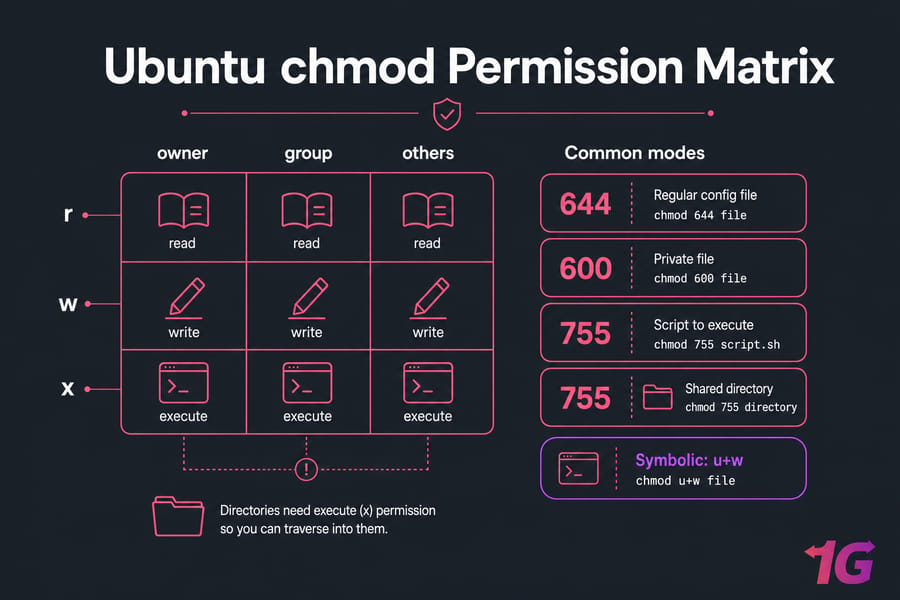
chmod changes file mode bits: read, write, and execute. Files and directories behave differently, which matters a lot.
A file might need 644 so it's readable but not executable. A directory often needs 755 so users can traverse it. Without execute on a directory, you can get denied even if the file inside looks readable.
| Use Case | Recommended Mode | Command | Notes |
| Regular config file | 644 | chmod 644 file |
Owner writes, others read |
| Private file | 600 | chmod 600 file |
Good for secrets |
| Script to execute | 755 | chmod 755 script.sh |
Executable by others |
| Shared directory | 755 | chmod 755 directory |
Allows traversal |
| Add owner write | symbolic | chmod u+w file |
Small targeted fix |
If chmod itself returns permission denied, you're probably not the owner or root. So this isn't just a chmod problem. It's an ownership or sudo problem.
And no, chmod -R 777 is not a smart Ubuntu permission denied fix. It blows open access and creates a real security risk on any production server.
Ubuntu script permission denied: fix execute permission errors
When you see ./script.sh: Permission denied, the usual cause is simple: the script isn't executable.
chmod +x script.sh
./script.sh
Or run it through Bash directly:
bash script.sh
That second method works when the file is readable but not executable. Also check the shebang at the top:
#!/bin/bash
If the script came from Windows, CRLF line endings can break execution in odd ways. And if it's on a mounted drive with noexec, even chmod +x won't help. For Bash basics, see what is Bash.
Ubuntu permission denied in /etc, /var/www, and other admin paths
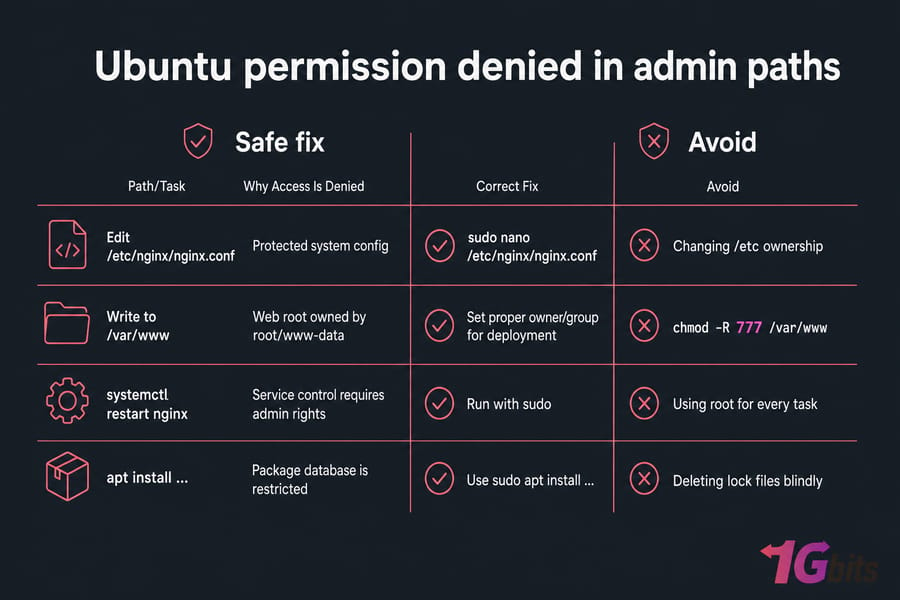
System paths are where a lot of admin-task errors happen.
| Path/Task | Why Access Is Denied | Correct Fix | Avoid |
Edit /etc/nginx/nginx.conf |
Protected system config | sudo nano /etc/nginx/nginx.conf |
Changing /etc ownership |
Write to /var/www |
Web root owned by root/www-data | Set proper owner/group for deployment | chmod -R 777 /var/www |
systemctl restart nginx |
Service control requires admin rights | Run with sudo |
Using root for every task |
apt install |
Package database is restricted | Use sudo apt install ... |
Deleting lock files blindly |
For web deployments, don't just throw ownership at your app user and hope for the best. Use a sane owner/group setup, especially if you host a website on a Linux VPS. Nginx and Apache often rely on service accounts like www-data, so your deployment workflow should respect that.
Need Full Control to Fix Ubuntu Admin Errors Faster? If you regularly handle sudo, ownership, services, and web roots, a Ubuntu VPS gives you the control shared hosting usually doesn't.
Advanced Ubuntu permission denied fixes for mounts, ACLs, and special cases
If permissions look correct but Ubuntu still says denied, check the less obvious blockers.
findmnt /path/to/file
getfacl /path/to/file
lsattr /path/to/file
A noexec mount prevents execution from that filesystem. ACLs can override the basic owner/group/others view. And an immutable flag can block changes even for users who think they should have access.
If needed, remove immutability with care:
sudo chattr -i file
These are edge cases, but real ones. On Ubuntu, AppArmor can also interfere in some service contexts, though it's less common for basic file errors. For broader hardening advice, read about Linux server security.
Safe Ubuntu permission denied fixes vs dangerous shortcuts
| Don't | Do Instead |
chmod -R 777 project |
Set only the bits the app actually needs |
chown -R user:user / |
Change ownership only on the target path |
| Use root for everything | Follow least privilege with sudo |
| Make blind recursive changes in production | Take a snapshot first, then verify |
Least privilege sounds boring, but it saves servers. If this is a production box, take a backup or snapshot before recursive changes. That's not paranoia. That's experience.
Final Ubuntu permission denied checklist for admin tasks
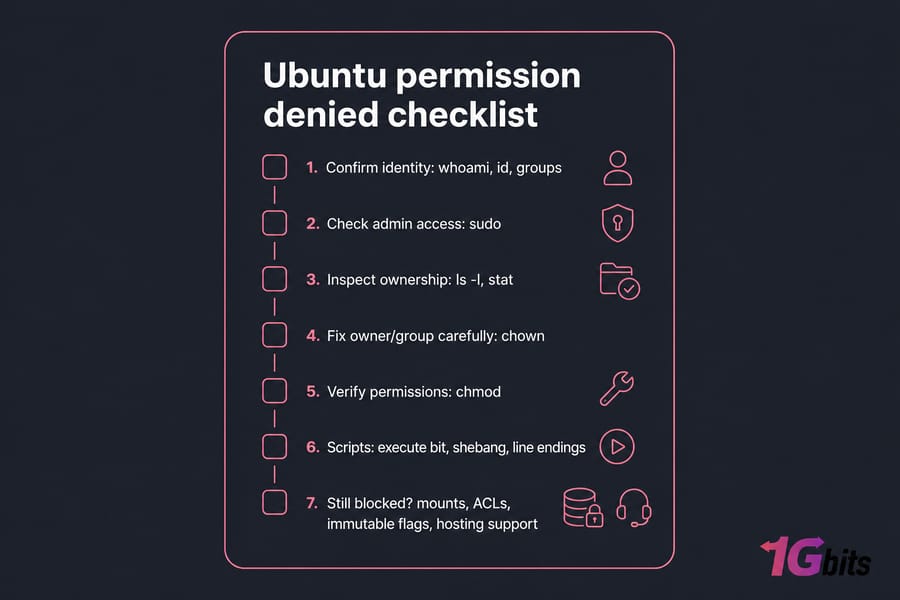
- Confirm who you are with
whoami,id, andgroups - Check whether the task needs
sudo - Inspect ownership with
ls -landstat - Fix owner/group with
chownonly on the correct path - Verify permission bits with
chmodas needed - For scripts, check execute permission, shebang, and line endings
- If still blocked, inspect mounts, ACLs, and immutable flags
- Ask hosting support if the environment itself restricts actions
On a 1Gbits Ubuntu VPS, you get full control over sudo, ownership, services, and admin workflows. If you'd rather skip most of the server maintenance, managed VPS hosting is the easier route.
Run Ubuntu Admin Tasks Without Hosting Limitations. If you're tired of fighting restricted environments, get an Ubuntu VPS that gives you proper access and cleaner troubleshooting.

Leave A Comment