
Your RDP client connects to your Ubuntu box, you type your password, and all you get is a black screen. Sometimes the window just closes. This guide is for that situation. I've fixed a lot of broken xRDP setups on Ubuntu VPS and dedicated servers, and it's almost never random. Ubuntu xRDP troubleshooting goes quickly once you match the symptom to the layer that's failing. That layer is usually the service, the network, authentication, or the desktop session.
Quick answer: If xRDP isn't working on Ubuntu, the usual causes are a missing desktop environment, a GNOME/Xorg session conflict, certificate permission problems, a firewall blocking port 3389, or a broken session startup script. Check the xrdp and xrdp-sesman logs first. Then fix based on what you see:
- Black screen means a session or display problem
- Login failed means an authentication, certificate or session mismatch
- Connection refused or timeout means a service or network problem
Before you start, you'll need: Ubuntu 20.04, 22.04 or 24.04, sudo access, a working SSH login (this is your lifeline while the GUI is down), and xRDP already installed. If you skipped part of the setup, go back to how to install xRDP on Ubuntu first.
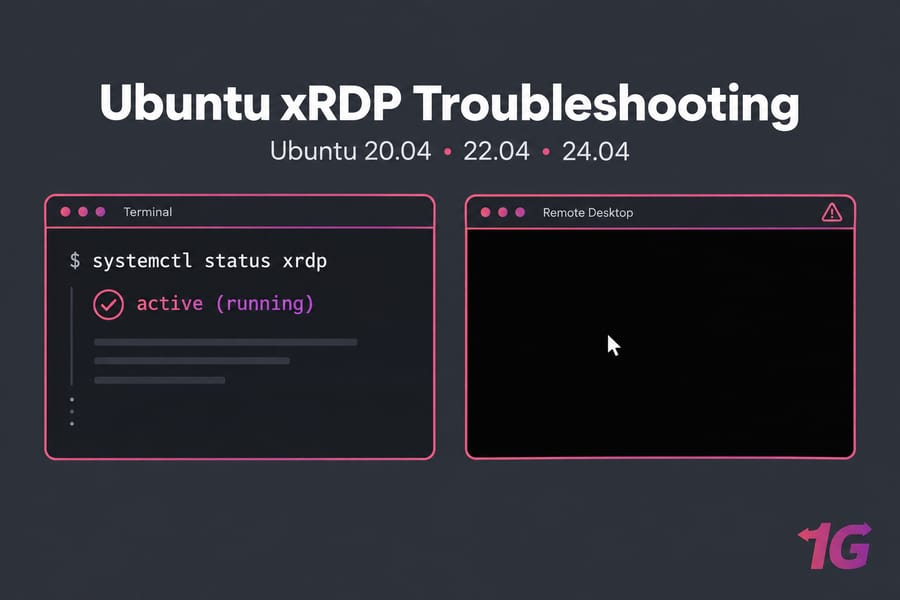
Ubuntu xRDP troubleshooting: what usually causes failures
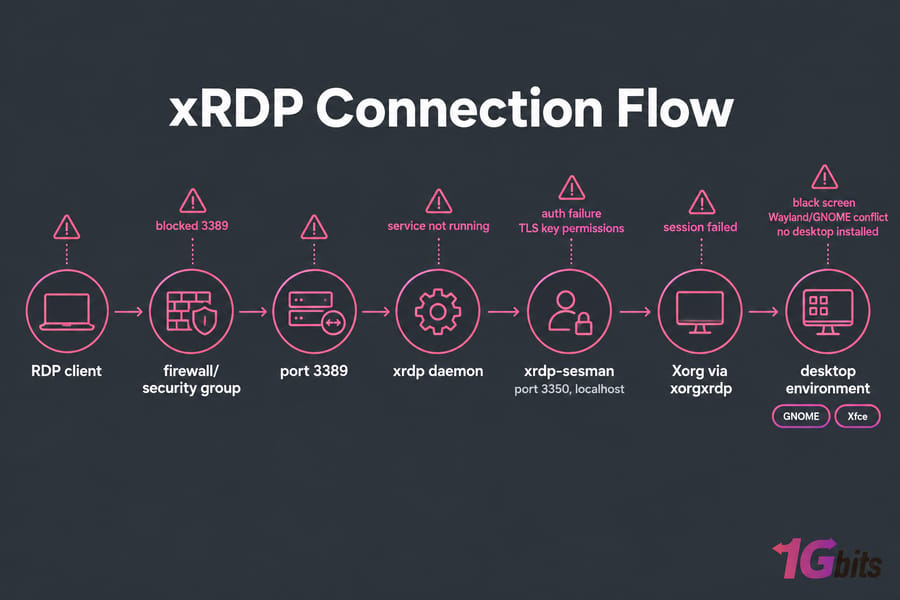
xRDP is an open-source RDP server for Linux. It speaks the same protocol as Windows Remote Desktop, so you can connect with mstsc, Microsoft Remote Desktop on a Mac, or Remmina. The xrdp daemon accepts the connection. Then xrdp-sesman authenticates you and starts an Xorg session (through xorgxrdp) running your desktop environment.
Any link in that chain can break. In practice, almost every failure falls into one of these groups:
- The
xrdporxrdp-sesmanservice isn't running - No desktop environment is installed (this is common on minimal server images)
- The session fails to start because of a broken
startwm.sh,.xsessionor environment variables - GNOME/Wayland conflicts
- The same user is already logged in locally
- xRDP can't read its TLS key because of a permissions problem
- A firewall or cloud security group is blocking port 3389
xRDP vs Ubuntu built-in Remote Desktop: know which service you are using
This mix-up wastes more hours than anything else. Ubuntu Desktop 22.04 and newer includes GNOME Remote Desktop, a separate RDP server that you turn on in Settings. It also wants port 3389. If both it and xRDP are enabled, you might be connecting to a different service than the one you're debugging. Pick one and disable the other.
Why Ubuntu version and desktop environment matter
Most fixes written for 20.04 still work on 20.04. They don't always carry over to 22.04, which uses Wayland by default, or to 24.04 with GNOME 46. Testers have reported black screens on Ubuntu 24.04 with GNOME 46 on both xRDP 0.9.24 and 0.10. Xfce has far fewer of these problems. Start with the quick checks below before you edit any config files.
First checks for Ubuntu remote desktop not working
SSH in and run these. They take two minutes and rule out the easy problems.
sudo systemctl status xrdp
sudo systemctl status xrdp-sesman
sudo ss -tulpn | grep -E '3389|3350'
sudo ufw status verbose
ls /usr/share/xsessions/| Check | Command | Healthy result | If it fails |
|---|---|---|---|
| xRDP service | systemctl status xrdp |
active (running) |
sudo systemctl enable --now xrdp, then check journalctl |
| Session manager | systemctl status xrdp-sesman |
active (running) |
Restart it and read /var/log/xrdp-sesman.log |
| RDP port | ss -tulpn | grep 3389 |
xrdp listening on :3389 |
Another service owns the port, or xrdp crashed |
| Sesman port | ss -tulpn | grep 3350 |
xrdp-sesman on 3350 (localhost only) | sesman isn't running |
| Firewall | ufw status |
3389/tcp ALLOW |
Add the rule (see the firewall section) |
| Desktop installed | ls /usr/share/xsessions/ |
xfce.desktop, ubuntu.desktop, etc. |
Install a desktop environment |
If you want more depth on the port check, see how to check open ports on Linux. An empty /usr/share/xsessions/ folder means there's no desktop for xRDP to start. Minimal cloud images ship this way, and people hit it all the time. Follow the steps to install a desktop GUI on Ubuntu Server, then come back.
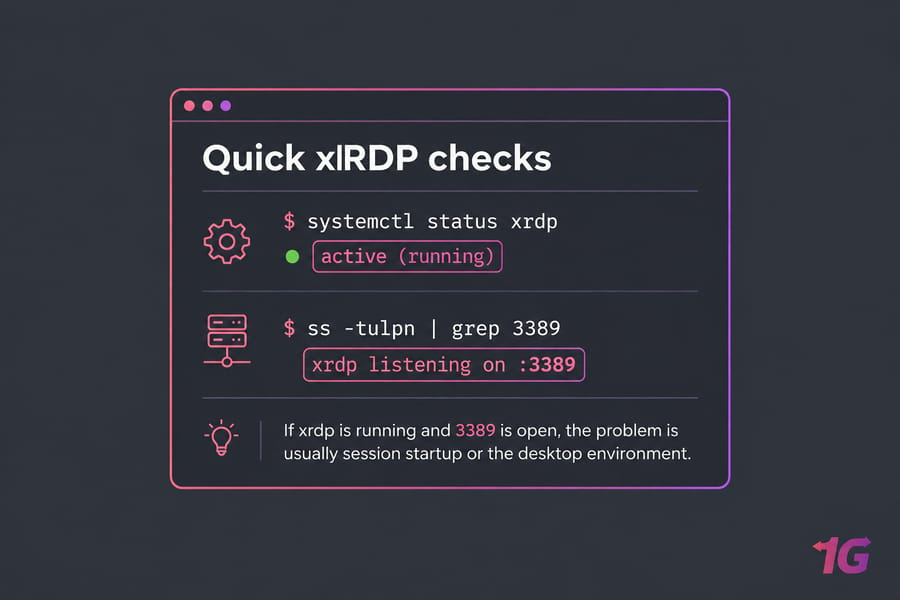
Key takeaway: If xrdp is running and 3389 is open, the problem is almost always session startup or the desktop environment. It's not the network.
Fix xRDP black screen Ubuntu issues
This is the most common complaint by far, and it has several different causes. Work through them in this order.
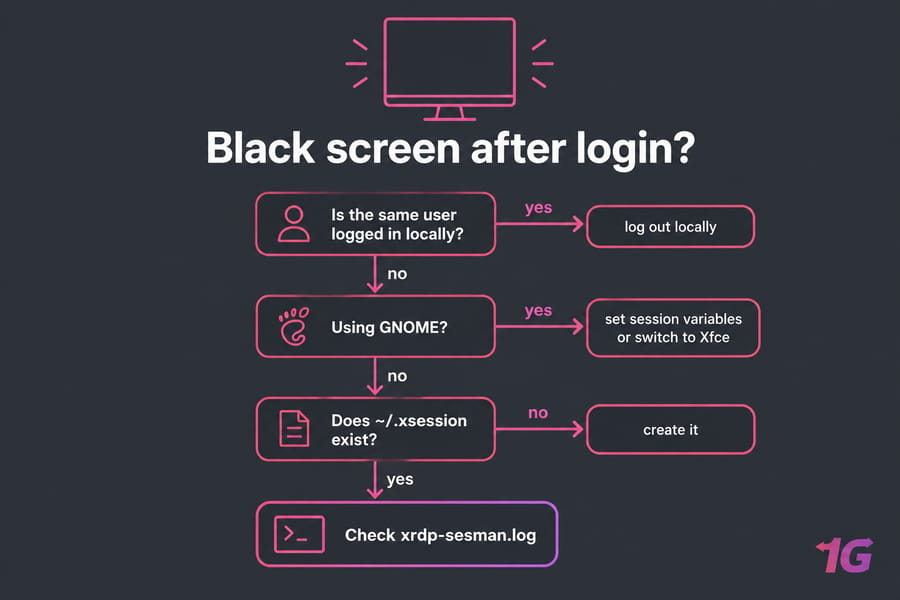
Black screen because the same user is already logged in locally
Check this first. It's the most frequent cause. xRDP starts a new session, and GNOME doesn't handle two sessions for the same user well. D-Bus and systemd user services clash, and the remote session never draws the desktop. One widely referenced write-up says the black screen usually comes from the same account being logged in both locally and remotely.
The fix: log that user out at the console. Over SSH you can run loginctl list-sessions and then loginctl terminate-user USERNAME. Or use a separate account for remote access. I'd skip the hacks that force parallel GNOME sessions. They tend to break again after the next update.
Black screen after login with movable cursor
If you can move the cursor but see nothing else, Xorg started but the desktop shell didn't. On Ubuntu's GNOME, the remote session often lacks the variables the Ubuntu flavour of GNOME needs. A community fix that works on 22.04 is to create ~/.xsessionrc for the affected user:
cat <<'EOF' > ~/.xsessionrc
export GNOME_SHELL_SESSION_MODE=ubuntu
export XDG_CURRENT_DESKTOP=ubuntu:GNOME
export XDG_CONFIG_DIRS=/etc/xdg/xdg-ubuntu:/etc/xdg
EOF
Disconnect fully, log out any local session for that user, and reconnect.
Black screen caused by broken startwm.sh or session variables
/etc/xrdp/startwm.sh is the script sesman runs to start your desktop. An older workaround adds these lines just above the test -x /etc/X11/Xsession line:
sudo cp /etc/xrdp/startwm.sh /etc/xrdp/startwm.sh.bak
sudo nano /etc/xrdp/startwm.sh
# add near the top:
unset DBUS_SESSION_BUS_ADDRESS
unset XDG_RUNTIME_DIR
Treat this as a workaround, not a universal fix. It stops the remote session from inheriting a stale D-Bus address, which can help when a local session exists. It won't do anything for a missing desktop environment or a certificate error. Make the backup, too. I've watched people "fix" a broken startwm.sh into a worse one.
Pro tip: Create a brand-new test user (sudo adduser rdptest) and log in as that user. If it works, the problem is in the original account's dotfiles, not the system.
Black screen on Ubuntu 24.04 and GNOME-based setups
On 24.04 the black screen sometimes shows up even on a clean install with no changes. One admin on the xrdp GitHub running around 30 users on a stock 24.04 GNOME install reported that roughly 24 of 30 users logged in normally after a restart. The rest got a black screen with a cursor. Also confirm you're actually using xRDP: GNOME Remote Desktop has its own black-screen bug that depends on the client.
If GNOME keeps failing after all of the above, switch that user to Xfce. It's the most dependable fix I know of:
sudo apt install xfce4 xfce4-goodies -y
echo xfce4-session > ~/.xsession
sudo systemctl restart xrdp
If you're not seeing a black screen, your error is probably authentication or session startup related.
Fix xRDP login failed for display 0 on Ubuntu
What "login failed for display 0" usually means
This message means sesman couldn't finish starting your session. Bad credentials can cause it. So can a session type that doesn't exist, or an Xorg backend that won't launch. Check the logs right after it happens:
sudo tail -n 50 /var/log/xrdp-sesman.log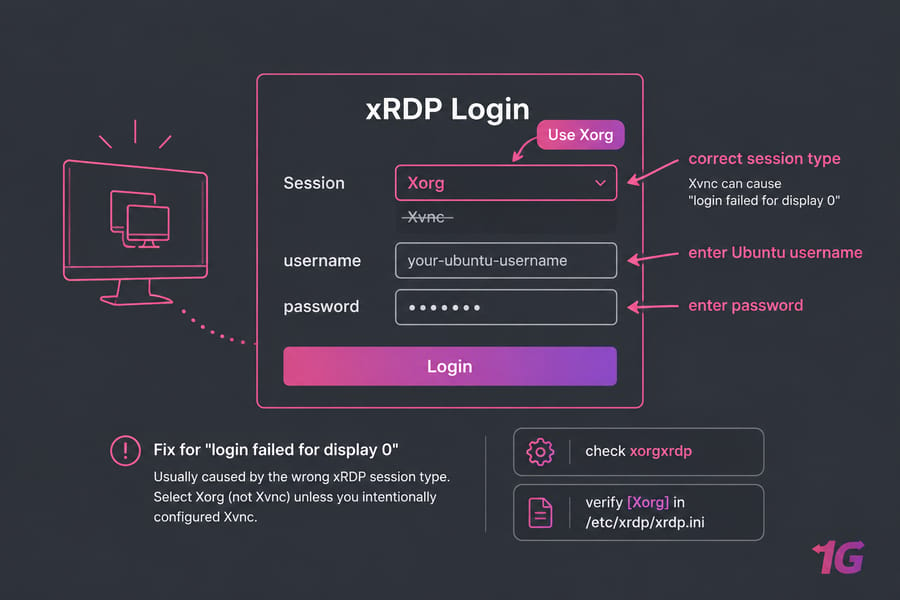
Fix certificate permission problems with ssl-cert
xRDP's default TLS key is readable only by the ssl-cert group. If the xrdp user isn't in that group, TLS fails before you even reach the desktop. Add it and restart:
sudo adduser xrdp ssl-cert
sudo systemctl restart xrdp
You'll typically see a "permission denied" error on /etc/xrdp/key.pem in xrdp.log when this is the cause. Adding the xrdp account to ssl-cert fixes it without changing file permissions.
Check wrong session type or missing Xorg/Xfce session
- In the xRDP login dialog, pick Xorg as the session type, not Xvnc, unless you've configured Xvnc on purpose.
- Confirm the backend is installed:
dpkg -l | grep xorgxrdp. If it's missing, runsudo apt install xorgxrdp. - Look in
/etc/xrdp/xrdp.iniand make sure the[Xorg]section isn't commented out. - Confirm a desktop environment exists (see the first checks).
Validate user credentials and account state
Sometimes the password really is wrong. Test the same login over SSH. Check for a locked account with sudo passwd -S USERNAME. An "L" in the output means it's locked. If you need to reset it, here's how to change a password in Ubuntu. If login succeeds but the session closes right away, use the next section.
Fix xRDP disconnected immediately on Ubuntu
You authenticate, the window opens for about a second, and then it's gone. That's not a network problem. The session started and then crashed. Run through these four checks:
- Is there a
~/.xsessionfile? On Xfce installs, a missing one is the classic cause. Create it:echo xfce4-session > ~/.xsession. - Is the command in that file actually installed? Run
which xfce4-session. A.xsessionthat points to a removed desktop quits instantly. - Did Xorg crash? Check
~/.xorgxrdp.*.login the user's home folder and~/.xsession-errors. - Is the service healthy? If
systemctl status xrdp-sesmanshows restarts or failures, the problem is the service, not the session script.
The quick way to tell them apart: if sesman's log says the session started and then shows the window manager exiting, blame the session script. If sesman never gets that far, look at the service or Xorg.
sudo systemctl restart xrdp xrdp-sesman
sudo tail -f /var/log/xrdp-sesman.log   # reconnect while this runs
For more on service control, see Linux server troubleshooting guide. If the service never accepts the connection at all, check networking next.
xRDP port 3389 Ubuntu firewall and network fixes
xRDP listens on TCP 3389 by default. If you're unsure what that port does, here's a primer on what RDP port 3389 is.
Open port 3389 with UFW
# Better: allow only your own IP
sudo ufw allow from 203.0.113.10 to any port 3389 proto tcp
# Or open it to everyone (not recommended on public VPS)
sudo ufw allow 3389/tcp
sudo ufw reload
On a cloud VPS, the provider may also run its own firewall or security group outside the server. UFW can say ALLOW while the provider's panel is still blocking the port. There's a full walkthrough on how to configure a firewall on your VPS.
Test local listening sockets and remote reachability
# On the server
sudo ss -tlnp | grep 3389
# From your workstation (Linux/macOS)
nc -zv SERVER_IP 3389
If the port is listening locally but nc times out from outside, something in between is blocking it. If you get "refused," nothing is listening on that interface.
Avoid conflicts with GNOME Remote Desktop on the same host
If ss shows gnome-remote-desktop on 3389 instead of xrdp, that's your conflict. Turn off Remote Desktop in Settings → System, or stop the service with systemctl --user disable --now gnome-remote-desktop for the user and the system service if it's enabled. If the port is reachable but sessions still fail, the problem is the desktop stack.
xRDP GNOME, Xorg, Wayland, and Xfce compatibility guide
xRDP runs its own Xorg session through xorgxrdp. It doesn't share your local screen the way GNOME Remote Desktop does, and it doesn't use Wayland at all. Your local login can stay on Wayland. The remote session is always X11. That's also why a GNOME shell that expects Wayland-era components sometimes won't start inside xRDP.
GNOME works well in many setups, so this isn't "GNOME is bad." It just has more moving parts: gdm3, the Ubuntu session mode, and user services. KDE on 24.04 has its own open edge cases in the xrdp issue tracker, and results vary with your driver stack.
| Factor | GNOME | Xfce |
|---|---|---|
| Out-of-box xRDP stability | Varies; often needs env tweaks | High; usually just needs .xsession |
| RAM per session | Roughly 800 MB–1.5 GB | Roughly 300–500 MB |
| Same-user local and remote sessions | Problematic | More tolerant |
| Black screen reports on 24.04 | Frequent | Rare |
| Setup complexity | Medium–high | Low |
| Best fit | Desktops with a local user | Headless VPS and multi-user RDP |
For a headless server you only reach over RDP, I use Xfce every time. It takes less effort and uses less RAM. For a broader view, see GNOME vs Xfce vs KDE or this roundup of the best desktop environment for Linux. If RDP itself is the wrong tool for your workflow, look at the best remote access tools for Linux.
Tired of repairing a broken Ubuntu RDP setup? If black screens and login loops keep coming back, a clean Ubuntu RDP server from 1Gbits comes with full root access and saves you the debugging. See Ubuntu RDP server plans
xRDP log files on Ubuntu: where to look and what errors mean
Guessing wastes time. The logs will tell you which layer is failing.
sudo tail -n 100 /var/log/xrdp.log
sudo tail -n 100 /var/log/xrdp-sesman.log
sudo journalctl -u xrdp -u xrdp-sesman --since "15 min ago"| Log | What it shows | Common clues | Next step |
|---|---|---|---|
/var/log/xrdp.log |
Connection, TLS, protocol | Permission denied on key.pem, TLS errors |
Apply the ssl-cert fix |
/var/log/xrdp-sesman.log |
Authentication, session creation | Auth failures, window manager exited quickly | Check credentials, .xsession, startwm.sh |
~/.xorgxrdp.*.log |
Xorg backend start | Xorg failed to start, missing modules | Reinstall xorgxrdp |
~/.xsession-errors |
Desktop startup | gnome-shell or D-Bus errors | Session variables, or switch to Xfce |
journalctl |
Service start/stop | Unit failed, port already in use | Fix config or port conflict |
Need more detail? Both /etc/xrdp/xrdp.ini and /etc/xrdp/sesman.ini have a [Logging] section. Set LogLevel=DEBUG, restart, reproduce the problem, and set it back afterwards. For general log reading, Linux logs explained covers the basics.
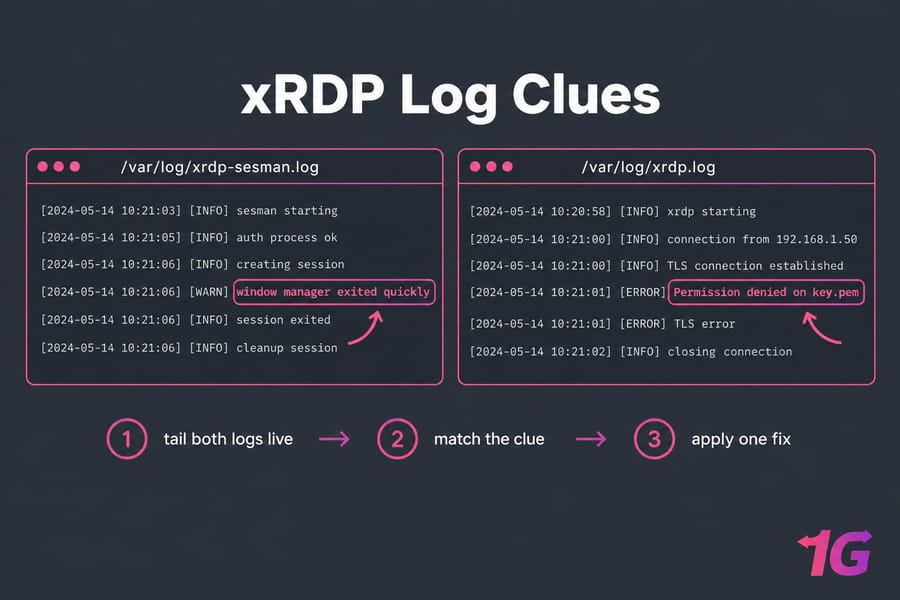
The workflow: reproduce the issue → tail both logs live → match the clue to the table → apply one fix → restart the services → test again. Change one thing at a time. If you change three, you won't know which one fixed it.
Hardening and stability fixes for Ubuntu RDP servers
- Patch regularly. Canonical published USN-8476-1 on 25 June 2026, fixing several xRDP vulnerabilities across 18.04 through 25.10. Run
sudo apt update && sudo apt upgrade. That applies to internal servers too. - Restrict 3389 to trusted IPs with UFW, or keep it closed and tunnel over SSH:
ssh -L 3389:localhost:3389 user@server. - Create a dedicated remote-access user that never logs in at the console. That removes the same-user conflict completely.
- Back up config files (
xrdp.ini,sesman.ini,startwm.sh) before editing them. - Restart, reboot or reinstall? Restart the services after config changes. Reboot after kernel or graphics updates, or when stale sessions pile up. Reinstall (
sudo apt purge xrdp xorgxrdp && sudo apt install xrdp xorgxrdp) when the configs are too heavily edited to trust.
For the wider picture, see Linux server security best practices.
When to use a preconfigured Ubuntu RDP server instead
Sometimes the server itself is the problem. If you see repeated black screens across several users, GNOME and Xfce both half-installed, two RDP services fighting over 3389, or an old image upgraded through three LTS releases, rebuilding is usually faster than fixing. A fresh install with one desktop environment and one RDP service avoids most of the problems in this guide.
If you're starting over, a 1Gbits Ubuntu VPS gives you a clean base with root access. A Linux VPS works if you want to choose the distro yourself. If you'd rather skip the GUI setup entirely, Ubuntu RDP servers are built for remote desktop from day one. For client-side setup, here's how to access Ubuntu Server from Windows via RDP.
Quick summary: Black screen = session or display issue. Connection refused = service or network issue. Login failed = authentication, certificate or session mismatch.
Get a high-performance Ubuntu RDP server from 1Gbits
Fixing xRDP teaches you a lot, but most people just want the desktop to work. A fresh Ubuntu RDP environment with root access, a single desktop stack and no leftover config drift takes most of this troubleshooting off your plate. Get an Ubuntu RDP server and connect today.

Leave A Comment