
Ubuntu remote desktop from Windows: what you need first
Here's the short version. To access Ubuntu Server from Windows using Remote Desktop, you install a desktop environment, install xrdp, allow TCP port 3389 through the firewall, then connect from Windows with Remote Desktop Connection (mstsc) using your Ubuntu username and password. On a VPS, pick XFCE — it's far lighter than GNOME.
Ubuntu Server ships headless. No GUI, no graphical login, nothing for RDP to show you. That's the single biggest thing beginners miss, and it's why so many people get a blank window on their first attempt.
Before you start, make sure you've got:
- A Windows PC with Remote Desktop Connection (every modern Windows edition has it).
- Ubuntu Server 22.04 LTS or 24.04 LTS with a sudo user — not root.
- Working SSH on Ubuntu, since you'll run every setup command over SSH.
- 2 GB RAM minimum. 4 GB if you insist on GNOME.
- The server's IP address, plus access to any cloud firewall your provider runs.
If your box has 1 GB of RAM, don't fight it. A GUI plus xrdp will swap itself to death. An Ubuntu VPS with 2–4 GB is the realistic floor for graphical remote access.
When to use XFCE vs GNOME
| Desktop | Idle RAM | Responsiveness over RDP | Best for |
| XFCE | ~400–600 MB | Snappy, even on slower links | VPS, remote admin, GUI apps |
| GNOME (ubuntu-desktop) | ~1.2–1.8 GB | Sluggish without decent CPU | Desktop-style workstations |
I default to XFCE on every server I set up. GNOME looks nicer, sure — but you're here to get work done, not admire animations that stutter over the wire.
How Ubuntu Server remote desktop works with xrdp
xrdp is an open-source RDP server for Linux. It listens on port 3389, speaks Microsoft's Remote Desktop Protocol, and hands your login off to a session manager (sesman) that starts an Xorg desktop session for your user.
So Windows thinks it's talking to a normal RDP host. Ubuntu, meanwhile, just sees a new graphical session. Neat trick.
One clarification that trips people up: Ubuntu's built-in "share your desktop remotely" setting belongs to Ubuntu Desktop with GNOME. It's not what you use on a headless server install. Different tool, different assumptions. And if you're weighing your options generally, our roundup of remote access tools for Linux covers the alternatives.
Install a desktop environment on Ubuntu Server
SSH in, then run:
sudo apt update
sudo apt install xfce4 xfce4-goodies -y
It pulls down a few hundred megabytes. Give it two or three minutes. If a package configuration prompt about a display manager appears, pick lightdm — it plays well with xrdp.
Want the full Ubuntu look instead? Use sudo apt install ubuntu-desktop -y, then reboot. Expect a much heavier footprint. For a deeper walkthrough, see our guide on how to install a desktop GUI on Ubuntu Server.
If this fails: run sudo apt --fix-broken install, then retry. Nine times out of ten it's an interrupted download.
Install xrdp on Ubuntu Server
xrdp lives in the standard Ubuntu repositories, so there's no third-party PPA needed.
sudo apt install xrdp -y
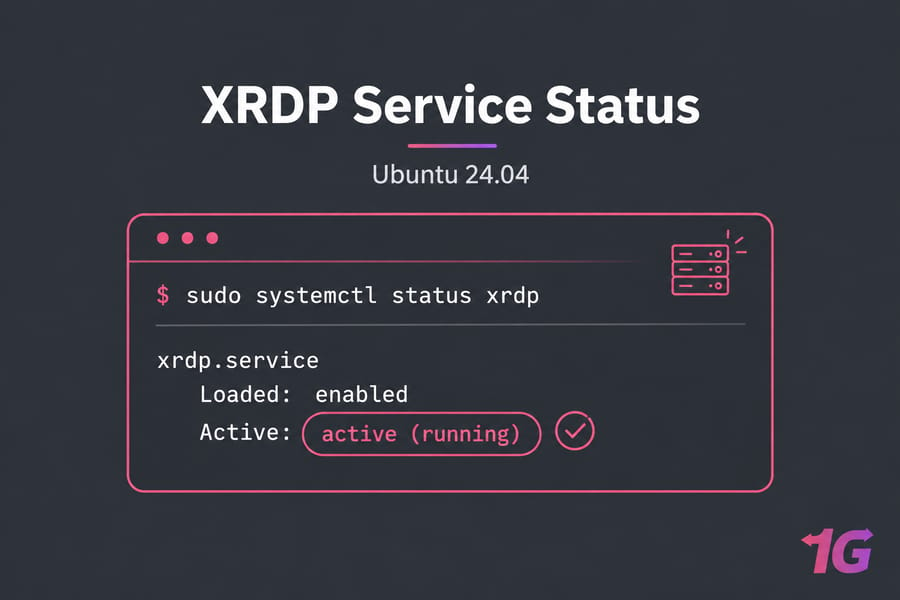
sudo systemctl enable --now xrdp
sudo systemctl status xrdp
You want to see active (running) in green. Anything else, check the logs before going further.
Two extra steps that save headaches later. Grant xrdp read access to the TLS key, and pin the session type:
sudo adduser xrdp ssl-cert
echo "xfce4-session" > ~/.xsession
sudo systemctl restart xrdp
The .xsession file tells sesman exactly which desktop to launch. Skip it and you're rolling the dice on a black screen. More detail lives in our tutorial on how to install xrdp on Ubuntu.
Open port 3389 on Ubuntu and verify access
sudo ufw allow 3389/tcp
sudo ufw status
ss -tulpn | grep 3389
The ss output should show xrdp bound to 0.0.0.0:3389 (or your chosen port). If it's bound to 127.0.0.1 only, edit /etc/xrdp/xrdp.ini and fix the address line.
Better yet, restrict the rule to your own IP: sudo ufw allow from 203.0.113.10 to any port 3389 proto tcp. Blanket-opening RDP to the whole internet is how people end up in brute-force logs. Our guide on how to configure a firewall on your VPS goes further.
If this fails, check three places: UFW, your provider's cloud firewall or security group, and whether xrdp is actually listening.
Find your server IP and connect from Windows
Run hostname -I on the server. The first address is usually the one you want. On a VPS, the public IP is also sitting in your provider dashboard — see find your Ubuntu server IP address if the output looks confusing.
Now on Windows:
- Press
Win + R, typemstsc, hit Enter. - Type the server IP. Using a custom port? Use
IP:portformat, like203.0.113.25:3390. - Under Display, drop the colour depth to 16-bit if your link is slow. Under Local Resources, enable clipboard sharing — you'll want it.
- Click Connect, accept the certificate warning (xrdp uses a self-signed cert by default).
- At the xrdp login screen, leave Session as Xorg, enter your Ubuntu username and password.
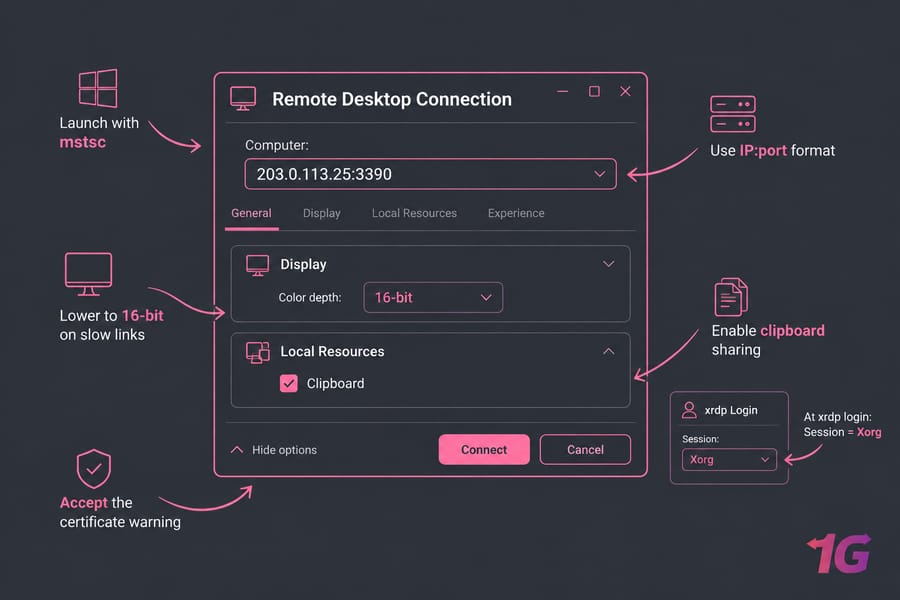
Save the profile so you don't retype it every time. That green xrdp login box is expected — you won't land straight on the desktop.
Fix xrdp black screen and other common issues
| Symptom | Likely cause | Fix |
| Login accepted, then black screen | Wrong session or no .xsession |
echo "xfce4-session" > ~/.xsession, restart xrdp |
| "Authentication is required to create a color profile" | Missing polkit rule | Add a polkit rule allowing colord actions for local users |
| Service running, connection times out | Firewall or cloud ACL | Recheck UFW and provider security group |
| Instant disconnect | Certificate permissions | sudo adduser xrdp ssl-cert, restart |
| Session loops back to login | Same user already logged in at the console | Log out the local session first |
Read /var/log/xrdp.log and /var/log/xrdp-sesman.log. They're unusually readable for Linux logs, honestly. Persistent drops sometimes just mean the server is out of RAM.
Secure xrdp before exposing it to the internet
xrdp has had CVEs patched through Ubuntu security notices over the years — session-manager and input-validation bugs among them. That's normal for network-facing software, and it's exactly why sudo apt update && sudo apt upgrade matters before you open anything up.
- Restrict port 3389 by source IP, or tunnel it over SSH:
ssh -L 3389:localhost:3389 user@server, then pointmstscatlocalhost:3389. - Use a VPN for team access instead of a public listener.
- Long passwords, non-root accounts, fail2ban on the RDP port.
- Changing the port cuts noise, not risk. Don't mistake it for security.
More hardening steps are in our Linux server security guide.
RDP vs SSH vs VNC for Ubuntu servers
RDP wins when you need GUI apps — browsers, database clients, IDEs — and you're on Windows anyway. SSH stays the right answer for routine admin, scripting, and anything bandwidth-sensitive; see RDP vs SSH. VNC still has its place for attaching to an existing physical console session, though it's chattier over slow links — compare them in RDP vs VNC.
Best hosting setup for Ubuntu remote desktop
A 2 GB VPS with XFCE handles light admin work and occasional GUI sessions fine. Push past two concurrent users, GNOME, or browser-heavy workloads and you'll want 4 GB and more CPU.
If you need a host that's reachable from day one with a public IP and full root access, look at Ubuntu RDP Server plans or broader Linux VPS hosting. Match the RAM to your desktop choice, not the other way around.

Leave A Comment