
What is server.properties in a Minecraft server?
If you've ever opened your Minecraft Java server folder and seen a file called server.properties, that's the brain of your server. It's a plain text file that tells the server jar how to behave when it boots up game mode, difficulty, who can join, how far players can see, all of it.
This Minecraft server.properties guide is written for beginners running Minecraft Java Edition. Bedrock uses a different config file, so keep that in mind. Every line in the file follows a simple key=value format. No quotes, no commas, no spaces around the equals sign. That's it.
Quick answer: server.properties is the main configuration file for a Minecraft Java server. It stores settings like game mode, difficulty, max players, whitelist, server port, view distance, and PvP. Edit it carefully in key=value format, save the file, and restart the server for changes to apply.
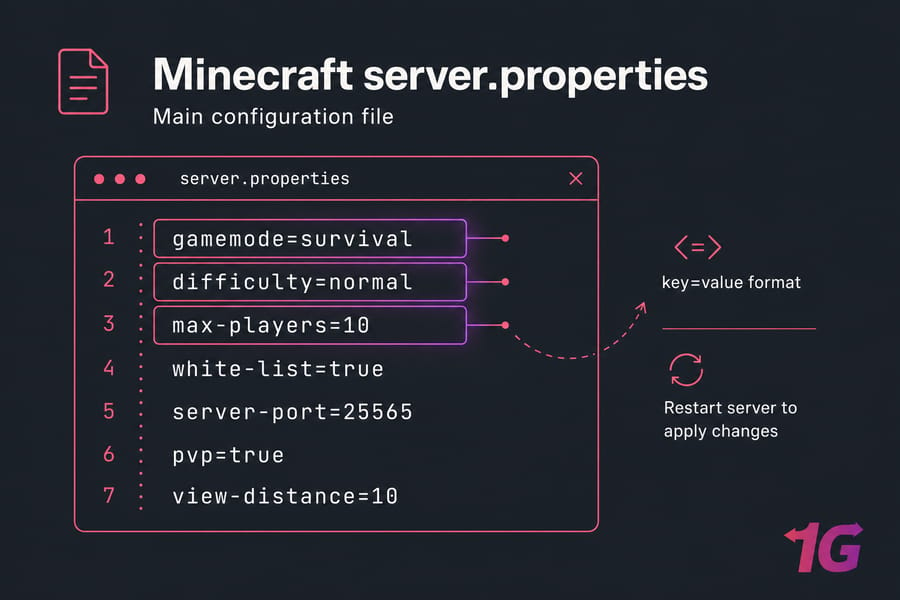
The file is generated automatically the first time you launch the server jar. If you've already followed our guide to set up a Minecraft server on a VPS, you've seen it appear next to eula.txt. It loads only at startup, which means changes need a restart to take effect. Forget the restart and you'll swear nothing is working.
How to edit Minecraft server.properties safely
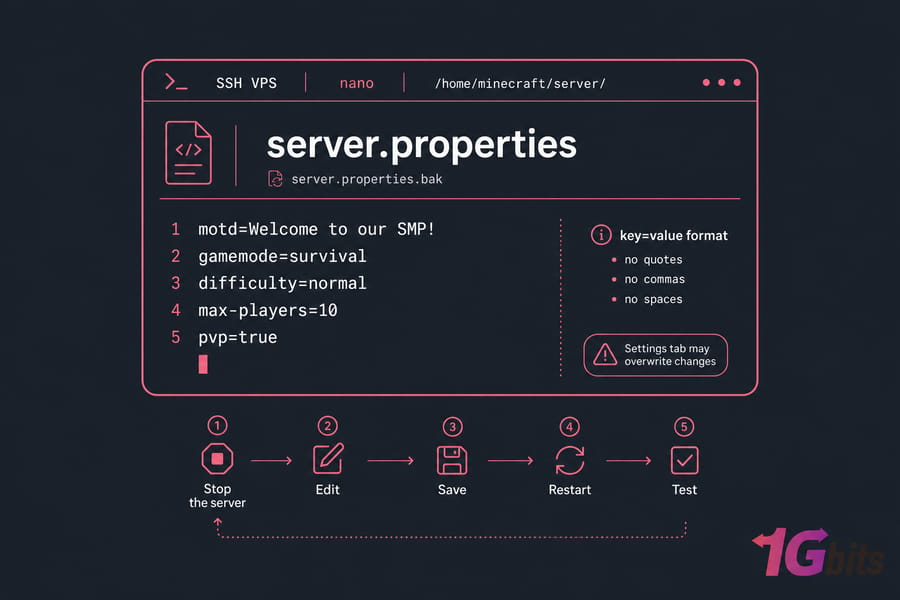
Before you change a single line, do this: back up the original file. Copy it, rename the copy to server.properties.bak, done. Future you will be grateful.
Here's the safe edit workflow I use every time:
- Stop the server (don't edit while it's running — your changes can get overwritten).
- Open the server folder. On a VPS, this is usually
/home/minecraft/server/or wherever you installed it. Hosting panels have a File Manager tab. - Make a backup copy of
server.properties. - Open the file with a plain text editor —
nanoover SSH works great, or use the panel's built-in editor. Avoid Word or anything that adds smart quotes. - Change one or two values at a time. Save the file.
- Start the server back up.
- Test the change in-game.
If you're SSH-ing in for the first time, our guide to make a Minecraft server on VPS covers the basics. One thing that trips people up: some managed game panels regenerate server.properties from their own UI. If your host has a "Settings" tab, edit there too — otherwise your file changes get wiped on restart.
Important Minecraft server settings beginners should change first
You don't need to touch every property. Honestly? Most beginners only care about six or seven lines. Start here.
| Property | What it does | Beginner value | Notes |
motd |
The message shown in the server list | motd=Welcome to our SMP! |
Keep it short. Color codes work with \u00A7. |
gamemode |
Default mode for new players | gamemode=survival |
Use creative for build servers. |
difficulty |
Mob damage and hunger drain | difficulty=normal |
Use easy for casual play, hard for veterans. |
max-players |
Player slot limit | max-players=10 |
Each active player needs RAM and CPU headroom. |
pvp |
Lets players damage each other | pvp=true |
Set to false for chill build servers. |
level-seed |
Seed for world generation | Leave blank or use a favorite | Only works for a fresh world. Browse best Minecraft seeds for ideas. |
Pro tip: change one value, restart, test. Changing five things at once and then troubleshooting? That's how good evenings get ruined.
Minecraft gameplay properties explained
These shape how the game actually feels. They're optional, but useful once you've got the basics dialed in.
hardcore=true— locks difficulty to hard and bans dead players. Brutal but fun for short-run servers.force-gamemode=true— forces players back to the default gamemode on every join. Handy if someone keeps logging out in creative.allow-nether=true— leave astrueunless you specifically don't want a Nether dimension.spawn-monsters=true— set tofalsefor a peaceful-feeling server.spawn-animals=trueandspawn-npcs=true— almost always leave these on.enable-command-block=false— flip totrueonly if you or your friends actually use command blocks. They're a security risk if non-ops can place them. Check our best Minecraft commands roundup if you're curious.
Player access settings: whitelist, online-mode, and server port
This is where most "my friends can't join" tickets come from. Pay attention.
white-list
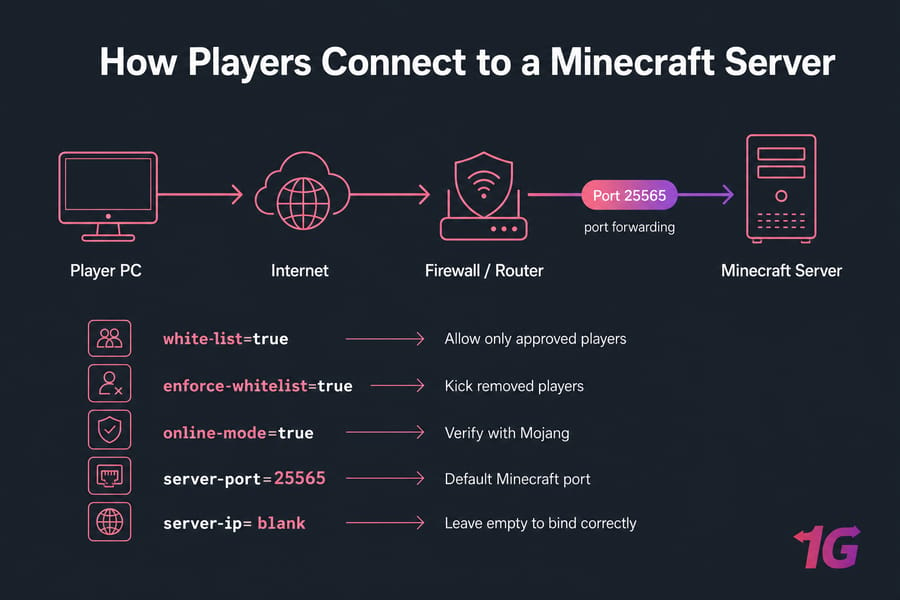
Set white-list=true and only players you add with /whitelist add <name> can connect. This is the single best way to keep randoms out of a friends-only server. Combine it with enforce-whitelist=true so existing online players get kicked when removed.
online-mode
Leave this at online-mode=true. Period. It tells the server to verify every player against Mojang's authentication servers, which blocks impersonation and account theft. Setting it to false creates a "cracked" server — insecure, often against the EULA, and not something I'd ever recommend.
server-port
The default is server-port=25565. Don't change it unless you're running multiple servers on the same machine or your host assigns a specific port. If you're hosting at home, you'll need to do port forwarding on your router for this port.
server-ip
Leave server-ip= blank. Seriously. It tells the server which network interface to bind to, and 99% of the time you want it to bind to all of them. Filling it in is the #1 cause of "we can't see your server" complaints. If players still can't connect, our fix Minecraft server connection issues walkthrough covers the rest. You can also find a Minecraft server IP to share with friends.
Performance settings: render distance, simulation distance, and view distance
If your server feels laggy with only three people on it, these two settings are usually the culprit.
view-distance— how many chunks (16x16 block columns) the server sends to each player. Higher means prettier views but more bandwidth and CPU.simulation-distance— how far from each player the server actually simulates mobs, redstone, crops growing, and so on. This is the heavy one.
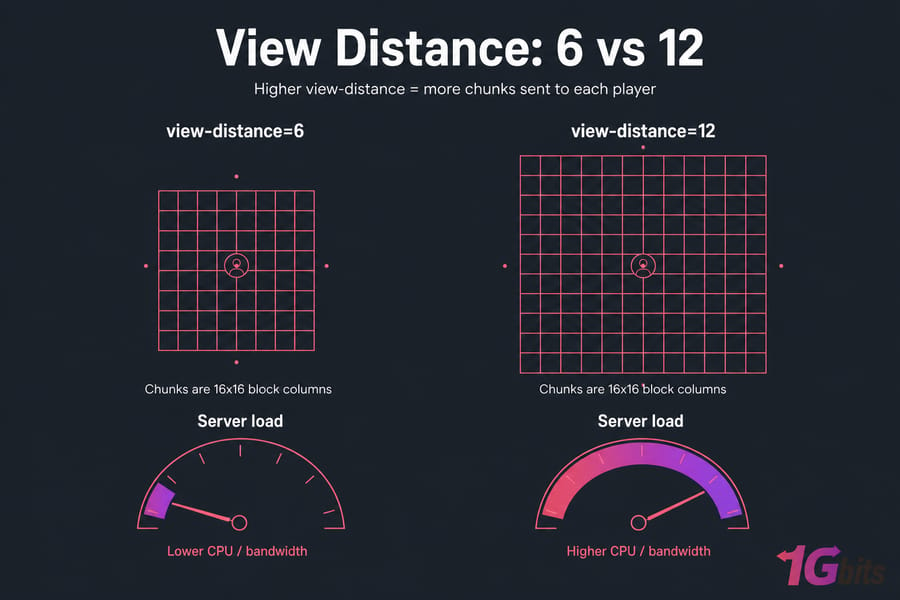
| Server type | Players | RAM | view-distance |
simulation-distance |
| Low-RAM VPS | 2–4 | 2 GB | 6 | 4 |
| Friends SMP | 2–5 | 4 GB | 8 | 6 |
| Small public | 5–15 | 6–8 GB | 10 | 8 |
| Build/creative | 2–10 | 4–6 GB | 12 | 6 |
Pro tip: lowering simulation-distance usually frees up more CPU than dropping view-distance. Try the simulation knob first. And no setting will rescue a server with too little RAM see how much RAM you actually need or how to monitor and improve VPS speed if you're unsure.
World and spawn settings in server.properties
level-name=world— the folder name of your world. Rename it carelessly and the server will generate a brand new world. Back up first using our Minecraft server backup guide.spawn-protection=16— radius (in blocks) around spawn where only ops can build. Set to0to disable.allow-flight=false— set totrueif you use flight plugins or elytra-heavy gameplay. Otherwise players get kicked for "flying is not enabled."max-world-size=29999984— the default world border. You almost never need to touch this.
If you're moving worlds between machines, our migrate a Minecraft server without losing data guide covers the safe approach.
Best server.properties examples for common server types
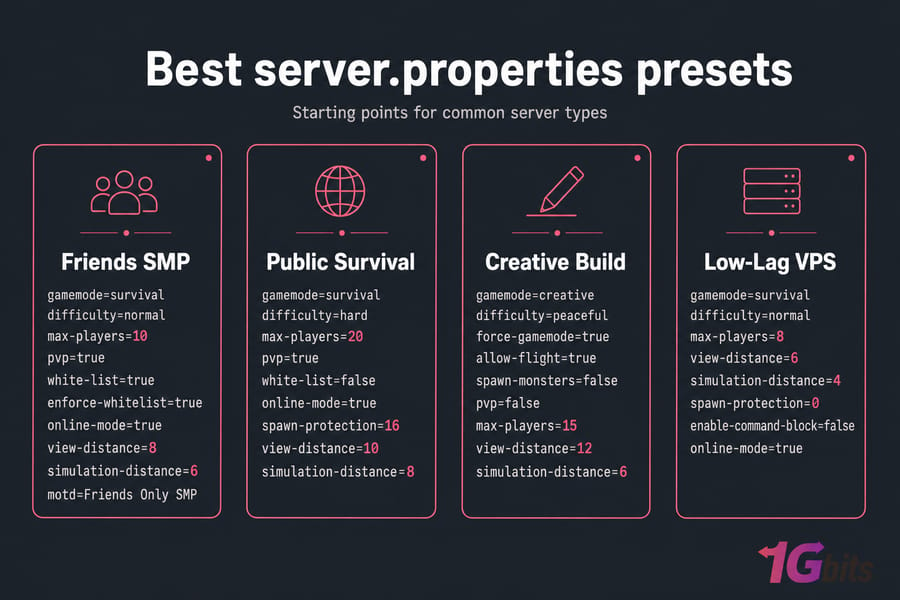
Private friends SMP
gamemode=survival
difficulty=normal
max-players=10
pvp=true
white-list=true
enforce-whitelist=true
online-mode=true
view-distance=8
simulation-distance=6
motd=Friends Only SMP
Small public survival
gamemode=survival
difficulty=hard
max-players=20
pvp=true
white-list=false
online-mode=true
spawn-protection=16
view-distance=10
simulation-distance=8
Creative build server
gamemode=creative
difficulty=peaceful
force-gamemode=true
allow-flight=true
spawn-monsters=false
pvp=false
max-players=15
view-distance=12
simulation-distance=6
Low-lag VPS preset
gamemode=survival
difficulty=normal
max-players=8
view-distance=6
simulation-distance=4
spawn-protection=0
enable-command-block=false
online-mode=true
Heads up: these are starting points, not gospel. Change one thing at a time. If you're still picking between editions, our Minecraft Java vs Bedrock servers breakdown helps.
Common server.properties mistakes and how to fix them
| Problem | Likely cause | Fix |
| Changes don't apply | Server wasn't restarted | Fully stop and start the server |
| Server won't boot | Typo or invalid value | Restore your backup, re-edit one line |
| Setting reverts on restart | Host panel overwriting file | Edit through the panel UI instead |
| Friends can't join | Wrong IP, port not forwarded, or firewall block | Check port 25565, confirm public IP |
| Wrong world loaded | level-name changed |
Set it back to the correct folder name |
| "Flying is not enabled" kick | allow-flight=false with flight plugins |
Set to true |
| Boolean ignored | Capitalized True or extra spaces |
Use lowercase true/false, no spaces |
If the server logs are screaming and you don't know where to start, our connection issues fix guide covers the network side.
When better hosting matters more than changing settings
Here's the honest truth: sometimes the config isn't the problem. If you're seeing constant lag with five players, crashes during chunk loading, or massive ping spikes for distant friends, your hardware is the bottleneck not your view-distance.
Signs you've outgrown your current setup:
- TPS drops below 18 with a handful of players online
- The server crashes when someone explores new terrain
- Your home PC fan sounds like a jet engine every evening
- Remote friends get 200ms+ ping consistently
A proper Minecraft VPS hosting plan gives you dedicated RAM and CPU, root access, and 24/7 uptime without your PC running all night. If you're comparing options, our roundup of best Minecraft server hosting providers is a good starting point or jump straight to Minecraft hosting plans when you're ready.

Leave A Comment