


The best ARK server settings for performance and stability focus on limiting heavy entity counts, using realistic player slots, spacing saves sensibly, keeping wild dino and structure growth under control, and being careful with mods. On most ARK: Survival Evolved servers, the biggest gains come from population tuning, scheduled restarts, and hardware that isn’t choking on CPU or storage latency.
If you’re already seeing rubber-banding, long save freezes, or random crashes, start with settings first but be honest about infrastructure too. A busy or heavily modded world often needs better hosting, and that’s where ARK dedicated server hosting can make a bigger difference than another tiny config tweak.
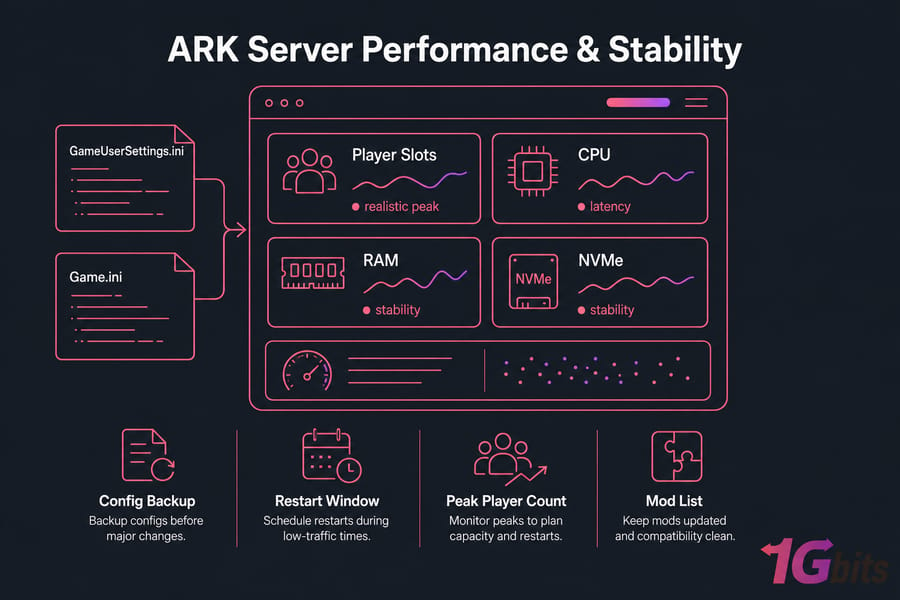
Before you change settings: make a config backup, confirm you can edit GameUserSettings.ini and Game.ini, plan a restart window, and know your actual peak player count plus mod list. Most admins skip the backup step once. They usually don’t skip it again.
What ARK server settings affect performance the most
Not all ARK server settings matter equally. That’s the trap. A lot of guides obsess over rates and convenience sliders, but the real load usually comes from how many things your server must track at once.
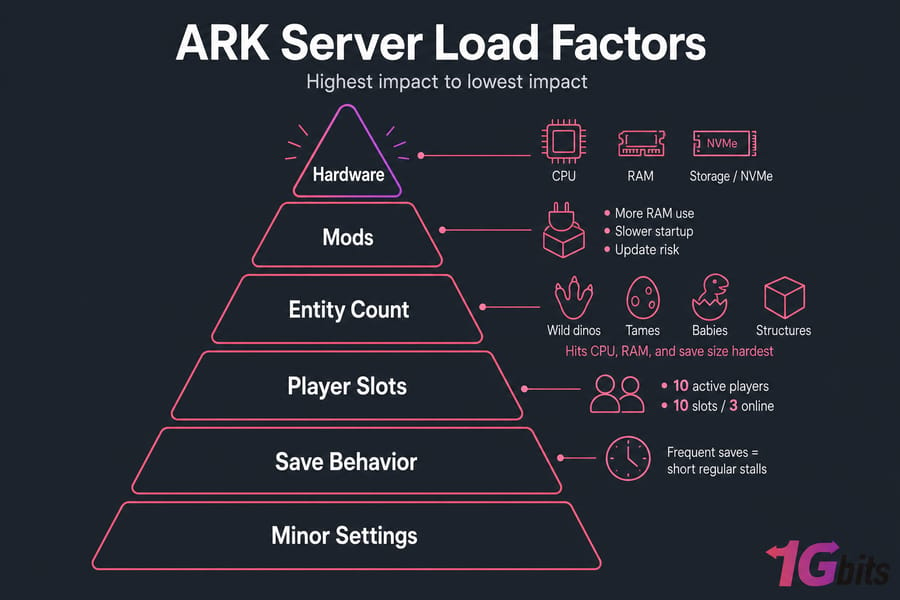
- Entity count: wild dinos, tames, babies, and structures hit CPU, RAM, and save size hardest.
- Player concurrency: 10 active players is very different from 10 slots with only 3 online most nights.
- Mods: more RAM use, slower startup, more update risk, and sometimes ugly conflicts.
- Map activity: busy bases, caves, breeding zones, and clustered tribes create hotspots.
- Autosave frequency: too frequent saves can cause short but regular stalls.
GameUserSettings.ini handles a lot of session-level behavior, while Game.ini is where deeper population and progression tuning happens. If your CPU is pinned or RAM is exhausted, though, settings only go so far. I’ve seen admins spend hours shaving tiny values while the real issue was weak hosting.
Best ARK server settings for performance: quick wins first
Now let’s get practical. If you want the fastest ARK server lag fix with the lowest risk, start here.
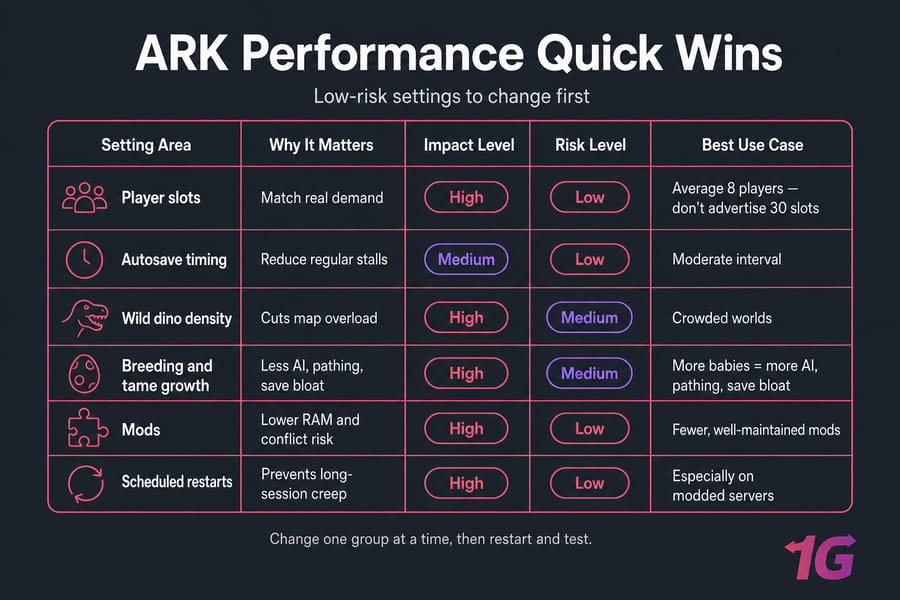
- Lower player slots to realistic peak usage. If you average 8 players, don’t advertise 30 slots. Higher slot counts encourage concurrency you may not be sized for.
- Review autosave timing. Don’t save so often that the world hitches every few minutes. A moderate interval is usually better than aggressive saving.
- Trim wild dino density if the map feels overloaded. This is one of the best ARK server settings for less lag on crowded worlds.
- Control breeding and tame growth. Busy breeding servers get ugly fast. More babies means more AI, more pathing, more save bloat.
- Cut abandoned or overlapping mods. Fewer, well-maintained mods usually outperform giant workshop stacks.
- Schedule regular restarts. Especially on modded servers. Memory usage and long-session weirdness tend to creep up over time.
- Change one group at a time, then restart and test. Otherwise you won’t know what actually helped.
If you want to measure the effect, use tools that help you monitor and improve server speed and keep an eye on CPU, RAM, and storage waits with practical Linux monitoring tools.
ARK dedicated server settings by player count and playstyle
One-size-fits-all advice is how servers end up unstable. A 6-player PvE map and a 40-player PvP server don’t want the same ARK dedicated server settings.
| Profile | Players | Mods | Focus | Recommended Direction |
| Small Private | 2–10 | 0–10 light mods | Convenience | Conservative slots, moderate saves, normal dino density |
| Mid-Size Modded | 10–30 | 10–25 curated mods | Balance | Controlled tame growth, restart schedule, careful breeding settings |
| High-Pop Public | 30+ | Minimal or tightly managed | Stability | Strict entity control, realistic slots, tighter tribe and structure limits |
For PvE, players tend to build more and breed more, so structure spam and tame limits matter a lot. For PvP, burst activity and tribe clustering can hammer hotspots even if average load looks fine. If you’re scaling beyond a hobby server, look at game dedicated server solutions or a game VPS only if the player count and mods stay modest.
GameUserSettings.ini ARK settings for stability
GameUserSettings.ini is usually the first file you’ll review. Think of it as the practical control layer for session behavior and some high-level server options. Back it up before editing — or better yet, schedule automatic server backups so a bad change doesn’t ruin your evening.
| Setting Area | Recommendation |
| Player Slots / Session Capacity | Set near real demand, not fantasy demand |
| Autosave Behavior | Use a balanced interval to reduce stutter without risking huge rollback windows |
| Logging / Non-Essential Toggles | Disable extra overhead you don't actively need |
| Server Visibility / Session Options | Keep clean and intentional; avoid random changes you can't validate |
After each change, restart and validate with real gameplay. Join the server, fly to heavy bases, trigger a save, and watch for desync. This part is a bit tedious, honestly, but it beats blind tweaking.
Game.ini ARK server settings that impact server load
Game.ini is where deeper ARK server optimization happens. This file affects dino spawns, breeding pressure, tribe growth, and structure behavior — the stuff that slowly turns a smooth server into a bloated one.
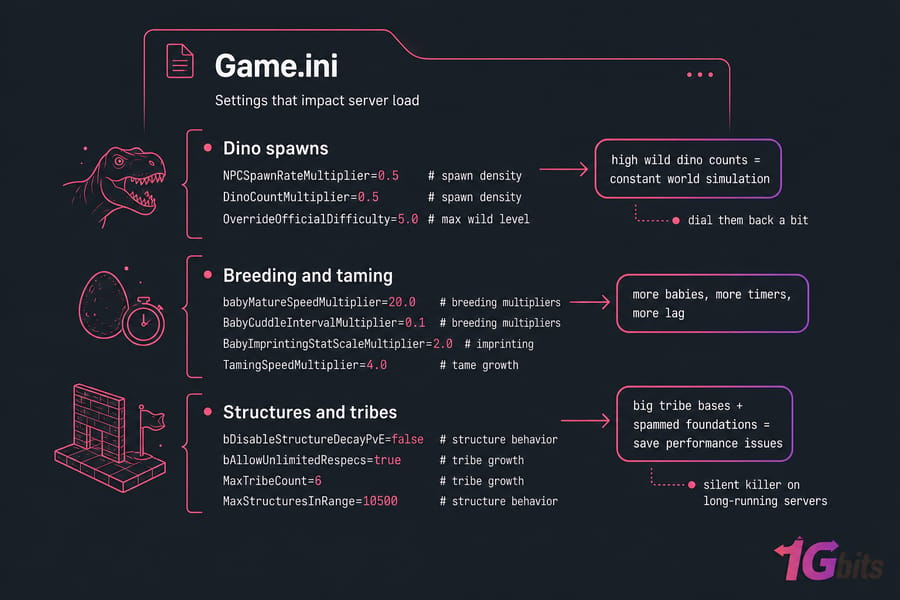
Dino spawns: high wild dino counts increase constant world simulation. If your map feels saturated, dial them back a bit.
Breeding and taming: boosted settings feel fun at first, but aggressive breeding multipliers create entity explosions over time. More babies, more timers, more lag.
Structures and tribes: unlimited growth is the silent killer on long-running servers. Big tribe bases and spammed foundations wreck save performance.
If you’re chasing crashes, also brush up on Linux server troubleshooting. Not every “config issue” is actually a config issue.
ARK server mods performance and entity management
Mods are great — until they aren’t. They increase startup time, RAM usage, update complexity, and save file weight. And abandoned mods are a stability tax you keep paying.
- Keep the mod list curated: fewer, maintained mods beat giant packs.
- Audit overlaps: two mods doing similar things often create more trouble than value.
- Watch breeding growth: this is a classic hidden load source on unofficial ARK servers.
- Manage structure spam and decay: cleanup rules matter, especially on PvE.
- Plan mod removal: pulling a mod carelessly can break items, bases, or saves.
If you’re running a busy modded community, this is where better hosting starts to pay off. There’s a reason a lot of admins move from general VPS plans to gaming-focused infrastructure after the first serious lag wave.
ARK dedicated server requirements for less lag
Here’s the blunt version: ARK cares a lot about CPU speed, enough RAM headroom, and fast storage. Just adding more disk space won’t save a struggling server.
| Server Type | Players | Mods | CPU Priority | RAM | Storage |
| Small Private | 2–10 | Light | High clock speed | Moderate | SSD or NVMe |
| Mid-Size Modded | 10–30 | Medium | Very high | Higher headroom | NVMe preferred |
| Public / High-Pop | 30+ | Low to medium | Top priority | Large headroom | NVMe strongly preferred |
VPS can work for smaller, lightly modded servers. But once you’re pushing population, mods, or cluster complexity, a dedicated server is usually the better call. Read this breakdown of VPS vs dedicated server if you’re on the fence. Fast NVMe VPS hosting helps, and so does DDoS-protected hosting if you run public servers where uptime and attack resistance matter.
Need an ARK Server That Stays Stable Under Load? If you’ve already trimmed mods, tuned entity-heavy settings, and scheduled restarts, your host may be the bottleneck. 1Gbits gives you room to grow without guessing.
ARK server lag fix mistakes that make stability worse
- Don’t crank rates blindly. Extreme multipliers create long-term load, not free performance.
- Don’t ignore backups. One bad edit can waste hours.
- Don’t overstate slots. Capacity should match hardware, not marketing.
- Don’t hoard mods. This is one of the most common server performance bottlenecks.
- Don’t skip restart schedules. Long uptime without restarts often ends badly.
- Don’t blame the network first. Sometimes entity count is the real villain.
- Don’t treat a CPU bottleneck like a config issue. Settings won’t fix saturated hardware.
For broader diagnosis, check these common server performance bottlenecks.
Sample ARK server optimization profiles you can copy
These aren’t universal truth. They’re solid starting points.
[Balanced low-lag]
- Small private or light PvE
- Conservative player slots
- Moderate autosave interval
- Near-default dino density
- Light mod count
- Daily scheduled restart

[Modded community]
- 10–30 players
- Curated mods only
- Controlled breeding and tame growth
- Reduced wild dino pressure if map feels heavy
- Scheduled restarts every active day

[High-stability public]
- 30+ players
- Minimal or tightly reviewed mods
- Strict structure and tribe growth control
- Realistic slots only
- Frequent maintenance and monitoring| Profile | Players | Mods | Goal | Hosting Fit |
| Balanced Low-Lag | 2–10 | Low | Smooth casual play | Small VPS or Entry Dedicated |
| Modded Community | 10–30 | Medium | Balance features and stability | Strong VPS or Dedicated |
| High-Stability Public | 30+ | Low-medium | Predictable uptime | Dedicated Server |
If you want more stable CPU performance, room for mods, and better scalability, 1Gbits also offers dedicated server and ARK server hosting, so you can spend more time building your community instead of managing your infrastructure.
Ready to run a faster, more stable ARK server? Start with the settings above, test one change at a time, and if the box is still the problem, move to hosting built for heavier game workloads. For more support, you can also browse the main FAQs section before choosing your next upgrade.

Leave A Comment