
![How to Fix Wi-Fi in Kali Linux? 📶 [Complete Guide]](https://1gbits.com/cdn-cgi/image/width=1200,quality=80,format=auto/https://s3.1gbits.com/blog/2026/08/fix-wifi-kali-linux-main.webp "How to Fix Wi-Fi in Kali Linux? 📶 [Complete Guide]")
Few things kill the momentum of a fresh Kali install faster than a missing Wi-Fi icon. You boot up, expect to connect, and there's just… nothing. No networks, no adapter, maybe a "device not found" error staring back at you.
Kali Linux Wi-Fi Not Working? Start Here
Here's the good news: most of these problems fall into a handful of predictable buckets. Before you go hunting for random drivers on GitHub (please don't, at least not yet), let's diagnose what's actually broken. If you're brand new to the distro, it helps to understand what Kali Linux is designed for — because a lot of "broken Wi-Fi" turns out to be a virtualization quirk, not a real fault.
To fix Wi-Fi in Kali Linux, first runrfkill unblock wifi, confirm the adapter withip link, and restart NetworkManager usingsudo systemctl restart NetworkManager. If no wireless interface appears, identify the chipset withlspci -korlsusb, install its official firmware package, reboot, and check USB passthrough if Kali runs in a virtual machine.
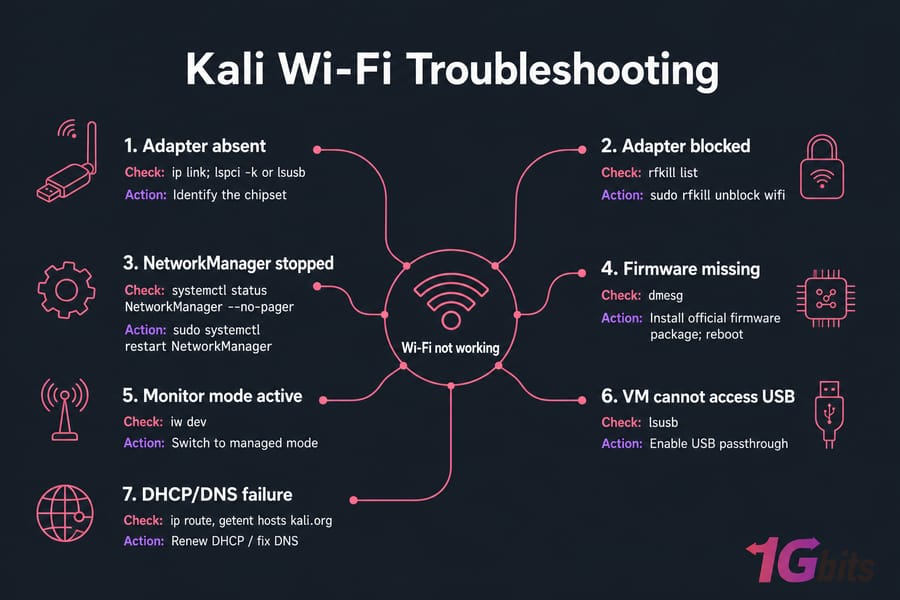
Identify Why Kali Linux Wi-Fi Is Not Working
Not all Wi-Fi failures are the same. If you treat "no adapter detected" and "connected but no internet" as identical problems, you'll waste an hour chasing the wrong fix. So let's classify the symptom first.
There are really five states you might be in:
| Symptom | What it means | First check |
| No wireless device detected | Kernel or VM can't see the hardware | ip link, lspci -nnk |
| Device detected but disabled | Radio soft-blocked or hard-blocked | rfkill list |
| Device enabled but no networks | Interface down or in monitor mode | iw dev |
| Network visible but connection fails | Wrong password or WPA mismatch | NetworkManager logs |
| Connected but no internet | DHCP, routing, or DNS failure | ip route, getent hosts kali.org |
Now ask yourself one more question: where is Kali running? Bare metal, a live USB, VMware, VirtualBox, or a remote VPS. This matters more than most guides admit. A virtual machine can't see your laptop's internal Wi-Fi card — ever. We'll get to that.
Quick decision tree to run right now: start with ip link to see interfaces, then rfkill list to check the radio, then nmcli device status to check NetworkManager's view. Once you know the symptom, try the reversible fixes first.
Try These Quick Ways to Enable Wi-Fi in Kali Linux
These are the low-risk, high-reward commands. Nothing here breaks your system. Run them in order and check the output after each one.
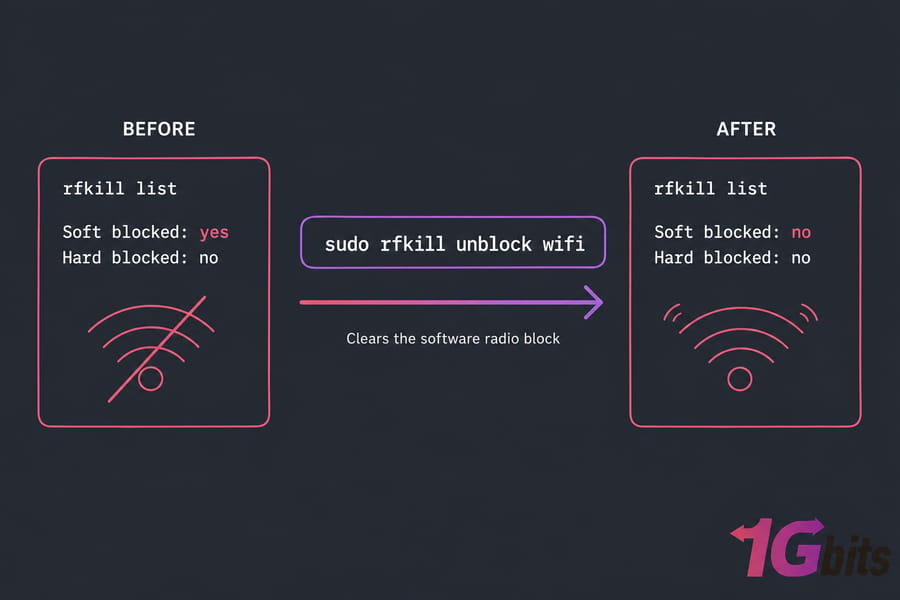
First, check if the radio is blocked:
rfkill list
sudo rfkill unblock wifi
If rfkill list shows "Soft blocked: yes," the unblock command clears it. But here's the catch — a hard block is different. That's a physical switch, a laptop Fn key, or a BIOS/UEFI setting. Software can't fix a hard block. You'll need to flip the actual switch or dig into your firmware settings.
Next, make sure the Wi-Fi radio is on inside NetworkManager:
nmcli radio wifi
nmcli radio wifi on
Then confirm your interface exists and bring it up. Note the interface name — it might be wlan0, but modern Kali often uses predictable names like wlp2s0. Don't assume:
ip link
sudo ip link set wlp2s0 up
sudo systemctl restart NetworkManager
nmcli device status
Replace wlp2s0 with whatever ip link actually shows. After the restart, nmcli device status should list your Wi-Fi device as "disconnected" or "connected" rather than "unmanaged" or missing entirely.
If none of this surfaces a wireless interface, the problem is deeper — the kernel probably can't load a driver or firmware. Time to check the hardware layer. If you're shaky on the terminal, the essential Kali Linux commands guide covers the basics.
Check Whether Kali Linux Detects the Wireless Adapter
This is where "Wi-Fi adapter not found" gets solved. We need to know: does the hardware even show up? And if it does, is a driver attached?
ip -br link
iw dev
lspci -nnk | grep -A3 -i network
lsusb
sudo dmesg | grep -Ei 'wifi|wlan|wireless|firmware|iwl|rtl|ath|brcm|mt76'
Use lspci for internal/PCIe cards and lsusb for USB dongles. Write down the numeric vendor:device ID — something like 8086:24fd. Model names get recycled with different chipsets, so the ID is what actually matters.
Here's how to read the results:
- Hardware listed, but no interface — usually a missing driver or, more often, missing firmware.
dmesgwill frequently say something like "firmware file not found." - Hardware not listed at all — could be a VM that hasn't been given USB passthrough, a dead port, a bad cable, a BIOS-disabled card, or genuinely failed hardware.
Take our running example: an Intel adapter shows up cleanly in lspci as wlp2s0, but no interface loads. Then dmesg reports a missing iwlwifi firmware file. That's a textbook firmware gap, not a broken card.
One more thing — if an old tool spits out "no wireless extensions," don't panic. That usually means you queried the wrong interface or you're using obsolete tools. Stick with iw and ip rather than leaning on iwconfig. For a broader look at inspecting your system, see how to check hardware information in Linux.
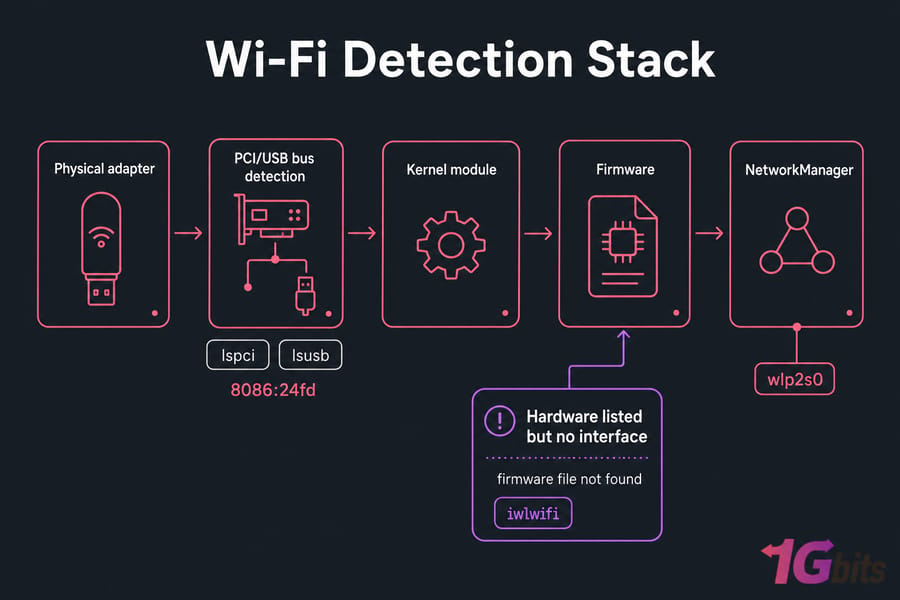
If Kali sees the hardware, the next layer to check is NetworkManager and device state.
Repair NetworkManager When Kali Linux Shows No Wi-Fi
NetworkManager is the service that actually manages your connections. When Kali shows no Wi-Fi despite working hardware, this is a prime suspect.
systemctl status NetworkManager --no-pager
sudo systemctl enable --now NetworkManager
sudo systemctl restart NetworkManager
nmcli general status
nmcli device status
If your device shows as "unmanaged," NetworkManager is ignoring it — often because of leftover config from an old /etc/network/interfaces setup. Only inspect /etc/NetworkManager/NetworkManager.conf if you actually see "unmanaged," and back up any file before you touch it.
Once the device is managed, scan and connect:
nmcli device wifi rescan
nmcli device wifi list
sudo nmcli --ask device wifi connect "YourSSID"
I use the --ask flag on purpose. Typing your password directly into the command drops it straight into your shell history in plaintext — not great. The --ask version prompts you privately instead.
If a connection fails, read the logs:
journalctl -u NetworkManager -b --no-pager | tail -n 100Resist the urge to delete all your connection profiles as a first move. That's a sledgehammer for a screw. If NetworkManager looks healthy but there's still no wireless interface, the driver and firmware are your next stop.
Install the Correct Wi-Fi Driver or Firmware in Kali Linux
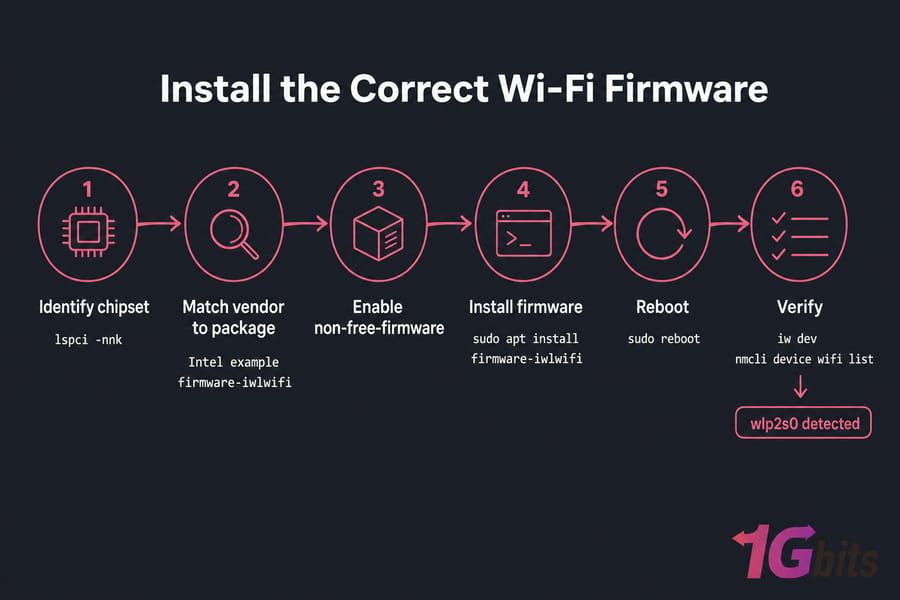
Most "install Wi-Fi driver in Kali Linux" searches are really firmware problems. The driver (kernel module) is often already present — it just needs a firmware blob to talk to the chip.
Start by updating and making sure the right repository components are enabled:
sudo apt update
sudo apt full-upgrade
Your sources file should include the non-free-firmware component. The current Kali line looks like this:
deb http://http.kali.org/kali kali-rolling main contrib non-free non-free-firmwareVerify this against current Kali docs before overwriting a customized sources file. And a hard rule — never mix Debian or Ubuntu repositories into Kali Rolling to grab a package. That's a fast way to break your whole system. See the APT package management guide if you're new to this.
Now match your chipset to a firmware package:
| Vendor / family | Package to investigate |
| Intel | firmware-iwlwifi |
| Realtek | firmware-realtek |
| Qualcomm Atheros | firmware-atheros |
| Broadcom | firmware-brcm80211 |
| MediaTek | firmware-mediatek |
| Other non-free firmware | firmware-misc-nonfree |
For our Intel example, the fix is:
sudo apt install firmware-iwlwifi
sudo reboot
Install only the package that matches your detected chipset. After rebooting, verify:
iw dev
nmcli device wifi list
If iw dev now shows wlp2s0 and networks appear, you're done. Need to reload the module without rebooting? Confirm the name first with lspci -nnk, then:
sudo modprobe -r iwlwifi
sudo modprobe iwlwifi
Keep these four layers straight in your head: the kernel module (driver), the firmware (chip's onboard code), NetworkManager (the manager), and the connection profile (your saved network). They fail independently.
About third-party drivers — official repositories first, always. If you must use an out-of-tree DKMS driver, check the maintainer and kernel compatibility, and know that a future kernel update can silently break it. Secure Boot can also block unsigned modules, though it's not always the culprit. For the general process, here's how to install packages in Linux. And keeping the system current with a proper update Kali Linux routine often ships newer firmware automatically.
If Wi-Fi worked before you started experimenting with wireless testing, your adapter might still be stuck in monitor mode.
Restore Kali Linux Wi-Fi After Monitor Mode
Switched your card to monitor mode for a lab exercise and now normal Wi-Fi is dead? This is common, and the fix is straightforward once you know what happened.
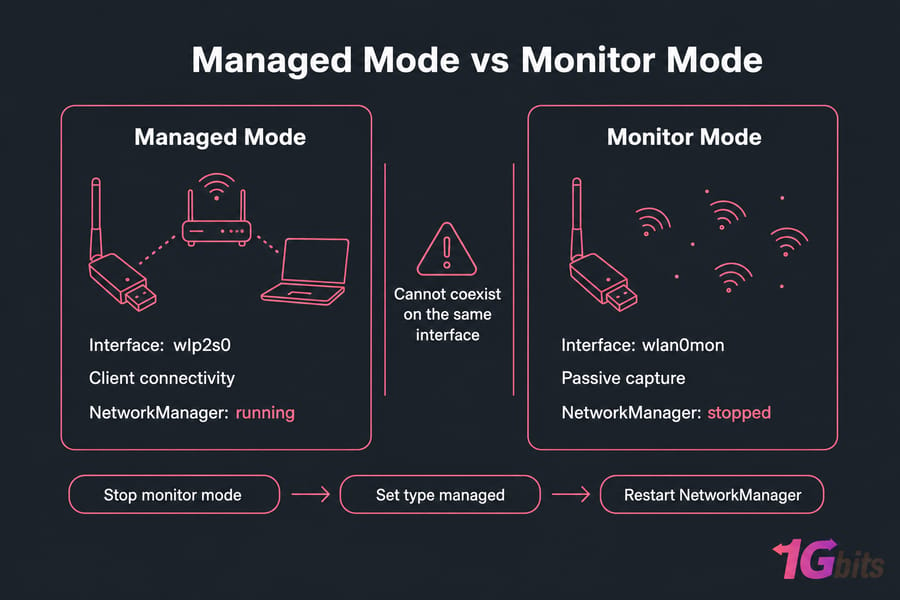
Managed mode is normal client connectivity. Monitor mode passively captures traffic. The two don't coexist on the same interface. And airmon-ng check kill — which many tutorials run casually — stops NetworkManager along with other processes. That's by design for monitor mode, but it means your ordinary Wi-Fi is gone until you restart the service.
First, find the real interface names — monitor interfaces often get a suffix like wlan0mon:
iw dev
ip link
Stop the monitor interface:
sudo airmon-ng stop wlan0monOr manually return the base interface to managed mode, using the actual name:
sudo ip link set wlp2s0 down
sudo iw dev wlp2s0 set type managed
sudo ip link set wlp2s0 up
sudo systemctl restart NetworkManager
That last line matters. If you don't restart NetworkManager, you'll swear the adapter is broken when it's really just orphaned. Verify with iw dev and nmcli device status.
Fix Kali Linux Wi-Fi in VMware or VirtualBox
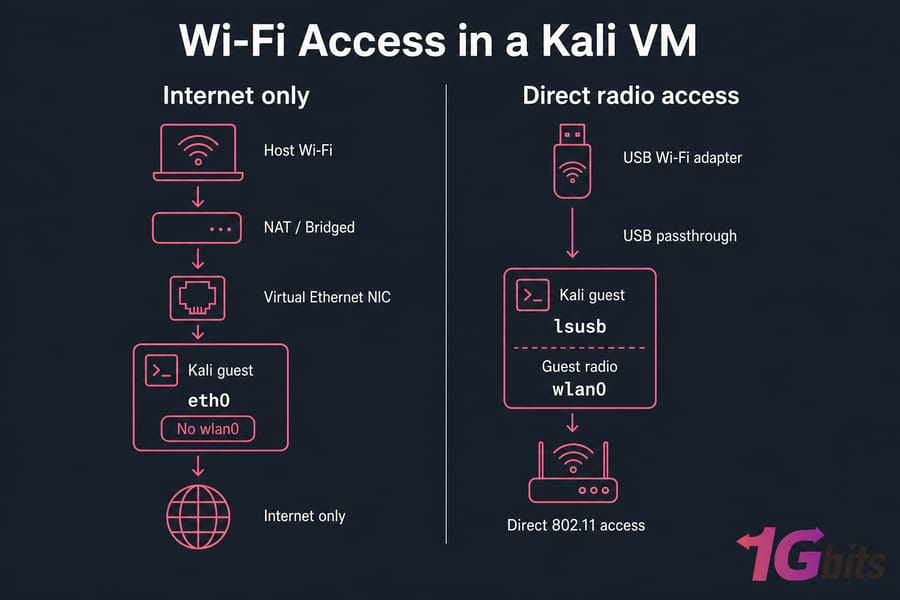
This trips up almost everyone. Your Kali VM shows eth0 even though your laptop connects over Wi-Fi. Where's wlan0?
It's not there, and it never will be. A virtual machine gets a virtual Ethernet NIC. The hypervisor bridges or NATs your host's internet to the guest, but Kali never sees the physical 802.11 radio. NAT and bridged networking both give you internet — neither gives you raw wireless control.
So how do you get real Wi-Fi in a VM? A supported USB Wi-Fi adapter, attached exclusively to the guest.
VMware: plug in the adapter, then use VM → Removable Devices to connect it to the guest. Confirm inside Kali with lsusb.
VirtualBox: install the matching Extension Pack, enable the USB controller, add a USB filter for your adapter, then attach it. Again, verify with lsusb. Watch the USB 2.0 vs 3.0 controller setting — a mismatch can cause the device to fail silently.
In our second example, the Kali guest has eth0 through NAT, the internal host Wi-Fi never appears as wlan0, and only after attaching a USB adapter does lsusb confirm the guest owns it. For setup details, see how to install Kali Linux on VMware.
Now, what about a VPS? A standard remote Kali Linux VPS exposes a virtual Ethernet interface only. It's excellent for a persistent remote lab, VPN work, or authorized testing of internet-facing systems — but it has no physical radio and cannot scan nearby wireless networks. Don't confuse the two.
Need a Persistent Remote Kali Lab? Run Kali on an always-available VPS with root access instead of rebuilding a local VM after every session. Suitable for authorized remote labs, tooling, and VPN access. A VPS does not include a physical Wi-Fi adapter and cannot scan nearby wireless networks. Explore Kali Linux VPS.
Fix Kali Linux Wi-Fi Connected but No Internet
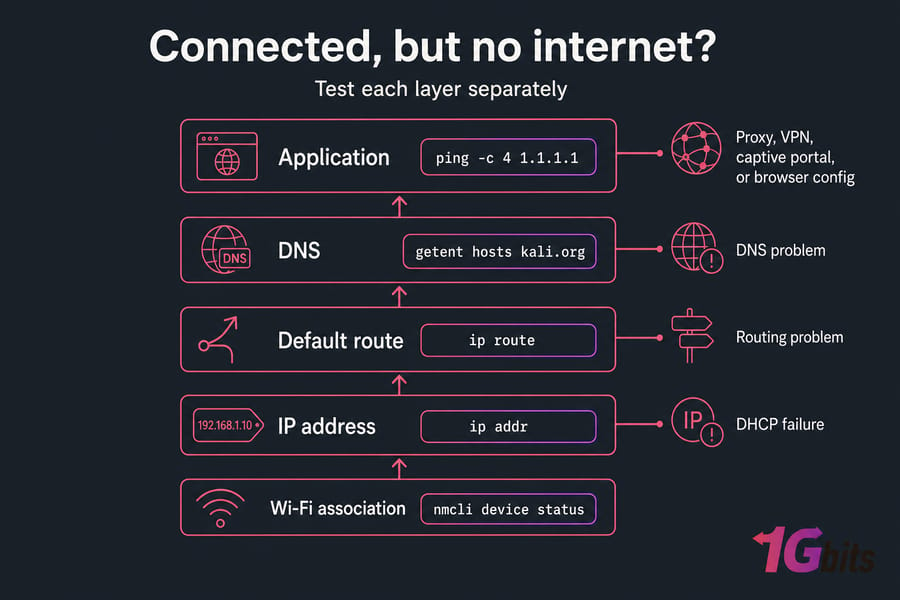
Connected to the SSID but nothing loads? This is a layered problem, so test each layer separately instead of guessing.
ip addr
ip route
ping -c 4 192.168.1.1
ping -c 4 1.1.1.1
getent hosts kali.org
resolvectl status
Read the results like this:
- No IPv4 address from
ip addr→ DHCP failure. - Gateway ping fails → local association or routing problem.
- Ping to 1.1.1.1 works but
getent hosts kali.orgfails → DNS problem. - Everything works except the browser → proxy, VPN route, captive portal, or browser config.
To bounce the connection cleanly through NetworkManager:
nmcli connection show
sudo nmcli connection down "Your-Connection"
sudo nmcli connection up "Your-Connection"
Don't jump straight to editing DNS. Only change Linux DNS settings once getent has actually proven DNS is the failure. If you hit a "temporary failure in name resolution" error, that's a classic DNS resolver issue worth reading up on. And if you're unsure whether you even got an address, here's how to check an IP address in Linux.
Kali Linux Wi-Fi Error and Fix Table
Jump straight from your symptom to the likely cause and first command.
| Symptom | Likely cause | First command | Next action |
| No Wi-Fi icon | NetworkManager stopped / device absent | nmcli device status |
Restart service or inspect hardware |
wlan0 missing |
Renamed interface or no driver | ip -br link |
Find real name, inspect chipset |
| "No adapter found" | VM passthrough or driver issue | lspci -nnk; lsusb |
Attach USB device or install firmware |
| Wi-Fi hard blocked | Switch / BIOS / radio key | rfkill list |
Enable hardware radio |
| No networks appear | Interface down / monitor mode | iw dev |
Restore managed mode |
| Authentication failed | Password / security mismatch | NetworkManager logs | Recreate only that profile |
| Connected, no IP | DHCP failure | ip addr |
Reconnect profile / check router |
| IP works, domains fail | DNS failure | getent hosts kali.org |
Inspect resolver |
| Works until reboot | Live system or config not persisted | Check service enablement | Enable service / configure persistence |
Prevent Kali Linux Wireless Problems After Reboot
Once Wi-Fi is back, a little maintenance keeps it that way. Make sure NetworkManager starts on boot:
sudo systemctl enable NetworkManagerKeep Kali Rolling current — but never mix in Debian or Ubuntu repos. And if you're on a live USB, remember that changes vanish after reboot unless you configured persistence. Work through the Kali Linux post-installation checklist once and you'll dodge most of these headaches.
Record the details that fixed your setup: chipset ID, driver name, firmware package, and the working kernel version. Then save a diagnostic snapshot:
{
  uname -a
  ip -br link
  rfkill list
  nmcli device status
  lspci -nnk
  lsusb
} | tee kali-wifi-diagnostics.txt
Buying a USB adapter for lab work? Pick by chipset, not brand. Check that it has in-kernel Linux support, note the USB standard, and be honest about whether you need normal connectivity or authorized monitor-mode capability. Before sharing that diagnostics file anywhere, strip out MAC addresses, SSIDs, and public IPs.
Build your Kali environment around the work you need to do. Use bare metal or USB passthrough when you require direct wireless-radio access. For a persistent remote workspace with dedicated resources and root control, compare Kali Linux VPS plans — just remember a VPS gives you virtual Ethernet, never a physical Wi-Fi radio.

Leave A Comment