
To port forward a Minecraft server, log in to your router, create a port forwarding rule that sends Minecraft traffic to your server’s local IP, and allow the same port through the device firewall. For Minecraft Java Edition, forward TCP 25565. For Bedrock, forward UDP 19132 by default.
How to Port Forward a Minecraft Server
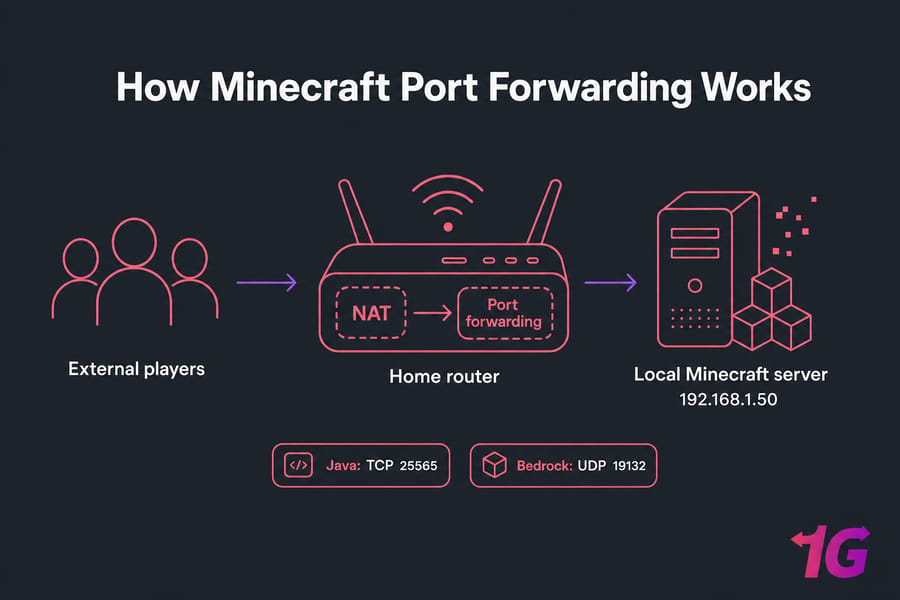
If you want to know how to port forward a Minecraft server so friends can join from outside your home, this is the short version: you need the right Minecraft port, the correct local IP, a router rule, and a matching firewall exception. Miss one of those and it usually fails.
Here’s the flow we’ll follow:
- What port forwarding does for a Minecraft server
- Minecraft default ports for Java and Bedrock
- How to find a stable local IP
- Router setup
- Windows or Linux firewall rules
- Testing from outside your network
- Fixes for closed port errors, double NAT, and CGNAT
What port forwarding means for a Minecraft server
Port forwarding is a router rule that tells incoming internet traffic which device on your home network should receive it.
Your router uses NAT. That’s why devices in your house have private addresses like 192.168.1.50, while the outside world only sees your public IP. Without a forwarding rule, the router has no idea that Minecraft traffic should go to your server PC.
That’s also why LAN play works but internet play doesn’t. On the same Wi-Fi, players can connect straight to the local IP. From outside, they hit your router first. If you want the deeper networking version, 1Gbits has good explainers on port forwarding basics and what NAT is.
Minecraft default ports: Java Edition and Bedrock Edition
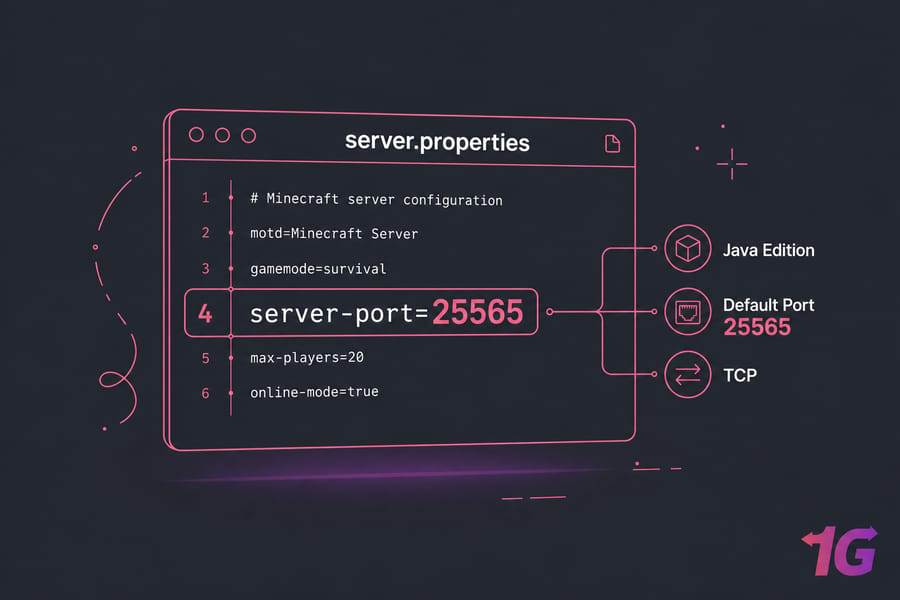
For most people, this is the setting that matters most. Java and Bedrock do not use the same default port or protocol.
| Edition | Default Port | Protocol | Where to Check | Notes |
| Java Edition | 25565 | TCP | server.properties | Most common Minecraft server port |
| Bedrock Edition | 19132 | UDP | Bedrock config/settings | 19133 may appear in some related cases |
So, if you’re trying to open minecraft server port 25565, that’s almost always Java. Bedrock usually needs UDP 19132. I’ve seen plenty of people forward 25565 for a Bedrock server and then wonder why nothing happens.
If you changed the port in your config, the router rule must match exactly. For Java, check Minecraft server.properties settings and confirm the server-port line. If you’re still deciding between editions, this guide on Minecraft Java vs Bedrock servers is worth a look.
Find your local IP and set a static IP for Minecraft port forwarding
Your forwarding rule points to a local IPv4 address. If that address changes later because DHCP hands out a new one, the rule breaks. Quietly. Annoyingly.
On Windows, open Command Prompt and run:
ipconfigLook for the active network adapter and note the IPv4 Address and Default Gateway. The gateway is usually your router admin address.
On Linux, use either of these:
ip addr
hostname -I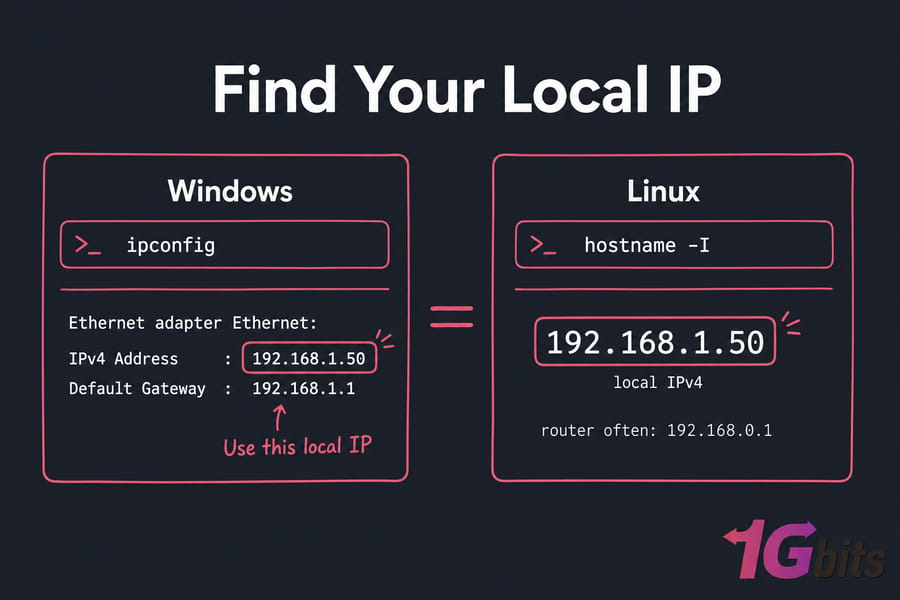
For most home setups, a DHCP reservation in the router is easier than setting a manual static IP on the server itself. Same result, less chance of fat-fingering subnet or gateway values. If you need help with IP basics, see what an IP address is and how to get IP address in Linux.
How to port forward a Minecraft server on your router
Now the main task. Router menus vary, but the logic is the same everywhere.
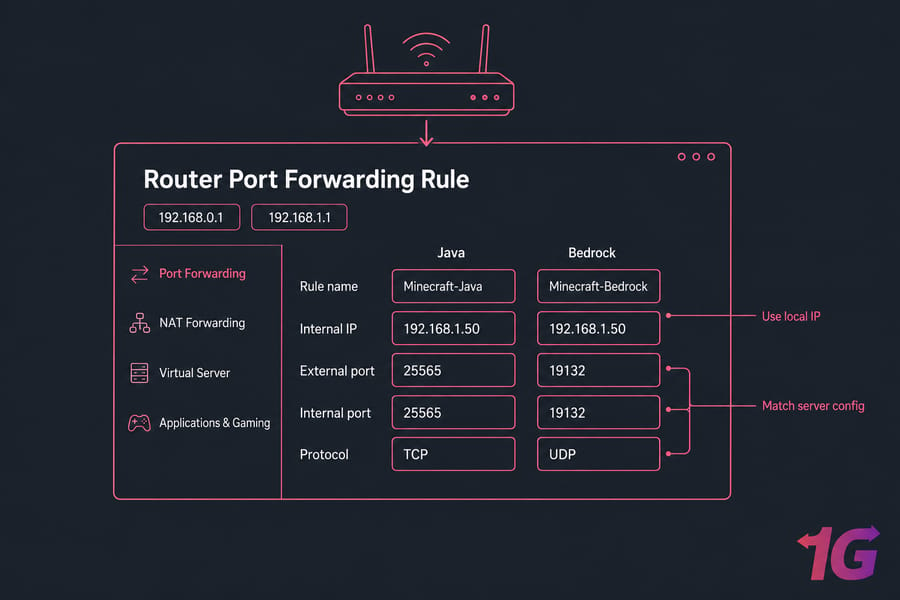
- Log in to the router admin page. Common examples are
192.168.0.1or192.168.1.1. - Find the right menu. Look for Port Forwarding, NAT Forwarding, Virtual Server, or Applications & Gaming.
- Create a new rule. Use your server’s local IP, not the public IP.
- Enter the port and protocol. Java uses TCP 25565. Bedrock usually uses UDP 19132.
- Save or apply. Some routers need a reboot after changes.
| Field | Java Example | Bedrock Example |
| Rule Name | Minecraft-Java | Minecraft-Bedrock |
| Internal IP | 192.168.1.50 | 192.168.1.50 |
| External Port | 25565 | 19132 |
| Internal Port | 25565 | 19132 |
| Protocol | TCP | UDP |
If your router offers UPnP, it may open ports automatically. I personally prefer a manual rule. It’s clearer, more predictable, and easier to troubleshoot later. For broader examples, see how to port forward on your router.
If you have a modem/router from your ISP plus your own second router, pay attention. That often leads to double NAT, which we’ll cover in a minute.
Open the Minecraft server port in Windows Firewall or Linux firewall
Router rule done? Good. But that alone isn’t enough if the host device firewall blocks inbound traffic.
On Windows Defender Firewall, create a new inbound rule for the correct port. For Java, allow TCP 25565. For Bedrock, allow UDP 19132. Choose “Allow the connection,” then apply it to the network profile you actually use.
On Ubuntu with UFW:
sudo ufw allow 25565/tcp
sudo ufw allow 19132/udp
sudo ufw status
Don’t disable the firewall completely. That’s the lazy fix, and it’s usually a bad one. Also check whether a third-party antivirus or security suite is filtering the port. If you need more firewall help, see how to configure a firewall on your VPS and Linux server security.
How to test Minecraft port forwarding and verify the server is reachable
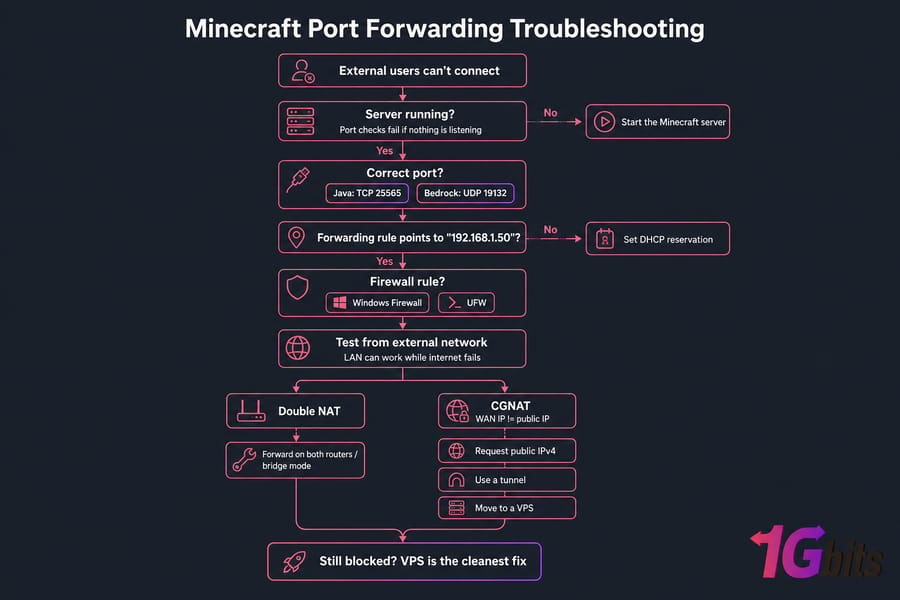
This part trips people up all the time: the server must be running while you test. If nothing is listening on the port, a port checker may show it as closed even if the router rule is correct.
Test from outside your network. Use mobile data or ask a friend to connect using your public IP. Don’t rely only on testing from the same Wi-Fi, because hairpin NAT behavior varies by router.
If you want a cleaner address, you can set a Minecraft server domain and point DNS at your public IP. And if you’re unsure what address to share, this guide helps you find your Minecraft server IP.
Minecraft port forwarding not working? Common problems and fixes
| Problem | Likely Cause | Fix |
| Port shows closed | Server not running | Start Minecraft server before testing |
| Rule exists but no connection | Wrong local IP | Check DHCP lease and router target IP |
| Java server unreachable | Wrong protocol | Use TCP 25565 |
| Bedrock server unreachable | Wrong protocol | Use UDP 19132 |
| Worked yesterday, broken today | DHCP changed IP | Set DHCP reservation |
| Still blocked | Firewall rule missing | Verify Windows Firewall or UFW |
| External users fail, LAN works | NAT issue | Check forwarding, double NAT, or CGNAT |
Double NAT means you have two routing layers doing NAT — usually an ISP modem/router in front of your own router. If your server sits behind the second one, you may need forwarding on both devices, or put the ISP unit into bridge mode.
CGNAT is worse. In plain English, your ISP puts multiple customers behind one shared public IPv4, so you don’t really control inbound connections. A strong clue is this: the WAN IP shown in your router doesn’t match the public IP shown by “what is my IP” tools. When that happens, normal port forwarding for Minecraft may never work. Your options are requesting a real public IPv4 from the ISP, using a tunnel, or moving to a VPS with its own public IP.
If you need more diagnostics, check fix Minecraft server connection issues, how to check open ports in Windows, and how to check Linux open ports.
Can’t open your Minecraft server to the internet? If your ISP uses CGNAT or your network setup is a mess, a Minecraft VPS hosting plan is often the cleanest fix.
Should you use home port forwarding or a Minecraft VPS instead?
| Factor | Home Port Forwarding | Minecraft VPS |
| Setup Difficulty | Moderate | Easier public access |
| Public IP | Depends on ISP | Included |
| Uptime | Depends on home power/internet | Better for 24/7 use |
| Home IP Exposure | Yes | No home IP exposure |
| Scalability | Limited by local RAM/CPU | Easier to upgrade |
Home hosting is fine for a small private world with a few friends. But if you want steady uptime, more RAM, cleaner remote access, and fewer router headaches, a VPS is usually the better call. 1Gbits also offers Minecraft hosting, plus guide to set up a Minecraft server on a VPS
Skip router issues and host your Minecraft server with a public IP. If port forwarding keeps failing, start with Minecraft VPS hosting and avoid most home-network limitations entirely.

Leave A Comment