

A Minecraft server backup should include your world folders, plugins or mods, server.properties, whitelist and ops files, and any custom config folders. The safest setup is an automated file backup run on a schedule, stored off-server, with retention rules and regular restore tests so you can recover quickly after corruption, failed updates, or accidental deletion.
If you're running a server on a VPS, this Minecraft Server Backup Guide: How to Automatically Back Up Worlds, Plugins, and Config Files will save you from the classic mistake I see all the time: backing up only world, then finding out later that ranks, plugin data, or mod settings are gone. A proper backup plan covers the full server state, not just the map.
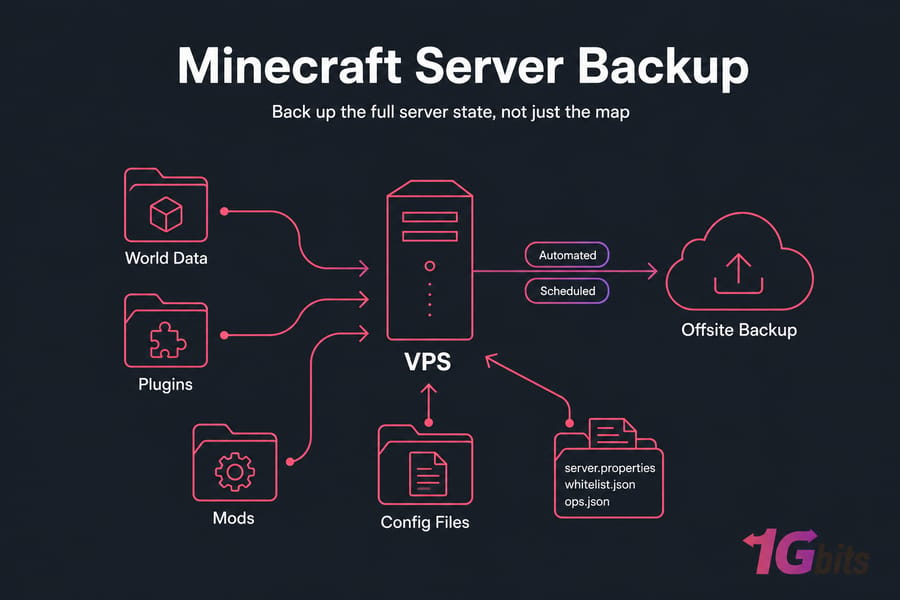
If you're still setting up your environment, it helps to first review how to make a Minecraft server on VPS. Backup planning is much easier when your folder layout and startup method are already clear.
Prerequisites
- Access to your Minecraft server files
- SSH or control panel file access
- Permission to stop/restart the server or run console commands
- Basic familiarity with Linux paths if using a VPS
- Enough disk space for local backup archives
- Optional: remote storage destination for offsite copies
What a Minecraft server backup should include
A real minecraft server backup is more than a copy of one world folder. You want the data that makes the server playable again, not just technically present on disk.
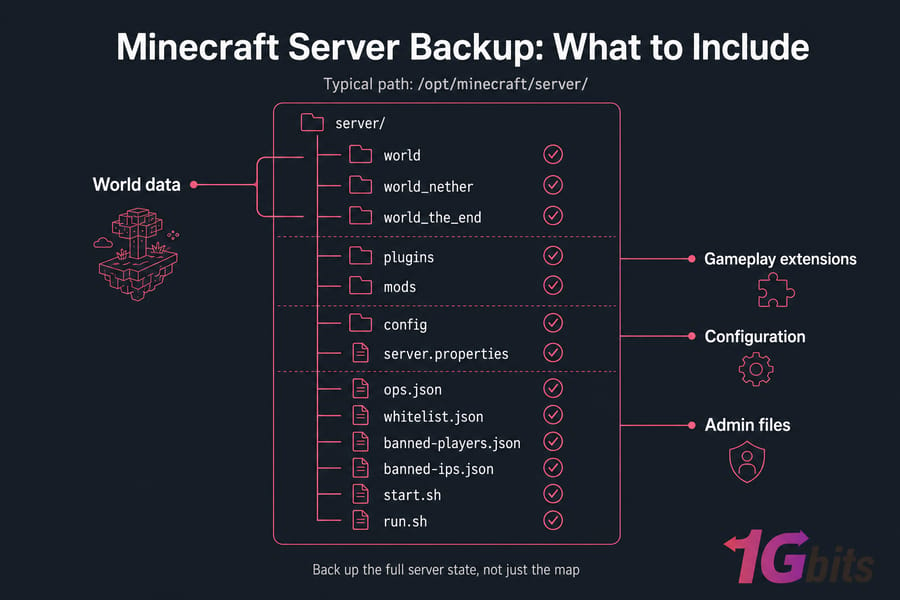
For Vanilla, Paper, Spigot, and Bukkit servers, your world folders usually include world, world_nether, and world_the_end. But plenty of admins rename these, especially on multiworld setups, so don't assume those exact names are always present. Check the folders your server is actually using.
Then there are the files people forget. The plugins directory matters on Paper and Spigot because it often contains both the plugin JARs and their data folders. If you restore a world without plugin data, things like claims, homes, economy balances, warps, teleports, and permissions can disappear. Forge and Fabric servers have the same issue with mods and config directories.
And the small admin files? They're easy to overlook, but they're critical. server.properties, ops.json, whitelist.json, banned-players.json, banned-ips.json, startup scripts, custom JAR names, and permission plugin files all belong in the backup set.
| Item | Required? | Why It Matters | Typical Path |
| World folders | Must back up | Contains terrain, builds, player locations, inventories, chunk data | /opt/minecraft/server/world* |
| Plugins folder | Must back up for Paper/Spigot/Bukkit | Stores plugin JARs and plugin data | /opt/minecraft/server/plugins |
| Mods folder | Must back up for Forge/Fabric | Needed for modded server parity during restore | /opt/minecraft/server/mods |
| Config directory | Must back up | Preserves gameplay rules, mod settings, and plugin configuration | /opt/minecraft/server/config |
| server.properties | Must back up | Defines port, difficulty, max players, world settings, and more | /opt/minecraft/server/server.properties |
| ops.json | Must back up | Keeps operator permissions intact | /opt/minecraft/server/ops.json |
| whitelist.json | Must back up if used | Preserves who can join | /opt/minecraft/server/whitelist.json |
| banned-players.json / banned-ips.json | Nice to back up | Retains admin enforcement state | /opt/minecraft/server/ |
| permissions files or plugin permission data | Must back up | Restores ranks and access control | Usually in plugins or root config files |
| Startup scripts | Nice to back up | Speeds recovery and migration | start.sh, run.sh, service files |
| Custom JARs | Nice to back up | Preserves exact server version and startup expectations | /opt/minecraft/server/*.jar |
| Logs | Optional | Useful for troubleshooting failed restores or crashes | /opt/minecraft/server/logs |
I usually tell people to think in layers: world data, gameplay extensions, configuration, and admin files. Miss one layer and recovery gets messy fast.
Once you know what belongs in a backup, the next question is why world-only backups still fail.
Why a backup Minecraft world copy is not enough
A backup minecraft world copy is useful, sure. But it isn't a full recovery plan.
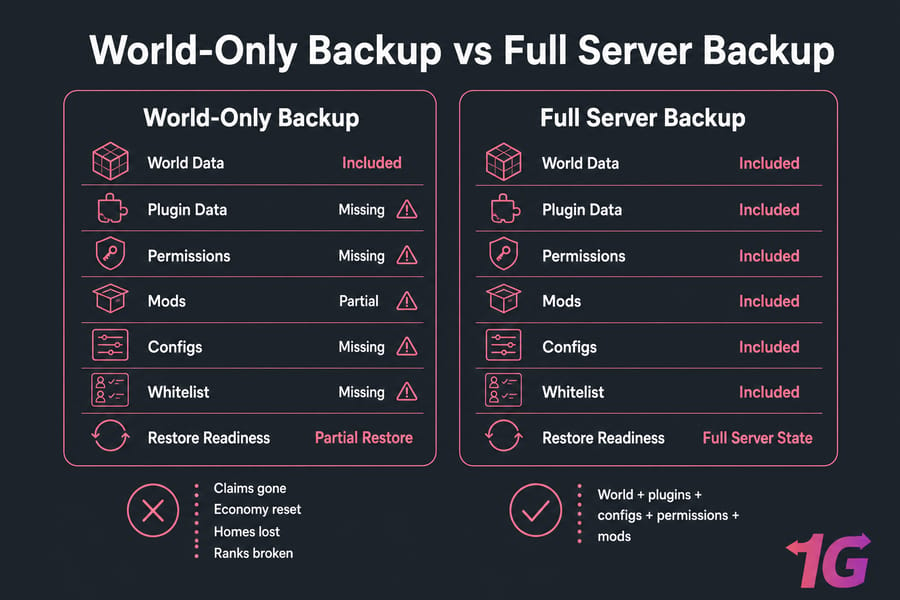
Here's the usual failure pattern. A plugin update breaks your server, so you roll back only the world folder. The terrain comes back. Buildings are there. Players can log in. But then you notice claims vanished, economy balances reset, teleport homes are gone, and ranks don't work because the permission plugin data never came back.
I've seen the same thing on modded servers. The world loads, but blocks are missing or corrupted because the restored world doesn't match the old mod set or config files. That can turn a clean-looking restore into a weird half-broken server.
So what does this actually mean? Your goal isn't to recover a world. It's to recover the server state players expect. That includes plugin data, config files, permissions, and mods. If you're troubleshooting after a bad update or restart, this is also where articles on Minecraft server connection issues can help you separate backup problems from network or startup issues.
To avoid partial restores, choose the backup method that matches how your server is hosted.
Best Minecraft server backup methods compared
When people ask how to backup minecraft server data, there are really four practical options: manual file copy, automated cron backups, control panel backups, and VPS snapshots. All of them can help. Not all of them are enough on their own.
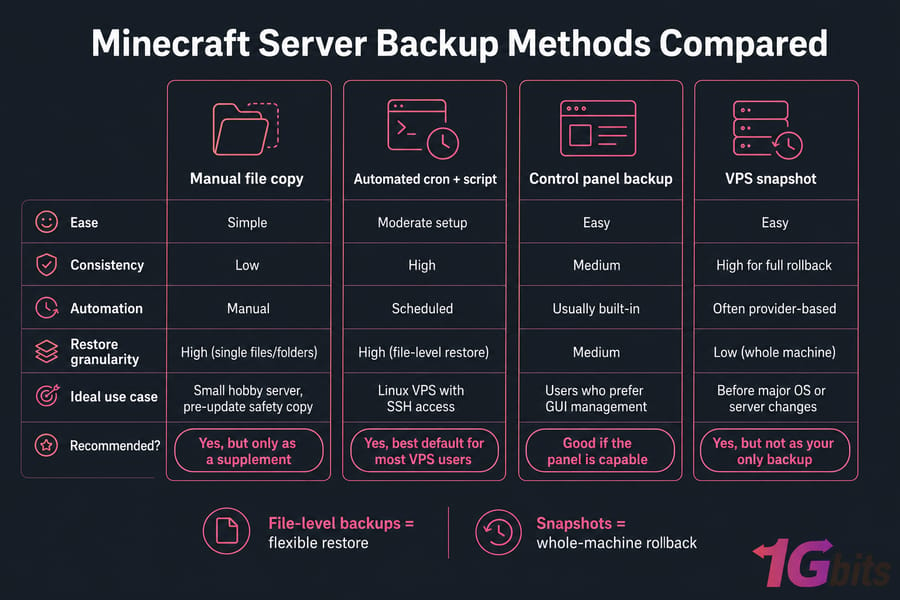
| Method | Best For | Pros | Cons | Recommended? |
| Manual file copy backups | Small hobby server, pre-update safety copy | Simple, no setup, good for one-off restore points | Easy to forget, inconsistent, often incomplete | Yes, but only as a supplement |
| Automated cron + script backup | Linux VPS with SSH access | Reliable, repeatable, flexible, easy to send offsite | Needs initial setup and testing | Yes, best default for most VPS users |
| Control panel backup feature | Users who prefer GUI management | Convenient, quick to use, no shell scripting | May be limited in retention, timing, or offsite options | Good if the panel is capable |
| VPS snapshot | Before major OS or server changes | Fast rollback of whole machine state | Large, less granular, not always app-consistent, often same-provider only | Yes, but not as your only backup |
A file-level backup means you archive the actual server folders and files you care about. Usually that's done with tar.gz, rsync, or both. A snapshot backup works at the VPS or disk level. It's great for rollback, but pretty clumsy when you only want one config file or yesterday's world state.
My rule of thumb is simple:
- Small private server: manual plus nightly automated backup
- Active public server: cron-based backups every few hours
- Modded server: file-level backups before every mod or config change
- VPS user with root access: cron plus offsite copy, with occasional snapshots before major upgrades
If you want a broader Linux view, 1Gbits also has a useful guide to automatic backups for Linux server workflows.
For most Linux VPS-based Minecraft servers, cron-based file backups are the simplest reliable choice.
How to backup Minecraft server files automatically on a VPS
This is the part most readers actually need. Let's keep it practical.
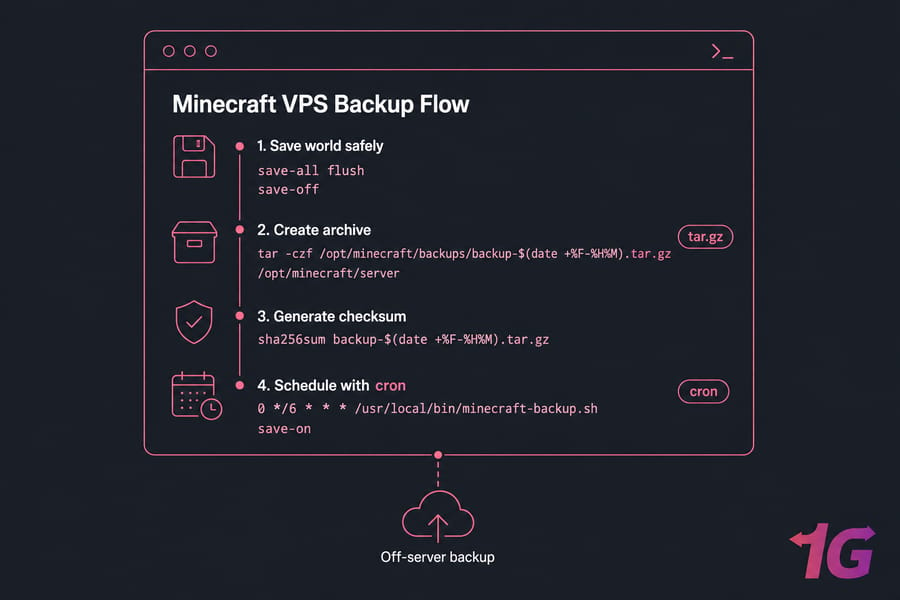
We'll assume a Minecraft Java server running on Linux with files in /opt/minecraft/server and backups stored in /opt/minecraft/backups. Adjust the paths if yours are different. If you're brand new to shell access, read how to SSH first, then come back.
Step 1: Create a backup directory and naming format
You want a dedicated location outside the live server directory. Don't dump archives into the same folder as your active game files. That's asking for clutter, confusion, and disk surprises.
mkdir -p /opt/minecraft/backups
chmod 750 /opt/minecraft/backupsUse timestamps in the filename so each archive is unique and easy to sort.
backup-$(date +%F-%H%M).tar.gz
Step 2: Use save-all safely before copying live data
This is the part beginners skip, and honestly, it's where trouble starts. Minecraft writes chunk and player data while the server is running. If you copy files mid-write without coordinating saves, you can end up with an inconsistent backup.
If you have console access through screen, tmux, rcon, or your panel console, issue a save flush first. On many Paper and Spigot setups, this sequence works well:
save-all flush
save-off
Then run the archive step as quickly as possible, and turn saving back on right after:
save-on
Now here's the thing: command delivery depends on how your server is managed. Some admins use screen, others use tmux, and some launch the server through systemd or a game panel. So the exact way you inject those commands varies. The principle doesn't change — flush writes, pause saves briefly if appropriate, archive, then resume.
If you can't send console commands cleanly, your safer fallback is a scheduled backup during low traffic or a short maintenance restart before the archive. Less elegant, but better than pretending a hot copy is always clean.
Step 3: Archive the server with tar.gz
Here's a simple shell script concept. It sets variables, creates a timestamped archive, includes the files that matter, writes a checksum, and removes old backups.
#!/bin/bash
SERVER_DIR="/opt/minecraft/server"
BACKUP_DIR="/opt/minecraft/backups"
STAMP="$(date +%F-%H%M)"
ARCHIVE="$BACKUP_DIR/minecraft-server-$STAMP.tar.gz"
mkdir -p "$BACKUP_DIR"
tar -czf "$ARCHIVE" \
-C "$SERVER_DIR" \
world world_nether world_the_end \
plugins mods config logs \
server.properties ops.json whitelist.json banned-players.json banned-ips.json \
*.jar *.sh 2>/dev/null
sha256sum "$ARCHIVE" > "$ARCHIVE.sha256"
find "$BACKUP_DIR" -type f -name "minecraft-server-*.tar.gz" -mtime +7 -delete
find "$BACKUP_DIR" -type f -name "minecraft-server-*.sha256" -mtime +7 -delete
A few notes before you paste that into production:
- Change the world folder names if your server uses custom names.
- If you're not using mods, the
modspath can stay there harmlessly, but you can remove it. - Logs are optional. I usually keep them in short-term backups because they help during post-incident debugging.
- If your plugin stores data in a database outside the server folder, you'll need a separate database backup plan.
Test the script manually first. Always. Extract one archive into a staging folder and confirm the files are actually there. Backup automation is easier when your Minecraft VPS gives you root access, predictable storage performance, and enough disk headroom — otherwise you'll spend more time fighting the environment than protecting the server.
Step 4: Schedule the backup with cron
Once the script works, add it to cron. Nightly at 3:15 AM is a decent starting point for a small private server.
15 3 * * * /opt/minecraft/backup.sh >> /var/log/minecraft-backup.log 2>&1
If you need help with syntax, see this guide on how to create a cron job in Ubuntu.
For active servers, you might run backups every 2 to 6 hours instead. Just be realistic about disk usage and archive size. Huge worlds plus frequent tar archives can chew through storage faster than people expect.
Step 5: Clean up old backups with retention rules
Deleting old archives is part of the job. If you don't rotate backups, the VPS eventually fills up, and then your "backup system" becomes the cause of the outage. Not ideal.
The sample script above removes files older than 7 days. That's okay for a very basic setup, but most servers should keep a mix of daily, weekly, and monthly restore points. We'll cover that properly in the next section.
And if you want to push archives to another host afterward, SCP command examples are a good starting point.

Automation solves missed backups, but your schedule and retention policy determine how recoverable your server really is.
Minecraft VPS backup frequency and retention rules
Backup frequency depends on how much player progress you're willing to lose. That's basically your recovery point objective, even if you never call it that.
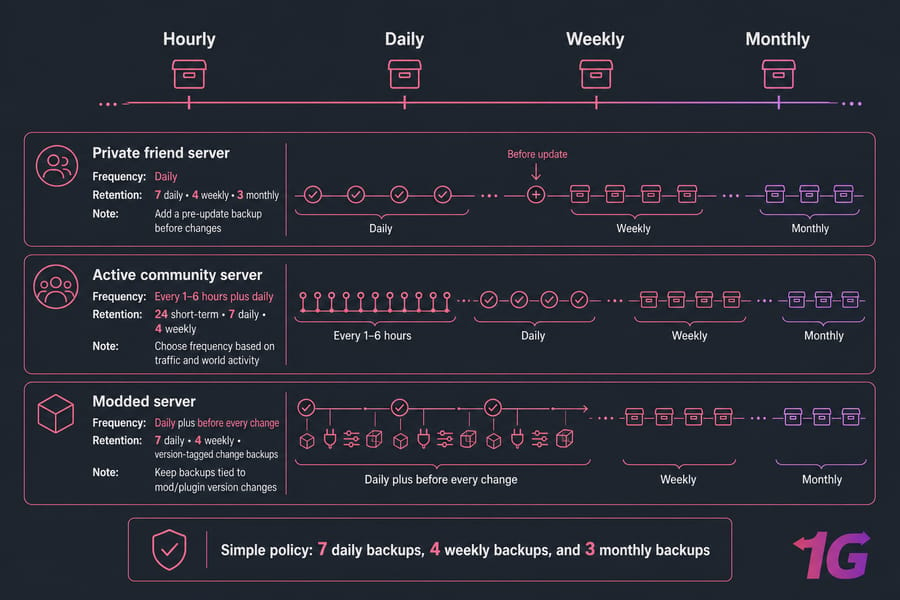
A private friend server usually does fine with daily backups plus a manual pre-update backup. An active community server is different. If players are online all day, losing 24 hours of progress will go over badly, so every 1 to 6 hours makes more sense. Modded servers need backups before every plugin, mod, config, or world-editing change, no exceptions.
| Server Type | Frequency | Retention | Notes |
| Private friend server | Daily | 7 daily, 4 weekly, 3 monthly | Add a pre-update backup before changes |
| Active community server | Every 1–6 hours plus daily | 24 short-term, 7 daily, 4 weekly | Choose frequency based on traffic and world activity |
| Modded server | Daily plus before every change | 7 daily, 4 weekly, version-tagged change backups | Keep backups tied to mod/plugin version changes |
A simple retention policy that works for most servers is this: keep 7 daily backups, 4 weekly backups, and 3 monthly backups. It isn't fancy, but it gives you short-term recovery plus a longer rollback window when corruption goes unnoticed for a few days.
Storage cost and recovery needs pull in opposite directions. More backups mean better recovery granularity, but they also consume disk and bandwidth. That's why I like a mixed policy instead of endless nightly archives.
One more rule and I'd treat it as non-negotiable: always create an on-demand pre-update backup before plugin installs, mod changes, config edits, major world edits, or migrations. If you're building a broader server disaster recovery plan, this is one of the easiest wins.
Even a perfect schedule fails if every copy lives on the same disk.
Where to store Minecraft server backups safely
Local backups are good for fast restores. They are not enough for disaster recovery.
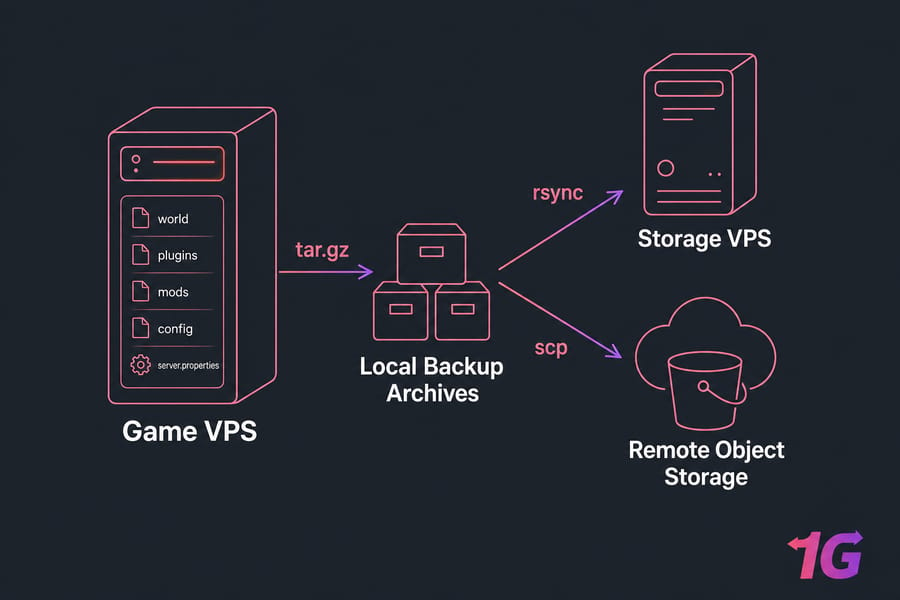
If your VPS disk fails, the node has a major issue, or you accidentally wipe the server directory, local-only backups may vanish with it. That's why offsite minecraft backup planning matters even for small servers.
The easiest version of the 3-2-1 backup rule for Minecraft admins is this: keep your live data on the server, one local backup copy for quick restore, and one offsite copy on separate storage. You don't need enterprise backup software to do that. You just need discipline.
| Storage Option | Pros | Cons | Best Use |
| Local disk on same VPS | Fastest restore, simple setup | Fails with server or disk loss | Short-term quick recovery only |
| Separate VPS or storage VPS | Good control, predictable access, easy rsync target | Extra cost, some setup needed | Offsite backup with full file access |
| Object storage or cloud bucket | Scalable, durable, usually cost-effective for archives | Restore can be slower, setup varies | Longer-term offsite archive storage |
| Remote NAS or backup server | Good for self-managed environments | Needs networking and security attention | Home lab or private infrastructure |
For transfers, you've got three mainstream choices: rsync, scp, and SFTP. I personally prefer rsync when I want efficiency and repeatability, scp when I need something quick, and SFTP when I'm dealing with panel-based workflows or GUI tools.
Keep access tight. Use least privilege where possible, encrypt transfers in transit, and don't hand your backup destination broader access than it needs. Also, don't store archives inside the live game directory. One bad cleanup command can ruin your day.
If you're comparing remote options, it also helps to understand what is storage server infrastructure and how it differs from your game VPS.
Backups are only useful if you can restore them cleanly.
How to restore a Minecraft server backup correctly
Restoring a backup is where a lot of "we're safe" assumptions get exposed. Stay calm and do it in order.
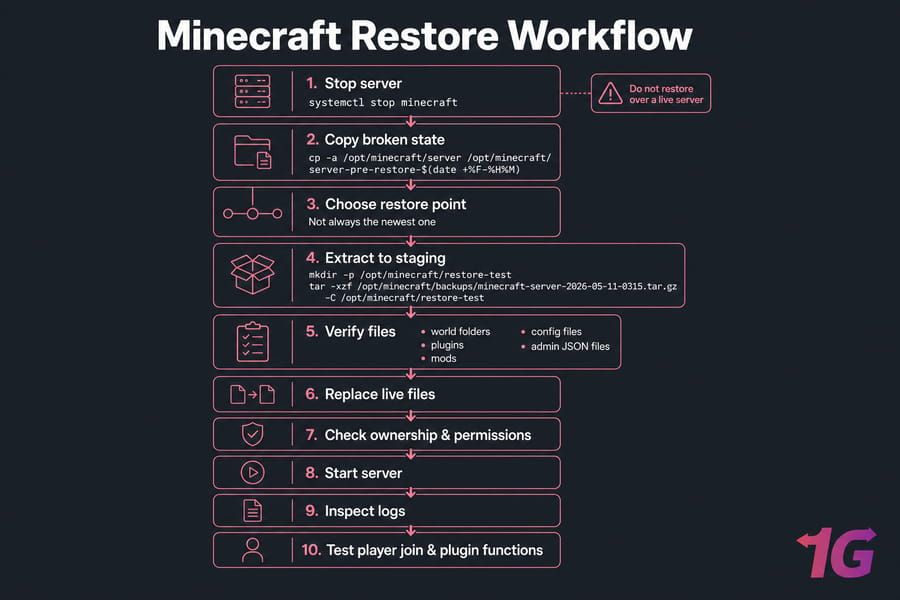
What to do before restoring
First, stop the server. Don't restore over a live instance. Seriously don't. Files changing underneath the restore process is a great way to create a second problem while fixing the first.
Next, make a safety copy of the current broken state. Even if the server is malfunctioning, that copy may still contain logs, configs, or recent data you'll need later.
systemctl stop minecraft
cp -a /opt/minecraft/server /opt/minecraft/server-pre-restore-$(date +%F-%H%M)
Then identify the correct restore point. Not always the newest one. If corruption started yesterday, restoring last night's backup may simply bring the corruption back.
Restoring worlds, plugins, and config files step by step
- Stop the Minecraft server completely.
- Copy the current state to a safety folder.
- Select the backup archive you want to restore.
- Extract it into a staging location first, not directly over production.
- Verify that world folders, plugins, mods, config files, and admin JSON files are present.
- Replace the live server files with the restored set.
- Check file ownership and permissions.
- Start the server and watch logs closely.
mkdir -p /opt/minecraft/restore-test
tar -xzf /opt/minecraft/backups/minecraft-server-2026-05-11-0315.tar.gz -C /opt/minecraft/restore-test
rsync -av --delete /opt/minecraft/restore-test/ /opt/minecraft/server/
If you're restoring a Forge or Fabric setup, verify that the mod list and config versions match the world you're bringing back. For Paper or Spigot, make sure the plugin versions are compatible enough to read their old data formats. This part is a bit tedious, honestly, but skipping it can make the restored server look broken when the real issue is version mismatch.
How to test a restore without risking the live server
The safest move is a test restore on a staging instance or alternate folder. Start the restored copy separately, ideally on another port or another VPS. If that's too much overhead, at least extract and inspect the archive contents before touching production.
After startup, check Linux logs and the Minecraft server logs. Then validate the basics:
- Players can join
- Chunks load normally
- Spawn is intact
- Whitelist and ops settings are present
- Permissions behave correctly
- Plugin features like warps, claims, economy, and homes still work
- No major error spam appears in logs
If you haven't tested a restore, you don't yet know that your backup works. You only know that files are being copied somewhere.
If you also use VPS snapshots, it helps to understand where they fit — and where they don't.
Minecraft server snapshot backup vs file-level backup
A minecraft server snapshot backup is usually a VPS-level image of the machine or disk state. It's useful. It just isn't the same as a proper file-level backup.
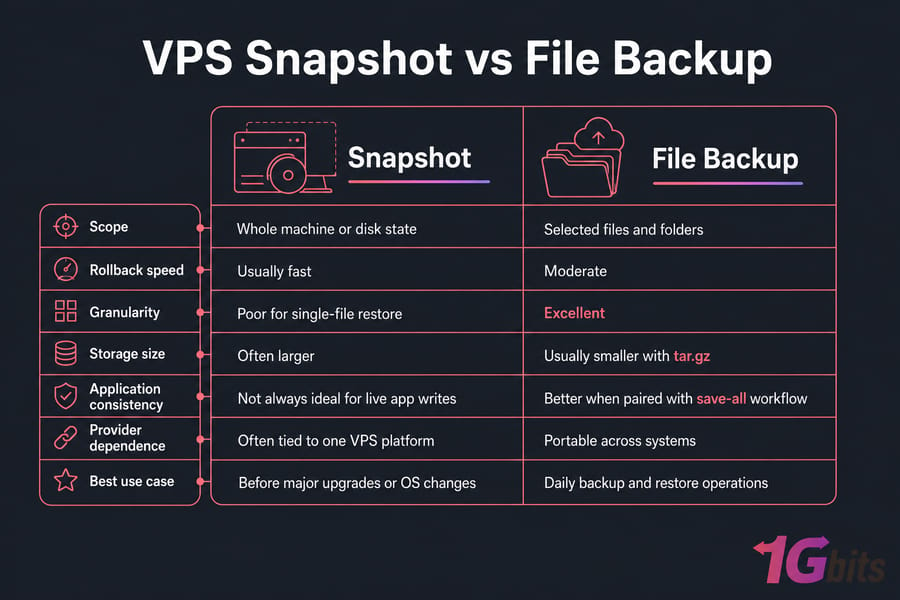
| Factor | Snapshot | File Backup |
| Scope | Whole machine or disk state | Selected files and folders |
| Rollback speed | Usually fast | Moderate |
| Granularity | Poor for single-file restore | Excellent |
| Storage size | Often larger | Usually smaller with tar.gz |
| Application consistency | Not always ideal for live app writes | Better when paired with save-all workflow |
| Provider dependence | Often tied to one VPS platform | Portable across systems |
| Best use case | Before major upgrades or OS changes | Daily backup and restore operations |
Pros and cons of VPS snapshots
Snapshots are great before risky maintenance. Kernel updates, Java changes, major panel updates, server migrations — that's where they shine. Fast rollback feels very nice when something explodes.
But they can be large, sometimes provider-specific, and not always perfectly consistent if the server is writing heavily during the snapshot. And if you only want yesterday's server.properties or one plugin folder, restoring a full VPS snapshot is overkill.
Why snapshots alone are not enough
Snapshots alone leave gaps. They don't replace retention planning, they don't automatically give you offsite independence, and they aren't ideal for granular restores. If the provider account has an issue or the snapshot chain is limited, you're stuck.
The best hybrid backup strategy
The best setup for most admins is hybrid: automated file-level backups every day or every few hours, offsite copies for disaster recovery, and a VPS snapshot before major system changes. If you're evaluating infrastructure, Minecraft VPS hosting with reliable storage and full control makes that workflow much easier. Fast NVMe-backed plans can help too, especially when archives and restores hit the disk hard, so it may be worth reviewing NVMe VPS options if performance is a bottleneck.
No matter which tools you use, a few repeat mistakes cause most failed restores.
Common mistakes when you backup a Minecraft server
Most failed backup plans don't fail because tar is broken. They fail because the process around it is sloppy.
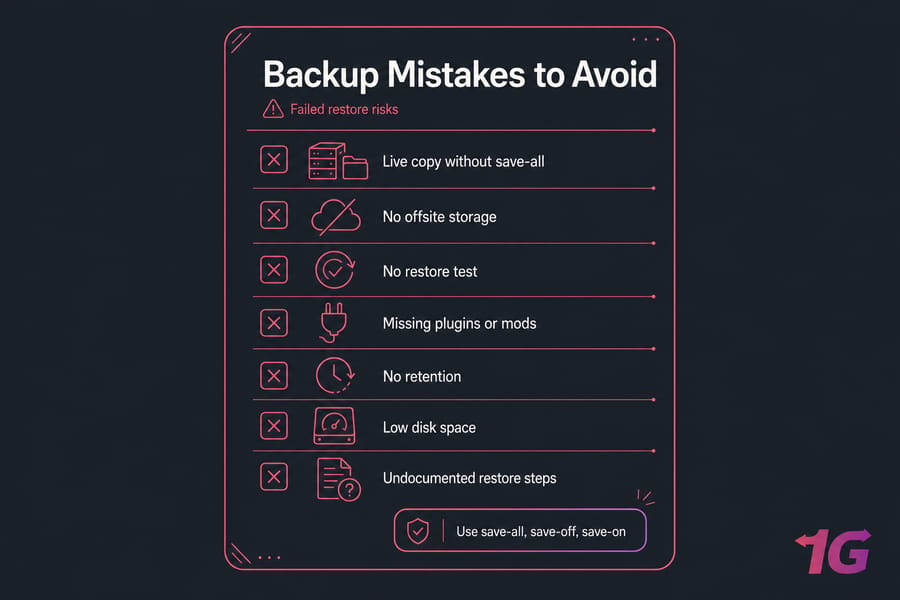
- Backing up while files are still being written. Use
save-all, and if possiblesave-offandsave-on, around the archive window. - Keeping backups on the same server only. If the VPS dies, so do the backups.
- Never testing a restore. A restore test is the only proof your backup is usable.
- Retention too short or nonexistent. One backup or one day of history isn't a strategy.
- Forgetting plugins, mods, or config files. This is why partial restores happen.
- No pre-update restore point. Always make a manual backup before plugin installs, mod changes, and big config edits.
- Ignoring disk space. Backup jobs quietly fail when the disk fills up. If storage pressure is already hurting the box, check related causes in common VPS performance bottlenecks and how to fix them.
- Not documenting restore steps. During an incident, you won't want to improvise.
Use the checklist below to turn this into a backup routine you can trust.
Final Minecraft server backup checklist and next steps
This is your short version. Save it somewhere obvious.
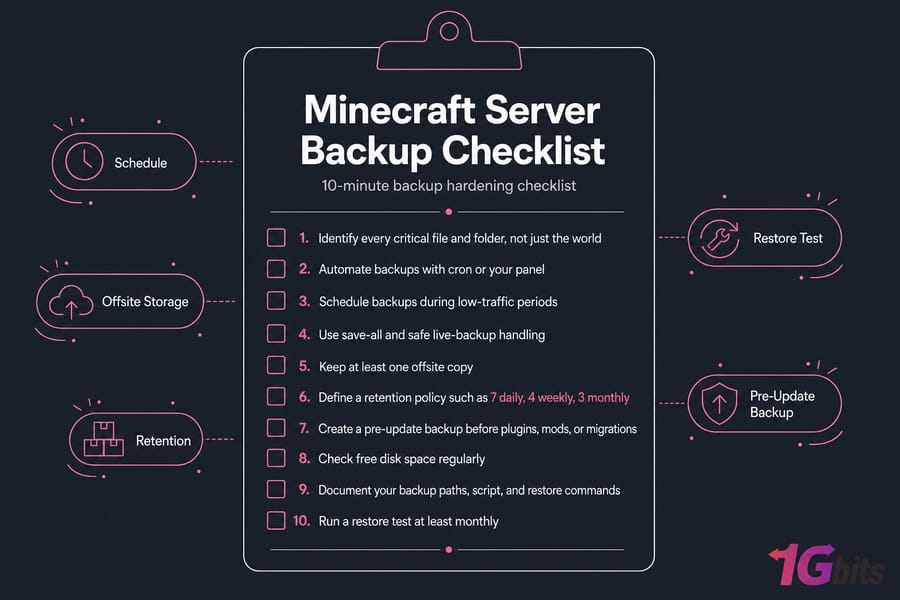
A 10-minute backup hardening checklist
- Identify every critical file and folder, not just the world
- Automate backups with cron or your panel
- Schedule backups during low-traffic periods
- Use
save-alland safe live-backup handling - Keep at least one offsite copy
- Define a retention policy such as 7 daily, 4 weekly, 3 monthly
- Create a pre-update backup before plugins, mods, or migrations
- Check free disk space regularly
- Document your backup paths, script, and restore commands
- Run a restore test at least monthly
When to upgrade to a more reliable Minecraft VPS

If backups feel fragile because storage is tight, I/O is inconsistent, or you don't have enough control to automate things cleanly, it may be time to move. Reliable Minecraft VPS infrastructure makes backup scheduling, restore testing, and update safety much less painful. And that's really the point fewer surprises when something breaks.
If you're running long-term worlds or community servers, check out Minecraft VPS hosting for more control, or browse Minecraft hosting plans if you want a broader hosting option.

Leave A Comment