
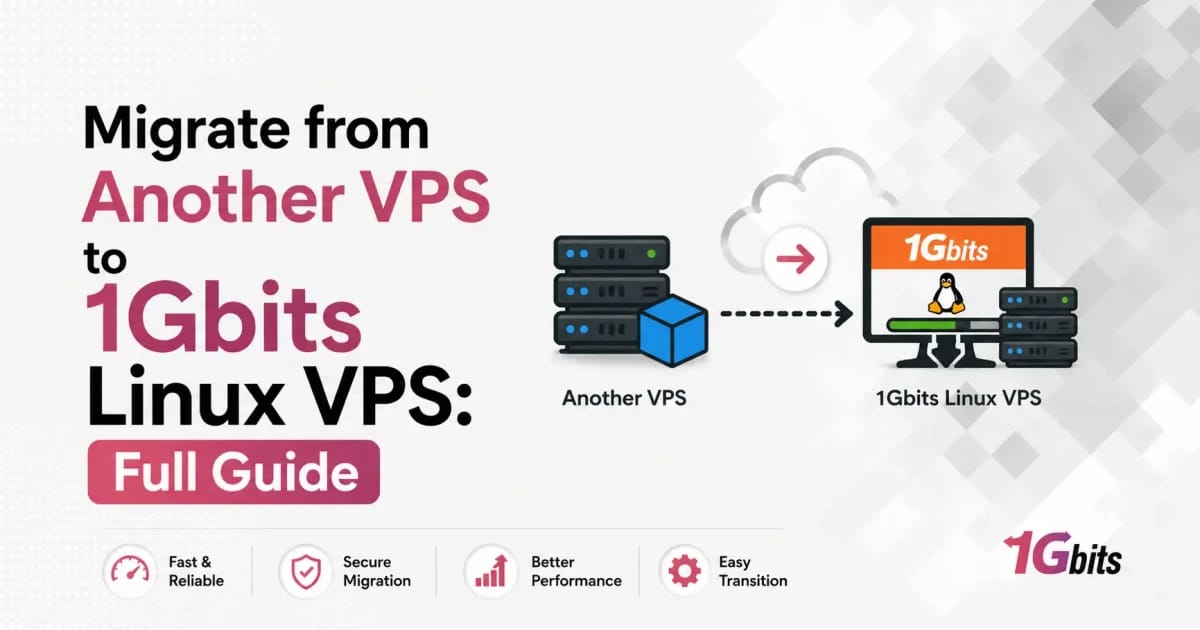
Moving to a Linux VPS changes that. You get dedicated CPU and RAM, real root access, isolated processes, and the freedom to pick your own stack. If you've ever tried to bump a PHP version on cPanel and hit a wall, you know the feeling. On a VPS, that's a two-minute job.
When moving from another VPS also makes sense
Not every migration starts from shared hosting. Plenty of people jump ship from one VPS provider to another — usually for better pricing, a datacenter closer to their users, more generous bandwidth, or just because the current provider's support has gone cold. If your monthly bill crept up while performance stayed flat, that's a perfectly legitimate reason to move.
Which websites benefit most from a Linux VPS
WordPress sites pushing more than 30k visits/month. WooCommerce stores where checkout lag costs real money. Laravel or custom PHP apps. Node.js backends. Staging environments for agencies juggling multiple client sites. Anything that needs a specific runtime or caching layer. For a deeper comparison, our guide on VPS vs shared hosting breaks down the trade-offs without the marketing gloss.
| Environment | Control | Performance | Risk | Best For |
|---|---|---|---|---|
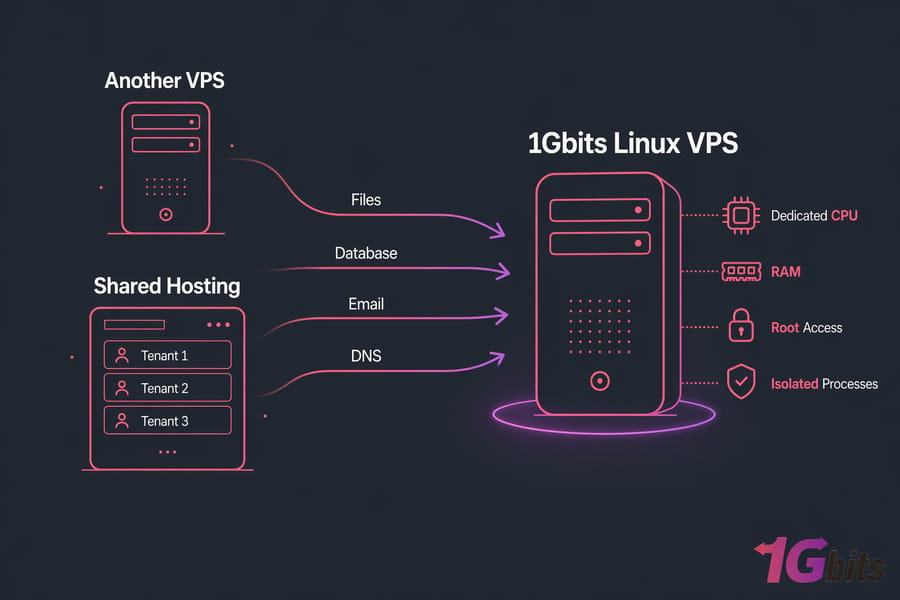
| Shared Hosting | Minimal — panel-only | Inconsistent under load | Noisy neighbors, account limits | Brochure sites, tiny blogs |
| Another VPS (generic) | Full root | Depends on provider | Pricing creep, variable support | Most production sites |
| 1Gbits Linux VPS | Full root, OS choice | Dedicated resources, strong bandwidth | Predictable — you control the stack | WordPress, stores, custom apps, multi-site |
If you've decided to move, the next step is preparing a migration checklist so nothing gets missed. And honestly, the preparation is where most migrations succeed or fail — not the actual transfer.
Key takeaway: Successful migration depends more on preparation and testing than on the actual file transfer. Rushing the prep is the single most common cause of broken migrations.
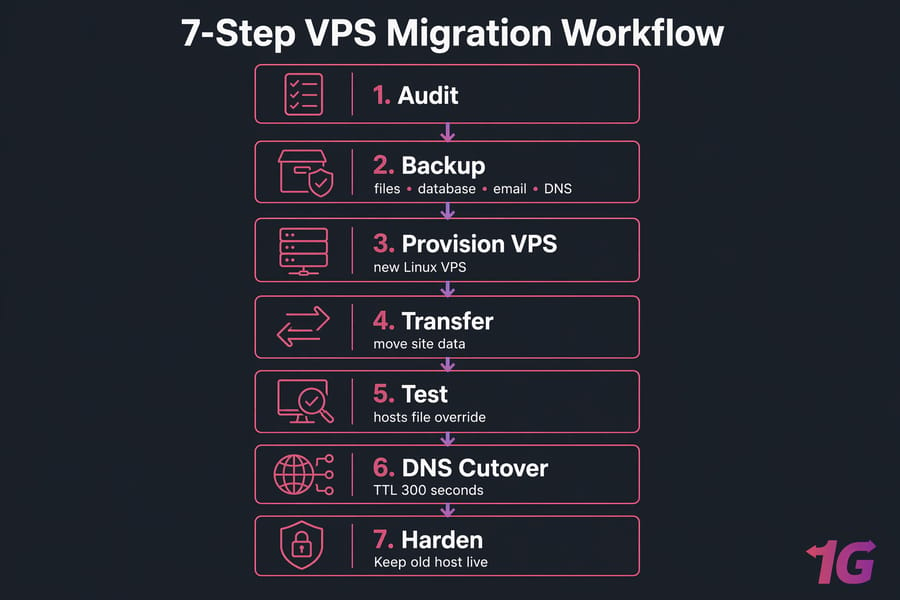
VPS migration checklist: what to prepare before moving
Skip this section and you'll regret it. I've done enough migrations to know the difference between a clean cutover and a 3am phone call is usually whatever got missed in the first 30 minutes of prep.
Access credentials and account inventory
Gather all of this before you touch anything:
- Current hosting control panel login (cPanel, Plesk, DirectAdmin, whatever)
- SSH or SFTP credentials for the source server
- Database credentials (root and app users)
- Domain registrar login — this one trips people up constantly
- DNS provider login (may or may not be the same as registrar)
- Email admin access
- SSL certificate files or the ability to re-issue them
- New 1Gbits Linux VPS root/sudo access
Server stack and application audit
Document what's actually running. Don't guess. Log into your current server and check:
- Web server: Apache or NGINX, and the exact version
- PHP version (run
php -v) and loaded extensions (php -m) - Database: MySQL or MariaDB, version number
- Node.js, Python, Ruby — whatever your app needs
- Cron jobs (
crontab -l) - Any system services your app depends on (Redis, Memcached, Supervisor)
- Environment variables stored in
.envfiles or system profiles
Version parity matters. A WordPress site built on PHP 7.4 can break in subtle ways on PHP 8.2 — deprecation warnings, plugin incompatibility, the works.
Backup and rollback plan
Before the migration, define what "we're rolling back" looks like. Your rollback plan should answer three questions: what triggers a rollback, who decides, and how fast can we flip DNS back? If you can't answer those in one sentence each, you're not ready.
Take two independent backups. One on the source server, one downloaded locally. Verify both can be restored. An untested backup is a wish, not a safety net. Our guide on building a server disaster recovery plan goes deeper if you need it.
Lower DNS TTL before migration
This is the single cheapest thing you can do to reduce downtime. Log into your DNS provider 24–48 hours before the planned cutover and drop the TTL on your A records (and anything else you'll be changing) to 300 seconds, or even 60. Why? Because DNS caches respect the TTL value they saw last. If your TTL was 86400 (a day), some resolvers will keep pointing at the old server for a full day after you make the change.
Warning: Do not lower DNS TTL at the last minute. Many resolvers cache the old (high) TTL value they saw earlier. Drop the TTL at least 24 hours — ideally 48 — before the switch, or you'll still be waiting for propagation when you least want to.
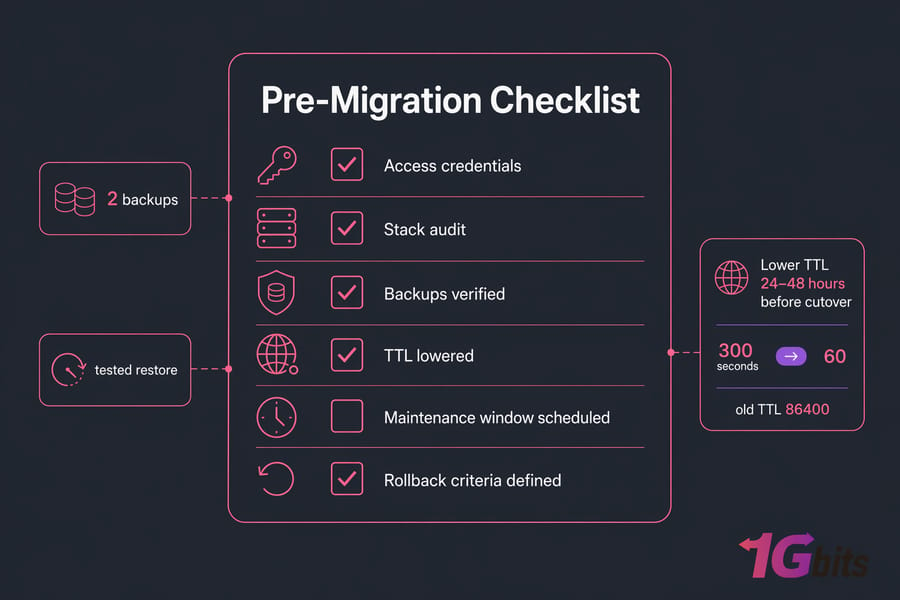
Once you've audited your current hosting environment, set up the new VPS so it's ready to receive the migrated data. Need to understand SSL before you migrate certs? Our SSL explainer covers the basics in a few minutes.
How to choose and prepare your 1Gbits Linux VPS
Before you can migrate anything, you need somewhere to migrate to. Picking the right plan and OS now saves you pain later.
Pick the right Linux distribution for your workload
There's no "best" distro in isolation — it depends on what you're running and what you're comfortable with. Here's how I'd decide:
| Distribution | Best For | Why |
|---|---|---|
| Ubuntu VPS | WordPress, general web apps, Node.js | Biggest community, most tutorials, PPAs for fresh package versions |
| Debian VPS | Long-running production, minimal installs | Rock-solid stability, lean footprint, predictable upgrades |
| AlmaLinux VPS | cPanel/Plesk environments, RHEL workflows | Binary-compatible with RHEL, free, enterprise tooling |
| Rocky Linux VPS | RHEL shops, enterprise apps | Same CentOS replacement story as Alma, community-governed |
If you're migrating from cPanel and plan to install cPanel again, AlmaLinux or Rocky is the natural pick. For everything else, I lean Ubuntu LTS.
Decide between managed vs unmanaged VPS
Honest question: how comfortable are you editing an NGINX config at 2am when something breaks? If the answer is "not very," go managed. If you live in the terminal and want full control without anyone else touching your box, unmanaged is cheaper and more flexible. First-time migrators often underestimate the ongoing admin workload — not just the migration itself, but the next six months of updates, security patches, and log-checking.
Set up users, SSH, firewall, and updates
Fresh VPS? Before you even think about uploading files, do this:
- Update the system:
apt update && apt upgrade -y(ordnf update -yon RHEL-based) - Create a non-root user with sudo privileges
- Set up SSH key authentication and disable password logins
- Change the SSH port if you like (optional, cuts down log noise)
- Enable UFW (Ubuntu/Debian) or firewalld (RHEL-based), allow only what you need: 22 (or your SSH port), 80, 443
- Set the timezone and hostname correctly
New to SSH? Start with our walkthrough on how to SSH.
Install your web stack before migration
Build a skeleton of the destination stack — NGINX or Apache, PHP with the right extensions, MySQL/MariaDB, Redis if you use it, and so on. Match versions to your source server as closely as the distro allows. Don't migrate data into an empty server; migrate it into a stack that's ready to serve.
After your new VPS is provisioned and hardened, create verified backups before moving any production traffic.
Back up your website before website migration to VPS
Every migration has the same four asset groups: files, database, email, and configuration (DNS, SSL, cron, env). Miss any one and something will break in a way that's hard to diagnose later.
Export website files
A few ways, pick based on site size and access:
- tar archive over SSH — fastest for larger sites. On the source:
tar -czf site-backup.tar.gz /home/user/public_html. Our tar command guide has more patterns. - SFTP download — easy but slow for anything over a few GB.
- cPanel Full Account Backup — good if you're on cPanel and plan to restore into another cPanel environment.
- rsync — best for ongoing sync during migration (covered later).
Export MySQL or MariaDB databases
The cleanest way is mysqldump from SSH:
mysqldump -u root -p --single-transaction --routines --triggers dbname > dbname.sqlNo SSH? Use phpMyAdmin's Export tab — choose "Custom" and tick "Add DROP TABLE" so imports overwrite cleanly. For large databases (10GB+), avoid phpMyAdmin; it'll time out.
Save email accounts, DNS records, and cron jobs
This is the section everyone forgets. Export:
- Mailbox contents (IMAP sync or cPanel email backup)
- Full DNS zone file — every A, CNAME, MX, TXT, and SRV record. Screenshot if your registrar doesn't export cleanly.
- SSL certificate files (private key, cert, chain) if you're not re-issuing with Let's Encrypt
- Cron jobs (
crontab -l > crons.txt) - App environment variables from
.envfiles or wherever they live
Verify that backups can actually be restored
Before touching anything else, test-restore on your new VPS. Unpack the archive, import the SQL into a test database, confirm file counts match. It's boring. Do it anyway.
| Asset | Where It Lives Now | Backup Method | Restored? | Notes |
|---|---|---|---|---|
| Website files | public_html / /var/www | tar.gz or rsync | ☐ | Check symlinks and hidden files |
| Database | MySQL/MariaDB | mysqldump | ☐ | Use --single-transaction for InnoDB |
| Mail server | IMAP sync / cPanel export | ☐ | Only if self-hosted mail | |
| DNS records | Registrar or DNS host | Zone file export | ☐ | Include MX, TXT, SPF, DKIM |
| SSL certs | Web server | Copy .crt, .key, chain | ☐ | Or re-issue via Let's Encrypt |
| Cron jobs | crontab | crontab -l | ☐ | Adjust paths on new server |
| Env variables | .env or shell profile | Copy manually | ☐ | Rotate secrets if exposed |
With clean backups in hand, the migration path depends on whether you're moving from shared hosting or another VPS. For transferring archives between servers, our scp command guide is a good reference.
Move a cPanel or panel-based site to a VPS
- Create a full backup in cPanel — use the "Backup Wizard" or "Full Account Backup" feature. You'll get a
.tar.gzcontaining files, databases, email, and account config. - Download the archive locally, then SCP it to your new VPS:
scp backup.tar.gz user@new-vps-ip:/tmp/ - On the VPS, extract to a working folder, not directly into your web root. You want to inspect the structure first.
If you're planning to install cPanel on the new VPS too, the restore is almost automatic. Our guide on installing cPanel on a Linux VPS covers that path.
Upload files and restore the database
- Copy website files to the correct web root — usually
/var/www/yoursite.com/htmlfor NGINX or/var/www/htmlfor Apache. - Create the database and user on the new server:
CREATE DATABASE sitedb CHARACTER SET utf8mb4; CREATE USER 'siteuser'@'localhost' IDENTIFIED BY 'strong-password'; GRANT ALL PRIVILEGES ON sitedb.* TO 'siteuser'@'localhost'; FLUSH PRIVILEGES; - Import the SQL dump:
mysql -u root -p sitedb < dbname.sql
Recreate virtual hosts, PHP settings, and SSL
Create an NGINX or Apache virtual host pointing to the web root. Match PHP settings — memory_limit, upload_max_filesize, max_execution_time — to whatever the shared host used, or your app will throw mysterious errors on large uploads.
For SSL, the simplest path is Let's Encrypt via Certbot. Install Certbot, run it against your domain, and it'll configure everything — assuming DNS already points to the new VPS (you'll do a temporary hosts file trick for the test phase, but for the live SSL issuance, DNS must resolve).
Fix file permissions and environment variables
Shared hosts often run PHP as the account user, so permissions land at 644/755 with the user as owner. On a standard NGINX/Apache VPS, the web server usually runs as www-data (Ubuntu/Debian) or nginx (RHEL-based). Fix ownership:
chown -R www-data:www-data /var/www/yoursite.com/html
find /var/www/yoursite.com/html -type d -exec chmod 755 {} \;
find /var/www/yoursite.com/html -type f -exec chmod 644 {} \;
Update app config files:
- WordPress:
wp-config.php— new DB name, user, password, host - Laravel / custom PHP:
.env— database credentials, APP_URL, any third-party API endpoints - Hardcoded paths: search for old absolute paths like
/home/oldaccount/public_htmland update them
Restore cron jobs — but fix the paths first. A cron that calls /home/olduser/public_html/cron.php will silently fail on the new server.
Pro tip: For frequently-changing sites (stores, membership sites, anything with user-generated content), do a preliminary migration a few days early, then export a fresh database dump right before final cutover. The files rarely change; the database almost always does.
Running WordPress? Our WordPress VPS setup details are worth bookmarking. And if you want a broader view, hosting a website on Linux VPS covers the hosting side end-to-end.
If your source environment is already a VPS, the workflow is similar — but you'll also need to mirror system-level configuration.
Migrate from one VPS to another without downtime
VPS-to-VPS is technically harder than shared-to-VPS because you own more of the stack. You're not just moving a site; you're moving services, users, cron, firewall rules, and sometimes licensing.
Audit the source VPS configuration
On the source server, capture everything:
- Installed packages:
dpkg -l > packages.txt(Debian/Ubuntu) orrpm -qa > packages.txt(RHEL) - Running services:
systemctl list-units --type=service --state=running - Open ports:
ss -tulpn— see our open ports guide for more - User accounts:
cat /etc/passwd(filter system users) - Cron jobs for all users:
for u in $(cut -f1 -d: /etc/passwd); do crontab -u $u -l 2>/dev/null; done - Firewall rules:
ufw status verboseoriptables -L -n -v
Use rsync, SCP, or backup archives to transfer data
My go-to is rsync over SSH, because it handles partial transfers and incremental sync beautifully:
rsync -avzP -e "ssh -p 22" /var/www/ user@new-vps:/var/www/Run it once to do the bulk transfer. Run it again right before cutover to catch anything that changed in between. For databases, mysqldump piped through SSH works if you want a one-liner:
mysqldump -u root -p --all-databases | ssh user@new-vps "mysql -u root -p"For single large files or archives, scp is fine.
Match software versions on the new server
Version mismatches are where VPS-to-VPS migrations go sideways. If the source runs PHP 8.1 and the new box has 8.3, your WordPress plugins might work — or might throw fatal errors. When in doubt, match versions first, then plan an in-place upgrade after migration.
Same logic for MySQL/MariaDB: if the source is MariaDB 10.6 and the destination is MySQL 8.0, the dump will import but some edge-case SQL won't behave identically.
Update IP-dependent configs and services
New server means new IP. Check every place the old IP was hardcoded:
- Firewall whitelists on external services (database replicas, payment gateways, email relays)
- Application configs pointing at internal services
- Third-party API allowlists
- Software licenses bound to IP
- SPF records (if the server sends mail)
- Monitoring agents
Keep the old VPS running until every one of those is confirmed working on the new IP.
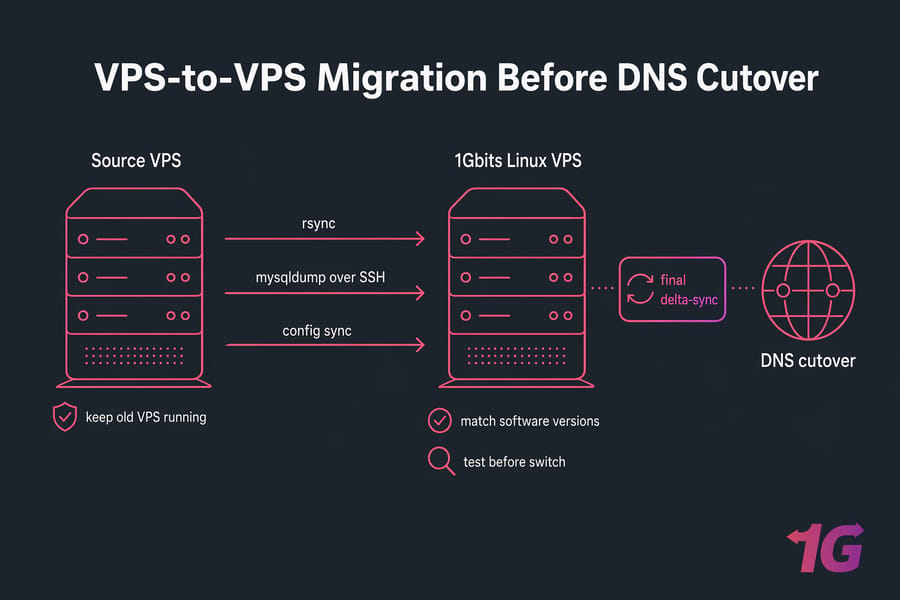
Before changing DNS, test the migrated site as if it were already live.
How to test your move website to VPS before DNS cutover
This is the part most rushed migrations skip. Don't. Ten minutes of testing here saves hours of incident response later.
Preview the site using a hosts file
Override DNS locally on your machine. Edit your hosts file:
- Windows:
C:\Windows\System32\drivers\etc\hosts - macOS / Linux:
/etc/hosts
Add a line:
123.45.67.89 yourdomain.com www.yourdomain.comReplace the IP with your new VPS IP. Flush your DNS cache (here's how) and visit the site. You're now seeing the new server while the rest of the world still sees the old one. Perfect.
Validate forms, logins, checkout, and redirects
Work through a real punch-list:
- Homepage loads with correct styling (no missing CSS/JS)
- Admin/dashboard login works
- Contact forms submit and actually send email
- Search works
- File uploads (if applicable)
- Checkout on eCommerce — add to cart, go through full flow, verify payment gateway responds
- Redirects: test old URLs that should 301 to new ones
- robots.txt and sitemap.xml load correctly
Check logs, database connections, and SSL
While you're testing, tail the server logs:
tail -f /var/log/nginx/error.log
tail -f /var/log/php8.2-fpm.log
Our guides on Linux logs and Apache error logs (plus NGINX default config) help if you're not sure what to look for. Watch for 500 errors, missing PHP extensions, database connection refusals, and permission denied entries.
Run final performance and uptime checks
Run a GTmetrix or PageSpeed test (using the hosts file override still active). Compare to the old server. If page weight jumped or TTFB got worse, something's misconfigured — usually a missing opcache or an uncached homepage. Fix before cutover, not after.
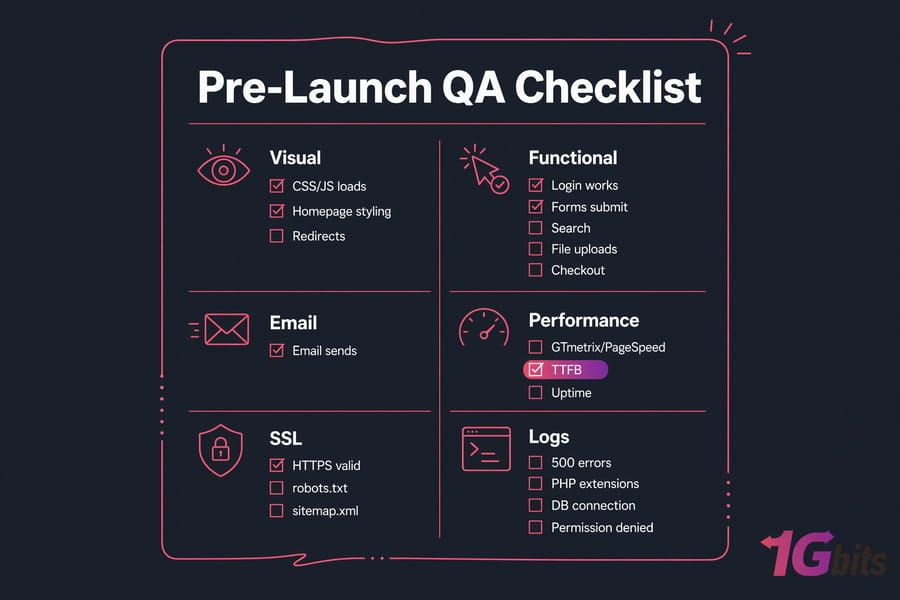
Once tests pass, cut over DNS carefully to minimize downtime and preserve rollback options.
DNS cutover after shared hosting to VPS migration
Cutover is dramatic-sounding, but if you prepped properly, it's a two-minute job followed by a few hours of watching logs.
Update A records or nameservers
You have two cutover strategies:
- Change A records only — fastest, keeps your current DNS host. Log into your DNS provider, point the A record (and www CNAME) at the new VPS IP. TTL should already be low from your prep work.
- Change nameservers — slower, used when you're also moving DNS providers. Nameserver changes take longer to propagate because registrar-level changes go through different caches. Our comparison of default vs hosting nameservers explains when each makes sense.
For the how-to on changing DNS, we've got a separate walkthrough.
What DNS propagation really means
"Propagation" isn't some magical global broadcast. It's just every DNS resolver on Earth waiting for its cached record to expire. If you set TTL to 300 seconds, most resolvers will refresh within 5 minutes. But some ISPs ignore TTL and cache for longer. And some users' routers cache on top of that. Which is why you don't cancel the old host.
Keep the old host active during propagation
Leave the old server running for at least 48–72 hours after cutover. During that window, some traffic will hit the old server (cached DNS), some will hit the new one. That's fine — as long as both work. If the old server is off, those users see errors.
Warning: Do not cancel your old hosting until traffic, forms, email, and SSL are confirmed on the new VPS — and DNS has fully propagated. I'd suggest waiting a full week minimum for anything that matters. Storage on old hosting is cheap; emergency data recovery is not.
Roll back safely if something breaks
If something major breaks in the first hour, flip the A record back to the old IP. Because TTL is low, most users will hit the old server again within minutes. This is why lowering TTL matters — not just for cutover speed, but for rollback speed.
Email is a special case. If your MX records point to the same server, changing them mid-flight can bounce mail. Either keep MX pointing at the old host until email migration is fully tested, or use a third-party mail service (Google Workspace, Microsoft 365, Zoho) so mail isn't tied to server IP at all.
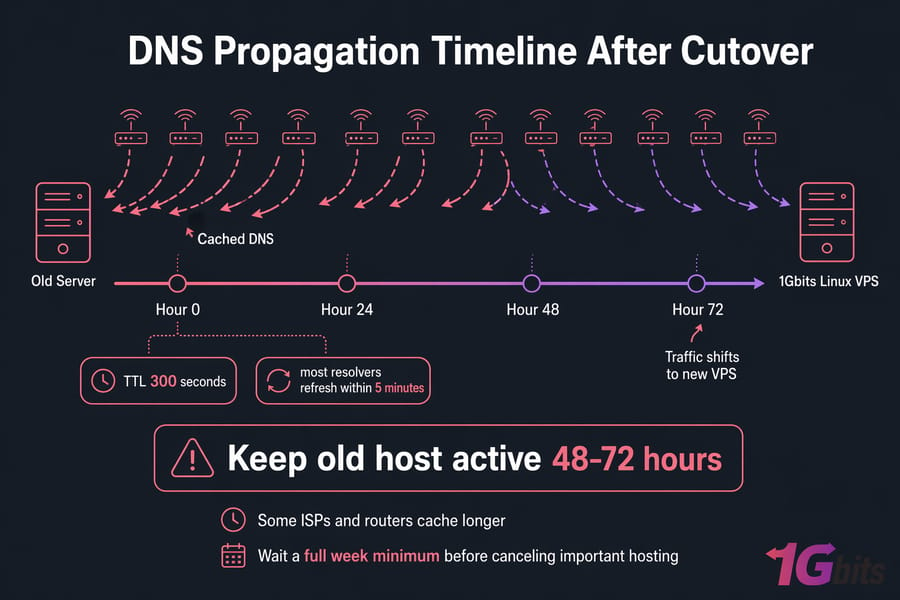
After traffic is live on the new VPS, secure and optimize the server so the move delivers long-term performance gains.
Post-migration Linux VPS hardening and optimization
You moved the site. Great. Now harden the server — because a fresh VPS with an open SSH port and a weak root password is a botnet recruit waiting to happen.
Change passwords and use SSH keys
Rotate every credential that touched the migration:
- Database root password
- Database app user passwords
- Any API keys you used to test
- Application admin passwords (WordPress admin, etc.)
Switch SSH to key-only auth. Generate a key pair locally, copy the public key to ~/.ssh/authorized_keys on the server, then disable password auth in /etc/ssh/sshd_config. While you're in there, disable root login and consider changing the SSH port to cut down brute-force log noise.
Configure firewall, fail2ban, and backups
UFW basics (Ubuntu/Debian):
ufw default deny incoming
ufw default allow outgoing
ufw allow 22/tcp
ufw allow 80/tcp
ufw allow 443/tcp
ufw enable
Full details in our VPS firewall guide.
Install Fail2Ban — it reads your auth logs and bans IPs that repeatedly fail SSH. It won't stop a determined attacker, but it kills 95% of the automated noise.
Set up automated backups before you forget. Snapshot-based (if your provider supports it) plus application-level backups (database dumps to external storage). Our guide on scheduling automatic backups walks through a clean cron-based setup.
Enable monitoring and alerts
At minimum, set up:
- Uptime monitoring (UptimeRobot, Better Uptime, or similar — ping every 1–5 minutes)
- Disk space alerts — nothing takes a server down faster than 100% disk
- CPU/RAM monitoring
- SSL certificate expiry alerts (Let's Encrypt auto-renews, but verify)
Optimize caching, PHP, and database performance
A few wins that almost always pay off:
- Enable OPcache in PHP (usually a one-line ini change)
- Add Redis or Memcached for object caching if your app supports it
- Configure NGINX/Apache Gzip or Brotli compression
- Tune MySQL's
innodb_buffer_pool_sizeto roughly 50–70% of available RAM on DB-heavy boxes - Add a CDN in front (Cloudflare free tier works for most sites)
For a deeper tuning pass, our VPS performance optimization guide covers the heavier lifts.
Quick summary: After launch — secure SSH, enable firewall, configure backups, set up monitoring and alerts, then optimize caching and database tuning. In that order.
Ready to move to a faster Linux VPS?
If your site has outgrown shared hosting or your current VPS is holding you back, 1Gbits Linux VPS plans give you more control, better performance, and flexible OS choices for a smoother migration. Pick your distro, pick your resources, and start the move.
Common mistakes during Linux VPS migration
I've seen every one of these happen — usually to someone who "just wanted to get it done." Don't be that person.
| Mistake | What Breaks | How to Prevent It |
|---|---|---|
| Forgetting email accounts | Mail bounces or silently vanishes for days | Audit MX records and mailboxes in prep phase; keep old mail server live during cutover |
| Mismatched PHP/MySQL versions | Fatal errors, deprecated function warnings, subtle data issues | Match versions on destination before transferring; test on staging |
| Missing environment variables | App loads but can't connect to external services (Stripe, SMTP, APIs) | Grep for .env files and shell-exported vars during audit |
| Wrong file permissions / ownership | Uploads fail, cache writes fail, sessions break | Set ownership to web server user; use chown recursively after transfer |
| Not lowering DNS TTL | Users stuck on old server for hours after cutover | Drop TTL to 300s at least 24–48 hours before the switch |
| Skipping full functional testing | Checkout broken, forms dead, discovered by customers not by you | Run the hosts file preview and full QA punch-list |
| Cancelling the old host too soon | No rollback option; data loss if migration flaw surfaces later | Wait minimum 7 days after cutover; longer for critical sites |
| No rollback plan | Panic decisions at 2am | Define rollback triggers, owner, and procedure before cutover |
And if the worst happens and the new server gets compromised during transition, our guide on what to do if your VPS gets hacked is worth reading in advance — not after.
For teams that want faster onboarding and less server administration, managed migration support may be the better route.
Need help? Managed VPS and migration support options
Self-migration works when you've got the time, the comfort with Linux, and no hard deadline hanging over you. It breaks down when any of those three go missing.
When self-migration is enough
- You're comfortable in the terminal
- The site is small to medium (under 50GB, standard stack)
- Downtime of a few hours is acceptable
- You have time to babysit logs for a day or two after cutover
When to choose managed help from 1Gbits
- Production eCommerce — every hour of downtime is real lost revenue
- Agencies juggling multiple client sites who can't spare the bandwidth
- Non-technical owners who don't want to own server admin long-term
- Complex stacks (multi-node, custom services, HIPAA/PCI considerations)
- Tight deadline or no tolerance for rollback scenarios
Our managed VPS option takes most of the admin work off your plate. For migration-day questions, reach out to 1Gbits support before you start — not during the cutover — so the team can flag anything specific to your setup.
What to ask before migration day
- What Linux distros and versions does the plan support?
- Is the IP static, and will it change if I upgrade?
- What's the expected provisioning time?
- Are snapshots or backups included, or add-on?
- What's the support response time for migration-related issues?
Use the FAQ below to answer the final technical questions before you start your migration.
Need a safer migration path?
Choose a 1Gbits Linux VPS and get the environment you need for WordPress, custom PHP apps, eCommerce, and more. If you'd rather hand off the heavy lifting, contact the 1Gbits team to discuss managed VPS and migration support. Running multiple sites? Our broader migration overview and the guide on hosting a website on Linux VPS are good next reads.
Leave A Comment