
Why optimizing WordPress on a VPS is a different game?
Here's the truth: tuning WordPress on a VPS has almost nothing in common with tuning it on shared hosting. On shared, you tweak a caching plugin, cross your fingers, and hope your noisy neighbor takes a coffee break. On a VPS, you own the entire stack kernel, web server, PHP runtime, database, the lot. That's both the gift and the curse.
I've seen people throw a bigger plan at a slow WordPress site and wonder why it's still slow. The plan wasn't the problem. The stack was untuned. A 4GB KVM VPS with properly configured Nginx, PHP-FPM, and Redis will outrun an 8GB box running stock LEMP every single time.
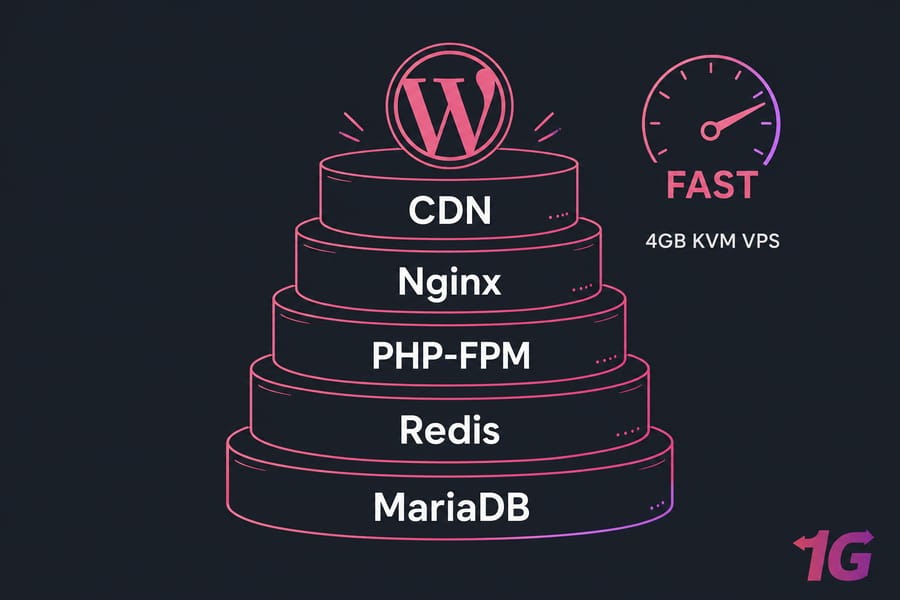
VPS gives you stack-level control
Shared hosting locks you into whatever PHP version, OPcache settings, and web server config the host decided was "safe for everyone." Managed WordPress hosting is faster but limits which plugins you can install, throttles CPU after a threshold, and charges per visit. A self-tuned VPS sits in the middle: full root access, no neighbors stealing your CPU, and zero per-visit billing surprises.
The hidden cost of an untuned VPS
An untuned VPS is the worst of both worlds. You're paying VPS prices for shared-hosting performance. PHP-FPM defaults are conservative, Nginx ships with no caching layer, and MariaDB allocates a fraction of your RAM to InnoDB. If your site feels sluggish on a 4GB box, the box isn't the problem — the defaults are.
| Factor | Shared Hosting | Managed WordPress | Self-tuned VPS |
| Stack control | None | Limited | Full |
| Noisy-neighbor risk | High | Low | None (KVM) |
| Per-visit billing | No | Often yes | No |
| Plugin restrictions | Some | Many | None |
| Tuning effort | Minimal | Minimal | Required |
If you're new to self-managed hosting, our breakdown of WordPress hosting types will fill in the background. Now let's see what's actually happening when someone hits your WordPress site.
How a WordPress request flows through your VPS
Before tuning anything, you need a mental model. Otherwise you're just copy-pasting configs and hoping. Here's what happens, end to end, when a visitor types your URL.
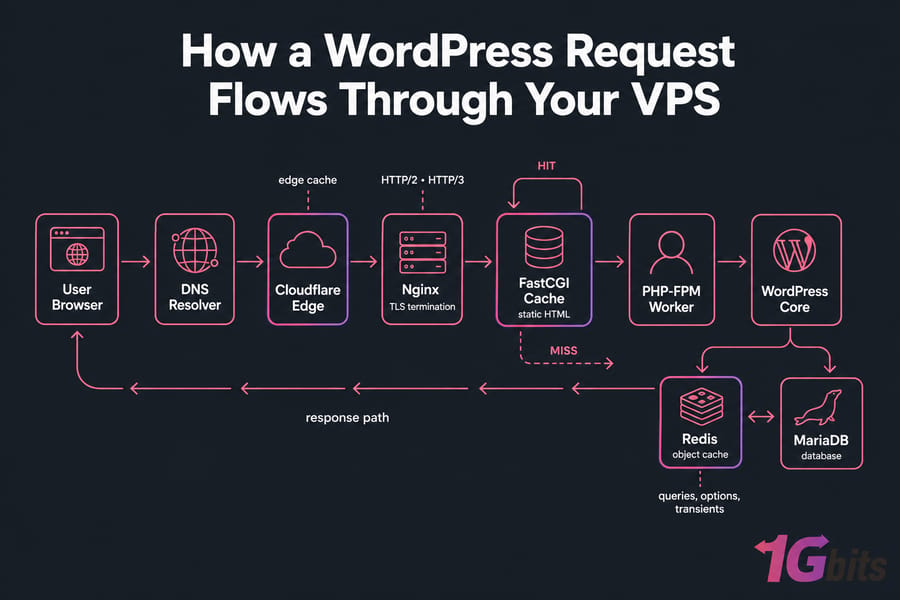
The full request lifecycle
- DNS resolution. The browser asks where your domain lives. If you're behind Cloudflare, the answer is a Cloudflare edge IP, not your VPS.
- CDN edge check. Cloudflare (or BunnyCDN, or KeyCDN) checks if it has a cached copy of the URL. If yes, the response never touches your VPS. This is the cheapest hit possible.
- Nginx receives the request. TLS terminates here. HTTP/2 or HTTP/3 multiplexing kicks in.
- FastCGI cache decision. Nginx checks its on-disk FastCGI cache. HIT? Serves the static HTML in microseconds. MISS? Forwards to PHP-FPM.
- PHP-FPM worker picks it up. A child process boots WordPress (or, with OPcache, just executes already-compiled bytecode).
- WordPress runs. Plugins, hooks, queries, theme rendering — the slow part.
- Object cache lookup (Redis). WordPress asks Redis for cached objects (options, queries, transients) before hitting MariaDB.
- MariaDB executes only the queries Redis couldn't answer. Result bubbles back up, Nginx writes the page to FastCGI cache for next time, and the response heads back through Cloudflare to the user.
Where the bottlenecks usually live
In my experience, the slow point is almost never "WordPress" in the abstract. It's one of three things: PHP-FPM is starved for workers, MariaDB is running with a 128MB buffer pool, or there's no page cache so every visitor pays the full PHP penalty. Each layer is a tuning opportunity. Let's start at the front door.
Step 1 — Choose the right web server: Nginx vs Apache vs OpenLiteSpeed
This debate gets religious online. I'll keep it practical. For WordPress on a VPS in 2026, the answer is Nginx, with OpenLiteSpeed as a legitimate runner-up if you want LSCache out of the box.
Why Nginx is the default for WordPress on a VPS
Nginx uses an event-driven, asynchronous model. One worker process can handle thousands of concurrent connections. Apache's traditional process-per-request model means each visitor spawns a new process or thread, eating RAM linearly. On a 4GB VPS with 200 concurrent connections, Apache's prefork MPM will gasp. Nginx will yawn.
Nginx also has the FastCGI cache built in. No plugin needed. Cache hits never touch PHP. That alone is worth the switch.
When OpenLiteSpeed makes sense
OpenLiteSpeed (OLS) ships with LSCache, which has tighter integration with the LiteSpeed Cache plugin than anything Nginx offers. If you don't want to write Nginx config blocks by hand and you're okay with a smaller community, OLS is a solid choice. The trade-off: smaller ecosystem, fewer Stack Overflow answers when something breaks at 2 a.m.
| Server | RAM use (idle) | Concurrency model | Native cache | WP plugin support | Best for |
| Nginx | ~10–20 MB | Event-driven | FastCGI cache | Universal | Most WP-on-VPS setups |
| Apache | ~50–80 MB | Process/thread per request | None (mod_cache is fiddly) | Universal | Legacy .htaccess-heavy sites |
| OpenLiteSpeed | ~20–30 MB | Event-driven | LSCache | Strong (LSCache plugin) | Set-and-forget WP performance |
Step 2 — Configure Nginx for WordPress (HTTP/2, Brotli, FastCGI cache)
This is the longest section for a reason. Get this right and you'll see your TTFB drop by 70% before you touch anything else. The plan: enable HTTP/2 and TLS 1.3, add Brotli, write a hardened WordPress server block, then layer FastCGI page cache on top with proper exclusions.
Enable HTTP/2 and TLS 1.3
If you've already installed SSL via Let's Encrypt, this is a one-line change in your server block:
listen 443 ssl http2;
ssl_protocols TLSv1.2 TLSv1.3;
ssl_prefer_server_ciphers off;
HTTP/2 multiplexes multiple requests over one connection. TLS 1.3 cuts the handshake from two round-trips to one. Both are basically free wins.
Add gzip and Brotli compression
Gzip is built in. Brotli isn't — you need the ngx_brotli module. On Ubuntu 22.04:
sudo apt install libnginx-mod-brotli
# then in nginx.conf http {} block:
brotli on;
brotli_comp_level 5;
brotli_types text/plain text/css application/json application/javascript text/xml application/xml image/svg+xml;
gzip on;
gzip_vary on;
gzip_comp_level 5;
gzip_types text/plain text/css application/json application/javascript text/xml application/xml image/svg+xml;
Brotli typically squeezes 15–25% more out of HTML and JS than gzip. Modern browsers all support it.
A production-ready Nginx server block for WordPress
Here's the full server block I deploy on most WordPress VPS setups. Read the comments carefully — they explain the why behind each directive.
# /etc/nginx/conf.d/fastcgi_cache.conf
fastcgi_cache_path /var/cache/nginx/fcgi levels=1:2 keys_zone=WORDPRESS:100m inactive=60m max_size=1g;
fastcgi_cache_key "$scheme$request_method$host$request_uri";
fastcgi_cache_use_stale error timeout invalid_header updating http_500 http_503;
fastcgi_cache_lock on;

# /etc/nginx/sites-available/example.com
server {
    listen 443 ssl http2;
    server_name example.com www.example.com;

    root /var/www/example.com;
    index index.php;

    ssl_certificate /etc/letsencrypt/live/example.com/fullchain.pem;
    ssl_certificate_key /etc/letsencrypt/live/example.com/privkey.pem;

    # Security headers
    add_header X-Frame-Options "SAMEORIGIN" always;
    add_header X-Content-Type-Options "nosniff" always;
    add_header Referrer-Policy "strict-origin-when-cross-origin" always;

    # Cache bypass logic
    set $skip_cache 0;
    if ($request_method = POST) { set $skip_cache 1; }
    if ($query_string != "") { set $skip_cache 1; }
    if ($request_uri ~* "/wp-admin/|/wp-login.php|/xmlrpc.php|/wp-.*.php|/feed/|sitemap(_index)?.xml") { set $skip_cache 1; }
    if ($http_cookie ~* "comment_author|wordpress_logged_in|wp-postpass") { set $skip_cache 1; }
    # WooCommerce
    if ($request_uri ~* "/cart/|/checkout/|/my-account/") { set $skip_cache 1; }

    location / {
        try_files $uri $uri/ /index.php?$args;
    }

    location ~ \.php$ {
        include fastcgi_params;
        fastcgi_pass unix:/run/php/php8.2-fpm.sock;
        fastcgi_param SCRIPT_FILENAME $document_root$fastcgi_script_name;

        fastcgi_cache_bypass $skip_cache;
        fastcgi_no_cache $skip_cache;
        fastcgi_cache WORDPRESS;
        fastcgi_cache_valid 200 301 302 60m;
        add_header X-FastCGI-Cache $upstream_cache_status;
    }

    location ~* \.(jpg|jpeg|png|gif|ico|css|js|woff2)$ {
        expires 1y;
        add_header Cache-Control "public, immutable";
    }
}
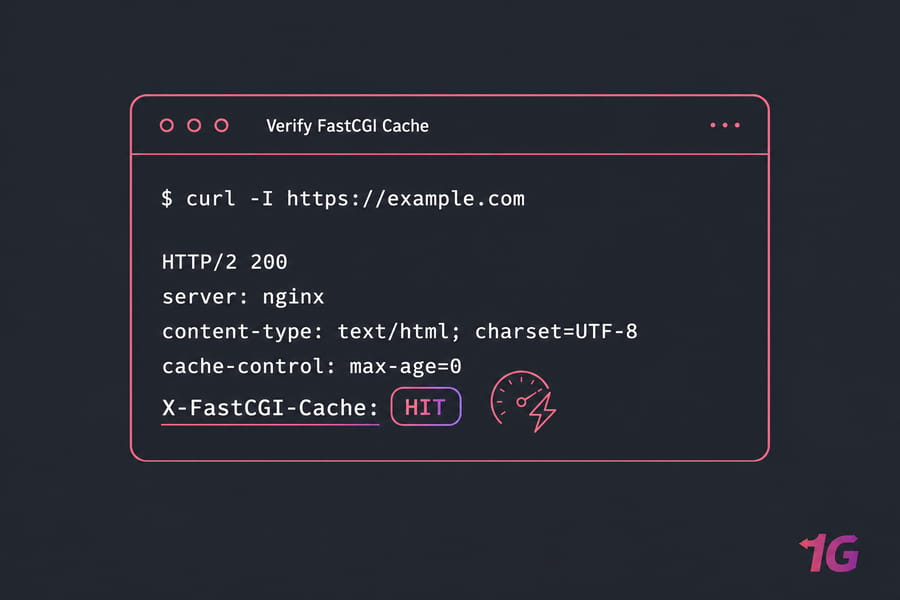
Cache exclusions: the part most tutorials get dangerously wrong
Notice the if ($http_cookie ~* "wordpress_logged_in") rule. That's not optional. Without it, the first logged-in admin who visits a page will have their personalized version cached and served to anonymous visitors. I've seen this happen in production. It's bad. Always exclude:
/wp-admin/and/wp-login.php- Any request with the
wordpress_logged_incookie - POST requests and queries with
?arguments - WooCommerce dynamic pages: /cart/, /checkout/, /my-account/
Warning: Always run nginx -t before systemctl reload nginx. A syntax error won't auto-rollback — your site will 502 until you fix it.
Purging the FastCGI cache
When you publish a post, the cached version is stale. Install the free Nginx Helper WordPress plugin and point it at /var/cache/nginx/fcgi. It'll auto-purge on post updates, comments, and theme changes. Done.
Step 3 — Tune PHP-FPM pools and OPcache for WordPress
FastCGI cache covers anonymous visitors. But every cache MISS — and every logged-in user — hits PHP-FPM. If your pool is misconfigured, this is where your site falls over.
Static, dynamic, or ondemand: which pm mode
static— fixed number of children, always running. Best for predictable, high-traffic sites. Fastest response, highest baseline RAM use.dynamic— keeps a pool of spare workers, scales up under load. Default. Sensible for most VPS setups.ondemand— spawns workers only when requests come in, kills them after idle timeout. Lowest RAM, but adds latency on cold starts. Good for low-traffic or multi-site VPS hosting many small WordPress installs.
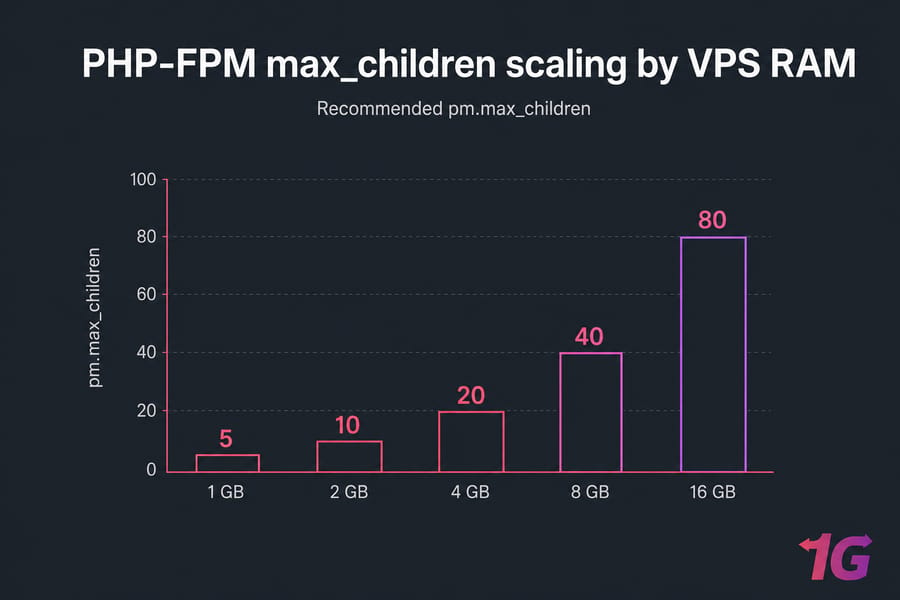
How to calculate pm.max_children from RAM
This is where most tutorials go vague. Here's the actual formula:
pm.max_children = (Total RAM − OS − Nginx − MariaDB − Redis) / Avg PHP process size
Average PHP process size on a typical WordPress site is 50–80 MB (check with ps -ylC php-fpm8.2 --sort:rss). Reserve ~500 MB for the OS, ~50 MB for Nginx, ~30% of RAM for MariaDB, and ~256 MB for Redis. What's left is the PHP budget.
| VPS RAM | Avg PHP process | Recommended pm.max_children | Recommended pm mode |
| 1 GB | 60 MB | 5 | ondemand |
| 2 GB | 60 MB | 10 | ondemand or dynamic |
| 4 GB | 70 MB | 20 | dynamic |
| 8 GB | 80 MB | 40 | dynamic or static |
| 16 GB | 80 MB | 80 | static |
Recommended pool settings
Edit /etc/php/8.2/fpm/pool.d/www.conf:
pm = dynamic
pm.max_children = 20
pm.start_servers = 5
pm.min_spare_servers = 3
pm.max_spare_servers = 8
pm.max_requests = 500

; Use Unix socket — faster than TCP on the same host
listen = /run/php/php8.2-fpm.sock
listen.owner = www-data
listen.group = www-data
pm.max_requests = 500 recycles each worker after 500 requests. This stops slow memory leaks from misbehaving plugins.
Enable and tune OPcache
OPcache stores compiled PHP bytecode in memory. Without it, PHP recompiles every file on every request. With it, the second request through is dramatically cheaper. In
/etc/php/8.2/fpm/conf.d/10-opcache.ini:
opcache.enable=1
opcache.memory_consumption=256
opcache.interned_strings_buffer=16
opcache.max_accelerated_files=20000
opcache.validate_timestamps=1
opcache.revalidate_freq=60
opcache.jit_buffer_size=128M
opcache.jit=tracing
The PHP 8 JIT (opcache.jit=tracing) gives a modest boost on heavy computational paths — not huge for vanilla WordPress, but useful if you run image processing or complex math.
Verifying it's working
Drop a phpinfo.php in your webroot temporarily and search for "OPcache" — you should see "Up and running." Or run php -r "var_dump(opcache_get_status());" from CLI.
After tuning, restart:
sudo systemctl restart php8.2-fpm.
Step 4 — Add Redis as a WordPress object cache
FastCGI cache handles anonymous traffic. But what about logged-in users — your WooCommerce shoppers, BuddyPress members, membership site subscribers? They bypass page cache entirely. That's where Redis earns its keep.
Page cache vs object cache
Page cache stores entire rendered HTML responses. Object cache stores the building blocks WordPress uses internally: query results, options, transients, user meta. They complement each other — you want both.
| Cache layer | What it caches | Where it lives | Best tool |
| CDN | Static assets + HTML at edge | Cloudflare/BunnyCDN POPs | Cloudflare APO |
| Page cache | Full HTML pages | Disk on VPS | Nginx FastCGI cache |
| Object cache | Query results, options, transients | RAM (Redis) | Redis + Object Cache plugin |
| OPcode cache | Compiled PHP bytecode | RAM (PHP) | OPcache |
Installing Redis
On Ubuntu 22.04:
sudo apt update
sudo apt install redis-server php-redis
sudo systemctl enable --now redis-server
On AlmaLinux 9 / Rocky 9:
sudo dnf install redis php-pecl-redis
sudo systemctl enable --now redis
Edit /etc/redis/redis.conf and set:
bind 127.0.0.1
maxmemory 256mb
maxmemory-policy allkeys-lru
requirepass YourStrongPasswordHere
allkeys-lru means when Redis fills up, it evicts the least recently used keys — exactly what you want for a cache. Bind to localhost only and set a password so nobody pokes at it from outside.
Wiring Redis to WordPress
Add to wp-config.php above the "stop editing" line:
define('WP_REDIS_HOST', '127.0.0.1');
define('WP_REDIS_PORT', 6379);
define('WP_REDIS_PASSWORD', 'YourStrongPasswordHere');
define('WP_REDIS_DATABASE', 0);
define('WP_CACHE_KEY_SALT', 'example.com:');
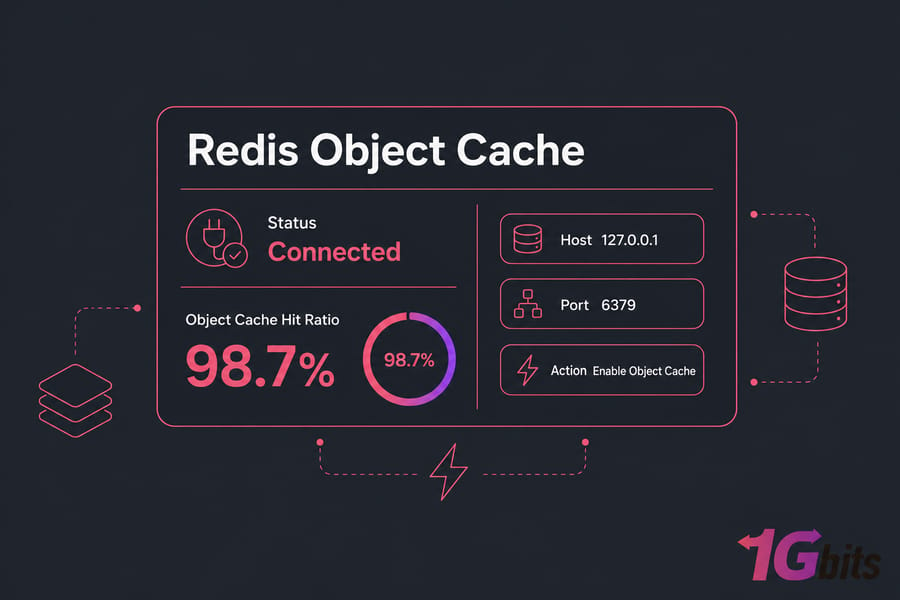
Install the free Redis Object Cache plugin from the WordPress repo, activate it, click "Enable Object Cache." It drops an object-cache.php file into /wp-content/. Done.
Verifying it works
From the plugin's status page, you should see "Connected" and a hit ratio climbing past 90% within a day. From CLI: redis-cli -a YourPassword info stats shows keyspace_hits and keyspace_misses — divide hits by total to get your hit ratio. If you're salting per site, multi-tenant setups stay isolated.
Step 5 — Tune MariaDB/MySQL for WordPress
If your queries are slow, no amount of caching upstream will save you on cache MISS. MariaDB defaults are absurdly conservative — sometimes a 128 MB buffer pool on a 4 GB server. Fix that first.
InnoDB buffer pool sizing
The InnoDB buffer pool caches table and index data in RAM. Bigger pool = fewer disk reads. Rule of thumb: 50–70% of the RAM you've allocated to the database. On a 4 GB VPS where MariaDB owns ~1.2 GB, set the pool to about 800 MB.
Edit /etc/mysql/mariadb.conf.d/50-server.cnf:
[mysqld]
innodb_buffer_pool_size = 800M
innodb_log_file_size = 128M
innodb_flush_log_at_trx_commit = 2
innodb_flush_method = O_DIRECT
character-set-server = utf8mb4
collation-server = utf8mb4_unicode_ci
slow_query_log = 1
slow_query_log_file = /var/log/mysql/slow.log
long_query_time = 1
innodb_flush_log_at_trx_commit = 2 trades a tiny bit of crash durability for noticeably faster writes — fine for WordPress, where you're not running a stock exchange.
Find heavy queries with the slow query log
After a day with slow_query_log on, run:
sudo mysqldumpslow -s t /var/log/mysql/slow.log | head -20
You'll often find one or two plugins responsible for 80% of the pain. Disable, replace, or get them indexed properly.
WordPress-specific cleanup
WordPress accumulates junk. Run these audits:
-- How much data is autoloaded on every request?
SELECT SUM(LENGTH(option_value))/1024/1024 AS autoload_mb
FROM wp_options WHERE autoload='yes';

-- Find the worst offenders
SELECT option_name, LENGTH(option_value)/1024 AS size_kb
FROM wp_options WHERE autoload='yes'
ORDER BY size_kb DESC LIMIT 20;
Anything over 1 MB autoloaded is a smell. Deactivated plugins often leave bloat behind. Also limit revisions in wp-config.php:
define('WP_POST_REVISIONS', 5);
define('AUTOSAVE_INTERVAL', 120);
define('EMPTY_TRASH_DAYS', 7);
Run mysqltuner.pl after 24 hours of traffic — it'll flag undersized pools, missing indexes, and other suspects.
Step 6 — Put a CDN in front of your VPS
You've optimized everything inside the box. Now move work outside the box. A CDN cuts latency for distant users, absorbs DDoS traffic, and offloads bandwidth.
Cloudflare vs BunnyCDN vs KeyCDN
| CDN | Free tier | HTML caching | WP plugin | Best for |
| Cloudflare | Yes (generous) | Yes (with APO $5/mo) | Official | Most WordPress sites |
| BunnyCDN | No (pay-as-you-go ~$0.01/GB) | Yes (Bunny Optimizer) | Bunny WP plugin | Image-heavy, global media |
| KeyCDN | Free trial | Limited | CDN Enabler | Asset offload only |
For 95% of WordPress sites, Cloudflare with APO is the right call. It's basically free, the HTML edge cache is excellent, and you get DDoS protection thrown in. BunnyCDN wins on raw image-delivery economics if you're serving terabytes of media.
Cloudflare setup that actually works
- Sign up, add your site, change nameservers at your registrar.
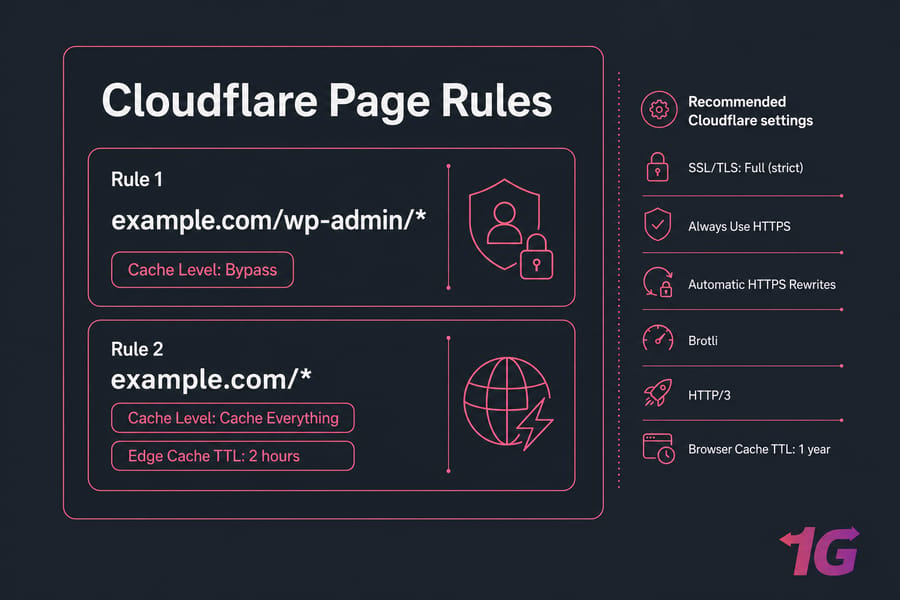
- SSL/TLS → set to Full (strict). Anything else is either insecure or broken.
- Enable Always Use HTTPS, Automatic HTTPS Rewrites, Brotli, and HTTP/3.
- Speed → Optimization → enable Auto Minify for JS/CSS/HTML if your theme can handle it (test first).
- Caching → Configuration → Browser Cache TTL: 1 year for static assets.
- Page Rules: create one for
example.com/wp-admin/*with Cache Level: Bypass. - Create another for
example.com/*with Cache Level: Cache Everything + Edge Cache TTL: 2 hours. - Install the official Cloudflare WordPress plugin so cache purges fire on post updates.
Step 7 — Image, font, and frontend asset optimization
The server's fast. Now stop sending the browser 4 MB of unoptimized hero images.
- WebP/AVIF conversion. ShortPixel, Imagify, or EWWW Image Optimizer auto-convert JPGs to WebP and serve via
<picture>tags. Expect 30–50% smaller image payloads. - Lazy-load below-the-fold images. WordPress 5.5+ does this natively with
loading="lazy". For the hero LCP image, do the opposite — addfetchpriority="high"so the browser pulls it first. - Fonts. Self-host Google Fonts (or use
font-display: swap) to avoid render-blocking on third-party domains. - Defer non-critical JS. Most plugins load scripts in the head. WP Rocket, Perfmatters, or FlyingPress can defer them. Test before/after with WebPageTest.
- Inline critical CSS. The above-the-fold CSS goes inline in
<head>; the rest loads async. Most caching plugins automate this. - Audit plugins quarterly. Every plugin is a tax on every request. Deactivated plugins still sit in the database. Delete what you don't use.
Real-world benchmarks: before vs after on a 4 GB VPS
Theory is nice. Numbers are better. Here's a real WordPress site (vanilla theme, 12 plugins, ~500 posts) on a 4 GB / 2 vCPU NVMe VPS, tested before and after applying everything above.
Methodology: ab -n 1000 -c 50 https://example.com/ for sustained throughput, k6 ramping script for concurrent user simulation, GTmetrix from Vancouver for LCP/TTFB, WebPageTest for waterfall comparison.
| Metric | Before (stock LEMP) | After (full stack) | Improvement |
| TTFB (Vancouver) | 912 ms | 178 ms | −80% |
| LCP | 4.1 s | 1.6 s | −61% |
| INP | 320 ms | 95 ms | −70% |
| Sustained req/sec (ab) | 12 | 284 | 23× |
| CPU at 50 concurrent | 97% | 22% | −77% |
| RAM in use | 3.6 GB | 2.1 GB | −42% |
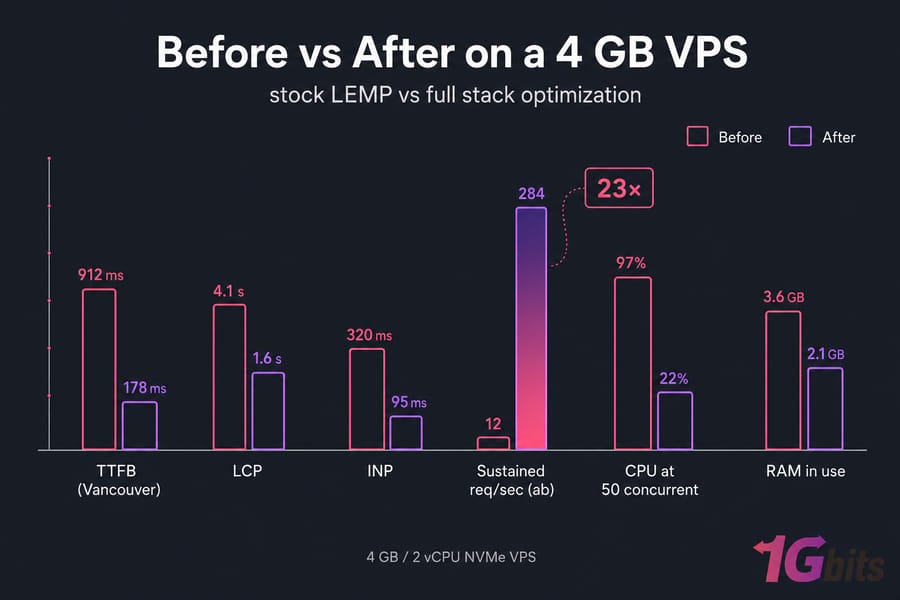
That's a 23× throughput improvement without changing one line of WordPress code.
Common WordPress VPS optimization mistakes
I've debugged enough broken WordPress VPSs to write a small book. Here are the patterns I see again and again:
- Stacking three caching plugins. W3 Total Cache + WP Rocket + LiteSpeed Cache running together is not "extra fast." It's chaos. Pick one. If you're using Nginx FastCGI cache, you might not need a plugin at all.
pm.max_children = 100on a 2 GB VPS. The OOM killer will execute MariaDB and your site will go down hard. Use the formula in Step 3.- Forgetting cache exclusions. No
wordpress_logged_incookie bypass = admin pages cached and served to everyone. Yes, this happens. Yes, it's a data leak. - Cloudflare "Cache Everything" without bypass rules. Logged-in users get other people's cached sessions. Same disaster, different layer.
- Redis without
maxmemory. Redis will happily eat all your RAM. Set a limit. - Skipping
nginx -t. One typo, instant 502. Always test before reload. - Enabling MySQL query cache on MySQL 8+. It's been removed. Stop copy-pasting 2015 tutorials.
- No monitoring after. Install Query Monitor (WordPress plugin) and keep
htopopen during your first traffic spike. If you don't measure, you didn't optimize.
When optimization isn't enough — signs you need a bigger VPS
Sometimes the box is just too small. Here's when to stop tuning and start scaling:
- Sustained
load averagehigher than your vCPU count, even at 3 a.m. free -mshows used memory above 85% with caching layers already maxed outpm.max_childrenis at the formula ceiling and PHP-FPM still queues- Swap usage above zero on a regular basis (swap kills performance)
- MariaDB slow queries persist even with proper indexes and a tuned buffer pool
- Disk I/O wait (
iowaitintop) consistently above 10%
If two or more of these apply, no amount of further config tuning will save you. It's RAM and IOPS time. Our WordPress VPS hosting come pre-tuned with Nginx, PHP-FPM, and Redis already optimized — ready to handle whatever traffic you throw at them.
Quick TL;DR:
- Switch to Nginx with HTTP/2, TLS 1.3, and Brotli.
- Set up Nginx FastCGI page cache — with proper exclusions.
- Tune PHP-FPM pools to your actual RAM and enable OPcache.
- Install Redis as a persistent object cache.
- Size your MariaDB InnoDB buffer pool properly.
- Put Cloudflare (with APO) in front and offload images to a CDN.
- Measure everything before and after.

Leave A Comment