
How to Uninstall Docker Desktop, CLI, and Colima on Mac Completely comes down to more than dragging one app to the Trash. On macOS, Docker can live in several places at once: Docker Desktop, Homebrew-installed CLI tools, Colima, Lima, caches, sockets, helper files, and old VM disks. If you want a full removal, you need to clear each layer methodically.
To uninstall Docker completely on Mac, quit Docker Desktop and Colima first, remove the Docker Desktop app, uninstall Docker CLI packages from Homebrew, delete Colima and Lima instances, then remove leftover Docker files from ~/Library, /Library, and Docker-related caches. Finally, verify removal with which docker, brew list, and colima status.
If you're only here because your laptop is wheezing under local containers, you're not alone. I've seen plenty of Mac setups get messy after a few Docker Desktop reinstalls, Homebrew experiments, and a side trip through Colima. Let's clean it up properly.
What a complete Docker uninstall on Mac actually removes
A complete uninstall means removing the app, command-line tools, package-manager packages, runtime files, VM disks, caches, settings, and leftover helper components. Deleting only Docker.app usually isn't enough.
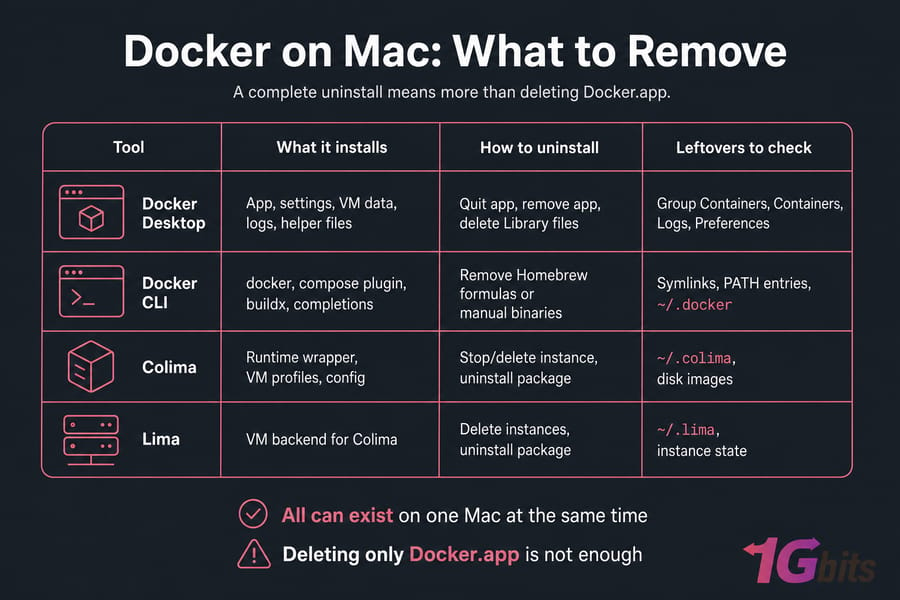
If you're newer to this, here's the short version. what is Docker matters less here than how it was installed. Docker Desktop is the full desktop app with its own macOS integration and VM. Docker CLI is just the command-line client and related plugins. Colima is a lightweight runtime that uses Lima underneath. And yes, you can absolutely have all three on one Mac at the same time.
| Tool | What it installs | How to uninstall | Leftovers to check |
| Docker Desktop | App, settings, VM data, logs, helper files | Quit app, remove app, delete Library files | Group Containers, Containers, Logs, Preferences |
| Docker CLI | docker, compose plugin, buildx, completions |
Remove Homebrew formulas or manual binaries | Symlinks, PATH entries, ~/.docker |
| Colima | Runtime wrapper, VM profiles, config | Stop/delete instance, uninstall package | ~/.colima, disk images |
| Lima | VM backend for Colima | Delete instances, uninstall package | ~/.lima, instance state |
A simple app delete won't touch Homebrew formulas, old contexts, or Colima disks. That's why Docker seems to "still be there" after uninstalling. If you want more background, Docker vs Containerd is useful reading, but for now the practical point is this: know what you're removing before you start.
Before you remove anything, decide whether you need to preserve local images, volumes, or bind-mounted data.
Before you uninstall Docker on Mac, back up containers, images, and volumes
Warning: a full cleanup can permanently delete local containers, images, named volumes, cached layers, and the Docker Desktop VM disk.
Here's the good news. Your normal project files are usually safe if they live in regular folders on your Mac and were bind-mounted into containers. The risky stuff is the data stored inside Docker-managed volumes or inside the runtime VM.
If Docker still runs, check what exists first:
docker ps -a
docker images
docker volume ls| Data type | Where stored | Safe to remove? | Backup needed? |
| Project source code | Your normal folders | Usually yes for Docker cleanup | Only if you want a copy |
| Bind-mounted files | Outside Docker storage | Usually unaffected | Recommended if critical |
| Containers | Docker runtime storage | Yes | Yes if you need state |
| Images | Docker image cache / VM disk | Yes | Export if you need them later |
| Named volumes | Docker-managed storage | Yes, but destructive | Yes, if data matters |
| Docker Desktop VM disk | Desktop app data | Yes | Yes, if containers hold important local state |
If you need a deeper cleanup or want to prune first, this guide on remove Docker volumes, images, and containers helps.
Quick checklist before destructive cleanup:
- Confirm whether any running or stopped container still matters
- Export images you want to keep
- Copy important data out of named volumes
- Verify your source code is in normal Mac folders, not only inside containers
- If Docker won't start, at least back up your project folders and bind mounts
I've seen beginners assume "it's all in Git" and then realize their database was sitting in a named volume. That's a rough afternoon. Once you know what can be deleted safely, identify how Docker was installed on your Mac.
Check whether Docker Desktop, Docker CLI, or Colima was installed with Homebrew
The uninstall path depends on the install method. Docker Desktop may be in /Applications, while Docker CLI and Colima may have come from Homebrew as formulas or casks.
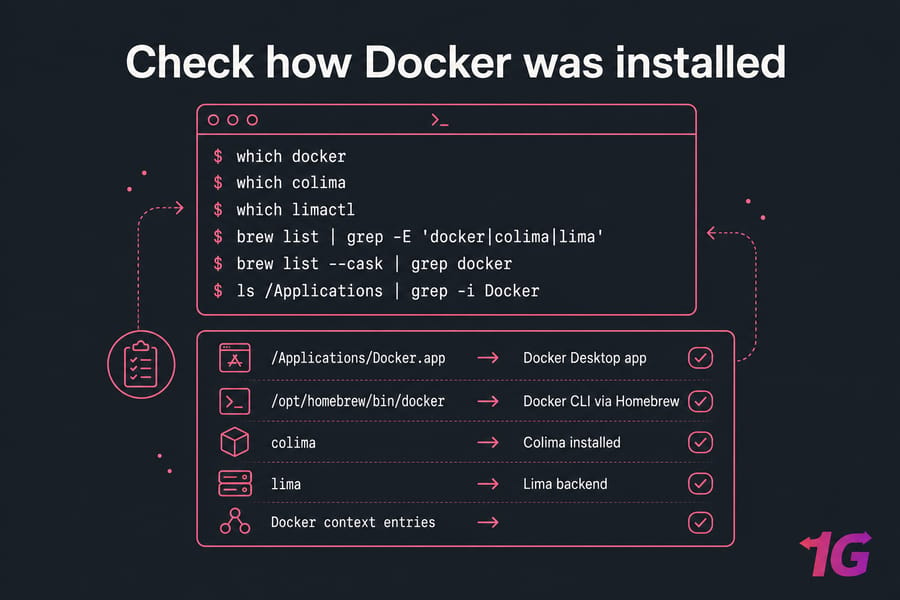
Run these checks first:
which docker
which colima
which limactl
brew list | grep -E 'docker|colima|lima'
brew list --cask | grep docker
docker context ls
colima status
limactl list
And also check whether the app exists:
ls /Applications | grep -i Docker| If you see | What it means | What to do next |
/Applications/Docker.app |
Docker Desktop app is installed | Remove Docker Desktop first |
/opt/homebrew/bin/docker or similar |
Docker CLI likely installed via Homebrew | Uninstall formulas |
colima in brew list |
Colima package is installed | Stop and delete VM before uninstall |
lima in brew list |
Lima backend is installed | Delete instances and remove package |
| Docker context entries | Old context metadata still exists | Clean CLI config later if needed |
A cask is usually a macOS app package. A formula is a command-line package. Docker Desktop often shows up as a cask or as a plain app. Docker CLI, Colima, and Lima usually show up as formulas.
Pro tip: run both brew commands. I've seen Macs where Docker Desktop was installed as a cask, but the CLI and Colima were installed separately later.
If you need to reinstall after cleanup, keep how to install Docker on Mac handy. If Docker Desktop is installed as an app or cask, remove it first before cleaning up CLI packages.
How to uninstall Docker Desktop on Mac completely
This is the part most articles oversimplify. Removing Docker Desktop means quitting the app, stopping background processes, deleting the app, and clearing support files that may exist under your user Library.
First, quit Docker Desktop from the menu bar. If it's stuck, use Activity Monitor. If you need a refresher, here's how to open Activity Monitor on Mac.
- Quit Docker Desktop.
osascript -e 'quit app "Docker"'If that doesn't work, stop related processes:
pkill -f Docker
pkill -f com.docker- Remove the app from Applications.
Finder method: open Applications, drag Docker.app to Trash, then empty Trash.
Terminal method:
Warning: double-check the path before running a delete command.
rm -rf /Applications/Docker.app- Delete common Docker Desktop support files.
Not every Mac will have every path. Versions differ, and install methods differ too.
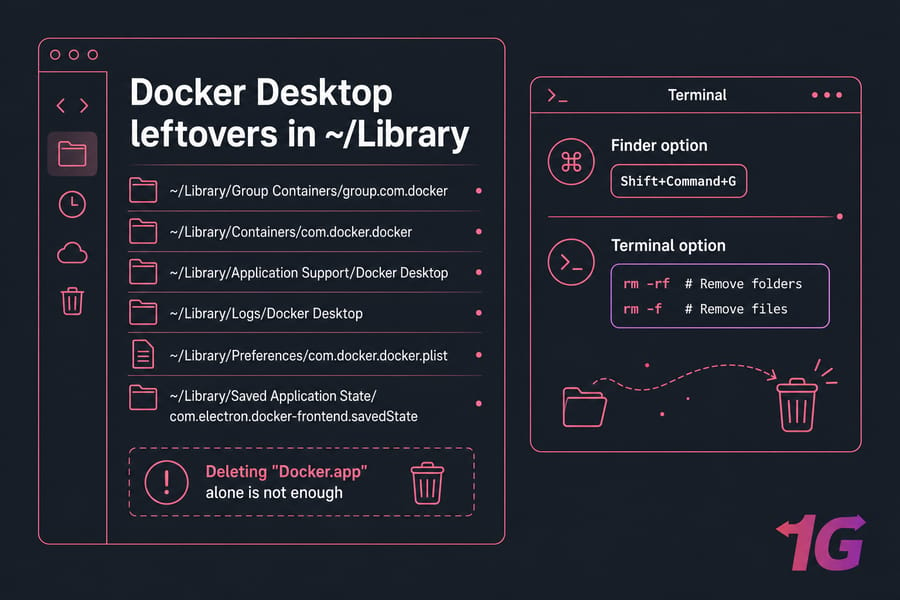
rm -rf ~/Library/Group\ Containers/group.com.docker
rm -rf ~/Library/Containers/com.docker.docker
rm -rf ~/Library/Application\ Support/Docker\ Desktop
rm -rf ~/Library/Logs/Docker\ Desktop
rm -f ~/Library/Preferences/com.docker.docker.plist
rm -rf ~/Library/Saved\ Application\ State/com.electron.docker-frontend.savedState
If you'd rather use Finder, press Shift+Command+G and check these same paths one by one. That's slower, honestly, but safer if you're nervous about rm -rf.
Some installs also leave privileged helper files behind. We'll handle those in the leftover files section because they may require sudo.
Key takeaway: deleting Docker.app alone is not a full uninstall. Removing Docker Desktop does not always remove the docker command or Homebrew-managed packages.
How to uninstall Docker CLI on Mac and remove Homebrew packages
If you installed Docker with Homebrew, you may still have the CLI even after Docker Desktop is gone. That's why docker can keep working and confuse you.
Start with Homebrew formulas:
brew uninstall docker
brew uninstall docker-compose
If present, remove related packages too:
brew uninstall docker-buildx
brew uninstall docker-credential-helper
brew uninstall docker-completion| Package | Why it may exist | Remove it? |
| docker | Main CLI client | Yes for full uninstall |
| docker-compose | Legacy or separate compose package | Yes if installed separately |
| docker-buildx | Build plugin | Yes if present |
| docker-credential-helper | Credential storage helper | Usually yes |
| docker-completion | Shell completion | Optional, but remove for a clean slate |
Compose v2 is sometimes bundled differently, so don't panic if one package name doesn't exist. Homebrew will tell you.
If the docker command still resolves after uninstall, check where it points:
which docker
ls -l $(which docker)
If that's a stale symlink or leftover binary, remove it carefully. Also inspect shell config files like ~/.zshrc or ~/.bashrc only if you manually added Docker-specific PATH entries.
Verification should eventually look like this: docker --version fails with a "command not found" style message.
If you're reinstalling later, Docker basic commands is a nice quick refresher. If you also used Colima as your local runtime, remove its VM and Lima files next.
How to uninstall Colima on Mac and delete Lima instances
Colima isn't just a binary. The important piece is the VM instance and its disk data. Uninstalling the package without deleting the instance can leave a lot behind.
Check whether Colima is active:
colima status- Stop the instance.
colima stop- Delete the instance.
Warning: colima delete removes the VM disk and local runtime data for that profile.
colima deleteIf you use multiple profiles, list and remove them deliberately. That's easy to miss.
- Check Lima instances.
limactl listIf old instances remain, remove them before uninstalling Lima.
- Uninstall packages.
brew uninstall colima
brew uninstall lima- Remove config and state directories.
rm -rf ~/.colima
rm -rf ~/.lima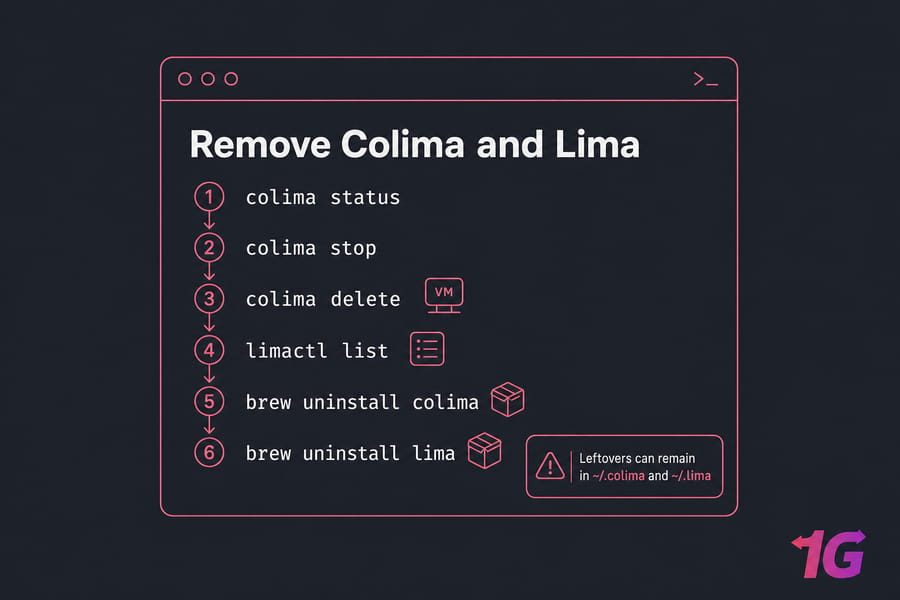
If you only run brew uninstall colima, the VM disk may remain in ~/.colima or Lima state under ~/.lima. That's the usual reason disk space doesn't come back.
If you're moving away from Colima entirely, this roundup of the best Docker alternatives for Mac is worth a look. After uninstalling the app and runtime packages, clear leftover Docker and Colima files to reclaim disk space.
Delete leftover Docker files on Mac to free disk space
This is where the hidden storage usually lives. Caches, logs, helper tools, sockets, and old config folders can hang around long after the main app is gone.
| Path | Component | Requires sudo? | Optional to remove? | Notes |
~/.docker |
CLI config, contexts | No | Yes | Remove for full CLI cleanup |
~/.colima |
Colima profiles and disks | No | Yes | Delete if removing Colima completely |
~/.lima |
Lima instances and state | No | Yes | Can be large |
~/Library/Containers/com.docker.docker |
Docker Desktop container data | No | Yes | Common Docker Desktop leftover |
~/Library/Group Containers/group.com.docker |
Shared app data | No | Yes | Often sizable |
~/Library/Application Support/Docker Desktop |
Desktop support files | No | Yes | Version-dependent |
~/Library/Caches/com.docker.docker |
Cache | No | Yes | Safe cache cleanup |
~/Library/Logs/Docker Desktop |
Logs | No | Yes | Useful only for debugging |
/Library/PrivilegedHelperTools/com.docker.vmnetd |
Helper tool | Yes | Yes | May exist on older or certain installs |
/Library/LaunchDaemons/com.docker.vmnetd.plist |
Launch daemon | Yes | Yes | Remove carefully |
Finder works fine for user-level folders. For system-level helper files, Terminal is usually easier.
Warning: only remove paths that actually exist on your Mac.
rm -rf ~/.docker
rm -rf ~/Library/Caches/com.docker.docker

sudo rm -f /Library/PrivilegedHelperTools/com.docker.vmnetd
sudo rm -f /Library/LaunchDaemons/com.docker.vmnetd.plist
Not every version creates every path, so don't force the issue if a file isn't there. And if you're uninstalling because Docker keeps eating SSD space, this step is usually where you win most of it back.
Tired of Docker slowing down your Mac? If local containers are consuming CPU, RAM, and storage, moving them to Docker VPS hosting can keep your laptop clean and responsive.
Once cleanup is done, run a few verification commands to confirm Docker is truly gone.
How to verify Docker is completely removed from your Mac
Now do the boring but necessary checks. This is how you avoid the classic "I think it's gone" mistake.
which docker
docker --version
brew list | grep -E 'docker|colima|lima'
colima status
limactl list
ls /Applications | grep -i Docker- If
which dockerreturns nothing, that's good. - If
docker --versionfails, that's good. - If the brew grep returns nothing relevant, better.
- If
colima statuserrors because the command doesn't exist, that's expected after removal. - If
limactl listis unavailable or shows no instances, you're clear there too. - If Docker isn't listed in Applications, Docker Desktop is gone.
If the shell still remembers an old command path, clear its cache:
hash -rSometimes a new Terminal window is enough. Occasionally, a reboot helps if launch items or PATH caching are being stubborn. If any Docker command still appears after these checks, one of the common leftovers below is usually the cause.
Docker still appears on Mac? Common uninstall problems and fixes
| Problem | Likely cause | Fix |
docker still works |
Homebrew formula or manual binary remains | Run brew uninstall, check which docker, remove stale binary |
| Command still resolves in same shell | Terminal cache | Run hash -r and reopen Terminal |
| Docker Desktop relaunches | Helper files or login items remain | Remove app, helper files, then reboot |
| Disk space not recovered | Colima/Lima or Library data still exists | Delete VM state folders and caches |
Files in /Library won't delete |
Permissions issue | Use sudo carefully |
The most common issue is multiple installs. Docker Desktop was installed months ago, then Homebrew CLI, then Colima. I've seen that stack more than once. Each layer has to be removed separately.
If Docker Desktop won't uninstall because its state is corrupted, a rare fallback is reinstalling the app cleanly and then uninstalling it again properly. Not elegant, but it can reset broken helper entries.
And don't delete random system files just because they contain the word "docker." That's how cleanup turns into repair work.
What to do next: reinstall Docker, use a Docker alternative, or move workloads to a VPS
Once your Mac is clean, you've got three sensible next steps.
| Option | Best for | Pros | Drawbacks |
| Reinstall Docker Desktop | Standard local development | Easy setup, familiar UI | Heavier on Mac resources |
| Use Colima or another alternative | Lighter local workflows | Lower overhead, flexible | More terminal-driven |
| Move to a VPS | Heavy builds, always-on apps, teams | Persistent uptime, more CPU/RAM, offloads laptop | Requires remote workflow |
But if your real problem is that local Docker keeps hammering CPU, RAM, and storage, I'd seriously consider a remote setup. A server for Docker or a Docker VPS hosting is often the better fit for always-on containers, bigger builds, and team environments. You get cleaner separation from your laptop, persistent uptime, and room to scale without turning your Mac into a tiny data center.

Leave A Comment