


Managing Linux services comes down to one command: systemctl. It talks to systemd, the init system that runs as PID 1 on Ubuntu, Debian, Fedora, RHEL, AlmaLinux, and Rocky Linux. Learn a dozen subcommands and you can start, stop, enable, inspect, and repair almost any service on a Linux server.
Quick Answer: The systemctl Commands You Actually Need
The systemctl command manages systemd services on Linux. Check a service with status, control it with start, stop, or restart, and use enable --now to start it immediately and at every boot. Replace nginx with whatever service you're managing.
sudo systemctl status nginx
sudo systemctl start nginx
sudo systemctl stop nginx
sudo systemctl restart nginx
sudo systemctl enable --now nginx
To see what's currently running, use this:
systemctl list-units --type=service --state=runningKey takeaway: start controls the current session. enable controls future boots. They're not the same thing, and confusing them is the single most common mistake I see.
What Are systemd and the systemctl Command?
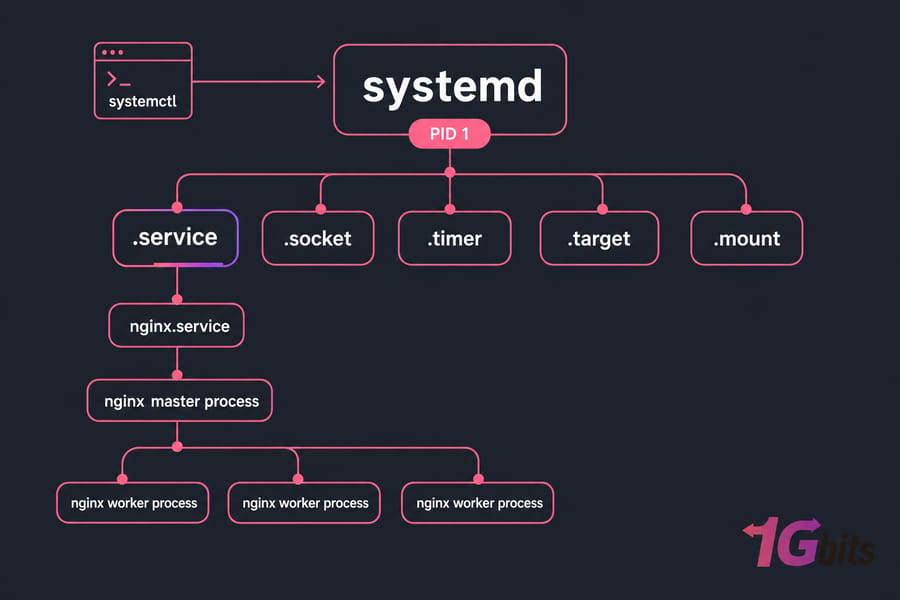
systemd is the init system and service manager on most modern Linux distributions. It's the first process the kernel starts, so it holds PID 1, and everything else on the system descends from it. It replaced SysV init on the major distros roughly a decade ago.
systemctl is the client. You don't manage systemd by editing runlevels or poking at scripts in /etc/init.d — you send instructions to systemd through systemctl.
Units, not just services
systemd manages "units," and a service is only one kind. You'll also run into sockets (.socket), timers (.timer, the modern cron alternative), mount points (.mount), paths (.path), and targets (.target), which group units together the way runlevels used to. The multi-user.target is the normal boot state for a server.
systemctl vs. service: which should you use?
The old service and chkconfig commands still work on many systems, but only as thin compatibility wrappers. They quietly hand off to systemctl and hide half the useful output.
| Capability | systemctl | service / chkconfig |
| Start, stop, restart | Yes | Yes (via wrapper) |
| Boot enablement | enable / disable |
chkconfig, RHEL-family only |
| Show recent log lines | Yes, in status |
No |
| Block activation entirely | mask |
No equivalent |
| Non-service units (timers, sockets) | Yes | No |
| Dependency inspection | list-dependencies |
No |
Use systemctl. There's no reason to keep the legacy muscle memory alive.
System services vs. systemctl --user
Everything above manages system-wide units owned by root. Each logged-in user also gets a personal systemd instance for things like sync agents or a development server. Those use the --user flag and unit files in ~/.config/systemd/user/, and they need no sudo. One caveat: user units normally stop when the session ends unless you enable lingering with loginctl enable-linger USERNAME.
Prerequisites for Managing Linux Services
You need a systemd-based distribution, terminal or SSH access, and a user with sudo privileges for anything that changes state. Read-only commands like status and list-units usually work fine without elevation. If sudo is new to you, read up on how to use sudo in Linux first, along with the basic Linux commands you'll be pairing with it.
Confirm systemd is actually in charge:
ps -p 1 -o comm=
systemctl --version
The first command should print systemd. If it prints init, bash, or something else, systemctl won't manage that environment — common in minimal Docker containers, chroots, older releases still on SysV init or Upstart, and WSL installs where systemd hasn't been switched on.
Warning: don't stop ssh, sshd, networking, or firewall services while you're connected remotely. I've locked myself out of a box that way, and recovering it meant a console session through the provider panel. Test disruptive commands where you have out-of-band access.
If you're practising on a remote machine, a Linux VPS with root access and a sudo-enabled non-root account is the right setup. Keep console access handy before touching SSH or network units.
systemctl Syntax and Finding the Right Service Name
The pattern is simple:
systemctl [OPTIONS] COMMAND [UNIT...]
sudo systemctl restart nginx.service
You can usually drop the .service suffix — systemd infers it for service subcommands. But you must include the suffix for other unit types, so backup.timer and docker.socket need spelling out in full.
Half the failed commands I see are just wrong names. Stop guessing and search instead:
systemctl list-unit-files --type=service | grep -i ssh
systemctl cat nginx
systemctl show -p FragmentPath nginx
Naming differs by distro family, and that trips people up constantly. On Debian and Ubuntu, OpenSSH is ssh.service and Apache is apache2.service. On RHEL, AlmaLinux, Rocky Linux, and Fedora, they're sshd.service and httpd.service. Some packages ship aliases, so ssh may resolve on both — don't count on it.
How to Check Status and List systemd Services
Before you change anything, look at what's there.
systemctl status nginx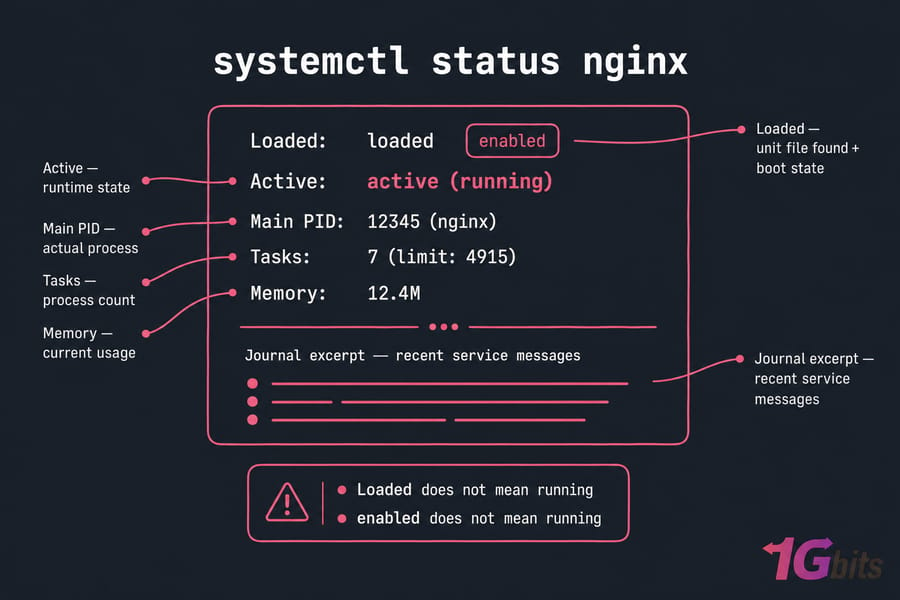
Three separate facts hide in that output. Loaded tells you whether systemd found and parsed the unit file, plus its boot state in parentheses (enabled, disabled, static, masked). Active is the runtime state. Main PID is the actual process. Loaded does not mean running, and enabled does not mean running either.
| State | Meaning | What to do next |
active (running) |
Process is up and persistent | Nothing |
active (exited) |
A one-shot job finished successfully | Normal for oneshot units |
inactive (dead) |
Stopped, no error recorded | Start it, or find out who stopped it |
activating |
Still starting up | Wait; watch for a timeout |
failed |
Exited non-zero or timed out | Read the journal |
not-found |
No unit file exists | Check the name and the package |
Listing commands you'll actually use:
systemctl list-units --type=service --state=running
systemctl list-units --type=service --all
systemctl list-unit-files --type=service
systemctl --failed --type=service
The difference matters: list-units shows units systemd has loaded into memory, while list-unit-files shows every unit file installed on disk. For more angles on this, see our guide to list running services in Linux.
Checking state inside scripts
These three return exit codes instead of pretty output, which makes them perfect for automation:
systemctl is-active --quiet nginx && echo "nginx is up"
systemctl is-enabled nginx
systemctl is-failed nginx
Exit code 0 means true. Anything else means false. To tie a service back to its underlying processes, pair this with inspect Linux processes with ps.
Start, Stop, Restart, and Reload a Linux Service
Now the actions themselves. All of these need sudo, and all of them change runtime state only — nothing here affects the next reboot.
sudo systemctl start nginx
sudo systemctl stop nginx
sudo systemctl restart nginx
sudo systemctl reload nginx
sudo systemctl reload-or-restart nginx| Action | Effect | Disruption | Use when |
start |
Launches an inactive unit | None | Service is stopped |
stop |
Sends the stop sequence, waits | Full outage | Maintenance, decommissioning |
restart |
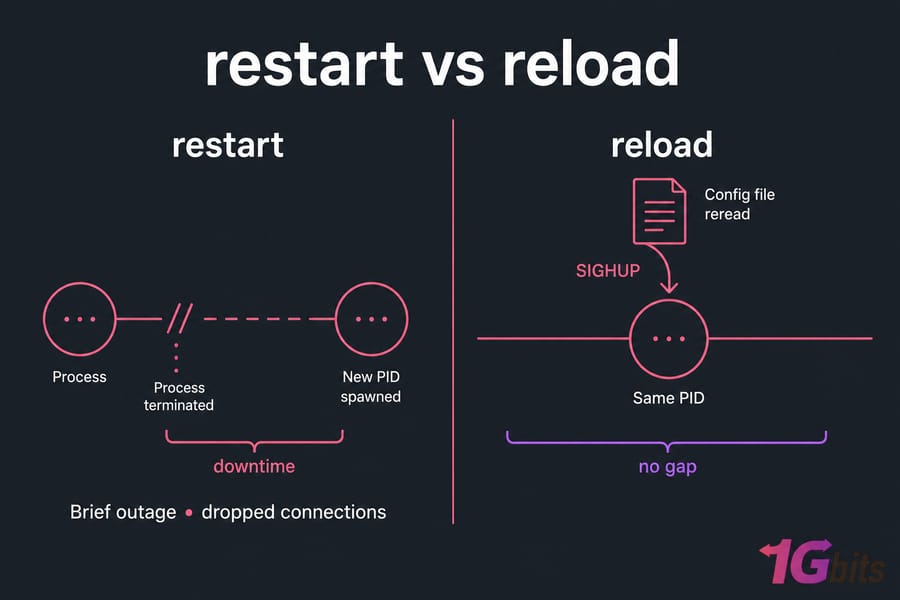
Stops then starts; new PID | Brief outage, dropped connections | Binary upgrades, stuck process |
reload |
Asks the app to reread its config | Usually minimal | Config change on a live server |
reload-or-restart |
Reloads if supported, else restarts | Varies | Scripts that must not fail |
Not every service implements reload. If the unit file has no ExecReload directive, the command fails and you'll need a restart instead. And reload isn't magic — some settings only take effect on a full restart, so read the application's own documentation for anything critical.
You can act on several units at once:
sudo systemctl restart nginx php8.3-fpmA production-safe workflow
Never restart a web server, database, or SSH daemon blind. The sequence I use every time:
- Validate the config first — nginx -t for NGINX, apachectl configtest for Apache.
- Prefer reload over restart if the service supports it.
- Check status immediately afterwards.
- Read the journal for warnings even when the command "worked."
Apache is a good example of naming pain, and we cover the specifics in restart Apache on Linux.
Enable, Disable, and Mask systemd Services at Boot
Boot behaviour is a completely separate axis from runtime state. enable creates symlinks based on the unit's [Install] section — typically WantedBy=multi-user.target — so systemd activates the unit at boot. It does not start anything right now.
sudo systemctl enable nginx
sudo systemctl enable --now nginx
sudo systemctl disable nginx
sudo systemctl disable --now nginx
sudo systemctl mask nginx
sudo systemctl unmask nginx
systemctl is-enabled nginx| Command | Runs now? | Runs at boot? | Can dependencies start it? |
start |
Yes | No | Yes |
enable |
No | Yes | Yes |
enable --now |
Yes | Yes | Yes |
disable |
No change | No | Yes |
disable --now |
Stops it | No | Yes |
mask |
No change | No | No |
That last row is the whole point of masking. It symlinks the unit to /dev/null, so nothing can start it — not you, not another unit's dependency chain. Handy when a package keeps reviving a service you want gone. Dangerous if you forget you did it.
Warning: mask is not a routine disable. Use disable for normal "don't start at boot" cases, and reserve mask for services that must never run.
What static and indirect mean
Run is-enabled and you may get static instead of enabled or disabled. That means the unit has no [Install] section, so there's nothing to enable — it gets pulled in by another unit or a socket. It's not broken. You'll also see indirect (enablement is delegated to an alias), generated (created on the fly, often from /etc/fstab), and alias (another name for a real unit).
View systemd Service Logs with journalctl
systemd-journald captures everything services write to stdout and stderr. The status output only shows the last ten lines or so — journalctl gives you the rest.
| Goal | Command |
| All logs for one service | sudo journalctl -u nginx |
| Last 50 lines, no pager | sudo journalctl -u nginx -n 50 --no-pager |
| Follow live | sudo journalctl -u nginx -f |
| Current boot only | sudo journalctl -u nginx -b |
| Recent window | sudo journalctl -u nginx --since "30 minutes ago" |
| Errors system-wide | sudo journalctl -p err -b |
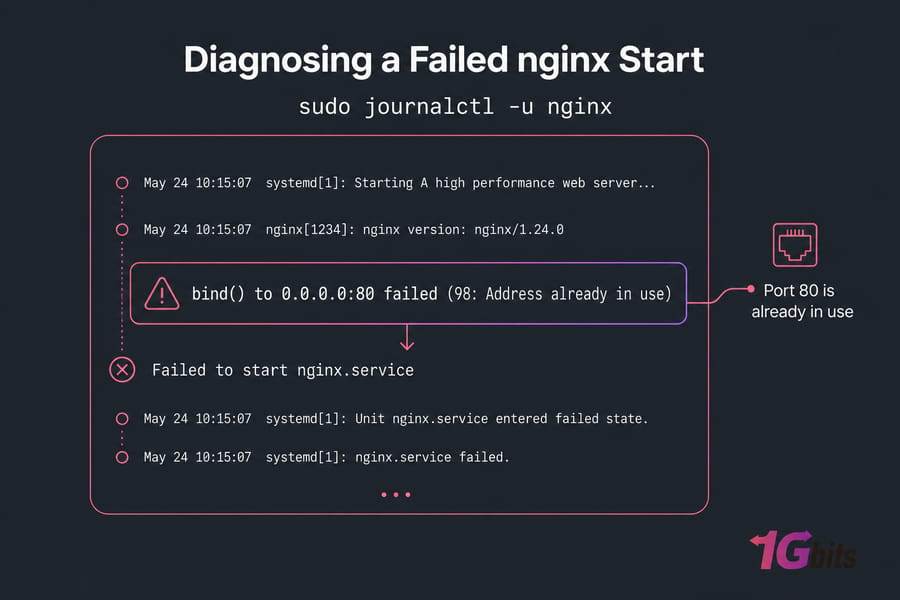
Four messages account for most failures: Permission denied (wrong user, wrong file mode, or SELinux/AppArmor), Address already in use (something else holds the port), No such file or directory (bad ExecStart path), and unknown directive (a config typo). Remember that many applications keep their own logs too — NGINX writes to /var/log/nginx/error.log independently of the journal. Our guide to Linux logs and troubleshooting covers that wider picture, and Linux monitoring tools and commands helps you watch services after recovery.
Need a Linux server to practise on? Deploy a Linux VPS with root access running Ubuntu, Debian, AlmaLinux, or another supported distribution, and break things safely in an isolated environment. View Linux VPS plans
Create and Edit a systemd Service File
Unit files live in three places, and precedence runs from most to least specific: /etc/systemd/system/ for your own units and overrides, /run/systemd/system/ for runtime units, and /usr/lib/systemd/system/ (or /lib/systemd/system/ on older Debian-family systems) for packaged vendor units. Never edit vendor files directly — package upgrades overwrite them.
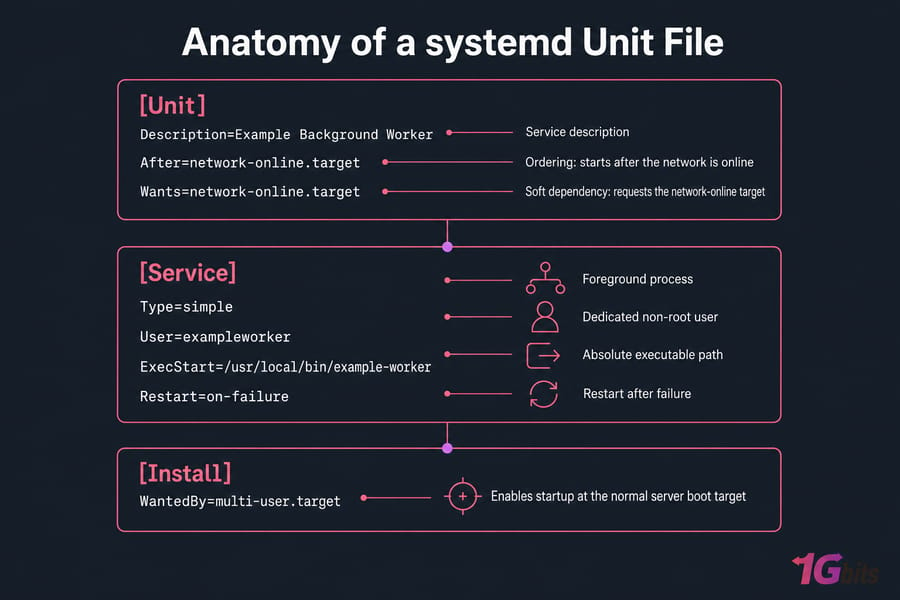
with Description and After/Wants called out, [Service] with Type, User, ExecStart, Restart called out, and [Install] with WantedBy called out]
Here's a production-shaped example for a background worker at /etc/systemd/system/example-worker.service:
[Unit]
Description=Example Background Worker
After=network-online.target
Wants=network-online.target

[Service]
Type=simple
User=exampleworker
Group=exampleworker
ExecStart=/usr/local/bin/example-worker
Restart=on-failure
RestartSec=5
NoNewPrivileges=true
PrivateTmp=true

[Install]
WantedBy=multi-user.target
Reading it directive by directive: After= only controls ordering, while Wants= expresses the actual (soft) dependency — that pair is deliberate. Type=simple suits a process that stays in the foreground. User= and Group= drop privileges to a dedicated non-login account you create beforehand. ExecStart= must be an absolute path; systemd doesn't use your shell's PATH. Restart=on-failure with RestartSec=5 gives you automatic recovery without a tight crash loop. WantedBy=multi-user.target is what makes enable work at all.
Security tip: run custom applications under a dedicated non-root user. Root-owned services are the shortcut everyone takes and later regrets — see Linux server security practices for the wider habit set.
Then activate it in this order:
sudo systemd-analyze verify /etc/systemd/system/example-worker.service
sudo systemctl daemon-reload
sudo systemctl enable --now example-worker.service
systemctl status example-worker.service
sudo journalctl -u example-worker.service -n 50 --no-pager
daemon-reload tells systemd to reread unit files from disk. It does not reload application configuration and it does not restart your service — you still need restart for new unit settings to apply to a running process. Skip daemon-reload after editing a unit and systemd keeps using the stale definition, which produces some genuinely baffling debugging sessions.
Overriding a packaged unit
To change a vendor unit safely, create a drop-in:
sudo systemctl edit nginx
sudo systemctl revert nginx
That writes a small override file under /etc/systemd/system/nginx.service.d/ containing only your changes and runs daemon-reload for you. revert throws the override away and returns to vendor defaults.
Running workers, bots, and APIs as systemd services needs persistent resources and full root control, which is exactly what unmanaged VPS hosting is for. If you'd rather someone else own the unit files, managed VPS hosting is the better fit.
Troubleshoot Failed systemd Services
Work the same sequence every time instead of restarting hopefully:
systemctl status SERVICE --no-pager -l
sudo journalctl -u SERVICE -b -n 100 --no-pager
systemctl cat SERVICE
systemctl list-dependencies SERVICE| Symptom | Likely cause | Diagnose | Fix |
| Unit could not be found | Wrong name or package missing | list-unit-files | grep -i NAME |
Correct the name or install the package |
| failed with exit code | App error or bad config | journalctl -u SERVICE -b |
Fix the reported cause, then restart |
| Unit is masked | Someone masked it | systemctl is-enabled SERVICE |
sudo systemctl unmask SERVICE |
| Enabled but inactive | Never started, or exited | systemctl status SERVICE |
Start it and read the journal |
| Start request repeated too quickly | Crash loop hitting the rate limit | journalctl -u SERVICE |
Fix the crash, then reset-failed |
| Timeout on start | Wrong Type=, slow init, missing dep | systemctl show SERVICE |
Correct Type= or raise TimeoutStartSec |
| Dependency failed | A required unit is down | systemctl list-dependencies SERVICE |
Repair the upstream unit first |
| Permission denied | User, mode, SELinux, or AppArmor | journalctl -p err -b |
Fix ownership; check SELinux/AppArmor denials |
| Address already in use | Port conflict | sudo ss -tulpn | grep :80 |
Stop the conflicting service or change ports |
| Changes not taking effect | Stale unit definition | systemctl cat SERVICE |
daemon-reload then restart |
| Not booted with systemd | systemd isn't PID 1 | ps -p 1 -o comm= |
Use the container supervisor or enable WSL systemd |
| Orphaned process after stop | Process ignored the stop signal | ps aux | grep NAME |
Terminate it gracefully before escalating |
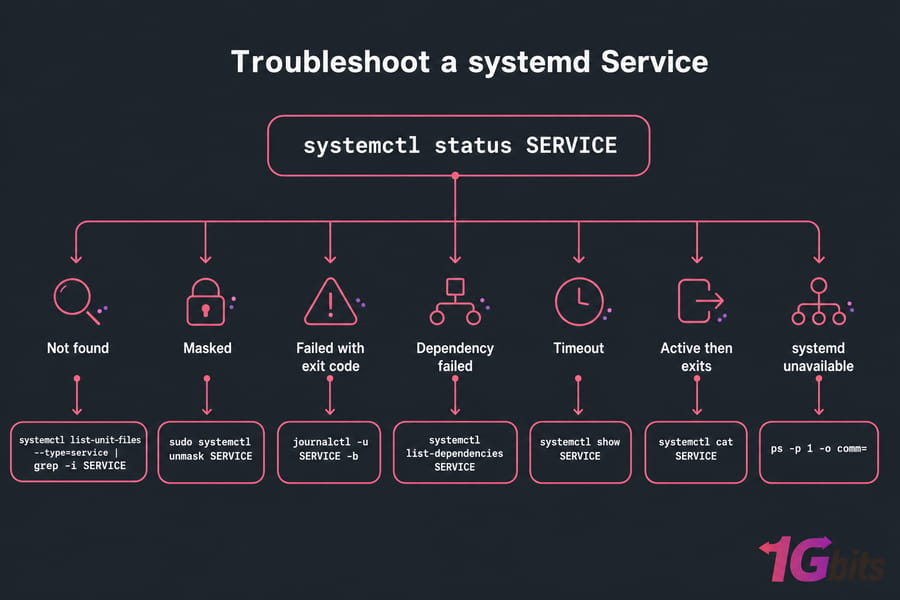
Two rules keep you out of trouble. reset-failed clears the recorded failure state and the rate-limit counter; it repairs nothing, so fix the cause first. And never reach for chmod 777 or a blanket reinstall — you'll trade a diagnosable fault for an undiagnosable one. When a stuck process survives a stop, learn to safely stop a Linux process before escalating to SIGKILL. For system-wide faults, follow the Linux server troubleshooting workflow.
systemctl Command Cheat Sheet
| Goal | Command | sudo? |
| Full status and recent logs | systemctl status nginx |
No |
| Show all resolved properties | systemctl show nginx |
No |
| Print the effective unit file | systemctl cat nginx |
No |
| List running services | systemctl list-units --type=service --state=running |
No |
| List installed unit files | systemctl list-unit-files --type=service |
No |
| List failed services | systemctl --failed --type=service |
No |
| Show dependencies | systemctl list-dependencies nginx |
No |
| Start / stop | sudo systemctl start nginx / stop nginx |
Yes |
| Restart / reload | sudo systemctl restart nginx / reload nginx |
Yes |
| Reload if possible, else restart | sudo systemctl reload-or-restart nginx |
Yes |
| Enable at boot | sudo systemctl enable nginx |
Yes |
| Enable and start now | sudo systemctl enable --now docker |
Yes |
| Disable at boot | sudo systemctl disable nginx |
Yes |
| Block all activation | sudo systemctl mask nginx |
Yes |
| Undo masking | sudo systemctl unmask nginx |
Yes |
| Script check: is it up? | systemctl is-active --quiet nginx |
No |
| Script check: boot state | systemctl is-enabled nginx |
No |
| Script check: failed? | systemctl is-failed nginx |
No |
| Create a drop-in override | sudo systemctl edit nginx |
Yes |
| Reread unit files | sudo systemctl daemon-reload |
Yes |
| Clear failure state | sudo systemctl reset-failed nginx |
Yes |
| Manage a user unit | systemctl --user restart myapp |
No |
| Service logs, last 50 lines | sudo journalctl -u nginx -n 50 --no-pager |
Yes |
| Follow logs live | sudo journalctl -u nginx -f |
Yes |
Bookmark this alongside our broader Linux cheat sheet. If you're moving on to scheduled tasks, systemd timers are the modern route, though plenty of admins still create a cron job in Ubuntu instead.
Mistakes worth avoiding
- Assuming enable starts the service. It doesn't — add --now.
- Treating reload and daemon-reload as the same thing.
- Reading "enabled" as "running."
- Restarting production services before validating config.
- Editing vendor unit files instead of using drop-ins.
- Using reset-failed as a repair.
Next Steps
You now have the full loop: find the unit, read its state, control it at runtime, set its boot behaviour, read the journal, write your own unit, and debug failures methodically. Practise on a throwaway service — not your live web server.
Want complete command-line control? Pick an unmanaged VPS and run systemd your way. Prefer help keeping the box healthy? Explore managed VPS hosting and Linux VPS. For directive-level detail, the official systemctl manual and the systemd.unit reference are the sources worth trusting.

Leave A Comment