


If you need to fix RPC server unavailable in Windows Server, start in this order: confirm the server is reachable, verify RpcSs, DcomLaunch, and RpcEptMapper are running, then test DNS resolution, TCP 135, firewall rules, and any WMI or Active Directory-specific failures. Most of the time, this error is a communication problem — not a broken RPC service by itself.
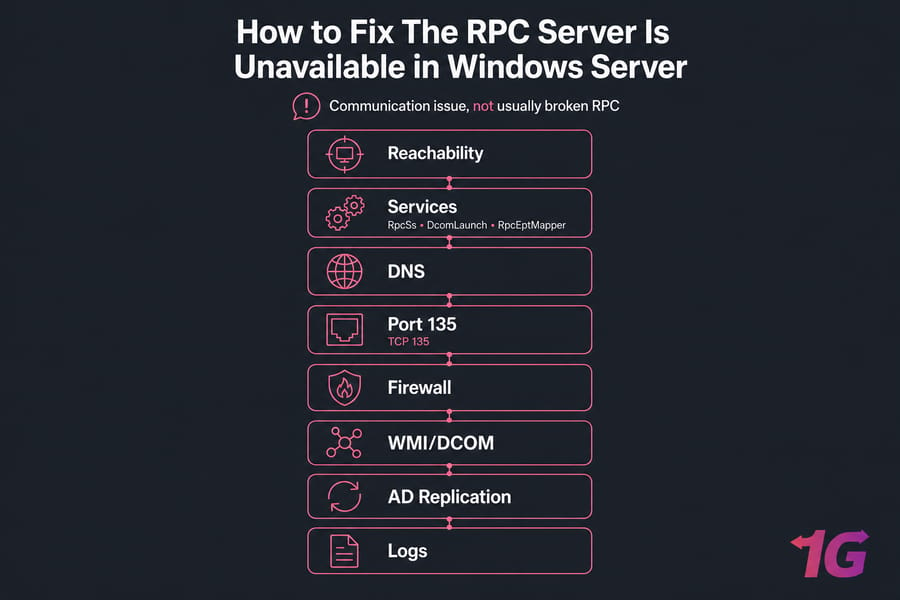
I've seen this show up on Windows Server 2012, 2016, 2019, and 2022 in all kinds of places: Server Manager, Event Viewer, MMC snap-ins, WMI queries, and domain controller replication. The annoying part is the message is vague. The useful part? The root causes are usually predictable.
Prerequisites
- Administrator access to the affected Windows Server
- PowerShell or CMD access
- Access to Services and Event Viewer
- Firewall management permissions
- If domain-joined, rights to run
dcdiagandrepadmin - Optional: another server or client for remote connectivity tests
Key takeaway: RPC errors usually come from services, DNS, firewall policy, network path, WMI, or DCOM — not from "RPC being broken" in some abstract way.
What “The RPC Server Is Unavailable” Means in Windows Server
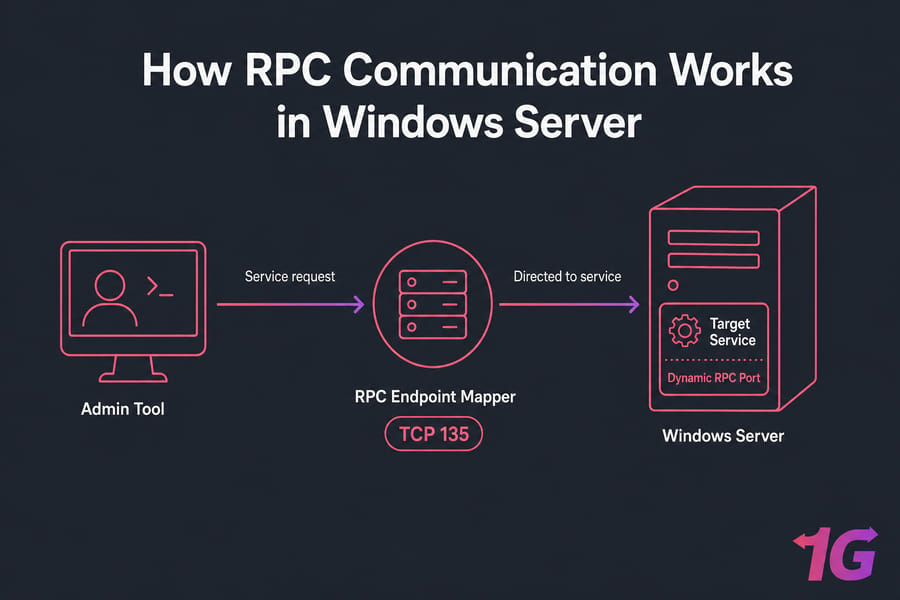
In plain sysadmin terms, RPC lets one Windows component talk to another component locally or across the network. A tool asks for a service, the RPC Endpoint Mapper helps route that request, and the target process responds through the required port and service path.
So when you see “The RPC server is unavailable” in Windows Server, it often means that one of those steps failed. Maybe name resolution is wrong. Maybe the firewall is blocking traffic. Maybe WMI or DCOM is choking. Maybe the remote host is up, but the path to it isn't.
Common places this shows up:
- Active Directory tools and domain controller communication
- DNS Manager and MMC snap-ins
- WMI-based monitoring or scripts
- Server Manager remote administration
- Event Viewer connections to remote systems
- Replication checks between domain controllers
That's why I treat RPC as a symptom first, not the final diagnosis. If you want broader background on day-to-day server operations, 1Gbits has a useful Windows Server administration resource. For domain-specific context, their Windows Server Active Directory guide is also worth keeping nearby.
Before changing settings, work through the checklist below in order. Random fixes are how people turn a small outage into a longer one.
Common Causes of RPC Server Unavailable Errors
| Symptom | Likely Cause | First Test | Fix |
| MMC or Server Manager fails remotely | WMI/DCOM issue or firewall block | Check Winmgmt and port 135 | Repair access path and firewall scope |
| RPC works locally but not remotely | Firewall, ACL, routing, or DNS | Run nslookup and Test-NetConnection | Correct name resolution and allowed ports |
| DC replication fails | DNS, site link, time sync, or filtered RPC | Run repadmin /showrepl | Fix AD DNS and inter-DC connectivity |
| Services tools show endpoint errors | RpcEptMapper or DCOM dependency problem | Get-Service for core services | Restore service health |
| Intermittent failures after network changes | Wrong network profile, NIC issue, or route | Check ipconfig /all and route path | Correct NIC and policy settings |
| DNS-related admin tool failures | Bad forward or reverse records | nslookup hostname and IP | Fix records and DNS server assignment |
The big buckets are pretty consistent:
- Stopped services: RpcSs, DcomLaunch, RpcEptMapper, and sometimes Winmgmt
- DNS failures: wrong DNS server, stale records, or broken hostname resolution
- Firewall blocks: TCP 135 open but dynamic RPC ports blocked, or rules scoped too tightly
- WMI/DCOM trouble: common with Server Manager and remote inventory tools
- Network issues: bad NIC config, wrong profile, VLAN segmentation, routing, or cloud security filtering
- AD-specific problems: replication path failures, site-to-site issues, or domain controller misconfiguration
If you're tracing name resolution, start with the Windows Server DNS guide.
RPC Server Unavailable Windows Server Fast Fix Checklist
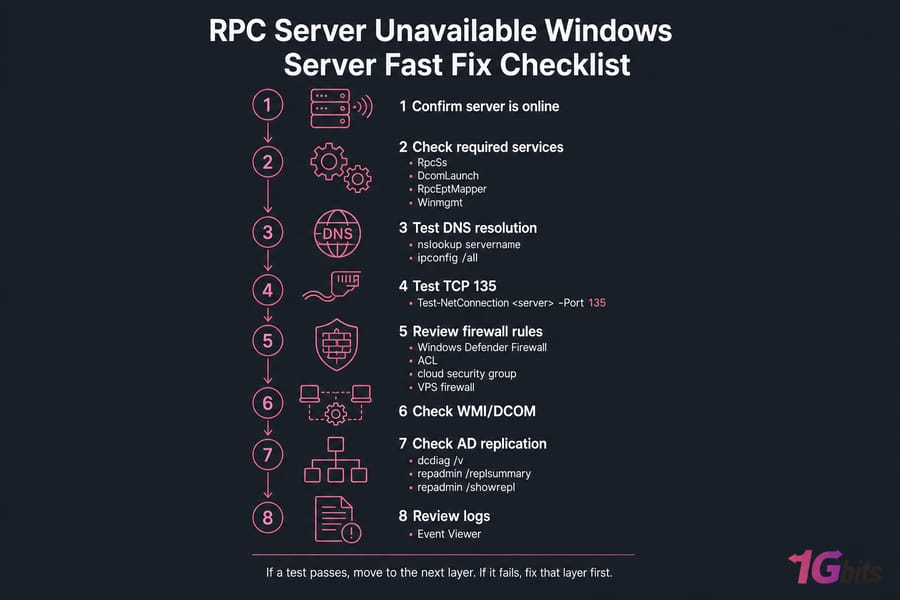
- Confirm the server is online. Test basic reachability from another host. Use
pingif allowed, but don't panic if ICMP is blocked. - Check required services. Verify RpcSs, DcomLaunch, RpcEptMapper, and Winmgmt.
- Test DNS resolution. Use
nslookup servernameand reviewipconfig /all. - Test TCP 135. Run
Test-NetConnection <server> -Port 135. - Review firewall rules. Check local Windows Defender Firewall and any upstream ACL, cloud security group, or VPS firewall.
- Check WMI/DCOM. If Server Manager or MMC is failing, focus here.
- Check AD replication. On domain controllers, run
dcdiag /v,repadmin /replsummary, andrepadmin /showrepl. - Review logs. Use Event Viewer to confirm the real failure and validate the fix.
If the server is in production, don't start by restarting core services or disabling protections. I know that temptation. Under pressure, people reach for the fastest-looking button. That's usually the wrong one.
Use this rule: if a test passes, move to the next layer. If it fails, stop and fix that layer before going deeper. For related log triage, the 1Gbits article on Windows logs is handy.
Check RPC Services in Windows Server
Start with service health, because a surprising number of RPC errors begin there.
| Service Name | Internal Name | Why It Matters | Expected State |
| Remote Procedure Call (RPC) | RpcSs | Core RPC framework | Running |
| DCOM Server Process Launcher | DcomLaunch | Required for COM/DCOM activation | Running |
| RPC Endpoint Mapper | RpcEptMapper | Maps RPC clients to services | Running |
| Windows Management Instrumentation | Winmgmt | Needed for WMI-based management | Running in most admin scenarios |
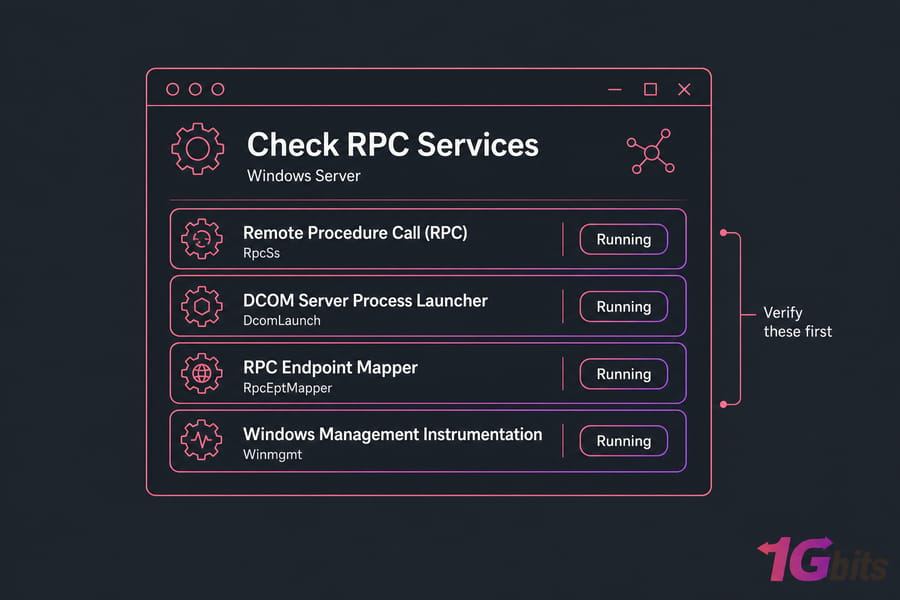
In Services.msc, confirm those services are running and not stuck in a weird transitional state. RpcSs and DcomLaunch are core enough that you shouldn't casually bounce them on a live production box unless you're planning downtime and know the blast radius.
PowerShell is faster:
Get-Service RpcSs,DcomLaunch,RpcEptMapper,Winmgmt

Get-Service RpcSs,DcomLaunch,RpcEptMapper,Winmgmt |
Select-Object Name,Status,StartType
If Winmgmt is stopped and your issue is limited to Server Manager, remote inventory, or WMI scripts, restarting that service can help:
Restart-Service WinmgmtBut don't blindly run a restart against RpcSs in production. I've seen dependent services tumble over when someone tried to "just refresh RPC." Check first, understand the dependency, then act.
If services look healthy, the next most common cause is DNS or basic connectivity. And yes, that includes cases where the server seems fine in RDP but management tools still fail.
Fix DNS and Name Resolution for RPC Connectivity
RPC depends heavily on correct name resolution. If the client resolves the wrong IP, an old IP, or no IP at all, the rest of the stack never gets a fair chance.
Run these checks:
ping servername
nslookup servername
ipconfig /all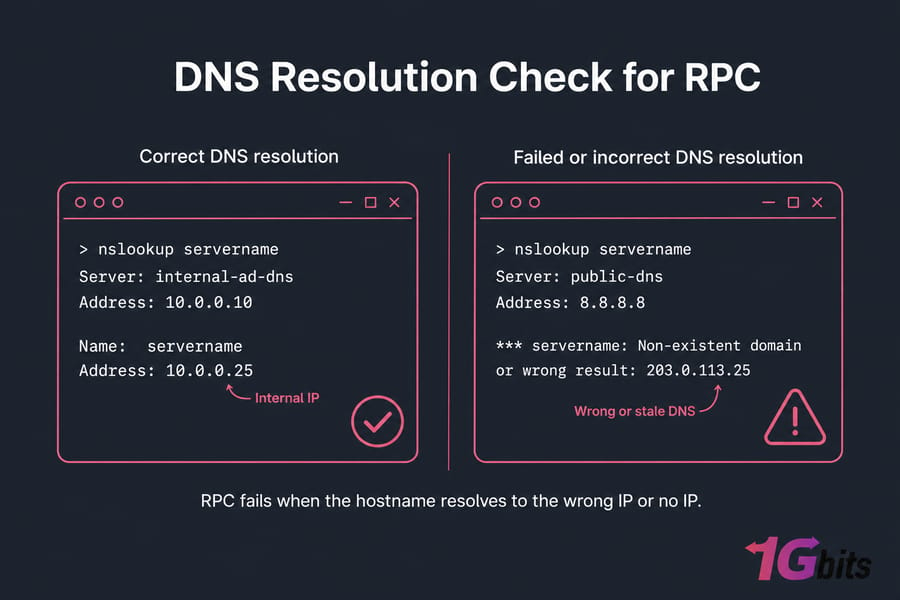
A few things matter here:
- Ping: useful for quick reachability, but ICMP may be blocked
- Nslookup: more important for RPC because it confirms DNS resolution
- Ipconfig /all: shows which DNS servers the machine is actually using
In domain environments, this is where a lot of trouble starts. A domain controller pointing to public DNS instead of internal AD DNS is a classic self-inflicted wound. Same goes for stale A or PTR records after IP changes.
Check both forward and reverse records. Reverse lookup isn't always the direct cause, but mismatches can complicate troubleshooting and some tools behave badly when DNS hygiene is poor.
If you're cleaning this up, the Windows Server DNS guide is directly relevant. If you need supporting steps, 1Gbits also has posts on how to flush DNS and change DNS in Windows.
Pro tip: In Active Directory, your servers should usually query internal AD-integrated DNS first. Public resolvers are fine for internet lookups through forwarders, not for replacing your internal namespace.
If name resolution works, move to firewall and port access.
Verify Windows Firewall, Port 135, and Dynamic RPC Ports
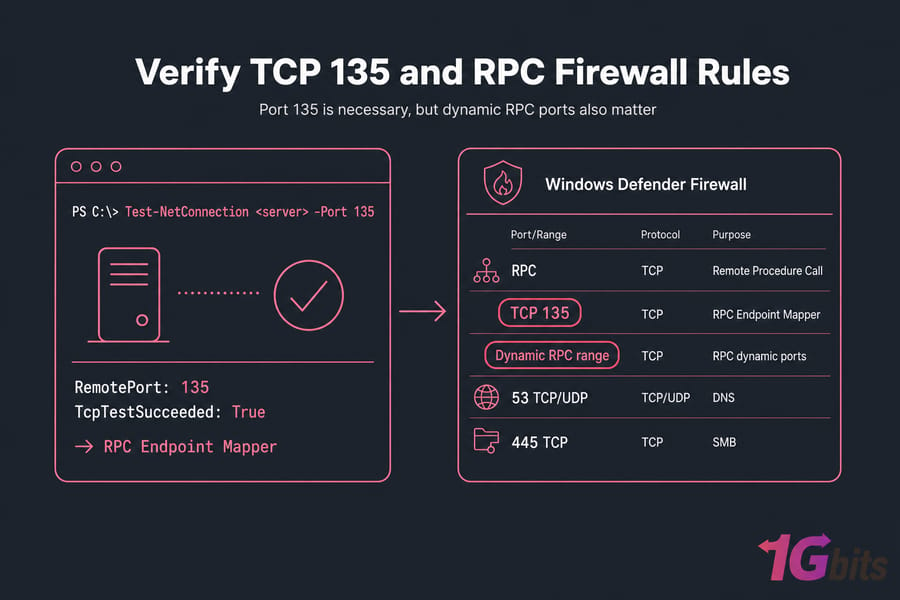
TCP 135 is the RPC Endpoint Mapper port. It's necessary, but it isn't the whole story. The mapper tells the client where the actual service is listening, and that follow-up communication often uses dynamic RPC ports. That's why "135 is open" doesn't always mean RPC will work.
Test 135 first:
Test-NetConnection <server> -Port 135Then inspect Windows Defender Firewall rules:
netsh advfirewall firewall show rule name=all | findstr /i rpc| Port/Range | Protocol | Purpose | Notes |
| 135 | TCP | RPC Endpoint Mapper | Required for RPC service mapping |
| Dynamic RPC range | TCP | Actual RPC service communication | Must be allowed according to your Windows version and policy |
| 53 | TCP/UDP | DNS | Needed when name resolution is part of the failure |
| 445 | TCP | SMB | Relevant in some management and AD scenarios |
Check three things in the firewall:
- Profile: Domain, Private, Public — the active one must match your network context
- Scope: rule may allow traffic only from certain subnets or management hosts
- Direction: inbound and outbound both matter in segmented networks
And don't forget upstream controls. On a VPS, dedicated server, or cloud instance, local firewall rules can be perfect while a provider firewall, ACL, or security group still blocks RPC traffic. That's more common than people think.
Warning: don't permanently disable Windows Firewall to fix RPC errors. Make targeted allow rules instead. It's slower for five minutes and safer for the next five months.
If you need background, read Windows TCP port 135, how to check open ports in Windows, and how to configure a firewall on your VPS.
If the ports are open but errors continue, WMI or DCOM may be the actual blocker.
Resolve WMI and DCOM RPC Errors on Windows Server
When Server Manager says the RPC server is unavailable, or MMC snap-ins refuse to connect, I usually check WMI and DCOM next. This is especially true if basic ping, DNS, and port 135 all look fine.
Typical signs:
- Server Manager can't refresh remote roles or status
- WMI queries fail from scripts or monitoring tools
- MMC remote management errors appear inconsistently
First, confirm Winmgmt is running. Then open Event Viewer and look for DistributedCOM and WMI-related entries around the failure time. Don't jump straight to rebuilding the repository. That fix gets recommended way too early, honestly.
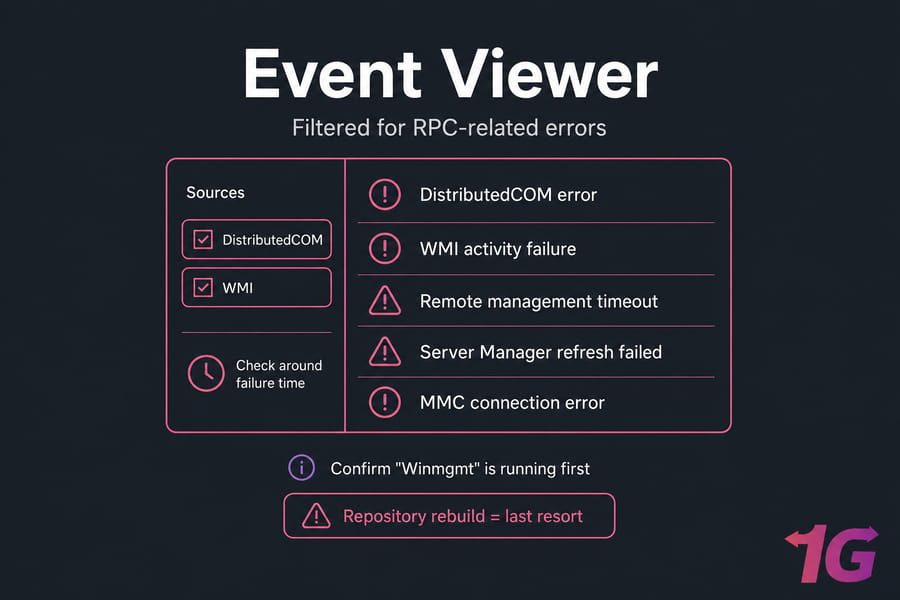
At a high level, DCOM problems usually come from permissions, remote activation restrictions, or firewall scope. WMI problems may be service-related, repository-related, or just downstream symptoms of DNS and RPC path failures.
Use repository rebuilds only as a last resort, and only after the logs point there. If services, DNS, and firewall checks already failed, a WMI reset won't save you. It'll just add more moving parts.
Fix RPC Server Unavailable on Active Directory and Domain Controllers
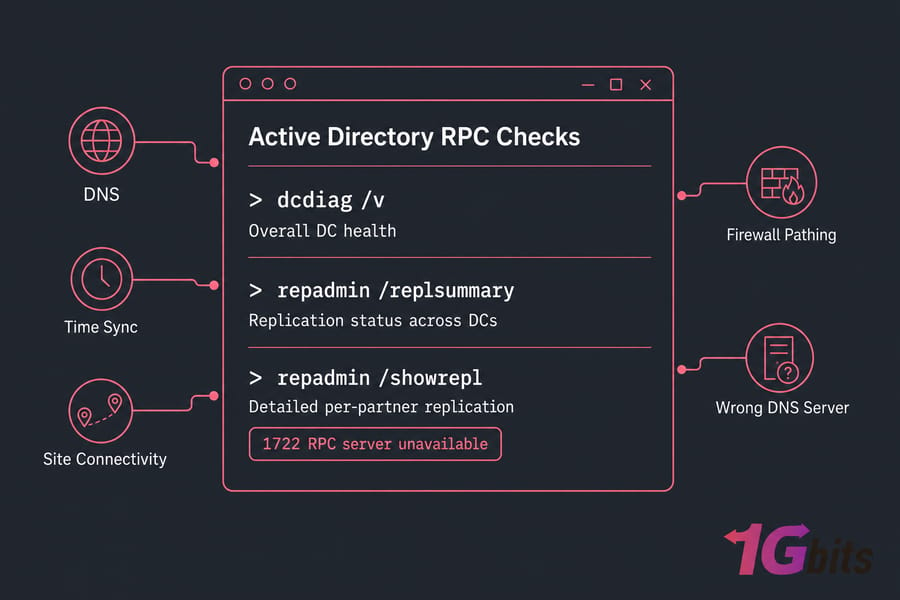
This is where the issue gets more serious. If you're dealing with RPC server unavailable Active Directory errors, you need to think beyond one host. Replication, DNS, time sync, site connectivity, and firewall pathing all come into play.
Run these first:
dcdiag /v
repadmin /replsummary
repadmin /showrepl| Command | What It Checks | Example Failure | Next Action |
| dcdiag /v | Overall DC health | RPC or DNS-related test failures | Fix DNS and connectivity path |
| repadmin /replsummary | Replication status across DCs | High failure count | Identify affected partner links |
| repadmin /showrepl | Detailed per-partner replication | 1722 RPC server unavailable | Check firewall, DNS, site routing |
Common AD-specific causes:
- Domain controller using the wrong DNS server
- Broken site-to-site VPN or routing between DCs
- Firewall rules filtering port 135 or dynamic RPC ports
- Time skew causing authentication problems
- Stale records after IP changes or DC rebuilds
- Multi-DC environments with one unhealthy replication partner
If repadmin /showrepl throws 1722, that's your clue to trace the network path and name resolution between the source and destination DCs. Also verify SYSVOL and NETLOGON are reachable where relevant. GUI tools like Sites and Services or GPMC often show vague symptoms long after repadmin already told the real story.
Pro tip: repadmin /showrepl usually gets you to the truth faster than clicking around MMC consoles.
For surrounding AD context, see Windows Server Group Policy.
Check Event Viewer and Windows Logs for Root Cause
Once you've corrected the likely cause, validate it. Don't stop at "the tool opened once." I've made that mistake before, and the issue came right back on the next refresh.
These log locations matter most:
- System log for service and connectivity failures
- Application log for service-side errors
- DistributedCOM for DCOM access and activation issues
- DNS Server log if the server hosts DNS
- Directory Service on domain controllers
Search for wording around RPC, endpoint mapper, DCOM, WMI, DNS lookup failures, and replication retries. What you want is a clean timeline: failure, corrective action, then successful reconnect or retry.
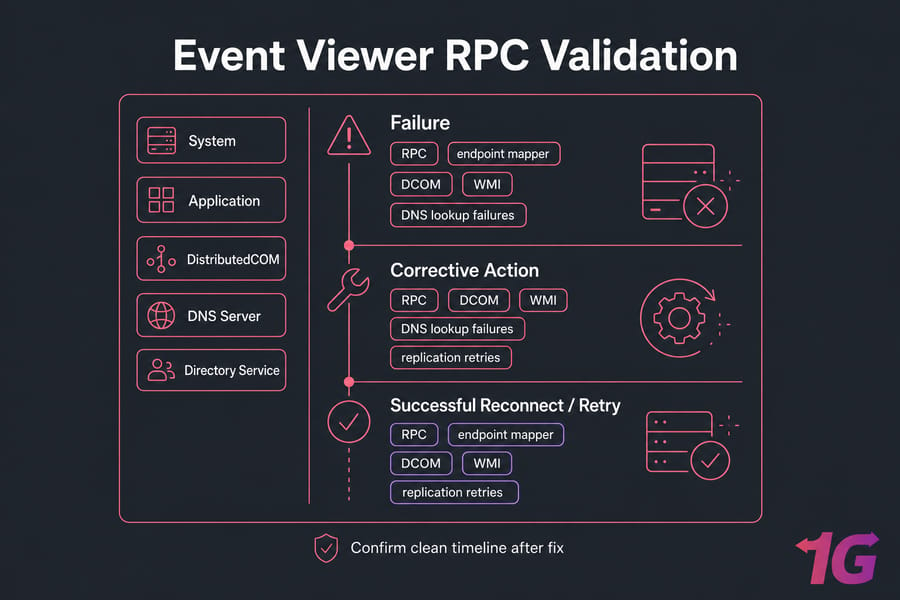
Post-fix validation list:
- Remote tool connects successfully
Test-NetConnectionto 135 succeeds where needednslookupreturns the correct host- Required services remain running after refresh
- AD replication errors clear or reduce on recheck
If you need a broader logging reference, here's the 1Gbits article on Windows logs.
Prevent Future RPC Problems in Windows Server Environments
Most recurring RPC issues come from messy fundamentals. Clean those up and the error tends to stay gone.
- Keep DNS architecture clean, especially in AD
- Document firewall rules for remote administration and port exposure
- Monitor core services and alert on unexpected stops
- Avoid over-hardening DCOM/WMI without testing management workflows
- Patch Windows Server regularly
- Maintain backups and rollback plans before major network or policy changes
Stable infrastructure matters too. In hosted environments, flaky routing, inherited firewall confusion, or aging virtual infrastructure can turn minor RPC issues into recurring admin pain. If you're tuning a hosted instance, the 1Gbits guides on Windows Server security tips, Windows VPS configuration, and Windows Server backup are useful follow-ups.
Need a Reliable Windows VPS or Dedicated Server for Stable Remote Management?
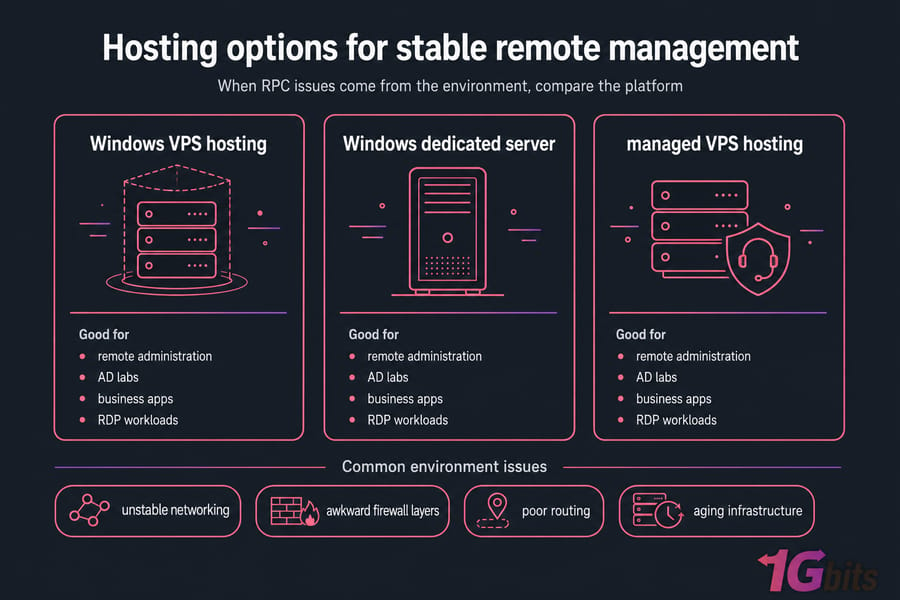
Sometimes the issue isn't your Windows configuration at all. It's the environment around it unstable networking, awkward firewall layers, poor routing, or infrastructure that's simply overdue for replacement.
If recurring RPC, WMI, or remote administration failures are tied to hosting instability, take a look at 1Gbits Windows VPS hosting, Windows dedicated server, and managed VPS hosting options. They fit common use cases like AD labs, business apps, RDP workloads, and general Windows Server administration without forcing you to fight the platform every week.
Action beats guessing. Run the checklist, validate each layer, and you'll usually pin this down faster than the error message suggests.

Leave A Comment