

![Windows Server Group Policy: Setup & Management Guide [2026] 🖥️](https://1gbits.com/cdn-cgi/image/width=1200,quality=80,format=auto/https://s3.1gbits.com/blog/2025/12/windows-server-group-policy-1200xAuto.webp "Windows Server Group Policy: Setup & Management Guide [2026] 🖥️")
Managing a modern IT infrastructure can be a daunting task. In large organizations, administrators are responsible for hundreds or thousands of servers and client machines, each requiring consistent configuration, security enforcement, and software deployment. This is where Windows Server Group Policy becomes an essential tool.
By understanding what is Group Policy in Windows, how Group Policy Objects (GPOs) work, and best practices for configuration and management, administrators can minimize manual interventions, reduce configuration errors, and streamline IT operations. Group Policy is still the quickest way to configure hundreds of domain-joined machines at once.
This guide covers everything from the basics to advanced administration techniques, including step-by-step configuration for Windows Server 2019 and 2022, troubleshooting tips, real-world examples, and PowerShell automation. Everything here applies to Windows Server 2016 through 2025, and if you want to know which release fits your workload, see this Windows Server versions compared breakdown. The templates change between versions, but the engine works the same way.
📖 What Is Group Policy in Windows Server? Definition & Purpose
Windows Server Group Policy is a key feature that allows administrators to centrally manage and configure operating system, application, and user settings on computers running Windows Server and Windows client systems. Using Group Policy, IT teams can enforce security standards, streamline desktop and server configurations, and automate administrative tasks across the network.
Group Policy is implemented through Group Policy Objects (GPOs), which are collections of settings that can be applied to users or computers in an Active Directory (AD) environment. A GPO contains policy settings, security permissions, and the scope of management (SOM). A GPO is a bundle of settings: security options, registry values, scripts, software restrictions.
Every GPO lives in two places. The Group Policy Container (GPC) sits in Active Directory. The Group Policy Template (GPT) is stored in SYSVOL on each domain controller and replicated by DFSR. When the two copies drift apart, policies behave unpredictably.
Local Group Policy (gpedit.msc) only affects a single machine. Domain Group Policy needs AD DS, the machines have to be joined to the domain, and you need the right permissions. Read access is enough to view GPOs. Linking one takes write permission on the target site, domain or OU.
The main purposes of Windows Server Group Policy include:
-
Enforcing security settings such as password policies and account lockout policies.
-
Configuring system-wide settings, including firewall rules, automatic updates, and power management.
-
Standardizing user environments, including folder redirection, mapped network drives, and desktop configurations.
-
Managing server-specific operational tasks, such as service settings and security hardening.
How Group Policy Works in Active Directory
When integrated with Active Directory, GPOs are linked to sites, domains, or organizational units (OUs). Each object in AD queries applicable GPOs based on its location in the hierarchy. Policy settings are applied at:
-
Computer startup for system-wide settings.
-
User logon for settings specific to user accounts.
The Group Policy infrastructure relies on Client-Side Extensions (CSEs) to process specific settings delivered by GPOs. Think of CSEs as specialized agents that apply the settings assigned to their category, such as security, software installation, or network drives.
GPO vs Local Group Policy
|
Feature |
Local Group Policy |
Group Policy Object (GPO) in AD |
|
Scope |
Single computer |
Multiple users/computers in AD |
|
Storage |
Local machine |
AD + SYSVOL replication |
|
Management |
gpedit.msc |
Group Policy Management Console (GPMC) |
|
Targeting |
Applies to local user or computer |
Can target OUs, domains, or sites |
|
Replication |
None |
Replicated across all domain controllers via FRS/DFSR |
Key Components of Windows Server Group Policy
-
Group Policy Container (GPC) – Stored in the AD domain partition; contains version info, permissions, and links.
-
Group Policy Template (GPT) – Stored in SYSVOL; contains actual policy settings (registry, scripts, ADM/ADMX files).
-
Client-Side Extensions (CSEs) – Modules on clients or servers that process GPO settings (e.g., registry updates, security policies).
-
Scope of Management – Determined by AD structure (OU, domain, site) and optional filters (security, WMI).
By combining these components, Windows server group policy 2022 ensures centralized, consistent, and secure management of IT infrastructure.
⚙️ How Windows Server Group Policy Works
Group Policy Processing Order (LSDOU)
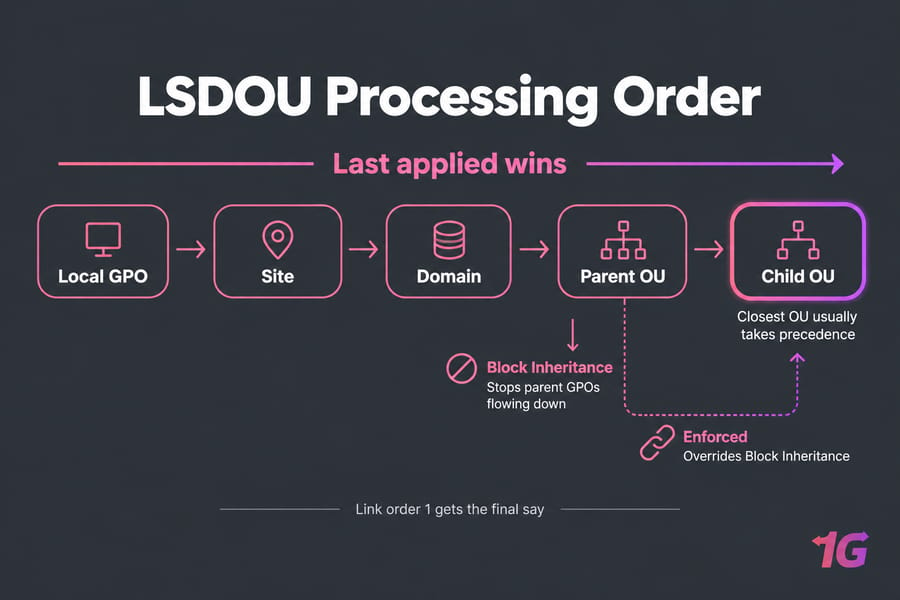
GPOs are applied in a specific order, often remembered with the acronym LSDOU: Local → Site → Domain → OU. Parent OUs are processed before child OUs. The last GPO to apply wins conflicts, as Microsoft's processing documentation explains. So the OU closest to the object usually takes precedence.
-
Local – Policies applied on the local machine.
-
Site – Policies linked to the Active Directory site.
-
Domain – Policies linked at the domain level.
-
Organizational Unit (OU) – Policies applied to OUs, including nested OUs.
Settings applied later in the sequence override earlier conflicting settings, unless Block Inheritance or Enforced flags are used.
-
Link order: when several GPOs are linked to the same OU, link order 1 gets the final say.
-
Block Inheritance: set on an OU, it stops GPOs from parent containers flowing down.
-
Enforced: set on a link, it overrides Block Inheritance and wins conflicts lower down the tree. Use it sparingly.
Computer Configuration applies at startup and User Configuration applies at logon. After that, member machines refresh every 90 minutes plus a random offset of up to 30 minutes. Domain controllers refresh every 5 minutes.
GPO Inheritance, Precedence & Filtering
Inheritance allows child OUs to automatically adopt policies from parent containers. Precedence controls which GPO settings take effect when multiple GPOs are linked to the same object. Administrators can also apply security filtering or WMI filters to target specific users or computers, improving precision and reducing unnecessary policy processing.
User vs Computer Configuration
-
Computer Configuration: System-wide settings; applied at startup. Includes Windows settings, security policies, scripts, and software deployment.
-
User Configuration: Applied at logon; includes desktop settings, mapped drives, and preferences.
|
Category |
Computer Configuration |
User Configuration |
|
Applies at |
Startup |
Logon |
|
Examples |
Firewall rules, automatic updates, software installation |
Desktop layout, folder redirection, mapped network drives |
|
Change by user |
No |
Some via Preferences |
🖥️ Group Policy Management Console (GPMC)
The Group Policy Management Console is the primary tool for creating, editing, and managing GPOs in Windows Server environments. With GPMC, administrators can:
-
View all GPOs in a domain.
-
Create and link GPOs to OUs, domains, or sites.
-
Edit GPOs using the Group Policy Editor.
-
Monitor GPO inheritance, modeling, and troubleshooting.
How to Install and Open GPMC
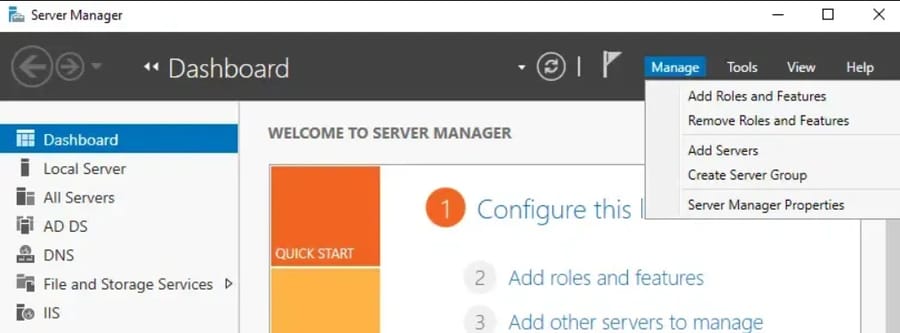
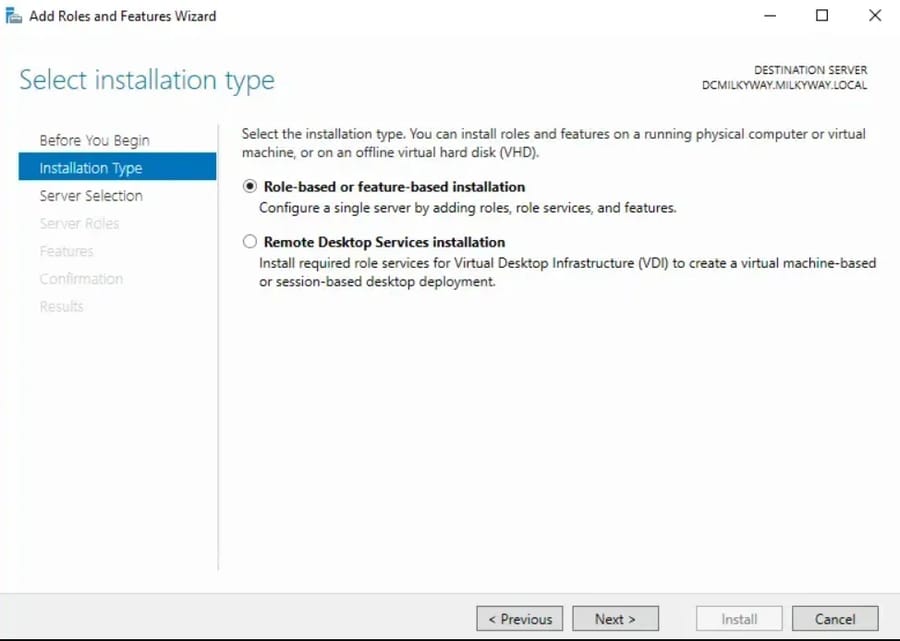
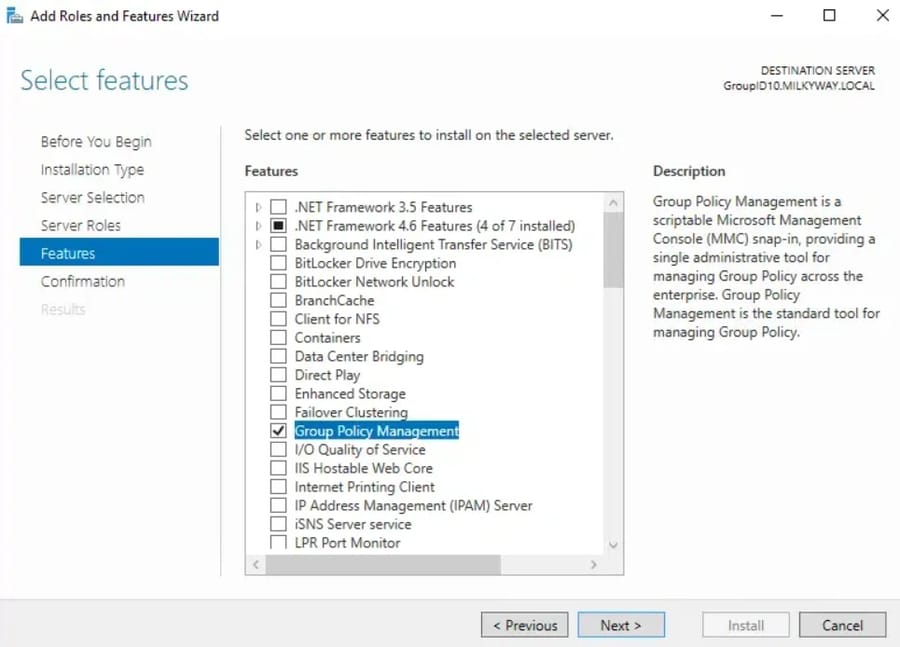
On Windows Server, open Server Manager, choose Add Roles and Features, and tick Group Policy Management under Features. If you'd rather use the command line, run Install-WindowsFeature GPMC.
1. Open Server Manager → Manage → Add Roles and Features.
2. Choose Feature-based installation → Next → Select the server.
3. Scroll to Group Policy Management, check it, and complete installation.
On Windows 10/11 (RSAT):
- Open Settings → Optional Features → Add a feature.
- Select RSAT: Group Policy Management Tools → Install.
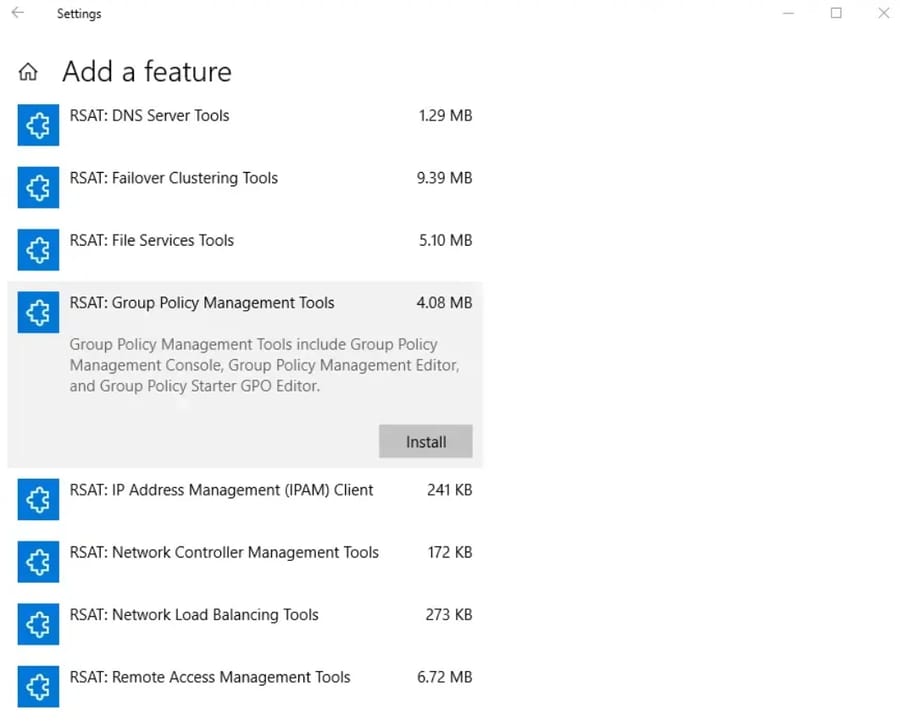
Once installed, run gpmc.msc to launch the console.
For a more detailed installation, check: Windows Server Installation
Administrative Templates (ADMX/ADML)
ADMX/ADML files define registry-based policy settings. ADMX files store the settings themselves, while ADML files contain language-specific descriptions. Keeping templates updated ensures that Windows server group policy 2022 and previous versions (2019, 2016) can manage new OS features and security policies.
Don't scatter them across local PolicyDefinitions folders. Set up a Central Store at \\yourdomain\SYSVOL\yourdomain\Policies\PolicyDefinitions so every admin edits against the same set of templates. When Microsoft ships new Windows 11 or Server 2025 templates, back up the existing folder first, then copy the new files over it. Before choosing a version for your Central Store, review the Windows Server minimum requirements so your infrastructure meets the baseline.
Windows Server 2019 & 2022 GPO Template Updates
Microsoft periodically releases updated ADMX templates for newer OS versions. Administrators should replace older ADMX files in the central store to maintain consistency and access to the latest policy settings, including:
-
Password complexity policies
-
Automatic updates
-
Security baseline settings
✅ Advantages of Using Windows Server Group Policy
Implementing Windows Server Group Policy offers numerous benefits for both administrators and organizations:
1. Centralized Management
Instead of manually configuring each machine, administrators can deploy settings to multiple computers and users from a single console. This ensures consistency and reduces administrative overhead — a core pillar of Windows Server administration.
2. Enhanced Security
Group Policy enforces password policies, account lockouts, firewall rules, and security auditing across all machines. By standardizing security configurations, organizations reduce the risk of breaches and unauthorized access.
3. Automated Software Deployment
Administrators can use Group Policy to automatically install software packages (MSI) on target computers without requiring user intervention. This is ideal for deploying antivirus solutions, productivity tools, or custom applications.
4. Simplified User Environment Management
Settings like desktop layout, mapped network drives, printer assignments, and folder redirection can be automatically configured for users. This improves user experience and reduces support tickets.
5. Efficient Compliance and Auditing
By enforcing policies uniformly across the domain, organizations can easily comply with internal IT standards or external regulatory requirements. Additionally, auditing and logging features help administrators track changes to policies.
🏢 Real-World Examples of Group Policy in Action
To understand the practical value of Windows server group policy 2022, consider these examples:
Example 1: University IT Department
A university with 5,000 students and staff uses Group Policy to:
-
Enforce password complexity rules for all accounts.
-
Automatically map network drives to department-specific shares.
-
Deploy antivirus software to all campus computers.
-
Redirect student documents to a central server for backup and security.
Example 2: Corporate Enterprise
A multinational company implements Group Policy to:
-
Enforce security baselines on all domain-joined servers.
-
Schedule automatic Windows updates on workstations without interrupting employees.
-
Apply printer and VPN configurations automatically for remote users.
-
Audit login events and failed access attempts to meet compliance requirements.
Example 3: Small Business Environment
Even a small office with 50 machines can benefit from Group Policy:
-
Restrict USB access to prevent data leaks.
-
Configure a uniform desktop environment for all staff.
-
Automatically map shared drives for teams.
-
Simplify onboarding by applying settings to new computers automatically.
These examples demonstrate that Windows Server Group Policy is not just for large enterprises—it scales to any environment where centralized management is beneficial.
🔧 How to Configure Group Policy (Step-by-Step)
Configuring Windows Server Group Policy allows administrators to enforce consistent settings across users and computers. Below is a detailed guide for Windows Server 2019 and 2022.
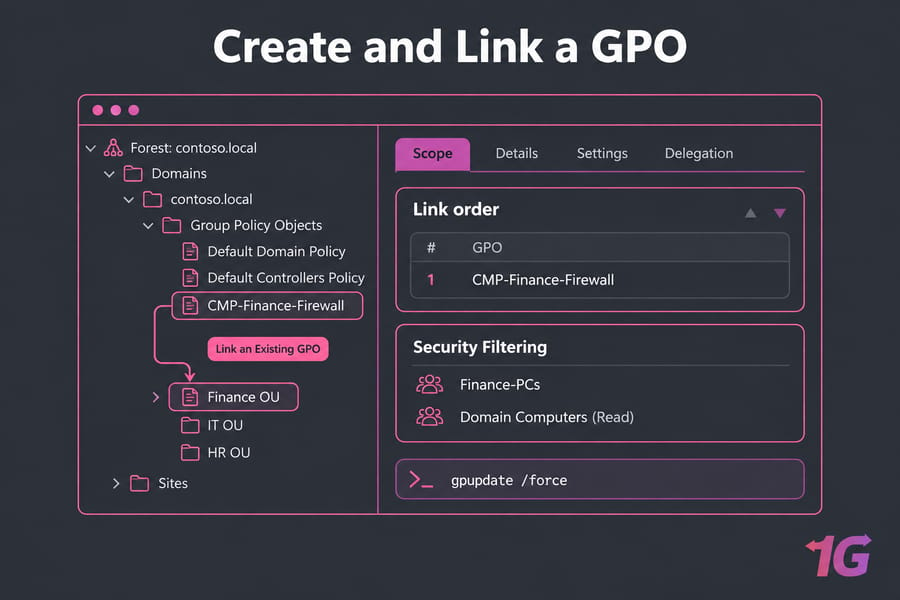
How to Create and Link a GPO
- In GPMC, right-click Group Policy Objects, choose New, and give it a descriptive name such as
CMP-Finance-Firewall. - Right-click the GPO, choose Edit, and configure your settings.
- Right-click the target OU, choose Link an Existing GPO, and adjust the link order if needed.
- If you only configured computer settings, disable the user half on the GPO's Details tab.
- On a test machine, run
gpupdate /force.
How to Configure Group Policy in Windows Server 2019 Step by Step
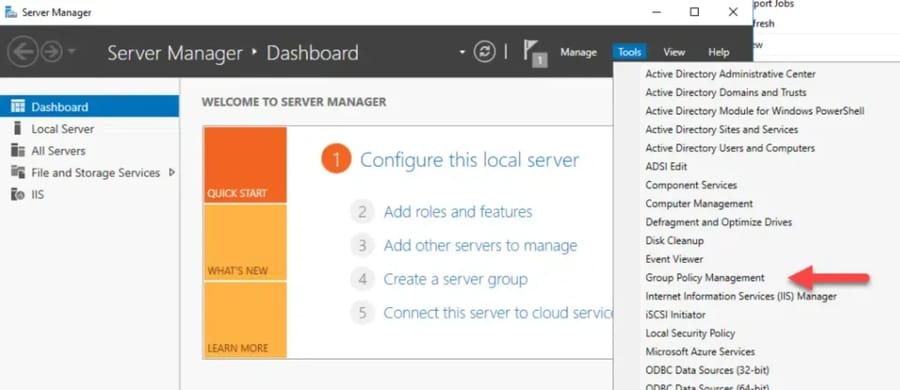
1. Open Server Manager → Tools → Group Policy Management Console (GPMC).
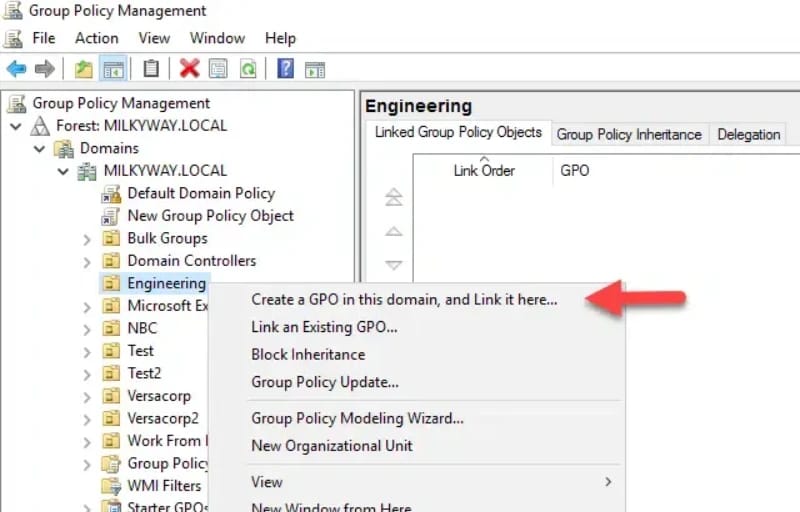
2. Expand your domain, right-click the target OU, domain, or site, and select Create a GPO in this domain, and Link it here….
3. Enter a descriptive name for the Group Policy Object (GPO) and click OK.
4. To edit the GPO, right-click it → Edit → opens Group Policy Editor.
5. Navigate through Computer Configuration or User Configuration to apply settings:
- Policies: Password policies, firewall, security restrictions.
- Preferences: Mapped network drives, desktop shortcuts, printers.
6. After making changes, apply them by running gpupdate /force on client computers.
7. Verify applied policies using gpresult /r or the Group Policy Modeling feature in GPMC.
How to Configure Group Policy in Windows Server 2022 Step by Step
-
Launch GPMC from Server Manager → Tools.
-
Right-click the target OU or domain → Create a GPO in this domain, and Link it here….
-
Name your GPO appropriately and click OK.
-
Right-click the GPO → Edit → Group Policy Editor.
-
Configure Computer Configuration and User Configuration as needed:
-
Example: Enforce Windows Server Group Policy password complexity settings, configure mapped drives, or enable automatic updates.
-
Apply the GPO with gpupdate /force, then verify with gpresult.
By following these steps, you ensure consistent policy application for both Windows Server 2019 and Windows Server 2022.
🔄 Group Policy Preferences vs Policies
Policies are enforced, and users can't change them. Preferences set a starting value that users can change, though it can be reapplied at the next refresh. Microsoft's preferences docs also describe item-level targeting. With it, you can map a drive only for members of one security group, or only on laptops.
| Aspect | Policies | Preferences |
| Can the user change it? | No (greyed out) | Yes, until the next refresh |
| Targeting | OU, security and WMI filters | Those plus item-level targeting |
| Typical use | Password policy, firewall, Windows Update, AppLocker | Drive maps, printers, shortcuts, registry items |
🛡️ Security Filtering, WMI Filters, and Delegation
Security filtering limits a GPO to specific groups. Say you want a policy to reach finance computers only. Remove Authenticated Users from the filter and add a "Finance-PCs" group. There's one catch. Since the MS16-072 update, computers still need Read on the GPO. Give Domain Computers Read on the Delegation tab, or the GPO silently stops applying.
WMI filters query the machine itself. For example, you can apply a GPO only where the OS caption contains "Windows 11." Every filter runs on every refresh, though, so separate OUs are usually cleaner.
For delegation, give helpdesk staff edit rights on specific GPOs instead of adding them to Domain Admins. If your GPOs are enforcing network-level access — VPN, 802.1X Wi-Fi, or firewall authentication — pair them with a properly configured Windows Server RADIUS setup for end-to-end policy enforcement.
📚 Common Group Policy Scenarios (With Examples)
Here are practical examples of Windows server group policy 2022 in action.
Password Complexity Policy
-
Purpose: Enforce strong passwords for security compliance.
-
Configuration:
-
Edit the GPO → Computer Configuration → Policies → Windows Settings → Security Settings → Account Policies → Password Policy.
-
Enable Password must meet complexity requirements.
-
Effect: Users are required to create passwords that include uppercase, lowercase, numbers, and special characters.
Mapping Network Drives via GPO
-
Purpose: Automatically assign network drives to users.
-
Configuration:
-
Navigate to User Configuration → Preferences → Windows Settings → Drive Maps.
-
Right-click → New → Mapped Drive.
-
Configure drive letter, path, and connection options.
-
Effect: All users in the linked OU automatically get the mapped drive without manual setup.
Enabling Automatic Updates
-
Purpose: Keep servers and clients up-to-date with Windows updates.
-
Configuration:
-
Computer Configuration → Policies → Administrative Templates → Windows Update.
-
Enable Configure Automatic Updates → select schedule and options.
-
Effect: Servers automatically download and install updates, reducing administrative overhead.
Applying Security Hardening Policies
-
Harden Windows Server environments by configuring:
-
Firewall rules → Computer Configuration → Policies → Windows Settings → Security Settings → Windows Defender Firewall
-
Account lockout policies
-
Audit policies → track failed login attempts and other security events
🔁 Loopback Processing Explained
Normally, user settings follow the user's OU. Loopback processing applies user settings based on the computer's OU instead. That's what you want on RDS hosts, kiosks and classroom PCs.
- Merge mode: the user's normal GPOs apply first. Then user settings from the computer's OU are layered on top and win any conflicts.
- Replace mode: the user's own GPOs are skipped entirely. This is the right choice for locked-down kiosks.
If user policy "isn't applying" on a terminal server, check loopback first.
🩺 Group Policy Troubleshooting
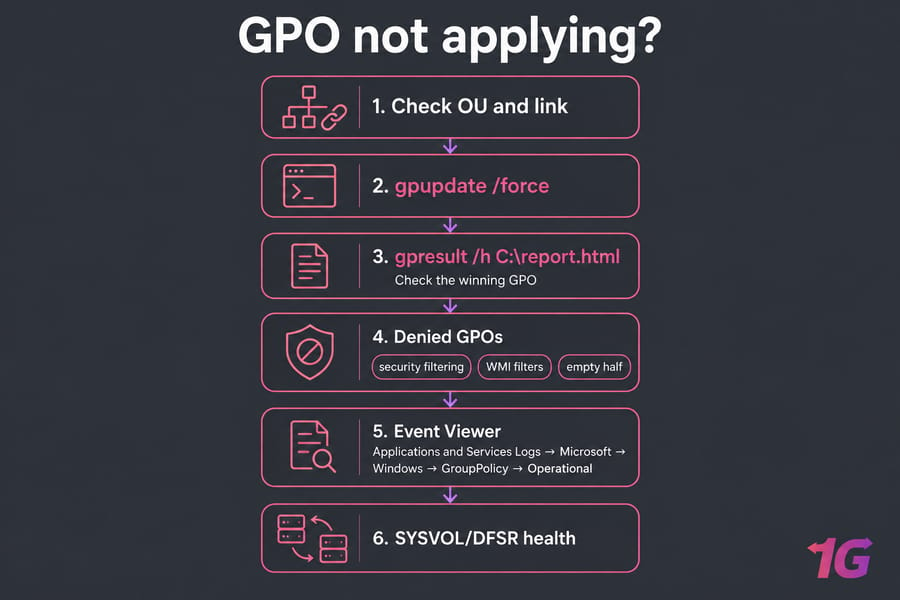
Even with careful planning, there are occasions when Windows server group policy 2022 settings do not apply as expected. Troubleshooting GPO issues is critical to ensure that policies are enforced consistently across the domain. When a setting won't stick, I go through this checklist in order:
Windows Server Group Policy Not Applying
- Confirm the object is in the OU you think it's in, and that the link is enabled.
- Run
gpupdate /forceon the client. - Run
gpresult /rfor a quick summary, orgpresult /h C:\report.htmlfor the full picture, including the winning GPO for each setting. - Look at the "Denied GPOs" section. GPOs blocked by security filtering, WMI filters or an empty half all show up there.
- Check Event Viewer under Applications and Services Logs → Microsoft → Windows → GroupPolicy → Operational. Look for errors or warnings related to GPO processing.
- Check that SYSVOL replication is healthy across domain controllers. Use repadmin /replsummary to verify replication status between DCs.
Common causes of GPO failures include:
-
Network connectivity issues – If a client cannot communicate with a Domain Controller (DC), policies may not apply.
-
Replication delays – GPOs stored in Windows Server Active Directory (AD) and SYSVOL rely on replication between DCs. Delays or failures can prevent policies from being available on all DCs.
-
Incorrect GPO link – The GPO might not be linked to the correct Organizational Unit (OU), domain, or site.
-
Permission restrictions – The client or user might not have sufficient permissions to apply the GPO.
Using gpresult and Group Policy Modeling
1. gpresult /r Command
The gpresult tool provides a comprehensive report of applied Group Policies for both users and computers.
-
Open Command Prompt with administrative privileges.
Run:gpresult /r
-
Review the sections:
-
Applied GPOs – Lists all policies applied.
-
Denied GPOs – Lists policies that failed due to filtering, permissions, or conflicts.
-
Security Filtering – Confirms which policies the current user/computer can apply.
This report helps administrators verify whether policies are applied as expected and identify potential conflicts.
2. Group Policy Modeling in GPMC
-
Located in GPMC → Group Policy Modeling, this feature allows admins to simulate policy application without enforcing them.
-
Steps:
-
Right-click Group Policy Modeling → Create a new simulation.
-
Select the target OU, site, or domain, along with user and computer objects.
-
Review the simulation results, including applied policies, blocked inheritance, and WMI filter evaluations.
Group Policy Results shows what actually applied to a real user on a real machine. Group Policy Modeling simulates what would apply, which helps before you move objects between OUs. rsop.msc still works, but gpresult /h output is easier to read.
Group Policy Modeling is particularly useful for:
-
Planning new policies before deployment.
-
Predicting conflicts when multiple GPOs are linked to nested OUs.
-
Understanding the impact of WMI filters or security filtering.
Missing Administrative Templates in Windows Server 2012/2019/2022
Older servers may not have the latest ADMX/ADML templates, which can cause newer policy settings to be unavailable. This is common when upgrading servers or managing mixed environments.
Solution:
-
Download the latest ADMX templates from Microsoft:
-
For Windows Server 2019 GPO ADMX: Microsoft Download Center
-
For Windows Server 2022 ADMX: Microsoft Download Center
-
Copy templates to the Central Store:
Path:\\domain.com\SYSVOL\domain.com\Policies\PolicyDefinitions
-
Copy both .admx files (language-neutral) and the .adml files (language-specific) into the corresponding folder.
-
Verify availability in GPMC:
-
Open Group Policy Management Editor.
-
Check that new administrative templates appear under Computer Configuration → Administrative Templates and User Configuration → Administrative Templates.
Keeping ADMX templates updated ensures that administrators can manage all current Windows Server settings without limitations.
Additional Troubleshooting Tips
-
Check network connectivity and Windows Server DNS: Clients must resolve domain controllers correctly to apply policies.
-
Review Group Policy Event Logs: Look for Event IDs 1058 (unable to access GPO) or 1085 (policy conflict).
-
Migrating to a newer OS or rebuilding the DC? Use Windows Server migration tools to move roles and GPO references cleanly instead of recreating them by hand.
Force replication: Userepadmin /syncall
-
to synchronize all DCs if replication is delayed.
Reset local Group Policy cache: Sometimes, corrupted local policy cache can block updates. Remove contents from:C:\Windows\System32\GroupPolicy
C:\Windows\System32\GroupPolicyUsers
-
Then run
gpupdate /force.
⚡ PowerShell Commands for Group Policy
The GroupPolicy module comes with GPMC and RSAT, and it covers most daily tasks:
New-GPO -Name "CMP-Finance-Firewall" | New-GPLink -Target "OU=Finance,DC=corp,DC=local"
Set-GPLink -Name "CMP-Finance-Firewall" -Target "OU=Finance,DC=corp,DC=local" -Order 1
Get-GPO -All | Select DisplayName, ModificationTime
Backup-GPO -All -Path "D:\GPOBackups"
Restore-GPO -Name "CMP-Finance-Firewall" -Path "D:\GPOBackups"
Invoke-GPUpdate -Computer "FIN-PC01" -Force
Get-GPResultantSetOfPolicy -Computer "FIN-PC01" -User "corp\jdoe" -ReportType Html -Path C:\rsop.html
Schedule a nightly Backup-GPO -All. It takes about five minutes to set up.
⭐ Windows Server Group Policy Best Practices
To maximize the efficiency and reliability of your Windows Server Group Policy, consider these best practices:
-
Folder Structure: Organize OUs to reflect the administrative and functional structure of your organization.
-
Naming Conventions: Use descriptive names for GPOs (e.g., OU-Name_PasswordPolicy_2022).
-
Minimizing GPO Conflicts: Apply fewer GPOs with clear scope; avoid duplicating policies across OUs.
-
Using WMI Filters: Target specific computers or users based on OS version, hardware, or group membership.
-
Backing Up GPOs: Regularly back up GPOs, especially after significant configuration changes. Pair this with a tested Windows Server backup strategy so you can recover both the GPOs and the systems they manage.
-
Updating ADMX Templates: Ensure all administrative templates are up-to-date for consistency across servers.
-
Test in a staging OU before linking anything to production.
-
Keep the Default Domain Policy limited to password, lockout and Kerberos settings.
-
Allow for replication delays. A GPO edited on one domain controller isn't instantly visible on all of them.
📋 List of Common Group Policies in Windows Server
Below is a list of frequently used Windows server group policy 2022 settings, categorized for easy reference. This also includes policies relevant to Windows Server 2019.
Security Policies
-
Account Lockout Policy – Lock accounts after a defined number of failed login attempts.
-
Password Policy – Minimum length, complexity requirements, and expiration settings.
-
User Rights Assignment – Define permissions such as logon locally or access network resources.
-
Audit Policies – Track events like logon failures, object access, and policy changes.
-
Windows Firewall – Enable/disable firewall, configure inbound/outbound rules.
Administrative Templates (ADMX/ADML)
-
Software Restriction Policies – Prevent unauthorized applications from running.
-
Windows Update Settings – Configure automatic updates schedules.
-
Desktop Settings – Control start menu layout, taskbar, and control panel access.
-
Network Settings – Configure offline files, folder redirection, and mapped drives.
User Configuration Policies
-
Folder Redirection – Redirect My Documents, Desktop, or other folders to a network location.
-
Mapped Drives – Automatically assign network drives.
-
Printer Deployment – Assign network printers to users.
-
Internet Explorer/Edge Settings – Proxy configuration, home page, and security zones.
Computer Configuration Policies
-
Startup/Shutdown Scripts – Automate scripts during system startup or shutdown.
-
Power Management – Enforce sleep, hibernate, or wake timers.
-
Software Installation – Deploy MSI packages centrally.
-
Security Hardening – Apply password rules, firewall, or antivirus settings.
-
Network Services – Centrally configure Windows Server DHCP reservations, DNS clients, and other network settings on managed machines.
For a complete List of Group policies in Windows Server 2019, administrators can refer to the Group Policy Management Console and updated ADMX templates, ensuring all new settings are available.
🎯 Conclusion
Windows Server Group Policy is a powerful tool for administrators, enabling centralized management, security enforcement, and automation across both user and computer objects. By understanding how Group Policy works, creating and linking GPOs, and following best practices, organizations can achieve consistent, secure, and efficient IT operations. When you're ready to move to a newer release, plan the jump carefully with this Windows Server upgrade guide before touching production.
If you’re looking to implement or manage Windows Server Group Policy in a reliable hosting environment, 1Gbits offers robust solutions:
-
Windows VPS and Dedicated Servers with instant setup
-
24/7 support and global data centers
-
Affordable pricing without compromising performance
By leveraging 1Gbits services, you can ensure your Windows Server environment is not only configured correctly with Group Policy but also hosted in a high-performance, secure, and reliable infrastructure.
References: Microsoft Learn — Group Policy processing, Group Policy Preferences, and Central Store documentation. Examples tested on Windows Server 2019 and 2022.

Leave A Comment