
What Is Port 135 in Windows?
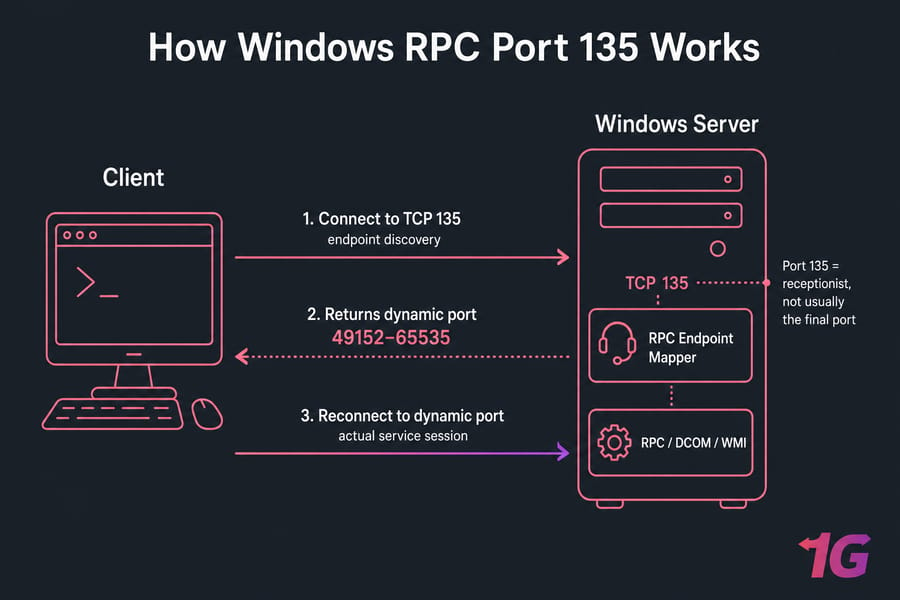
Windows TCP port 135 is used by the RPC Endpoint Mapper. In plain English, it helps Windows clients find the real network port used by services such as RPC, DCOM, WMI, and other remote administration components. So if you're asking what is Windows TCP port 135, the short answer is this: it's a directory service for Microsoft Remote Procedure Call, not usually the final port that carries the full session. TCP Port 135 is primarily used by Microsoft RPC services, which allow software on a computer to execute code on a remote system.
That distinction matters. A lot of people see port 135 listening and assume it's malware. Usually it isn't. It's normal Windows behavior, especially on servers, domain-joined systems, and machines used for remote management.
| Feature | Description |
| Port Number | 135 |
| Protocol | TCP |
| Service | RPC Endpoint Mapper |
| Default Listening | All Windows OS since NT |
| Dynamic Port Assignment | Yes — mapper returns dynamic ports |
How Port 135 Works in Windows
Here's the sequence. A client connects to port 135, asks the RPC Endpoint Mapper where a specific service lives, gets back a dynamically assigned port, then opens a second connection to that port. I've seen admins block 135, test one app, and think they're done — then WMI, MMC, or Group Policy starts failing later.
What the RPC Endpoint Mapper Does
The Endpoint Mapper is basically a receptionist. It doesn't do all the work itself. It tells a client which RPC service is available and where to find it. RPC services use port 135 to establish initial communication between client and server and negotiate which dynamic ports to use for further communication.
Why Port 135 Often Leads to a Different Port
Windows uses dynamic RPC ports after the initial handshake. On modern Windows, that usually means high ephemeral ports, commonly in the 49152–65535 range unless you've constrained them manually. So blocking only 135 reduces exposure, but it doesn't explain the full RPC picture.
Port 135 vs Dynamic RPC Ports
Port 135 handles endpoint discovery. The actual RPC traffic usually shifts to another port afterward. Your firewall rules need to account for both stages, especially in enterprise networks and Active Directory environments.
What Is Port 135 Used For?
Quite a bit, actually. In Microsoft Windows networking, port 135 supports several pieces of remote administration and domain functionality. This port is especially relevant in enterprise networks where automation and remote service control are required — many Windows services depend on port 135 to function correctly.
Remote Procedure Call, DCOM, and WMI
RPC is the core mechanism. DCOM builds on it for distributed component communication, and WMI relies on it heavily for remote queries and management. The core purpose of TCP port 135 is to support Remote Procedure Call operations. When a client application wants to call a service or function located on a remote system, it uses RPC to initiate this communication. If you're doing inventory, scripting, monitoring, or remote software control, WMI may be using port 135 to find the right service endpoint.
Active Directory and Domain Services
Domain controllers use RPC for operations tied to Group Policy, replication, domain join tasks, and admin tools. In enterprise networks, Active Directory is the backbone of authentication, user management, and access control. Port 135 is often part of that path, though not the only port involved.
Remote Administration Tools
Service Control Manager, Event Viewer, some MMC snap-ins, backup agents, and remote Windows management tools may depend on RPC endpoint mapping. IT administrators frequently use remote tools to manage servers and workstations — whether it's Windows Management Instrumentation, remote PowerShell, or third-party systems management tools, port 135 plays a key role in initiating connections. This is one reason Windows admins on a Windows VPS — whether Windows 11 VPS or Windows 10 VPS — need to be careful before blocking it outright.
Is Port 135 Safe to Leave Open?
Internally, sometimes yes. On the public internet, usually no.
Why Attackers Care About Port 135
Port 135 can expose RPC-related services that help attackers probe a host, expand attack surface, or attempt lateral movement after initial access. The port itself isn't a virus. The real concern is what sits behind it and whether those services are patched, reachable, and overexposed. Due to its use in remote execution, it's a common target for exploits and malware.
Historical Threats and Modern Risk
Old worms like Blaster and Sasser made RPC/DCOM famous for the wrong reasons. Those outbreaks abused Windows flaws that were devastating on unpatched systems. Modern Windows builds are much better protected, but legacy hosts and bad firewall policy still create risk. Patch management still matters — a lot.
Known Risks at a Glance
| Vulnerability | Impact |
| Remote Code Execution | Attackers can run code on your system |
| DDoS Amplification | Systems can be abused in reflection attacks |
| Unauthorized Access | Exposes sensitive Windows services |
Should You Block Port 135?
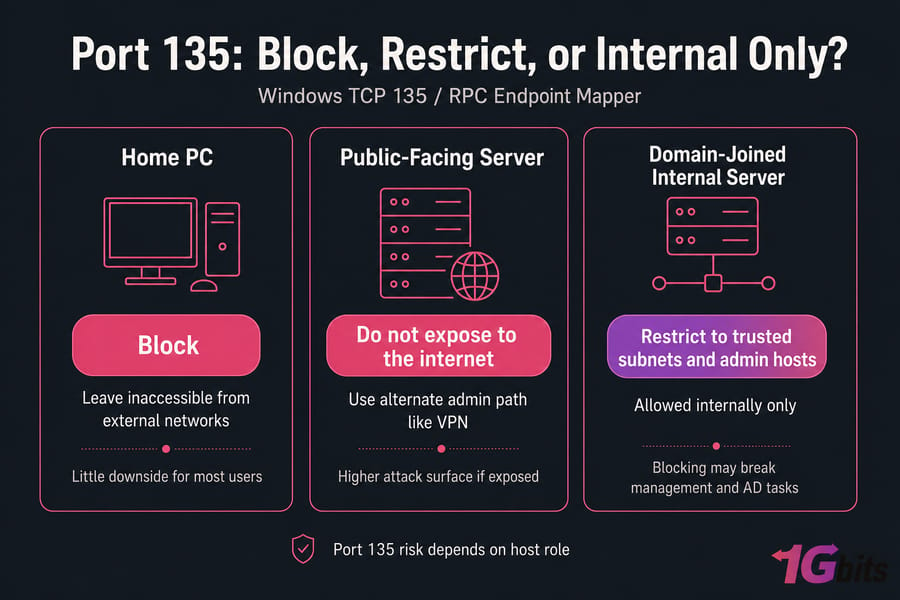
The honest answer is: it depends on the host's role.
| Scenario | Recommended Action | Main Tradeoff |
| Home PC | Block or leave inaccessible from external networks | Little downside for most users |
| Public-facing server | Do not expose to the internet | May need alternate admin path like VPN |
| Domain-joined internal server | Restrict to trusted subnets and admin hosts | Blocking may break management and AD tasks |
When Blocking Makes Sense
If the system doesn't need remote administration, DCOM, WMI, or domain-related RPC access, blocking port 135 is usually reasonable. That's common on standalone desktops and internet-facing machines.
When You Should Not Block Port 135
Don't block it blindly on domain controllers, management servers, or systems that rely on remote MMC, WMI, or backup/orchestration software. I've seen "secure it first, ask questions later" changes break monitoring, patch jobs, and domain join workflows.
What Can Break If You Disable It
You may hit "The RPC server is unavailable," failed WMI queries, broken remote Event Viewer access, Group Policy issues, or domain management failures. Features like Active Directory, remote management, and certain Windows updates may stop functioning correctly. If you're troubleshooting that specific error, check RPC server unavailable on Windows Server.
How to Check If Port 135 Is Open
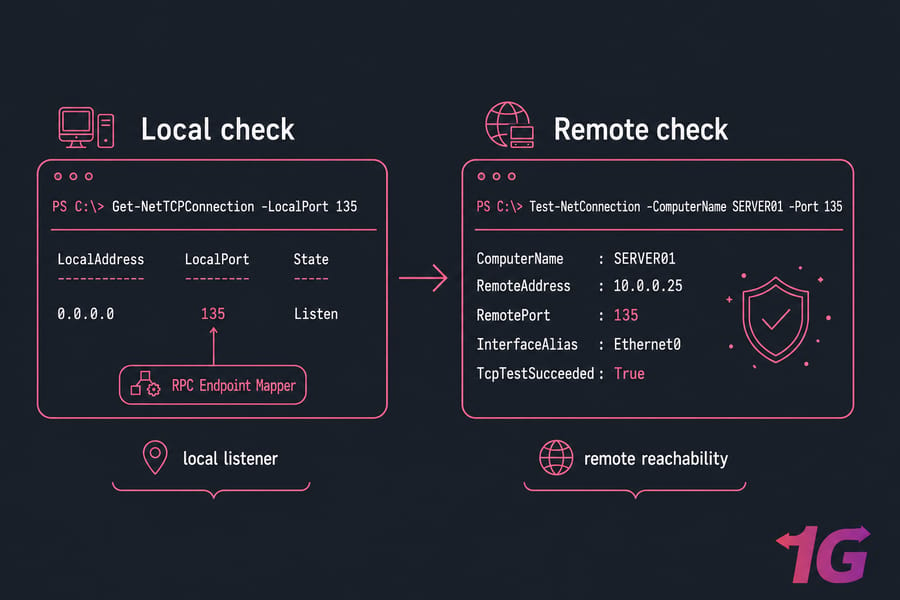
If you want to know why port 135 is listening, start local, then test remotely. Knowing whether TCP port 135 is open is essential for both troubleshooting and security assessment — an open port can be a potential entry point for attacks, so verifying its status should be part of regular system audits.
Using Command Prompt and PowerShell
netstat -ano | findstr :135
Get-NetTCPConnection -LocalPort 135
Test-NetConnection -ComputerName SERVER01 -Port 135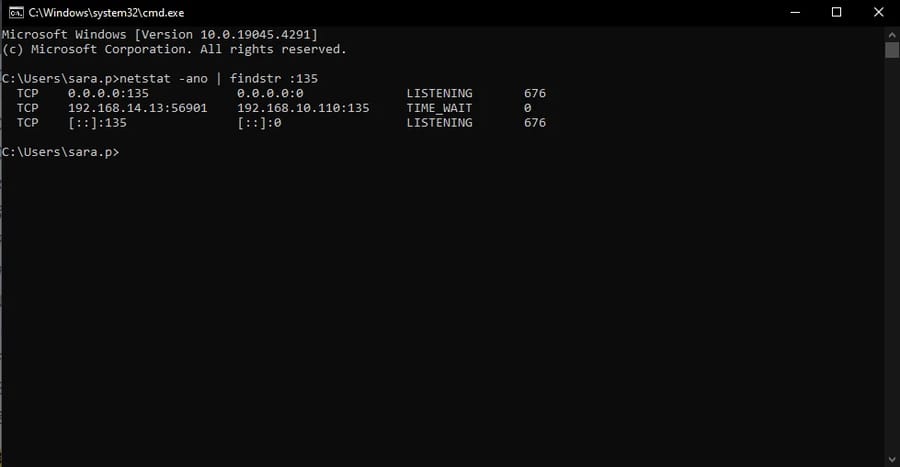
netstat shows whether something is listening and the PID. Get-NetTCPConnection gives cleaner PowerShell output. Test-NetConnection checks reachability to a remote host, which is different from confirming which process owns the port locally. For broader checks, see how to check open ports in Windows.
Using PortQry, rpcping, and Nmap
portqry -n SERVER01 -e 135
rpcping -s SERVER01
nmap -Pn -p 135 SERVER01
PortQry is handy for Microsoft port testing. rpcping is more RPC-aware and can help separate service issues from raw port reachability. nmap is useful from another machine to confirm whether 135 is exposed at all.
Quick Reference: Tools to Check Port 135
| Tool/Command | Purpose | Sample Output |
| netstat -ano | findstr :135 | Check if port is listening | LISTENING 1234 |
| rpcping -s -e ping | Test RPC endpoint connectivity | RPC Packet(s) received |
| Test-NetConnection -ComputerName PC -Port 135 | PowerShell check | TcpTestSucceeded: True/False |
How to Block or Restrict Port 135 in Windows
The safer move is usually restriction, not a blunt block. If you find that TCP port 135 is open and not required for your setup, closing it is a smart move to reduce potential attack surfaces.
Steps to Close TCP Port 135 via Windows Defender Firewall
- Open Windows Defender Firewall. Search for it in the Start menu or navigate via Control Panel → System and Security → Windows Defender Firewall.

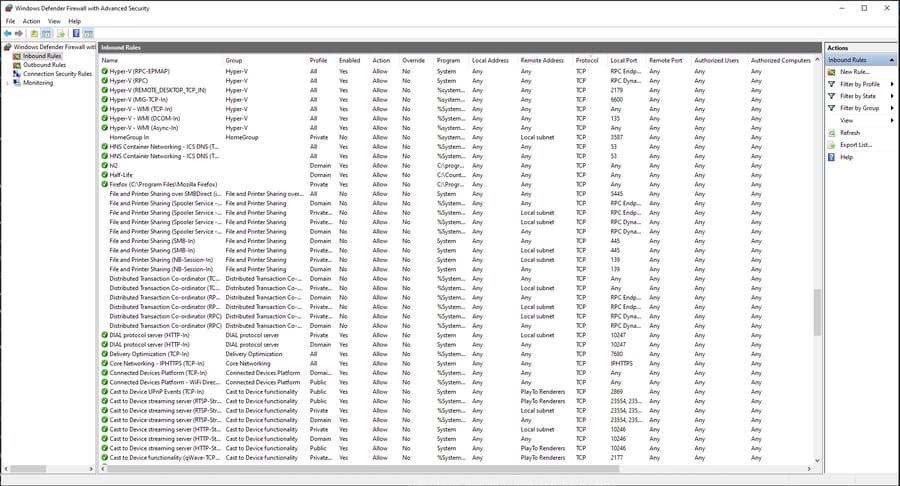
- Click on Advanced Settings. This opens the Windows Firewall with Advanced Security console.
- Choose Inbound Rules. On the left-hand side, click on "Inbound Rules."
- Locate and Disable RPC-Related Rules. Scroll through the list and look for rules related to RPC Endpoint Mapper or specifically port 135. Right-click the rule and choose Disable Rule.
- Repeat for Outbound Rules if necessary.
Create a Custom Firewall Rule Instead
Use Windows Defender Firewall to scope inbound access to trusted IP addresses or subnets. That keeps internal administration working while cutting off unnecessary exposure.
Block Public Exposure, Keep Internal Access
Best practice is simple: don't expose RPC to the public internet. Allow LAN-only access, require VPN or bastion access for admins, and scope rules to a trusted subnet. That lowers the attack surface without breaking domain operations.
Test Before Production Changes
Do this in a maintenance window if the host is domain-joined. Check WMI, MMC, backups, monitoring, and Group Policy after the change. It's highly recommended to test changes in a development or staging environment first, document all modifications, and monitor system behavior after the change. This part is a bit tedious, honestly, but it's cheaper than undoing an outage.
Best Practices for Securing Port 135
Three things matter most: patching, segmentation, and visibility.
- Keep Windows fully patched to reduce remote code execution risk on RPC/DCOM components.
- Use network segmentation so only admin workstations and management servers can reach port 135.
- Prefer VPN-only administration instead of direct exposure.
- Scope firewall rules tightly by source IP, profile, and interface.
- Monitor logs and EDR alerts for unusual remote management activity.
Port 135 in Active Directory and Enterprise Networks
In enterprise Windows environments, port 135 often supports domain join operations, admin tools, and communication with domain controllers. But AD doesn't use only 135. It also relies on dynamic RPC ports and several other services.
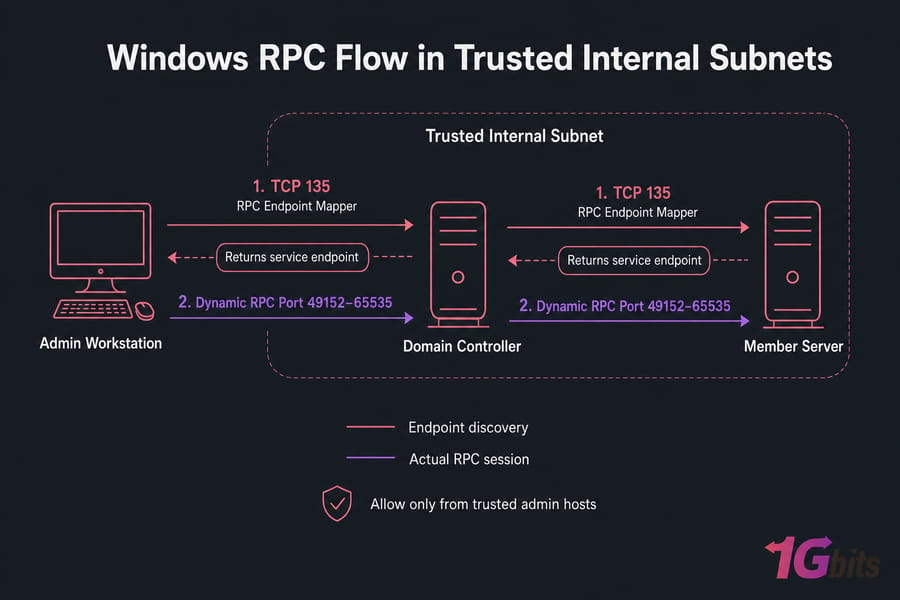
That means firewall policy for AD has to be precise, not simplistic.
Common Port 135 Problems and Troubleshooting Tips
The classic symptom is The RPC server is unavailable. That can mean the service is down, the firewall is blocking 135 or the dynamic follow-up port, DNS is wrong, or the host simply isn't reachable.
For WMI or remote MMC failures, verify service status first, then firewall rules, then name resolution and routing. If the local service is listening on 135 but the remote check fails, you're probably looking at a firewall or network path issue. If 135 responds but the app still fails, dynamic RPC port access may be the real problem.
Port 135 vs Other Common Windows Ports
| Port | Main Service | Common Usage | Security Consideration |
| 135 | RPC Endpoint Mapper | Endpoint resolution for RPC/DCOM/WMI | Should not be internet-exposed |
| 139 | NetBIOS Session Service | Legacy file and printer sharing | Old attack surface, usually restricted |
| 445 | SMB | File sharing, admin shares, domain functions | High-value target, lock down carefully |
| 3389 | RDP | Remote desktop access | Use VPN, MFA, and strict exposure rules |
| 593 | RPC over HTTP | Certain RPC-over-HTTP scenarios | Niche but still worth reviewing |
Final Takeaway
Port 135 isn't inherently bad, but it is sensitive. Understand what uses it, avoid exposing it publicly, restrict it to trusted networks, and test before you block it. That's the practical answer. Understanding what is Windows TCP port 135 helps you appreciate both its importance and the associated security risks — whether you're managing a home server or a full enterprise network.
If you're hardening Windows hosts, pair this with network security best practices and pick infrastructure that gives you control over firewalling, segmentation, and remote access — a managed Windows VPS or a Windows dedicated server is often a good place to start.

Leave A Comment