
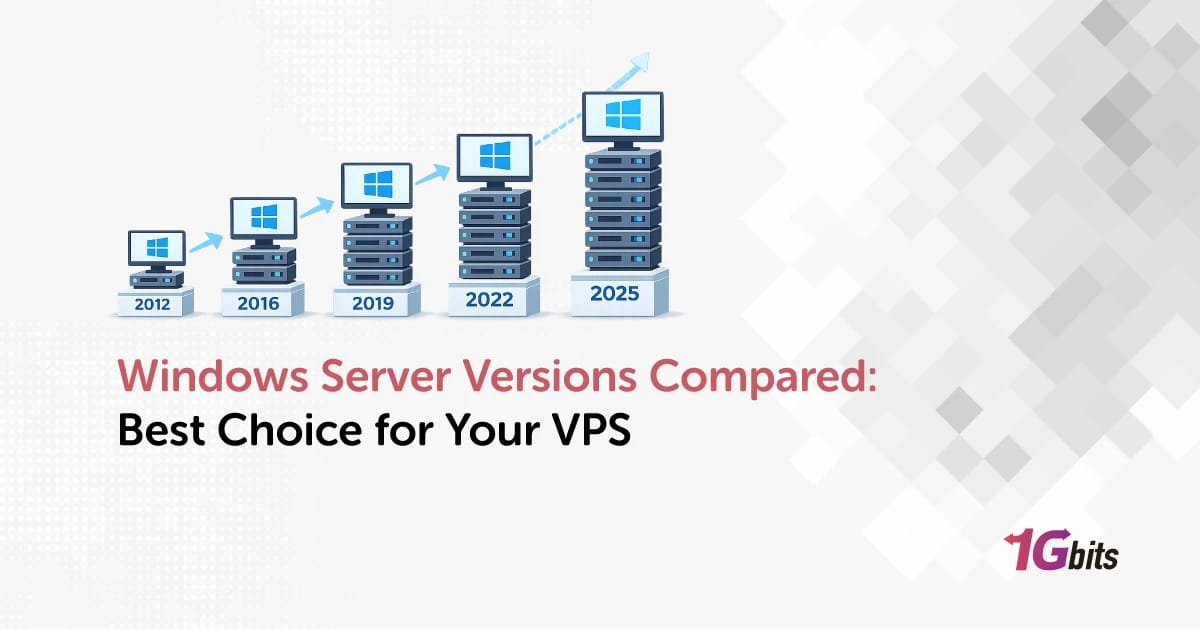
Windows Server versions at a glance for VPS users
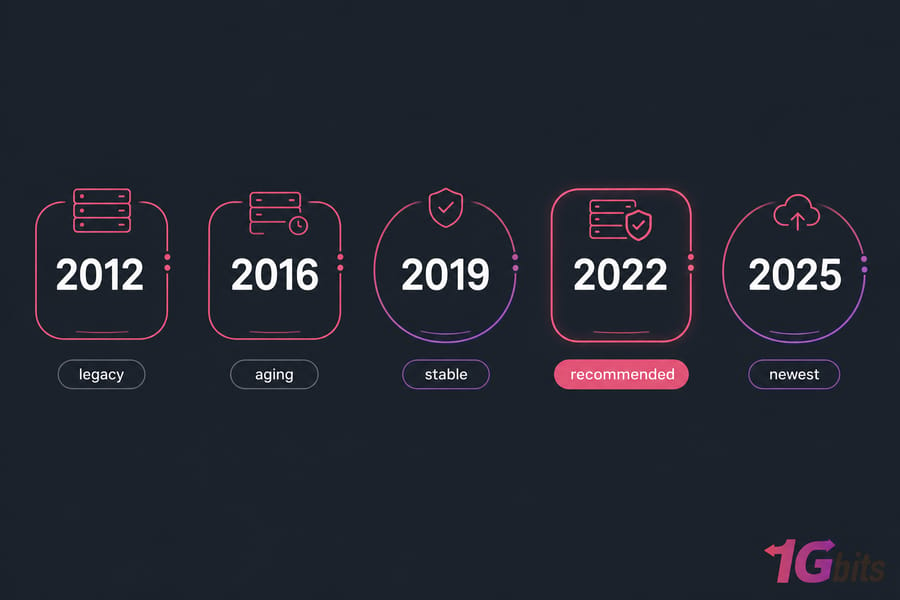
Here's the short version, before we get into the weeds: if you're spinning up a Windows VPS today and you don't have a specific reason to do otherwise, pick Windows Server 2022. It's the safest default modern security baseline, broad app compatibility, and years of support runway. Choose 2019 if your software stack is older and certified against it. Look at 2025 for greenfield deployments where you want the newest platform and your provider has it available. Treat 2012 and 2016 as legacy-only fine if a vendor app demands them, risky for anything new.
That's the answer. The rest of this article is the reasoning, the trade-offs, and the edge cases because picking a Windows Server version on a VPS is one of those decisions that's easy to get wrong, and a pain to undo.
What counts as a Windows Server "version" vs an edition
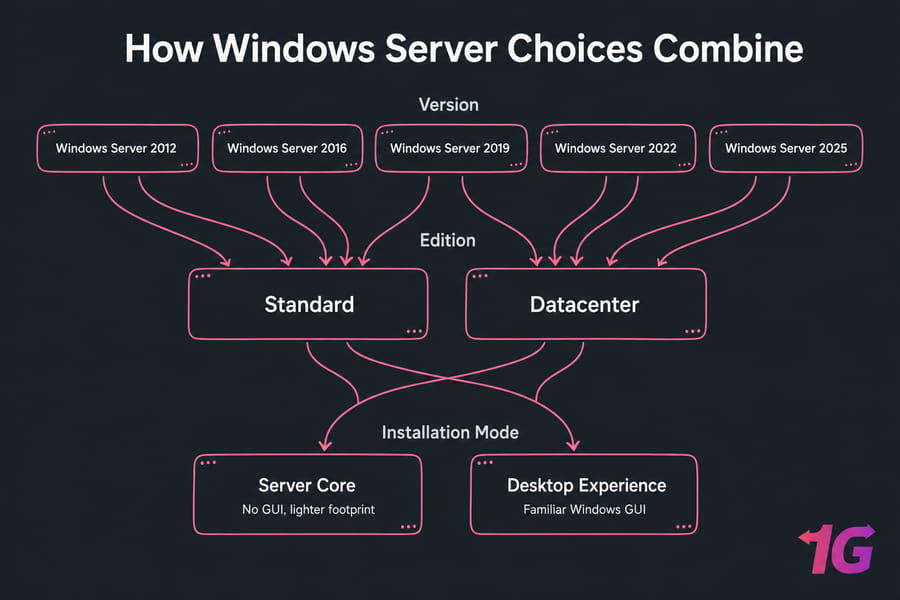
People mix these two up constantly, and it causes real confusion when buying a VPS. A version is the release year Windows Server 2012, 2016, 2019, 2022, 2025. Each version is a generation of the platform, with its own kernel, security baseline, and support timeline.
An edition is the SKU within a version: Standard, Datacenter, and (in older releases) Essentials. Editions mostly differ in licensing limits, virtualization rights, and a handful of advanced features. On a VPS, your provider usually licenses the edition for you, so most readers can stop worrying about Standard vs Datacenter and focus on which version year to pick.
One more layer: each version comes in Server Core (no GUI, lighter footprint, harder to manage by hand) or Desktop Experience (the familiar Windows GUI). I'll come back to that — it actually matters for sizing.
Why VPS users should care about version choice
On a dedicated tin server in a back office, you can shrug off an outdated OS for a while. On a VPS internet-facing, often holding business data, frequently exposed via RDP you can't. Version choice drives four things that hit you fast:
- Security patches. Out-of-support versions stop receiving fixes, and attackers know it.
- Compatibility. Some apps demand a specific Windows Server release; others refuse to install on anything older.
- Resource overhead. Newer releases lean a bit heavier on RAM, especially with Desktop Experience.
- Upgrade headaches later. Pick wrong and you're rebuilding, not upgrading.
Windows Server 2012 vs 2016 vs 2019 vs 2022 vs 2025 comparison table
Here's the executive summary in one table. Skim this, then dig into whichever rows you actually care about.
| Version | Release Era | Support Status | Security Baseline | App Compatibility | VPS Resource Efficiency | Best For | Recommendation |
| Windows Server 2012 / R2 | 2012–2013 | Out of mainstream support; ESU paid program only | Weak by modern standards | Excellent for very old apps | Light footprint | Legacy apps that won't run elsewhere | Avoid for new deployments |
| Windows Server 2016 | 2016 | Aging; extended support window closing | Mid-tier | Strong for older stacks | Moderate | Workloads still pinned to 2016 | Acceptable, but plan an upgrade |
| Windows Server 2019 | 2018 | In extended support | Solid | Very broad — sweet spot for older + modern apps | Moderate | Apps certified against 2019 | Good compatibility default |
| Windows Server 2022 | 2021 | Fully supported, long runway | Strong (secured-core, TLS 1.3, SMB over QUIC) | Broad — most modern software targets it | Moderate | Most VPS deployments | Best default |
| Windows Server 2025 | 2024 | Newest; longest future support | Strongest baseline yet | Modern apps; verify legacy | Slightly heavier | Greenfield, modern workloads | Choose if available and tested |
Quick winner by category
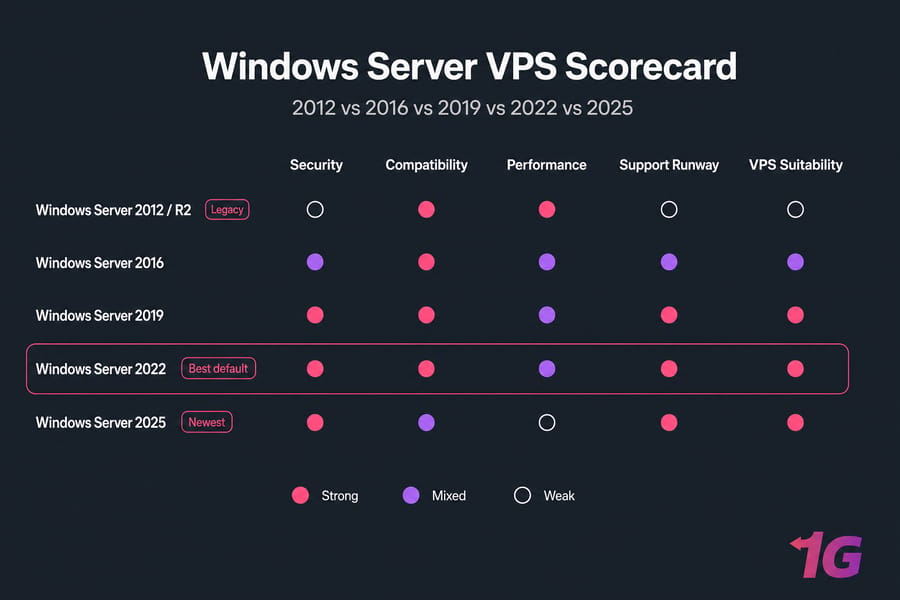
- Best overall default for VPS: Windows Server 2022
- Best for older application compatibility: Windows Server 2019
- Best newest platform for greenfield: Windows Server 2025
- Best legacy escape hatch: Windows Server 2016 (then plan to migrate)
- Worst pick for new deployments: Windows Server 2012
Summary of the biggest differences
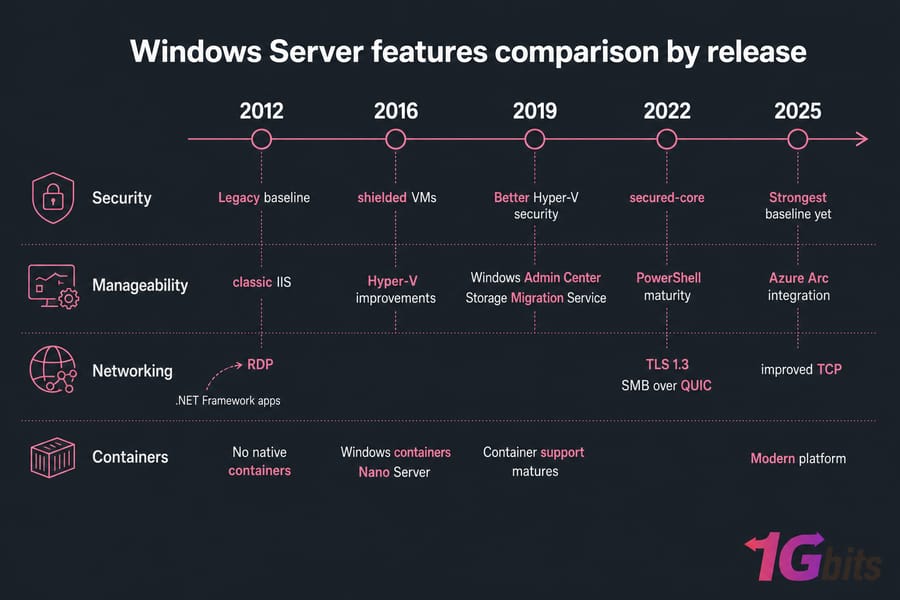
Going from 2012 to 2025, three things tighten up release after release: security defaults, manageability (Windows Admin Center, PowerShell maturity, Azure Arc integration), and networking modernization (SMB over QUIC, TLS 1.3, improved TCP). The trade-off and there's always one is that newer versions assume a bit more RAM and a bit more horsepower to feel snappy. Worth it for almost everyone. Not always free.
For sizing specifics, our piece on Windows Server minimum requirements goes deeper than I'll go here.
Windows Server features comparison by release
If you want the reasoning behind those rankings, here's what each version brings focused on what actually matters when you're running a VPS, not enterprise datacenter fluff.
What Windows Server 2012 still does well
2012 (and the more common 2012 R2) was a stable, well-understood release. It runs old .NET Framework apps, classic IIS sites, and ancient business software without complaining. The footprint is light, RDP works fine, and most sysadmins know it cold.
That's the upside. The downside is that mainstream support is long gone, and even Extended Security Updates only buy you time at a cost. Internet-facing 2012 boxes today are getting hammered by automated scanners. Unless a vendor app forces your hand, don't deploy this fresh in 2025.
What changed in Windows Server 2016
2016 was the "container era" release. It introduced Windows containers, Hyper-V improvements, Nano Server (later deprecated), and shielded VMs. For most VPS readers, the real value of 2016 was a more modern security model than 2012 and improved Hyper-V. But here's the thing 2016 is now aging too. Patches keep flowing for a while longer, but you're staring down end-of-support inside a couple of years.
If you inherited a 2016 VPS and it's running fine, no need to panic. Just put a migration plan in your calendar.
Why Windows Server 2019 remains popular
2019 hit a sweet spot. Windows Admin Center matured. Storage Migration Service arrived. Hyper-V got better. Container support became genuinely useful. And crucially for buyers a huge amount of commercial software is explicitly certified against Server 2019.
I still see 2019 picked for VPS deployments specifically because some accounting package, ERP, or trading platform vendor lists it as the "supported" version and won't budge. That's a perfectly valid reason. Compatibility wins arguments in the real world.
Why Windows Server 2022 is the safest default
2022 is the version I recommend for most new VPS deployments, and it's not a close call. The security baseline jumped meaningfully secured-core server features, TLS 1.3 by default, SMB over QUIC for encrypted file access without a VPN, virtualization-based security (VBS) on by default in supported configurations.
App compatibility is broad. Most modern stacks recent .NET, current SQL Server versions, IIS 10 with HTTP/3 target 2022. Long support runway means you won't be migrating again next year. And resource overhead is only marginally higher than 2019.
If you're not sure, this is your version. Period.
What Windows Server 2025 adds for modern deployments
2025 is the newest release. It pushes further on hotpatching, security hardening, Hyper-V improvements, GPU partitioning, and tighter Azure integration. For greenfield deployments — meaning fresh installs, modern apps, no legacy baggage it's a strong pick. You get the longest future support window.
The caveat: provider image availability still varies, and some third-party software hasn't been formally certified yet. If your hosting provider offers it as a clean install option and your application stack is modern, go for it. If not, 2022 is no shame at all.
For a deeper look at the lighter installation mode, see our breakdown of Windows Server Core and our Windows Server administration guide covers day-to-day management across versions.
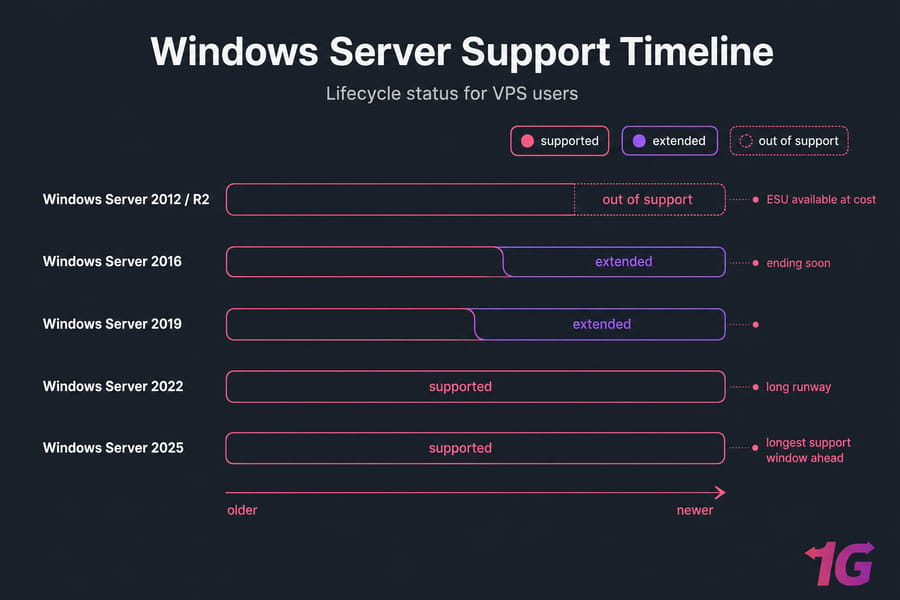
Windows Server support lifecycle and end-of-support status
Features matter. Support status matters more — especially on an internet-facing VPS that's getting probed every few seconds.
Why end of support matters on a VPS
When a Windows Server version reaches end of support, Microsoft stops shipping security updates. New vulnerabilities get discovered constantly; on supported versions, they get patched. On unsupported versions, they pile up forever. Your VPS becomes a target with a flashing neon sign.
It's not just hackers. Compliance frameworks (PCI-DSS, HIPAA, SOC 2) explicitly require supported, patched operating systems. Run an unsupported OS, fail your audit, lose your processor. That simple.
Which versions are risky to deploy today
| Version | Support Status | Deployment Recommendation |
| Windows Server 2012 / R2 | Out of mainstream and extended support; ESU available at cost | Avoid new deployments. Migrate existing. |
| Windows Server 2016 | Extended support only; ending in the near term | Acceptable short-term; plan migration now. |
| Windows Server 2019 | Extended support active | Safe to deploy when compatibility demands it. |
| Windows Server 2022 | Mainstream support active; long runway | Recommended for most. |
| Windows Server 2025 | Newest; longest support window ahead | Recommended for modern, greenfield deployments. |
Always double-check the exact dates on Microsoft's official lifecycle page before making a long-term commitment those dates do shift occasionally.
How lifecycle affects security and compliance
Beyond patches, lifecycle status affects which security features even exist on your box. TLS 1.3, SMB over QUIC, modern Defender capabilities, secured-core hardening — these are version-gated. An older OS isn't just less patched; it's structurally weaker. If you're stuck on something older, our Windows Server upgrade paths guide and the Windows server security tips piece are worth a read.
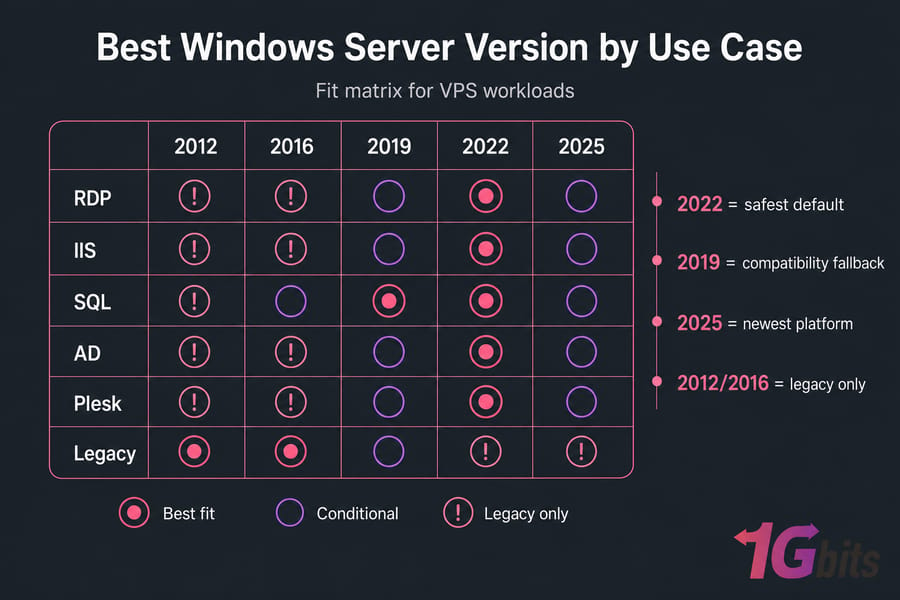
Best Windows Server for VPS by use case
Different workloads, different answers. Here's how I'd map the common VPS scenarios.
| Use Case | Best Version | Alternative | Why |
| RDP / remote desktop | Windows Server 2022 | 2019 if specific tools require it | Stronger RDP security, modern TLS, broad client compatibility |
| IIS / web hosting | Windows Server 2022 | 2019 for older .NET Framework apps | HTTP/3, modern TLS, IIS 10 improvements |
| SQL Server workloads | Match SQL version's certified OS (often 2022) | 2019 for older SQL versions | Vendor certification drives this |
| Active Directory / business apps | Windows Server 2022 | 2019 for app vendor compatibility | Modern Kerberos, security defaults |
| Plesk / control-panel hosting | Windows Server 2022 | 2019 if Plesk version dictates | Better long-term supportability |
| Legacy applications | Whatever the vendor certifies | Isolate behind firewall | Compatibility is the only thing that matters here |
Best Windows Server version for RDP and remote desktop
If you're buying a Windows VPS specifically to RDP in and run software trading platforms, remote office tools, automation bots go with 2022. Modern RDP clients connect cleanly, TLS 1.3 is supported end-to-end, and the security defaults are stricter (a good thing on a public VPS). Pick 2019 only if a specific RDP-related tool or remote desktop services configuration requires it.
Best Windows Server version for IIS and web hosting
For new IIS deployments, 2022 wins. IIS 10 with HTTP/3 support, TLS 1.3, and better default cipher hygiene make it the right modern web host. The exception: if you're hosting a classic ASP.NET Framework app from 2014 that hasn't been touched in years, 2019 may save you compatibility headaches. For Plesk users, our install Plesk on Windows Server guide walks through what matches what.
Best Windows Server version for SQL Server workloads
This one's vendor-driven. Each SQL Server release has a certified Windows Server compatibility matrix check Microsoft's docs for your exact SQL version. As a rule of thumb: SQL Server 2022 pairs naturally with Windows Server 2022. Older SQL versions (2017, 2019) often pair better with Windows Server 2019. Don't fight the vendor matrix you'll lose every time.
Best Windows Server version for Active Directory and business apps
AD on a VPS is common for small businesses and dev/test environments. 2022 is the default — modern Kerberos, better security defaults, and a long support runway. For deeper guidance, see our Windows Server Active Directory walkthrough.
Best Windows Server version for legacy applications
Here, compatibility is the only thing that matters. If your accounting software is certified against Server 2016 and the vendor refuses to test it on anything newer — you run 2016. Then you isolate it: tight firewall rules, restricted RDP access, regular backups, and a written migration plan with a real deadline.
Pro tip: If your software vendor's docs explicitly mention "Server 2019 supported," pick 2019. Compatibility wins over chasing the newest release. Always.
Windows Server 2019 vs 2022 vs 2025 for new VPS deployments
Most new buyers are really choosing between these three. Let's break it down.
| Factor | Windows Server 2019 | Windows Server 2022 | Windows Server 2025 |
| Support runway | Shortest of the three | Long | Longest |
| Security baseline | Solid | Strong (secured-core, TLS 1.3) | Strongest yet (hotpatching, hardened defaults) |
| App compatibility | Broadest for older software | Broad for modern + most older | Modern apps; verify legacy |
| Provider image availability | Universal | Universal | Growing, not yet universal |
| Best for | Compatibility-pinned workloads | Most VPS users | Greenfield, modern stacks |
When to choose 2019
Pick 2019 if your software vendor explicitly supports it and not newer versions, if you're consolidating older apps, or if you've been running 2019 in production and just need another VPS to match. It's mature, well-understood, and not going anywhere immediately. Just don't pick it for a fresh deployment "because it's familiar" when 2022 fits the same use case better.
When to choose 2022
Choose 2022 if you can't decide. Genuinely. It's the right answer for the majority of VPS scenarios — RDP, IIS, SQL, AD, app hosting, control panels, dev/test, you name it. Long support, strong security, broad compatibility. This is the version I'd put on my own VPS today.
When to choose 2025
Go with 2025 if you're starting clean (no legacy app baggage), your provider offers it as a stable image, and you want the longest possible support window before your next migration. Verify your specific application stack supports it — major vendors are catching up, but some take time. For greenfield, modern .NET 8+/.NET 9 deployments? Excellent choice.
Should you still use Windows Server 2012 or 2016 on a VPS
Short answer: probably not, but there are real exceptions.
Legitimate reasons to keep an older version
- Hard application dependency. A vendor product certified only on 2012 R2 or 2016, with no roadmap to update.
- Vendor lock-in. Custom internal software that would cost six figures to port and isn't worth it.
- Transitional environment. A staging VPS during a controlled migration off legacy infrastructure.
That's roughly the complete list. Everything else is nostalgia or budget excuses.
Red flags that mean you should upgrade
- You're past or approaching end of extended support.
- The VPS is internet-facing with RDP exposed.
- You handle payment, health, or other regulated data.
- Your software vendor has released a newer-certified version.
- You're seeing patch failures or compatibility errors with newer client tools.
Warning: Running an out-of-support Windows Server version on an internet-facing VPS isn't just a security risk — it's a compliance liability. Auditors don't accept "but it still works" as an answer.
Temporary mitigation if you cannot upgrade yet
Sometimes you're stuck. Here's how to reduce the blast radius while you plan a real migration:
- Lock down the firewall. Whitelist source IPs for RDP. Close everything else.
- Use a VPN or jump host. Don't expose RDP directly to the public internet. Ever.
- Take real backups. Test the restore. See our Windows Server backup guide.
- Patch what you can. Even out-of-support versions sometimes get critical out-of-band updates.
- Isolate the workload. Move the legacy app to its own VPS, segregated from anything modern.
- Set a migration deadline. Write it down. Tell your team. Stick to it.
Windows Server VPS sizing, licensing, and performance considerations
Version choice shapes how much VPS you need to buy. Here's the practical sizing logic.
Minimum resource planning by version
| Workload | Suggested Version | vCPU | RAM | Storage | Notes |
| Single-user RDP / remote tools | 2022 | 2 | 4 GB | 50 GB SSD | Comfortable for one user with light apps |
| RDP for small team (3–5 users) | 2022 | 4 | 8–16 GB | 100 GB SSD | Add RDS CALs as needed |
| IIS web hosting (small site) | 2022 | 2 | 4 GB | 50 GB SSD | Scale with traffic |
| SQL Server (small DB) | 2022 + matching SQL | 4 | 8–16 GB | 100 GB NVMe | NVMe matters more than CPU for small DBs |
| Active Directory (small domain) | 2022 | 2 | 4 GB | 50 GB SSD | Memory grows with object count |
| Legacy app on 2012/2016 | Vendor-required | 2 | 4 GB | 50 GB SSD | Lighter footprint, but isolate strictly |
GUI vs Server Core resource impact
Desktop Experience adds maybe 1–2 GB of RAM overhead and a few extra GB of disk versus Server Core. On a 2 GB VPS, that's a meaningful slice. On 8 GB or more, you won't notice.
Server Core is more secure (smaller attack surface) and lighter, but you manage it via PowerShell, Windows Admin Center, or remote tools no clicking around. If you're not comfortable in PowerShell, stick with Desktop Experience. The RAM tax is worth your sanity.
Standard vs Datacenter in hosted environments
For a single VPS, Standard edition is almost always what you get and almost always what you need. Datacenter's main perks — unlimited Windows VM licensing, Storage Spaces Direct, Software-Defined Networking — don't apply to a single hosted VPS. Most providers, including us, license the appropriate edition as part of the VPS, so you don't have to think about it.
How to choose the right Windows Server version step by step
Here's the framework I use when someone asks me which version to pick. Five questions, in order.
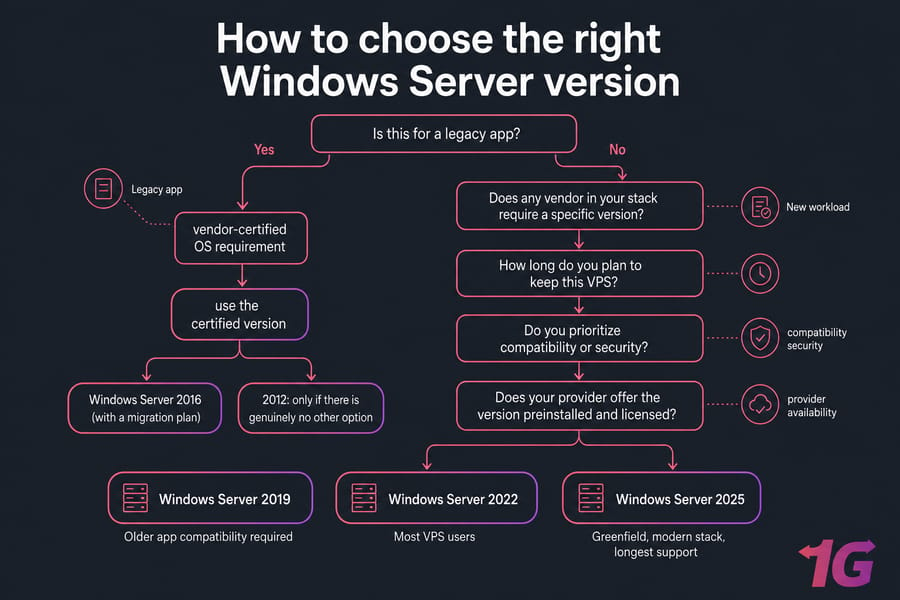
- Is the workload legacy or new? Legacy app with vendor-certified OS requirement → use the certified version. New workload → keep going.
- Does any vendor in your stack require a specific version? Check SQL, .NET, your control panel, your business app. If yes, that version wins.
- How long do you plan to keep this VPS? Six months? Any supported version is fine. Three to five years? Go newer for the support runway.
- Do you prioritize compatibility or security? Both matter. If forced to pick: compatibility for legacy stacks (2019), security for everything else (2022 or 2025).
- Does your provider offer the version preinstalled and licensed? If 2025 isn't available as a clean image yet on your provider, 2022 is the practical answer.
Recommended version by scenario
- Most VPS users: Windows Server 2022
- Older app compatibility required: Windows Server 2019
- Greenfield, modern stack, longest support: Windows Server 2025
- Vendor-pinned legacy app only: Windows Server 2016 (with a migration plan)
- 2012: only if there is genuinely no other option
Common Windows Server version mistakes on VPS
I've seen all of these. Multiple times. Don't be that person.
- Picking the newest version without checking compatibility. 2025 is great until your accounting software refuses to install. Verify the vendor matrix first.
- Staying on 2012 because "it still works." It works until it doesn't, and the day it doesn't tends to involve ransomware.
- Ignoring the support lifecycle. Picking 2016 today means planning a migration almost immediately. Factor that in.
- Under-sizing the VPS. 2 GB of RAM and Desktop Experience plus SQL Server is a recipe for misery.
- No upgrade or migration plan. Every Windows Server you deploy will need to be replaced eventually. Plan it in.
- Confusing version with edition. "Should I get Standard or 2022?" isn't a question those are different axes. Pick a version year first, then worry about edition (usually Standard).
- Skipping post-install hardening. A fresh Windows Server VPS isn't secure by default in every dimension. Check our Windows Server installation and security guides.
Need a Windows VPS? Start with the right version and resources
Here's the bottom line. For most VPS deployments, Windows Server 2022 is the safest, most practical starting point. It's modern enough to be secure, stable enough to run almost any current Windows software, and supported long enough that you won't be migrating again next year. If your stack demands older compatibility, go with 2019. If you're starting fresh on modern apps and want the longest runway, look at 2025.
When to choose a Windows VPS
A Windows VPS is the right call for RDP environments, small-to-medium IIS web hosting, light SQL Server workloads, small Active Directory deployments, control-panel hosting (Plesk), and most custom Windows applications. You get full administrator access, predictable resources, and flexibility on version choice.
When to step up to a Windows dedicated server
Move to a Windows dedicated server when you're running heavier SQL Server workloads, larger Active Directory deployments, high-concurrency applications, or when you need stronger isolation for compliance reasons. Same version-selection logic applies 2022 for most, 2019 for compatibility, 2025 for greenfield modern stacks.

Leave A Comment