
So you want to play Sons of the Forest with friends whenever you feel like it not just when the host happens to be online. That's exactly what a dedicated server gives you: a machine that runs your game 24/7, no matter who's logged in. Not sure what that means? Here's a quick explainer on what a dedicated server is and why it beats hosting from your own PC.
This setup guide walks through the whole thing: picking hardware, installing the server files with SteamCMD, editing the config, opening the right ports, launching, and getting your friends connected. No fluff, no gameplay lore just the operational stuff that actually gets your server online and joinable.
I've set up more game servers than I can count, and the pattern's always the same. People rush the install, skip the networking bit, then spend three hours wondering why nobody can see the server. We'll avoid that.
Quick Answer: How to Set Up a Sons of the Forest Dedicated Server
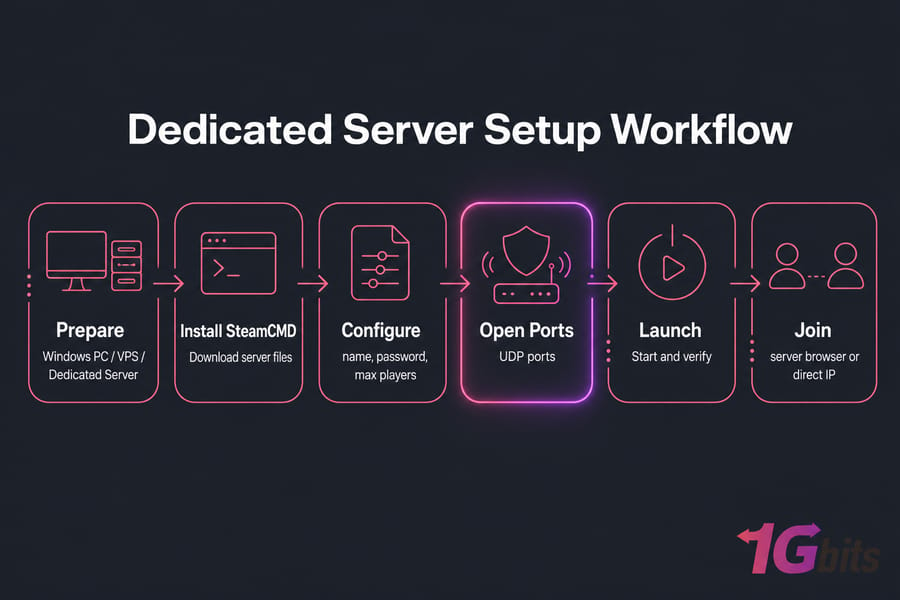
To set up a Sons of the Forest dedicated server, install the dedicated server files with SteamCMD, edit the server configuration file, open the required game and query ports in your firewall and router, launch the server, then connect using the in-game server browser or a direct IP. A Windows-based host is usually the simplest route for beginners.
- Prepare a Windows PC, VPS, or dedicated server with admin access
- Install SteamCMD
- Download the Sons of the Forest dedicated server files
- Edit the config (name, password, max players)
- Open the UDP ports in firewall and router
- Launch and verify, then join
Prerequisites Before You Start
- A PC, VPS, or dedicated server with admin (or root) access
- A stable internet connection and a public IP address
- SteamCMD installed
- Basic comfort with the Windows terminal or remote desktop
- Access to your firewall and router to open ports
- A text editor (Notepad works, Notepad++ is nicer)
- A 64-bit operating system
- Enough CPU/RAM for your planned player count
What Is a Sons of the Forest Dedicated Server?
A Sons of the Forest dedicated server is a standalone process that hosts your multiplayer world independently of any player's game client. Instead of one person hosting the session from their own game (peer-hosted), the world runs on a machine that stays up whether or not anyone's actively playing.
That's the whole point. Persistence.
How a Dedicated Server Differs From a Peer-Hosted Session
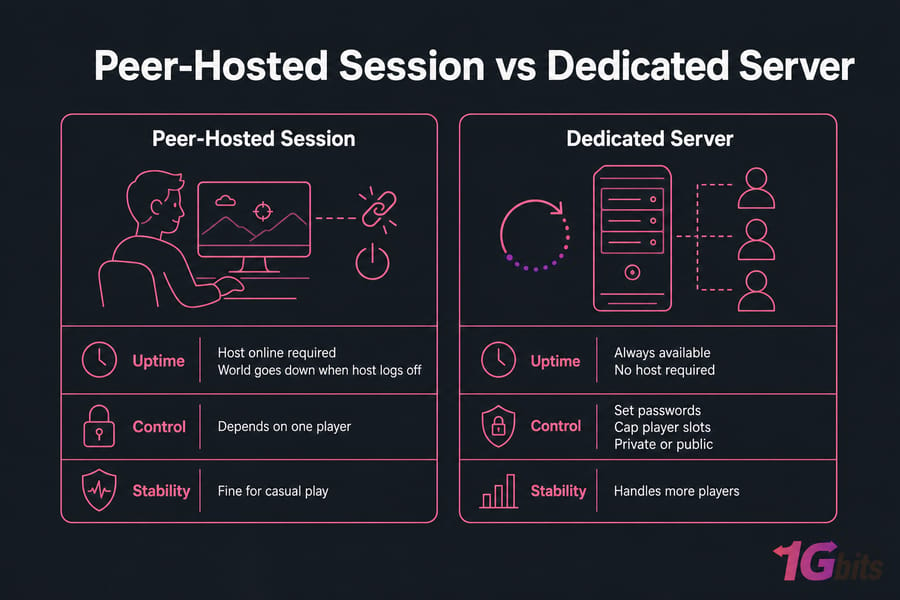
In a peer-hosted session, one friend acts as host. When they log off, the world goes down and everyone's disconnected. A dedicated server runs on a host machine that keeps the world alive around the clock, so your friends can drop in on their own schedule.
The trade-off? You take on more setup and admin responsibility. But you get real control in return.
When a Dedicated Server Makes Sense for Your Group
- Persistent uptime — the world is always available, no host required
- Access control — set passwords, cap player slots, keep it private or public
- Better stability — a machine dedicated to hosting handles more players without the host's rig chugging
If it's just you and one friend playing casually, peer hosting is fine. Once you've got a regular group or a small community, a dedicated server pays for itself in headaches avoided. If you'd rather skip the hardware headaches entirely, a managed Sons of the Forest dedicated server hosting plan handles the infrastructure for you.
In short: a dedicated server trades a bit of setup work for always-on multiplayer your group controls. Before installing, size your hardware to match your player count.
Sons of the Forest Server Requirements and Recommended Specs
Getting the specs right is where most laggy servers go wrong. People grab the cheapest plan they can find, cram eight players onto it, then wonder why the world stutters. Sons of the Forest is a demanding game, and its dedicated server needs decent single-thread CPU performance plus a healthy chunk of RAM.
Minimum Specs for Small Private Servers
For a 2–4 player world, you can get away with a modest setup: 2 modern CPU cores, 8 GB RAM, and fast storage. It won't win awards, but it'll run stable for a friend group.
Recommended Specs for Smoother Multiplayer Performance
Once you're past four players, single-core clock speed starts to matter more than raw core count. Sons of the Forest leans hard on a few threads. Give it headroom on RAM too — the world state balloons as you build.
| Player Count | CPU | RAM | Storage | Best Hosting Type |
| 2–4 | 2 cores, high clock | 8 GB | 20 GB NVMe SSD | Local PC or small VPS |
| 5–8 | 4 cores, high clock | 12–16 GB | 30 GB NVMe SSD | VPS or dedicated |
| 8+ | 4–6 cores, high clock | 16 GB+ | 40 GB+ NVMe SSD | Dedicated server |
These are practical starting points, not carved-in-stone official numbers. Endnight tweaks server behavior across patches, so check the latest official server documentation to confirm current values before you commit to a plan.
Bandwidth, Storage, and Location Considerations
NVMe storage matters more than people think — save writes and world loading are disk-bound, and a slow SATA drive shows it. For bandwidth, each player is fairly light, but stable upload is non-negotiable if you're hosting at home.
Pro Tip: Choose a server location near most of your players. Cutting latency by picking the right region usually helps more than throwing extra CPU at the problem. For a deeper dive, see our guide on low latency game VPS hosting.
Bottom line: size CPU for clock speed, RAM for headroom, and pick storage and location for responsiveness. Now, where should this thing actually live?
Sons of the Forest Server Hosting Options: PC vs VPS vs Dedicated Server
You've got three realistic places to run your server. Each one fits a different situation, and honestly, there's no single "right" answer — it depends on your group size, budget, and how much fiddling you enjoy.
When Self-Hosting on a Local Machine Is Enough
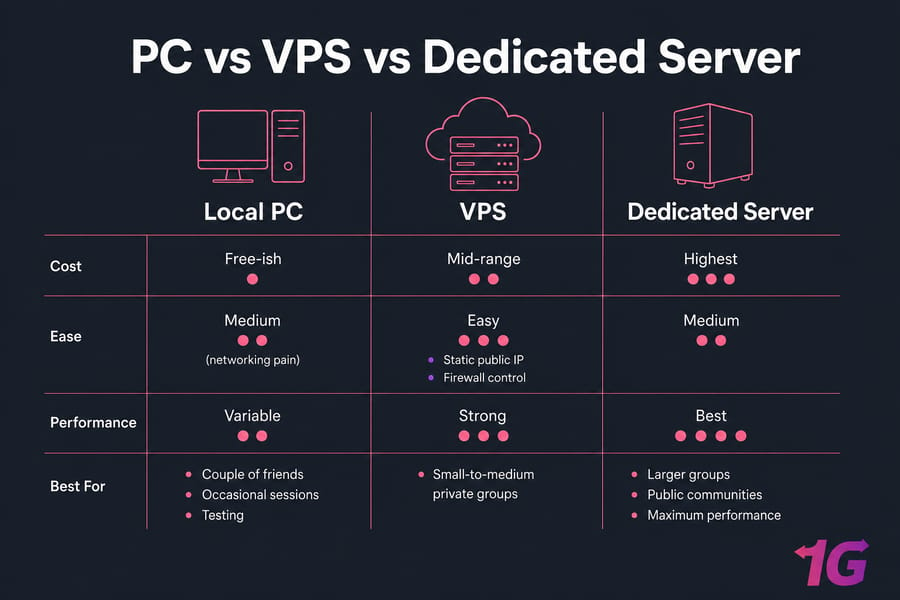
Running the server on your own PC is the cheapest option — free, basically, if the machine's already there. But home hosting brings problems: your PC has to stay on, your upload bandwidth competes with the game and everything else, and many home connections sit behind CGNAT or dynamic IPs that make external connections a nightmare.
Good for: a couple of friends, occasional sessions, testing before you commit.
When a VPS Works Well
A VPS gives you root access, a static public IP, and uptime that doesn't depend on your electricity bill. For most small-to-medium private groups, a properly sized game VPS hosting instance is the sweet spot between cost and reliability.
You skip the CGNAT and port-forwarding drama entirely, since you control the firewall directly.
When to Choose a Dedicated Game Server
For larger groups, public communities, or anyone who wants maximum performance and hardware isolation, a game dedicated server is the strongest choice. No noisy neighbors, full resource control, and the headroom to run a busy world without stutter.
| Option | Cost | Ease | Performance | Best For |
| Local PC | Free-ish | Medium (networking pain) | Depends on your rig | 2–3 friends, testing |
| VPS | Low–moderate | Easy | Good | Small–medium private groups |
| Dedicated Server | Higher | Moderate | Excellent | Large or public communities |
Key Takeaway: A VPS works for many private groups, but dedicated servers are safer for larger, persistent communities. If you're torn, our breakdown of VPS vs dedicated server lays out the trade-offs clearly.
Pick local for casual play, VPS for reliable private hosting, and dedicated for serious communities. Ready to deploy? Let's install.
How to Set Up a Sons of the Forest Dedicated Server with SteamCMD
This is the section that matters most. Follow the order exactly and you'll avoid the classic "it installed but won't launch" mess. I'm writing these steps for Windows, since that's the most beginner-friendly path more on Linux later.
Step 1: Prepare the Server Environment
Log into your server (locally, or via remote desktop if it's a VPS or dedicated box — see our guide on how to connect to a VPS). Then:
- Make sure Windows is fully updated
- Create a clean folder, for example
C:\SonsServer - Create a separate folder for SteamCMD, like
C:\SteamCMD
Keeping SteamCMD and the game files in separate, clearly named folders saves you confusion down the line.
Step 2: Install SteamCMD
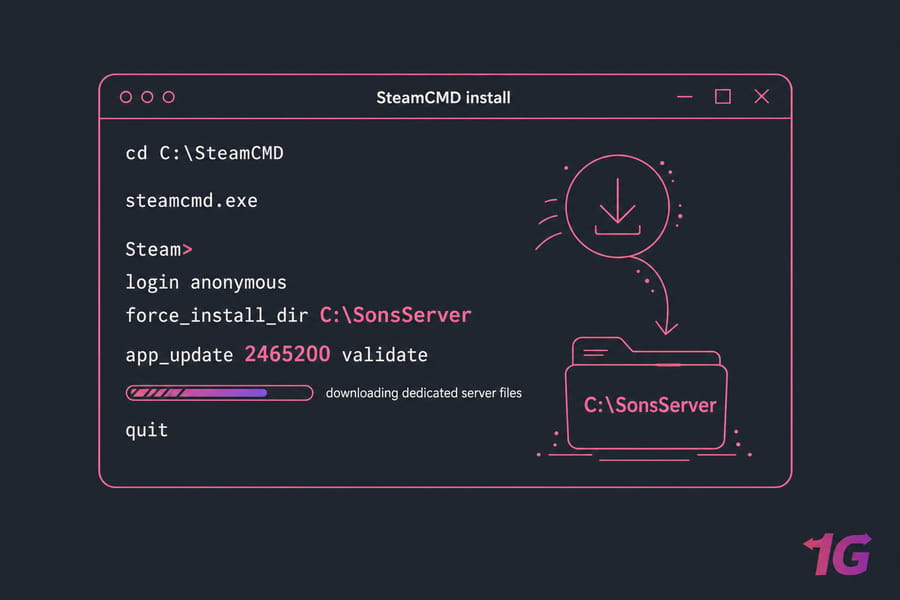
Download SteamCMD from Valve's official page, extract steamcmd.exe into your C:\SteamCMD folder, then run it once from a command prompt:
cd C:\SteamCMD
steamcmd.exe
The first run auto-updates SteamCMD and drops you at a Steam> prompt. That confirms it's working.
Step 3: Download the Sons of the Forest Dedicated Server Files
From the SteamCMD prompt, log in anonymously and pull the server files into your install directory:
login anonymous
force_install_dir C:\SonsServer
app_update 2465200 validate
quit
Here's what each line does: login anonymous signs in without an account, force_install_dir sets where files land, and app_update 2465200 validate downloads and verifies the Sons of the Forest dedicated server app.
Common Mistake: The Steam App ID can change or vary — always confirm the current dedicated server App ID against the latest official documentation before running app_update. Using the wrong ID pulls the wrong files (or nothing).
Step 4: Create a Launch Script
Rather than typing a long command every time, make a reusable batch file. In your C:\SonsServer folder, create start.bat with something like:
@echo off
cd /d C:\SonsServer
SonsOfTheForestDS.exe -batchmode -dedicated
pause
This changes to the server folder and launches the dedicated server executable in headless mode. The pause keeps the window open so you can read any errors instead of it vanishing.
Write down your exact file paths somewhere. When you troubleshoot later, knowing precisely where the executable, config, and saves live turns a 30-minute hunt into a 30-second check.
Install SteamCMD, pull the server files with the correct App ID, then build a launch script you can reuse. Next up: the config.
Sons of the Forest Dedicated Server Config File Explained
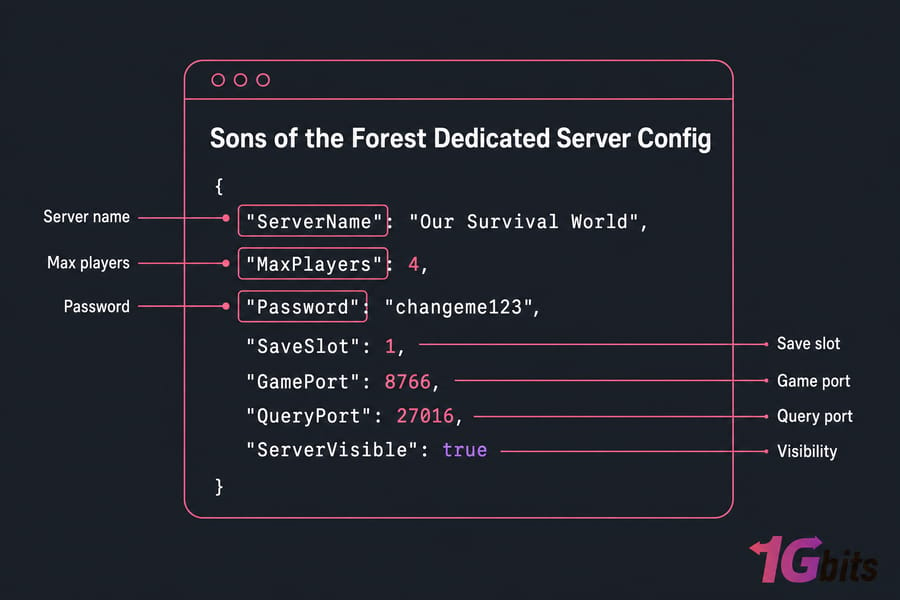
Once the files are down and you've launched the server once, it generates a configuration file — typically a JSON file inside a dedicated server config folder within your install directory. This is where you name the server, set a password, and control who can join.
Important Server Settings to Edit First
| Setting | What It Does |
| Server name | The name shown in the server browser |
| Password | Restricts joining to people who know it |
| Max players | Caps how many can connect at once |
| Save slot | Which world save the server loads |
| Game port / query port | Network ports for gameplay and discovery |
| Visibility | Whether the server is public or private |
Private vs Public Server Settings
Set a strong password and private visibility if this is just for friends. Leave it public (with or without a password) if you want strangers to find it in the browser. For a friend group, private + password is almost always what you want.
Example Configuration for a Small Friend Group
Here's an example config block. Treat the exact key names as illustrative — Sons of the Forest updates can rename or add fields:
{
  "ServerName": "Our Survival World",
  "MaxPlayers": 4,
  "Password": "changeme123",
  "SaveSlot": 1,
  "GamePort": 8766,
  "QueryPort": 27016,
  "ServerVisible": true
}
Each field maps to the settings above: name, player cap, join password, which save loads, the two network ports, and whether it appears in the browser. Confirm current config keys and default ports against the official server documentation — don't assume these are exact.
Common Mistake: Editing the config without backing up the original first. Copy the untouched file before you change anything. The same backup logic that applies to scheduled server backups applies here — one bad edit shouldn't cost you a working config.
Edit the name, password, player cap, and ports, and always keep a copy of the original config. Saved? Good — now let's make the server reachable from outside.
Sons of the Forest Server Ports, Firewall Rules, and Port Forwarding
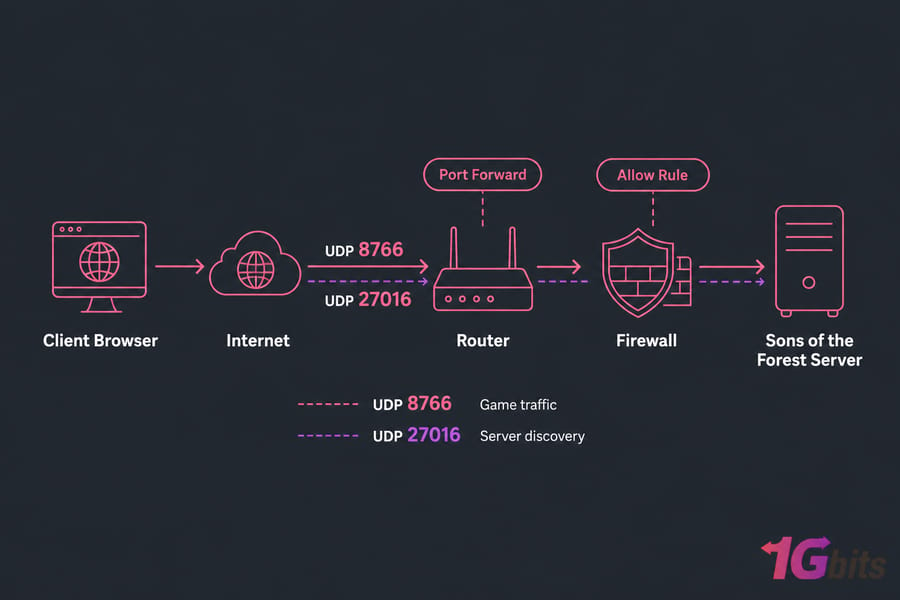
This is the step people skip, and it's the number-one reason a server never shows up. Two things need to happen: your firewall has to allow the traffic, and (if you're hosting at home) your router has to forward it.
Which Ports Need to Be Open
Sons of the Forest uses UDP ports for game traffic and server discovery. The game port carries actual gameplay data; the query port handles server-list discovery so your server appears in the browser.
| Port | Protocol | Purpose | Where to Open |
| 8766 | UDP | Game traffic | Firewall + router |
| 27016 | UDP | Query / server discovery | Firewall + router |
Warning: Opening the wrong protocol, or forwarding to the wrong local IP, is one of the top reasons a server never appears online. Match the ports to your config exactly, and use UDP — not TCP — unless the docs say otherwise. Verify the current required ports against the latest official documentation.
How to Allow the Server Through Windows Firewall
- Open Windows Defender Firewall with Advanced Security
- Create a new Inbound Rule
- Choose Port, select UDP, and enter your game and query ports
- Allow the connection and apply it to your active network profile
On a VPS or cloud server, you'll also need to allow those ports in the provider's security group or firewall panel. Our guide on how to configure a firewall on your VPS covers this in detail.
How to Port Forward on a Home Router
If the server lives on your home network, log into your router and forward the UDP ports to the server machine's local IP. Walkthroughs for the general process and router-specific steps live in our guides on how to do port forwarding and port forwarding on your router.
One big caveat: if your ISP uses CGNAT, you don't have a true public IP, and port forwarding simply won't work. That's a common reason home-hosted servers stay invisible — and a strong argument for a VPS or dedicated box.
Allow the UDP ports in your firewall, forward them on your router, and watch out for CGNAT. Time to launch.
How to Start and Join a Sons of the Forest Dedicated Server
With files installed, config set, and ports open, launching is the easy part. Let's confirm it's actually running and get your friends in.
How to Launch the Server Correctly
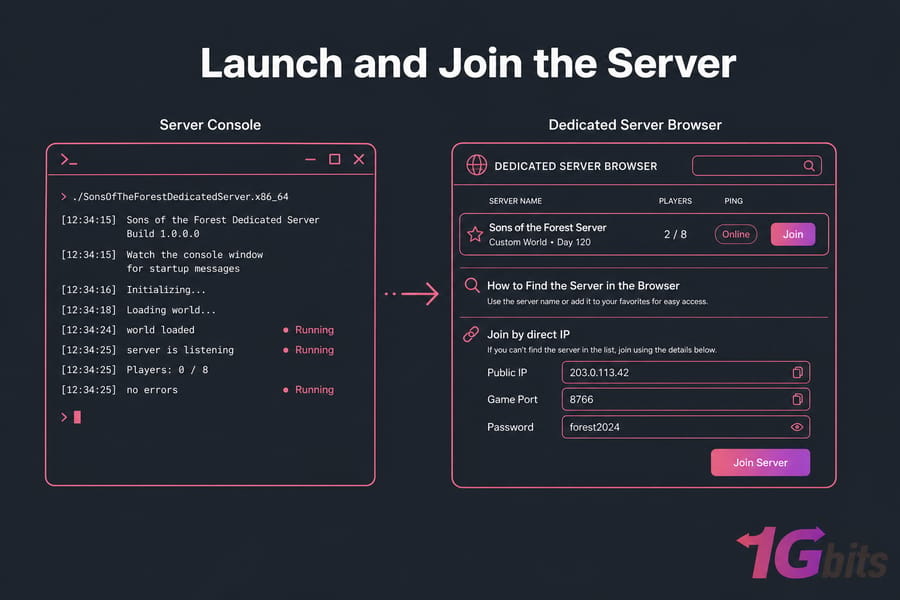
- Double-click your
start.batfile - Watch the console window for startup messages
- Look for lines confirming the world loaded and the server is listening on your ports
If the window flashes and closes instantly, that pause line in your batch file will hold it open so you can read the error. That's why it's there.
How to Find the Server in the Browser
In Sons of the Forest, open multiplayer and check the dedicated server browser. Your server should appear within a minute or two — server-list registration isn't always instant, so don't panic if it takes a moment.
How to Join by IP if the Server List Fails
If the browser doesn't show it, join by direct IP instead. Your friends need your server's public IP plus the game port, and the password if you set one. Not sure of your public IP? See what is an IP address for the basics.
First-connection test checklist:
- Server console shows it's running with no errors
- You can see it in the browser or reach it by IP
- A friend on a different network can connect (not just you on LAN)
- The password works as expected
Run the launch script, confirm the console looks healthy, then join via browser or direct IP. If something's off, the next section is your friend.
Sons of the Forest Dedicated Server Not Showing Up? Troubleshooting Fixes
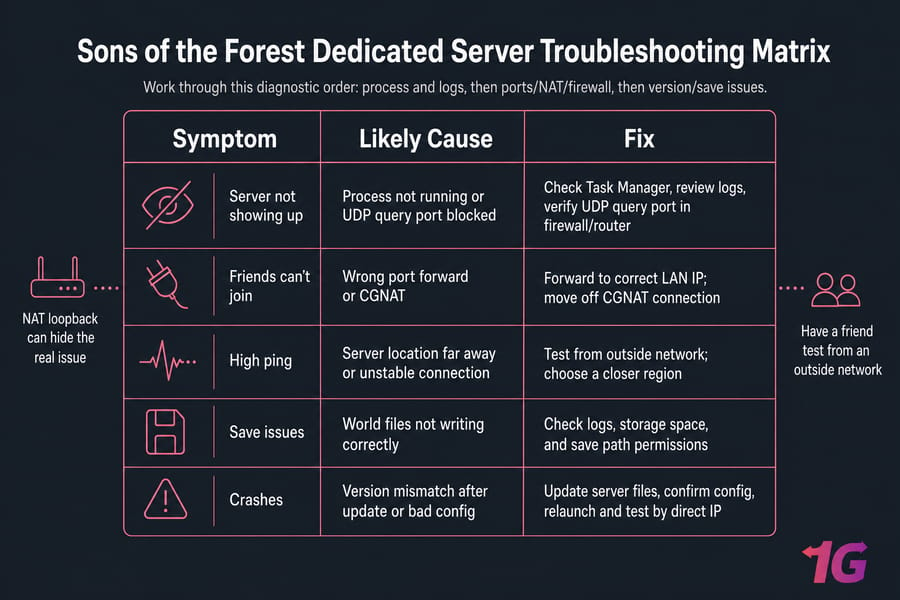
Server invisible? Players can't connect? Don't just restart it blindly. Work through this diagnostic order — it mirrors how I actually debug these in practice.
Check Process Status and Logs
First, is the server even running? Open Task Manager and confirm the server executable is active and not idling at 0% (a sign it crashed). Then read the console output or log files — they usually tell you exactly what failed. For deeper log reading, see our guide on checking open ports in Windows.
Verify Ports, NAT, and Firewall Issues
If the process is running but nobody can connect, it's almost always networking. Confirm the firewall rule matches your config's ports and protocol. Confirm the router forwards to the correct local IP. And remember NAT loopback — you often can't test your own public IP from inside your own network, so have a friend test from outside.
Fix Version Mismatch, Save, and Connection Problems
| Problem | Likely Cause | Fix |
| Server not showing up | Process not running or query port blocked | Check Task Manager, verify UDP query port in firewall/router |
| Friends can't join | Wrong port forward or CGNAT | Fix forwarding to correct LAN IP; move off CGNAT connection |
| You can join but friends can't | NAT loopback masking the real issue | Test from an outside network, not your own |
| Connection refused after update | Version mismatch | Re-run SteamCMD app_update to match client version |
| World won't save / resets | Save corruption or failed write | Restore from backup, check disk space and folder permissions |
| Lag and stutter | Insufficient CPU/RAM | Reduce player count or upgrade specs |
| Server crashes on launch | Bad config edit | Restore original config, re-edit one field at a time |
Quick Summary: If the server isn't visible, check in this order — process running, config values, ports, firewall, then game/server version. Nine times out of ten it's one of those.
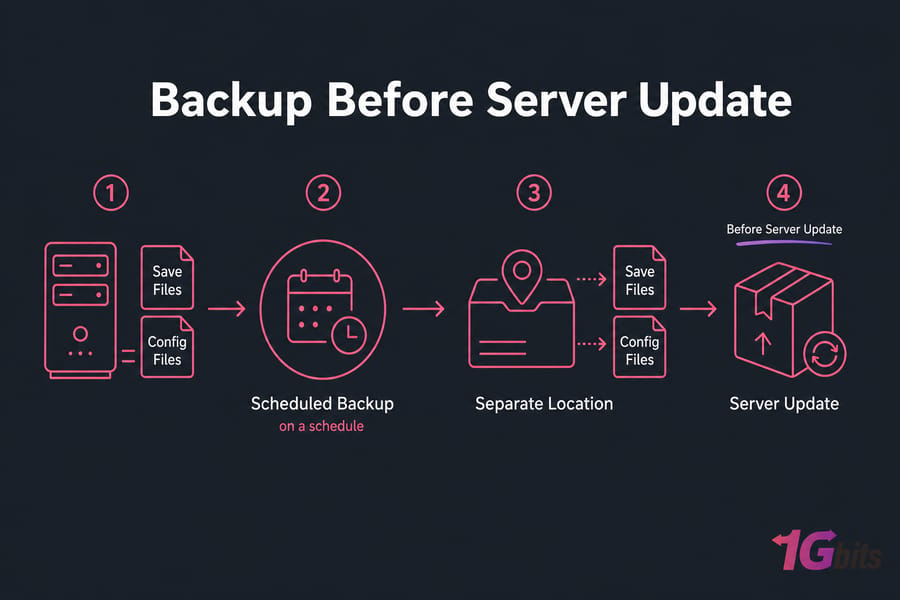
Version mismatch deserves a special mention. When the game updates, your server needs updating too, or clients get refused. Just re-run the app_update command through SteamCMD, back up your saves first, and restart cleanly.
Diagnose in order: process, then config, then network, then version — don't skip straight to reinstalling. Once it's stable, let's keep it that way.
Sons of the Forest Server Performance, Backup, and Security Tips
Getting the server online is one thing. Keeping it fast, safe, and not losing weeks of progress is another. A handful of habits go a long way here.
Reduce Lag and Improve Uptime
- Host in a data center near most of your players — latency beats raw power
- Keep the OS and server files updated
- Monitor CPU, RAM, and disk usage so you catch problems before players do
- Schedule reboots and updates during low-usage hours
Protect Saves and Automate Backups
Your world save is the most valuable thing on the server. Copy your save and config files on a schedule, and always back up before applying an update. Automating this removes the "I forgot" failure mode entirely — our automatic backup scheduling guide shows the principle even if you're on Windows.
Basic Security Hardening for Public-Facing Game Servers
- Use a strong admin and server password — not
changeme123 - Only expose the ports the server actually needs; close everything else
- Keep the system patched
- Consider DDoS-protected hosting if your server is public
A public game server is a target. Our guide on how to secure servers covers the fundamentals, and DDoS-protected VPS options are worth a look if you're running a busy community.
Host close to players, back up before every update, and lock down everything you're not using. If this maintenance list feels like a lot, hosted options exist.
Need a Faster Way to Host Your Sons of the Forest Server?
Skip the home-network limitations and launch on high-performance hardware with better uptime, root access, and lower-latency locations built for multiplayer survival gaming. No CGNAT headaches, no leaving your PC on all night.
Explore Sons of the Forest Hosting
Self-Hosting vs Sons of the Forest Server Hosting: Which Is Better?
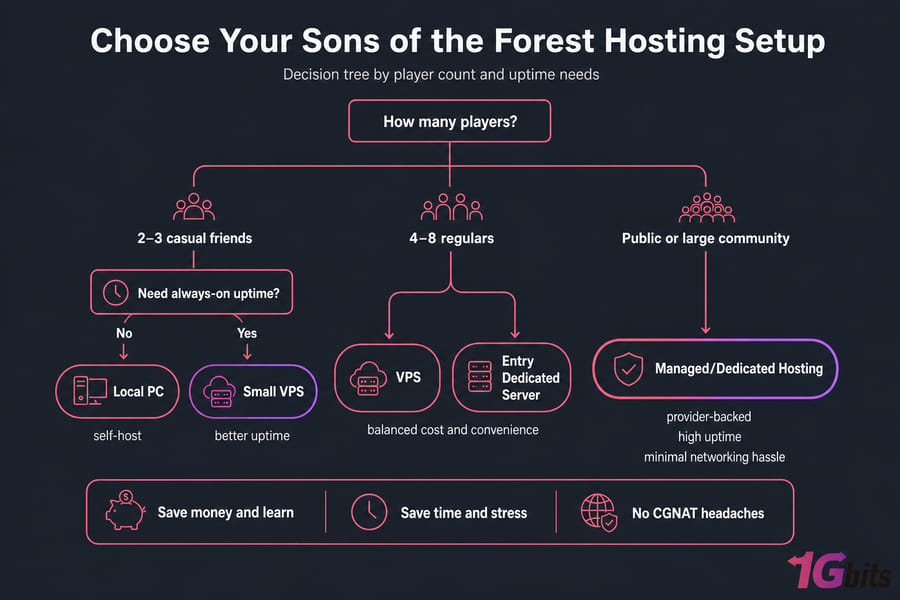
There's no universal winner here. It comes down to what you value — saving money and learning, or saving time and stress.
Cost vs Convenience
Self-hosting is cheaper upfront but costs you time, electricity, and the occasional weekend lost to networking gremlins. Rented hosting costs money monthly but hands you a working, reachable server with far less fuss.
Control vs Simplicity
| Self-Hosting | Rented Hosting | |
| Cost | Low (hardware you own) | Monthly fee |
| Uptime | Depends on your setup | High, provider-backed |
| Support | You're on your own | Provider support |
| Hardware control | Full | Full (dedicated) or shared (VPS) |
| Networking hassle | High (CGNAT, forwarding) | Minimal |
Best Option for Different Player Counts
- 2–3 casual friends: self-host or a small VPS
- 4–8 regulars: a VPS or entry dedicated server
- Public or large community: a dedicated server, ideally managed
If you'd rather not manage the OS yourself, a managed dedicated server handles updates and maintenance for you, while an unmanaged dedicated server gives full control at a lower cost. For hands-off gaming, game server management takes the whole thing off your plate.
Self-host to learn and save money; rent when uptime, support, and convenience matter more.
Final Sons of the Forest Dedicated Server Setup Checklist
Run through this before you invite anyone. If every box is checked, you're genuinely ready.
Pre-Launch Checklist
- SteamCMD installed and server files downloaded with the correct App ID
- Config reviewed — name, password, max players, save slot set
- Original config backed up
- UDP game and query ports opened in the firewall
- Ports forwarded on the router (home hosting) or allowed in the security group (VPS)
- Launch script created and tested
Post-Launch Validation Checklist
- Server console shows a clean launch with no errors
- Server visible in the browser or reachable by direct IP
- A friend on an outside network successfully joined
- Password behaves as expected
- Save files are writing correctly
- Backup routine is in place
- Update process (re-run
app_update) is documented
Stuck on any step? 1Gbits support can help you get unblocked.
Verify install, config, ports, launch, and a real outside join before you call it done.
Ready to Launch Your Sons of the Forest Dedicated Server?
Whether you want full control on a dedicated machine or a simpler hosted setup, 1Gbits offers game-ready infrastructure with strong performance, global server locations, and support when you need it. NVMe storage, reliable uptime, and low-latency regions mean your world stays fast and available.
View Sons of the Forest Hosting and Buy Dedicated Server or Talk to Support

Leave A Comment