
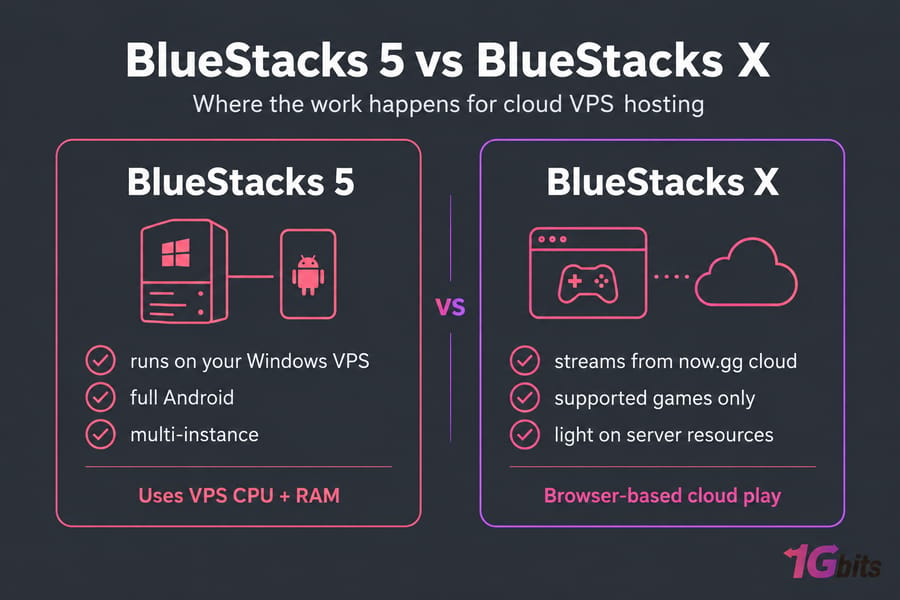
When you compare BlueStacks 5 vs BlueStacks X for cloud VPS hosting, the difference comes down to where the work happens. BlueStacks 5 runs Android on the Windows server you rent. BlueStacks X streams supported games from BlueStacks' own cloud.
BlueStacks 5 vs BlueStacks X: the quick VPS hosting answer
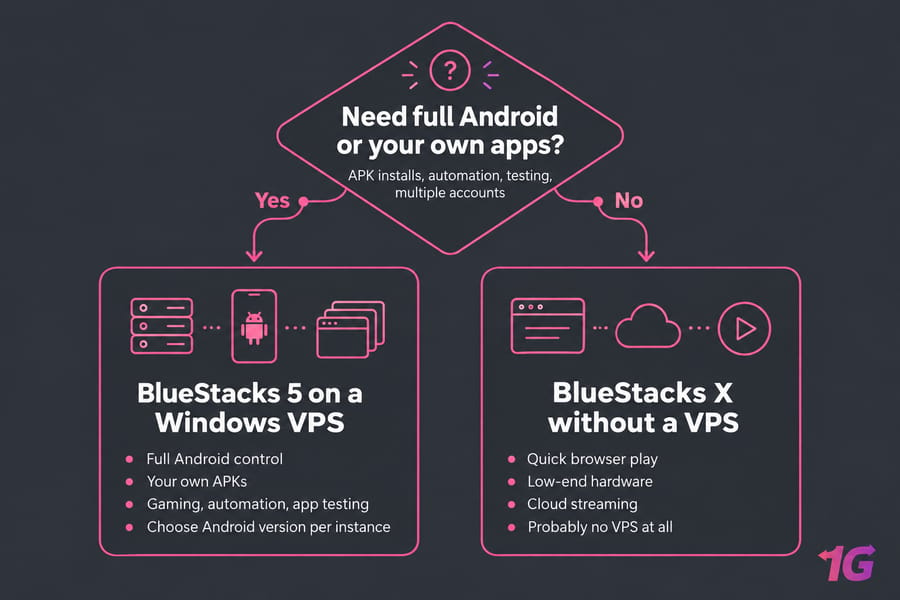
For most people running an Android emulator on a VPS, BlueStacks 5 is the right pick. It installs on your Windows VPS and handles long sessions, app installs and multiple instances. BlueStacks X makes sense only when you want browser-based cloud play with almost no server-side setup.
- Need full Android control, your own APKs, or several accounts at once: BlueStacks 5.
- Want to try supported games instantly in a browser: BlueStacks X.
- Already paying for a strong VPS: BlueStacks 5, because it puts that CPU and RAM to work.
If your only goal is browser-based cloud play, you may not need a powerful VPS at all. The usual budget mistakes are a pricey server sitting idle while X streams, or a tiny VPS choking on BlueStacks 5.
What BlueStacks 5 is and how it runs on a Windows VPS
BlueStacks 5 is the local App Player, built mainly for gaming. The official overview lists Android 11, Android Pie and Android 13 (beta), and BlueStacks now advertises Android 16 support as well. Its Multi-instance Manager lets you create separate instances to play several games together or use different accounts at the same time, each with its own Android version.
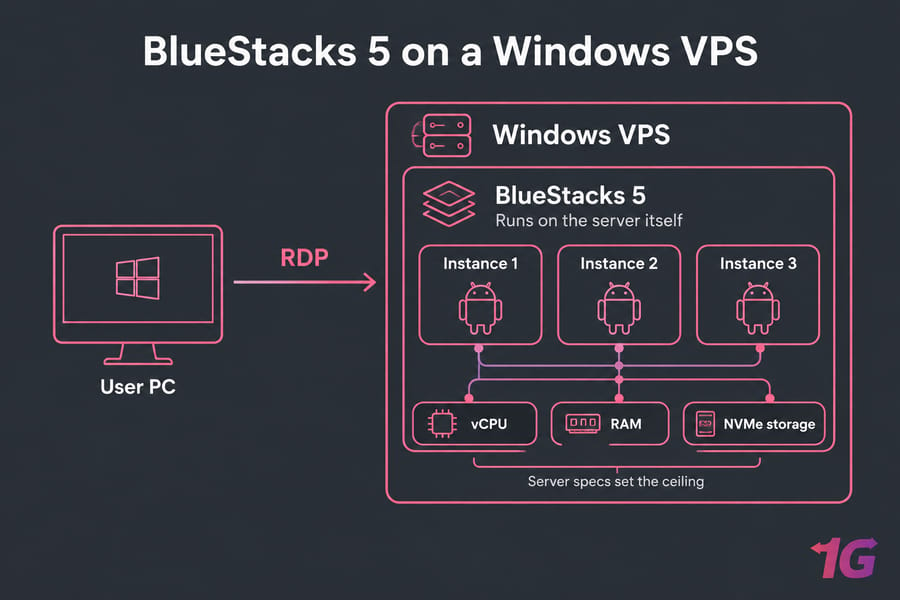
On a VPS, all of that runs on the server itself, so the server specs set your ceiling. BlueStacks lists these minimums for Hyper-V enabled Windows:
- Windows 10 (version 1903 or later) or Windows 11
- Intel or AMD processor
- 4 GB RAM and 5 GB free disk space
- Administrator rights and up-to-date graphics drivers
Since version 5.20, BlueStacks 5 runs with Hyper-V enabled or disabled. The bigger VPS catch is virtualization: a VPS is already a virtual machine, so the provider has to expose VT-x or AMD-V inside it (nested virtualization). If you're new to this, the guide on how to run an Android emulator on a VPS covers the setup, and the best Android emulators roundup covers alternatives like LDPlayer.
What BlueStacks X is and when cloud gaming is enough
BlueStacks X lets you pick Android, cloud and PC games, then play them either on the cloud or locally through the App Player. Cloud sessions run on now.gg infrastructure and, where available in your region, don't consume local resources. Some titles offer a "Play in browser" button with no download.
The catch is scope. You get the catalog BlueStacks supports in the cloud, and you can't sideload any app you like the way you can in a full Android environment. Quality depends on your network far more than on CPU or RAM, which is why X fits a VPS poorly: stream from now.gg and the server's compute mostly goes unused.
BlueStacks also ships BlueStacks Desktop, an Android 16 desktop for Windows. For VPS planning, ignore the naming and separate local execution from cloud streaming.
BlueStacks 5 vs BlueStacks X for cloud VPS hosting: side-by-side comparison
| Factor | BlueStacks 5 | BlueStacks X | Better for VPS |
| Where it runs | On your VPS | now.gg cloud, or local App Player | BlueStacks 5 |
| CPU and RAM demand | High, scales with instances | Low for cloud play | Depends on budget |
| Storage | 5 GB minimum, grows with games | Minimal for cloud titles | BlueStacks X |
| Main bottleneck | Server specs and RDP | Network and stream quality | Tie |
| App flexibility | Full Android, your own APKs | Supported catalog | BlueStacks 5 |
| Multi-instance | Yes, Multi-instance Manager | Not for cloud sessions | BlueStacks 5 |
| Setup | Install, check virtualization | Sign in and play | BlueStacks X |
| Best fit | Gaming, automation, app testing | Instant browser play | BlueStacks 5 |
BlueStacks 5 adds a second hop: the emulator renders on the VPS, then RDP carries the screen to you. An RDP VPS hosting plan close to your location keeps that hop short.
Best VPS specs for BlueStacks hosting by use case
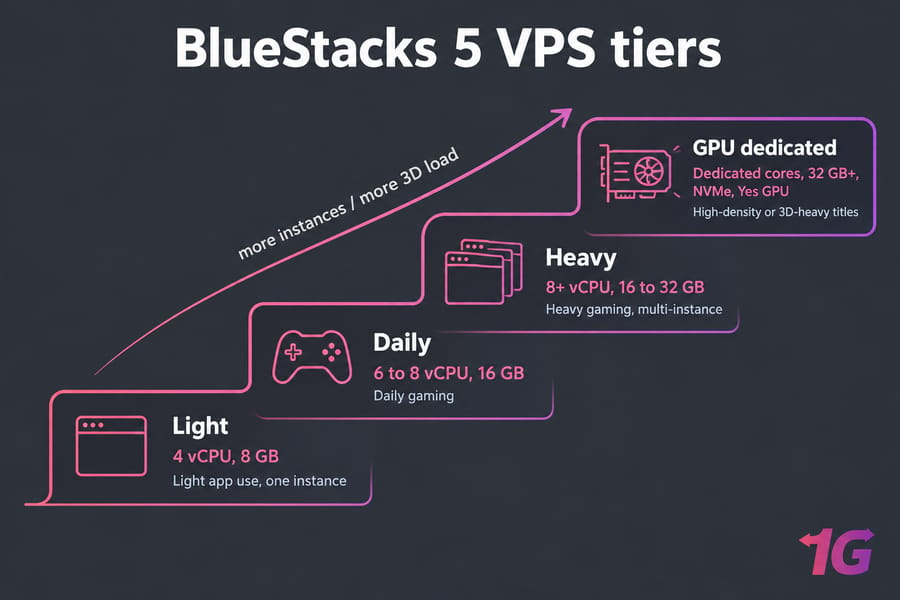
These are practical hosting recommendations for BlueStacks 5, not official minimums. The 4 GB floor gets the installer running, but it won't make games pleasant once Windows, RDP and the emulator share it.
| Use case | vCPU | RAM | Storage | GPU |
| Light app use, one instance | 4 | 8 GB | SSD or NVMe | Not needed |
| Daily gaming | 6 to 8 | 16 GB | NVMe | Not needed |
| Heavy gaming, multi-instance | 8+ | 16 to 32 GB | NVMe | Optional |
| High-density or 3D-heavy titles | Dedicated cores | 32 GB+ | NVMe | Yes |
Each extra instance adds its own memory load, so size for the number of instances you plan to run. For 3D-heavy games or many instances, a GPU dedicated server removes the shared-CPU and software-rendering limits of a typical VPS.
Which BlueStacks version to choose for gaming, automation or testing
- Gaming on a remote Windows VPS: BlueStacks 5. You control settings, key mapping and installs.
- Automation and always-on sessions: BlueStacks 5. Instances keep running on the server after you disconnect.
- Android app testing: BlueStacks 5, since you can install your own builds and pick an Android version per instance.
- Low-end hardware or quick browser play: BlueStacks X, and probably no VPS at all.
Common BlueStacks VPS setup mistakes to avoid
- Expecting BlueStacks X to behave like a full emulator. It won't run arbitrary apps or multi-instance workflows.
- Undersizing RAM and CPU. A 4 GB VPS may launch BlueStacks 5 and still stutter in gameplay.
- Ignoring RDP. A distant data center or a weak home connection makes a strong server feel slow.
- Skipping virtualization checks. Confirm the plan exposes VT-x or AMD-V, keep graphics drivers current, and check Hyper-V settings.
If BlueStacks still won't start, the BlueStacks troubleshooting guide covers virtualization, Hyper-V and driver fixes.
Best 1Gbits hosting options for BlueStacks on cloud VPS hosting
| Goal | 1Gbits service |
| Ready-made emulator server | BlueStacks VPS hosting |
| General emulator and Windows apps | Windows VPS |
| Android-focused workloads | Android VPS |
| Flexible scaling across locations | cloud VPS hosting |
| Many instances on unshared hardware | BlueStacks dedicated server |
Final verdict: BlueStacks 5 or BlueStacks X for VPS hosting
For hosted emulator work (gaming, automation, app testing, multiple accounts), choose BlueStacks 5 on a Windows VPS with at least 8 GB RAM and NVMe storage. Pick BlueStacks X only when quick browser-based cloud play is the whole goal, and skip the VPS in that case. If you've settled on BlueStacks 5, compare BlueStacks VPS plans and size up from the daily-gaming tier as your instance count grows.

Leave A Comment