

When working with Vim or Vi editors, one of the most essential skills is mastering find and replace. Whether you're editing configuration files on a server or working with code across multiple files, knowing how to find and replace in Vim and Vi can significantly improve your productivity. If you're newer to the terminal in general, our guide on the best UNIX commands with examples is a good warm-up before diving into modal editors.
In this guide, we'll show you exactly how to find and replace in Vim and Vi, including different scopes like a single line, the entire file, across multiple buffers, and even in a specific range or selection. We'll also walk you through replacing with confirmation, dealing with special characters, and using command-line options. Whether you're new to Vim or an experienced developer, this guide will help you master Vim's powerful substitution tools.
If you just need the command, here it is. Press Esc first to get into normal mode, then type one of these:
:s/old/new/g— replace every match on the current line:%s/old/new/g— replace every match in the entire file:%s/old/new/gc— replace in the whole file, confirming each change:10,25s/old/new/g— replace only between lines 10 and 25:'<,'>s/old/new/g— replace inside a visual selection
That's 90% of the job. The rest of this guide covers the parts that bite you later — regex, flags, whole words, multiple files, and how to undo a substitute that ate your config file.
🧩 Understanding Find and Replace in Vim and Vi
Before jumping into how to find and replace in Vim and Vi, let's clarify some basics. Both Vim and Vi are modal text editors available on Unix-based systems. Vi is the original editor, while Vim stands for "Vi Improved." Although Vim includes many enhancements, the core substitution (find and replace) syntax is the same.
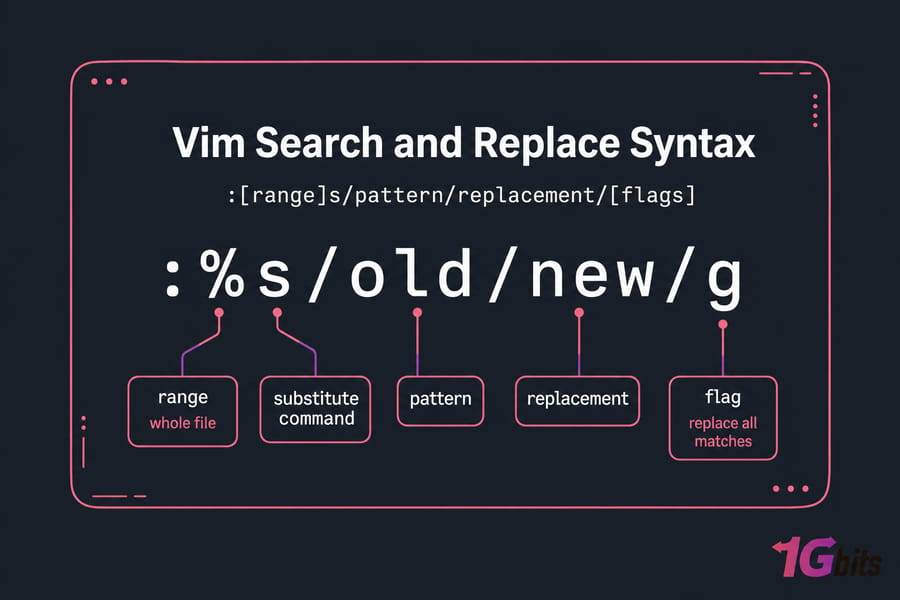
In both editors, the command to search and replace generally follows this pattern:
:[range]s/pattern/replacement/[flags]The range is optional and specifies where the substitution should occur (e.g., a line number, visual selection, or % for the whole file). The pattern is the text you want to find, replacement is the text you want to insert instead, and flags control how substitution works, such as g for all occurrences or c for confirmation.
📖 Vim Search and Replace Syntax Explained
Every substitute command follows the same shape. Here's what each part does:
| Part | What it does | Examples |
range |
Which lines get touched. Omit it and Vim only works on the current line. | % (whole file), . (current line), $ (last line), .,$ (here to end), '<,'> (visual selection), 5,20 |
s |
The substitute command itself. :substitute works too, but nobody types that. |
s |
pattern |
What to find. Plain text or a regex. | error, \<old\>, \d\+ |
replacement |
What to put in its place. Leave it empty to delete matches. | new, \1, nothing |
flags |
Modifies behaviour — global, confirm, case handling, counting. | g, c, i, I, n, e |
Here's the thing most beginners miss: without the g flag, Vim replaces only the first match on each line in the range. So :%s/old/new/ hits every line but just one match per line. Annoying to discover halfway through a refactor.
When to use alternate delimiters like #
The slash isn't sacred. Any punctuation character works as a delimiter, which saves you from escaping hell when the text contains slashes. Compare these two — both do the same thing:
:%s/\/var\/www\/old/\/var\/www\/new/g
:%s#/var/www/old#/var/www/new#g
I use # for paths and URLs every single time. The second version is readable; the first is a wall of backslashes.
🔤 How to Find and Replace a String in Vim
Vim provides powerful tools to search and replace strings, starting from simple line-based replacements. If you want to replace just the first occurrence of a particular string within the current line, you can use the following command:
:s/old/new/Here's what each part of the command means: : enters command mode, s stands for substitution, old is the text you want to search for, and new is the replacement text.
This command will search the current line for the first instance of the word "old" and replace it with "new". Only the first match per line will be replaced.
If your goal is to replace all occurrences of the string "old" on the current line, you can make the command global by appending the g flag:
:s/old/new/gThe g flag tells Vim to continue the substitution throughout the entire line rather than stopping after the first match. This is especially useful when the same word appears multiple times on one line.
How to Find and Replace Text Throughout the Entire File in Vim
When you need to replace a word or phrase across the entire file, Vim makes it easy with the :%s command. Here's the syntax:
:%s/old/new/gExplanation: % indicates that the substitution should happen across every line in the file, s still stands for substitution, old is the string you want to replace, new is the replacement, and g ensures all instances in each line are replaced (not just the first).
Example:
:%s/localhost/127.0.0.1/gThis command will search every line in the current file and replace all instances of "localhost" with "127.0.0.1". It's a very efficient way to make global changes without manually editing each line.
How to Search and Replace in Vim with Confirmation
Sometimes you want more control over your replacements—especially if you're not sure about changing every match. In such cases, Vim allows you to confirm each substitution individually by using the c (confirm) flag:
:%s/old/new/gcThis command does everything the previous one does, but it will prompt you each time it finds a match. You'll see:
replace with new (y/n/a/q/l/^E/^Y)?Here's what the options mean:
- y – replace this match
- n – skip this match
- a – replace all remaining matches
- q – quit substitution
- l – replace this match and then quit
- ^E – scroll down
- ^Y – scroll up
Using confirmation mode is ideal when you want to double-check what's being replaced without committing to every change automatically.
🎛️ Common Vim Substitute Flags
These are the flags you'll reach for most often, plus when each one earns its place:
| Flag | Effect | Example |
g |
Replace all matches on each line, not just the first | :%s/old/new/g |
c |
Ask for confirmation on each match (y, n, a, q, l) |
:%s/old/new/gc |
i |
Ignore case for this command only | :%s/error/warning/gi |
I |
Force case-sensitive matching, overriding ignorecase |
:%s/Error/Warning/gI |
n |
Count matches without changing anything — a dry run | :%s/old/new/gn |
e |
Suppress the "Pattern not found" error (useful in scripts and bufdo) |
:%s/old/new/ge |
Preview before you commit
My standard workflow on a production config: search first with /pattern and press n to cycle through hits. Then run :%s/pattern/new/gn to get a match count. If the number looks sane, run it for real. If it looks scary, add c and approve each change by hand.
🎯 Whole Words, Case, and Ranges
Replace whole words only
Replacing id in a file full of width, video, and ident is a great way to ruin an afternoon. Use Vim's native word boundaries:
:%s/\<old\>/new/g\< anchors the start of a word, \> the end. If you're coming from PCRE and reaching for \b — don't. Vim's regex dialect isn't PCRE, and \</\> is the syntax that behaves predictably here.
To put it in perspective: this will replace old but not folder or boldly.
Case handling
:%s/localhost/127.0.0.1/gi   " matches Localhost, LOCALHOST, etc.
:%s/Debug/Info/gI            " matches Debug only, never DEBUG
Ranges and visual selections
Line ranges are numeric or symbolic: :1,50s/…, :.,$s/… (current line to end of file), :.,+10s/… (next ten lines).
You may not always want to perform a substitution across the entire file. Vim allows you to limit your search and replace operation to a specific range of lines. Here's how to do it:
:10,20s/foo/bar/gIn this command, 10,20 defines the line range—from line 10 to line 20—and s/foo/bar/g replaces every occurrence of "foo" with "bar" in that range. This is especially useful when working with configuration files, code blocks, or logs where you only want to make changes within a defined section of your document.
You can also use relative or special markers:
:.,$s/foo/bar/g→ Replace from current line (.) to end of file ($):1,.s/foo/bar/g→ Replace from top of file to current line
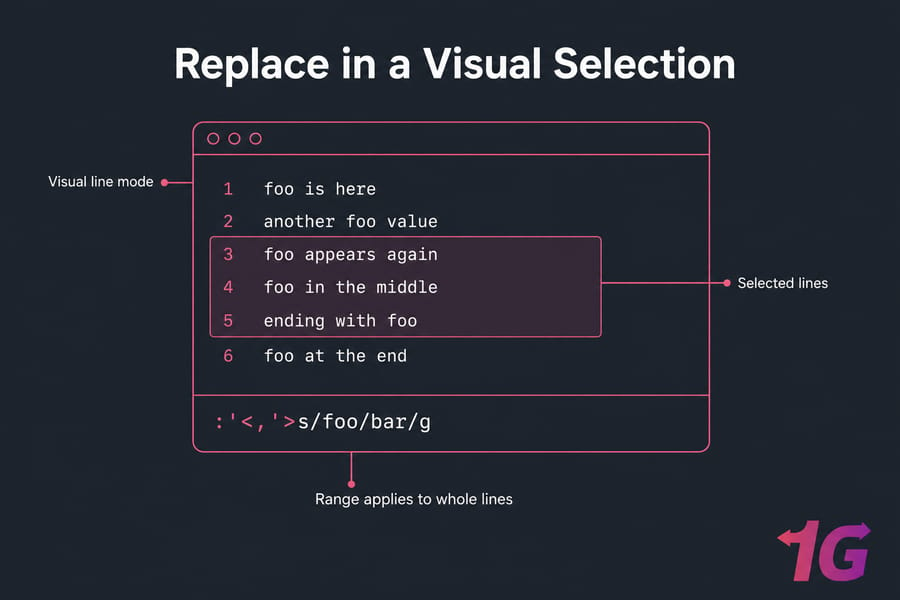
For a visual selection, mark the lines with V in visual mode, then press :. Vim auto-inserts :'<,'> for you — you just finish the command:
:'<,'>s/foo/bar/gThis is great when you don't want to affect the rest of the file. To do it step by step: enter visual mode by pressing v, select the desired text, type : and it will automatically populate a range like :'<,'>, then complete the substitution.
One caveat worth knowing: the range applies to whole lines, even if you selected a few characters mid-line. Visual-block character precision doesn't narrow the substitute.
🔣 Regex and Special Characters
Certain characters—such as slashes (/), dots (.), parentheses (()), and others—are interpreted specially in regular expressions. If you want to match them literally in your search and replace, you'll need to escape them with a backslash (\). Special characters that need escaping include ., *, [, ], \, and your delimiter. For example, a literal dot:
:%s/example\.com/example\.net/gThis command replaces all periods (.) with hyphens (-) when written as :%s/\./-/g. Without the backslash, Vim would treat the . as a wildcard that matches any single character.
To replace a full URL with another, escaping becomes even more necessary:
:%s/http:\/\/example\.com/https:\/\/example.com/gHowever, escaping slashes in long URLs can get messy. Fortunately, Vim allows you to use alternative delimiters. You can use characters like #, |, or @ instead of /:
:%s#http://#https://#gThis version is easier to read and avoids backslashes, which makes your command cleaner—especially useful when working with complex patterns or URLs.
If you only need to search or replace text outside an editor, two dedicated tools handle the job: the grep command in Linux for searching patterns and the sed command for stream-based find and replace. Both share regex syntax with Vim, so what you learn here transfers over.
Practical patterns I keep reaching for:
- Collapse repeated spaces:
:%s/ \+/ /g - Tabs to four spaces:
:%s/\t/ /g - Strip trailing whitespace:
:%s/\s\+$//e - Replace any run of digits:
:%s/\d\+/0/g - Remove blank lines:
:g/^$/d - Join lines by replacing newlines:
:%s/\n/, /(use\nin the pattern,\rin the replacement to insert one)
Capture groups and backreferences
Wrap part of the pattern in \( … \) and refer back to it with \1, \2, and so on. Swapping key=value into value=key:
:%s/\(\w\+\)=\(\w\+\)/\2=\1/gAll those backslashes get old fast. Very magic mode fixes that — prefix the pattern with \v and most metacharacters work without escaping:
:%s/\v(\w+)\=(\w+)/\2=\1/g📂 Vim Find and Replace in All Buffers and Multiple Files
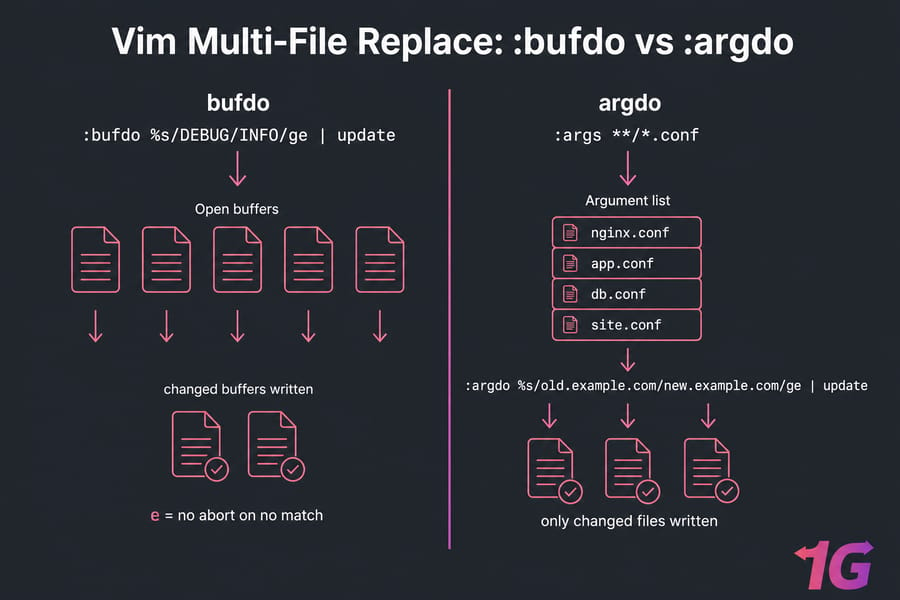
If you're working across multiple open files (buffers), you can use the :bufdo command. Two commands cover almost every case: :bufdo runs across open buffers, :argdo across the argument list. Load files with a glob first:
:args *.conf
:argdo %s/old.example.com/new.example.com/ge | update
Recursive across a tree? Use :args **/*.php. The e flag stops Vim aborting on files with no match, and update writes only the buffers that actually changed. For buffers already open, use:
:bufdo %s/DEBUG/INFO/ge | updateThis performs a global find and replace in every buffer, and then saves (update) the changes.
Before you run any of this on a real codebase: commit to Git, or take a backup. I've watched a sysadmin rewrite forty nginx vhosts with a typo'd pattern. Bulk substitution is powerful precisely because it doesn't ask questions.
Replace in a directory from the command line
To replace text in multiple files in a directory from outside Vim, you can also do:
vim `grep -rl 'foo' ./path` +':%s/foo/bar/g | wq'Or combine :args with :argdo:
:args **/*.txt
:argdo %s/foo/bar/g | update
This performs the command across all matched files. If you need more Linux command-line tips, our guide on basic Linux commands covers the essentials, and you can pair it with Linux VPS Hosting for performance and flexibility.
🆚 Vi vs Vim: What Works in Both
If you're using the older Vi editor (the predecessor to Vim) on a Linux system, you'll be glad to know that the basic search and replace functionality is still available—and the commands are nearly identical. For example, to perform a global substitution in Vi:
:%s/target/replacement/gEven though Vi lacks some modern conveniences like visual mode or syntax highlighting, the substitution syntax works just like it does in Vim. This makes it easy to transition between the two editors or to work on older systems where only Vi is installed.
The core substitute command is identical. :s, :%s, numeric ranges, the g and c flags — all of that works in traditional vi and in POSIX-minimal builds like nvi or BusyBox vi. If you're looking for more guidance specific to Vi, check out our full guide on the Vi Linux Text Editor for tips and examples.
What's Vim-only or Vim-easier:
- Visual mode and the
'<,'>range — not available in minimal vi \vvery magic mode,nandIflags:bufdo,:argdo, and multi-file workflows- Multi-level undo (classic vi gives you one)
On most Linux distros vi is just a symlink to Vim anyway, so you likely have the full feature set. Type :version to check. If Vim feels like too much editor for quick config tweaks, a simpler alternative is the Nano command-line text editor — same terminal, far gentler learning curve, and it covers the same find-and-replace ground with a different shortcut set (see selecting and copying text in Nano for the full workflow). Picking an editor for daily work? Compare options in our roundup of the best text editors for Windows, Mac and Linux.
🖥️ How to Do Find and Replace in Vim Command Line
You can start Vim and directly execute a substitution using +:
vim +'%s/foo/bar/g | wq' file.txtThis opens the file, performs the substitution, writes (w) the changes, and quits (q). This is especially useful in scripts or batch jobs. If you're running this on a remote server over the network, the same pattern works inside an SSH session — just quote the command correctly to avoid shell interpolation.
🛠️ Troubleshooting and Undo
- E486: Pattern not found — check case (
ignorecasemay be off), check you're in the right range, or test with/patternfirst. - Trailing characters / command breaks — an unescaped delimiter in your text. Switch to
#or+as the separator. - It replaced too much — you forgot word boundaries. Rerun with
\<and\>. - Undo — press
uin normal mode. One substitute command is one undo step, so a botched:%sreverts in a single keystroke.Ctrl-rredoes it. - Read-only file — save through sudo with
:w !sudo tee %, then reload withL. Or quit with:q!and reopen properly.
💡 Best Practices for Vim Search and Replace
Now that you know how to find and replace in Vim and Vi, let's review some of the best practices that you can use:
- Use the
cflag to avoid accidental replacements. - Always escape special characters.
- Use
:w !sudo tee %to save read-only files. - Learn regular expressions (
.*,\d,\b, etc.) for powerful pattern matching. - Preview with
gnbefore running a destructivegreplacement on production files. - Commit to version control before multi-file operations — especially on a cheap dedicated server where a botched config can take production offline.
📋 Vim Find and Replace Cheat Sheet
| Task | Command |
| First match, current line | :s/old/new/ |
| All matches, current line | :s/old/new/g |
| Entire file | :%s/old/new/g |
| Entire file, confirm each | :%s/old/new/gc |
| Lines 10–25 | :10,25s/old/new/g |
| Current line to end | :.,$s/old/new/g |
| Visual selection | :'<,'>s/old/new/g |
| Whole words only | :%s/\<old\>/new/g |
| Case-insensitive | :%s/old/new/gi |
| Count matches only | :%s/old/new/gn |
| Paths or URLs | :%s#/old/path#/new/path#g |
| All open buffers | :bufdo %s/old/new/ge | update |
| File list / directory | :args **/*.conf then :argdo %s/old/new/ge | update |
🎯 Final Thoughts
Learning how to find and replace in Vim and Vi unlocks one of the most efficient features in these powerful editors. Whether you're doing a global find and replace in Vi, editing files on a remote server, or working with multiple files in Vim, the substitution command is your best friend.
Use flags like g, c, and i smartly, and don't be afraid to harness the power of regex for advanced replacements. With practice, you'll find that Vim can be just as productive—if not more—than modern GUI-based editors.
Learn :%s/old/new/g and you're functional. Learn the n and c flags and you stop breaking things. Learn \<, \>, alternate delimiters, and :argdo and you can refactor a whole server's config from an SSH session in under a minute. That last bit is why so many of us never left this editor.
For more tips and tools to power up your text editing experience, check out:
- Vi Linux Text Editor
- Best Text Editors for Windows, Mac and Linux
Ready to put all this into practice on a real server? Buy VPS hosting with full root access and start editing config files the way they were meant to be edited — from the terminal.

Leave A Comment