

The best Project Zomboid server settings for most groups in Build 42 are PVP off, PauseEmpty=true, autosave every 15 minutes, Normal or Low zombie population, slow or no loot respawn, and player safehouses on. This guide assumes the current Stable branch, which the official site lists as Stable 42.21 with 42.22 on Pre-Release. If you don't have a server yet, read how to set up a Project Zomboid dedicated server first.
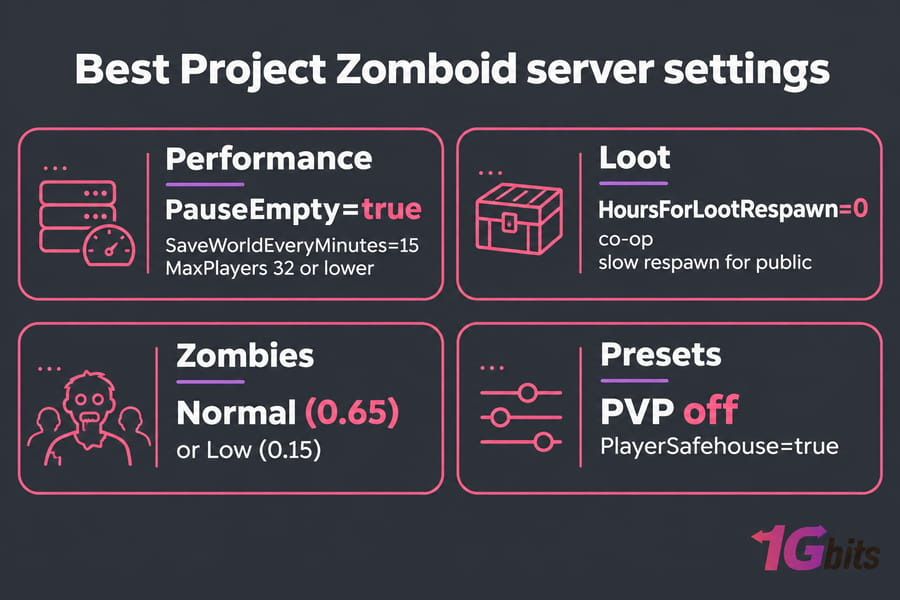
Best Project Zomboid server settings at a glance
| Setting | Recommended value | File | Why |
PVP |
false (co-op), true for PVP servers | .ini | Most groups play PVE |
PauseEmpty |
true for private groups | .ini | The world stops aging while nobody is online |
SaveWorldEveryMinutes |
15 | .ini | The default of 0 saves only on shutdown |
MaxPlayers |
32 or lower | .ini | The game warns about desync above 32 |
Zombie Count / PopulationMultiplier |
Normal (0.65) or Low (0.15) | SandboxVars | Costs more performance than any other gameplay setting |
HoursForLootRespawn |
0 for co-op, slow respawn for public worlds | .ini | Keeps scavenging meaningful |
PlayerSafehouse |
true | .ini | Lets players claim and protect a base |
| Water and power shutoff | Default window | SandboxVars | Makes players plan for utilities going down |
Project Zomboid server settings explained: servertest.ini vs SandboxVars.lua
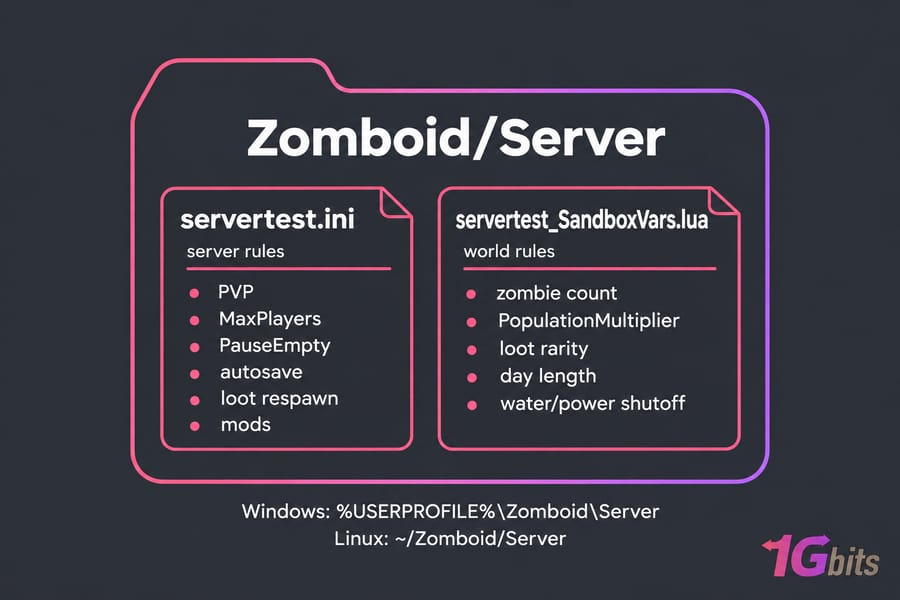
Two files do most of the work. servertest.ini holds server rules: password, slots, PVP, safehouses, autosave, loot respawn and mods (WorkshopItems and Mods). servertest_SandboxVars.lua holds world rules: zombies, loot rarity, XP, day length and utility shutoff. Both live in %USERPROFILE%\Zomboid\Server on Windows and ~/Zomboid/Server on Linux. "servertest" is your server name, so a server called "friends" uses friends.ini.
Stop the server before editing either file. It writes its settings back to disk on shutdown, which can overwrite your changes.
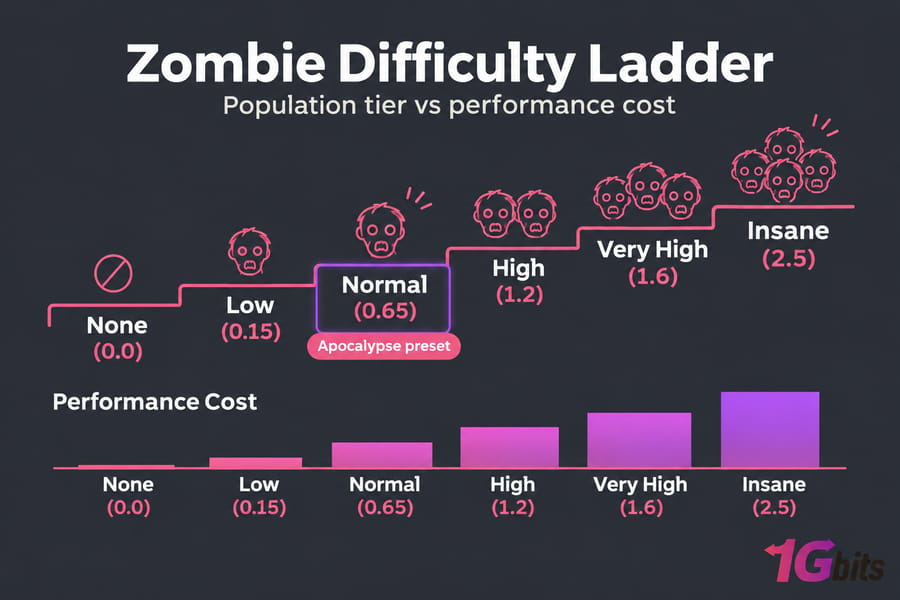
In Build 42 the Zombie Count dropdown is stored as an index (Zombies = 4 means Normal) and also writes ZombieConfig.PopulationMultiplier. According to GameServerKings' Build 42 reference, the tiers are Insane 2.5, Very High 1.6, High 1.2, Normal 0.65, Low 0.15 and None 0.0. Guides that list Normal as 1.0 are using Build 41 numbers.
Best Project Zomboid server performance settings to reduce lag
The server simulates every zombie in every loaded area, so population affects lag more than any other setting. Start at Normal for 2 to 4 players and Low to Normal for 5 to 10. With 10 or more players or a heavy mod list, start at Low and raise a custom multiplier in small steps. WinterNode notes that sprinters add more server processing per zombie, and that Build 42 animals add overhead you can trim if the server struggles.
- Set
PauseEmpty=trueon private servers. The stock file ships with it set to false. - Set
SaveWorldEveryMinutes=15so a crash loses at most a few minutes of progress. - Keep
MaxPlayersat 32 or below. WinterNode suggests staying around 20 on Build 42 until you've tested your own hardware. For sizing, see how many players a Project Zomboid server can handle. - Don't push loot multipliers too high. More items per container means more objects for the server to track and save.
- Add mods in small batches, since each one adds load on top of your zombie density.
Better hardware won't fix a server running Insane population with 60 mods. If you self-host, optimize your VPS for maximum performance once your settings are reasonable.
Best Project Zomboid loot settings for multiplayer balance
Loot settings depend on how long the world will run. A private co-op world can use default rarity with respawn off (HoursForLootRespawn=0), and a long co-op campaign might bump food loot slightly. A public server that runs for months needs respawn, or late joiners will find nothing left. Set HoursForLootRespawn above 0, cap each container with MaxItemsForLootRespawn, and keep ConstructionPreventsLootRespawn=true so players can't farm respawns inside their own bases.
Build 42 splits rarity into category keys such as FoodLootNew, WeaponLootNew and AmmoLootNew, so you can make ammo rare without starving people. Make loot too generous on a persistent server and players finish gearing up in a week, then stop logging in.
Best Project Zomboid zombie settings for challenge without chaos
Build 42's Apocalypse preset uses Normal population (0.65) and RespawnHours = 0, so zombies don't respawn, cleared areas stay clear, and the world gets easier over time. Turn respawn on for harder or public servers. The code defaults are RespawnHours 72, RespawnUnseenHours 16 and RespawnMultiplier 0.1.
Speed changes difficulty more than population does. Shamblers forgive mistakes, while even a small SprinterPercentage under random speed makes every street dangerous. Leave Distribution on Urban Focused (the default) so towns are dangerous and the countryside gives players room to recover; Uniform spreads the threat everywhere. For very casual groups, set Transmission to saliva only so scratches stop being death sentences.
Best Project Zomboid server presets by playstyle
If you're not sure which to pick, start with casual co-op.
| Setting | Beginner friends | Casual co-op (4 friends) | Public community (12+) | Hardcore |
| PVP | Off | Off | Off or SafetySystem | Off |
| PauseEmpty | true | true | false | false |
| MaxPlayers | 2 to 6 | 4 to 8 | 16 to 32 | 8 to 20 |
| Zombie count | Low (0.15) | Normal (0.65) | Low to Normal | High (1.2) |
| Zombie respawn | Off | Off | On, slow | On |
| Speed | Shamblers | Shamblers | Shamblers | Random, low sprinter % |
| Transmission | Saliva only | Default | Default | Default |
| HoursForLootRespawn | 0 | 0 | Above 0, capped | 0 |
| Safehouses | On | On | On, 3 to 7 day claim | On |
The beginner preset gets boring fast for experienced players. The public preset gives up some tension so the world lasts longer, and the hardcore preset needs the most CPU. On public servers, setting SafehouseDaySurvivedToClaim to 3 to 7 days stops new players from claiming the best buildings the moment they spawn.
How to change Project Zomboid server settings safely
- Back up the
.ini, the_SandboxVars.luaand your save folder. - Stop the server completely.
- Edit the right file: server rules go in the
.ini, world rules in SandboxVars. - Save the file and restart the server.
- As an admin, open the admin panel's Sandbox Options and confirm your values are there.
Some sandbox changes won't fully apply to areas already loaded on an existing save, so test big changes on a fresh world first.
Common Project Zomboid server settings mistakes
- Copying Build 41 values, where Normal meant 1.0, into a Build 42 file.
- Writing a dropdown index as a multiplier, such as 4 where you meant 0.65.
- Editing files while the server is still running.
- Combining a long mod list with High or Insane density.
- Raising
MaxPlayerswithout spare hardware capacity.
When to upgrade to a better Project Zomboid hosting plan
If you still get lag spikes, stutter when driving into cities, or desync as player count rises with Low or Normal population, your settings are probably fine and the hardware is the limit. WinterNode recommends at least 8GB of RAM even for 2 to 4 players on Build 42.
| Scenario | Pick |
| 2 to 8 friends, light mods | Gaming VPS hosting |
| 12+ players, persistent public world | Project Zomboid dedicated server hosting |
| Heavy mod list, high density, several game servers | Buy a dedicated server |
For a full comparison, read VPS vs dedicated server, or browse more gaming server guides.
Need more headroom for your world? View Project Zomboid hosting plans sized for your player count and mod load.

Leave A Comment