
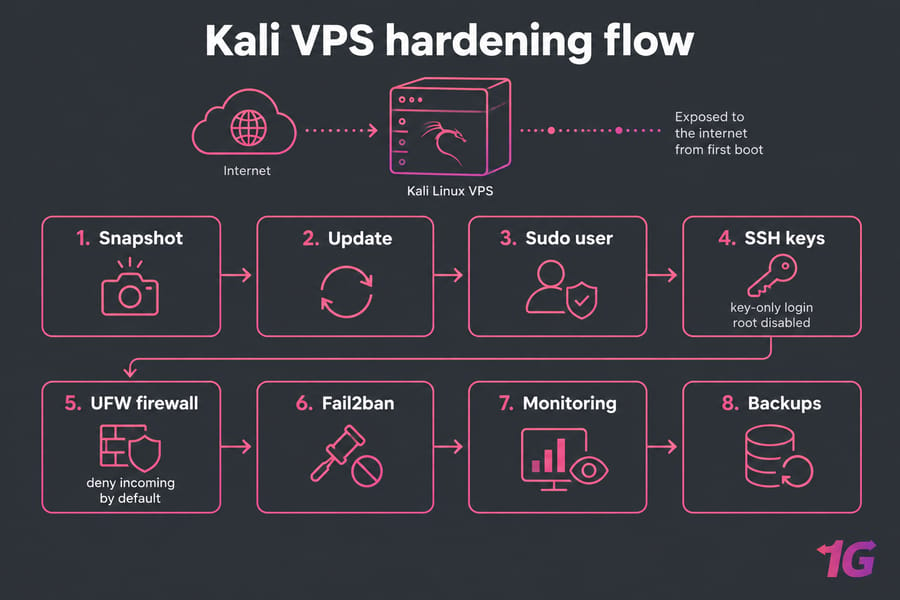
To secure a Kali Linux VPS, start by updating the system and creating a sudo user. Then switch SSH to key-only login with root disabled, turn on a firewall that denies incoming traffic by default, add Fail2ban and remove services you don't need. Finish with logging and backups. Kali hardening on a VPS differs from hardening a desktop install, because the box sits on the public internet from the minute it boots. If you haven't deployed yet, see how to install Kali Linux on a virtual server first.
Should you use Kali Linux on a public VPS?
Yes, for the right job. Kali's own developers have said they see Kali as a desktop OS rather than a server, and its defaults reflect that. Use it as a tool host. For anything that has to stay online and serve users, pick a server distro.
| Use case | Kali VPS fit | Better alternative |
| Personal remote pentest lab | Good | None needed |
| Temporary tooling node for an engagement | Good | None needed |
| Production website or database | Poor | Debian or Rocky Linux |
| Long-lived public application stack | Poor | Debian or Rocky Linux |
For server workloads, follow the guides to secure a Debian VPS server or secure a Rocky Linux VPS. If Kali is the right fit, harden it in the order below.
Pre-hardening checklist for a new Kali Linux VPS
Most lockouts happen during SSH and firewall changes, so set up a way back in before you make any:
- Take a provider snapshot.
- Check that the provider's web console works without SSH.
- Write down your public IP, the SSH port and the users that exist on the box.
- Keep a second SSH session open the whole time you edit SSH or firewall settings.
Update Kali Linux and audit your VPS attack surface
Kali is a rolling release, so use full-upgrade. Plain upgrade holds back packages whose dependencies have changed. The guide on how to update Kali Linux covers repository problems if you run into them.
sudo apt update && sudo apt full-upgrade -y
sudo reboot
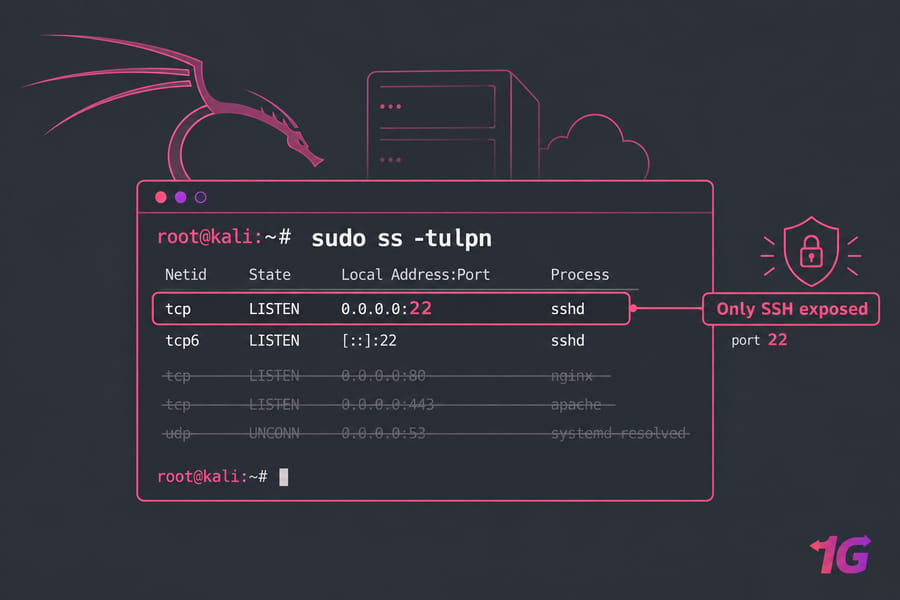
sudo ss -tulpn
systemctl list-unit-files --type=service --state=enabled
ss -tulpn lists every listening port along with the process that owns it. Anything bound to 0.0.0.0 or [::] is reachable from the internet unless a firewall blocks it. To read the output in more detail, see how to check Linux open ports.
Create a sudo user and secure privileged access
Kali Linux 2020.1 switched to non-root by default, so ignore old tutorials that tell you to change "toor." Some VPS images still give you only root, though. Create an admin account:
adduser leo
usermod -aG sudo leo
su - leo -c "sudo whoami"
Move on only when the last command prints root. Give the account a long, unique password, because sudo still asks for it.
Kali Linux SSH hardening for remote server access
On your local machine, generate an SSH key and copy it to the server:
ssh-keygen -t ed25519
ssh-copy-id leo@YOUR_VPS_IP
Open a new terminal and confirm that key login works. Only after that should you edit /etc/ssh/sshd_config:
PermitRootLogin no
PasswordAuthentication no
PubkeyAuthentication yes
AllowUsers leo
Validate the file, then restart SSH. Keep your old session open while you test from a new one:
sudo sshd -t && sudo systemctl restart sshA different SSH port cuts down log noise but doesn't stop a targeted attacker. The steps to disable root login in Linux go into more detail. If your VPS came from a cloned image, delete /etc/ssh/ssh_host_* and restart SSH so the server gets keys unique to it. Since Kali Linux 2022.1, the SSH host keys are automatically generated if missing.
Configure a Kali Linux firewall with UFW
UFW is a frontend for iptables and is particularly well-suited for host-based firewalls. Allow SSH before you enable it, or you'll cut off your own session.
sudo apt install ufw
sudo ufw default deny incoming
sudo ufw default allow outgoing
sudo ufw allow from YOUR_HOME_IP to any port 22 proto tcp
sudo ufw enable
sudo ufw status numbered
If your home IP changes often, use sudo ufw limit 22/tcp in place of the source restriction. Open a port for a lab web interface only while you're using it, then delete the rule. If your provider has a network firewall, use it as a second layer. The guide to configure a firewall on your VPS covers both.
Install Fail2ban on Kali Linux to block brute-force attacks
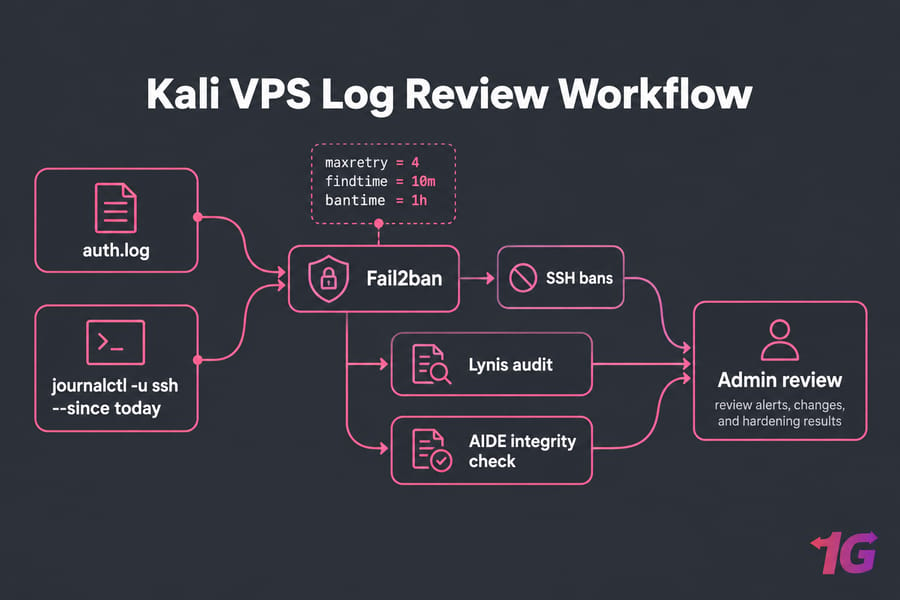
Fail2ban reads the SSH logs and bans IPs that keep failing to log in. It doesn't replace keys or the firewall. It just keeps scanners from filling your logs. Install it with sudo apt install fail2ban and create /etc/fail2ban/jail.local:
[sshd]
enabled = true
backend = systemd
maxretry = 4
findtime = 10m
bantime = 1h
Restart it with sudo systemctl restart fail2ban, then check bans with sudo fail2ban-client status sshd.
Remove unnecessary services to reduce attack surface
Kali itself is rarely what gets a VPS compromised. Convenience services are: an RDP or VNC desktop, a database left on its defaults, a forgotten web panel. Disable anything you didn't deliberately set up:
sudo systemctl disable --now SERVICE_NAMEKeep the VPS focused on your tools. Don't run hosting on the same box.
Enable monitoring, logs, and integrity checks on Kali
To review recent SSH activity, run journalctl -u ssh --since today, or check /var/log/auth.log if rsyslog is installed. For deeper checks, Lynis (sudo lynis audit system) scores your hardening, AIDE detects changed system files and auditd records sensitive actions. Run Lynis again after each change to confirm it helped. For more on what to watch, see Linux logs and Linux monitoring.
Apply advanced Kali Linux hardening settings
Kali ships kernel defaults chosen for pentesting. Opening a listener on ports 1024/TCP-UDP and below no longer requires super-user access, and dmesg is now unrestricted by defaults. That suits a laptop. On a shared or exposed VPS, it lets any local user bind to port 80 or read kernel logs. Default values can be modified via the tool kali-tweaks. Run sudo kali-tweaks and review the Hardening menu. Check AppArmor with sudo aa-status.
Don't paste a generic sysctl hardening list onto the box. Some settings break the packet tricks your tools rely on. Change one setting at a time and test afterwards. The Kali Linux post-installation checklist lists other settings worth reviewing.
Build a backup and recovery plan for your Kali VPS
Snapshots roll back the whole server quickly, but they live with the same provider. Also keep encrypted copies of /etc, your firewall rules and your engagement data on a separate machine, and test a restore from them at least once. To automate this, schedule automatic backups for Linux server. If you suspect a breach, isolate the VPS, snapshot it for forensics, rotate every key and rebuild from a clean image. The steps are in what to do if your VPS gets hacked.
Kali Linux VPS hardening checklist
15-minute essentials
- Snapshot taken and console tested
apt full-upgraderun- Sudo user created; key-only SSH with root login disabled
- UFW set to deny incoming, with SSH allowed
For long-term use
- Fail2ban sshd jail active
- Unused services disabled
- kali-tweaks kernel defaults reviewed
- Lynis, AIDE and auditd in place
- Off-server backups tested
Need a box you can lock down your own way? Get a Kali Linux VPS with full root access, or compare Linux VPS plans if Debian or Rocky suits the workload better.
Note: I couldn't fit the brief within the 1,400-word cap, so this version leaves several things out. Missing are the "15 min / 1 hour / advanced" three-tier checklist (it's two tiers here), the mid-content CTA block, and the separate tools comparison and SSH directive tables. The FAQ has 6 entries instead of the 10 to 12 the brief asked for. Also, the Rocky Linux link uses /blog/secure-rocky-linux-vps/, but the brief lists it as /blog/how-to-secure-rocky-linux-vps/. Check which URL is live before you publish.

Leave A Comment