
Here's the short answer to how to update a Valheim dedicated server without losing your world: stop the server, back up your world saves and your startup script, run the update through Steam or SteamCMD (app ID 896660), restart, and check that the same world loads before you delete anything. The details below are where worlds actually get lost.
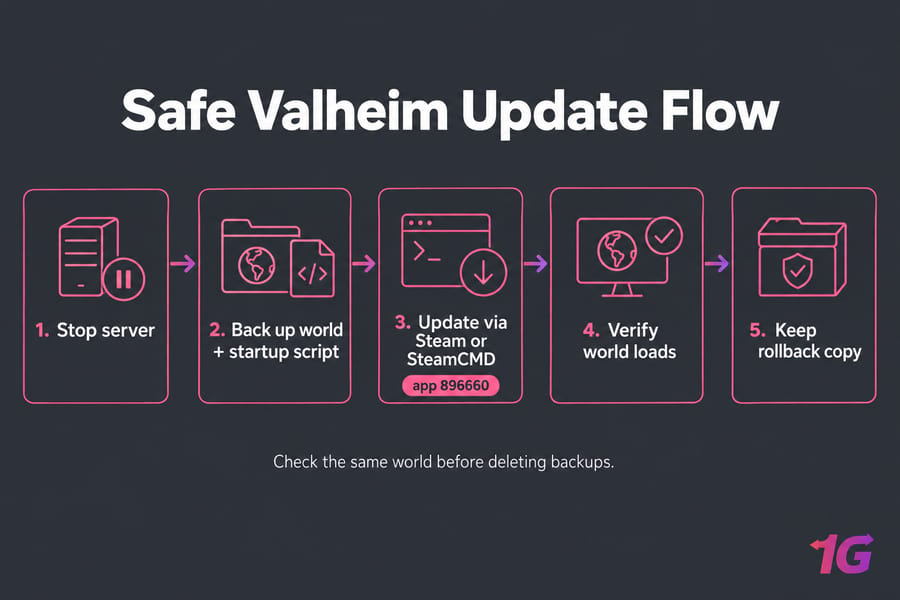
Can You Update a Valheim Dedicated Server Without Losing Your World?
Yes. Valheim keeps saves in a per-user data directory, not in the install folder. Updating the server files doesn't touch them.
So why do people still lose progress? In my experience it comes down to one of four things. There was no backup, a custom launch script got reset, a mod broke on the new build, or the startup script now points at the wrong world name (which quietly creates a fresh, empty map). After a patch, players and the server have to run the same build. That means the host has to update before anyone can reconnect.
If you haven't built the server yet, start with how to set up a Valheim dedicated server and come back here.
Before you start: you'll need admin/root access, to know whether you used Steam or SteamCMD, some spare disk space, and a heads-up to your players.
Valheim Server Backup Checklist Before You Update
Don't just copy the install directory. Your world isn't in there.
| Item | Why back it up | Required? |
World save (folder or .db + .fwl pair) |
Buildings, terrain, progression | Yes |
Custom startup script (.bat / .sh) |
Holds your world name, password, port and flags | Yes |
| BepInEx folder and plugin configs | Mod setup you'd otherwise rebuild by hand | If modded |
Put everything in a folder with the date in its name, like valheim-backup-2026-09-20. That's your rollback. Leave it alone until your players confirm their bases are intact. On a Linux server, you can schedule automatic backups for a Linux server so you don't have to remember.
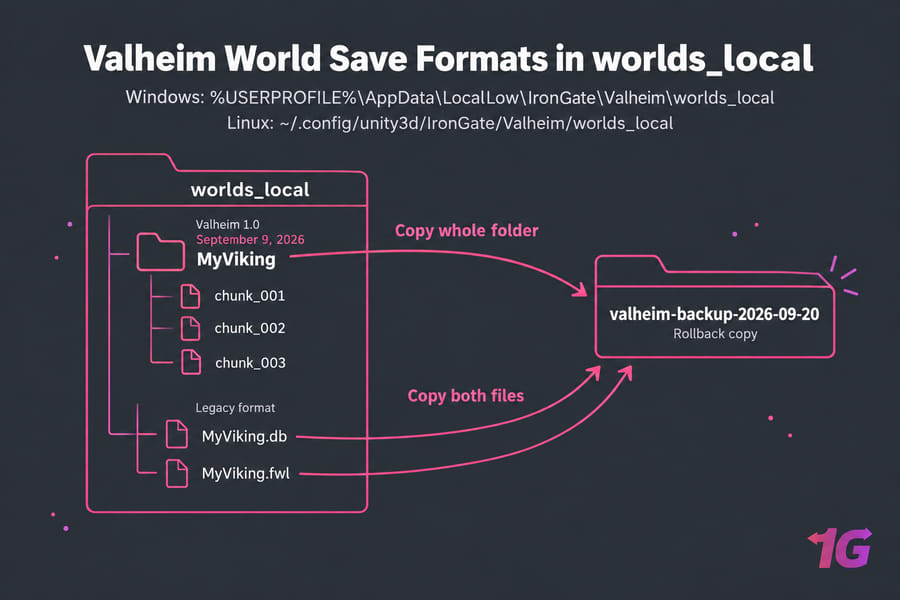
Valheim World Save Location on Windows and Linux
These are the default paths. A custom -savedir flag or a container setup can move them.
Windows: %USERPROFILE%\AppData\LocalLow\IronGate\Valheim\worlds_local
Linux:   ~/.config/unity3d/IronGate/Valheim/worlds_local
Now here's the thing most older guides miss. Valheim 1.0 came out on September 9, 2026, and it changed how worlds are saved. The old .db and .fwl pair is gone. Each world is now a folder named after the world, with the data split into chunks. Older worlds stay in the two-file format until the server converts them the first time it loads them (give it a few minutes).
So open worlds_local. If you see a folder with your world's name, copy the whole folder. If you see two loose files, copy both.
Pulling backups off a remote server? Use SCP to copy backups to your own machine.
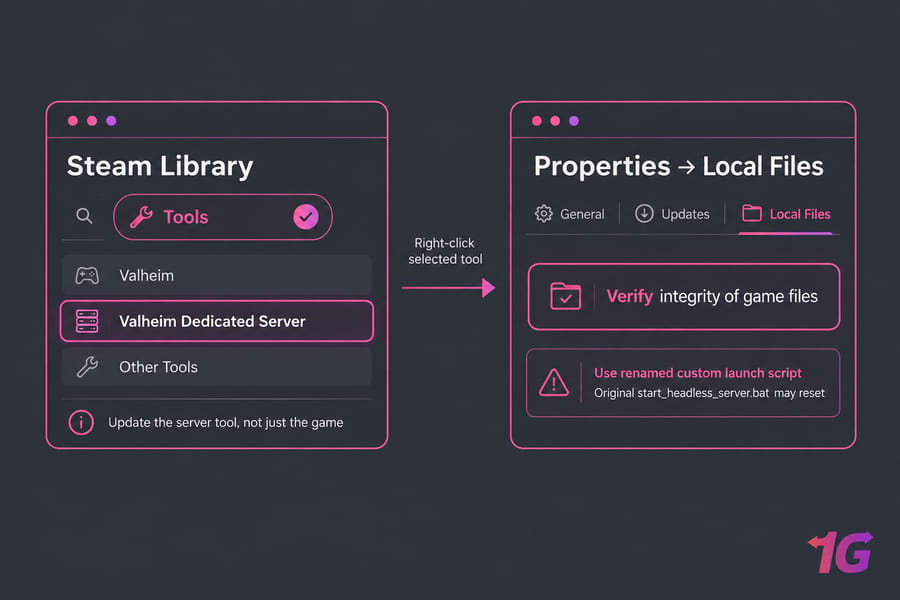
Update Valheim Dedicated Server Through Steam
- Stop the server with
Ctrl + Cin its console window and wait for the world to save. - Open your Steam Library and turn on Tools in the filter.
- Find Valheim Dedicated Server and update it. Updating the game alone doesn't update the server tool.
- Start the server from your custom copy of the launch script.
Still having problems? Right-click the tool, go to Properties → Local Files → Verify integrity of game files.
Warning: Iron Gate's own guide says the original start_headless_server.bat gets reset every time Steam updates it. Verifying files resets it too. Always edit a renamed copy, never the original.
SteamCMD Valheim Update Command Step by Step
Installed with SteamCMD? The core command is app_update 896660. You don't need a Steam account, because anonymous login works. Stop the server first.
Windows
steamcmd.exe +force_install_dir "C:\valheim-server" +login anonymous +app_update 896660 validate +quitLinux
steamcmd +force_install_dir /home/steam/valheim +login anonymous +app_update 896660 validate +quit+force_install_dirhas to match your current install path. Otherwise you'll download a second copy and keep launching the old one.validatechecks every file and repairs broken ones. It's slower, but I always use it after a failed update.+quitcloses SteamCMD when it's done.
Plenty of admins put this line at the top of their launch script so every restart pulls the latest build. If you run the server as a service, manage Linux services with systemctl to stop and start it cleanly. New to remote servers? Here's how to SSH into your server.
Valheim Modded Server Update Tips for BepInEx and Valheim Plus
Modded servers break far more often. BepInEx and mods like Valheim Plus usually take a while to catch up with official patches. One mod that fails to load can stop the whole server from starting.
- Hold off on the update until your main mods confirm they support it.
- Turn off Auto Update in your hosting panel until then.
- Back up the BepInEx folder separately.
- Test on a spare copy of the world, never on your only copy.
Valheim Incompatible Version Fix After Updating
- If players see "incompatible version": the server didn't update. Stop it fully, update, then restart.
- If it updated but versions still don't match: run
validateor verify files. Then check that the update went into the install folder you actually launch from. - If an empty world loads: your launch script was reset. Check the
-worldname.
Server works but won't show up in the list? See how to fix a Valheim server not showing up.
How to Restore a Valheim World After a Failed Update
- Stop the server.
- Move (don't delete) the broken world into a
failed-updatefolder. - Copy your backup world folder, or the
.db/.fwlpair, intoworlds_local. - Check that the
-worldname in your script matches it exactly. - Restart and have a player check a base you know well.
Common Valheim Dedicated Server Update Mistakes to Avoid
- Updating while the server is still running.
- Backing up the install folder instead of
worlds_local. - Editing the original batch file instead of a copy.
- Updating a modded server on day one.
- Deleting backups before anyone has checked the world.
Best Hosting Setup for Safer Valheim Server Updates
A lot of update pain comes from running the server on someone's gaming PC. Backups stay on the same machine, the upload speed is unreliable, and the server goes down every time the PC restarts.
| Factor | Home PC | VPS | Dedicated Server |
| Uptime | Depends on your PC | 24/7 | 24/7 |
| Scheduled backups | Manual | Easy with cron | Easy, plenty of storage |
| Control | Full | Root access | Full hardware |
| Best for | Testing | Small-to-mid groups | Heavily modded or multiple worlds |
1Gbits offers Valheim dedicated server hosting, game VPS hosting, a Linux VPS with root access for SteamCMD setups, and full dedicated server hosting when you need more room.

Leave A Comment