

Your Expert Advisor doesn't care how pretty your desktop looks. It cares whether the order hits the broker before the price moves. That's the whole reason to optimize an MT5 VPS for algorithmic trading: lower latency, fewer disconnects, and a Windows environment that isn't fighting MetaTrader 5 for CPU cycles.
Quick answer: To optimize an MT5 VPS for algorithmic trading, place the server close to your broker, size CPU and RAM around your actual EA load, strip out Windows background processes, keep MT5 charts and logs lightweight, and monitor latency, uptime, and resource usage. The result is faster execution, fewer disconnects, and stable 24/7 trading.
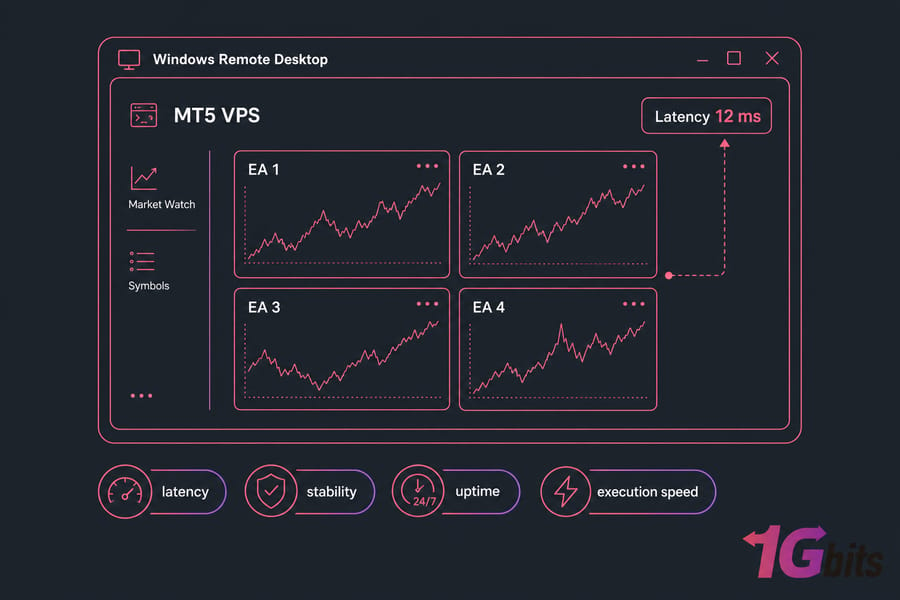
What MT5 VPS optimization actually means
It isn't about buying a bigger plan. It's about removing everything between your EA's trade signal and your broker's server. If you're new to the platform itself, what MetaTrader 5 is covers the basics — this guide assumes you're already live.
Four goals drive every change below: latency, stability, uptime, execution speed. Everything else is decoration. And the order matters — optimize first, upgrade second.
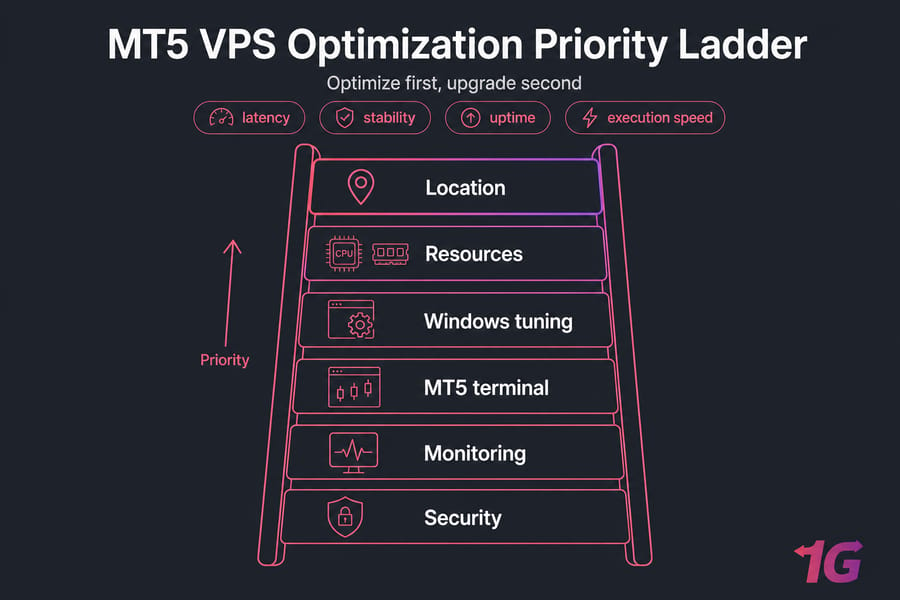
Start with VPS location and latency
A closer data center beats extra RAM almost every time. Ping from your VPS to the broker's server with ping and check the route with tracert. Run it a few times across different sessions — one clean result at 3 AM means nothing.
Watch for packet loss and jitter, not just the average number. A stable 30 ms route is better than a 12 ms route that spikes to 200 ms twice an hour.
| Ping to broker | Interpretation | Trading impact | Action |
| Under 10 ms | Excellent | Negligible delay, good for scalping | Leave it alone |
| 10–40 ms | Good | Fine for most EAs | Monitor for spikes |
| 40–100 ms | Acceptable | Noticeable on fast entries | Consider closer region |
| Over 100 ms or unstable | Risky | Slippage, requotes, missed fills | Relocate the VPS |
More detail on this in our guide to Importance of Ping Reduction in Forex VPS. A properly located Forex VPS solves problems no software tweak can.
Right-size CPU, RAM, and storage for MT5
Each MT5 terminal eats roughly 300–500 MB of RAM before you add charts. Every open chart with custom indicators adds more, and CPU load scales with tick processing, not with how many charts you're staring at.
| Setup | EAs / charts | CPU | RAM | Storage |
| Light | 1 terminal, 1–3 EAs | 1–2 vCPU | 2–4 GB | 40 GB NVMe |
| Moderate | 2 terminals, 4–8 EAs | 2–4 vCPU | 6–8 GB | 60–80 GB NVMe |
| Heavy | 3+ terminals, 10+ EAs | 4–8 vCPU | 12–16 GB | 120 GB+ NVMe |
Consistent CPU matters more than a big number on the invoice. Oversold shared cores cause the freezes traders blame on MT5. And spinning disks are done — NVMe VPS storage makes terminal startup, history downloads, and log writes far snappier. Pair that with a properly provisioned Windows VPS and you've covered the infrastructure side.
Windows VPS optimization for trading
Now strip the OS down. Carefully — this is where people break things.
- Open Task Manager → Startup and disable anything that isn't MT5 or a driver utility.
- Set the power plan to High Performance.
- Turn off visual effects (Performance Options → Adjust for best performance).
- Configure Windows Update active hours so reboots never land mid-session, and control restart timing yourself.
- Clear temp files monthly. Don't install browsers, media players, or "optimizer" tools on a trading server.
Warning: don't blindly disable Windows services or gut Defender for a phantom speed gain. I've watched a trader kill a "useless" service and lose network stack recovery after a reboot. Not worth it.
Also: RDP lag is not execution lag. Your session can stutter while orders fire perfectly. Lower RDP colour depth if the visuals annoy you, but don't confuse the two.
MT5 terminal optimization for EA stability
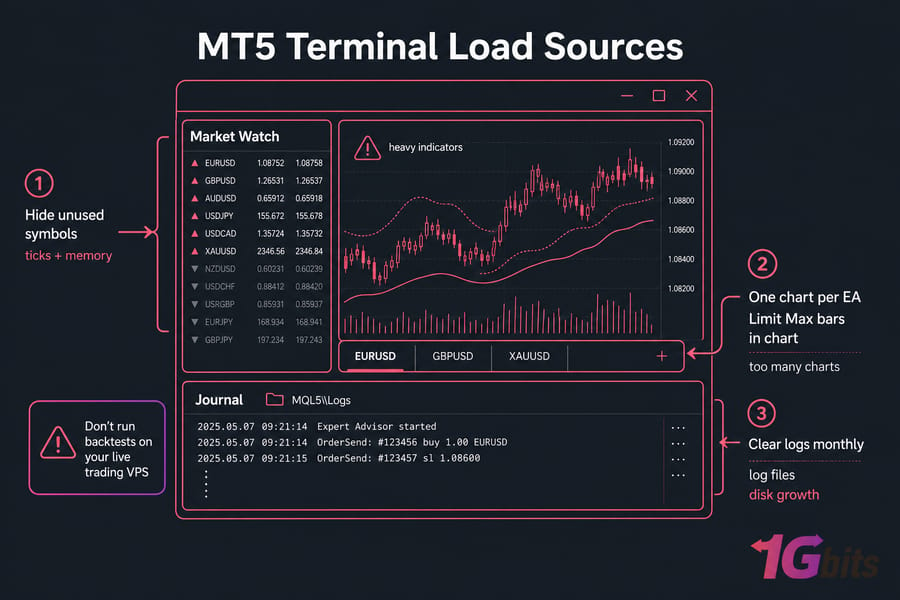
Most terminal bloat comes from four places: too many charts, heavy indicators, oversized history, and log files nobody ever deletes.
- Close every chart your EAs don't need. One chart per EA, no decoration.
- Hide unused symbols in Market Watch — each active symbol costs ticks and memory.
- Limit "Max bars in chart" instead of loading unlimited history.
- Clear the
logsandMQL5\Logsfolders monthly. Journal files grow into gigabytes on busy accounts. - Split heavy EAs across separate terminals so one misbehaving bot can't stall the rest.
Don't run backtests on your live trading VPS. The strategy tester will happily consume every core you have. If you're still setting things up, install an Expert Advisor on MT5 the clean way first.
Monitor what you changed
| Metric | Healthy | Warning | Action |
| CPU (sustained) | Under 50% | 70%+ during sessions | Split EAs or add cores |
| RAM | Under 70% | 85%+ with paging | Fewer charts or more RAM |
| Disk free | 25%+ | Under 10% | Purge logs and history |
| Ping stability | Flat | Frequent spikes | Check route or relocate |
| MT5 Journal | No repeat errors | Recurring disconnects | Investigate network/broker |
Task Manager, Resource Monitor, and the MT5 Journal cover 90% of diagnostics. Look at trends over a week, not one bad afternoon. Our guide on how to monitor and improve your VPS server speed goes deeper.
Security that doesn't cost performance
Change the default RDP port, use a long unique password, restrict access by IP where your provider allows it, and take a snapshot before any major change. Keep Defender on with the MT5 data folder excluded from real-time scanning — that's the balance. Full details live in the Forex VPS security checklist.
Home PC vs regular VPS vs optimized MT5 VPS
| Factor | Home PC | Regular VPS | Optimized MT5 VPS |
| Uptime | ISP and power dependent | Good | 24/7, monitored |
| Latency to broker | Whatever your ISP gives | Depends on region | Chosen for proximity |
| Maintenance | Manual, constant | Moderate | Scheduled, controlled |
| Best for | Testing only | Slow, non-urgent EAs | Live algorithmic trading |
A generic Windows VPS in the right city can absolutely work. Compare the trade-offs in Forex VPS vs home PC and Forex VPS vs regular VPS.
Common mistakes and upgrade triggers
The repeat offenders: stacking ten EAs on a 2 GB plan, never clearing journals, picking a data center near you instead of near the broker, letting Windows reboot unannounced, and blaming MT5 for RDP stutter.
Upgrade when CPU sits above 70% through active sessions, RAM stays pinned, disconnects repeat in the Journal, or your ping to the broker won't drop no matter what you tune. At that point you're not optimizing — you're rationing. Purpose-built MT5 VPS hosting or a dedicated VPS for trading with NVMe storage, low-latency locations, and 24/7 support removes the ceiling.
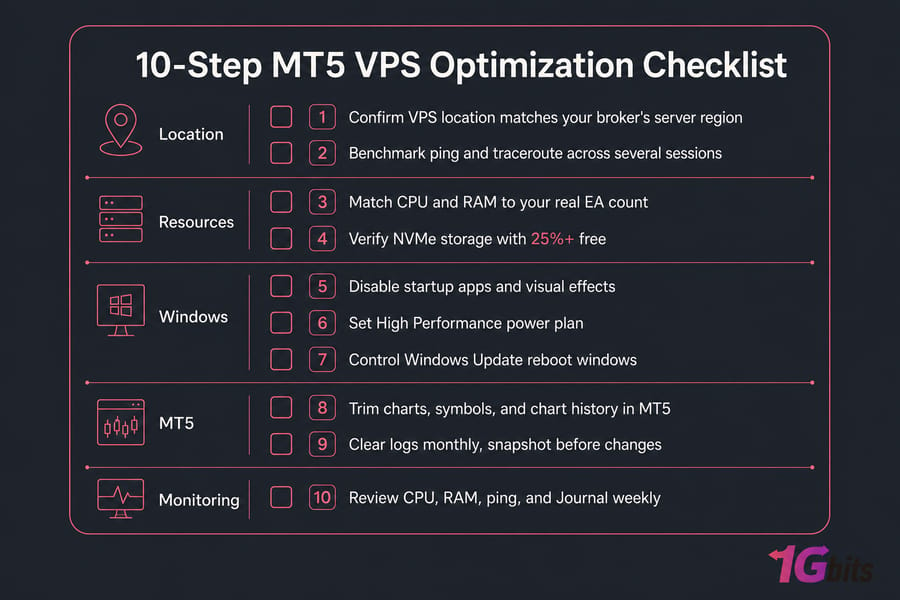
The 10-step MT5 VPS optimization checklist
- Confirm VPS location matches your broker's server region.
- Benchmark ping and traceroute across several sessions.
- Match CPU and RAM to your real EA count.
- Verify NVMe storage with 25%+ free.
- Disable startup apps and visual effects.
- Set High Performance power plan.
- Control Windows Update reboot windows.
- Trim charts, symbols, and chart history in MT5.
- Clear logs monthly, snapshot before changes.
- Review CPU, RAM, ping, and Journal weekly.
Optimization improves your execution environment — not your strategy's edge. But a clean, low-latency MT5 VPS means the trades your system intends are actually the trades that get filled. See MT5 VPS plans built for 24/7 algorithmic trading.

Leave A Comment