
To secure a WordPress site on a VPS, use layered hardening: keep WordPress and server software updated, lock down wp-admin access, enforce strong passwords and 2FA, set correct file permissions, enable a firewall, use SSL, automate backups, and monitor for malware. The goal is to protect both WordPress and the VPS underneath it.
Before You Start: You’ll want WordPress admin access, SSH root or sudo access to the VPS, permission to edit Nginx or Apache and PHP settings, and a current backup or snapshot before making changes. Basic Linux command familiarity helps a lot. If you’re still getting comfortable with VPS basics, read what is VPS hosting first.
Why WordPress VPS security needs a layered approach
Running WordPress on a VPS gives you more control than shared hosting. That’s the good part. The catch is you also inherit more responsibility for the stack.
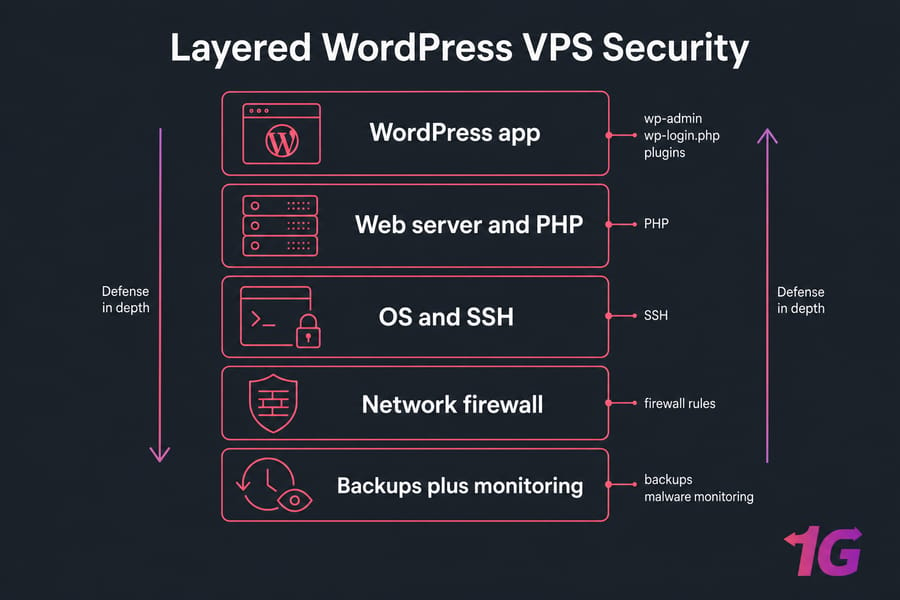
On shared hosting, the provider usually handles a bigger chunk of server hardening. On a VPS, you're now responsible for things like SSH access, firewall rules, patching the OS, and making sure a bad plugin can't turn into a server-wide mess. I've seen site owners install one security plugin, feel safe, and then get burned by an outdated PHP version or wide-open SSH. If you're still deciding which hosting environment fits your site, our guide on what is WordPress hosting explains the differences between shared, managed, and VPS plans.
What makes WordPress on a VPS different from shared hosting?
Attackers can target several layers:
- WordPress layer: weak admin passwords, vulnerable plugins, exposed wp-login.php, bad user roles
- Server layer: outdated PHP, sloppy file ownership, poor SSH settings, broken permissions
- Network layer: missing firewall rules, open ports, bot traffic, DDoS pressure
- Recovery layer: no backups, no malware checks, no alerting
WordPress-level vs server-level security controls
No single WordPress security plugin secures a VPS-hosted site. It can help a lot, sure, but plugin-only protection leaves gaps at the OS, web server, SSH, and firewall levels. That’s why WordPress VPS security has to be layered: application controls, server hardening, network filtering, plus backups in case prevention fails.
Key takeaway: WordPress security on a VPS isn’t just about plugins. It also includes SSH, patching, firewall rules, malware detection, and restore-ready backups.
Start with the highest-risk basics first: updates and software hygiene.
1. Keep WordPress core, themes, and plugins updated
Most WordPress compromises I’ve dealt with started with stale software, not some movie-style zero-day exploit. A plugin vulnerability gets disclosed, bots start scanning within hours, and unpatched sites become easy targets.
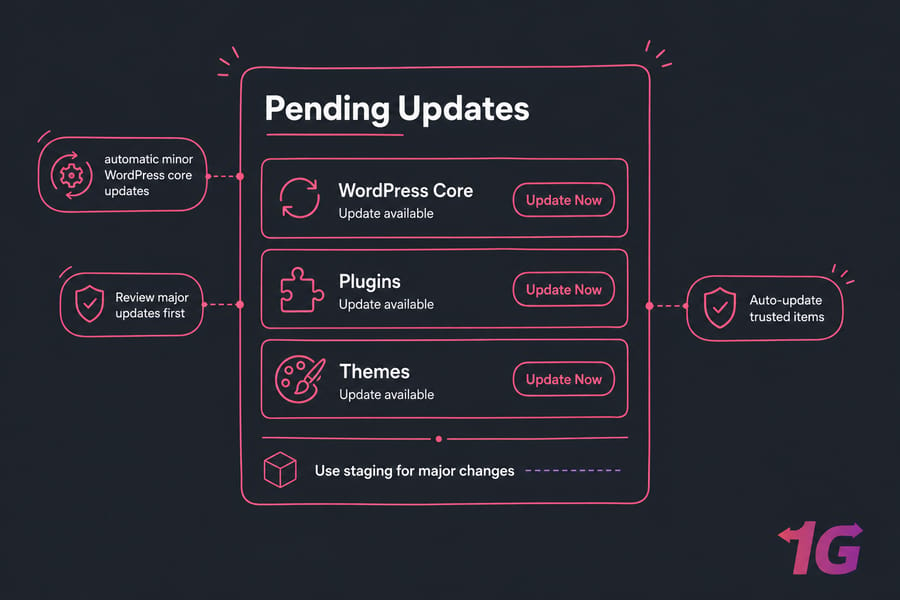
Which updates should be automatic?
- Enable automatic minor WordPress core updates
- Review major core updates before pushing them live
- Auto-update trusted plugins and themes only if you’re confident they won’t break the site
- Use staging for major changes on business-critical sites
How outdated plugins become the biggest risk
- Patch WordPress core, themes, and plugins promptly
- Replace abandoned plugins that no longer receive fixes
- Check changelogs for security releases
- Don’t leave “I’ll update it later” items sitting for weeks
Auto-updates help, but don’t turn them on blindly for everything. A broken checkout plugin is still a problem. Test bigger changes where you can, especially if revenue depends on the site.
For a broader setup and tuning guide, see how to optimize WordPress on a VPS.
Next, reduce the software and users attackers can target.
2. Remove unused plugins, themes, and admin accounts
Inactive software is still software. If it’s installed, it can still be vulnerable. Deactivating a plugin isn’t the same as removing the risk.
Why inactive software is still a security risk
- Delete unused plugins instead of just deactivating them
- Keep one fallback theme, usually a default WordPress theme, and remove the rest
- Audit for plugins that were used once and forgotten
How to audit WordPress users safely
- Remove stale administrator accounts
- Downgrade users to editor or author if they don’t need full admin rights
- Delete old staging or temporary vendor accounts
- Never leave shared generic admin users hanging around
I’d be especially careful after redesigns or migrations. That’s when mystery accounts tend to pile up.
With software trimmed down, protect logins next.
3. Strengthen WordPress login security with strong passwords and 2FA
WordPress login security is still one of the highest-return fixes you can make. It’s boring. It works.
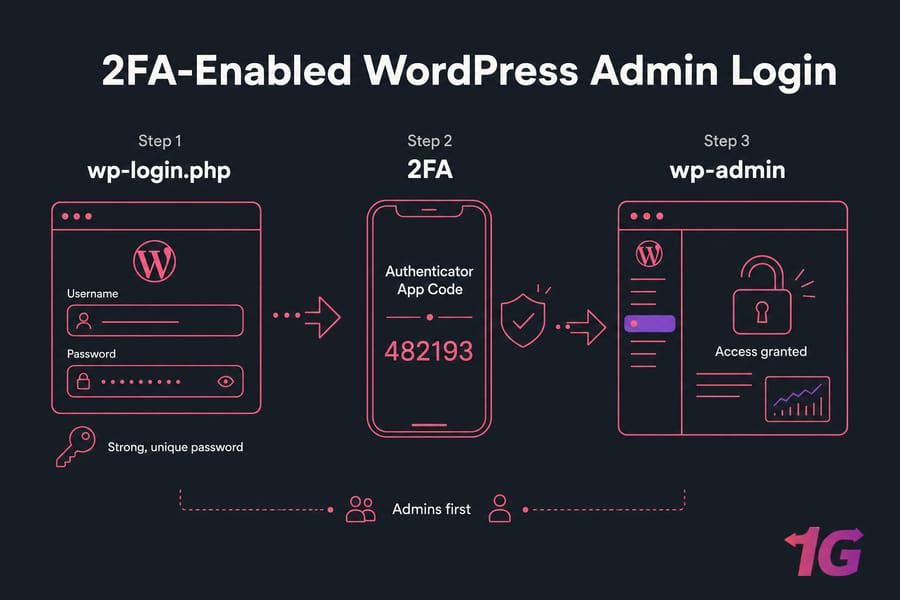
How to protect wp-admin and wp-login.php
- Use long, unique passwords for every WordPress account
- Store them in a password manager instead of reusing the same admin password everywhere
- Restrict who can reach wp-admin at all
- Review any plugin that exposes public login forms carelessly
Should every administrator use 2FA?
- Yes — every administrator should use 2FA
- Editors should use it too if they can publish content or manage important workflows
- Don’t use shared logins between team members
Pro tip: If you can’t roll out 2FA to everyone on day one, enforce it for admins first. That gets you most of the value fast.
If your site still has the default admin username, change it safely by creating a new administrator account, logging in with it, then deleting or demoting the old one. Don’t try weird database hacks unless you know exactly what you’re doing.
A good password policy matters outside WordPress too, so this guide on how to choose a strong password is worth your time.
Even strong credentials need brute-force protection.
4. Limit brute-force attacks and bot logins
Strong passwords help. Bots don’t care. They’ll still hammer wp-login.php and sometimes XML-RPC until you slow them down or block them.
Login attempt limiting vs CAPTCHA vs WAF
- Login attempt limiting: good first defense against repeated password guessing
- CAPTCHA: adds friction, useful on noisy sites, but can annoy real users
- WAF: filters malicious patterns before they even hit WordPress
- fail2ban: useful at the VPS level when paired with logs and sane rules
What to do about XML-RPC abuse
- Disable XML-RPC if you don’t need it for integrations
- If something depends on it, restrict or monitor it instead of killing it blindly
- Consider IP allowlisting for wp-admin if your team uses static office or VPN IPs
What I wouldn’t do is treat “change the login URL” as your main security plan. That’s mild obscurity. Fine as a tiny extra layer, not a real control.
For tool options, check these top security plugins for VPS users.
Now lock down the files attackers often try to modify.
5. Set safe WordPress file permissions and ownership
This is where WordPress on a VPS gets more technical. File permissions decide what can be read or written. Ownership decides which user can do it. Those are related, but they aren’t the same thing.
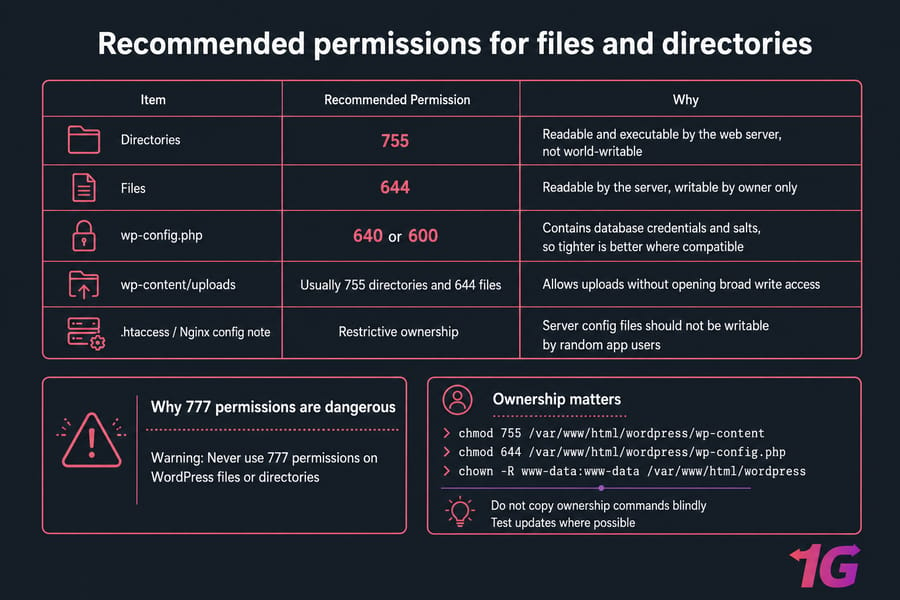
Recommended permissions for files and directories
| Item | Recommended Permission | Why |
| Directories | 755 | Readable and executable by the web server, not world-writable |
| Files | 644 | Readable by the server, writable by owner only |
| wp-config.php | 640 or 600 | Contains database credentials and salts, so tighter is better where compatible |
| wp-content/uploads | Usually 755 directories and 644 files | Allows uploads without opening broad write access |
| .htaccess / Nginx config note | Restrictive ownership | Server config files should not be writable by random app users |
Why 777 permissions are dangerous
Warning: Never use 777 permissions on WordPress files or directories unless you’re troubleshooting temporarily and fully understand the risk. World-writable paths are one of the fastest ways to turn a small vulnerability into a full compromise.
Typical examples:
chmod 755 /var/www/html/wordpress/wp-content
chmod 644 /var/www/html/wordpress/wp-config.php
And ownership matters just as much:
chown -R www-data:www-data /var/www/html/wordpress
That said, don’t copy ownership commands blindly. Your Nginx or Apache user might be www-data, apache, or something custom. Shared deployment setups can differ. If you need a refresher, read about the chown command in Linux and how to use chown recursively without making a mess.
After changing permissions, test plugin updates, theme edits, and media uploads. This part is a bit tedious, honestly, but it’s better than discovering broken uploads later.
Permissions matter most when sensitive files are also protected.
6. Protect wp-config.php and sensitive WordPress files
wp-config.php is one of the most sensitive files in a WordPress install. It holds database credentials, authentication salts, and security-related constants. If that file is exposed, your day gets bad fast.
What should never be publicly accessible?
- wp-config.php
- install and setup leftovers like install scripts
- directory indexes that reveal file structure
- readme files when they expose unnecessary version details
How to reduce exposure of config and install files
- Disable file editing from the WordPress dashboard
- Turn off directory listing in Nginx or Apache
- Keep salts and keys current if you suspect compromise
- Use server rules in
.htaccessor Nginx to deny direct access to sensitive files
define('DISALLOW_FILE_EDIT', true);I don’t usually recommend treating “move wp-config.php somewhere else” as a universal fix. It can work in some setups, but it’s not the first thing that matters. Basic access controls and sane permissions matter more.
If you’re running Nginx, these references on Nginx default config and what is Nginx can help.
Next, restrict privileges across users and databases.
7. Use least-privilege WordPress users and database credentials
The principle of least privilege sounds academic until you’re cleaning up after a hacked editor account with full admin rights. Then it feels very practical.
Why admin access should be restricted
- Only grant the administrator role where it’s actually needed
- Editors and authors should not have admin rights by default
- Review old contractor or agency accounts after each project
Database user permissions and credential hygiene
- Create a unique MySQL or MariaDB user for the site
- Don’t use root database credentials in WordPress
- Rotate database passwords after migrations, admin turnover, or suspicious events
- Store credentials securely, not in random notes or chat messages
This is one of those low-drama fixes that quietly lowers risk for years. If you want to go deeper, here’s how to secure MySQL and MariaDB databases.
Then secure the VPS access layer itself.
8. Harden VPS access with SSH keys and disabled root login
If attackers get shell access, WordPress is the least of your problems. SSH hardening is core WordPress VPS security, even though it sits outside WordPress itself.
Password login vs SSH key authentication
- High-impact: use SSH keys instead of passwords
- High-impact: disable direct root login
- High-impact: use a normal user with sudo
- Medium-impact: restrict SSH access by IP where possible
- Low-impact: change the SSH port for noise reduction only
Safe SSH hardening basics for WordPress admins
SSH keys dramatically reduce brute-force exposure compared with password logins. Add fail2ban on top and you cut down a lot of noisy attacks. Just don’t lock yourself out — I’ve seen that happen more than once. Always keep an active session open while testing SSH changes.
If you need implementation help, use these guides to disable root login in Linux, generate SSH keys, and change the SSH port. Changing the port is fine as a small extra step, but don’t confuse it with real access control.
Once remote access is locked down, filter traffic at the firewall.
9. Configure a VPS firewall for WordPress security
A VPS firewall is basic hygiene. It won’t fix vulnerable plugins, but it will shrink the attack surface and stop services from being exposed for no good reason.
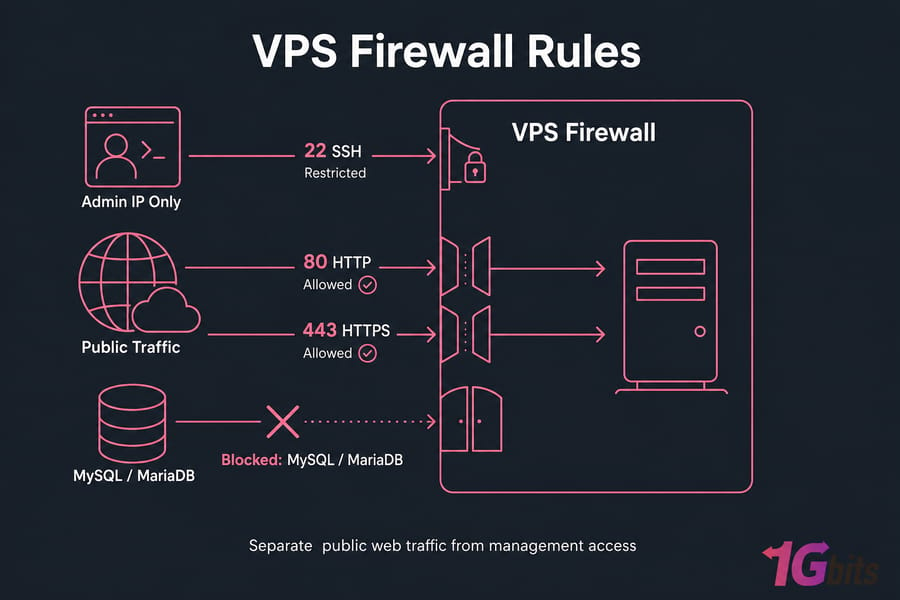
Which ports should stay open?
- Open port 80 for HTTP only if you redirect to HTTPS
- Open port 443 for HTTPS
- Restrict port 22 for SSH to trusted IPs when possible
- Open SFTP-related access only if you actually use it
- Do not expose MySQL or MariaDB publicly unless absolutely necessary
UFW, iptables, and host-level filtering basics
- Use UFW if you want a simpler interface on Ubuntu or Debian
- Use iptables or nftables if you prefer finer control
- Provider-level firewalls are a good extra layer
- Separate management access from public web traffic where you can
Warning: Don’t open database ports to the internet just because some tutorial made testing easier. That shortcut causes real incidents.
For a walkthrough, see how to configure a firewall on your VPS. And if your site sees a lot of hostile traffic, a DDoS-protected VPS can help absorb perimeter pressure that WordPress itself was never meant to handle.
Your firewall helps, but your software stack still needs patching.
10. Keep PHP, Nginx or Apache, and the OS patched
WordPress doesn’t run in a vacuum. Your security depends on PHP, the web server, and the operating system under it. An updated WordPress core on an end-of-life Ubuntu box is not a secure setup.
Why WordPress security also depends on your stack
- Run supported versions of PHP
- Keep Nginx or Apache updated
- Patch Ubuntu or Debian packages regularly
- Avoid EOL operating systems entirely
Patch management without breaking production
- Use maintenance windows for bigger upgrades
- Test after updates, especially PHP version jumps
- Keep notes on what changed so rollback is easier if needed
I personally prefer a predictable patch cadence over random “when I remember” updates. It’s less stressful and much safer.
Helpful reading: how to update Linux and this Apache vs Nginx comparison.
Transport security comes next: every admin and visitor session should use HTTPS.
11. Enable SSL/TLS and force HTTPS across WordPress
SSL/TLS protects data in transit. That means admin logins, checkout traffic, contact forms, cookies — all of it should be encrypted with HTTPS.
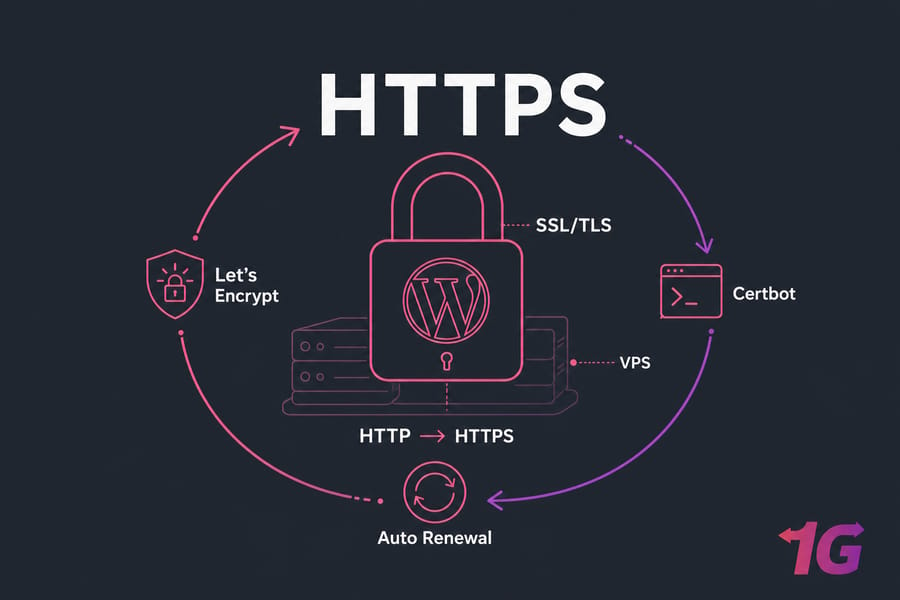
Why SSL is necessary but not enough
- Use a valid SSL/TLS certificate from a trusted issuer
- Force HTTP to HTTPS redirects
- Update WordPress site URLs to use HTTPS
- Check admin and login paths specifically
Quick summary: HTTPS is required, but it doesn’t clean malware, patch vulnerable plugins, or stop bad file permissions. It solves transport security, not everything.
Mixed content and renewal mistakes to avoid
- Fix mixed content warnings after enabling HTTPS
- Automate renewals with Let’s Encrypt and Certbot
- Monitor expiration so you’re not surprised later
If you need setup help, follow these guides to install Let’s Encrypt SSL certificate on Linux, configure Nginx SSL, and review what is SSL.
Next add active threat detection at the application edge.
12. Add a WordPress firewall and malware scanning layer
This is where a good WordPress security plugin or cloud firewall earns its keep. Just remember the role: it’s one layer, not the whole strategy.
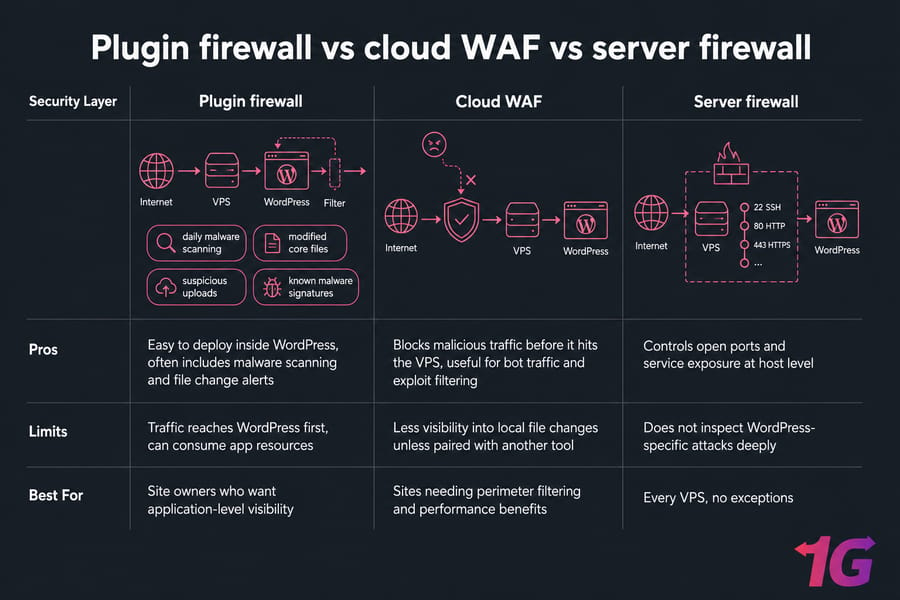
Plugin firewall vs cloud WAF
| Security Layer | Pros | Limits | Best For |
| Plugin firewall | Easy to deploy inside WordPress, often includes malware scanning and file change alerts | Traffic reaches WordPress first, can consume app resources | Site owners who want application-level visibility |
| Cloud WAF | Blocks malicious traffic before it hits the VPS, useful for bot traffic and exploit filtering | Less visibility into local file changes unless paired with another tool | Sites needing perimeter filtering and performance benefits |
| Server firewall | Controls open ports and service exposure at host level | Does not inspect WordPress-specific attacks deeply | Every VPS, no exceptions |
How often should malware scans run?
- Run scheduled malware scanning daily on active sites
- Scan for modified core files, suspicious uploads, and known malware signatures
- Review alerts for unexpected admin creation or changed files
- Use firewall rules to catch known exploit patterns
Neutral options include Wordfence, Sucuri, and Cloudflare WAF. They solve slightly different problems, so pick based on your setup instead of forum hype. On small sites, I often see a server firewall plus one solid WordPress security layer do the job well.
Need a more secure foundation for WordPress? Hardening is easier when the hosting stack already gives you isolated resources, full root access, and room to grow. If your current setup feels cramped or messy, explore WordPress VPS hosting.
Then reduce risky defaults that attackers commonly abuse.
13. Disable risky defaults and reduce attack surface
WordPress hardening is often about removing things you don’t need. Fewer exposed features usually means fewer ways to get hurt.
File editing in dashboard, XML-RPC, and directory listing
- Disable dashboard file editing with
DISALLOW_FILE_EDIT - Disable directory listing on the web server
- Review XML-RPC and disable it if unused
- Remove unused services from the VPS entirely
Security headers and basic web server hardening
- Add security headers such as Content-Security-Policy, X-Frame-Options, and X-Content-Type-Options where appropriate
- Reduce unnecessary version exposure and server tokens
- Hide avoidable software disclosure in responses
- Don’t rely on myths like changing the database prefix alone to “secure WordPress”
Some headers can break things if you apply them carelessly, especially CSP. Test them. Same story with XML-RPC — useful in some edge cases, useless in many others.
For broader server-side guidance, read how to secure servers and how to secure your VPS.
Hardening is incomplete without reliable recovery.
14. Automate backups and test restores
A WordPress backup strategy should protect you from hacks, bad updates, accidental deletions, and plain old human error. Backups are not optional. Tested restores are the part most people skip.
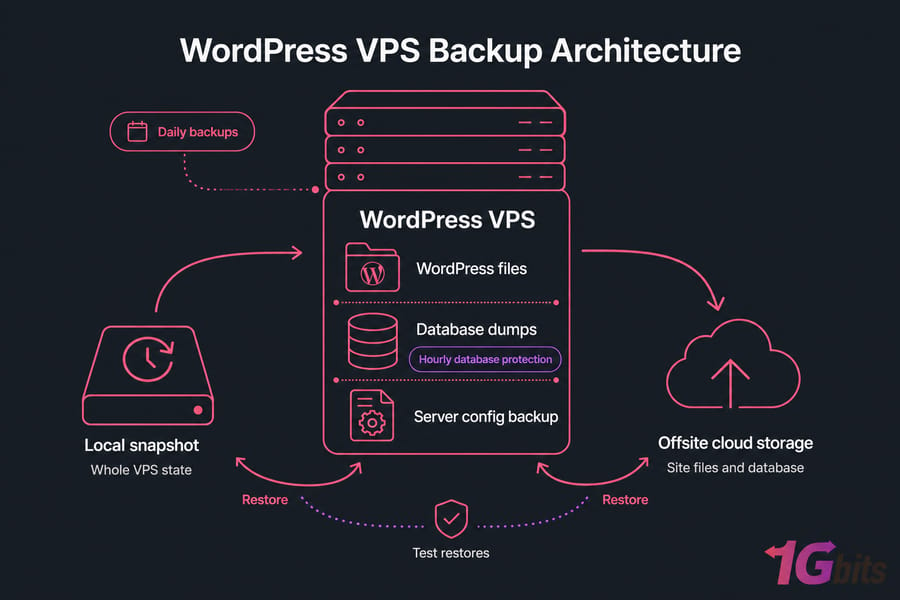
What to back up on a WordPress VPS
- WordPress files
- Database dumps
- Important server configuration where needed
- Optional full VPS snapshots for faster rollback
Backup frequency and off-server storage
| Backup Type | Covers | Pros | Limitations |
| Host snapshot | Whole VPS state | Fast rollback | May also preserve malware or bad config if taken after compromise |
| WordPress plugin backup | Site files and database | Simple for many users | Plugin itself can fail; should not be the only backup |
| File and database backup | Core app data | Flexible and scriptable | Needs regular verification |
| Offsite backup | Copies stored away from VPS | Protects against server loss or ransomware-style damage | Requires secure storage and retention planning |
Pro tip: A backup is only useful if you’ve tested a full restore. Do one on a staging VPS or isolated environment before you trust the process.
As a rule of thumb, active sites should have at least daily backups, and busier stores may need hourly database protection. Keep offsite copies. Don’t rely only on host snapshots.
These guides will help you schedule automatic backups for a Linux server and build a server disaster recovery plan.
Finally, make sure you can spot suspicious activity early.
15. Monitor logs, file changes, and suspicious activity
Security isn’t a one-time checklist. It’s ongoing observation. You don’t need a full-blown enterprise SIEM to get useful signal, either.
What to watch in access logs and auth logs
- Repeated failed logins in WordPress or SSH
- Strange spikes in requests to wp-login.php or XML-RPC
- Unknown IPs hitting admin paths constantly
- Unexpected sudo attempts in auth logs
Early warning signs of compromise
- New admin users you didn’t create
- Modified core files or theme files
- Outbound spam or odd mail queue activity
- Redirects to sketchy domains
- Search console warnings or uptime alerts
- Unexpected CPU or disk usage spikes
File integrity monitoring helps catch silent tampering. Uptime and availability checks are also useful, since a hacked site often starts showing errors before anyone notices the real cause.
For more on reading logs, see Linux logs. And if anything looks wrong, don’t wait follow this guide on what to do if your VPS gets hacked.
Here are the most common mistakes to avoid.
Common WordPress security mistakes on a VPS
Most WordPress VPS security failures aren’t exotic. They’re usually the result of basic gaps piling up.
Relying only on plugins
- Installing one security plugin and ignoring SSH, firewall, OS patching, and backups
- Assuming HTTPS alone means the site is secure
Skipping restore tests
- Having backups but never verifying they restore cleanly
- Depending only on snapshots taken on the same server
Giving every user admin access
- Ignoring least privilege
- Letting editors, contractors, or agencies keep administrator rights forever
- Using weak or reused passwords
- Leaving inactive plugins and themes installed
- Using 777 permissions
- Exposing SSH or database services publicly
- Postponing updates indefinitely
- Skipping a real firewall
If you want a broader business-focused version of the same lesson, these are 5 essential VPS security measures for small businesses.
Now let’s wrap this into a usable checklist.
Final WordPress security checklist for VPS users
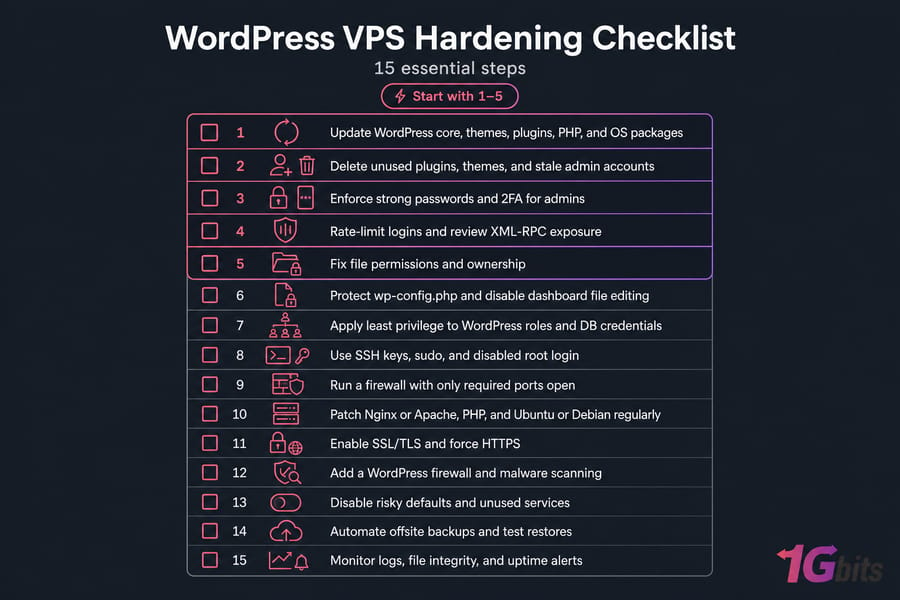
The fastest high-impact fixes to do today
- Update WordPress core, themes, plugins, PHP, and OS packages
- Delete unused plugins, themes, and stale admin accounts
- Enforce strong passwords and 2FA for admins
- Rate-limit logins and review XML-RPC exposure
- Fix file permissions and ownership
When to consider managed or higher-security VPS hosting
- Protect wp-config.php and disable dashboard file editing
- Apply least privilege to WordPress roles and DB credentials
- Use SSH keys, sudo, and disabled root login
- Run a firewall with only required ports open
- Patch Nginx or Apache, PHP, and Ubuntu or Debian regularly
- Enable SSL/TLS and force HTTPS
- Add a WordPress firewall and malware scanning
- Disable risky defaults and unused services
- Automate offsite backups and test restores
- Monitor logs, file integrity, and uptime alerts
Implement these in order if you can. The first five usually deliver the fastest risk reduction. After that, you’re building depth — and depth is what keeps a bad day from turning into a disaster.
Secure plugins and clean admin habits help, but real WordPress VPS security also depends on the infrastructure underneath. If you want more control, look at WordPress VPS hosting. If you’d rather offload more of the maintenance burden, check managed VPS hosting. And if you want a Linux-first setup, Linux VPS hosting is the natural fit.

Leave A Comment