
To recover a hacked WordPress site, first isolate it, take a full backup copy for analysis, restore from a known clean backup or remove malicious files, reset all passwords and WordPress salts, audit plugins, themes, users, and database entries, then harden the site and VPS with updates, firewall rules, malware scanning, and backups
If you're searching for how to recover a hacked WordPress site and secure it against future attacks, you probably need a calm checklist more than theory. That's fair. I've seen people make a bad situation worse by deleting files too early, restoring a dirty backup, or changing only one password and calling it done.
This guide follows the order that actually works in production: contain the damage, preserve evidence, clean or restore carefully, lock the attacker out, patch the weakness, and then tighten WordPress security so you don't end up back here next week. If you don't have server access, or you suspect customer or payment data exposure, stop and contact a security professional or 24/7 hosting support right away.
Warning: Do not delete files or restore backups until you preserve a full copy of the current site.
Before You Start
You'll want as many of these as you can get before touching the site:
- Hosting or VPS login access
- WordPress admin access, if it's still available
- SFTP, SSH, or control panel file manager access
- Database access through phpMyAdmin or CLI
- Your latest backups
- A list of installed plugins and themes
- Access to your domain or DNS account
- Access to the email used for admin recovery
If any of those are missing, recovery gets slower — but not impossible. If customer data, orders, or payment details may have been exposed, don't rely on plugin-only cleanup.
How to tell if your hacked WordPress site is really compromised
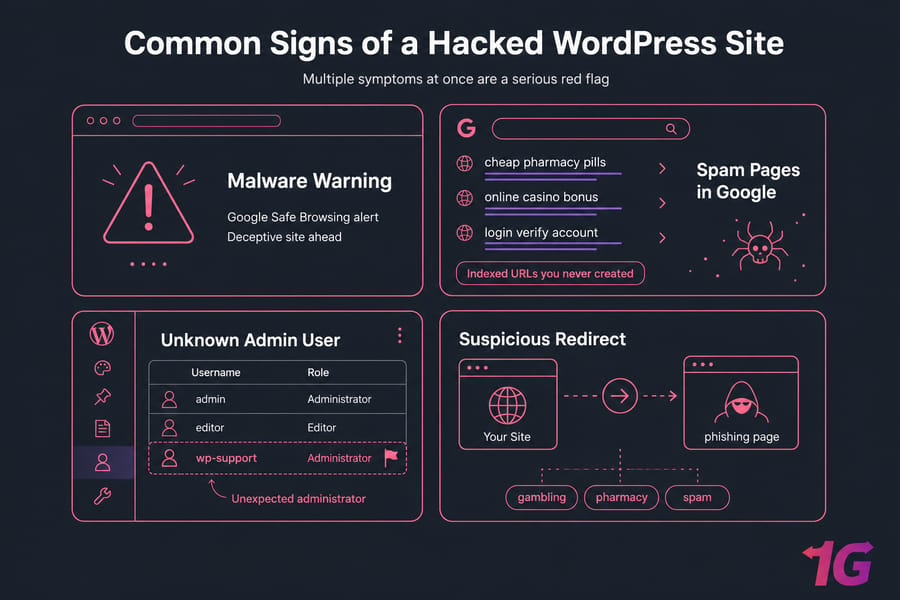
A hacked wordpress site usually shows a few specific symptoms at once. One weird issue alone doesn't always mean malware. A plugin conflict can break layouts, and a server error can make the site look worse than it is.
What are the most common signs of a hacked WordPress site?
- Unexpected redirects to spam, gambling, pharmacy, or phishing pages
- Defaced homepage or strange content injected into posts
- Spam pages indexed in Google that you never created
- Unknown WordPress admin users or changed admin email addresses
- Security plugins disabled without your input
- Modified core files, odd PHP files, or code in places it shouldn't be
- Hosting suspension notices or blacklist alerts
- Browser malware warning pages or Google Safe Browsing alerts
Is a redirect, spam page, or new admin user enough to confirm a hack?
Usually, yes. A single suspicious redirect or rogue admin account is already a serious red flag. Check Google Search Console for indexed spam URLs and warnings, and review server logs to confirm unusual requests or file changes. If you're seeing Apache issues at the same time, this guide on Apache error logs helps separate breakage from compromise.
When is it “just broken” vs actually infected?
A broken plugin may trigger errors like a 500 Internal Server Error, but it usually doesn't create new users, hidden pages, or redirects. If two or more of these signs are present, move to containment immediately.
What to do first after a WordPress site hacked incident
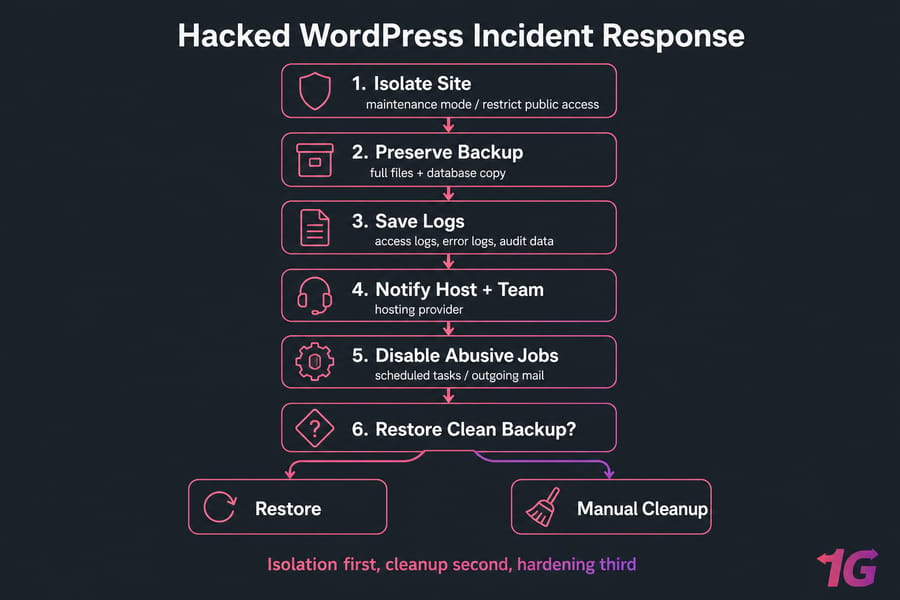
Your first job is isolation. Not cleanup. Stop the damage, preserve evidence, and keep the attacker from doing more.
Should you take the site offline immediately?
Usually yes, especially if it's redirecting visitors, sending spam, or showing malware warnings. Use maintenance mode if you still control the site, or restrict access at the web server or control panel level if needed.
How to isolate WordPress without destroying evidence
- Put the site in maintenance mode or temporarily restrict public access.
- Take a full backup of the current file system and database before changing anything.
- Save server logs, access logs, error logs, and recent audit data.
- If admin access still works, change that password immediately.
- Disable scheduled tasks or outgoing mail if the site is spamming or being abused.
- Contact your hosting provider if the compromise may affect the entire account.
Who needs to be notified first: host, team, clients, or customers?
Start with your host and your internal team. If this is on a VPS, read what to do if your VPS gets hacked as a server-side companion. If customer data may be exposed, legal and customer notification may also be necessary — that's where you should escalate fast.
Key takeaway: Isolation first, cleanup second, hardening third.
Once the site is isolated, the next decision is whether to restore or clean.
Restore WordPress from backup or clean it manually?
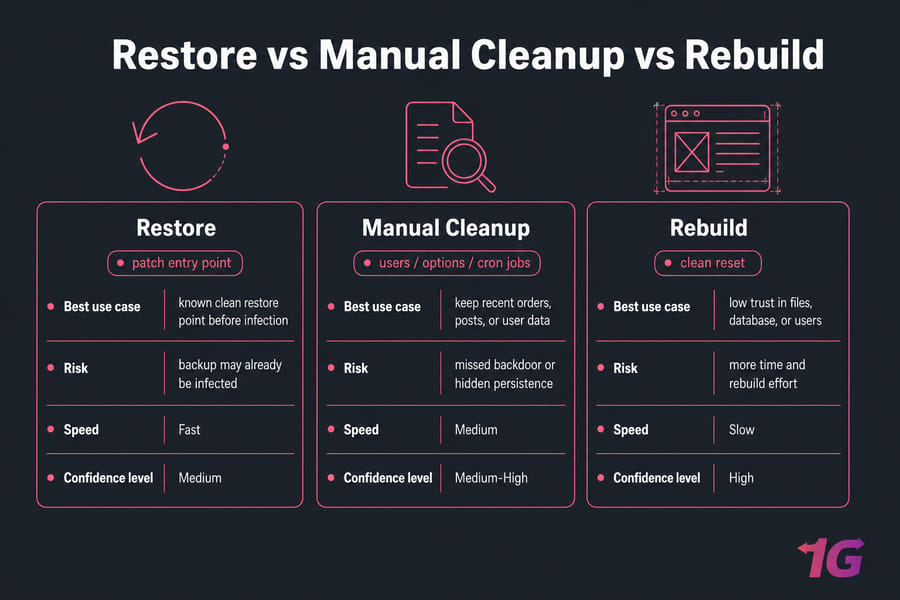
This is the fork in the road. Sometimes a clean restore is the fastest path back online. Other times, manual cleanup is safer because the infection sits in the database, user accounts, or a backup you can't trust.
| Option | Best When | Risks | Speed | Recommended? |
| Restore | You have a known clean restore point before the infection | Backup may already be infected; root cause may still exist | Fast | Yes, if verified |
| Manual cleanup | No clean backup, or recent data changes would be lost | Easy to miss hidden persistence | Medium | Yes, with careful audit |
| Rebuild | Compromise is severe or repeated, or files are too messy to trust | Takes longer and requires migration planning | Slow | Best for heavily compromised sites |
When a clean backup is the fastest recovery option
Use a backup if you know roughly when the infection started and you have a restore point from before that date. Verify both the database and file system, not just one of them. A backup is only useful if it predates the infection and you patch the entry point after restore.
How to verify that a backup is safe before restoring
Scan the backup copy, review its plugin and theme versions, and compare timestamps against the suspected attack window. If the vulnerable plugin was already present in the backup, restoring alone won't fix much. You'll just get reinfected more politely.
When manual cleanup is better than rollback
If you'd lose recent orders, posts, or user data, manual cleanup may be the better trade-off. This is also common when the compromise is living in users, options, cron jobs, or injected database content. For stronger recovery planning going forward, it's worth reading how to schedule automatic backups for your server and how to create a server disaster recovery plan.
Pro tip: A backup is not automatically clean just because it restored successfully.
If you're cleaning manually, start with files before touching the database.
How to remove malware from WordPress files
File cleanup is where most people either solve the problem or leave a backdoor behind. A plugin scanner helps, sure, but I wouldn't trust any single automated pass on its own.
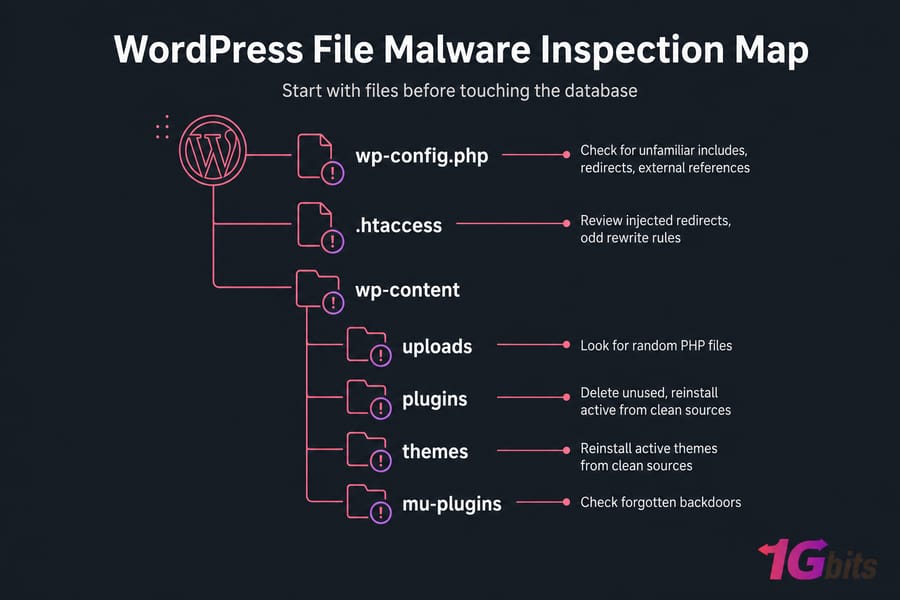
Which files attackers commonly modify in WordPress
Start with these areas:
- WordPress core files
wp-config.php.htaccesswp-content/uploads- Active and inactive plugins
- Active and inactive themes
mu-plugins
How to inspect wp-config.php, .htaccess, uploads, plugins, and themes
- Replace WordPress core files with fresh copies from a clean official release.
- Open
wp-config.phpand look for unfamiliar includes, redirects, or external references. - Review
.htaccessfor injected redirects, odd rewrite rules, or blocks you didn't create. - Inspect the uploads folder for random PHP files. In a normal site, uploads should mostly contain media, not executable scripts.
- Delete unused plugins and themes completely.
- Reinstall active plugins and themes from clean sources, not from old ZIPs sitting on your laptop.
- Check
mu-pluginsbecause attackers love places admins forget to review.
Can a security plugin fully clean hacked WordPress files?
Sometimes, but don't assume it. Wordfence, Sucuri, and MalCare are useful for detection, file comparison, and ongoing protection, but they can miss custom obfuscation or hidden persistence. Watch for suspicious patterns like base64, eval, or randomly named PHP files inside uploads. You can also use WP-CLI to verify plugin and core states if you have shell access. If the site lives on a VPS, a cleaner app stack also helps later when you optimize WordPress on a VPS or rebuild it cleanly with approaches like installing WordPress with Docker on a VPS.
Warning: Random PHP files in uploads are almost always suspicious.
File cleanup is only half the job; many reinfections survive in the database or user accounts.
WordPress malware removal in the database, users, and scheduled tasks
This part is a bit tedious, honestly. It's also where hidden persistence often lives. A site can look clean on disk and still be compromised in the database.
| Area | What to Check | Red Flags | Fix |
wp_users |
Admin accounts, emails, roles | Unknown users, strange email domains | Delete rogue users and reset valid ones |
wp_usermeta |
Capabilities and role data | Privilege escalation | Correct roles and review permissions |
wp_options |
siteurl, home, autoloaded options |
Injected scripts, odd URLs, hidden loaders | Remove malicious entries |
| Posts/content tables | Pages, posts, metadata | Spam SEO pages, hidden links | Delete injected content |
| WP-Cron | Scheduled tasks | Unknown recurring actions | Remove suspicious jobs |
| Hosting cron/system cron | Scheduled commands outside WordPress | Unfamiliar tasks | Disable and investigate |
Which database tables should you inspect first?
Start with wp_users, wp_usermeta, and wp_options. In phpMyAdmin or the command line, review admin accounts, email addresses, site URLs, and autoloaded options. You don't need deep SQL wizardry here — just a careful eye.
How to find rogue admin users and suspicious options
Look for users you didn't create, especially admins with odd names or throwaway email addresses. In wp_options, check for malicious code injections, changed siteurl or home values, and autoloaded entries that don't belong. Spam SEO pages often leave traces in content tables too.
How attackers persist with cron jobs and hidden backdoors
Review WordPress scheduled tasks, hosting cron jobs, and system cron if you have VPS access. Attackers sometimes set recurring jobs to re-create users, rewrite files, or pull payloads back in. If you're managing MySQL or MariaDB directly, these guides on securing MariaDB and MySQL databases and creating MySQL users safely are worth keeping nearby.
After removing attacker persistence, rotate every credential they could have touched.
Reset passwords and rotate access after hacked WordPress cleanup
If you skip this part, the attacker may not even need the original vulnerability anymore. They may already have valid access.
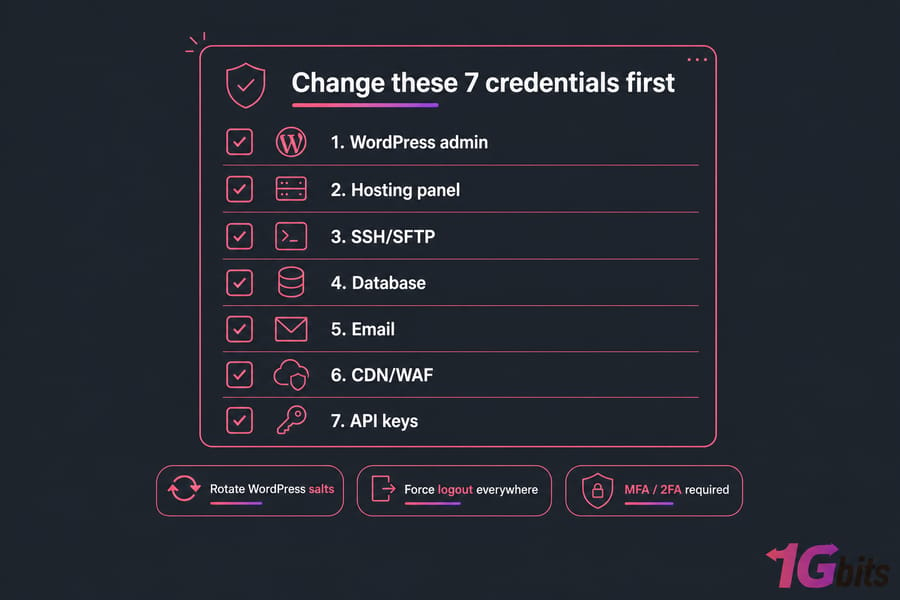
Which passwords must be changed after a WordPress hack?
- WordPress admin passwords
- Hosting or control panel credentials
- SSH and SFTP accounts
- Database credentials
- Email accounts tied to the site
- CDN or WAF logins
- Third-party integrations and API keys
How to rotate WordPress salts and API keys
Replace WordPress salts in wp-config.php to invalidate existing sessions. Force logout everywhere. Review payment gateways, SMTP tools, analytics connections, and anything else with stored keys.
Should you replace SSH, SFTP, database, and panel credentials too?
Absolutely. And if you're on a VPS, also change your VPS password, move to SSH keys where possible, and enforce strong credentials across the board with help from this guide on choosing a strong password. MFA or 2FA should be required for every privileged account, not just WordPress admin.
Quick summary: Change WordPress, hosting, SFTP/SSH, database, email, and third-party integration credentials.
Now that access is reset, patch the vulnerability that let the attacker in.
Update WordPress core, plugins, and themes to close vulnerabilities
Most WordPress compromises aren't magic. They're usually old plugin vulnerabilities, weak passwords, exposed admin panels, or outdated server software. Boring causes. Expensive consequences.
How outdated plugins lead to hacked WordPress incidents
A vulnerable plugin or theme is still one of the most common entry points. Check changelogs, known CVEs, and vendor advisories. If a plugin hasn't been updated in ages, that's a problem even if it still “works.”
What to remove immediately: nulled, abandoned, or unused extensions
- Nulled or pirated plugins and themes
- Abandoned extensions with no recent maintenance
- Unused plugins and inactive themes
- Custom add-ons you can't verify as clean
How to update safely after cleanup
Update WordPress core, plugins, themes, and your PHP version carefully. Test after each major change, especially on older sites. If you're reviewing plugin quality more broadly, related reads like the best payment plugin for WordPress and what WordPress hosting actually means can help you trim risky bloat and choose cleaner components.
Fixing the vulnerability is not enough; now harden WordPress so the next attack is harder to pull off.
WordPress security hardening to prevent another hack
This is where WordPress security stops being reactive and starts doing actual preventive work. You don't need twenty plugins. You need a few controls that matter.
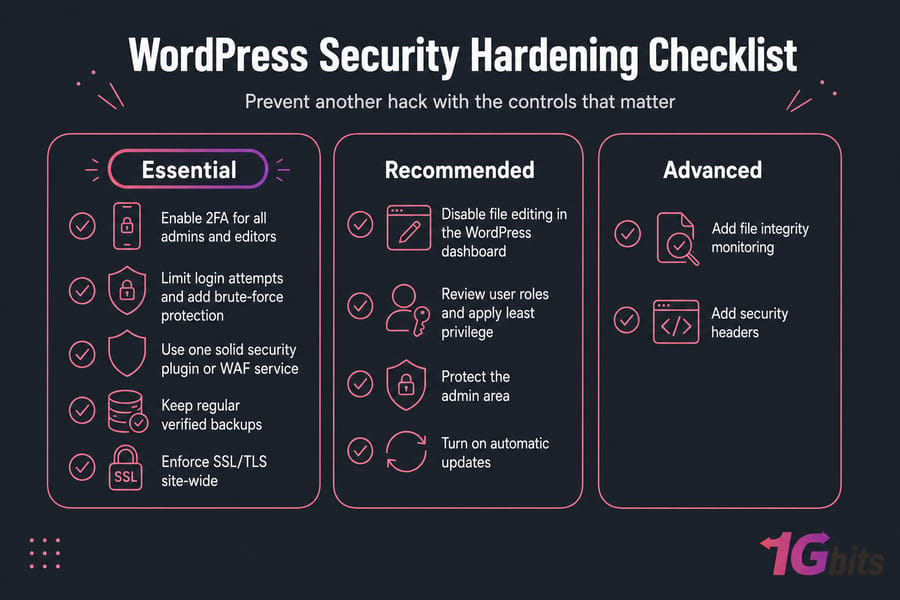
- Essential: Enable 2FA for all admins and editors.
- Essential: Limit login attempts and add brute-force protection.
- Essential: Use one solid security plugin or WAF service such as Wordfence, Sucuri, or MalCare.
- Essential: Keep regular verified backups.
- Essential: Enforce SSL/TLS site-wide. If needed, here's how to install a Let’s Encrypt SSL certificate.
- Recommended: Disable file editing in the WordPress dashboard.
- Recommended: Review user roles and apply least privilege.
- Recommended: Protect the admin area where appropriate.
- Recommended: Turn on automatic updates where they're safe and tested.
- Advanced: Add file integrity monitoring and security headers.
One good setup beats a pile of overlapping tools. I personally prefer a single primary security layer plus clean backups and proper server controls, rather than stacking three plugins that all fight over the same login page. If you want options, this roundup of top security plugins for VPS users is a useful starting point.
Pro tip: One good security plugin plus server controls is better than stacking multiple overlapping plugins.
If your WordPress site runs on a VPS, server-level hardening is the next major protection layer.
How to secure WordPress on a VPS after recovery
App security and server security aren't the same thing. You can clean WordPress perfectly and still get hit again if the Linux VPS itself is exposed.
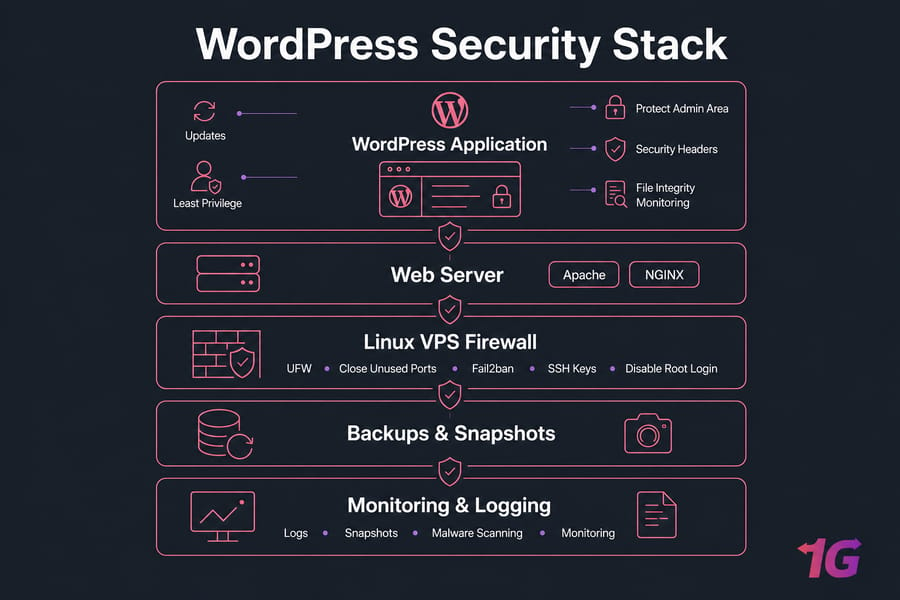
VPS firewall, SSH, and patching basics
Update the OS and packages first. Then lock down network access with UFW or another firewall, close unused ports, and add Fail2ban for brute-force protection. Move to SSH key authentication, and disable direct root login where practical.
File permissions and ownership checks for WordPress
Review ownership so the web server and deployment user have only what they need. Bad permissions won't just cause breakage — they can also make persistence easier. Keep staging and production separate if you can; it reduces risk when testing updates after an incident.
Why backups, snapshots, and monitoring matter on VPS hosting
With a properly configured Linux VPS, you usually get better visibility: logs, snapshots, firewall rules, malware scanning, and monitoring. That's a big step up from low-control shared environments when you're trying to recover a compromised WordPress site. For practical server-side protection, read how to configure a firewall on your VPS, how to secure your VPS, and these broader Linux server security best practices.
| Control | WordPress Level | VPS Level | Priority |
| Updates | Core, plugins, themes | OS, PHP, web stack | High |
| Access control | 2FA, roles | SSH keys, no root login | High |
| Firewall | Login protection/WAF | UFW, closed ports | High |
| Monitoring | File integrity | Logs, alerts, scanners | High |
| Backups | Database and site backups | Snapshots and offsite copies | High |
| Isolation | Clean plugins/themes | Separate staging and production | Medium |
Related reading: Firewall setup, VPS security, backup scheduling, and WordPress VPS choices all matter more after a compromise than before it.
Recovery isn't finished until you watch for reinfection and clean up SEO and security fallout.
Monitor your site after recovery and request blacklist review
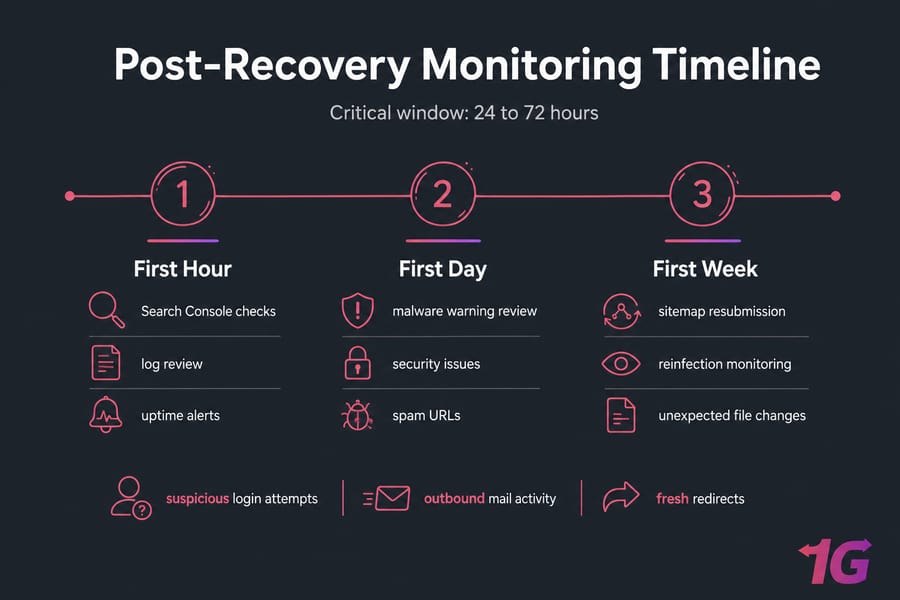
A site that looks clean isn't always done healing. The first 24 to 72 hours matter a lot. I've seen reinfections show up the next morning because one cron job or old credential was missed.
How to check Google warnings and spam indexing
Open Google Search Console and inspect indexed URLs, security issues, and sitemap status. If spam pages were indexed, remove them, return the right status codes, and resubmit your sitemap if needed.
What to monitor for reinfection in the next 72 hours
- Access logs and suspicious login attempts
- Outbound mail activity
- Unexpected file changes
- Uptime monitoring alerts
- Fresh redirects or new spam URLs
When to submit a reconsideration or blacklist review
If browser malware warnings appeared, request a blacklist review after you've verified cleanup. Use Search Console and relevant security platforms to trigger rechecks. Keep reviewing Linux logs and Apache error logs for a while, not just once. If the incident was user-facing, a short, honest customer update may be appropriate too.
Before you move on, make sure you avoid the common mistakes that cause reinfection.
Common hacked WordPress recovery mistakes to avoid
Most failed recoveries break down for the same reasons. Not because the malware was too clever — because the process was incomplete.
- Don't restore a backup without verifying it's clean.
- Don't change only the WordPress password and ignore SSH, SFTP, email, database, and panel access.
- Don't leave rogue users active.
- Don't clean WordPress while ignoring possible server compromise.
- Don't keep the vulnerable plugin or theme that caused the breach.
- Don't skip logs. They often tell you what happened and whether it's still happening.
- Don't remove visible symptoms while leaving the root cause untouched.
For a broader small-business checklist, this guide on essential VPS security measures for small businesses is worth bookmarking.
Still unsure? These are the questions site owners usually ask during WordPress recovery.
Recover the site — then harden the stack
Here's the short version: recover hacked WordPress site issues in the right order and your odds improve a lot. Isolate first. Preserve evidence. Clean or restore carefully. Remove persistence. Rotate access. Patch the real cause. Then keep watching.
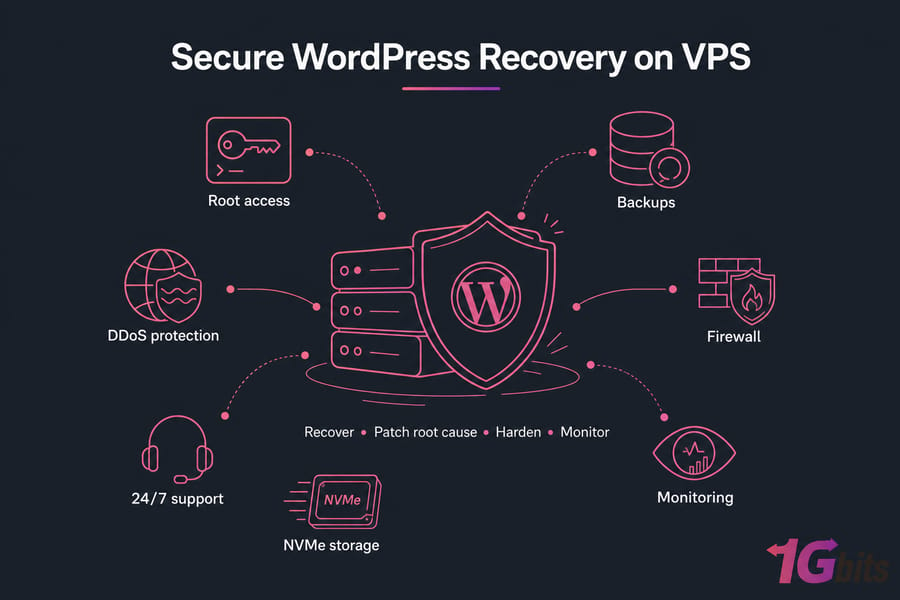
If your current environment makes backups, logs, or server controls hard to access, that's part of the problem. A properly configured VPS gives you more visibility and a better security foundation for hacked website recovery, especially if you're trying to secure WordPress on VPS long-term. You can explore WordPress VPS hosting, review managed VPS hosting for hands-on help, or contact support if you need urgent assistance.
And once the site is stable again, don't stop at cleanup. Tune performance, tighten the stack, and keep reducing attack surface. This is also a good time to optimize WordPress on a VPS so the site runs cleaner as well as safer.
Quick summary: Recover, patch root cause, harden, then monitor for reinfection.

Leave A Comment