
A 500 Internal Server Error is the web's version of "something broke, but I can't tell you what." It's an HTTP status code that means the server hit an unexpected condition and couldn't finish your request. The server knows it failed it just doesn't know why, or it isn't willing to say.
Because it's a catch-all, the 500 can be triggered by a broken config file, a fatal PHP error, a misbehaving plugin, exhausted memory, or a misconfigured rewrite rule. The error sits on the server side. Your browser, your laptop, your Wi-Fi none of those are causing it.
When encountering a 500 Internal Server Error on platforms like Discord, it often means that the server is experiencing issues processing requests. Similarly, a 500 Internal Server Error in Postman typically indicates that the API endpoint being tested has problems on the server side. The error can also appear in environments such as Azure, during API calls, or in frameworks like Angular and Apache — all pointing to server-side issues with resources, backend logic, or configuration.
What Does a 500 Internal Server Error Mean?
A 500 Internal Server Error is a common HTTP status code that signifies that the server encountered an unexpected condition, preventing it from fulfilling the request. This generic error message often appears when the server cannot find a more specific error code to address the issue. It usually indicates a problem with the server-side code or configuration.
Diagnosing this error is notoriously difficult because the message itself is vague — it tells you something broke, but not what or where. The real cause could be anything from server overload and misconfigurations to faulty scripts or database failures. That's why a systematic approach to troubleshooting is essential. If you're also dealing with DNS-related issues alongside server errors, refer to our guide on how to solve DNS server not responding error.
What a 500 Usually Looks Like in the Wild
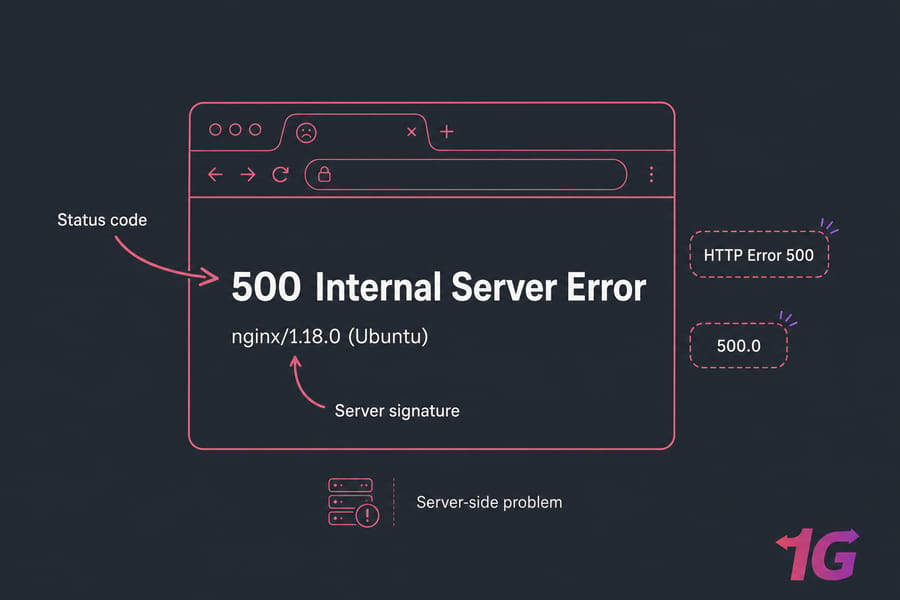
Depending on the stack, you'll see slightly different wording: "HTTP Error 500", "500 Internal Server Error", "500.0", or the Nginx classic — "500 Internal Server Error nginx/1.18.0 (Ubuntu)". In APIs and Postman, it shows up as a JSON body or just a bare status line. Same family of problem. Different costume.
What Causes an HTTP 500 Internal Server Error?
This error is a "catch-all" response, meaning it covers a wide range of potential server-side issues. Here are the most common causes:
- Broken .htaccess file — one typo in a rewrite directive and Apache throws 500 on every request. Learn how to properly structure your .htaccess rules to avoid this.
- Wrong file permissions or ownership — directories chmodded to 777, or files owned by root instead of the web user.
- Plugin or theme conflicts — especially after a WordPress update where one plugin hasn't caught up.
- PHP memory exhaustion — the dreaded "Allowed memory size of X bytes exhausted" line in the log.
- Unhandled exceptions in application code — a null reference, a missing dependency, a typo in a controller.
- Database failures — query timeouts, dropped connections, or a MySQL service that crashed quietly.
- Server misconfiguration — bad Nginx directive, missing Apache module, broken IIS web.config. If you're troubleshooting Nginx specifically, our Nginx configuration guide covers the most common pitfalls.
- Resource overload — CPU pegged at 100%, or an upstream service that didn't respond in time.
Permissions Error
Incorrect file and folder permissions can prevent the server from accessing necessary files. In Jupyter Notebook environments, permission issues frequently manifest as a "500 : Internal Server Error" when the kernel cannot access required directories.
Faulty Third-Party Plugins or Themes
In web applications, particularly those using content management systems like WordPress, third-party plugins or themes can conflict with each other or with the core system, leading to server errors. In some cases, these errors can be a symptom of a compromised site — if you suspect malware caused the server error, scan the install before doing anything else.
Temporary Connectivity Issues
Problems with the network or connectivity between servers can also trigger this error. These issues might be temporary and resolve on their own, but persistent connectivity problems need thorough investigation.
500 vs 502, 503, and 504: What's the Difference?
People mix these up constantly. Here's the cheat sheet.
| Code | Meaning | Common Cause | Start Troubleshooting At |
| 500 | Internal Server Error | Application crash, bad config, fatal exception | App logs, .htaccess, PHP errors |
| 502 | Bad Gateway | Upstream server unreachable | PHP-FPM, reverse proxy, app process |
| 503 | Service Unavailable | Server overloaded or in maintenance | Resource usage, queue depth |
| 504 | Gateway Timeout | Upstream too slow to respond | Slow queries, timeouts, network |
If you want a deeper dive on the 502 specifically which is often confused with 500 our how to fix 502 Bad Gateway error on Nginx walks through the upstream side in detail.
What to Do First When You See a 500 Error
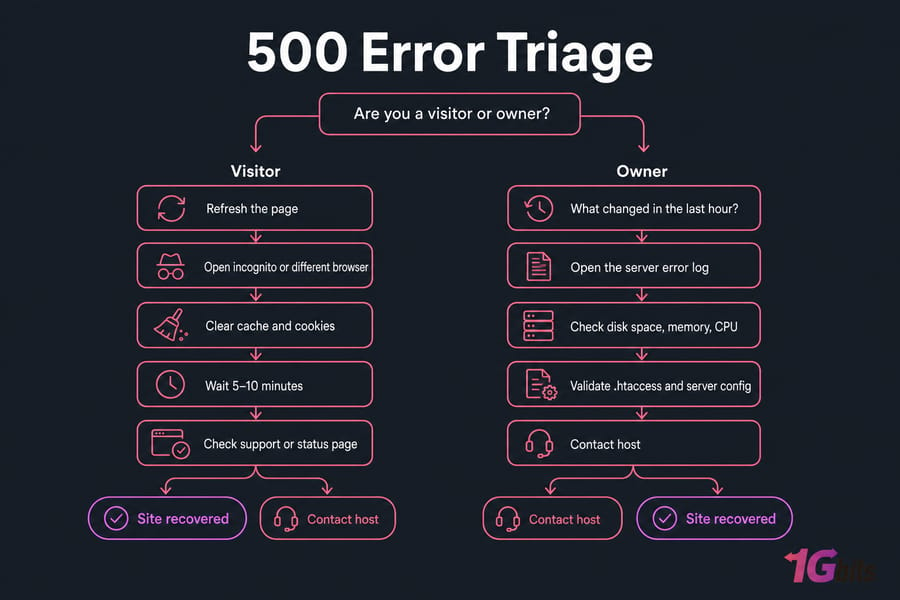
Your first move depends entirely on whether you own the site or you're just trying to read it.
If You're Just Visiting the Website
- Refresh the page. Sometimes it's a one-off hiccup.
- Open it in an incognito window or a different browser.
- Clear your browser cache and cookies for that domain.
- Wait 5–10 minutes and try again.
- If it's a service you pay for, ping their support or status page.
If You Own the Website
- What changed in the last hour? Plugin update? Deployment? Config edit?
- Open the server error log. That's where the answer usually lives.
- Check disk space, memory, and CPU on the host.
- Validate your .htaccess rules and server config syntax.
- If you're on a managed plan, contact your hosting provider with the timestamp of the error.
How to Fix a 500 Internal Server Error Step by Step
Here's the workflow to use. Top to bottom. Don't skip steps because you "know" it's something else — that's how you waste an afternoon.
- Reload once. Rules out a transient blip.
- Clear browser cache and cookies. Cached redirects can mimic a 500.
- Check what changed. Updates, deployments, cron jobs, plugin installs — anything in the last 24 hours.
- Read the server error log. The actual fatal error, stack trace, or "permission denied" line usually appears here.
- Test the .htaccess file. Rename it temporarily and reload. If the site comes back, the rules are the culprit.
- Check file permissions. Files should be 644, directories 755. Never 777.
- Disable plugins or themes. Especially on WordPress — bulk-disable, then re-enable one at a time.
- Increase the PHP memory limit. Bump from 128M to 256M in
php.iniorwp-config.php. - Scan recent code for syntax errors. One missing semicolon can take down the whole app.
- Restart the web server.
sudo systemctl restart nginxorapachectl restart. - Escalate to your host. If you've done the above and still nothing, it's their turn.
Deeper Dive: Troubleshooting on Your Own Server
While the step-by-step guide above covers the essential workflow, some of these steps deserve a closer look when you're managing your own server environment. If you're running your own infrastructure on a VPS server or dedicated server, these troubleshooting techniques matter even more — there's no shared hosting safety net.
Check Server Logs
Server logs provide detailed information about errors that occurred. These logs are often located in the server's root directory or accessible through your hosting provider's dashboard. Look for specific error messages or patterns that might indicate the problem.
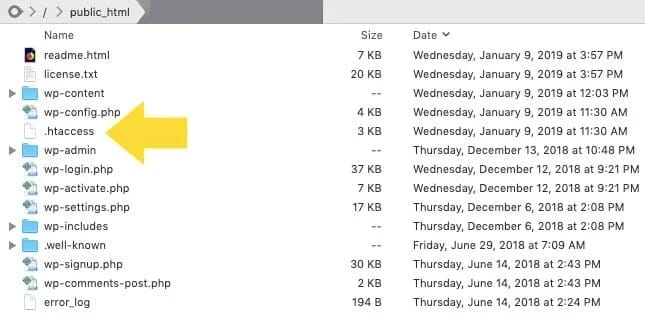
Check for Corrupt .htaccess File
A corrupt .htaccess file can cause server errors. Rename your .htaccess file temporarily and reload your site. If this resolves the error, the issue lies within the .htaccess file. You can then create a new one or correct the existing file's directives.
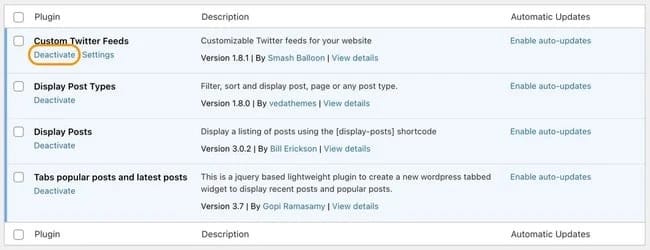
Deactivate Plugins or Themes
For websites using content management systems like WordPress, faulty plugins or themes can cause 500 errors. Deactivate all plugins and switch to a default theme. Reactivate them one by one to identify the problematic plugin or theme.
Check for Syntax Errors in Scripts
Recent changes to server-side scripts (e.g., PHP, Python) can introduce syntax errors. Review your scripts for any mistakes. Use a code editor with syntax highlighting to catch errors quickly — even a small typo can cause significant issues.
Contact Hosting Provider
If you're unable to resolve the issue on your own, contact your hosting provider. They have additional tools and expertise to diagnose and fix server issues that might not be available to you directly.
How to Read Logs for a 500 Internal Server Error
"Check the logs" is useless advice without knowing where they live. So here's the map.
Apache Error Logs
On most Linux servers, look in /var/log/apache2/error.log (Debian/Ubuntu) or /var/log/httpd/error_log (CentOS/RHEL). On shared hosting, cPanel users find them under Metrics → Errors. Tail it live with sudo tail -f /var/log/apache2/error.log.
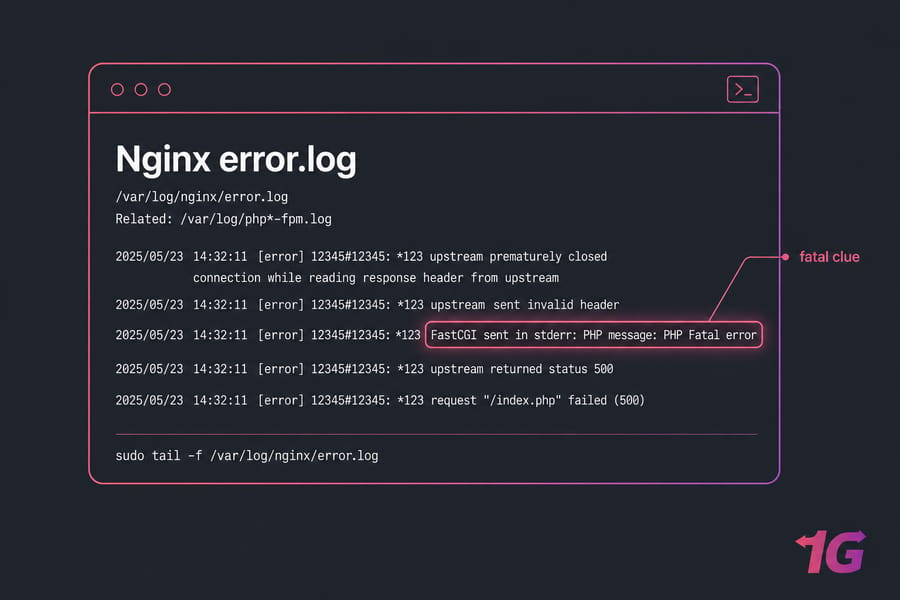
Nginx Error Logs
Default location: /var/log/nginx/error.log. Check your Nginx configuration if the path was customized. Pair this with the PHP-FPM log at /var/log/php*-fpm.log for PHP-driven sites.
PHP and WordPress Debug Logs
PHP errors land in the location set by error_log in php.ini. For WordPress, enable debug mode in wp-config.php:
define('WP_DEBUG', true);
define('WP_DEBUG_LOG', true);
define('WP_DEBUG_DISPLAY', false);
Errors land in /wp-content/debug.log. Turn this off once you've found the problem — don't leave it on in production.
What to Search For
Allowed memory size of X bytes exhausted— bump PHP memory.Permission denied— file ownership or chmod issue.Premature end of script headers— script crashed before sending output.Uncaught exception— application bug, look at the stack trace.Connection refused— upstream (DB, FPM, API) is down.
How to Fix a 500 Internal Server Error in WordPress
WordPress is the most common context. Run these in order.
- Disable all plugins. If you can't reach wp-admin, rename
/wp-content/plugins/to/plugins_off/via FTP or File Manager. Site back up? Re-enable one at a time. - Switch to a default theme. Twenty Twenty-Four or similar. Rename your active theme folder if you can't log in.
- Regenerate .htaccess. Rename the existing file, then go to Settings → Permalinks and save. WordPress writes a fresh one.
- Raise the memory limit. Add
define('WP_MEMORY_LIMIT', '256M');towp-config.php. - Enable WP_DEBUG carefully. Find the error, then disable it.
How to Fix a 500 Internal Server Error in Nginx
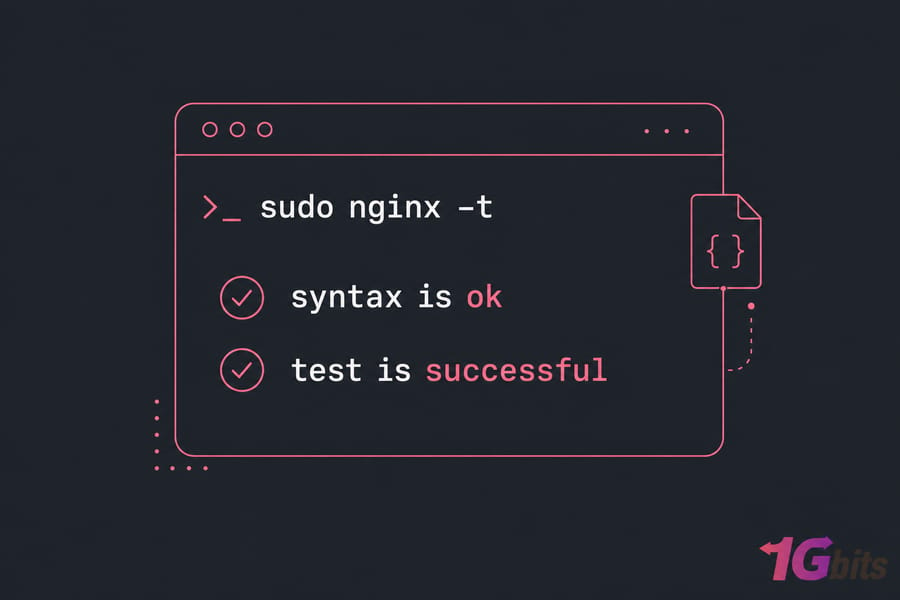
- Test config syntax:
sudo nginx -t. If it fails, the error line and column number are right there. - Check PHP-FPM:
sudo systemctl status php8.2-fpm. Down? Start it. Restart Nginx after. - Review error.log: Look for "connect() failed" or "upstream prematurely closed".
- Fix ownership: Web files should belong to
www-data:www-data(ornginx:nginxon RHEL family).
How to Fix a 500 Internal Server Error in Apache
- Validate config:
sudo apachectl configtest. Catches typos before a restart breaks everything. - Check .htaccess rules. Comment them out one section at a time.
- Confirm required modules.
sudo a2enmod rewriteif mod_rewrite isn't loaded. - Review virtual host blocks. A bad
DocumentRootor duplicateServerNamecan produce 500s. - Restart safely:
sudo systemctl reload apache2— reload first, restart only if needed.
How to Fix a 500 Internal Server Error in IIS
- Review web.config. Malformed XML is the #1 cause of 500.19 errors.
- Check the application pool. If it's stopped or in a bad state, recycle it.
- Enable detailed errors. In IIS Manager → Error Pages → Edit Feature Settings. Detailed errors expose the real reason.
- Audit folder permissions. The app pool identity needs read access to the site directory.
How to Troubleshoot 500 Errors in APIs and Postman
When an API returns 500, the client request is almost never the issue — the backend exploded. Don't keep editing your JSON body; go look at the server.
- Inspect the response body. Many frameworks return a JSON error object with a useful message in dev mode.
- Validate headers and auth. A missing
Content-Typecan sometimes trigger an unhandled deserialization exception that surfaces as 500 instead of 400. - Replay with cURL. Removes Postman from the equation:
curl -v -X POST https://api.example.com/v1/orders -H "Authorization: Bearer …" - Read backend logs. Stack traces tell you exactly which line failed.
- Don't confuse it with 401, 403, or 404. A 500 means the server tried and failed — not that you weren't allowed in.
How to Prevent 500 Internal Server Errors
The best fix is the one you never need. Most outages are preventable with five basic habits.
- Monitor logs and resources. Use a website monitoring tool. Get notified before users do.
- Test changes in staging. Especially WordPress plugin updates and Nginx config edits.
- Keep software updated. But updated after testing, not blindly in production.
- Back up before every change. Database, files, config. A two-minute backup beats a two-hour restore.
- Document your rollback path. When something breaks at 2 AM, you don't want to be reading docs.
When to Contact Your Hosting Provider
If you've checked the logs, ruled out .htaccess, disabled plugins, confirmed permissions, and the site is still throwing 500s — it's not you. It's the host. Send them the exact timestamp, the error log excerpt, and what you've already tried. That cuts the back-and-forth in half.
Conclusion
The 500 Internal Server Error is frustrating precisely because it's generic the server knows it failed, but won't tell you why. Common culprits include incorrect file permissions, a broken .htaccess file, faulty plugins or themes, exhausted PHP memory, and unhandled exceptions in application code. The fastest path to a fix almost always starts with the server error logs.
While temporary issues can sometimes be resolved with a simple page refresh or cache clear, persistent errors demand a methodical approach: verify permissions, test configurations, isolate plugins, and escalate to your hosting provider when needed. If you're consistently hitting resource limits or outgrowing shared hosting, upgrading to a VPS hosting plan or a dedicated server gives you full control over your environment making these errors easier to diagnose and prevent. For budget-conscious projects, check our cheap dedicated server options, or compare plans on our dedicated server pricing page.

Leave A Comment