

So you've got an Expert Advisor sitting in a ZIP file, and you want it running inside MetaTrader. That's what this guide covers. I'll walk you through how to install an Expert Advisor in both MT4 and MT5, get it showing in the Navigator, attach it to a chart, turn on automated trading, and — the part most tutorials skip — actually confirm it's doing something. We'll also cover errors, safety, and moving your setup to a VPS so it never stops.
Just so we're on the same page: an EA (Expert Advisor) is an automated trading program, sometimes called a Forex robot. Let's get into it.
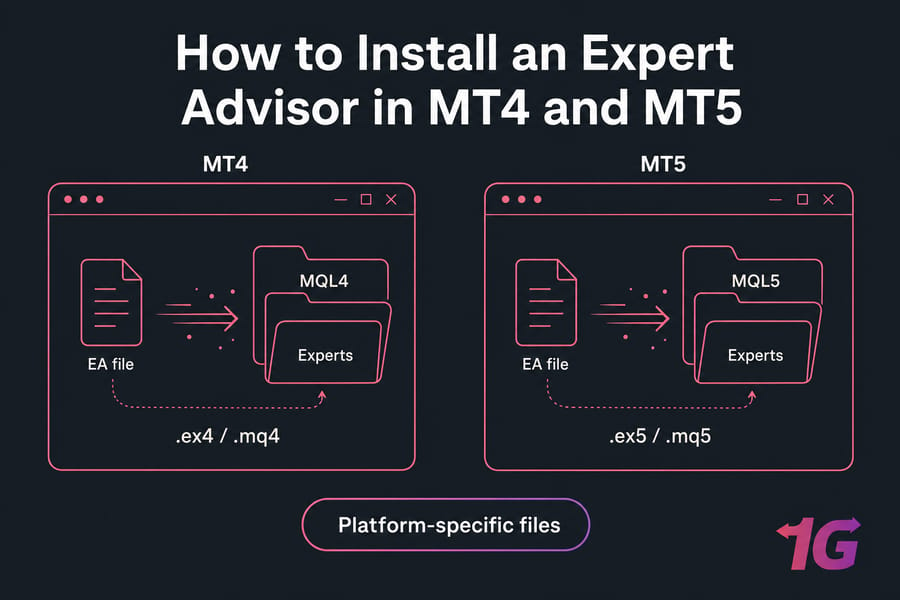
Quick Answer: Installing an EA in Under a Minute
Open MT4 or MT5 and select File → Open Data Folder. Open MQL4 → Experts for MT4 or MQL5 → Experts for MT5, copy the compatible EA file into that folder, restart or refresh MetaTrader, drag the EA from Navigator onto a chart, and enable AutoTrading or Algo Trading.
Test the EA on a demo account before granting live-trading or DLL permissions.
Key takeaway: MT4 files and MT5 files are not interchangeable. An .ex4 won't run in MT5, and no amount of renaming fixes that.
What Is an Expert Advisor and How Does Automated Trading Work?
An Expert Advisor is a program written for MetaTrader — in MQL4 for MetaTrader 4, or MQL5 for MetaTrader 5. It runs on a chart and follows rules its developer coded in.
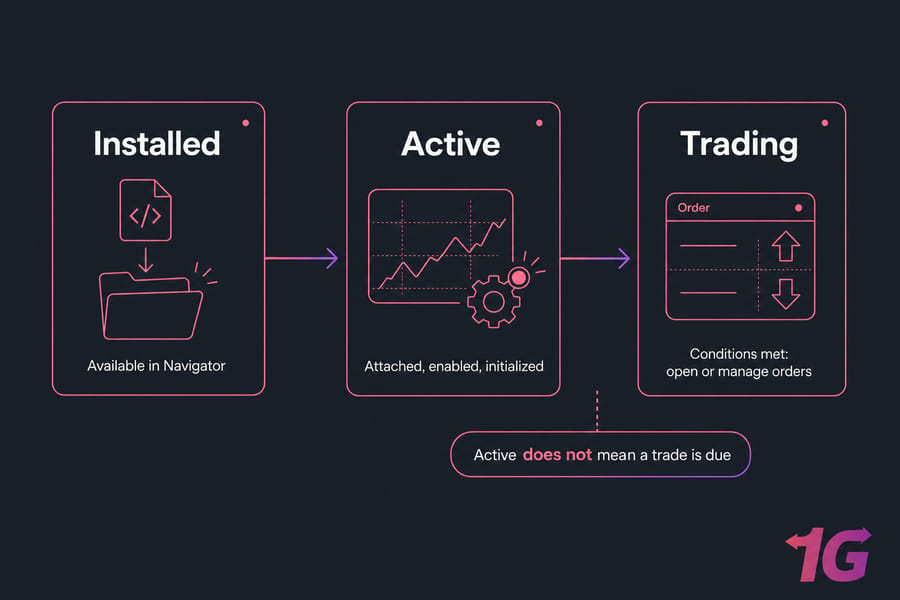
Those rules can do a lot. An EA might analyze market conditions, send buy or sell orders, adjust stop-loss levels, or manage positions you already have open. Here's the thing though: not every EA opens trades. Some only manage existing positions. Others just send alerts. Read what yours is designed to do before you expect it to fire trades.
For any of this to work, the desktop terminal has to stay running, stay logged in, and stay connected to your broker server. Close MetaTrader and the EA stops processing new market events. There's no background service quietly keeping it alive.
And automation doesn't guarantee profit. A well-installed EA running flawlessly can still lose money if the underlying strategy is weak. Uptime and clean logs prove the software works — not that the trades will. If you want the fuller picture, here's what a Forex trading robot does.
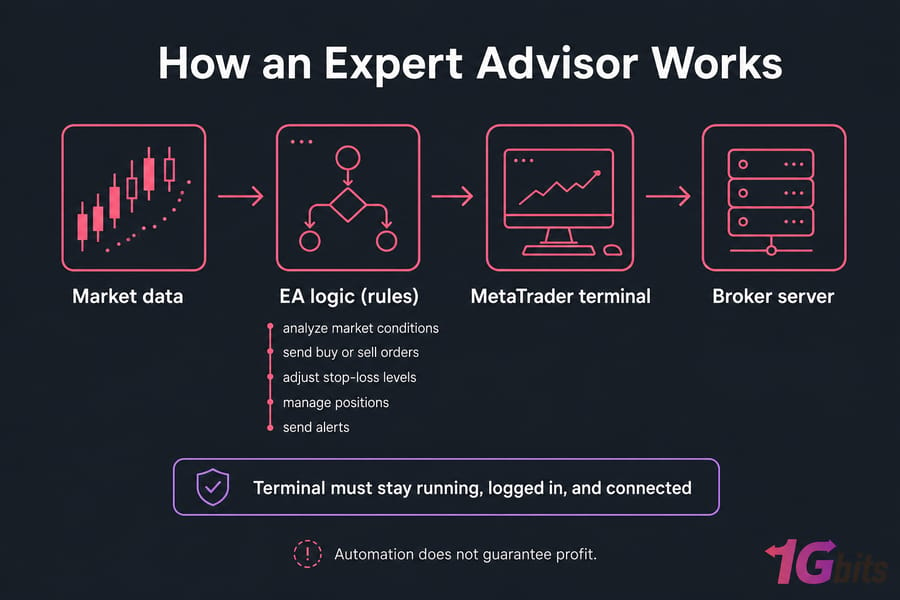
Before copying any files, confirm the EA was built for your MetaTrader version.
Expert Advisor Requirements and MT4 vs MT5 File Compatibility
This is where beginners trip up the most. Get the file type wrong and the EA simply won't appear — no error, no warning, just silence.
Before you start, check you've got the basics:
- MT4 or MT5 desktop terminal installed (mobile won't work — more on that shortly)
- Correct broker account and server credentials
- The EA downloaded from a trusted source and extracted from its ZIP or RAR
- A file that matches your platform:
.ex4/.mq4for MT4,.ex5/.mq5for MT5 - File-write access on the computer or VPS
- A demo account for the first tests
- Any license key or seller authorization the EA needs
- Dependency files the developer supplied (indicators, libraries, presets)
What Is the Difference Between EX4, MQ4, EX5, and MQ5?
The short version: .ex4 and .ex5 are compiled, ready-to-run files. The .mq4 and .mq5 versions are source code that MetaTrader needs to compile first (through MetaEditor). Source files don't always compile cleanly — if the developer used something your build doesn't support, you'll get errors.
| File | Platform | Purpose | Typical Destination |
.ex4 |
MT4 only | Compiled EA | MQL4\Experts |
.mq4 |
MT4 only | MQL4 source code | MQL4\Experts |
.ex5 |
MT5 only | Compiled EA | MQL5\Experts |
.mq5 |
MT5 only | MQL5 source code | MQL5\Experts |
.set |
MT4/MT5 | Input preset | Load via EA Inputs / Strategy Tester |
.dll |
As specified | External library | MQL4\Libraries or MQL5\Libraries |
| Custom indicator | Platform-specific | EA dependency | MQL4\Indicators or MQL5\Indicators |
Warning: renaming ExampleTrendEA.ex4 to ExampleTrendEA.ex5 does not convert it. The code inside is compiled for a different platform. It'll either refuse to load or misbehave.
Can an MT4 EA Work in MT5?
No — not directly. An MT4 EA has to be rewritten in MQL5 and recompiled. There's no built-in converter. If you're switching platforms, this catches a lot of people off guard, so it's worth reading up on the MT4 vs MT5 comparison first.
Where Do Preset, Indicator, and DLL Files Go?
The main EA goes in Experts. But EA packages often include extras. Custom indicators go in the Indicators folder. Libraries (.dll) go in Libraries. Preset files (.set) aren't copied into a folder — you load them from inside the EA's input window. Put a dependency in the wrong place and the EA loads but throws an initialization error.
Nested folders inside Experts are fine, by the way. If you run several EAs, a named subfolder keeps things tidy.
Can You Install an EA on Mac or Mobile?
Mac: usually yes, through a wrapper like Wine, CrossOver, a VM, or a broker-provided build. The menu path stays File → Open Data Folder, but the actual filesystem location varies wildly. Don't guess the path — always use the menu.
Mobile: no. The MT4 and MT5 Android and iOS apps cannot install or host EAs. Full stop. You can monitor trades and intervene manually from your phone, but the EA itself must live on a desktop or VPS. If someone tells you otherwise, they're wrong.
Once your file type matches your platform, pick the right procedure below.
How to Install an EA on MT4 Step by Step
Here's how to install an EA on MT4, start to finish. I'll use ExampleTrendEA.ex4 as our stand-in throughout — it's a made-up name, not a recommendation.
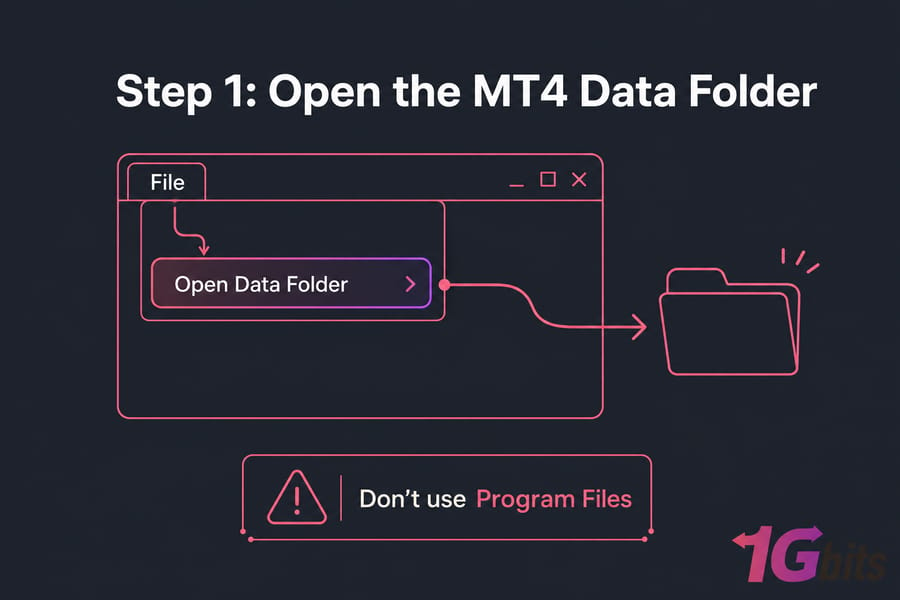
Step 1: Open the MT4 Data Folder
Launch your broker's MT4 terminal. Click File → Open Data Folder. A Windows Explorer window opens showing the correct location.
Pro tip: Always use File → Open Data Folder instead of hunting through Program Files. The install directory and the data directory are often different places, and copying into the wrong one is the number-one reason an EA never shows up.
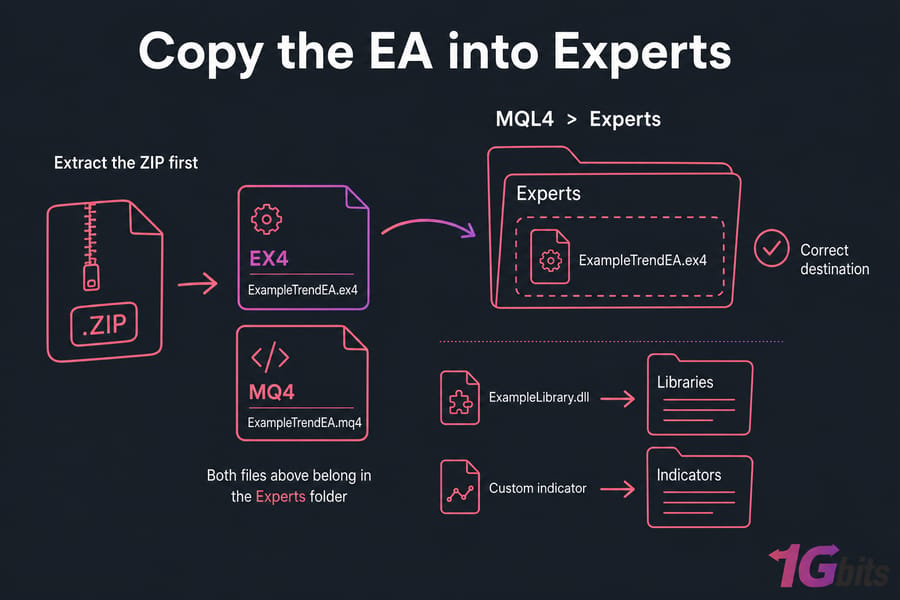
Step 2: Copy the EA into the MQL4 Experts Folder
In that window, open MQL4, then Experts. Extract your EA package first if it's still zipped. Copy ExampleTrendEA.ex4 (and the .mq4 if you have it) into Experts. If the package included ExampleLibrary.dll or a custom indicator, drop those into their matching Libraries and Indicators folders now.
Step 3: Refresh the MT4 Navigator Panel
Back in MT4, find the Navigator panel (Ctrl+N if it's hidden). Right-click Expert Advisors and choose Refresh. If it still doesn't appear, restart MT4 entirely. You should now see ExampleTrendEA listed.
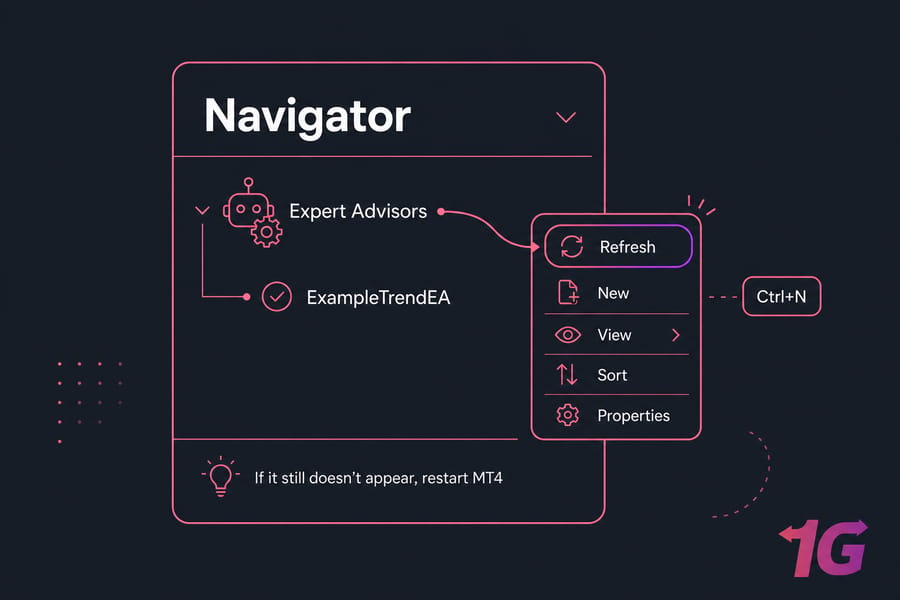
Step 4: Attach the EA to a Chart
Open the symbol and timeframe the EA is meant for — check its documentation, because there's no universal "right" timeframe. Then drag the EA from Navigator onto that chart, or double-click it. A settings window pops up.
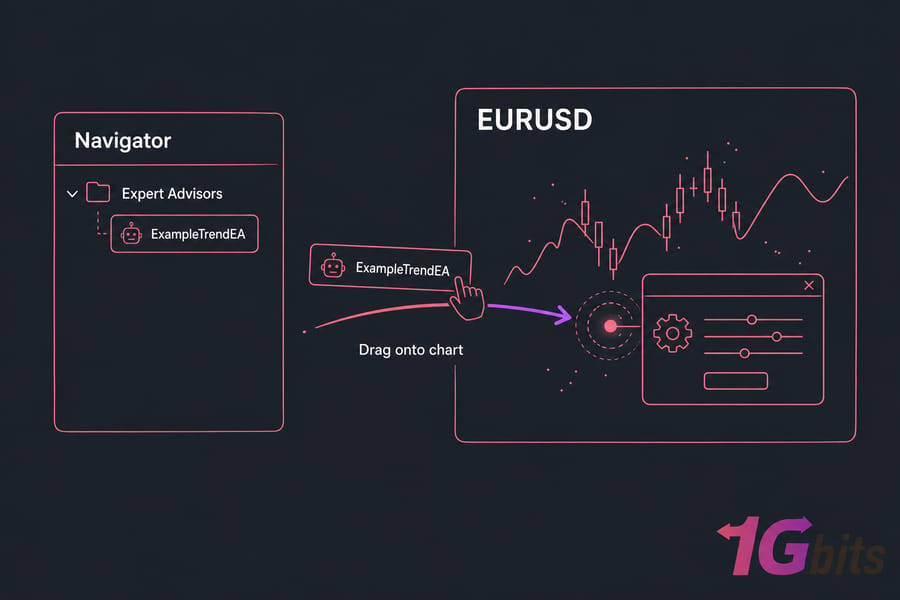
Step 5: Load Inputs and Save the MT4 Setup
In the settings window, check the Common and Inputs tabs. Only load a .set preset (like Conservative.set) if it matches this EA version and your account type. Click OK. Save a chart template if you want to reuse the layout later.
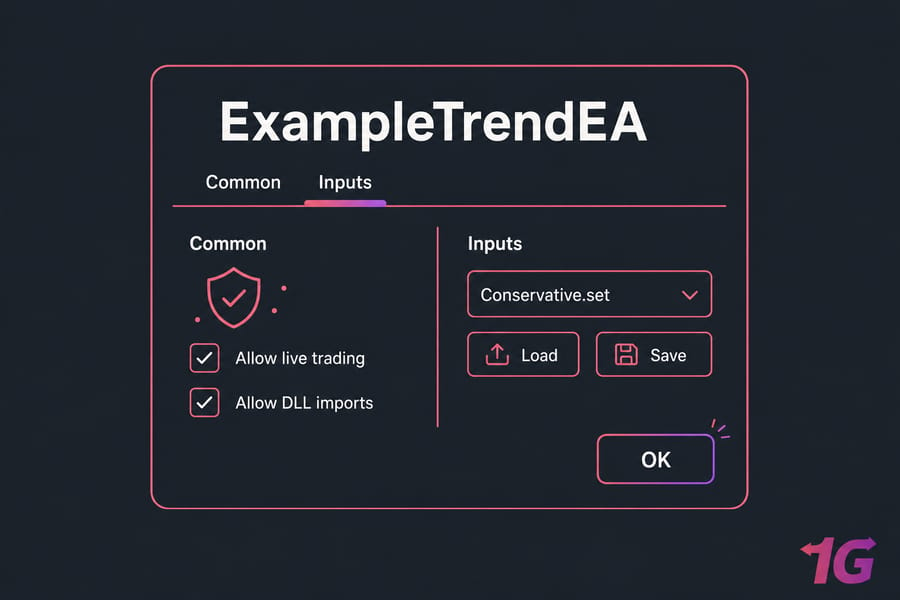
MT5 uses a similar interface, but it needs MT5-specific files and different wording for the global automation switch. First time on MT4? Here's how to download MT4 safely.
How to Install an EA on MT5 Step by Step
The workflow for how to install an EA on MT5 mirrors MT4, with a few key label changes. Watch for those.
Step 1: Open the MT5 Data Folder
Open MT5 and click File → Open Data Folder. Same as MT4 — let the menu find the path.
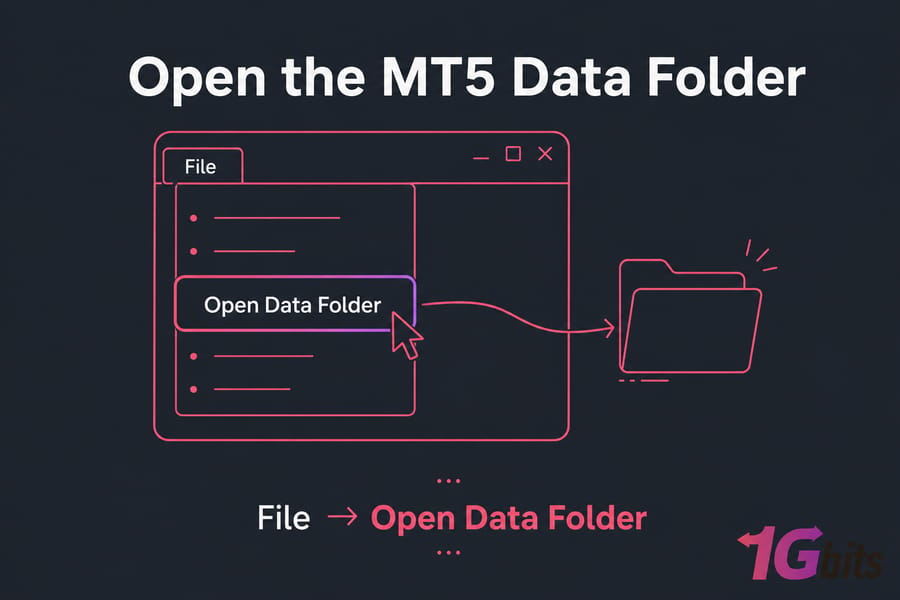
Step 2: Copy the EA into the MQL5 Experts Folder
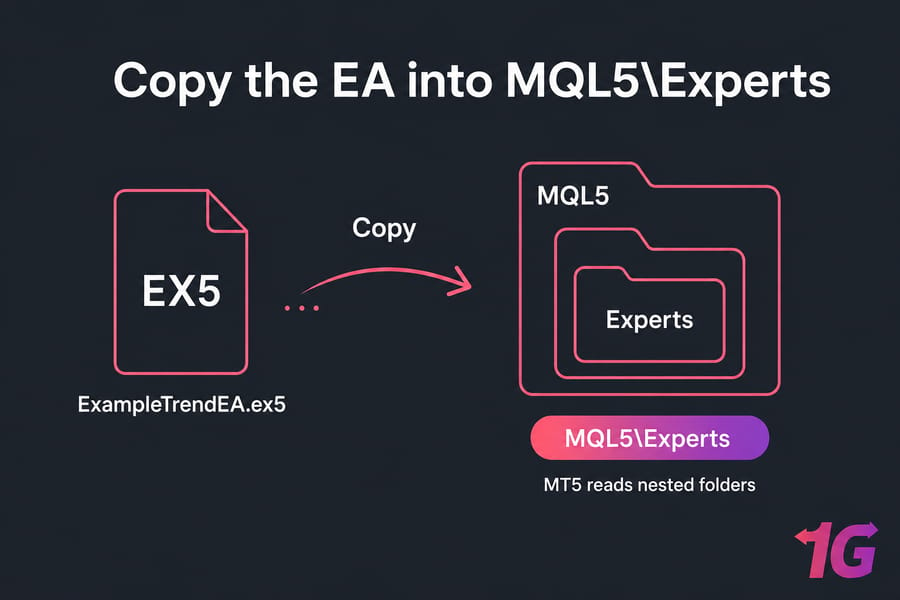
Open MQL5, then Experts. Copy your ExampleTrendEA.ex5 (or .mq5) in. Place any indicators and libraries in their matching MQL5 subdirectories.
Pro tip: Running multiple EAs? Create a named subfolder inside Experts for each one. MT5 reads nested folders fine, and you'll thank yourself later.
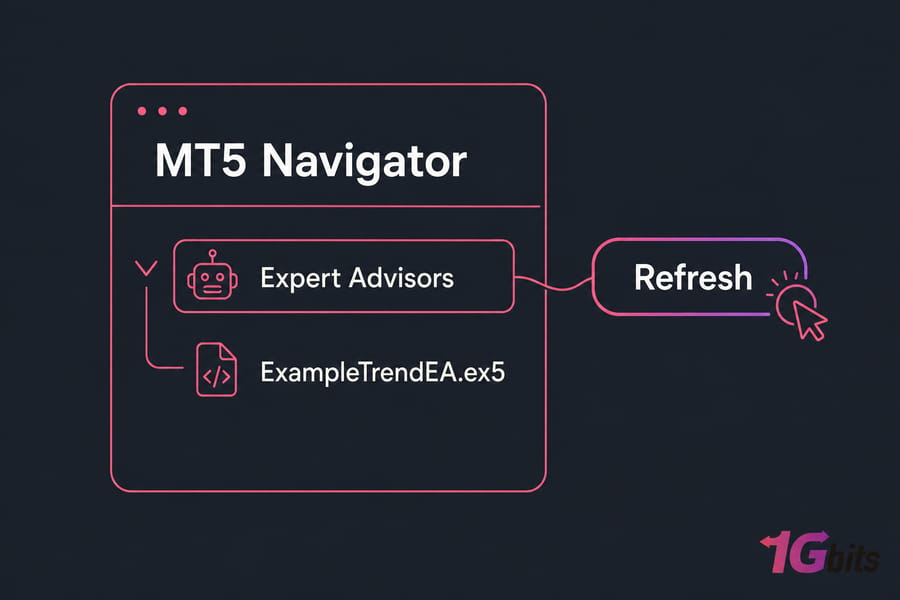
Step 3: Refresh Expert Advisors in MT5
In the MT5 Navigator, right-click Expert Advisors → Refresh, or restart MT5. The EA should appear in the list.
Step 4: Add the EA to an MT5 Chart
Open the intended symbol and timeframe, then drag the EA onto the chart. The properties window opens.
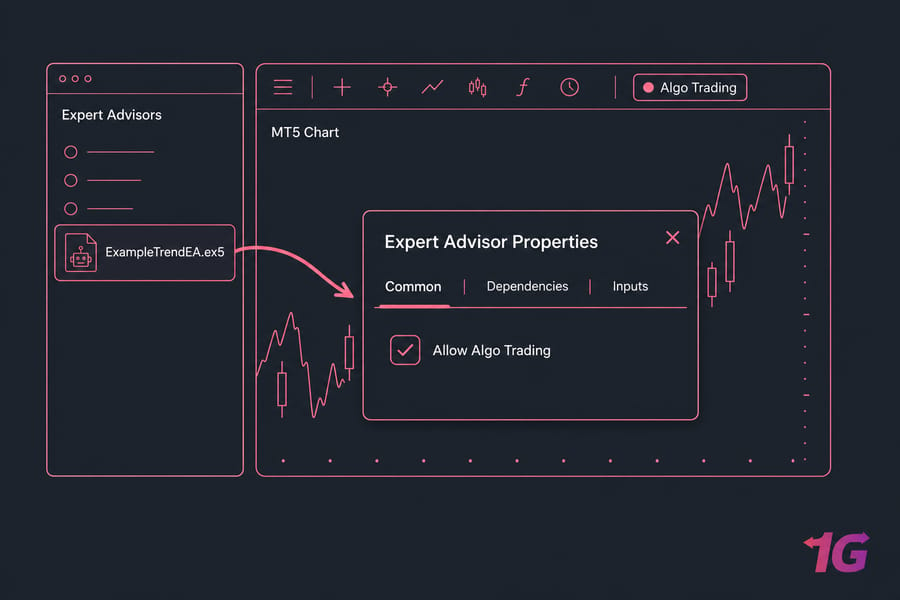
Step 5: Configure Dependencies and Input Parameters
Set the Common (or Dependencies, depending on your build) and Inputs tabs. Enable Algo Trading. Then check the Toolbox logs at the bottom of the screen for a clean startup.
Quick reference for the MT4-to-MT5 differences:
| MT4 | MT5 |
| MQL4 files | MQL5 files |
| AutoTrading | Algo Trading |
| Terminal window | Toolbox window |
| MT4 Strategy Tester | MT5 multi-threaded Strategy Tester |
New to the platform? Here's a rundown of MetaTrader 5 features. The file's installed now — but MetaTrader still needs explicit permission before it'll let anything trade.
How to Enable AutoTrading and Algo Trading Safely
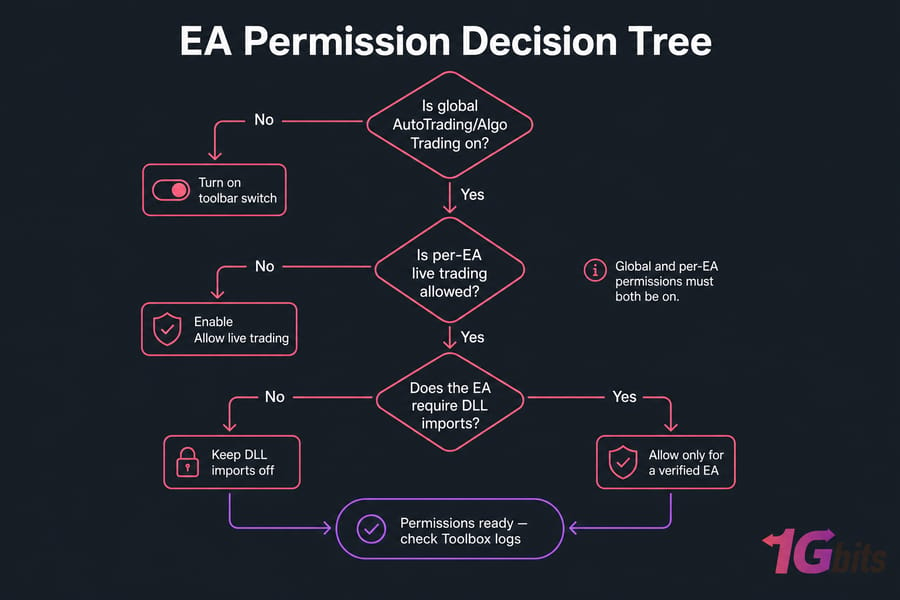
Installing the file and letting it trade are two separate things. There's a global switch and a per-EA switch, and both have to be on.
To enable AutoTrading in MT4: click the AutoTrading button on the toolbar (it turns green). Then go to Tools → Options → Expert Advisors and confirm the global settings. In the EA's own properties, tick Allow live trading.
To enable Algo Trading in MT5: click the toolbar Algo Trading button, and confirm the per-EA live-trading permission in its properties. The global button won't help if the chart-level setting is off — and vice versa.
When Should You Allow DLL Imports or WebRequest URLs?
Only when the EA genuinely needs them, and only when you trust the source. DLLs run code outside MetaTrader's normal MQL sandbox — that's powerful and risky. A malicious DLL can do real damage to your machine. WebRequest access should be allowlisted URL by URL, not blanket-enabled.
Warning: Allow DLL imports only when a verified EA explicitly requires it. Never tick it "just in case."
Which EA Inputs Should Beginners Check First?
- Lot size and risk percentage
- Stop loss and take profit
- Maximum spread
- Magic number
- Trading hours
- Symbol suffix or prefix (your broker may use
EURUSD.minstead ofEURUSD)
Don't touch parameters you don't understand. Leave them at the developer's defaults. If security is on your mind — and it should be — this Forex VPS security checklist is worth a read.
Permissions on? Good. But that still doesn't prove the EA is doing its job. Verify next.
How to Verify an Expert Advisor Is Running
Seeing the EA in Navigator is not proof it works. I've watched too many people assume that and lose a week wondering why nothing happened. Run this six-point check:
- EA name appears under Navigator → Expert Advisors
- EA is attached to the intended chart
- Global automation (AutoTrading / Algo Trading) is enabled
- Per-EA live trading permission is enabled
- MetaTrader is connected to the broker account (bottom-right status)
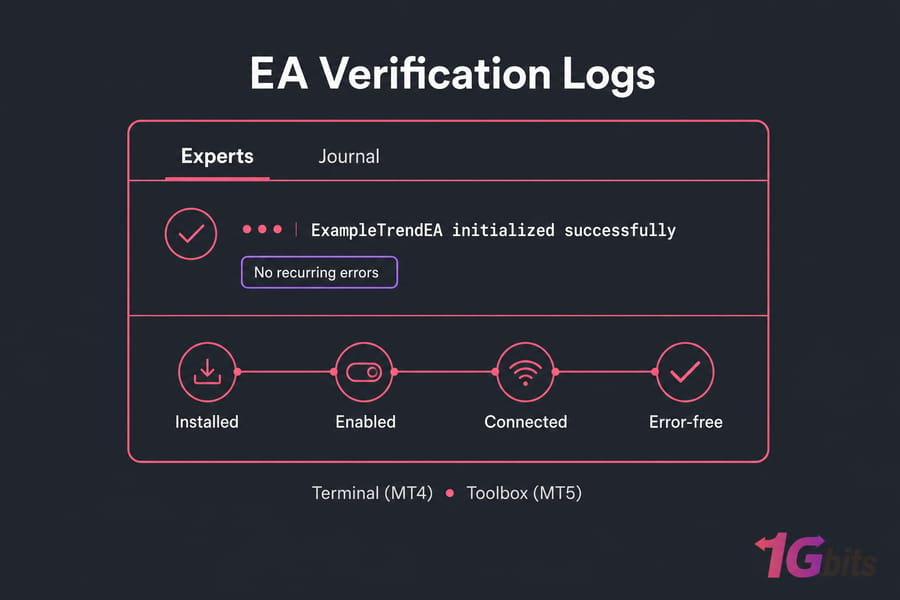
- Experts and Journal logs show a clean initialization with no recurring errors
Quick summary: Installed, enabled, connected, and error-free are four separate checks. Passing one doesn't mean you passed the others.
Where to Check the Experts and Journal Logs
In MT4, that's the Terminal window; in MT5, the Toolbox. The Experts tab shows EA-specific messages. The Journal tab logs platform events. Logs are far more trustworthy than any single status icon — icons vary by build and can mislead.
Why an Active EA May Not Open a Trade Immediately
A running EA often just waits for its conditions. That's normal. But a trade can also be blocked by a closed market, high spread, the wrong symbol, insufficient margin, or an unsupported order type. Don't panic when nothing fires in the first hour.
Use the Strategy Tester to validate the EA functionally before risking anything. Just remember backtests describe the past — they don't guarantee the future. Test on demo or forward-test first. For the bigger context, here's more on Forex algorithmic trading.
If the test passes and your strategy needs to run non-stop, move the terminal to an always-on Forex VPS.
How to Run an Expert Advisor on a Forex VPS 24/7
Your EA stops the moment MetaTrader or your PC goes offline. Overnight, that's a problem. A Windows Forex VPS keeps the terminal running around the clock without leaving your home computer powered on.
Here's the run EA on VPS workflow:
- Provision a Windows VPS near your broker's server where practical
- Connect through RDP
- Download MetaTrader from your broker (or transfer the installer)
- Install and log in inside the VPS session
- Transfer your EA package safely
- Repeat the install inside the VPS Data Folder
- Attach the EA and enable permissions
- Confirm broker connectivity and clean logs
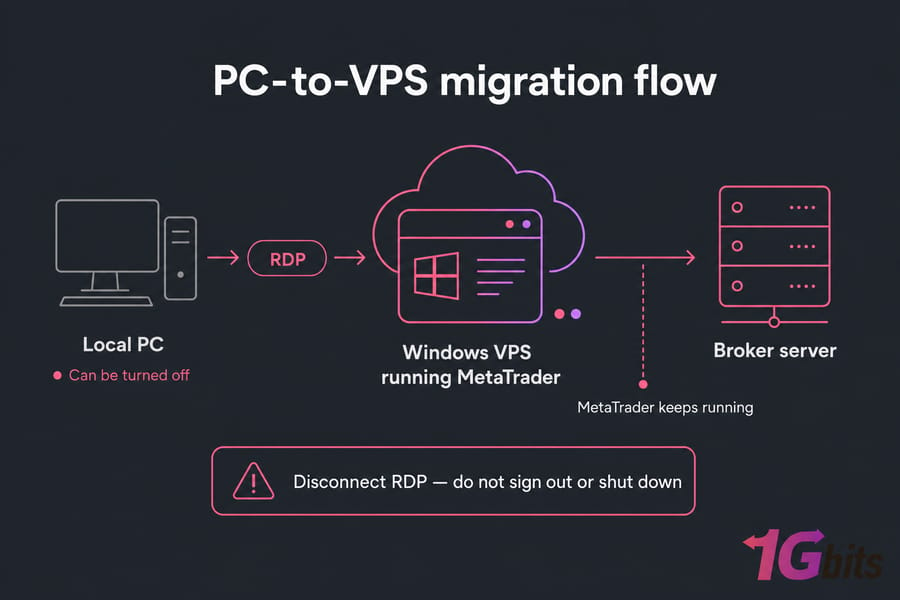
- Disconnect the RDP window — but don't sign out or shut down Windows
- Set up restart recovery: Windows update timing, MetaTrader auto-start, reopen chart/profile, recheck EA licensing after IP/hardware changes
- Monitor CPU, RAM, disk, and network
Warning: Disconnecting RDP is safe — apps keep running. Signing out, rebooting, or shutting down stops MetaTrader dead.
One thing that confuses everyone: copying the EA to your local PC does nothing for the VPS. You have to install it again inside the VPS session. They're separate machines.
Technical callout: Judge latency by the actual ping measured from your VPS to the broker — not by which country the datacenter sits in. And lower latency helps communication speed; it doesn't make a losing strategy profitable.
Match VPS resources to your workload — number of terminals, charts, and EAs. Full walkthroughs: set up a VPS for Forex robot trading and how to connect to a Windows VPS. Still deciding? Compare Forex VPS vs a home PC.
Keep Your Expert Advisor Running When Your PC Is Off
Run MT4 or MT5 on a remote Windows Forex VPS hosting with dedicated resources and global locations. Install your terminal and EA, connect through RDP, and keep trading continuously without babysitting your home computer.
MT4 users can pick an MT4 VPS hosting plan; MT5 users should look at MT5 VPS hosting. Install the terminal and EA directly inside the VPS session, verify Algo Trading and the Toolbox logs, then disconnect RDP.
Expert Advisor Not Working: Errors and Troubleshooting
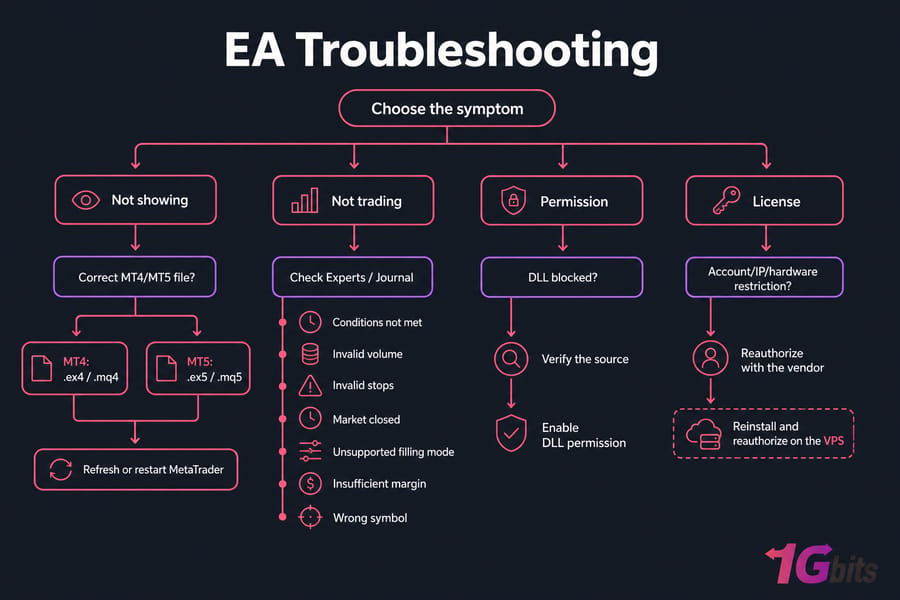
When something breaks, resist the urge to reinstall MetaTrader. Read the logs first — the Experts and Journal tabs almost always tell you what's wrong. Match your symptom below.
Key takeaway: Read the Experts and Journal logs before reinstalling the platform. Reinstalling rarely fixes a folder or permission problem.
| Symptom | Likely Cause | Where to Check | Fix |
| EA not showing in MT4 or MT5 | Wrong folder or wrong platform file | Data Folder | Move to the correct Experts folder and refresh |
| EA name is greyed out | Compile problem or missing compiled file | MetaEditor / Experts log | Get a compatible .ex4/.ex5 or fix compile errors |
| Can't attach EA | Corrupt or incompatible file | Journal | Download the correct version |
| Algo/automated trading disabled | Global or per-EA setting off | Toolbar + EA properties | Enable both layers |
| Initializes but doesn't trade | Conditions not met | Experts log + EA docs | Wait or test expected conditions |
| Invalid volume | Lot size breaks broker rules | Experts/Journal | Use the allowed minimum and step |
| Invalid stops | SL/TP too close | Symbol specification | Widen the stop distance |
| Market closed | Session unavailable | Market Watch | Wait for the session to open |
| Unsupported filling mode | Broker/order incompatibility | Journal | Use an EA version matching broker execution |
| Missing indicator/library | Dependency absent | Experts log | Install the supplied dependency |
| DLL blocked | DLL permission off | EA settings/log | Enable only after verifying the source |
| License error | Account/IP/hardware restriction | EA message/log | Reauthorize with the vendor |
| Insufficient margin | Account can't support the order | Journal/account | Reduce risk or add margin |
| Wrong symbol | Suffix or mapping mismatch | Market Watch/EA inputs | Select the supported broker symbol |
| Works locally, not on VPS | Files/license/profile not migrated | VPS Data Folder/logs | Reinstall and reauthorize on the VPS |
If you're chasing a deeper OS-level fault on the VPS, Windows logs can help — but only after you've ruled out folder paths and permissions in MetaTrader itself.
Once it's running again, finish the security checks before touching a funded account.
Expert Advisor Security, Risk, and Common Installation Mistakes
An EA is executable code you're inviting onto your machine and giving control of your money. Treat it that way.
- Do download only from a trusted developer, marketplace, or verified seller
- Do scan archives and DLLs before running them
- Do start on a demo account and confirm lot size and risk settings
- Do use unique passwords for your VPS and trading account
- Do keep backups of source files and presets, and note the EA version
- Don't share your broker password or VPS admin credentials with an EA seller — ever
- Don't run duplicate copies with the same magic number unless that's intentional
- Don't attach one EA to multiple charts without understanding its design
- Don't set blanket antivirus exclusions
Warning: Backtests and server uptime can't guarantee future results. A rock-solid VPS won't rescue a flawed strategy.
Two more reads worth your time: the Forex VPS security checklist and how to choose a strong password. Review vendor update notes before you replace any files, too.
With the EA validated, preserve its configuration before you update or move anything.
How to Update, Remove, or Move an Expert Advisor
Three quick procedures. Follow them and you won't lose your settings.
Update
Save your input preset. Note the current version. Disable automation. Back up the old files. Only then replace them — after checking vendor instructions. Refresh or restart, verify the logs, and confirm whether open trades stay managed through the update.
Remove
Remove the EA from the chart. If you want it gone permanently, delete the files from the correct Data Folder. Remove dependencies only if no other EA uses them. Refresh Navigator.
Move
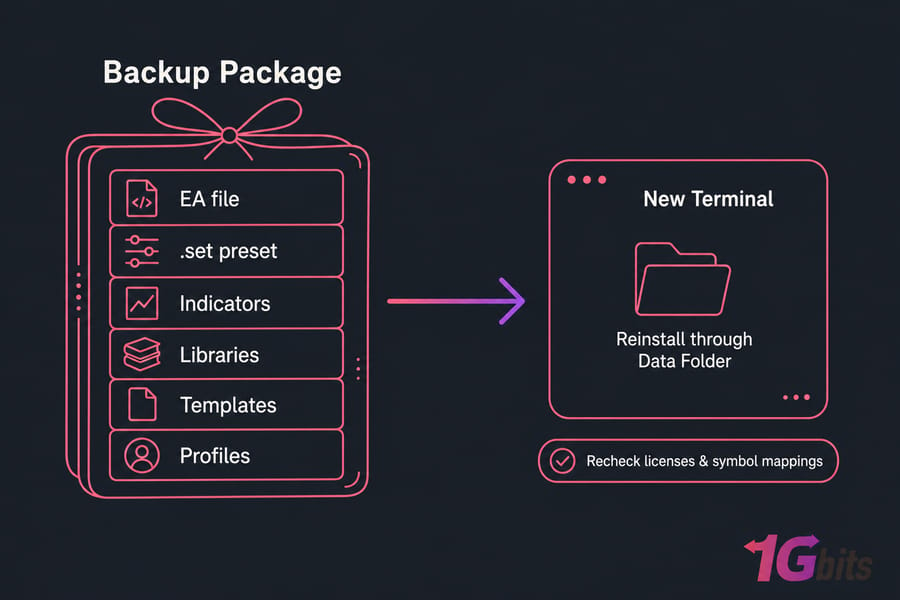
Copy the EA files, dependencies, presets, templates, and profiles together. Reinstall through the destination terminal's Data Folder. Recheck license restrictions and broker symbol mappings. Never assume copying the whole program directory preserves the right data location — it usually doesn't.
Ready to Move Your EA to an Always-On Trading Environment?
Pick a Windows Forex VPS based on your MetaTrader version, expected workload, and proximity to your broker. Test on demo first, then deploy the verified setup. Explore Forex VPS, or go straight to MT4 VPS or MT5 VPS depending on your platform.

Leave A Comment