
![How to Find Which Process Is Using a File in Linux ⚡ [Easy]](https://1gbits.com/cdn-cgi/image/width=1200,quality=80,format=auto/https://s3.1gbits.com/blog/2026/07/find-which-process-is-using-a-file-in-linux-main.webp "How to Find Which Process Is Using a File in Linux ⚡ [Easy]")
How to find a process using a file in Linux quickly
To find which process is using a file in Linux, run lsof /path/to/file or fuser /path/to/file. lsof shows detailed information such as PID, user, file descriptor, and command, while fuser quickly returns the PID using the file, directory, or mount point. Use sudo if the file belongs to another user or service.
If you're still getting comfortable with the shell, these basic Linux commands and this guide to open files in Linux are worth keeping nearby.
New to the Linux command line? Start with our guide on how to use Linux it covers the basics you'll need before running commands like lsof and fuser.
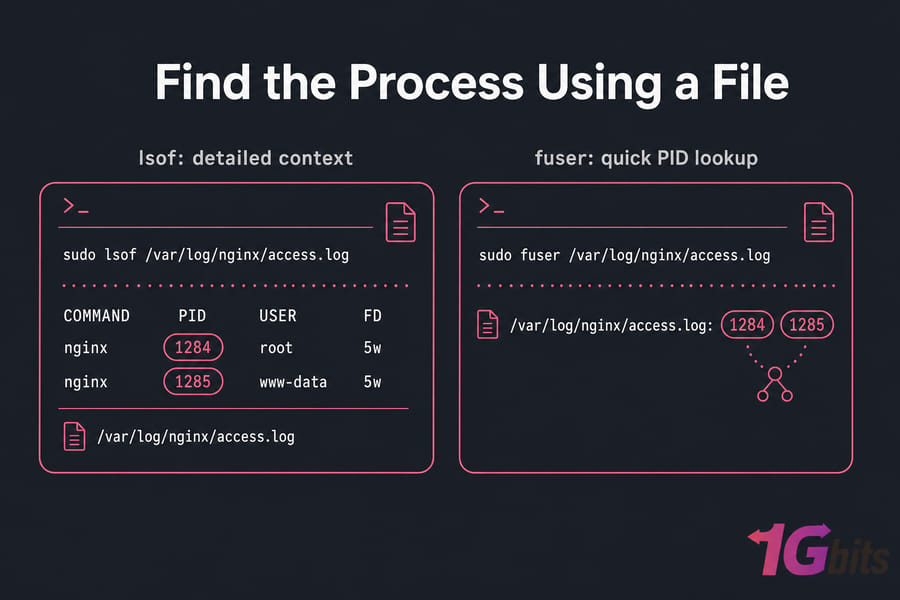
What command should you run first?
sudo lsof /path/to/file
sudo fuser /path/to/file
I usually start with lsof when I want context, and fuser when I just need the PID fast. Both work for regular files, and fuser is especially handy for directories, mount points, and even ports.
When you need sudo to see the real process
If this returns nothing, rerun with sudo. Root-owned daemons, system services, and other users' processes often won't show up fully otherwise.
Use lsof to find which process is using a file
lsof means “list open files.” On Linux, that includes regular files, directories, devices, sockets, and more. For troubleshooting a busy file, it's usually the clearest tool.
On minimal servers, you may need to install it first. Ubuntu and Debian use sudo apt install lsof psmisc. AlmaLinux, Rocky Linux, and CentOS use sudo dnf install lsof psmisc.
Basic lsof syntax for a file path
sudo lsof /path/to/fileExample:
sudo lsof /var/log/nginx/access.log

COMMAND   PID   USER   FD   TYPE DEVICE SIZE/OFF    NODE NAME
nginx    1284   root   5w   REG  8,1    1048576  262433 /var/log/nginx/access.log
nginx    1285 www-data 5w   REG  8,1    1048576  262433 /var/log/nginx/access.log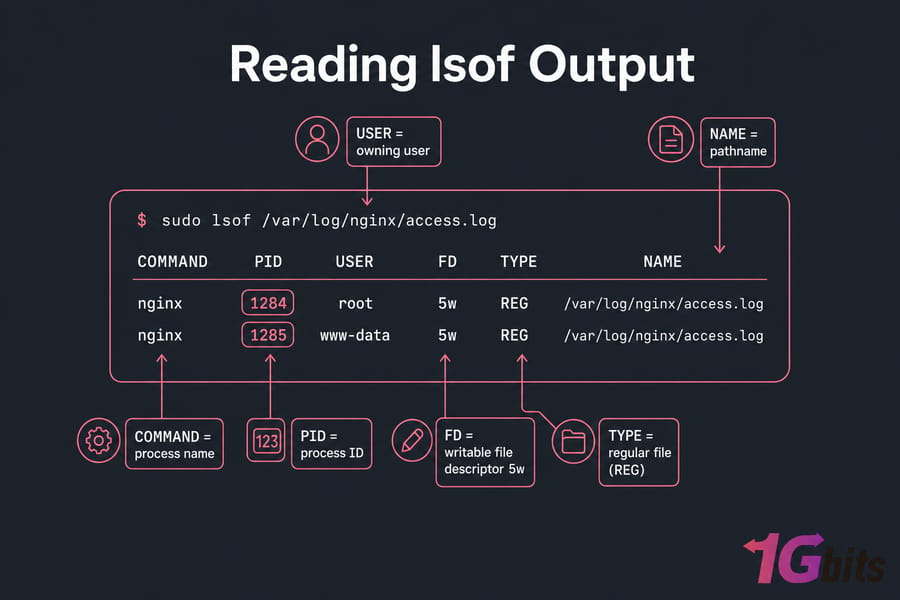
How to read lsof output: PID, FD, TYPE, and NAME
| lsof Column | Meaning | Why It Matters |
| COMMAND | Process name | Shows which app or service has the file open |
| PID | Process ID | The exact process you'll inspect or stop |
| USER | Owning user | Tells you whether it's root, nginx, mysql, and so on |
| FD | File descriptor | Shows read/write mode like 5w for write |
| TYPE | File type | Regular file, directory, socket, device, pipe |
| DEVICE | Device number | Useful when tracing storage or mount issues |
| SIZE/OFF | Size or offset | Helps with log and growth checks |
| NAME | Pathname | Confirms it's the file you care about |
That FD column matters more than people think. A writable open file descriptor often explains why rotation, deletion, or renaming is failing. And no, an open file isn't always the same thing as a lock — it's just a handle the process still holds.
Use lsof to find deleted but still open files
sudo lsof +L1This is gold when disk space won't come back after you delete a huge log. I've seen this a lot with web apps and rotated logs on VPS boxes. The file is gone from the directory, but the process still holds it open, so space isn't freed until the service restarts or closes that handle. That's one reason understanding Linux logs matters in production.
Check all open files for a specific process with lsof -p
sudo lsof -p 1284Use this after you find the PID. It's the reverse lookup: instead of asking “who has this file open?”, you're asking “what files does this process have open?” That's handy before restarting a service. If you need more process details, the Linux ps command guide helps.
Use fuser to check which PID is using a file or directory
If you only need the PID, fuser is quicker and a bit less noisy. On many distros it comes from the psmisc package.
Basic fuser command examples
sudo fuser /path/to/file
sudo fuser /path/to/directory
Short output often looks like this:
sudo fuser /var/log/nginx/access.log
/var/log/nginx/access.log: 1284 1285
Use fuser -v for verbose process details
sudo fuser -v /var/log/nginx/access.log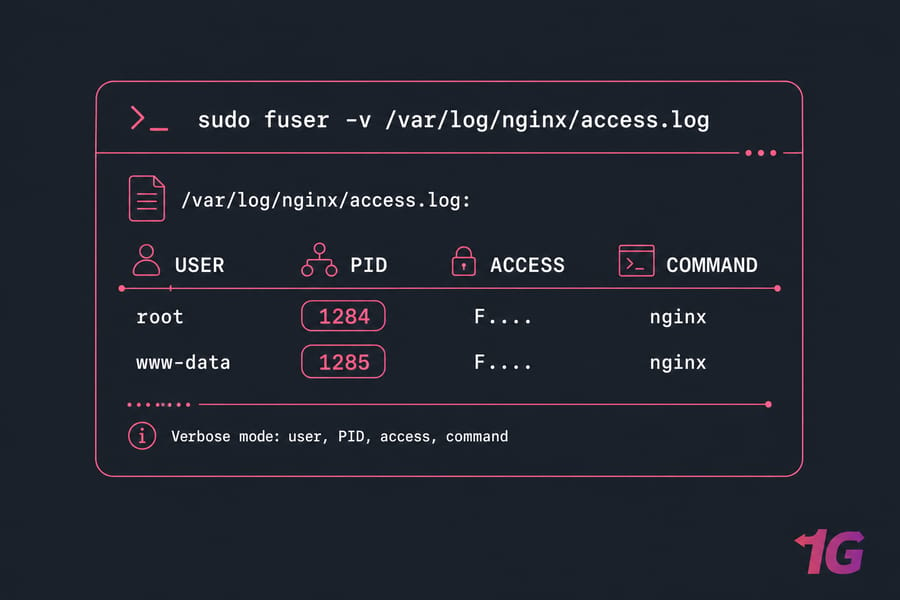
Verbose mode makes the result much easier to read. You get the user, PID, access type, and command name. That's usually enough to decide whether you're dealing with a shell, a service process, or something unexpected.
Use fuser -m for mount points and busy unmount errors
sudo fuser -m /mnt/dataThis checks a mount point rather than one file. It's the command I reach for first when umount says the target is busy.
How to use fuser on TCP or UDP ports
sudo fuser 80/tcpThat isn't the main use case here, but it's useful. If you're tracking services by port, pair it with this guide to check open ports in Linux.
lsof vs fuser: differences, strengths, and best use cases
| Feature | lsof |
fuser |
Best For |
| Output detail | High | Low to medium | Deep troubleshooting |
| PID lookup speed | Good | Excellent | Quick checks |
| File descriptor visibility | Yes | Limited | Write/read context |
| Mount point checks | Possible | Very convenient with -m |
Busy unmounts |
| Port checks | Yes | Yes | Socket troubleshooting |
| Root needed for full results | Often | Often | System services |
Short version: lsof gives you richer output, while fuser is faster for a simple PID lookup. They can show slightly different results because timing, permissions, and the exact object being checked all matter — file, parent directory, socket, or mount point.
How to fix Linux “device or resource busy” errors
Most Linux admins meet these commands when a file won't delete, a directory won't remove, a move fails, or umount: target is busy pops up. The pattern is usually the same.
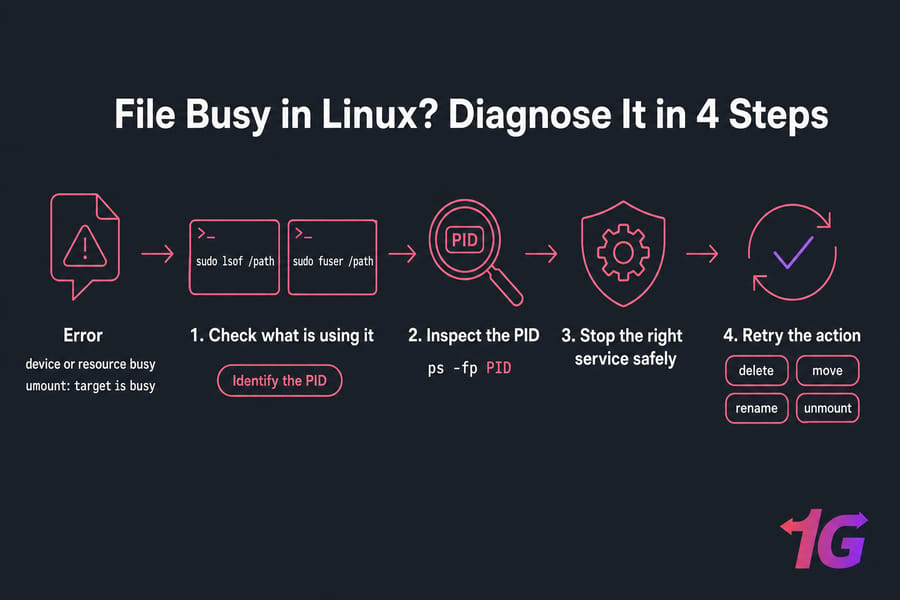
- Run
sudo lsof /pathorsudo fuser /path. - Identify the PID.
- Inspect it with
ps -fp PID. - Stop the right service or process safely.
- Retry the delete, move, rename, or unmount.
Find the process blocking delete, move, or rename operations
If you can't delete a file in Linux, the process may still have it open for writing. For directories, don't forget the shell itself can keep them busy if your current working directory is inside that path.
Fix umount: target is busy
sudo fuser -m /mnt/data
sudo lsof /mnt/data
If a shell session is sitting in /mnt/data, leave that directory first. I've seen people chase phantom locks for ten minutes when it was just their own terminal.
Restart the right service instead of killing the wrong PID
After you identify the process, think service-first. Web, database, and logging daemons are usually best handled through the service manager, not with a blunt signal. For wider issue patterns, this Linux server troubleshooting guide is useful.
Need full root access for this kind of work? 1Gbits offers Linux VPS hosting with root access, fast storage, and the freedom to use tools like lsof, fuser, ps, and systemctl directly.
How to safely stop a process using a file in Linux
Inspect the process before acting with ps
ps -fp 1284Check the full command first. Don't guess. One PID might be a harmless shell; another might be your production Nginx worker.
Stop the service with systemctl when possible
sudo systemctl restart nginx
sudo systemctl stop apache2
If the PID belongs to a managed service, prefer systemctl. You can also list running services in Linux if you need the exact service name.
Use kill, kill -15, and kill -9 carefully
kill 1284
kill -15 1284
kill -9 1284
kill and kill -15 send SIGTERM, which asks the process to exit cleanly. kill -9 sends SIGKILL and should be the last resort. That's not me being dramatic — force-killing logging, database, or web processes can cause data loss or messy recovery. If you need a refresher, see Linux kill command and how to kill a process in Linux. Always verify release by rerunning lsof or fuser.
Common problems when lsof or fuser show no output
- The path is wrong. First find a file in Linux and confirm the pathname.
- The process already released the file. Transient processes come and go fast.
- You forgot
sudo, so root-owned processes stayed hidden. - The process is using the parent directory or mount point, not the file itself.
- A network filesystem edge case is involved, and the busy state isn't obvious from one path check.
Linux command examples for files, directories, and mount points
Example: log file locked by Nginx or Apache
sudo lsof /var/log/nginx/access.log
sudo systemctl restart nginx
If the log was deleted but space didn't return, run sudo lsof +L1. This is common on busy web servers. If you manage Apache, these guides to Apache error logs and restart Apache in Linux may help too.
Example: directory can’t be removed
sudo fuser -v /srv/oldapp
pwd
cd /tmp
If a shell session has that directory as its current working directory, it stays busy. After that, you can delete a directory in Linux.
Example: disk or mount point cannot be unmounted
sudo fuser -m /mnt/backup
ps -fp PID
sudo umount /mnt/backup
This is the classic umount: target is busy workflow. For Nginx-heavy stacks, especially on unmanaged servers, even a stale log writer can keep storage tied up. If that's your setup, this piece on what Nginx is is relevant background.
Quick cheat sheet for finding PIDs using files in Linux
| Goal | Command | Notes |
| Check one file | sudo lsof /path/to/file |
Best detail |
| Get PID fast | sudo fuser /path/to/file |
Short output |
| Verbose PID info | sudo fuser -v /path/to/file |
User and command shown |
| Check a mount point | sudo fuser -m /mount/point |
Great for busy unmounts |
| List files for one PID | sudo lsof -p PID |
Reverse lookup |
| Find deleted-open files | sudo lsof +L1 |
Useful for log rotation |
| Inspect process safely | ps -fp PID |
Check before stopping |
For day-to-day server work, save that table. Seriously.
If you troubleshoot this kind of issue often, a faster server helps. 1Gbits offers Buy Linux VPS options with full root access, plus Buy Dedicated Servers when you need more headroom, NVMe storage, and fewer compromises.

Leave A Comment