
Botting RDP, Explained in Plain English
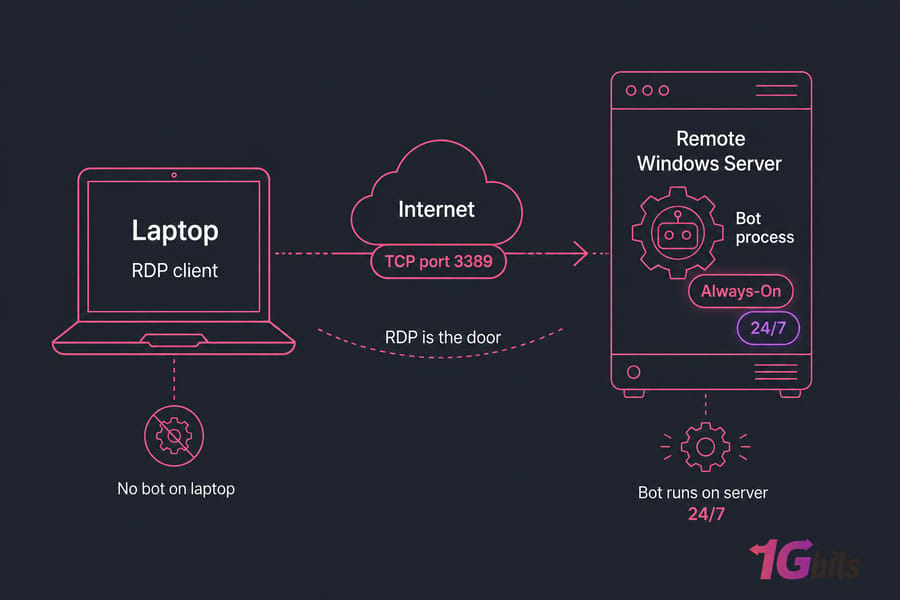
A botting RDP is a remote Windows server you rent and connect to over Remote Desktop Protocol, used to run bots or automation software 24/7. The bot lives on the server, not your laptop. So it keeps working while your machine sleeps, reboots, or loses Wi-Fi.
Here's the part most articles get wrong: RDP isn't the product. RDP is just the door. The actual product is a Windows environment — usually a VPS or a slice of a Windows Server box — and "botting RDP" is simply how providers label plans tuned for always-on automation. If you want the protocol details, read up on what RDP is and how it works.
So why the separate name? Because automation buyers care about different things than office users. They want uptime, persistent sessions, a specific data center location, and enough RAM headroom that a bot doesn't choke at 3 a.m. Providers (including botting RDP hosting at 1Gbits) package for exactly that.
How It Actually Works
The mechanics are boring, which is a good thing.
- You get an IP, username, and password. You connect with Microsoft Remote Desktop or any browser-based RDP client.
- You install your bot software on the remote Windows desktop, same as you would locally.
- You start it, then disconnect. The Windows session stays alive on the server — the bot keeps running.
- You reconnect whenever you want to check logs, adjust settings, or restart.
That fourth point trips up beginners constantly. Closing the RDP window does not kill your bot — unless you actually sign out instead of disconnecting. Sign out and everything closes. Disconnect and the session persists. Learn the difference on day one. If you're new to connecting at all, 1Gbits has a walkthrough on how to log in to a VPS, and their RDP VPS hosting plans use the same access flow.
Resources that matter, in order: RAM first (bots leak memory, browsers eat it), then CPU clock speed, then NVMe storage, then network stability. Raw core count matters less than you'd think for most automation.
What People Actually Run on RDP for Bots
| Use Case | Typical Setup | Key Resource | Why Remote Wins |
| Trading bots / Expert Advisors (MT4, MT5) | Private RDP or Forex VPS near broker | Low latency, uptime | Markets don't pause for your power cut |
| Browser automation & scraping | Windows VPS, 4–8 GB RAM | RAM, bandwidth | Chrome instances are memory hogs |
| Android emulators / app automation | Android VPS with nested virtualization | CPU + 8 GB+ RAM | Emulators cripple a laptop |
| Scheduled workflows & monitoring | Entry-level RDP + Task Scheduler | Reliability over power | Runs unattended, forever |
Trading is the big one. If you're running EAs, see how to install an Expert Advisor on MT4 or MT5, and consider Forex VPS hosting placed close to your broker's servers — a few milliseconds genuinely changes fill quality on scalping strategies. For emulator work, here's how to run an Android emulator on VPS, or go straight to a purpose-built Android VPS.
One caveat, said once and meant sincerely: check whether your broker, platform, or target site permits automation before you spin anything up. Hosting is neutral. Terms of service aren't. Compliant automation is fine; abusing a platform gets accounts banned regardless of where the bot runs.
Botting RDP vs Windows VPS vs Home PC
| Option | Uptime | Performance | Privacy | Control | Best For |
| Home PC | Poor — power, ISP, reboots | Fine, if you leave it on | Your own IP exposed | Total | Testing only |
| Shared RDP | Good | Variable — noisy neighbors | Low | Limited, no admin | Cheap light tasks |
| Private botting RDP | 99.9%+ | Consistent | Good, dedicated IP | Admin access | Most bot workloads |
| Windows VPS | 99.9%+ | Scalable specs | Good | Full root/admin | Growing setups |
| Dedicated server | Highest | Isolated hardware | Highest | Complete | Heavy multi-bot ops |
Honestly, the line between "botting RDP" and "Windows VPS" is mostly marketing. Both give you a remote Windows desktop over port 3389. The difference shows up in specs, isolation, and whether you get full administrator rights. Worth reading RDP vs VPS and what a Windows VPS is before you pick. If you want room to scale later, Windows VPS hosting is the safer default.
Private vs shared for botting
Shared RDP means multiple users on one Windows instance. It's cheap. It's also where you'll hit CPU throttling, restricted installs, and no ability to change firewall rules. I've watched shared-environment bots fail simply because another tenant maxed the CPU. Private RDP fixes that with isolated resources and admin control. The details are broken down in private RDP vs shared RDP.
Shared is acceptable for one lightweight scheduled task with no credentials stored on it. That's about it.
Sizing: How to Choose the Best Server for Bots
| Workload | CPU | RAM | Storage | Notes |
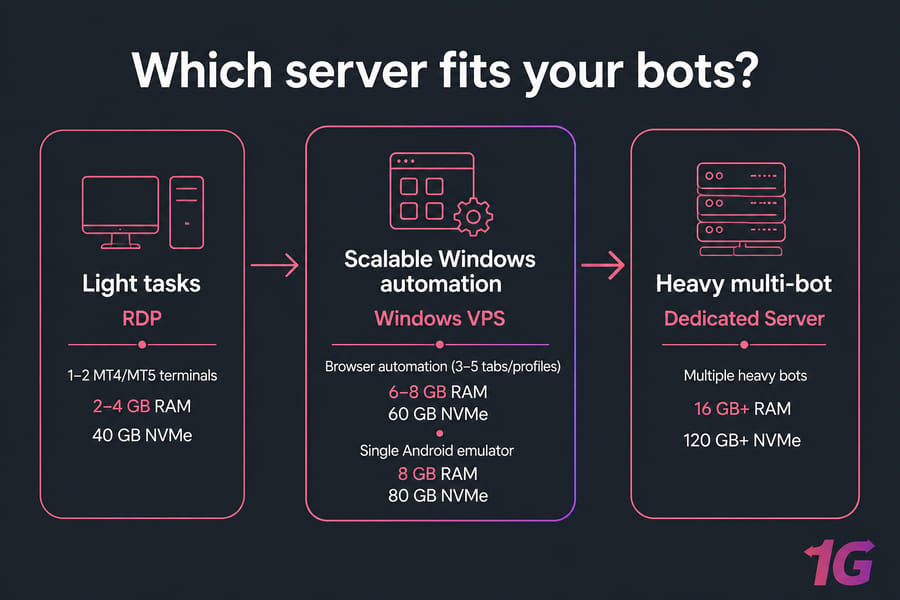
| 1–2 MT4/MT5 terminals | 1–2 cores | 2–4 GB | 40 GB NVMe | Prioritize location over specs |
| Browser automation (3–5 tabs/profiles) | 2–4 cores | 6–8 GB | 60 GB NVMe | Chrome ~400 MB per instance |
| Single Android emulator | 4 cores | 8 GB | 80 GB NVMe | Needs nested virtualization |
| Multiple heavy bots | 6–8 cores | 16 GB+ | 120 GB+ NVMe | Consider dedicated hardware |
Treat those as starting points, not gospel. Run your bot for a week, watch Task Manager, then size properly. Also check Windows Server minimum requirements so the OS itself doesn't eat your headroom.
Setting It Up, Step by Step
- Connect. Use your RDP client with the credentials from your provider. Then change your RDP password immediately.
- Update Windows. Boring, but a half-patched server is the one that crashes mid-run. Also see general Windows VPS configuration tips.
- Install dependencies — .NET runtimes, Java, Visual C++ redistributables, browser drivers. Whatever your bot needs.
- Install the bot, log in, run it manually once, and confirm it behaves.
- Configure auto-start. Use Task Scheduler with "run whether user is logged on or not" plus a trigger on system startup. That's your reboot insurance.
- Test the disconnect. Disconnect (don't sign out), wait 30 minutes, reconnect. Still running? Good.
- Monitor and back up. Watch RAM over 48 hours, then schedule config backups weekly.
Security Checklist
- Change default credentials on day one — non-negotiable.
- Enable 2FA or MFA if your provider supports it.
- Restrict port 3389 to your own IP range with Windows Firewall. Verify with a quick open ports check.
- Keep Windows Defender active and patch monthly at minimum.
- Back up bot configs and API keys off-server.
- Add DDoS-protected hosting if your bot's uptime is tied to revenue.
More depth here: RDP security best practices. A compromised automation server hands over broker logins and API keys — treat it like a wallet, not a scratchpad.
Mistakes That Cause Crashes, Lag, or Bans
| Mistake | Symptom | Fix |
| Undersized RAM | Bot freezes after hours | Upgrade tier; check memory leaks |
| Too many bots on one instance | Lag, missed triggers | Split across instances |
| Signing out instead of disconnecting | Bot silently stops | Always disconnect; add auto-start |
| Picking location by price | High latency, slow fills | Choose the data center nearest your target |
| No restart plan | Downtime after reboot | Task Scheduler on startup trigger |
| Ignoring platform rules | Account restrictions | Read the ToS first |
If sluggishness persists on decent specs, try optimizing RDP performance before buying a bigger plan.
When to Move to a Dedicated Server
Upgrade when: you're running three or more emulators, RAM sits above 85% constantly, you need custom kernel-level or virtualization settings, or inconsistent performance is costing you money. At that point virtualized resources become the bottleneck and dedicated server hosting gives you isolated hardware and predictable behavior.
Final Verdict
Botting RDP is the right call if you need one always-on Windows environment for light-to-mid automation, want remote access from anywhere, and would rather not leave a home PC running forever. Choose a Windows VPS if you expect to scale specs. Choose a dedicated server once bots outgrow shared hardware.
Ready to get your bots off your laptop? Compare botting RDP plans, view Windows VPS options, or check Forex VPS hosting if you're trading.

Leave A Comment