
![Linux wc Command: 🐧 Count Lines, Words & Characters [2026]](https://1gbits.com/cdn-cgi/image/width=1200,quality=80,format=auto/https://s3.1gbits.com/blog/2025/01/linux-wc-command-1200xAuto.webp "Linux wc Command: 🐧 Count Lines, Words & Characters [2026]")
The wc command in Linux is a powerful utility used for counting lines, words, characters, and bytes in files or streams. It's an essential tool in the Linux environment, helping users analyze text data, verify file structure, and process large logs without opening them. You can count lines in a 2 GB log without loading it into memory, check the word count of a draft, or count matching lines from grep output.
This guide covers the syntax, options, practical examples, and common pitfalls of the wc command. Whether you're a system administrator, developer, or casual user, understanding how to use wc will streamline your text processing tasks.
📖 What Is the wc Command in Linux?
wc stands for "word count." It's a small utility from GNU Coreutils that counts the newlines, words, bytes, characters, and longest line length in a file or in whatever text you pipe into it. It is one of those basic Linux commands that becomes muscle memory after a week of daily use on servers.
By default, wc returns three counts in a fixed order: newlines, words, and bytes, followed by the filename. A "word" is any run of non-whitespace characters, which means foo,bar counts as one word. The command is part of the Linux toolkit that facilitates text-based file manipulation.
Quick answer:wc file.txtshows lines, words, and bytes.wc -l file.txtcounts lines only.command | wc -lcounts lines of output from any command.
🛠️ wc Command Syntax
The syntax of the wc command is simple:
wc [OPTION]... [FILE]...- OPTION: A flag that controls the output of the command. The most common are
-l(lines),-w(words),-c(bytes), and-m(characters). - FILE: One or more files you want to process. You can specify files individually or use wildcards.
If no file is given, or you give - as the filename, wc reads from standard input. That's why it fits so well at the end of a shell pipeline. If you don't specify any options, the command displays the number of lines, words, and characters in the file by default. For a broader look at how wc fits alongside other shell tools, see this roundup of the best UNIX commands.
What the default output means
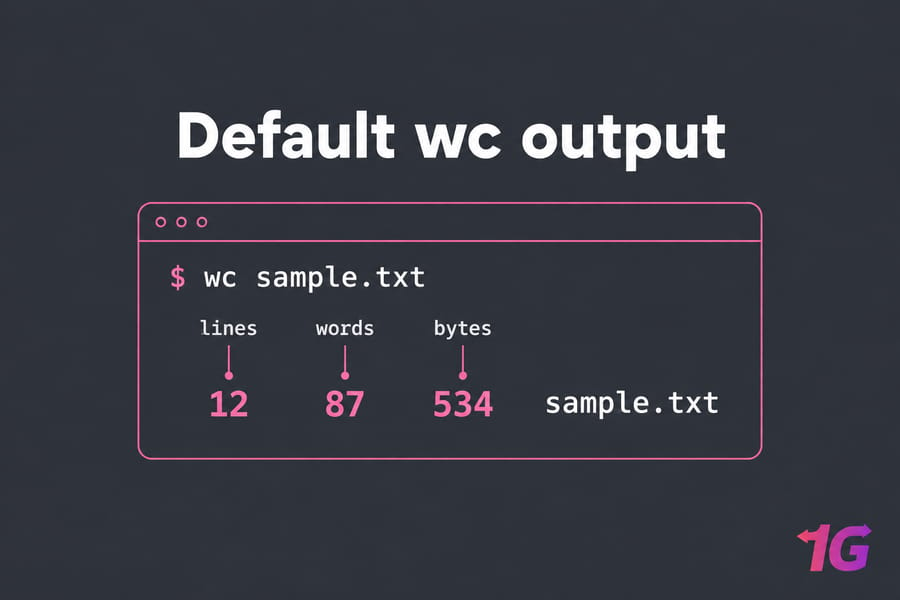
$ wc sample.txt
  12  87 534 sample.txt
This means the file has 12 lines, 87 words, and 534 bytes.
⚙️ wc Options Explained
| Option | Long form | What it counts | Example |
-l |
--lines |
Newline characters | wc -l access.log |
-w |
--words |
Whitespace-delimited words | wc -w essay.txt |
-c |
--bytes |
Bytes | wc -c image.png |
-m |
--chars |
Characters (multibyte-aware) | wc -m notes.txt |
-L |
--max-line-length |
Display width of the longest line | wc -L config.yml |
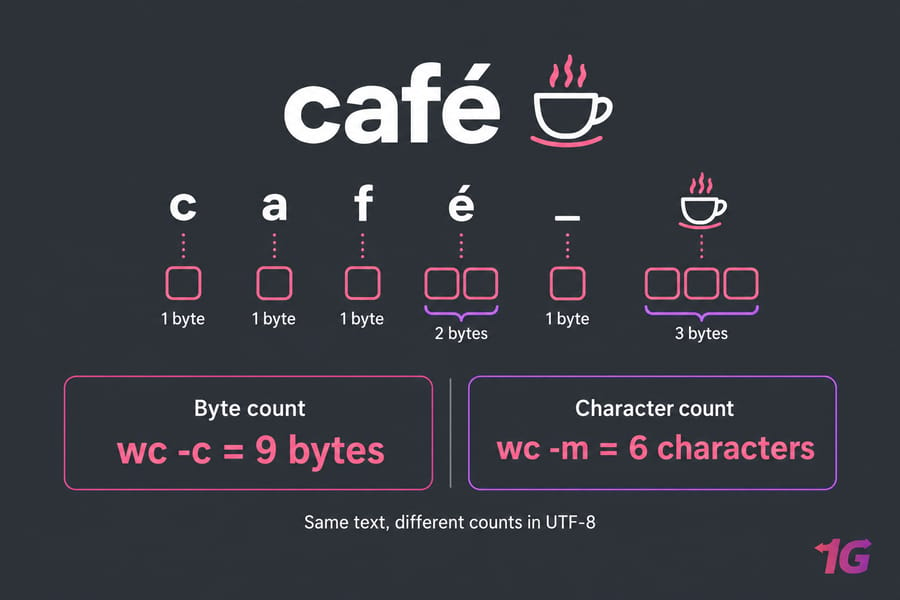
A lot of older tutorials get one thing wrong: -c counts bytes, not characters. For plain ASCII the two numbers match. Once your text contains UTF-8 like "café" or emoji, they don't. And -L reports display width, so a tab or a wide CJK character can count as more than one column.
🎯 Basic wc Command Examples
$ wc -l sample.txt
12 sample.txt

$ wc -w sample.txt
87 sample.txt

$ wc -c sample.txt
534 sample.txt

$ wc -m sample.txt
529 sample.txt

$ wc -L sample.txt
64 sample.txt
Here -m returns 5 fewer than -c, which tells you the file contains a few multibyte characters. If you combine flags like wc -lw, the output still follows the fixed order: lines, words, characters, bytes, max line length. If you're working through a security-focused distro, the same flags show up constantly in Kali Linux commands for log and output counting.
Using the wc Command in Linux with Multiple Files
$ wc -l app.log error.log
  1520 app.log
    43 error.log
  1563 total

$ wc -l *.txt
When you pass more than one file, wc adds a total line at the end. Newer GNU Coreutils versions also have --total=only, which prints just the grand total. That's handy in scripts, but it isn't portable to BSD or macOS.
📥 How to Use wc with Standard Input
Use wc with pipes and input redirection
cat file.txt | wc -l
wc -l < file.txt
ps aux | wc -l
All three read from stdin. Notice that wc -l < file.txt prints just the number, with no filename. That makes it the cleaner choice in scripts, since you don't need cut or awk to strip the name. It also skips the extra cat process.
Count command output
Running ps aux | wc -l gives a rough process count. Remember to subtract one for the header row. If you want more on the process side, see the Linux ps command guide and this breakdown of ps aux output.
🔗 Combining wc with Other Linux Commands
The real power of the wc command emerges when you combine it with other Linux commands.
grep | wc -l
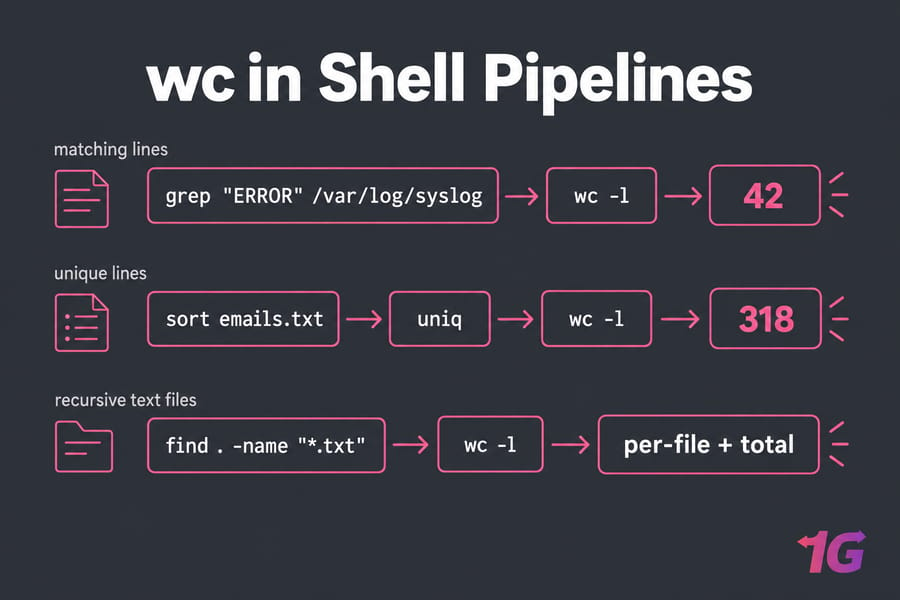
grep "ERROR" /var/log/syslog | wc -lThis counts the lines that match. In fairness, grep -c "ERROR" does the same thing in one process. I still reach for the pipe when I'm chaining several filters. The grep command guide covers the pattern side in more depth.
sort | uniq | wc -l
sort emails.txt | uniq | wc -lThis counts unique lines. uniq only collapses adjacent duplicates, so you have to sort first. Skip it and you'll get a wrong number with no warning.
find with wc
find . -name "*.txt" -exec wc -l {} +This counts lines in every .txt file recursively. With large trees you may see more than one total line, because find splits the file list into batches. The same pattern works for archives: piping tar output into wc is a common way to size a tarball, as shown in this guide to the tar command with examples.
Use wc in bash scripts
lines=$(wc -l < upload.csv)
if [ "$lines" -lt 2 ]; then
  echo "CSV has no data rows" >&2
  exit 1
fi
This kind of guard has caught empty exports in CI pipelines more than once. The same pattern works for user audits — piping /etc/passwd through wc -l gives you an instant account count, as covered in this guide on How to list users in Linux.
⚠️ Common Pitfalls and Important Differences
Why wc -l may look off by one
wc -l counts newline characters, not "lines" the way your eyes see them. If the last line has no trailing newline (common in files saved by some Windows editors or produced by printf), it isn't counted:
$ printf "one\ntwo" | wc -l
1
Why ls | wc -l is not always the best way to count files
ls | wc -l breaks on filenames that contain newlines, skips hidden files, and doesn't recurse into subdirectories. These are safer options:
find . -maxdepth 1 -type f | wc -l          # files in current dir
find . -type f | wc -l                      # recursive count
find . -type f -print0 | wc -l --files0-from=-   # GNU: line counts, NUL-safe
The last command is different: it gives you line counts for each file, using NUL-separated names, so odd filenames can't break it.
Locale and encoding
-m depends on your locale. Under LC_ALL=C, every byte counts as one character, so -m and -c will match. If character counts look wrong, run locale and make sure you're on something like en_US.UTF-8.
GNU vs POSIX behavior
POSIX defines -l, -w, -c, and -m. GNU adds -L, --files0-from, and --total. On macOS or Alpine (BusyBox), don't assume those extensions exist.
Troubleshooting common errors
wc: command not found: Coreutils is missing, usually in stripped-down containers. Installcoreutils. If the package manager itself is broken, see fixing "apt command not found".No such file or directory: Check the path and the glob. If*.logmatches nothing, the literal string gets passed towc.Permission denied: System logs often needsudo wc -l /var/log/auth.log.
💡 Practical Use Cases for the wc Command
- Log analysis:
wc -l /var/log/nginx/access.loggives you a quick request count. Run it twice a minute apart and you have a rough rate — handy for spotting traffic spikes on a Linux VPS without opening the log in an editor. - Script validation: Fail a deploy if a config file is empty or a generated list is shorter than expected.
- CSV auditing: Compare
wc -lbefore and after an import to spot dropped rows. - Unique records:
cut -d, -f2 users.csv | sort -u | wc -lcounts distinct values in a column. - Checking log growth: Track
wc -l /var/log/syslogover time to see how fast logs are accumulating on a server.
📋 wc Command Quick Reference Table
| Task | Command |
| Lines, words, bytes | wc file |
| Line count only (no filename) | wc -l < file |
| Count matching lines | grep "x" file | wc -l |
| Unique lines | sort file | uniq | wc -l |
| Recursive file count | find . -type f | wc -l |
| Longest line width | wc -L file |
| Grand total only (GNU) | wc -l --total=only *.log |
🎯 Conclusion
The Linux wc command is an essential tool for any user working with text files. It's small, but you'll get more out of it once a few details stick. -c counts bytes and -m counts characters. -l counts newlines. And redirection like wc -l < file keeps your scripts clean.
By combining wc with grep, sort, uniq, and find, users can create powerful workflows that streamline text processing tasks — whether you're analyzing server logs, validating file structure, or auditing CSV imports. Whether for system administrators or casual users, mastering the wc command is indispensable for effective file management and analysis. For production workloads that rely on these scripts, a Linux Dedicated Server gives you the stable, high-performance environment they need. For more text processing commands in Linux, browse the Linux tutorials hub.
References: GNU Coreutils manual, "wc invocation"; POSIX/IEEE Std 1003.1 wc specification. Examples tested with GNU coreutils on Ubuntu.

Leave A Comment