
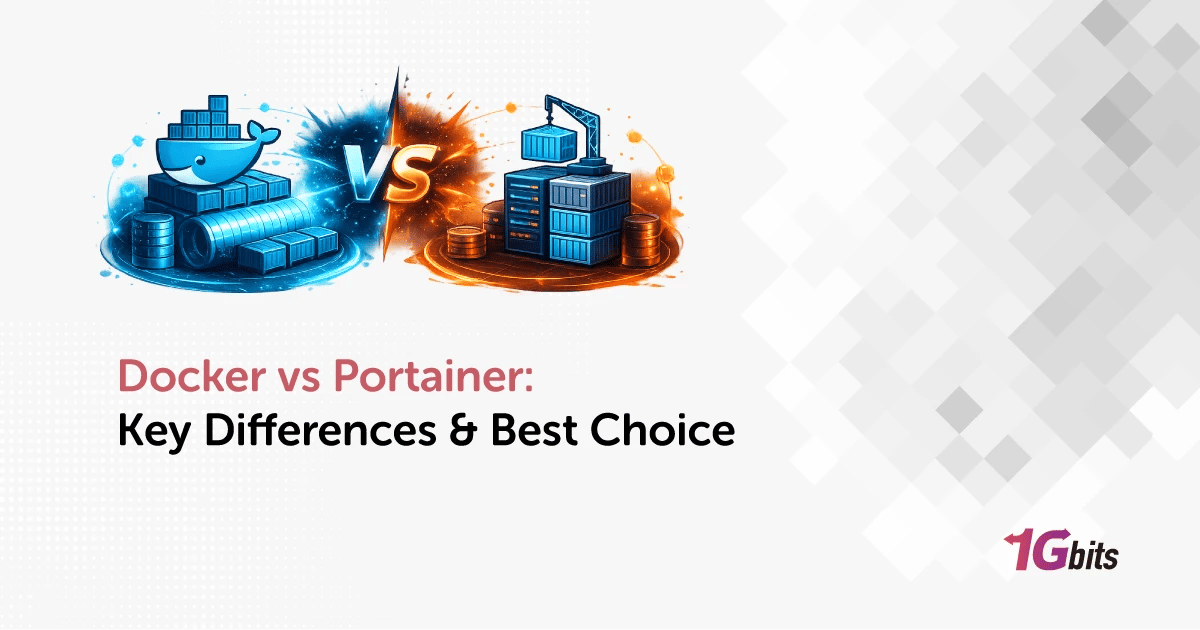
Let's clear up the biggest confusion first: Docker and Portainer aren't competitors. They live at different layers of the stack. Docker Engine is the thing that actually builds and runs your containers. Portainer is a web dashboard that talks to Docker (and a few other environments) so you can manage those containers with your mouse instead of memorizing commands.
Docker vs Portainer at a Glance
So when people search "Docker vs Portainer," the honest answer is usually "both." You run Docker either way. Portainer just sits on top and makes routine work visual.
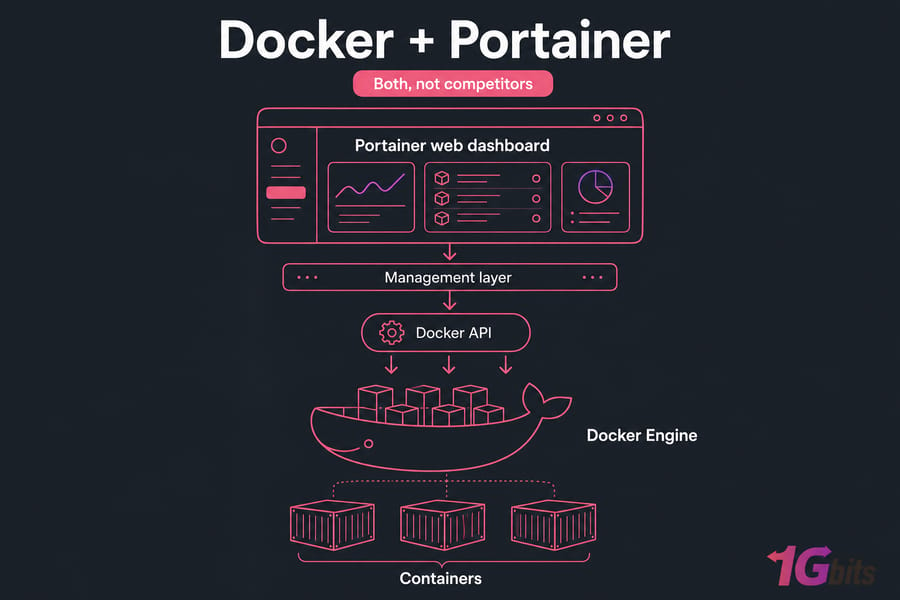
Docker and Portainer are not direct alternatives. Docker Engine builds and runs containers, while Portainer is a web-based management interface that connects to Docker and other supported environments. Use Docker alone if you prefer CLI and configuration files. Add Portainer when you want visual container management, easier monitoring, or centralized access for multiple users or hosts.
Is Portainer an alternative to Docker?
No. Portainer can't run a single container without a container engine underneath it. It sends instructions to Docker through the Docker API. Take Docker away and Portainer has nothing to manage.
The short verdict by user type
| Factor | Docker (Engine + CLI) | Portainer |
| Primary Role | Runs containers | Manages containers visually |
| Interface | Command line, Compose files | Web dashboard |
| Beginner-Friendly? | Steeper curve | Much gentler |
| Best for Solo Experts | Yes | Optional |
| Best for Teams | Needs extra tooling | Built-in RBAC (paid tiers) |
| Required? | Yes, always | No, optional |
| Runs Containers Itself? | Yes | No |
Key takeaway: The practical choice is usually Docker alone or Docker plus Portainer — not Docker instead of Portainer.
To understand the comparison, first separate Docker Engine from the other Docker products people mix it up with.
What Is Docker Engine and What Does Docker Do?
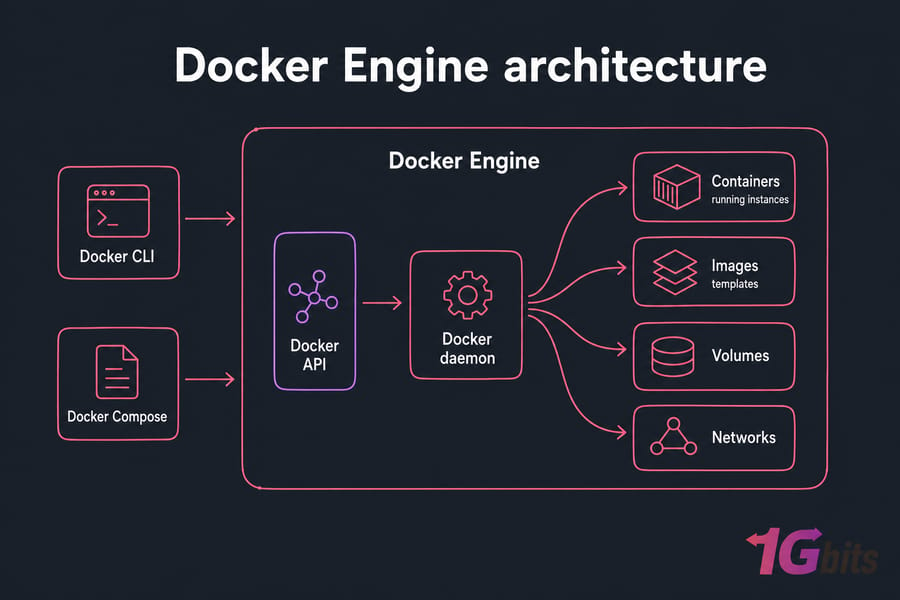
Docker Engine is the core runtime. It follows a client-server model: a background service called the Docker daemon does the heavy lifting, and clients talk to it through the Docker API. If you want the full picture, our guide on what Docker is covers the fundamentals.
The daemon manages four building blocks — Docker containers, Docker images, networks, and volumes. Images are the templates. Containers are running instances of those images. Simple enough once it clicks.
Docker Engine vs Docker CLI vs Docker Desktop
Here's where most articles fumble. The Docker CLI (docker run, docker ps, and friends) is just one way to talk to the daemon. Docker Compose is a declarative tool for defining multi-container apps in a YAML file. And Docker Desktop? That's a separate desktop bundle for macOS and Windows — it packages the engine, a GUI, and a Linux VM.
Clarification: Docker Engine is not the same product as Docker Desktop. You don't install Docker Desktop on a Linux server. You install Docker Engine.
How Docker runs images and containers
You pull an OCI-compliant image (usually from Docker Hub), the daemon unpacks its layers, and it spins up a container with its own filesystem, network, and process space. That container runs until it's stopped or removed.
Docker's main strengths and limitations
Strengths? Portability, a massive ecosystem, and dead-simple reproducibility through Compose. The limitation is the learning curve — and the fact that once you're juggling a few hosts, the CLI gives you no bird's-eye view. You're SSHing into each box.
Portainer sits above this foundation rather than recreating it.
What Is Portainer and How Does Its Docker GUI Work?
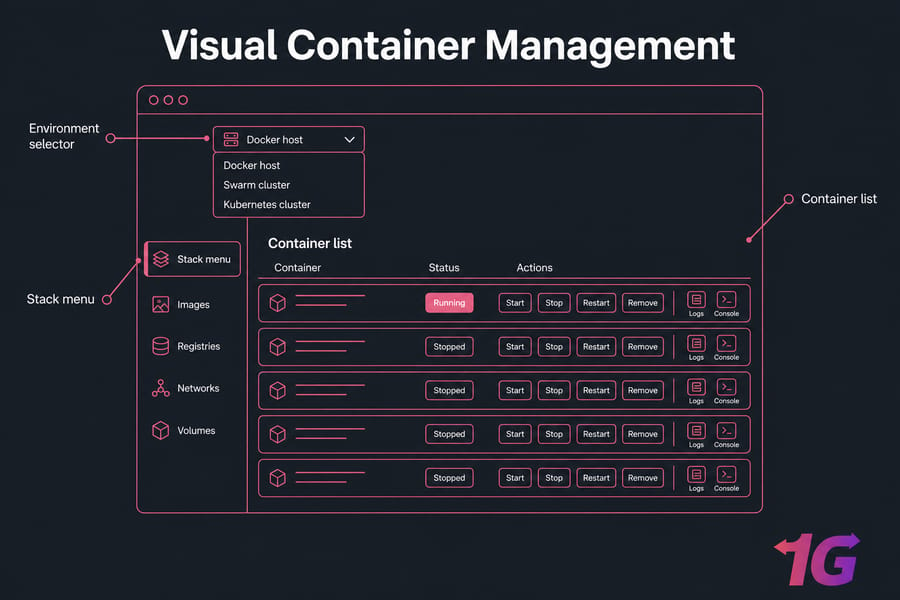
Portainer is a self-hosted container-management platform. It usually runs as a container itself, serves a web dashboard, and connects to one or more Docker environments — the term Portainer uses for any Docker host, Swarm cluster, or Kubernetes cluster it manages (an "environment" is basically a connected endpoint).
What Portainer can manage
Through the GUI you get the full container lifecycle — start, stop, restart, remove — plus live logs, an in-browser console, image and registry management, networks, volumes, and stack deployment. It's a genuine control plane, not a cosmetic dashboard. For folks who'd rather learn the manual side too, our list of essential Docker commands pairs well with it.
Portainer Server, Agent, and Edge Agent
The Portainer Server is the main component with the UI. The Portainer Agent runs on remote hosts so the Server can manage them cleanly. The Edge Agent handles hosts behind NAT or firewalls that can't accept inbound connections. You don't need all three — a single host only needs the Server.
Portainer's main strengths and limitations
It shines at discoverability and shared visibility. The downside? It's another privileged component you have to secure, and heavier features like deep RBAC sit behind the paid tier. More on that shortly.
How Docker and Portainer Work Together
Because Portainer delegates every container operation to Docker, the two form a clean chain. You click a button in the browser, Portainer translates it into a Docker API call, and the daemon does the work.
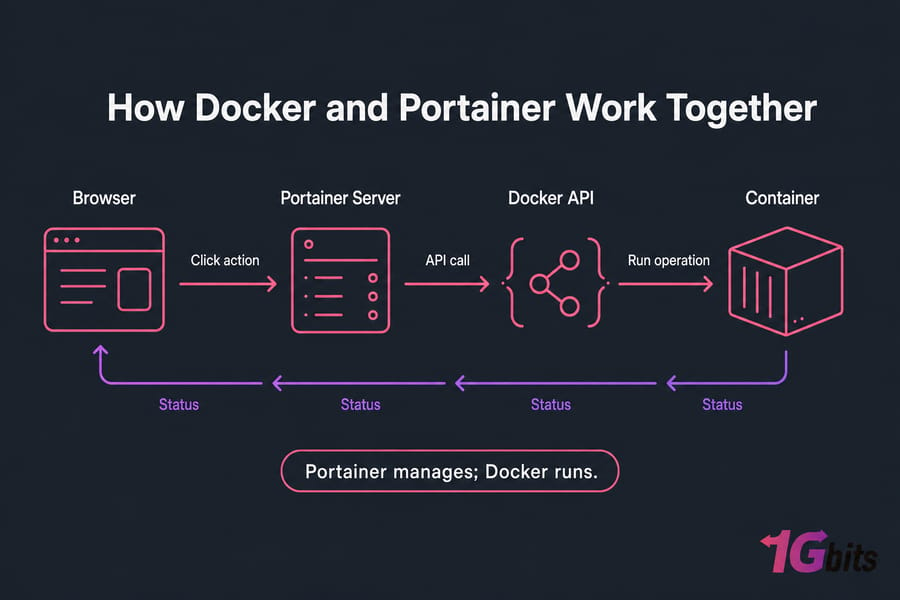
What happens when Portainer connects to Docker
Portainer typically connects by mounting the Docker socket or through the Agent. From there it can see and control everything the daemon can. That power is exactly why the security section later matters so much.
Does Portainer replace Docker Compose?
No. Portainer can deploy and manage stacks built from Compose syntax, but Compose stays a declarative tool and workflow in its own right. If you're new to it, here's how to install Docker Compose.
Pro tip: Keep your Compose files in version control even when you use Portainer for day-to-day visibility. Editing a stack in the GUI without updating your repo creates drift — and drift is how "it worked yesterday" mysteries start.
What happens to containers if Portainer stops?
They keep running. Portainer isn't in the request path of your applications. If its container crashes, Docker still holds up every workload — you just lose the dashboard until you restart it. And the CLI still works fine the whole time.
This distinction matters when a feature-by-feature table compares management methods, not container runtimes.
Docker and Portainer Feature Comparison
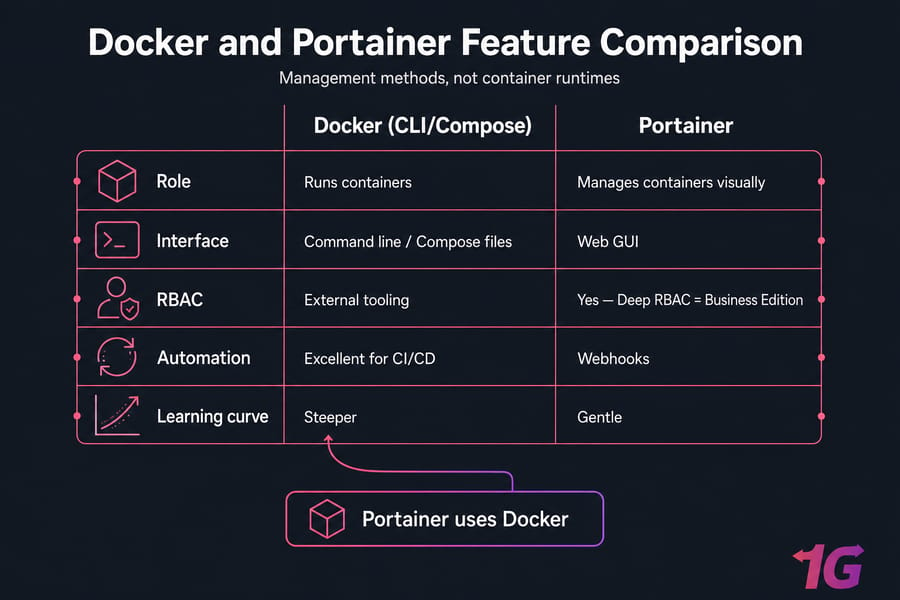
| Capability | Docker (CLI/Compose) | Portainer | Caveat |
| Container Runtime | Yes | No (uses Docker) | Portainer never runs containers alone |
| Interface | Command line | Web GUI | — |
| Container Creation | Full control | Guided forms | — |
| Image & Registry Mgmt | Yes | Yes | — |
| Compose / Stacks | Native | Stack deploy | Not identical behavior |
| Logs & Console | Yes | In-browser | — |
| Multi-Host Visibility | Manual per host | Centralized | Agent required |
| RBAC | External tooling | Yes | Deep RBAC = Business Edition |
| CI/CD Fit | Excellent | Webhooks | CLI wins for pipelines |
| GitOps | Via external tools | Yes | Some features BE-only |
| Swarm/Kubernetes View | CLI | Yes | Varies by edition |
| Resource Overhead | Minimal | Small footprint | Don't hardcode a RAM figure |
| Learning Curve | Steeper | Gentle | — |
| Best User | Scripters, CI | Teams, homelabs | — |
The CLI wins on precision, scriptability, and reproducibility — and it has the broadest documentation on the planet. Portainer wins on discoverability and quick routine operations. But GUI changes are harder to audit unless your team stays disciplined. Worth stressing: Portainer doesn't make your application containers faster or slower. It's management overhead, not a performance lever. If your comparison shopping spans orchestrators too, see Docker vs Kubernetes and Docker Swarm.
Quick summary: CLI wins for scriptability; Portainer wins for visual discovery and shared operations.
When to Use Docker CLI or Portainer for Container Management
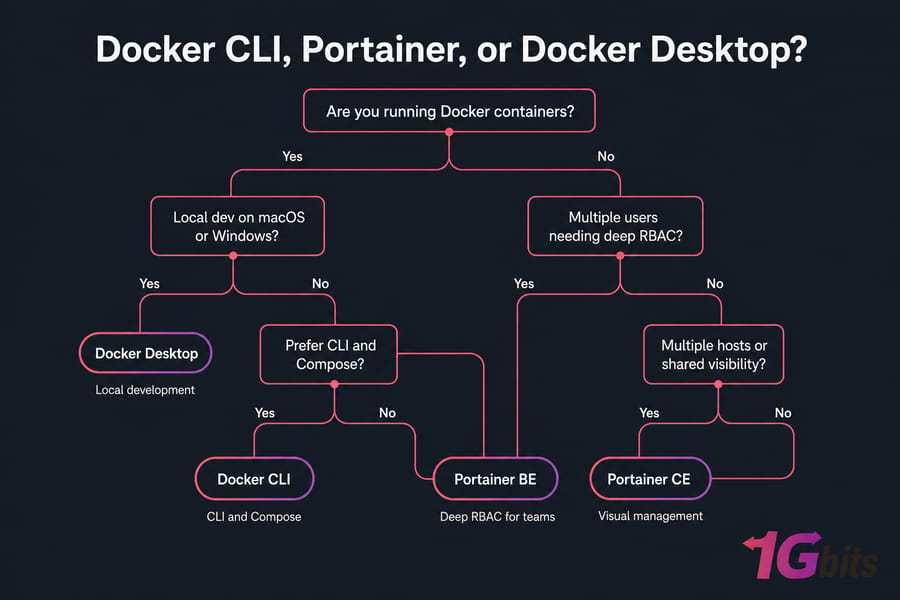
Use Docker CLI only when…
You manage one or a few hosts, you're comfortable with the terminal, your infrastructure is defined in Compose or automation, and you want the smallest possible attack surface. A solo DevOps engineer running three containers under Compose rarely needs anything else.
Use Docker with Portainer when…
You're learning containers, running a homelab full of services, or working on a team that needs shared visibility across multiple environments. Fast access to logs, restart buttons, and resource views saves real time here.
Docker Desktop vs Portainer for local development
Docker Desktop is for local macOS or Windows dev. It's not a remote multi-host management platform, so don't treat them as equals.
| Scenario | Recommendation |
| Beginner on one VPS | Docker + Portainer while learning CLI |
| Experienced solo user | Docker CLI/Compose; Portainer optional |
| Homelab, several services | Docker + Portainer |
| CI/CD production | Compose/orchestrator as source of truth |
| Multi-user business | Evaluate Portainer Business Edition |
| Kubernetes-heavy org | Compare with native GitOps tooling first |
If you want Portainer available around the clock, deploy Docker on an always-on Docker VPS hosting plan rather than a local workstation. You'll get root access for firewall, storage, and networking. Curious what else fits a box like this? Browse applications you can run on your VPS.
Portainer Community vs Business Edition
Portainer ships in two editions. Community Edition (CE) is the free, no-cost entry point and covers most solo and homelab needs. Business Edition (BE) is the commercial offering with a free node allowance and enterprise controls layered on top.
Which Portainer features require a paid edition?
Generally the heavier team and governance features — granular RBAC, SSO/OAuth integrations, audit logging, activity history, and fleet/edge management at scale — live in Business Edition. CE gives you full container management without those enterprise extras.
Edition note: Verify current feature packaging, node allowances, and pricing on Portainer's official site before you commit — these terms change.
On the Docker side, don't lump everything under one license. Docker Engine is open source; Docker Desktop has separate subscription terms for larger companies. Deciding who owns patching and uptime? Our guide on managed vs unmanaged VPS hosting helps frame that responsibility.
Need an Always-On Server for Docker and Portainer?
Deploy your container stack on a 1Gbits Docker VPS with root access, persistent storage, and a choice of global locations. Install Docker Engine, Docker Compose, and Portainer using whatever workflow fits your project. Prefer to weigh plans first? Compare VPS Hosting.
How to Install Portainer on Docker Safely
Time to install Portainer on Docker. Before anything, confirm Docker Engine is installed and running — see our guides for install Docker Engine, Docker on Ubuntu, or Docker on Debian.
Warning: Access to the Docker socket effectively gives control over the host. And never expose the dashboard publicly without HTTPS and network restrictions.
Deploying Portainer with Docker Compose
Create a named volume so your data survives upgrades, then use a Compose file. Check the current image tag against Portainer's docs before you copy anything — don't blindly trust an old version string.
services:
  portainer:
    image: portainer/portainer-ce:VERIFY-CURRENT-TAG
    restart: unless-stopped
    ports:
      - "9443:9443"
    volumes:
      - /var/run/docker.sock:/var/run/docker.sock
      - portainer_data:/data
volumes:
  portainer_data:
The socket mount lets Portainer talk to Docker. The portainer_data volume holds your settings. Port 9443 serves the HTTPS UI. Start it:
docker compose up -dConnecting to the dashboard and creating the first admin
Reach the interface only through a protected route — VPN, allowlist, or reverse proxy. Then create the admin account immediately, before anyone else can. Portainer locks initial setup after a short window for exactly this reason.
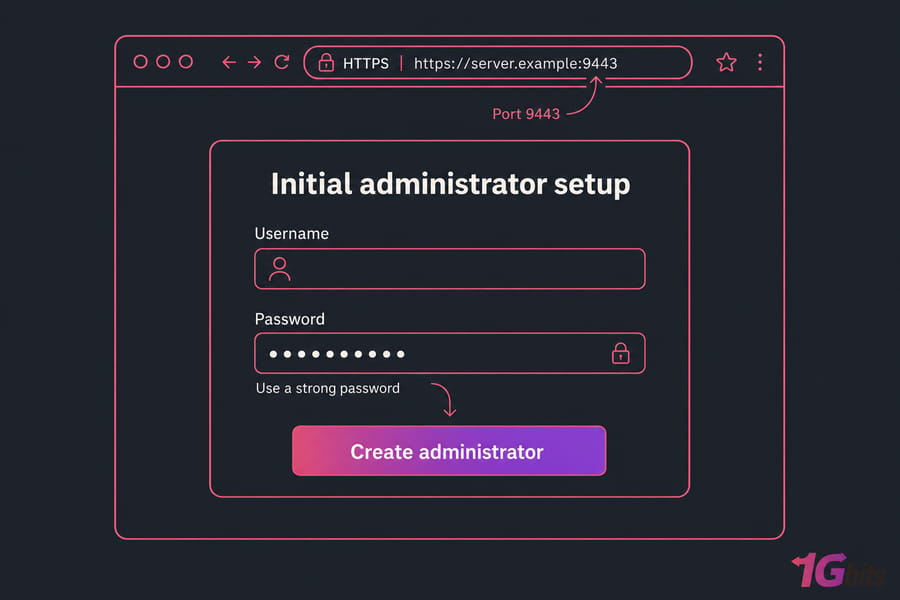
Verifying persistent data and container access
Once in, you should see your existing containers listed under the local environment. Test persistence by running docker compose down then up -d again — your admin account and settings should still be there because they live in the named volume. That's the check that saves you from data loss during future updates.
Portainer Security Risks and Common Docker Management Mistakes
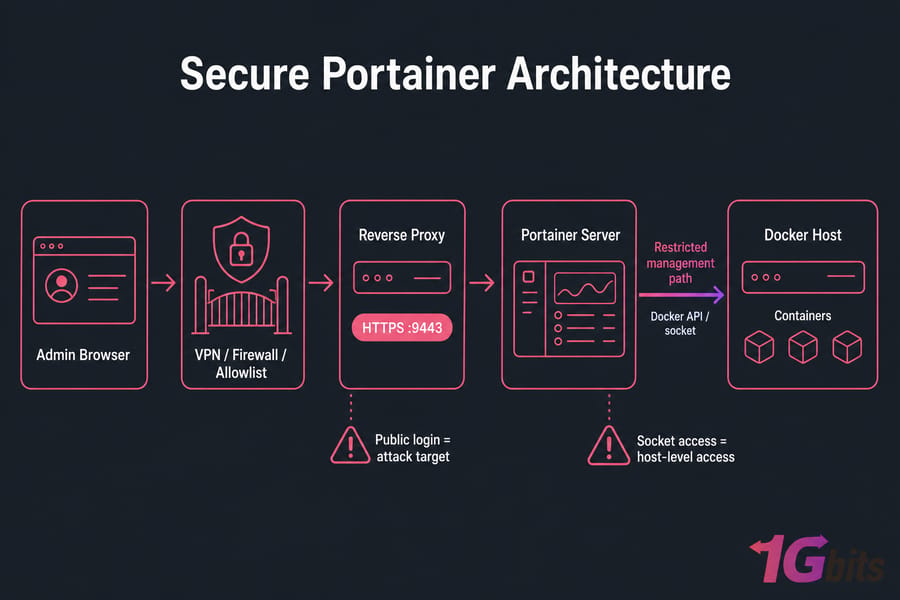
Why the Docker socket is security-sensitive
Because it can create privileged containers and mount host paths, socket access is essentially host-level access. Treat any exposed Portainer instance as a direct path to root on that machine.
| Risk | Why It Matters | Mitigation |
| Exposed dashboard | Public login = attack target | Configure a VPS firewall, VPN, allowlist |
| No TLS | Credentials in the clear | Trusted certificate + HTTPS |
| Weak admin creds | Full host compromise | Strong password + MFA/SSO where available |
| Stale versions | Known CVEs | Patch Docker, Portainer, and host OS |
| No backups | Lost config or data | Schedule Linux server backups |
| Deleting volumes on upgrade | Permanent data loss | See remove Docker resources safely |
Backup, update, and recovery practices
Back up Portainer's data volume and your application volumes separately — they're not the same thing. Then actually test the restore. A backup you've never restored is a hope, not a plan.
Portainer mistakes to avoid in production
Don't edit version-controlled workloads in the GUI without documenting it. Don't assume a reverse proxy alone makes you secure. And don't treat a container dashboard as a substitute for host hardening.
Docker vs Portainer Verdict: Which Should You Choose?
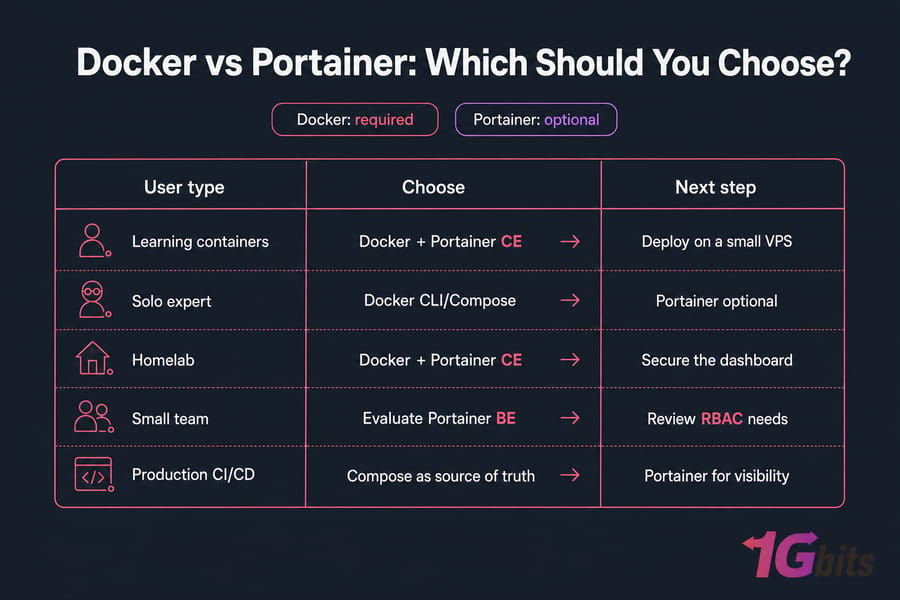
Docker is non-negotiable — you need it to run containers, full stop. Portainer is optional but genuinely useful when visual, centralized management earns its keep. My default advice:
- Learn core Docker commands even if you live in the GUI.
- Keep reproducible app definitions in Compose or source control.
- Add Portainer when its convenience outweighs the extra attack surface.
Hosting note: Size the server for your application workloads — Portainer is management overhead, not the main capacity driver. Calculate CPU, RAM, storage, IOPS, and bandwidth from the databases, apps, and workers you'll run. For sustained high utilization or a large container estate, a dedicated server for Docker gives you isolation and predictable capacity.
Decision table by experience level
| User Type | Choose | Next Step |
| Learning containers | Docker + Portainer CE | Deploy on a small VPS |
| Solo expert | Docker CLI/Compose | Portainer optional |
| Homelab | Docker + Portainer CE | Secure the dashboard |
| Small team | Evaluate Portainer BE | Review RBAC needs |
| Production CI/CD | Compose as source of truth | Portainer for visibility |
| Heavy workloads | Dedicated Docker server | Size by workload |
Deploy Docker on Infrastructure Built for Your Workload
Start with a VPS for development, homelabs, and smaller stacks, or pick a dedicated Docker server for sustained workloads and stronger isolation. You keep full root access and decide whether to manage containers through the CLI, Compose, Portainer, or all three. Explore Docker VPS plans or dedicated Docker servers.

Leave A Comment