

Short answer: if you want the easiest path with a polished GUI and built-in Kubernetes, stick with Docker Desktop. If you want a lighter, free, terminal-first setup that gets out of your way, install Colima. That's the 2026 reality in one sentence.
Both rely on a Linux VM under the hood there's no avoiding that on macOS. The difference is how much polish (and overhead) sits on top of that VM, and how your team's licensing situation looks.
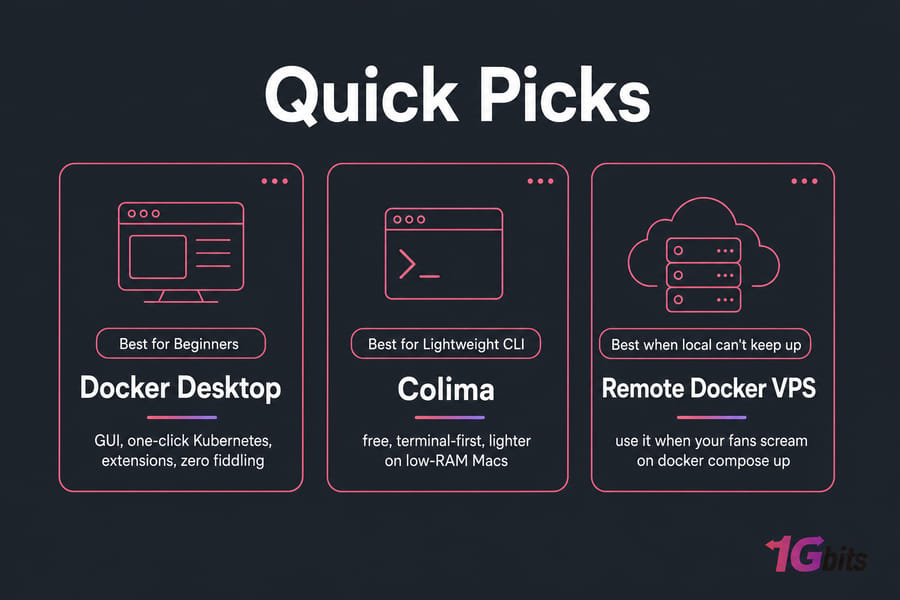
Here's the cheat sheet:
- Pick Docker Desktop if you want a GUI, one-click Kubernetes, extensions, and zero fiddling.
- Pick Colima if you live in the terminal, run a low-RAM MacBook, or your company is dodging the Docker subscription.
- Pick a remote Docker host if your fans scream every time you run
docker compose up.
Before you commit, it helps to know what each tool actually is — because they're not exact equivalents. Quick tour of best Docker alternatives for Mac if you want broader context first.
What Docker Desktop and Colima actually are
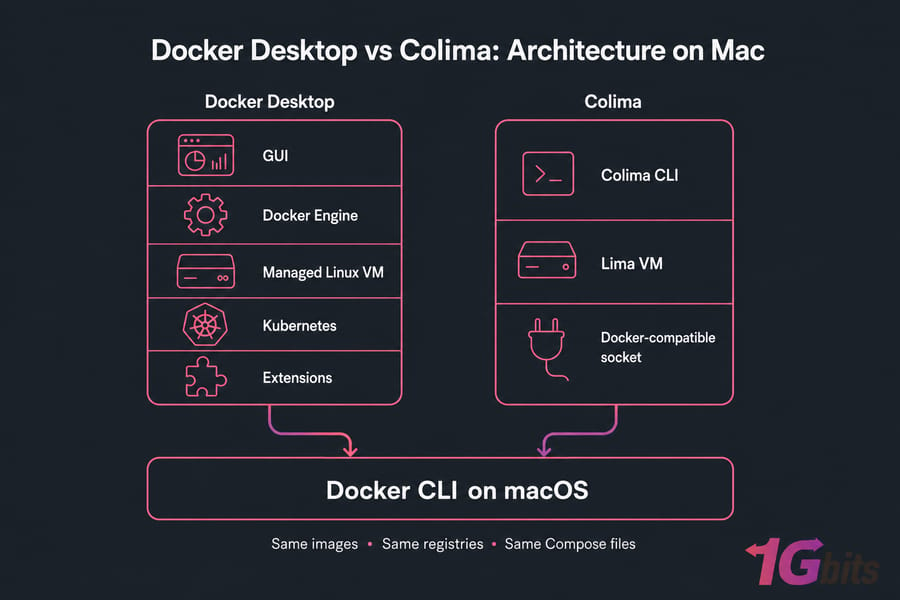
Docker Desktop is a full desktop application. It bundles the Docker Engine, Docker CLI, Docker Compose, a GUI dashboard, a managed Linux VM, Kubernetes (one toggle), and an extensions marketplace. It's a single installer and you're done.
Colima is different. It's a lightweight command-line tool that spins up a Lima-based Linux VM and exposes a Docker-compatible socket. It doesn't ship the Docker CLI itself — you install that separately via Homebrew. There's no GUI. No dashboard. Just a runtime.
So when people ask "what is Docker on Colima?" — the answer is: same Docker CLI, same images, same Docker Compose files. Just a leaner VM provider underneath.
How Docker on Mac actually works
Containers need a Linux kernel. macOS doesn't have one. So both tools do the only thing they can — run a tiny Linux VM and route your docker commands into it.
Docker Desktop uses its own managed VM built on Apple's Virtualization.framework (with optional Rosetta for x86 emulation on Apple Silicon). Colima uses Lima, which also taps Virtualization.framework or QEMU depending on configuration. The architecture is similar; the wrappers are not.
This matters for two reasons:
- File mounts cross a VM boundary. That's why bind-mounted volumes feel slower on Mac than Linux — and why heavy Node, Rails, or PHP projects sometimes crawl.
- Image architecture matters. On Apple Silicon (M1/M2/M3/M4), ARM-native images run fast. x86 images need emulation, and that's where you'll feel pain.
On Intel Macs, you don't have the ARM/x86 split — but you'll feel more idle CPU overhead from the VM itself. Either way, this is fundamentally different from running Docker on a Linux box. If you've never thought about this, the difference between virtualization and containerization is worth a read.
Docker Desktop vs Colima: feature comparison
| Criteria | Docker Desktop | Colima |
| Install | One .dmg installer | brew install colima docker |
| GUI dashboard | Yes, full UI | None — CLI only |
| Docker CLI | Bundled | Install separately |
| Docker Compose | Bundled, works out of the box | Works once Compose plugin is installed |
| Kubernetes | Toggle in settings | Flag: colima start --kubernetes |
| Extensions/marketplace | Yes | No |
| VS Code / JetBrains integration | Native, zero config | Works via Docker context; minor setup |
| x86 emulation on Apple Silicon | Rosetta-backed, built in | Supported via flag; configurable |
| Resource controls | GUI sliders | CLI flags (--cpu, --memory, --disk) |
| Auto-updates | Built in | brew upgrade |
| Commercial support | Yes (paid tiers) | Community only |
| License | Free for small use; paid for larger orgs | MIT, free |
Both speak fluent Docker CLI same images, same registries, same Compose files. Where Docker Desktop wins is the polish: container inspection, log tailing, volume browsing, and one-click Kubernetes are all there in a window. With Colima, you do all that from the terminal which honestly, most experienced devs prefer anyway.
Performance and resource usage
Colima generally idles lighter. That's the consistent community observation, and it makes sense — fewer background services, no Electron GUI, no extension host. On an 8GB MacBook Air, that difference is noticeable. On a 32GB M3 Pro, you probably won't care.
But here's the thing most comparisons miss: idle RAM isn't the bottleneck for most Mac dev work. File sync performance is. Bind-mounting a 50,000-file Node project into either VM will make your build crawl, regardless of which tool you picked.
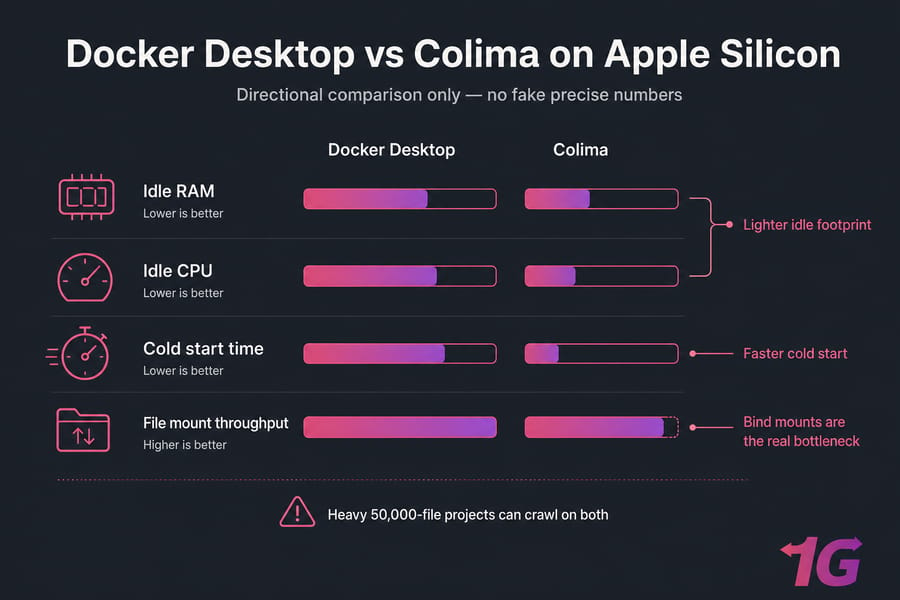
My honest take, after running both on the same M2 for months: Colima cold-starts faster, uses less idle memory, and feels snappier for terminal-only workflows. Docker Desktop catches up the moment you actually run a workload. The VM does the work either way.
Test your real stack under both before committing. Idle metrics lie; your docker compose up doesn't.
Licensing, pricing, and commercial use
This is the reason most companies look at Colima in the first place.
Docker Desktop is free for personal use, education, small businesses, and open-source projects. Larger organizations need a paid Docker subscription (Pro, Team, or Business tier) to use Docker Desktop commercially. Thresholds and exact terms change check Docker's current subscription terms before you make a procurement decision. Don't take a blog post's word for it. Including this one.
Colima is MIT-licensed. Free. No commercial restriction. That's the whole pitch.
If you're a solo dev or hobbyist, this section probably doesn't matter to you. If you're an engineering lead at a 500-person company, this is the entire conversation.
Which should you choose?
| You are… | Best pick | Why |
| A beginner just learning Docker | Docker Desktop | GUI helps you visualize what's happening |
| A CLI-first solo developer | Colima | Lighter, free, no GUI bloat |
| On an 8GB MacBook Air | Colima | Less idle overhead leaves room for your IDE |
| Heavy Kubernetes user | Docker Desktop | One-toggle local cluster; less yak-shaving |
| Part of a large commercial team | Docker Desktop (paid) | Vendor support and consistent tooling across the team |
| A cost-conscious startup | Colima | Free, MIT-licensed, fully scriptable |
| Already exhausting your Mac's resources | Remote Docker host | Stop fighting local limits |
How to switch from Docker Desktop to Colima
Switching isn't risky if you do it in order. Here's the migration I've used on three machines without losing data:
- Inventory what you have. Run
docker ps -a,docker volume ls, and note any named volumes you actually care about. Export critical data. - Install Colima and the Docker CLI. With Homebrew:
brew install colima docker docker-compose. - Start Colima with sensible resources. Example:
colima start --cpu 4 --memory 8 --disk 60. Bump those numbers to match your machine. - Verify the context switch. Run
docker context ls— you should see acolimacontext active. Thendocker infoto confirm the daemon is reachable. - Test a real workload.
cdinto a project and rundocker compose up. If your app comes up, you're done. - Uninstall Docker Desktop. Only after Colima is verified working. Follow the complete Docker Desktop uninstall guide there are leftover files most people miss.
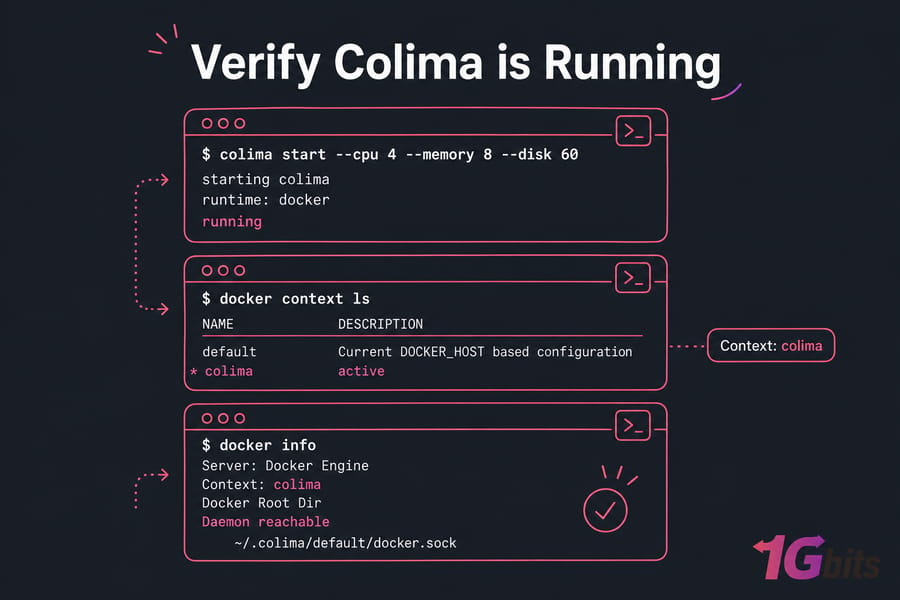
Watch out for these gotchas:
- Socket path: Some IDEs hardcode the Docker Desktop socket. Point them to Colima's socket (
~/.colima/default/docker.sock) or setDOCKER_HOST. - x86 images on Apple Silicon: Start Colima with
--arch x86_64or use--vm-type vz --vz-rosettafor Rosetta-backed emulation. - Kubernetes: Add
--kubernetesat start. It's a different cluster than Docker Desktop's — your kubeconfig will need updating.
When local containers aren't the answer
Here's a take you won't see in most comparison posts: sometimes the best Docker setup on your Mac is not on your Mac.
If your MacBook fans spin up every time you rebuild, if your battery dies by lunch, if your team's stack is too big for any laptop you're solving the wrong problem. Switching from Docker Desktop to Colima won't fix it. A Linux-native Docker host will.
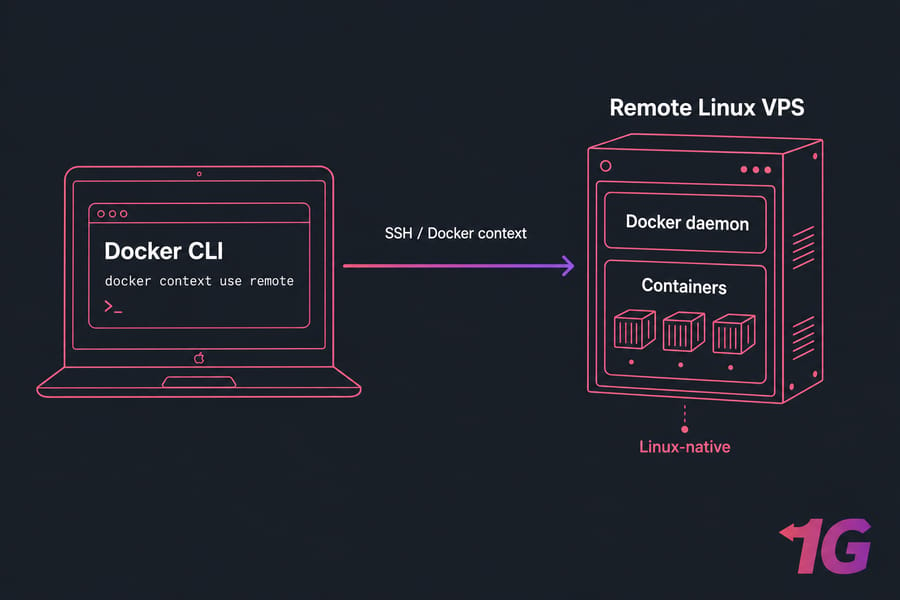
Run the Docker daemon on a Docker VPS and point your local Docker CLI at it via context. You keep your familiar workflow. You get more CPU, more RAM, and Linux-native file performance (no VM tax). Builds finish faster. Your laptop stays cool.
For team environments, shared CI runners, or always-on services, a server for Docker or a Linux VPS usually wins outright. For scale, look at a dedicated server. The point isn't to ditch local Docker it's to stop asking your MacBook to do work it was never designed for.

Leave A Comment