

Your Plex server works fine at home, then turns blurry and starts buffering as soon as you're on hotel Wi-Fi. That's a very common complaint, and in my experience the "Remote Access" toggle is almost never the cause. The usual culprits are the connection path, your home upload speed, and transcoding. This guide covers how to optimize Plex Remote Access for smooth streaming anywhere, roughly in the order you should check things.
Quick answer: Make sure Plex connects directly and not through relay. Forward an external port to internal TCP 32400 and reserve the server's local IP. Set bitrate limits that match your upload speed, and cut down on transcoding. If your ISP uses CGNAT, use Tailscale or move Plex to a hosted server.
Before you start, you need a working server (if you don't have one yet, see how to install Plex Media Server). You'll also need router admin access and the upload figure from a recent speed test.
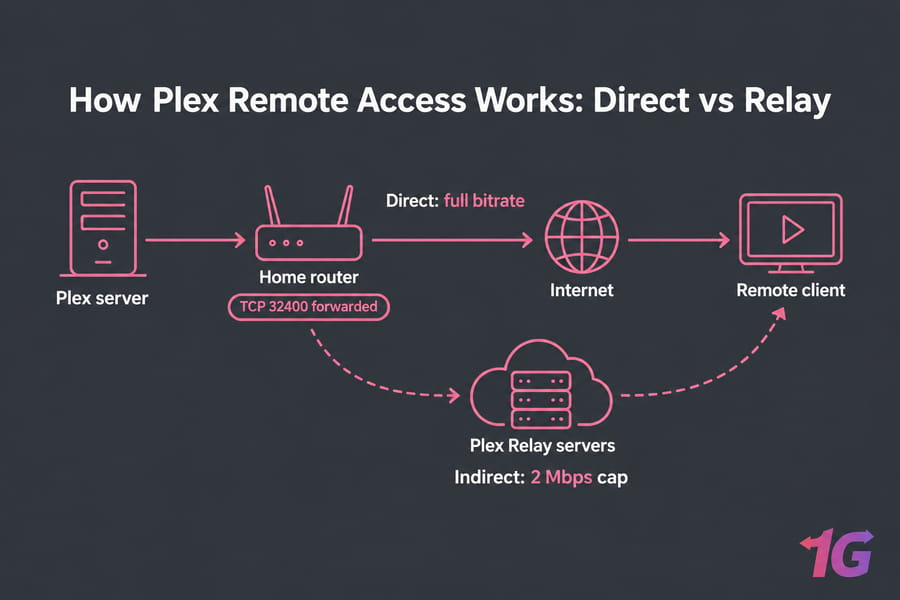
How Plex Remote Access Works: Direct vs Relay
Remote access means a device outside your home has to reach your Plex Media Server over the internet. There are two ways that can happen. With a direct connection, the client talks straight to your server's public IP on the forwarded port, and quality is limited only by your upload speed. If that fails, Plex can fall back to Relay. Relay works, but it's painfully slow. According to Plex, connections are limited to 2 Mbps maximum for streams (this applies to both Plex Pass and Remote Watch Pass subscribers).
At 2 Mbps a 1080p movie looks like a 2009 YouTube upload. Getting a direct connection does more for quality than any other setting in this guide.
Why Plex Remote Streaming Buffers or Drops Quality
| Symptom | Likely cause | Fix |
| Quality stuck very low and the dashboard says "Indirect" | Relay fallback | Fix port forwarding, or deal with CGNAT |
| Buffering on high-bitrate files only | Source bitrate is higher than your upload | Lower the remote bitrate, or make optimized versions |
| Stutters while the server CPU sits near 100% | Software transcoding | Use Direct Play, or enable hardware transcoding |
| Random drops with fine bandwidth | Server or client on weak Wi-Fi | Put the server on Ethernet |
If transcoding is maxing out your CPU, look at the Plex server hardware requirements before you blame the network.
Enable Plex Remote Access and Forward TCP 32400
Automatic setup through UPnP or NAT-PMP works on a lot of routers. The trouble is that it can quietly break after a firmware update or a reboot. I set up forwarding manually every time.
- Reserve a fixed local IP for the server in your router's DHCP settings (for example, 192.168.1.50). If the server stays on plain DHCP, its IP can change and your port forward will point at nothing.
- In the Plex Web App, open Settings → Remote Access, check "Manually specify public port," and enter your external port.
- Create the NAT rule in your router (our guide on how to port forward on your router walks through common models).
- Allow inbound TCP 32400 through the server's firewall. On Linux hosts you'll need to configure a firewall rule. On Windows, make sure the network profile is set to "Private."
- Click Retry in Plex. You want a green "Fully accessible outside your network" status.
Plex's rule here is strict. The external port is default, but you can generally use any available port in the 20,000 to 50,000 range, while the LAN/Internal Port: This will *always* be 32400. Only TCP is required.
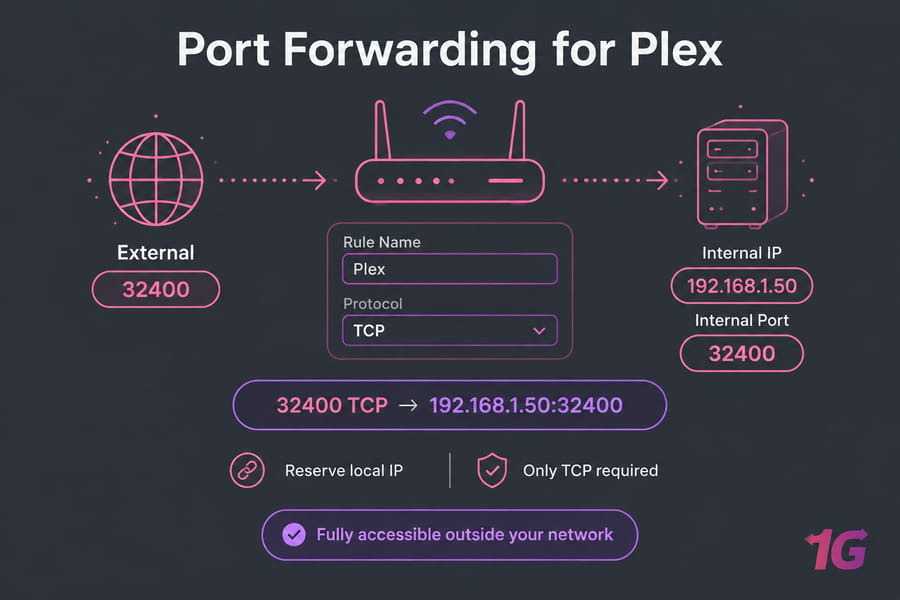
Green status only tells you the port can be reached. It doesn't promise good playback. Start a stream from cellular data and check the Plex dashboard to see whether it's playing directly or transcoding.
Optimize Bitrate, Bandwidth, and Transcoding
When you host at home, your upload speed is the hard limit on remote quality. Download speed doesn't help remote viewers at all. Enter your measured upload in the Remote Access settings, then set "Limit remote stream bitrate" to about 70–80% of it so there's headroom.
| Upload speed | Safe per-stream bitrate | Realistic quality | Notes |
| 5 Mbps | 2–3 Mbps | 720p | One viewer at a time |
| 10 Mbps | 4–8 Mbps | 1080p | One good stream, or two at 720p |
| 20 Mbps | 8–12 Mbps | High-quality 1080p | Two 1080p viewers |
| 50 Mbps | 20–40 Mbps | 4K HEVC (not remux) | Needs Direct Play |
| 100+ Mbps | 40+ Mbps | 4K, multiple users | Watch your transcoding load |
If you can, aim for Direct Play. H.264 in MP4 or MKV with AAC audio plays on nearly every client without the server converting anything. For travel, make lower-bitrate optimized copies of the titles you watch most, because a 60 Mbps 4K remux just won't work over a 10 Mbps uplink.
Plex Remote Quality Settings on Client Apps
Each client has its own Settings → Quality → Remote Streaming option, and some default to a low value. Set it to Original or Maximum on TVs and on the web app when you have the bandwidth. On phones running on mobile data, 720p at 4 Mbps is usually the better choice. Don't set every device to Maximum on a weak link, because that's how you get endless buffering.
Fix Relay, CGNAT, and Double NAT, or Use Tailscale
If Plex still shows "Indirect," compare the WAN IP in your router with the IP that a site like whatismyip shows. If they don't match, or the router's WAN IP starts with 100.64–100.127, you're behind CGNAT, and port forwarding won't work no matter what you change. Double NAT is easier to fix. It happens when an ISP modem/router sits in front of your own router. Put the ISP device in bridge mode, or forward the port on both devices.
For CGNAT, Tailscale is the cleanest workaround I've used. It isn't official Plex guidance, but it's popular. Android Authority points out it's built on the WireGuard protocol, which is known for being incredibly fast and lightweight.
- Install Tailscale on the Plex host and on each remote device, and sign in with the same account.
- In Plex Settings → Network → LAN Networks, add
100.64.0.0/10next to your home subnet. - Add
http://[tailscale-ip]:32400under Custom server access URLs.
The catch is that every viewer needs Tailscale installed. That's fine for your own devices. It's a hassle for your aunt's Roku, which can't run Tailscale anyway.
Should You Host Plex on a VPS or Dedicated Server?
Sometimes your home connection just can't do the job: 10 Mbps upload, CGNAT, and five family members trying to watch at once. When that happens, moving the server to a datacenter is a reasonable fix. You get a public IP and gigabit-class bandwidth, and nobody has to touch a router.
| Factor | Home server | VPS | Dedicated server |
| Public IP | Often blocked by CGNAT | Included | Included |
| Upload bandwidth | 5–50 Mbps typical | High, shared | High, dedicated |
| Transcoding | Depends on your hardware | Limited (CPU only) | Strong, multi-user |
| Ideal user | Solo, fast fiber | Small library, few viewers | Large library, many users |
A streaming VPS suits lighter libraries and testing. For heavy transcoding, dedicated server hosting makes more sense. Our Plex server hosting plans are built for this use case, and our guides on choosing the right server for streaming and the best OS for Plex Server can help you decide.
Common Plex Remote Access Mistakes
- Relying on UPnP and never reserving the server IP
- Running the server on Wi-Fi instead of Ethernet
- Trying to stream 4K remuxes over home upload
- Forgetting the firewall rule after an OS update
- Opening ports without hardening anything (learn how to secure a Plex server)
Final Checklist for Smooth Streaming Anywhere
- Reserve the server's local IP
- Forward an external port to TCP 32400 and allow it through the firewall
- Test playback from outside your network and confirm the connection is direct
- Measure your upload and set the remote bitrate to about 75% of it
- Adjust the remote quality setting on each client
- Use Tailscale if you're behind CGNAT, or move to a hosted server when your home connection can't keep up
Go through these steps in order and most people end up with smooth remote streaming. If you've run out of home upload, compare our Plex and streaming server options.

Leave A Comment