
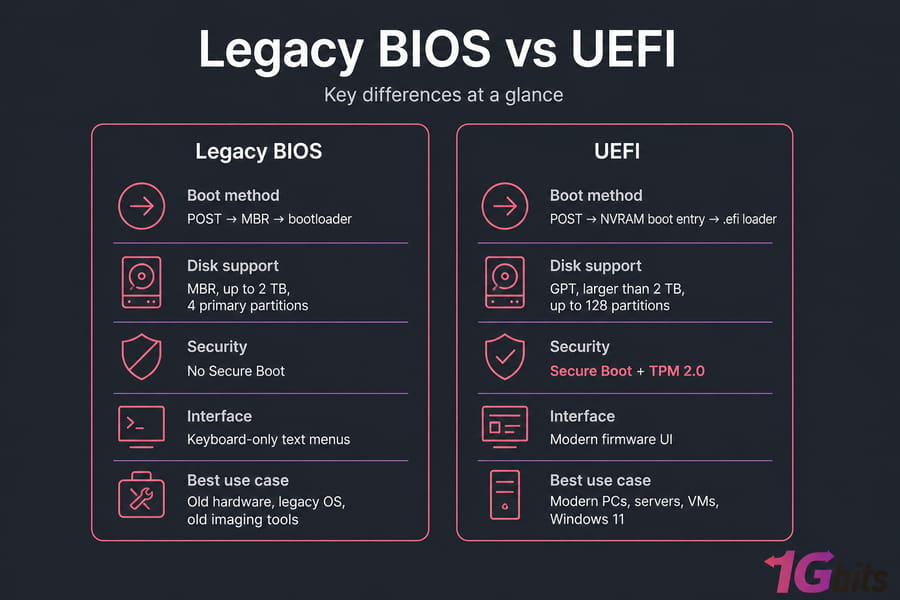
If your machine was built after roughly 2012, use UEFI. It supports GPT disks larger than 2 TB, Secure Boot, TPM-based features, and it's what Windows 11 expects. Legacy BIOS only still makes sense on genuinely old hardware, ancient operating systems, or deployment tooling that never got updated.
- Most modern PCs, servers, and VMs: UEFI mode, CSM disabled, GPT disk.
- Windows 11: UEFI is effectively mandatory (Secure Boot + TPM 2.0).
- Old hardware or legacy imaging tools: legacy BIOS or UEFI + CSM is still a valid fallback.
Understanding the evolution of computer firmware is essential whether you're setting up a new system, installing Linux, or configuring virtualization tools like Proxmox or VMware. When it comes to boot modes, UEFI vs BIOS is one of the most important comparisons for system builders, IT admins, and even everyday users. In this article, we'll break down everything you need to know about UEFI vs BIOS, including their benefits, use cases, compatibility with different systems like Ubuntu, Arch Linux, and Windows 10, and help you decide which boot mode is right for you.
🔧 What is BIOS?
BIOS (Basic Input/Output System) is a firmware interface developed in the 1980s. It is the first code run by a PC when powered on and is stored on a chip on the motherboard. BIOS initializes hardware components, performs POST (Power-On Self-Test), and loads the bootloader to start the operating system. If you're new to the concept of what a server or machine actually does at this level, our primer on What is a Server covers the fundamentals.
It's not "obsolete" so much as a legacy standard that still shows up in compatibility scenarios.
How legacy BIOS works
Power on, and the firmware runs POST (Power-On Self-Test) to check RAM, CPU, and attached devices. Then it walks the boot sequence, finds the first 512 bytes of the selected disk — the Master Boot Record — and hands control to whatever bootstrap code lives there. That code loads the actual bootloader. Simple, and honestly kind of elegant for 1981.
Main limitations of BIOS
Traditionally, BIOS has supported systems running in Legacy Boot Mode, which has limitations such as:
- 16-bit real mode execution, so it can't address much memory during boot.
- Booting only from MBR (Master Boot Record) disks — supporting drives up to 2.2 TB.
- MBR partition tables cap out at 2 TB usable and four primary partitions.
- Slow boot times.
- No cryptographic verification of the boot chain — nothing stops a bootkit.
- Limited hardware initialization and keyboard-only text menus.
⚙️ What is UEFI?
UEFI (Unified Extensible Firmware Interface) is a modern replacement for BIOS, introduced to overcome the limitations of its predecessor. It runs in 32- or 64-bit mode, has a real driver model, and can talk to networks, filesystems, and storage controllers directly. It supports much larger storage devices (up to 9.4 zettabytes), has a graphical interface, supports secure boot, and offers faster boot times. For a broader background on how firmware underpins virtualization technology, that article is a good companion read.
How UEFI works
Instead of chainloading raw bytes from sector zero, UEFI reads .efi executables from a FAT32 filesystem. Boot entries live in NVRAM on the motherboard, each pointing to a specific loader path. That's why you can have Windows Boot Manager and GRUB registered side by side without them fighting over a single boot sector.
And no, the pretty mouse-driven interface isn't the defining feature. Plenty of UEFI implementations look exactly like an old BIOS menu.
What the EFI System Partition (ESP) does
UEFI stores data in .efi files on a dedicated EFI System Partition (ESP), allowing more flexible and secure boot management. UEFI also introduces better support for modern hardware and operating systems.
The ESP is a small FAT32 partition — usually 100–512 MB — that stores bootloaders. Windows puts bootmgfw.efi there. Ubuntu drops GRUB's shimx64.efi and grubx64.efi in /EFI/ubuntu/. Arch users running systemd-boot keep their kernels there too. One ESP per disk is normal; multiple ESPs on the same disk cause confusion, so don't.
📊 Difference Between BIOS and UEFI in Tabular Form
To truly understand the shift from BIOS to UEFI, it's helpful to break down their differences across several key features. Here's how UEFI compares to BIOS:
| Feature | Legacy BIOS | UEFI |
| Partition table | MBR | GPT (MBR via CSM) |
| Max boot disk | 2 TB | Effectively unlimited (9.4 ZB theoretical) |
| Primary partitions | 4 | 128 |
| Boot process | MBR sector chainload | Firmware reads .efi files from ESP |
| Secure Boot | No | Yes |
| TPM 2.0 integration | Limited | Full (measured boot, BitLocker) |
| Windows 11 support | Unsupported | Required |
| Dual boot handling | Fragile, one boot sector | Clean, separate NVRAM entries |
| User interface | Text-only, keyboard navigation | Graphical, mouse support |
| Network boot | Basic PXE over IPv4 | PXE, IPv6, HTTP boot |
| Virtualization firmware | SeaBIOS | OVMF |
| Best for | Pre-2010 hardware, legacy OS, old imaging tools | Everything else |
🔹 Boot Disk Type
- BIOS: Uses MBR (Master Boot Record) — supports up to 4 primary partitions.
- UEFI: Uses GPT (GUID Partition Table) — supports larger disks and up to 128 partitions without extended partitions.
🔹 Maximum Drive Size
- BIOS: Limited to drives of around 2.2 TB.
- UEFI: Can handle drives up to 9.4 zettabytes, far exceeding typical consumer or enterprise needs.
🔹 Boot Speed
- BIOS: Slower boot times due to legacy code and less efficient initialization.
- UEFI: Faster boot times, especially noticeable on SSDs and modern systems. But it isn't guaranteed — firmware quality matters more than the standard.
🔹 Security Features
- BIOS: Lacks advanced security protocols; no protection against boot-time malware.
- UEFI: Supports Secure Boot, TPM, and cryptographic verification, helping prevent rootkits and unauthorized OS loading.
🔹 Network Boot Capabilities
- BIOS: Limited to PXE Boot over IPv4.
- UEFI: Supports PXE Boot, HTTP Boot, and IPv6 network booting, providing better compatibility in managed IT environments.
✅ Pros and Cons
UEFI wins on: large disks, Secure Boot, faster POST on decent boards, clean multi-OS boot entries, and modern deployment features.
UEFI costs you: more moving parts when things break. Debugging a missing ESP or a corrupted NVRAM entry is harder than reinstalling an MBR. Secure Boot also blocks unsigned rescue tools and custom kernel modules until you enroll keys or turn it off.
BIOS wins on: simplicity and compatibility with very old software. That's about it. The downsides — no boot chain security, the 2 TB wall, no Windows 11 — are dealbreakers on new builds.
🎯 Boot Mode UEFI vs BIOS: Which Should You Choose?
The choice between UEFI vs BIOS boot depends largely on your system requirements and operating system compatibility. Picking the right best OS for dedicated servers or a workstation starts here.
- Windows 10 and 11: Fully support UEFI and benefit from Secure Boot, TPM 2.0, and BitLocker encryption.
- Linux Distros (Ubuntu, Arch Linux): Both support UEFI and Legacy BIOS, but UEFI is preferred for features like Secure Boot and better partitioning.
- Virtualization Environments (VMware, Proxmox): UEFI is increasingly becoming the standard, with support for UEFI firmware in virtual machines and Secure Boot testing.
Let's explore how this plays out in real-world applications.
🐧 Ubuntu UEFI vs BIOS
When installing Ubuntu, you can boot the installer in either mode. However, Ubuntu officially recommends UEFI mode for modern hardware. UEFI allows:
- Better hardware compatibility
- Encrypted LVM setups with Secure Boot
- Improved boot speed
- Easier dual-booting with Windows
However, if you're using very old hardware or need to dual-boot with an OS that uses BIOS, legacy mode might still be an option.
🐧 Arch Linux UEFI vs BIOS
Arch Linux, being a rolling-release and advanced user distribution, gives you the option to install with either boot mode. Most modern Arch Linux users prefer UEFI, especially due to systemd-boot or GRUB UEFI support and advanced bootloader customization.
Using UEFI also avoids issues with GPT disk layouts and provides more flexibility for scripting and automation in bootloader configurations. Arch gives you more rope — systemd-boot is the simplest UEFI-native option, GRUB is more flexible, and if you want Secure Boot you'll be signing your own kernels (the Arch Wiki Secure Boot page walks through it).
🖥️ VMware UEFI vs BIOS
When setting up virtual machines in VMware, you have the option to choose between BIOS and UEFI boot. For modern OS installations like Windows 10/11 or newer Linux versions, UEFI provides:
- Faster VM startup
- Better security testing with Secure Boot
- Compatibility with GPT disks
In fact, some features (like Windows 11 installation in VMs) require UEFI + Secure Boot + TPM enabled, making BIOS obsolete for newer test environments. For a deeper look at choosing between the two hypervisors that run these guests, see our Proxmox vs VMware breakdown.
🖥️ Proxmox UEFI vs BIOS
Proxmox, a powerful virtualization and container platform, supports both BIOS and UEFI boot modes for virtual machines. However, to enable Secure Boot and test modern OS deployments (e.g., Windows 11 or newer Linux), Proxmox UEFI support is ideal.
In Proxmox, the choice is SeaBIOS (legacy) or OVMF (UEFI). Pick OVMF and Proxmox will ask you to add an EFI disk to store NVRAM variables — don't skip that, or your boot entries vanish on reboot. Proxmox also supports adding a TPM state device for Secure Boot guests. Details are in the Proxmox QEMU/KVM documentation. To understand how Proxmox sits on top of the hardware layer, see our guide on the bare metal hypervisor.
On a VPS you often can't change firmware mode at all — the provider's template decides. Dedicated servers and self-managed hypervisors give you full control.
🎁 Benefits of UEFI vs BIOS
Switching to UEFI from BIOS unlocks many benefits:
- Faster boot and resume times
- Support for large drives (more than 2TB)
- Improved system security (Secure Boot, TPM integration)
- Graphical interface in firmware settings
- Flexible bootloader management
Want to experience these improvements? Check out our guide on How to update the BIOS in your PC to see how you can transition from BIOS to UEFI safely.
🪟 UEFI vs BIOS Windows 10: Compatibility Matters
Many users wonder: Does Windows 10 use BIOS or UEFI? The answer is: it depends on how your system was set up.
If your Windows 10 system was installed in UEFI mode, it will take full advantage of Secure Boot, GPT partitions, and faster startup. On the other hand, BIOS-installed systems might limit disk size, lack modern security features, and take longer to boot.
Windows 10 runs happily in either mode. Windows 11 doesn't. Windows 11 requires UEFI with Secure Boot capability and a TPM 2.0 module. Microsoft's reasoning is measured boot: the firmware hashes each stage into TPM PCRs, so tampering is detectable before the OS loads. BitLocker leans on this too — it seals the disk key against those measurements, which is why changing boot mode or firmware settings can trigger a recovery key prompt. Suspend BitLocker before you touch anything. If you need a Windows environment to test any of this without touching your main machine, a Windows VPS is the fastest way to get one.
You can check your mode in Windows 10 by:
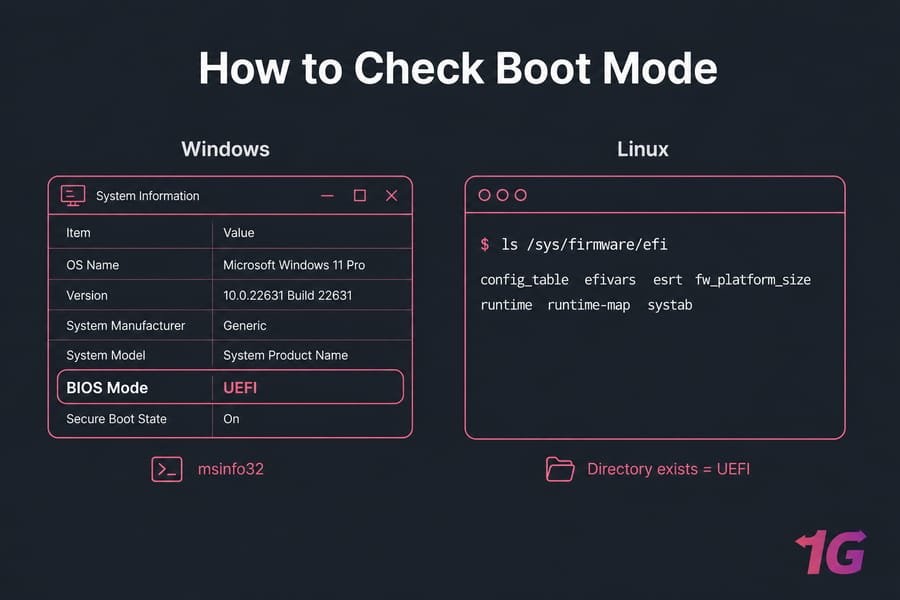
- Opening System Information (msinfo32)
- Looking for "BIOS Mode": It will say UEFI or Legacy
🔍 How to Know If You Have UEFI or BIOS?
To identify your system's firmware mode:
- On Windows: Open Run > msinfo32 > Check BIOS Mode
- On Linux: Run
[ -d /sys/firmware/efi ] && echo UEFI || echo BIOS
This simple command checks if your Linux distro is booted in UEFI mode. Alternatively, run ls /sys/firmware/efi. Directory exists means UEFI. "No such file or directory" means legacy boot.
Disk style check: open Disk Management, right-click the disk, Properties → Volumes → Partition style. Or on Linux, sudo parted -l and check the Partition Table row.
🧩 What Is CSM?
CSM — Compatibility Support Module — is a legacy BIOS emulation layer inside UEFI firmware. It's why your boot menu shows "UEFI", "Legacy", or "UEFI + CSM". With CSM on, the firmware can boot MBR disks and old option ROMs. It also produces duplicate boot entries for the same USB stick, one UEFI and one legacy, which is how people accidentally install Windows in the wrong mode.
Disable CSM for any fully modern install. Keep it only if you need legacy compatibility.
⚡ Should You Switch from BIOS to UEFI?
Yes, if your hardware supports it. Switching offers security, speed, and compatibility advantages. However, note that:
- You might need to convert your drive from MBR to GPT
- Backup your data beforehand
- Some older OS or software may not support UEFI
Order matters. Change firmware mode before converting the disk and you'll get an unbootable system. Here's the safe process:
- Confirm support. Check your motherboard has a UEFI boot option. If you're also flashing firmware, follow a proper guide on how to update BIOS safely — a bad flash bricks boards.
- Back up. Full image, not just files. Suspend BitLocker.
- Convert MBR to GPT. On Windows 10/11,
mbr2gpt /validate /allowFullOSthenmbr2gpt /convert /allowFullOS. It's non-destructive but not risk-free — see Microsoft's MBR2GPT documentation. - Reboot into firmware, set boot mode to UEFI, disable CSM.
- Repair the bootloader if needed. Windows: recovery media →
bootrec /rebuildbcd. Linux: boot a live ISO and reinstall GRUB in EFI mode withgrub-install --target=x86_64-efi.
For VPS users, this transition might not be necessary, but if you're running high-performance VMs or secure environments, buy vps to get started — or compare the best VPS hosting providers if you're still shopping.
💻 UEFI BIOS in Lenovo Systems
Many Lenovo laptops come with UEFI firmware by default but allow switching to Legacy BIOS. You can access this by pressing F1 or F2 during startup and navigating to the boot settings. For dual-boot setups or Linux installations of UEFI vs BIOS Lenovo, disabling Secure Boot or switching modes may be required.
🐧 Advantages of UEFI vs BIOS in Linux Environments
In Linux systems like Ubuntu and Arch, UEFI brings multiple advantages:
- Modern kernel features supported
- Systemd integration (systemd-boot)
- Better handling of bootloaders
- Improved recovery and boot customization options
Here's the rule that saves the most headaches: never mix modes in a dual-boot setup. If Windows was installed in UEFI mode, boot your Ubuntu installer in UEFI mode too. A legacy-installed Linux next to a UEFI Windows means one of them simply won't appear in your boot menu. Both should share a single ESP on the same disk. For a step-by-step walkthrough with Kali, see our guide on how to dual boot Kali Linux with Windows safely.
🚨 Common Boot Problems and Fixes
- "No bootable device" after switching: disk is still MBR, or the ESP is missing. Revert to legacy, convert properly, retry.
- UEFI boot option not appearing: CSM is still enabled or the drive has no valid ESP. Disable CSM, verify the FAT32 partition exists.
- Secure Boot blocking Linux: use a distro with a signed shim, or disable Secure Boot temporarily, or enroll your own keys with MOK.
- Installer USB boots in the wrong mode: pick the entry prefixed "UEFI:" in the one-time boot menu. Rufus users — set partition scheme to GPT, target system UEFI.
- Windows won't boot but Linux does: the NVRAM entry got overwritten. Run
efibootmgrto reorder, or rebuild BCD from recovery media.
🎯 Final Thoughts: Why UEFI is the Future
As technology advances, UEFI vs BIOS is no longer just a choice — it's a transition. UEFI offers major improvements in security, storage, performance, and virtualization compatibility. Whether you're using VMware, Proxmox, or Linux distributions like Ubuntu and Arch, UEFI is the smarter, future-proof option.
Modern desktop, laptop, or dedicated server? UEFI with GPT and CSM off. Windows 11? UEFI, no debate. Proxmox or VMware guests running current operating systems? OVMF or EFI firmware with a virtual TPM. Only reach for legacy BIOS when the hardware or software genuinely can't do anything else — and if you're running a working production box on legacy mode, plan the migration properly rather than flipping a setting on a Friday afternoon.

Leave A Comment