

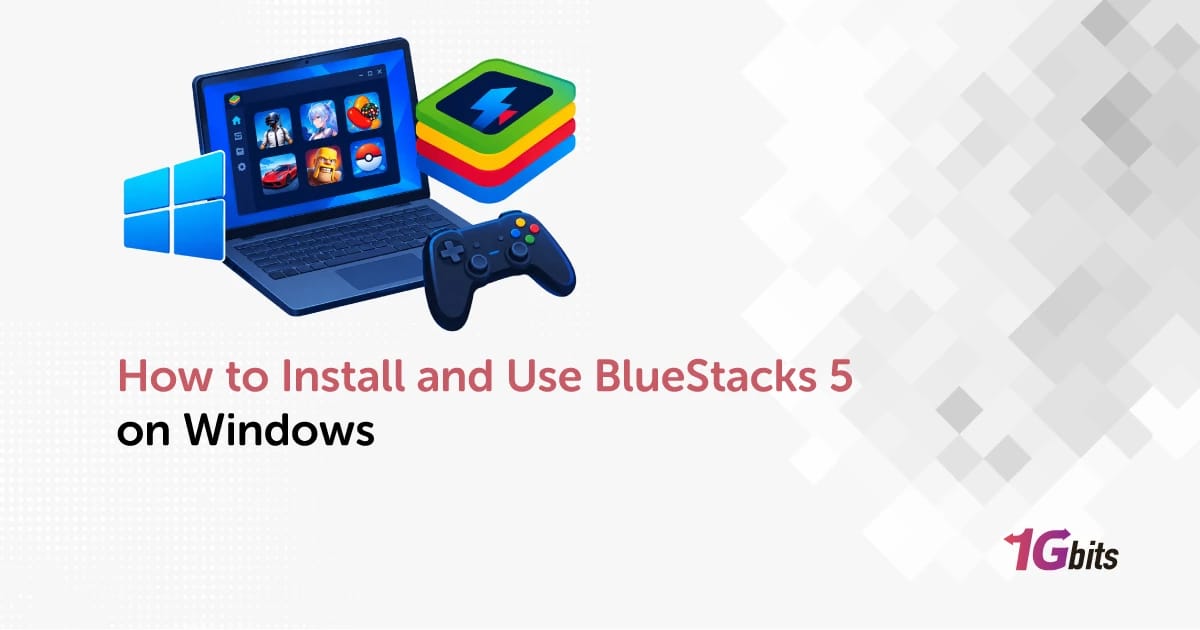
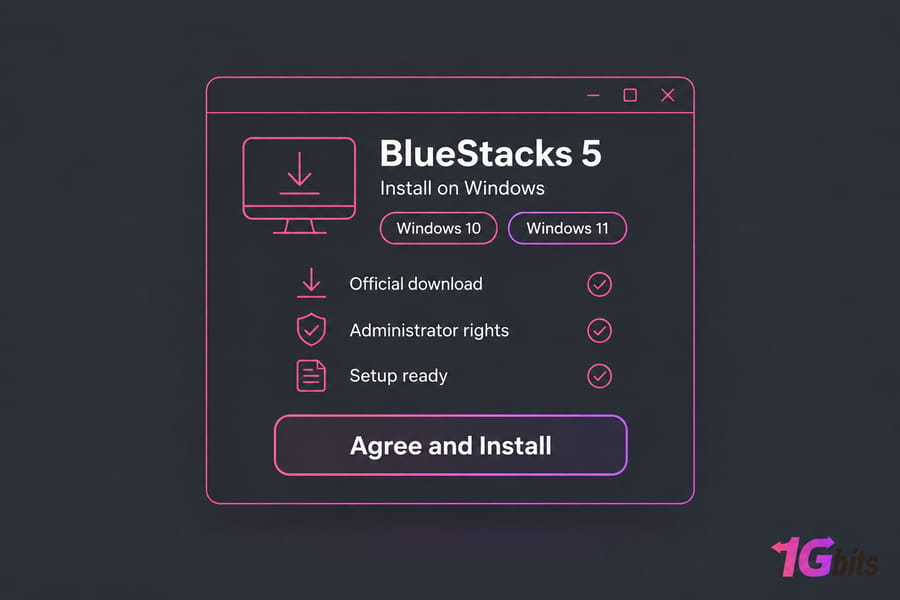
To install BlueStacks 5 on Windows, check that your PC meets the minimum requirements, download the installer from the official BlueStacks website, run it with administrator rights, and click "Agree and Install." When setup finishes, open BlueStacks 5, sign in to Google Play, and install apps from the Play Store or from APK files. The steps are the same on Windows 10 and Windows 11.
What BlueStacks 5 is and why you'd use it on Windows
BlueStacks 5 is an Android app player (an emulator) for Windows. It runs a full Android environment in a window on your desktop, so Android apps install and behave much as they would on a phone, except you get a mouse, a keyboard and a much bigger screen. People usually install it to:
- Play mobile games on a PC monitor with keyboard controls
- Test an Android app without keeping a physical phone on the desk
- Use Android-only apps that have no Windows version
- Run several accounts side by side in separate instances
This guide covers the BlueStacks 5 app player. BlueStacks X (also called BlueStacks Desktop) is a separate launcher for cloud games, and the installer sometimes opens it alongside the app player. If you're still choosing an emulator, our list of the best Android emulators compares BlueStacks with the alternatives. If you want Play Store access and good game support with little setup, BlueStacks is the easiest choice.
BlueStacks 5 system requirements for Windows 10 and 11
BlueStacks publishes two specs. The minimum gets the app running; the recommended spec is what you want for games or more than one instance.
| Item | Minimum | Recommended | Why it matters |
| OS | Windows 7 or later | Windows 10 or 11 | The latest builds and features need Windows 10+ |
| CPU | Intel or AMD processor | Modern multi-core Intel or AMD | More cores can be assigned to the emulator |
| RAM | 4 GB | 8 GB or more | Android and Windows share the same memory |
| Storage | 5 GB free | SSD | Faster boot and app loading |
| Graphics | Up-to-date drivers | Up-to-date drivers | Outdated drivers cause crashes and black screens |
| Permissions | Administrator account | Administrator account | The installer changes system components |
| Virtualization | Not strictly required | Enabled | Large performance difference |
| Internet | Working connection | Broadband | Setup, Play Store and app downloads |
On Windows 7 or 8 you're limited to BlueStacks 5.21.300 and earlier, and newer features won't arrive. If the PC can be upgraded to Windows 10 or 11, do that before installing.
For gaming or app testing, I'd aim for 8 to 16 GB of RAM, an SSD and a CPU from the last few years. A PC that only meets the minimum handles light apps fine but struggles with heavy games or multiple instances. If you're unsure about memory, see how much RAM your PC needs, or run one of these CPU benchmark tools to see where your processor stands. If your hardware is well below spec, a hosted BlueStacks VPS may cost less than upgrading the PC.
Before you install: virtualization, Hyper-V and admin checks
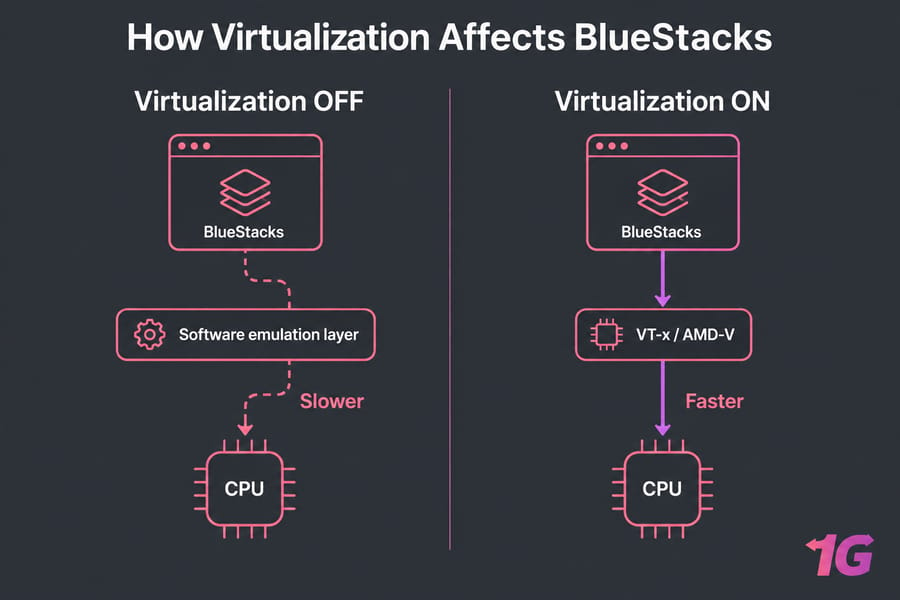
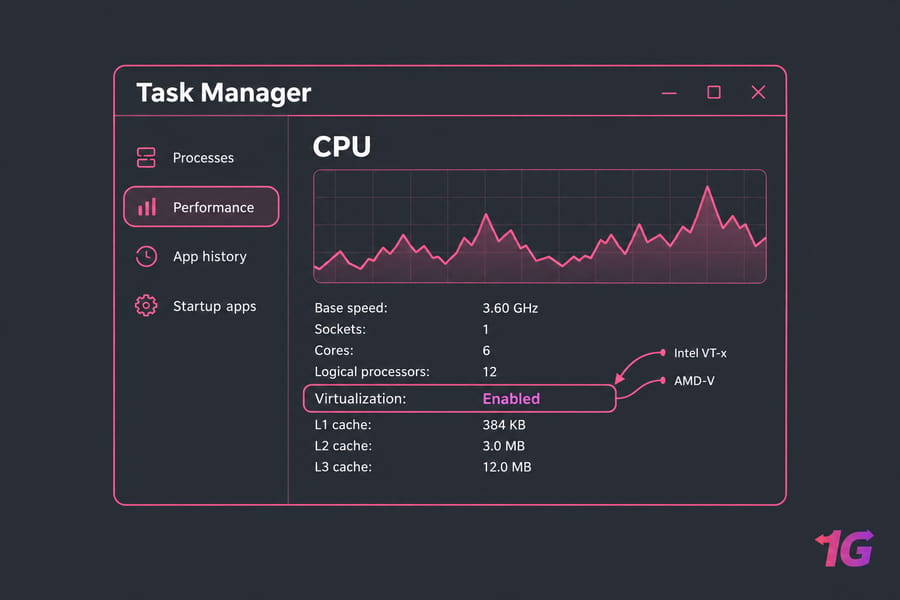
BlueStacks runs Android inside a virtual machine. Hardware virtualization (Intel VT-x or AMD-V) lets the CPU run that virtual machine directly instead of emulating it in software. With it switched off, BlueStacks either runs slowly or doesn't start properly, so it's one of the first things to check when the emulator misbehaves.
How to check if virtualization is enabled
- Press
Ctrl+Shift+Escto open Task Manager. - Open the Performance tab and select CPU.
- Find the "Virtualization" line below the graph. It reads either Enabled or Disabled.
If it says Disabled, restart the PC and enter the BIOS/UEFI setup (usually F2, F10, Del or Esc, depending on the manufacturer). Under the CPU or Advanced menu, look for Intel Virtualization Technology, VT-x, SVM Mode or AMD-V. Enable it, then save and exit.
When Hyper-V matters
Hyper-V is Microsoft's own hypervisor, and WSL2, Windows Sandbox and Virtual Machine Platform depend on it. Older BlueStacks builds couldn't run while Hyper-V was active. BlueStacks now ships a Hyper-V compatible version for Windows 10 and 11, so you don't need to turn these features off. A mismatch between the BlueStacks build and your Windows Features settings can still produce the "Incompatible Windows settings" message, which the troubleshooting section covers.
Administrator rights and Windows updates
The installer needs an administrator account, so on a work or school PC, ask IT before you start. Also install pending Windows updates and the latest graphics driver from NVIDIA, AMD or Intel. Missing updates are behind a lot of failed first launches. If you run Windows machines remotely, our Windows VPS configuration guide covers the same settings on a server.
How to install BlueStacks 5 on Windows step by step
Download only from the official BlueStacks website. Mirror sites and "free download" portals often bundle adware with the installer or ship outdated builds that won't run on current Windows releases.
- Go to the official BlueStacks website and download BlueStacks 5 for Windows. If you're offered a choice of Android version, pick one now (see the instance section below). You can add others later.
- Open the downloaded installer and click Yes when Windows asks for administrator permission.
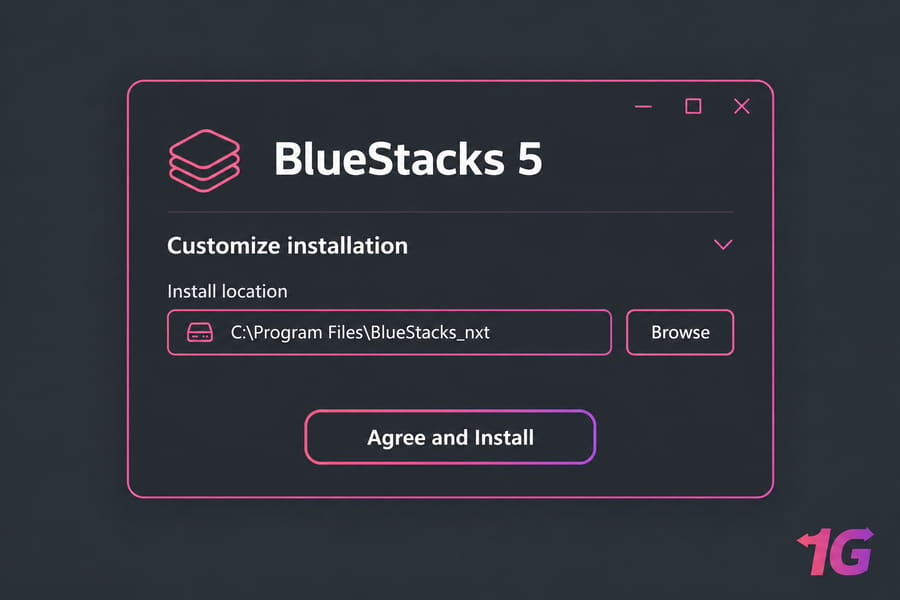
- To install somewhere other than the default drive, choose the customize option and pick a folder. An SSD with plenty of free space is best.
- Click "Agree and Install." The installer downloads the remaining files and sets everything up, which takes a few minutes on a normal connection.
- Wait for the first boot. BlueStacks 5 opens to its home screen. If BlueStacks X opens instead, launch "BlueStacks 5" or "BlueStacks App Player" from the Start menu or the desktop shortcut.
When to use the offline installer
The standard installer downloads most of its files during setup, so on a slow, filtered or unstable connection it can stall partway through. The full offline installer avoids this: you download the complete package once and install without an active connection, which also helps when you're setting up several PCs.
If you'd rather keep BlueStacks off your own PC entirely, you can run an Android emulator on a VPS and connect to it over Remote Desktop.
How to use BlueStacks 5 after installation
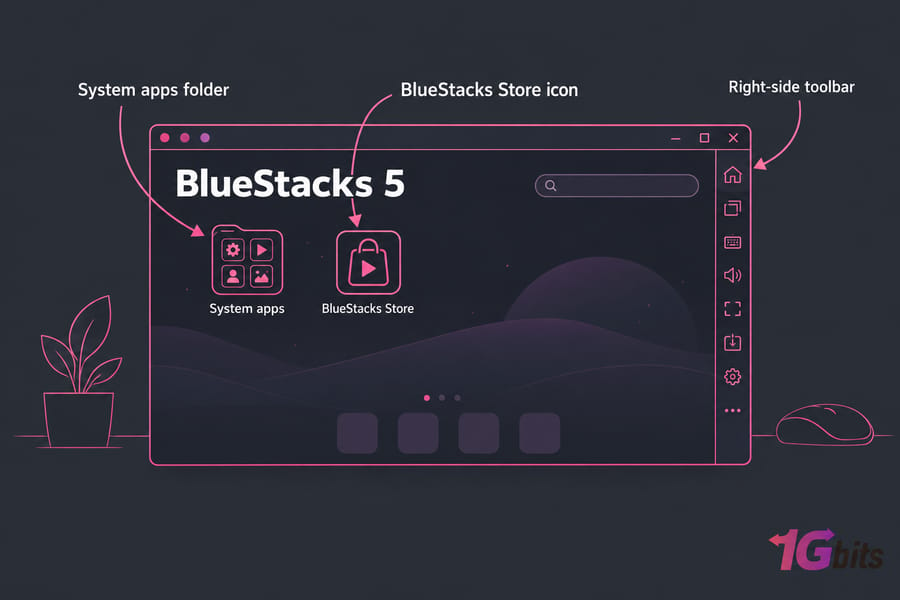
The home screen is your launcher, with installed apps shown as icons. The System apps folder holds Play Store, Settings, Chrome and the file manager. The toolbar on the right edge has Install APK, screenshot, volume, keymapping and the Multi-instance Manager. Start by signing in to Google Play, reviewing the performance and display settings, and installing your first app.
How to sign in to Google Play Store on BlueStacks 5
- Click System apps on the home screen.
- Open Play Store and click Sign in.
- Enter your Google account email and password, and complete two-step verification if you use it.
- Accept the terms. The Play Store opens with your account attached.
Once you're signed in, you get apps you've already bought, game progress tied to your Google account, and automatic app updates.
Basic settings to review first
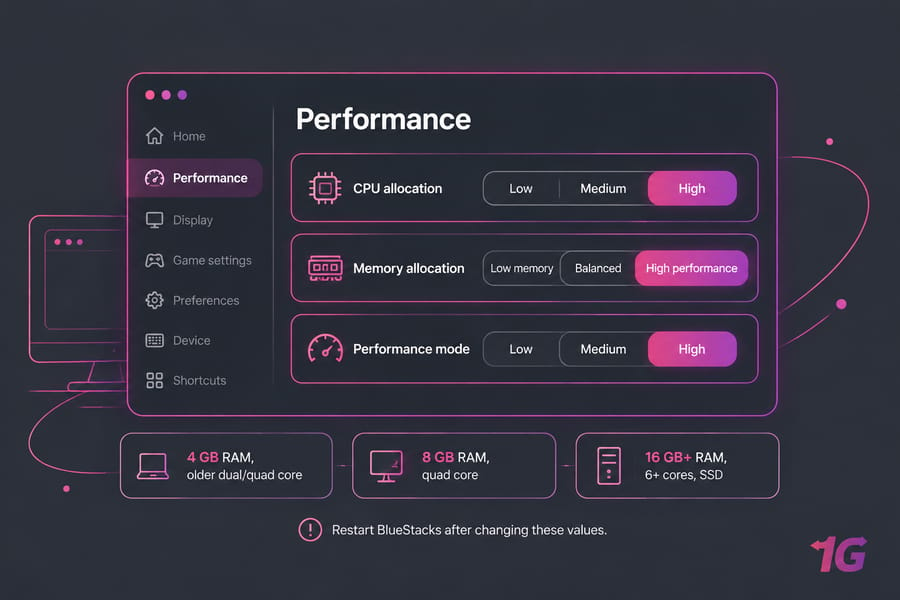
Click the gear icon in the right toolbar. The Performance tab controls CPU cores, memory and performance mode, and the Display tab sets resolution and pixel density. Device settings change the phone model BlueStacks reports to apps, which is the usual fix when an app says your device isn't supported.
How to install Android apps on BlueStacks 5
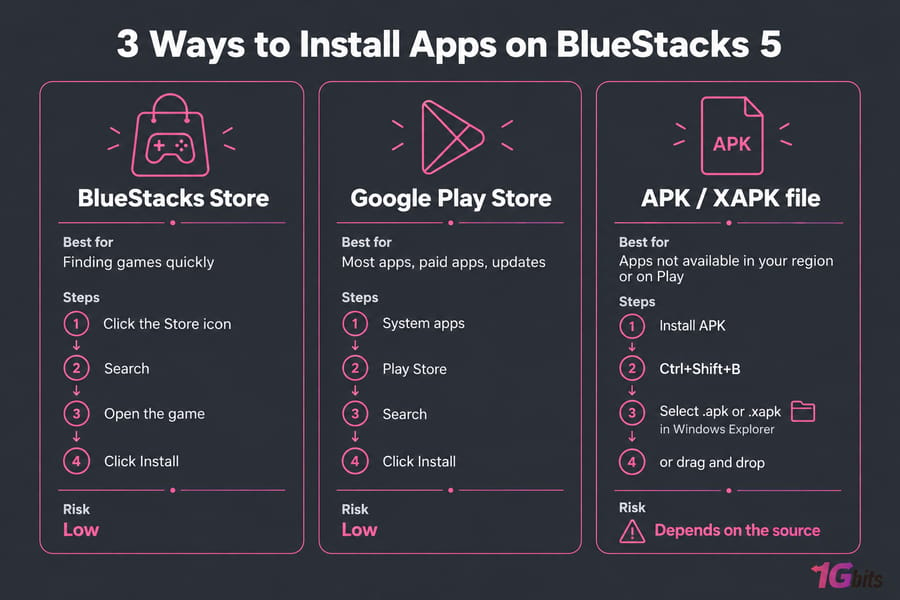
BlueStacks 5 has three ways to install apps:
| Method | Best for | Steps | Risk level |
| BlueStacks Store | Finding games quickly | Click the Store icon, search, open the game, click Install | Low |
| Google Play Store | Most apps, paid apps, updates | System apps > Play Store, search, click Install | Low |
| APK / XAPK file | Apps not available in your region or on Play | Install APK tool or drag and drop | Depends on the source |
Store games come in two types: local games install and appear on the home screen, while cloud games open in your browser. Play Store apps appear on the home screen as soon as the install finishes.
To sideload an APK, click Install APK in the right toolbar (or press Ctrl+Shift+B) and select the .apk or .xapk file in Windows Explorer, or drag the file onto the BlueStacks window. If an APK refuses to install, the app may need a 64-bit instance, which you can create in the Instance Manager (Ctrl+Shift+8).
Only sideload files from the developer's own site or a source you trust. A modified APK can carry malware, and inside the emulator it gets the same permissions as any other app.
Best BlueStacks 5 settings for performance on Windows
Most lag comes from giving BlueStacks too few resources, or so many that Windows itself runs short. Start with the setting that matches your hardware:
| PC tier | CPU cores | Memory | Performance mode |
| 4 GB RAM, older dual/quad core | Low | Low | Low memory |
| 8 GB RAM, quad core | Medium | Medium | Balanced |
| 16 GB+ RAM, 6+ cores, SSD | High | High | High performance |
Restart BlueStacks after changing these values. Under Graphics, performance engine mode is faster; switch to compatibility mode if a game shows a black screen or graphical glitches. Keep the display resolution near your monitor's, since higher settings only add GPU load.
After uninstalling apps, use the disk cleanup option in Settings to reclaim space. Keep free space on the drive, update BlueStacks when it prompts you, and keep Windows and your graphics drivers current. An SSD with 8 GB or more of RAM makes the biggest difference to how responsive the emulator feels.
How to use Multi-instance Manager and Eco Mode
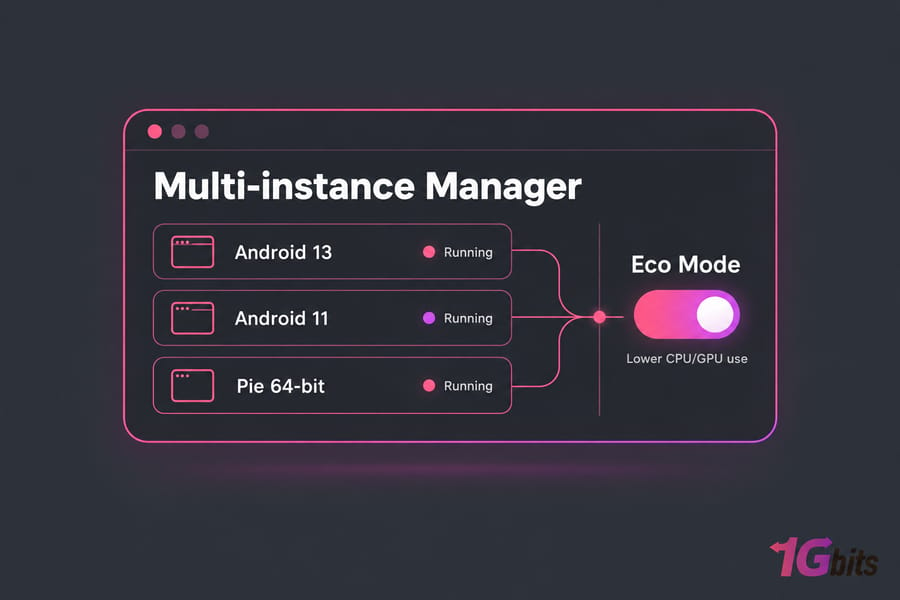
Multi-instance Manager runs several separate Android environments at once, each with its own apps, accounts and settings. People use it for multiple game accounts, for testing an app on different Android versions, or to keep a work app apart from games. Check each game's terms of service before running several accounts or automating play.
- Open Multi-instance Manager from the right toolbar or press
Ctrl+Shift+8. - Click Instance, then Fresh instance (or Clone instance to copy an existing one).
- Choose the Android version, then set CPU, memory and resolution.
- Click Create, then Start.
Which Android version to choose
Pick Android 11 or Android 13 for new apps and recent games, because current Play Store titles target these versions. Nougat and Pie instances (32-bit or 64-bit) are there for older games that won't run on newer Android. If an app crashes or won't install, try a different version before changing anything else.
Eco Mode lowers the frame rate of background instances, cutting CPU and GPU use when several are running. Enable it from Multi-instance Manager and leave the instance you're actively using at full speed.
Several instances on one PC eat RAM quickly. If you need many running at once, Android VPS hosting or an Android dedicated server moves that load off your desktop.
BlueStacks 5 troubleshooting on Windows
Try the simple fixes first; reinstalling is rarely the fastest route.
| Problem | Likely cause | Fastest fix |
| "Incompatible Windows settings" | Hyper-V features don't match the installed build | Accept BlueStacks' suggested fix and restart, or install the Hyper-V compatible version |
| Very slow or won't boot | Virtualization disabled | Enable VT-x/AMD-V in BIOS/UEFI |
| Installer fails or stalls | Missing permissions or network issues | Run as administrator, or use the offline installer |
| Play Store login loops or fails | Stale Play data or bad connection | Check the connection, clear Play Store cache in Android Settings, sign in again |
| "Device not compatible" | App blocks the reported phone model or Android version | Change device profile, or use another Android instance |
| Black screen or crashes in games | Graphics driver or engine mode | Update the GPU driver, switch graphics mode |
For the Hyper-V error, BlueStacks also provides a Hyper-V Diagnostic Tool that checks which Windows features are on and fixes the mismatch. Run it as administrator. Our longer guide to BlueStacks not working on Windows 10/11 covers more cases. If the same conflicts keep coming back on your PC, a clean hosted environment usually saves time.
BlueStacks 5 on a local PC vs a BlueStacks VPS
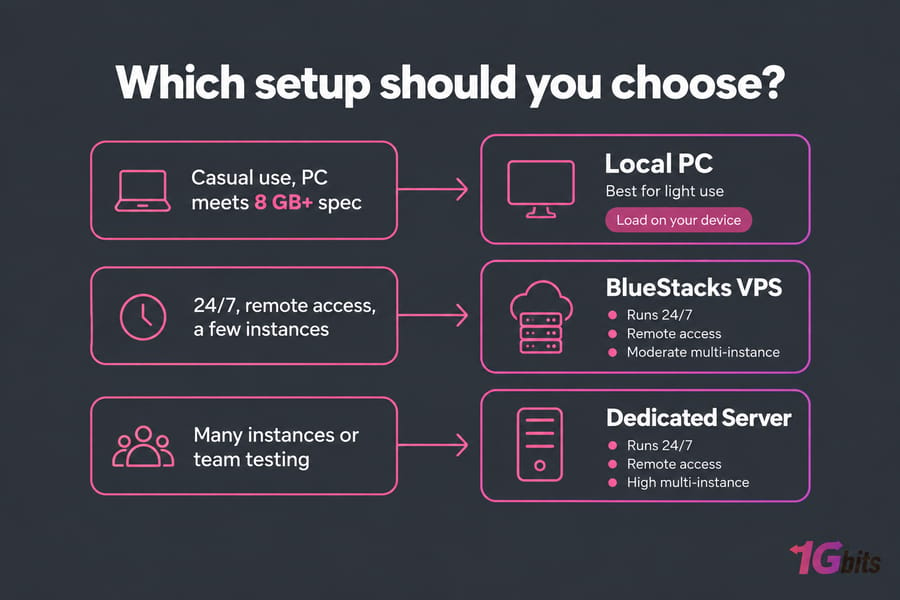
A local PC that meets the recommended spec is fine for casual play or occasional testing. Hosting makes more sense when you need emulators running 24/7, access from several devices, many instances, or a shared setup for a testing team.
| Factor | Local PC | BlueStacks VPS | Dedicated server |
| Upfront cost | Hardware you own | Monthly plan | Higher monthly plan |
| Runs 24/7 | Only if your PC stays on | Yes | Yes |
| Remote access | Limited | Remote Desktop from anywhere | Remote Desktop from anywhere |
| Multi-instance capacity | Limited by your RAM | Moderate | High, no shared hardware |
| Load on your own device | Full | None | None |
A BlueStacks VPS suits a handful of instances, and a BlueStacks dedicated server fits large multi-instance setups. If you want to install other Windows software too, a general Windows VPS works, and our roundup of the best Windows VPS providers helps you compare. If BlueStacks keeps crawling on your hardware, compare BlueStacks VPS plans before you spend money on upgrades.
Final checklist for installing and using BlueStacks 5
- Windows 10 or 11, at least 4 GB RAM (8 GB+ is better) and 5 GB free, ideally on an SSD
- Virtualization shows Enabled in Task Manager
- Windows updates and graphics drivers installed
- Installer downloaded from the official BlueStacks site and run as administrator
- Signed in to Google Play from System apps
- CPU, memory and performance mode set for your hardware
- Correct Android version picked for the apps you use
If something still fails, work through the BlueStacks troubleshooting guide. If your PC simply can't keep up, explore hosted BlueStacks plans and run the emulator remotely.

Leave A Comment