

A Bash if statement runs a block of code only when a condition is true. That's it. It's the branching mechanism behind nearly every useful shell script — backups that skip missing directories, deploy scripts that bail out when a config file isn't there, cron jobs that only alert you when disk usage crosses a threshold.
If you administer a Linux VPS, you'll write conditional logic constantly. I've yet to see a production script that doesn't have at least one if in it.
The Bash if statement is a fundamental building block in shell scripting that allows you to add logic to your scripts. Whether you're writing a simple automation task or managing complex server-side workflows, mastering if statements in Bash helps you make your scripts smarter and more efficient.
In this guide, we'll dive deep into the Bash if statement, explore its syntax, usage examples, flags, operators, and how it works with multiple conditions. We'll also cover some common pitfalls, like handling "too many arguments" errors, and finish off with FAQs and practical tips to make you confident in writing conditional logic in your Bash scripts.
🔍 What Is a Bash If Statement?
The bash if statement is one of the most fundamental and powerful tools in shell scripting. It allows scripts to make decisions based on certain conditions. Whether you're automating server tasks, writing simple command-line utilities, or managing a Linux VPS, learning how to write an if statement in bash is essential for controlling flow and logic in your scripts.
At its core, a bash if statement evaluates a condition and executes a block of code only if that condition is true. If the condition is false, the script skips the block. It is commonly used in tasks like file validation, checking service statuses, handling user permissions, and branching logic.
If you're unfamiliar with the shell environment itself, understanding what is Bash provides helpful context before working with conditional logic. And if you want a broader reference on the interpreter itself, our roundup of basic Bash commands covers the essentials every script writer should know.
The condition inside the if statement can involve:
- String comparisons
- Numeric comparisons
- File or directory existence
- Command exit statuses
- Flags and script arguments
Because of this flexibility, Bash if statements are often seen in production scripts, system administration tools, and server automation.
📝 Bash If Statement Syntax
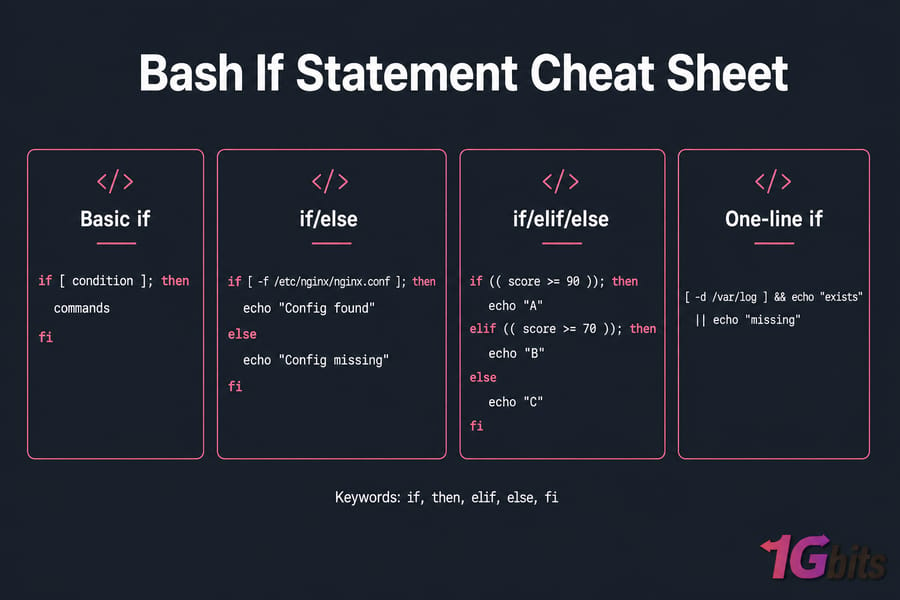
Basic if syntax
if [ condition ]; then
    commands
fi
The semicolon before then is only needed when then sits on the same line. And fi closes the block — forget it and Bash will complain about an unexpected end of file.
Alternatively, for compact code (especially useful in one-liners or small conditions), the statement can be written in this way:
if [ condition ]; then command; fiFor example:
if [ -f /etc/passwd ]; then echo "Password file exists"; fiThis checks whether the /etc/passwd file exists and prints a message if it does.
if else syntax
if [ -f /etc/nginx/nginx.conf ]; then
    echo "Config found"
else
    echo "Config missing"
fi
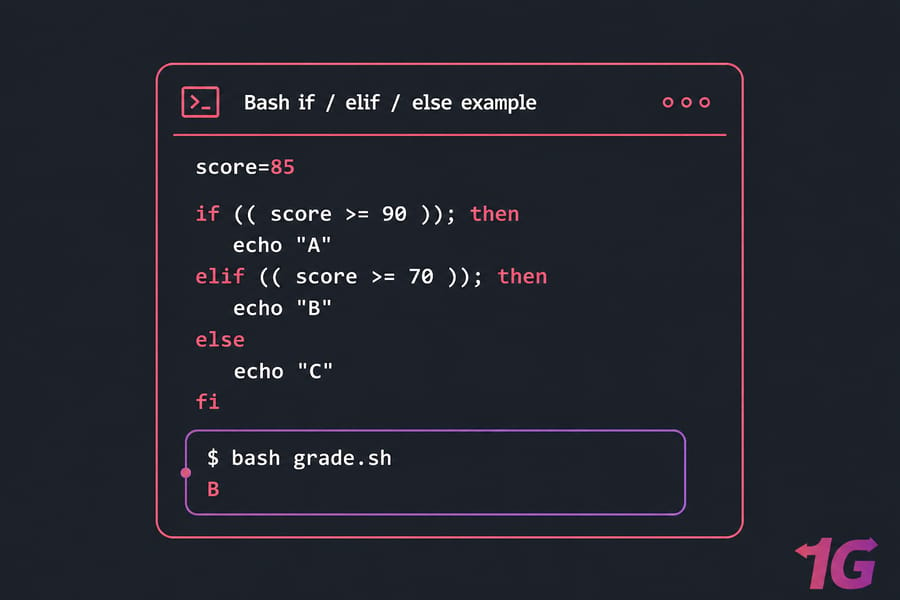
if elif else syntax
if (( score >= 90 )); then
    echo "A"
elif (( score >= 70 )); then
    echo "B"
else
    echo "C"
fi
Bash checks branches top to bottom and stops at the first true one. Order matters more than beginners expect.
One-line if syntax
[ -d /var/log ] && echo "exists" || echo "missing"Compact, yes. But that &&/|| pattern is a trap: if the first echo fails, the || branch fires too. For anything beyond throwaway commands, write it out properly.
🧠 How Bash Evaluates Conditions
Exit status: 0 means true
Here's the part that clicks late for most people. Bash doesn't evaluate booleans — it evaluates exit codes. An exit status of 0 means success (true). Anything else, 1 through 255, means false. Even [ ] is just a command that returns 0 or 1.
Using commands directly in if
if grep -q "root" /etc/passwd; then
    echo "Found"
fi

if systemctl is-active --quiet nginx; then
    echo "nginx is running"
fi
No brackets needed. The command's return code is the condition. Check the last exit status manually with echo $?.
⚖️ Bash [ ] vs [[ ]] vs (( ))
| Construct | Use it for | Notes |
[ ] |
POSIX-portable basic tests | Works in sh/dash. Unquoted variables break it. |
[[ ]] |
String tests, pattern matching, regex | Bash-only. No word splitting, supports =~ and && inside. |
(( )) |
Arithmetic and integer comparison | Use >, <, == directly. No $ needed on variables. |
My default: [[ ]] for strings and files, (( )) for numbers, [ ] only when the script must run under plain sh. Pattern matching is where [[ ]] really earns its place:
if [[ "$file" == *.log ]]; then echo "log file"; fi
if [[ "$ip" =~ ^192\.168\. ]]; then echo "LAN address"; fi
🔢 Bash If Statement Operators
| Type | Operator | Meaning |
| String | = / == |
Equal (use = inside [ ], either inside [[ ]]) |
| String | != |
Not equal |
| String | -z / -n |
Empty / not empty |
| Numeric | -eq, -ne |
Equal, not equal |
| Numeric | -gt, -lt |
Greater than, less than |
| Numeric | -ge, -le |
Greater/less than or equal |
| File | -e |
Path exists (any type) |
| File | -f, -d, -L |
Regular file, directory, symlink |
| File | -r, -w, -x |
Readable, writable, executable |
| File | -s |
Exists and is non-empty |
| Logic | &&, ||, ! |
AND, OR, negation |
File tests pair nicely with Linux file permissions checks — -w tells you whether the current user can actually write, not just what the mode bits say.
Common Flags in Bash If Statements
- -f: checks if a file exists and is a regular file
- -d: checks if a directory exists
- -z: checks if the string is empty
- -n: checks if the string is not empty
Example using -z:
if [ -z "$username" ]; then
    echo "Username is empty"
fi
This tests for an empty variable, a pattern that comes up constantly when validating user input.
🔗 Using Bash If Statement with Multiple Conditions
Bash allows you to combine multiple conditions using logical operators like && (and) and || (or).
Bash If Statement AND Operator
if [ $age -gt 18 ] && [ $citizen == "yes" ]; then
    echo "You are eligible to vote."
fi
Bash If Statement OR Operator
if [ $role == "admin" ] || [ $role == "manager" ]; then
    echo "Access granted."
fi
Both patterns show up constantly in permission and config scripts.
String Comparison in Bash If Statement
if [ "$a" == "$b" ]; then
    echo "Strings match"
fi
For pattern matching and regex, reach for the double-bracket form covered above — it avoids word splitting and adds =~.
🚫 Handling 'Not' Logic in Bash If Statement
To implement bash if not, simply use the negation operator !:
if [ ! -f "$file" ]; then
    echo "File does not exist."
fi
This is useful when you want to run commands only if a condition is not met.
🔢 Numeric and Arithmetic Checks with (( )) Syntax
The (( )) syntax is often used for arithmetic evaluations:
if (( $a == $b )); then
    echo "Numbers are equal"
fi
Remember: (( )) works on integers only, not strings.
✅ Bash If Statement True and False
Bash treats non-zero exit statuses as false and zero as true.
if true; then
    echo "This will always print"
fi
Using Bash if true and false as conditions helps simulate toggles or feature flags.
📥 Using If Statements with Script Arguments
if [ "$#" -lt 1 ]; then
    echo "Usage: $0 {start|stop}"
    exit 1
fi

if [[ "$1" == "start" ]]; then
    echo "Starting service..."
fi
$# is the argument count, $1 the first argument, $0 the script name. Always quote "$1" — a user passing a path with spaces will otherwise wreck your test.
Scripts often need to work with user input. Here's how you can handle bash if statement arguments:
#!/bin/bash

if [ "$1" == "start" ]; then
    echo "Starting service..."
elif [ "$1" == "stop" ]; then
    echo "Stopping service..."
else
    echo "Usage: $0 {start|stop}"
fi
Use quotes around variables to prevent issues like bash if statement too many arguments.
📝 Assigning Variables with If Else in Bash
You can assign values conditionally using if-else:
if [ "$env" == "production" ]; then
    db="prod_db"
else
    db="dev_db"
fi
This is a good example of bash if else assign variable pattern.
💡 Practical Bash If Statement Examples
# File and directory checks
if [[ -f "$HOME/.bashrc" ]]; then echo "bashrc present"; fi
if [[ ! -d /backup ]]; then mkdir -p /backup; fi

# String comparison
if [[ "$env" == "production" ]]; then echo "Deploying live"; fi

# Numeric comparison
if (( count > 100 )); then echo "Threshold exceeded"; fi

# Empty variable
if [[ -z "$API_KEY" ]]; then echo "API_KEY not set"; exit 1; fi

# Multiple conditions
if [[ -f "$conf" && -r "$conf" ]]; then echo "Readable config"; fi
Note the difference between empty and unset: -z returns true for both. If you need to distinguish them, use [[ -v VAR ]]. Related reading if you script a lot: customizing your bashrc and the sleep command in Bash for retry loops.
🎯 Common Use Cases of Bash If Statements
Understanding the use cases helps in applying the linux bash if statement in real-world scenarios. Here are some practical examples:
Configuration Checkers
If you're writing a deployment or setup script, you often need to verify whether configuration files or directories exist before proceeding.
if [ -f "/etc/myapp/config.conf" ]; then
    echo "Configuration found."
else
    echo "Missing configuration. Exiting."
    exit 1
fi
Service Control Scripts
Managing system services often requires checking whether a service is running before attempting a restart or reload.
if systemctl is-active --quiet apache2; then
    echo "Apache is already running."
else
    echo "Starting Apache..."
    sudo systemctl start apache2
fi
Login or Permission Checks
Scripts intended for admin use often include a check for root or specific users.
if [ "$EUID" -ne 0 ]; then
    echo "Please run as root."
    exit 1
fi
System Monitoring
Monitor system health by checking memory usage, CPU load, or disk space.
if [ "$(df / | tail -1 | awk '{print $5}' | sed 's/%//')" -gt 90 ]; then
    echo "Warning: Root filesystem is more than 90% full!"
fi
These examples show the versatility of bash if statement conditions in server management and automation tasks.
🚨 Common Bash If Statement Errors
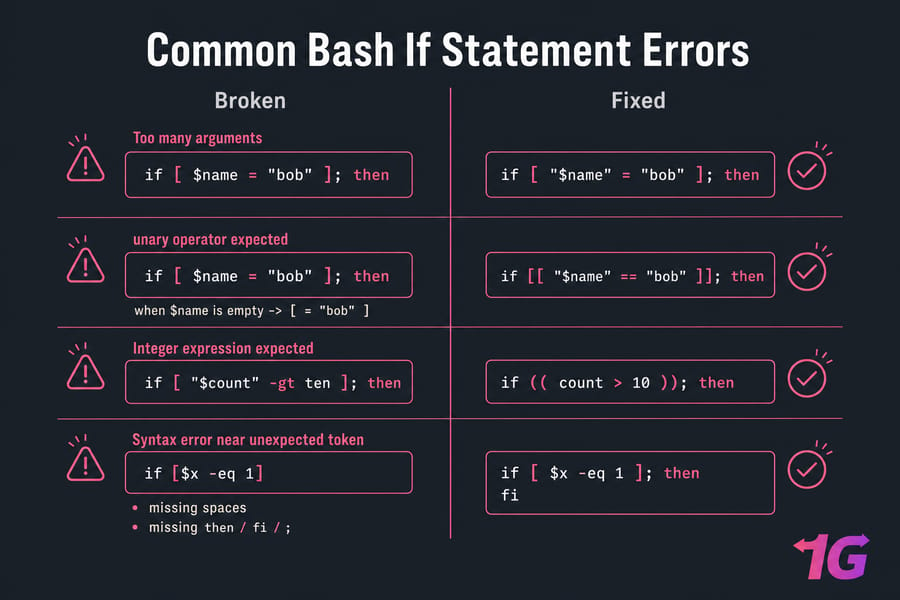
Too many arguments / unary operator expected
Both come from the same root cause: an unquoted variable that expands to multiple words or nothing at all.
# Broken
if [ $name = "bob" ]; then

# Fixed
if [ "$name" = "bob" ]; then
When $name is empty, the first version becomes [ = "bob" ] — hence "unary operator expected." Quote it, or switch to [[ ]], which doesn't word-split.
Integer expression expected
You used -gt on a non-numeric value. Validate input first, or use (( )), which treats empty strings as 0.
Missing spaces, then, or fi
if [$x -eq 1] fails because [ is a command and needs whitespace around it. "Syntax error near unexpected token" almost always means a missing then, fi, or semicolon.
✅ Best Practices for Bash Conditions
- Quote every variable inside test brackets. No exceptions.
- Prefer
[[ ]]for strings and patterns;(( ))for arithmetic. - Skip clever one-liners in scripts other people maintain.
- Run
shellcheck script.shbefore shipping — it catches quoting bugs you'd otherwise find at 3 a.m. - Exit with a meaningful code (
exit 1) when a check fails.
🌍 Real-World Examples
# Root permission check
if (( EUID != 0 )); then
    echo "Run as root." >&2
    exit 1
fi

# Disk usage monitor
usage=$(df / | awk 'NR==2 {print $5}' | tr -d '%')
if (( usage > 85 )); then
    echo "Warning: root filesystem at ${usage}%"
fi

# Deploy guard
if [[ -s /etc/app/config.yml ]] && systemctl is-active --quiet app; then
    echo "Safe to deploy"
fi
All three were tested on Bash 5.2 under Ubuntu 22.04. The root check pairs well with the practice of using sudo accounts instead of direct root SSH — our guide on how to disable root login walks through the hardening steps. Wire the rest into your regular Linux command toolkit and cron for hands-off monitoring.
⚖️ Bash If Statement vs Case Statement
Use if when conditions are varied — file tests, numeric ranges, command results. Use case when you're matching one variable against many fixed values, like a service script handling start|stop|restart|status. Five elif branches comparing the same variable is a signal you want case instead.
🎯 Conclusion
The Bash if statement is a versatile tool that adds power and flexibility to your shell scripts. From handling strings and files to working with user inputs and flags, it enables your script to make decisions based on conditions.
Get three things right and the rest follows: quote your variables, remember that exit code 0 means true, and pick the right bracket type for the job. Then run ShellCheck. Whether you're managing a Linux VPS or customizing your terminal with .bashrc, mastering the Bash if statement is essential for any sysadmin or developer.
Ready to get hands-on with Bash? Start experimenting with conditional logic on a Linux VPS from 1Gbits today, or step up to a Linux dedicated server if your scripts are running full workloads. And if you hit command issues along the way, learn how to fix the Bash Wget command not found error in your terminal.

Leave A Comment