
If you need to install a downloaded package on Ubuntu, the best default method is usually sudo apt install ./filename.deb. It's simple, dependency-aware, and less likely to leave your system in a messy half-installed state. Whether you're on Ubuntu 22.04, 24.04, or an older release, this guide covers every method — from GUI tools like Software Center and GDebi to terminal commands with dpkg and apt. To gain a deeper understanding of Ubuntu, including its history, features, and overall functionality, check out our detailed guide on What is Ubuntu. This will give you a solid foundation on the operating system you're working with, ensuring you make the most of the various tools and commands available for tasks like installing .deb files.
📦 What Is a .deb File?
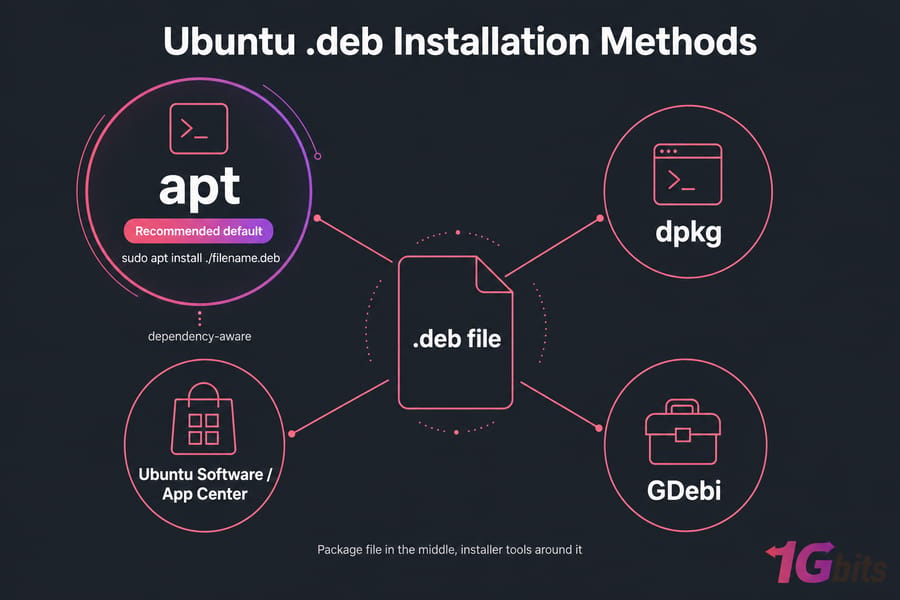
A .deb file is the Debian package format used by Debian-based systems, including Ubuntu. Think of it as the software package itself, not the installer tool. That distinction matters. APT, DPKG, Ubuntu Software, and GDebi are tools that install packages. The .deb file is just the thing being installed.
Most Ubuntu software comes from official repositories managed by Canonical. But some vendors — Google Chrome, Slack, Visual Studio Code, and certain JDK builds, for example — provide standalone downloadable .deb packages for local package installation on Ubuntu.
How Ubuntu uses .deb packages
Under the hood, Ubuntu package management is built around Debian packaging. Repositories store thousands of signed packages, and APT pulls them in along with dependencies. When you download a package manually, you're skipping the repository step and installing software from a local .deb file instead.
When you need to install a local .deb file
You'll usually do this when a vendor offers newer builds on its website, or when the software simply isn't in Ubuntu's repo. Chrome is a classic example. So is Slack. I've also seen teams distribute internal tools this way on an Ubuntu VPS for testing before they build a proper repository.
🔍 Before You Install a .deb Package on Ubuntu
A minute of checking now can save you twenty minutes of cleanup later.
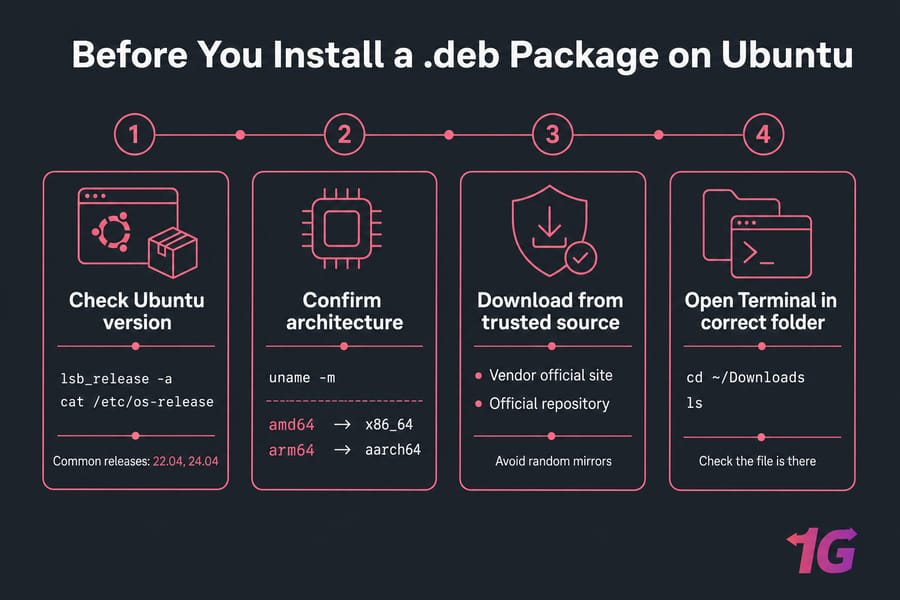
Check your Ubuntu version
Some packages are tested only on certain releases, especially Ubuntu 22.04 and 24.04. Run this first:
lsb_release -aIf that command isn't available, you can also use:
cat /etc/os-releaseIf you need more general shell help, these basic Ubuntu commands are worth bookmarking.
Confirm your system architecture
Check whether your machine is amd64 or arm64:
uname -mTypical results are x86_64 for amd64 systems and aarch64 for arm64. Download the matching package. An architecture mismatch is one of the fastest ways to get an installation error.
Download the package from a trusted source
Use the vendor's official site or official repository whenever possible. Avoid random mirrors.
Open Terminal in the correct folder
Most downloaded packages land in ~/Downloads. Move there before installing:
cd ~/Downloads
ls
The ls check confirms the file is actually there. That catches a lot of "package not found" mistakes.
⭐ Best Way to Install a .deb File on Ubuntu
For most users, the best way to install a .deb package on Ubuntu is:
sudo apt install ./filename.debThis is the method I recommend first because APT handles package dependencies automatically. That means if the package needs extra libraries, APT will try to pull them in during the same process.
Why apt install ./package.deb is recommended
APT is dependency-aware. DPKG, by contrast, is lower-level and may install the package file but stop with unmet dependencies. That's the big difference. Same package format, different installer behavior. Also, the ./ matters. It tells APT you're installing a local file from the current directory, not searching the repositories for a package with that name.
Quick command example
cd ~/Downloads
sudo apt install ./google-chrome-stable_current_amd64.deb
That works well for common vendor packages like Chrome or Slack.
💻 Install a .deb File Using the Terminal
🅰️ Method 1: apt Package Manager
If you want the cleanest terminal workflow, use this one.
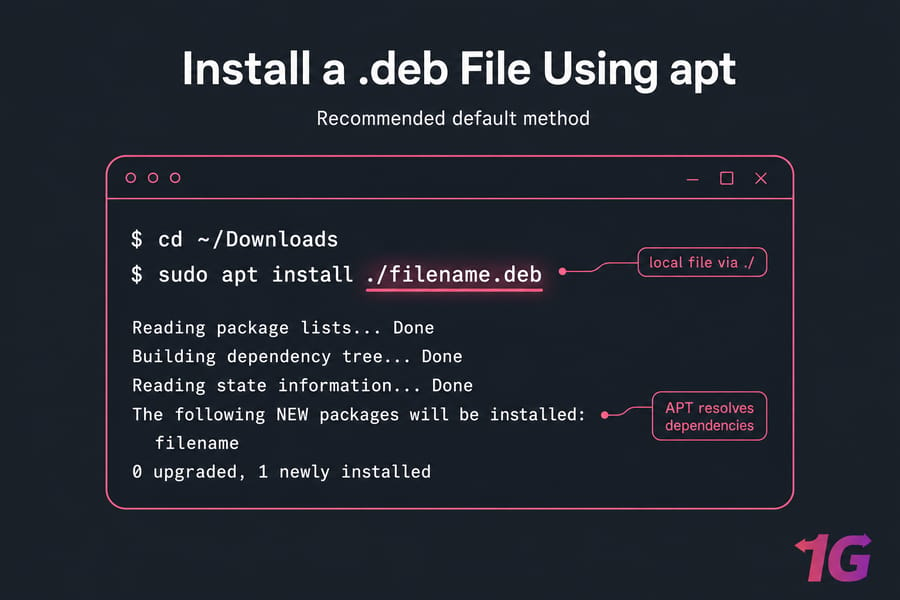
Step 1: Navigate to the download folder
cd ~/DownloadsStep 2: Run apt install
sudo apt install ./filename.debReplace filename.deb with the real package name. Ubuntu will prompt for your password because installing software requires admin rights.
Step 3: Confirm the package installed
After installation, verify it with one of these:
dpkg -l | grep package-name
apt list --installed | grep package-name
You can also launch the app from Activities or run package-name --version for CLI tools.
🅱️ Method 2: dpkg Command
The dpkg command is a fundamental tool for installing .deb files in Ubuntu. While not as user-friendly as APT, it's a powerful method for those comfortable with the terminal. If you've ever faced issues where you can't install a .deb file using graphical tools, dpkg is a direct and efficient solution.
Step 1: Install the .deb File with dpkg
Navigate to the directory where the .deb file is saved and run:
cd ~/Downloads
sudo dpkg -i filename.deb
This command initiates the installation process directly, making it a go-to method when GUI tools fail.
Step 2: Fix Missing Dependencies
If the installation encounters errors due to missing dependencies, resolve them by running:
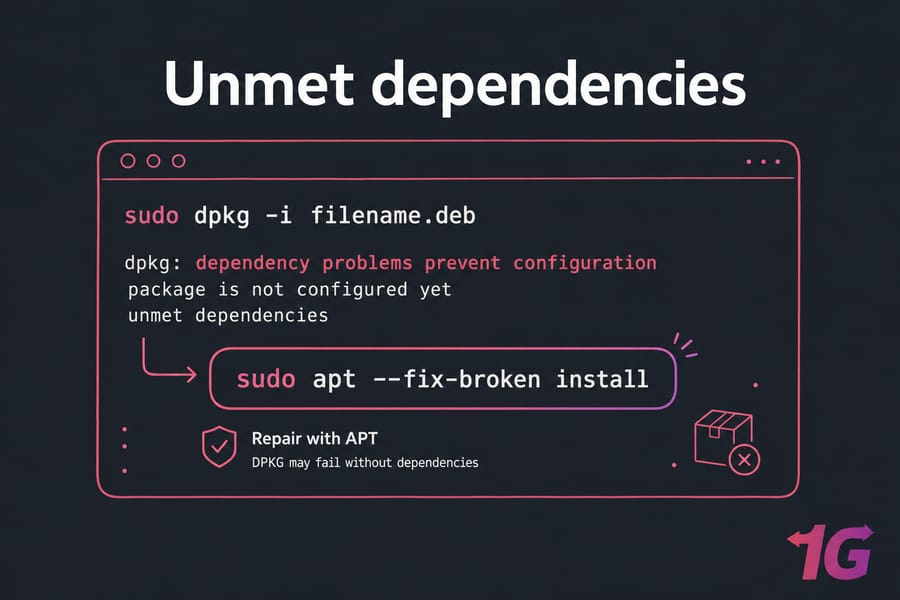
sudo apt --fix-broken installThis ensures that all necessary dependencies are installed. DPKG installs the package file itself but does not automatically fetch missing dependencies — that's the main reason to prefer APT for most installs.
Step 3: Verify the installation
dpkg -l | grep package-name🖥️ Install a .deb File Using GUI
🅰️ Method 1: Ubuntu Software (Software Center)
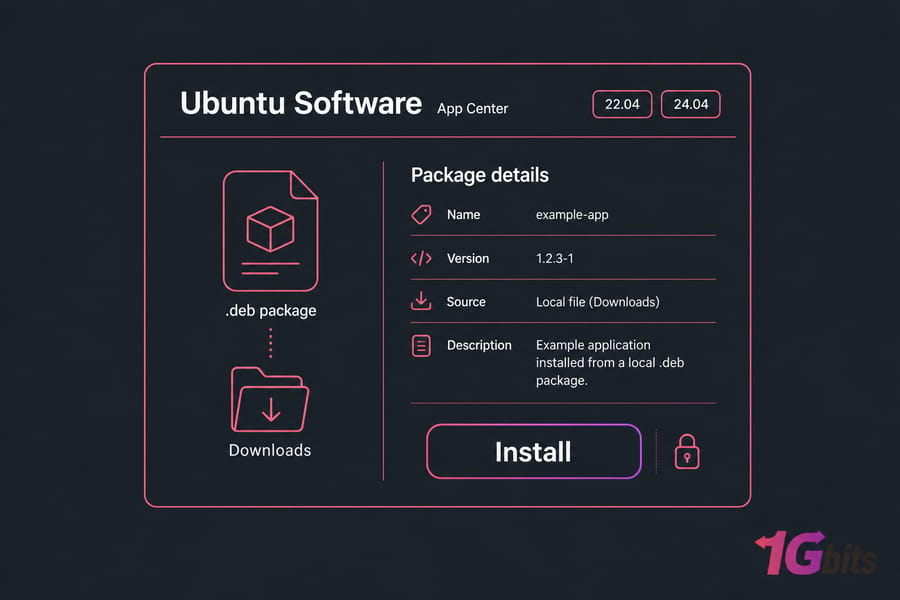
For users who prefer a graphical interface, the Software Center provides a simple way to install .deb files. This method is ideal for beginners or anyone who avoids command-line complexity. With a few clicks, you can install a .deb file on Ubuntu, resolve dependencies, and manage installations effortlessly.
Step 1: Locate the .deb File
Before proceeding, download the .deb file of the application you want to install. Whether it's a lightweight utility or a robust program, ensure you've saved the file in a recognizable location like Downloads.
Step 2: Open the .deb File with Software Center
Double-click the .deb file or right-click it and choose "Open With Software Center." On Ubuntu 22.04 and 24.04, the exact name may appear as Ubuntu Software or App Center. The Software Center will automatically load the application details, showing you the app's name, version, and description.
Step 3: Install the Application
Click the "Install" button in the Software Center. The system may prompt you to authenticate by entering your password. Once verified, the Software Center begins to install the .deb file, handling dependencies seamlessly. This makes it a convenient alternative to terminal commands. If the package won't open in the GUI, switch to the terminal method and use APT instead.
🅱️ Method 2: GDebi Package Installer
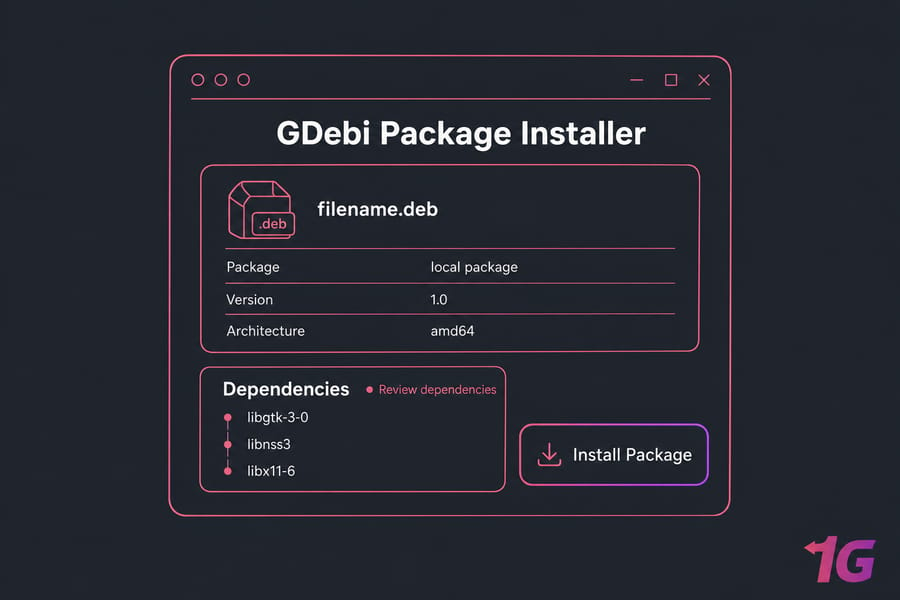
For those who prefer a streamlined and dependable tool, GDebi is an excellent choice. Unlike the default Software Center, GDebi is lightweight and specializes in handling .deb files, making it an efficient solution to resolve dependencies. If you've encountered issues like "can't install deb file Ubuntu," GDebi simplifies the process and ensures a smoother experience.
Step 1: Install GDebi
First, ensure GDebi is installed on your system. Open the terminal and type:
sudo apt update
sudo apt install gdebi
Step 2: Open the .deb File with GDebi
After downloading your desired .deb file, right-click on it and select "Open With GDebi Package Installer." If GDebi isn't listed as an option, open GDebi manually from your applications menu and load the .deb file. GDebi will display package details, including dependencies, version, and a brief description.
Step 3: Review and Install
Click the "Install Package" button, and GDebi will handle the rest. Unlike the default Software Center, GDebi excels in ensuring all dependencies are installed, making it a preferred option for manual .deb operations. I still prefer APT in a terminal, personally, but GDebi is nice if you want a local GUI install without the heavier Ubuntu Software layer.
✅ How to Verify the Package Installed Correctly
Don't stop at "the command finished." Check it.
Check package status with dpkg -l
dpkg -l | grep package-nameThis shows whether the package is installed. You can also check installed packages in Ubuntu with other package-listing commands. This is useful to verify package details and ensure you are working with the correct ones.
Find installed files with dpkg -L
dpkg -L package-nameThis lists installed files and helps confirm where binaries, desktop entries, or config files ended up.
Launch the application
Open Activities and search for the app. If it's a desktop application like Chrome or VS Code, it should appear there. If it's a CLI tool, run it from terminal.
Check the installed version
package-name --versionNot every app uses the same syntax, but many do. This is a quick sanity check after installation.
🗑️ How to Remove a .deb Package on Ubuntu
Install and uninstall are different jobs, so here's the clean version covering all methods.
🅰️ Method 1: Remove Using apt (Terminal)
Remove with apt remove
sudo apt remove package-nameThis removes the package but usually leaves system-wide config files behind.
Completely remove with apt purge
sudo apt purge package-nameUse purge when you want a more complete removal, including configuration files.
Clean up unused dependencies
sudo apt autoremoveThis removes no-longer-needed dependencies. It's a good cleanup step after uninstalling software.
🅱️ Method 2: Remove Using dpkg (Terminal)
Step 1: Identify the Installed Package
dpkg --get-selections | grep package-nameStep 2: Remove the Package
sudo dpkg --remove package-nameFor a complete removal including configuration files:
sudo dpkg --purge package-nameStep 3: Handle Dependencies
sudo apt --fix-broken install🅲 Method 3: Remove Using Software Center (GUI)
Open the Software Center from your applications menu. Navigate to the Installed tab, locate the package, click on it to open its details page, and click Remove or Uninstall. Authenticate with your password if required. This process not only deletes the application but also ensures that its associated files are removed.
🅳 Method 4: Remove Using GDebi (GUI)
Open the original .deb file with GDebi. Once the package details are loaded, GDebi provides an option to Remove Package. Click this button and enter your password to authenticate the action. GDebi will automatically handle the removal process, ensuring all associated files are uninstalled cleanly.
⚠️ Common Errors When Installing .deb Files
Unmet dependencies
This is the big one. If dpkg -i fails with dependency problems, run:
sudo apt --fix-broken installOr skip DPKG next time and use sudo apt install ./filename.deb from the start.
Unsupported architecture
If you downloaded an amd64 package for an arm64 machine, it won't install. Check uname -m and grab the correct build.
Permission denied
If the install command fails due to permissions, use sudo. Installing software modifies system locations, so regular users can't do it unaided.
Package conflicts or broken packages
Sometimes an older package version, partial install, or conflicting package gets in the way. APT usually explains the issue well enough to act on it. If not, investigate package status with dpkg -l and repair the package system before trying again.
Package not found after download
This usually means you're in the wrong folder or typed the filename wrong. Run ls in your current directory and copy the exact package name.
📊 apt vs dpkg vs GDebi vs Ubuntu Software
Here's the short version: APT wins for most people.
| Method | Best For | Handles Dependencies | Ease |
| apt | Most users and admins | Yes | Easy |
| dpkg | Manual or advanced installs | No, not automatically | Medium |
| Ubuntu Software | Beginners who prefer GUI | Usually yes | Easy |
| GDebi | Local GUI package installs | Yes | Easy |
Which method is best for beginners
If you're comfortable with one terminal command, use APT. If you really want a point-and-click route, try Ubuntu Software first, then GDebi.
Which method is best for dependency handling
APT and GDebi both do better here than plain DPKG. That's why apt install ./package.deb is the better default for installing software from a .deb file.
🔒 Security Tips for Installing Third-Party .deb Files
Installing a third-party package means trusting whoever built it. That trust isn't abstract — you're giving that software access to your system.
Verify the source and checksum
Download only from official vendor pages or official repositories. If the vendor publishes a SHA256 checksum, verify it before installing:
sha256sum filename.debCompare the output to the value on the vendor's site. If it doesn't match, stop there.
Prefer repositories when available
A standalone .deb is fine for one-off installs, but repositories are better for long-term updates and trust management. They integrate with APT, keep update paths cleaner, and usually reduce the risk of stale packages. That's one reason understanding how Ubuntu package management compares to Debian is useful — it highlights the unique features and use cases of each.
Standalone .deb vs repository install
A standalone package is quick and convenient, but updates may depend on how the vendor configured it. A repository-based install is usually better if you'll keep the software long term. For one-time testing, the downloaded package is often enough. For ongoing maintenance, repos tend to win. If you're setting up software on remote infrastructure, it's often smarter to deploy Ubuntu on an Ubuntu VPS and use repository-based installs where possible.
🎯 Conclusion
Installing a .deb file on Ubuntu is a straightforward process that can be accomplished through various methods, depending on your preference and expertise. For most users, sudo apt install ./filename.deb is the cleanest and safest default. If you prefer a graphical approach, Ubuntu Software and GDebi both handle dependencies well. For advanced users, dpkg gives you full manual control.
Whether you're a beginner or an experienced user, mastering how to install a .deb file in Ubuntu enhances your ability to manage software packages effectively. Start with APT, verify your installations, and always download from trusted sources. By following these steps, you'll keep your system clean, stable, and secure. If you're looking to host your Ubuntu-based applications or projects on a remote server, consider exploring an Ubuntu VPS server. With its flexibility, scalability, and cost-effectiveness, an Ubuntu VPS can provide the ideal environment for managing and deploying applications.

Leave A Comment