

![How to Host a Modded Terraria Server 🎮 [2026]](https://1gbits.com/cdn-cgi/image/width=1200,quality=80,format=auto/https://s3.1gbits.com/blog/2026/09/how-to-host-modded-terraria-server-main.webp "How to Host a Modded Terraria Server 🎮 [2026]")
The short version: what it takes to host a modded Terraria server
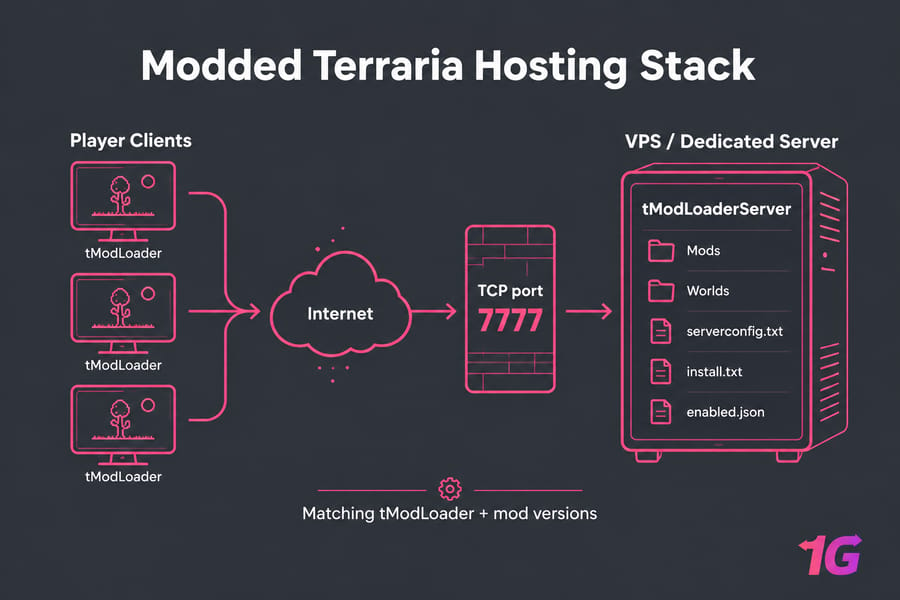
To host a modded Terraria server you install the tModLoader dedicated server files on a machine that stays online, point it at a world, enable your mods through install.txt and enabled.json, open TCP port 7777 in both the OS firewall and the provider firewall, then launch tModLoaderServer. Keep tModLoader and every mod version identical on the server and on every player's client. That last sentence prevents about 70% of the support tickets I've seen.
That's the whole thing in a nutshell. Now let's do it properly, because the details are where people get stuck.
Before you start (prerequisites)
- Terraria owned on Steam by you and every player — tModLoader is a separate free download in your Steam library, not a patch to base Terraria
- A Linux VPS or dedicated server with root/sudo, or a home PC you're happy to leave running
- Basic SSH comfort (if you're rusty, our guide to SSH covers it)
- TCP port 7777 open and reachable
- Enough RAM for your modpack — more on sizing below
- A Steam account for SteamCMD downloads (workshop mods need it)
What a modded Terraria server actually is
Vanilla Terraria ships with its own dedicated server binary. tModLoader replaces that entirely. It's a separate app in your Steam library with its own version numbering, its own save directory, and its own server executable called tModLoaderServer. You don't "add mods to a Terraria server" — you run a different server.
How it differs from vanilla hosting
- Different executable and different install path (
~/Steam/steamapps/common/tModLoaderby default when installed through SteamCMD) - Mods live in a
Modsfolder alongsideinstall.txtandenabled.json - Load times get longer — Calamity-scale packs can take a minute or two to load on first boot
- Every client must run tModLoader too, not regular Terraria
Why version matching matters so much
Here's the part nobody warns beginners about. tModLoader builds are tied to a specific Terraria version, and mods are compiled against a specific tModLoader build. If your server runs one build and a friend's Steam auto-updated to another, they get booted at the connect screen with a version error. Same for mods: one person missing one mod out of forty means they can't join.
My rule — agree on a modpack, export it, and share the exact list with everyone before anyone connects. It's boring. It also saves an evening of debugging.
Terraria server requirements for modded play
Three things drive load: player count, world size, and mod complexity. Mod complexity is the big one. A large world with two players and Calamity plus Thorium will hammer a weak CPU harder than a small vanilla world with eight players.
Terraria's server is heavily single-threaded. That means clock speed and per-core performance beat core count almost every time. Don't buy 8 vCPU when 4 fast ones would do — spend the money on better cores and NVMe instead. These are working ranges, not hard minimums:
| Use case | Players | Mods | CPU | RAM | Storage | Recommended hosting |
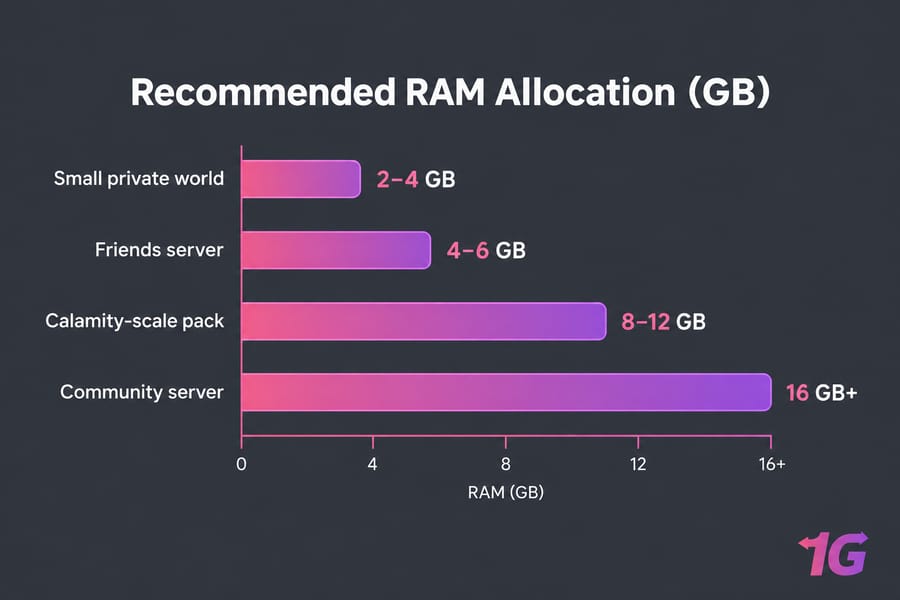
| Small private world | 2–4 | 1–10 light mods | 2 fast vCPU | 2–4 GB | 25 GB SSD | Entry Linux VPS |
| Friends server | 4–8 | 10–30 mods | 2–4 fast vCPU | 4–6 GB | 40 GB NVMe | Game VPS |
| Calamity-scale pack | 6–12 | 30–60 mods, large world | 4+ high-clock vCPU | 8–12 GB | 60 GB NVMe | NVMe VPS |
| Community server | 16+ | 60+ mods, multiple worlds | Dedicated CPU cores | 16 GB+ | 100 GB+ NVMe | Dedicated server |
Storage speed shows up in places you don't expect — autosaves, world loads, and mod loading at startup. On slow spinning disks an autosave on a large modded world produces a visible stutter for everyone online. NVMe VPS plans mostly make that go away. If you're unsure how much memory to budget across your whole setup, our breakdown of how much RAM you actually need is a good sanity check.
Home PC vs VPS vs dedicated server
Hosting on your own machine is free and fine for a Saturday session with two friends. The catch: your upload bandwidth becomes everyone's ping, your PC has to stay on, and you're doing router port forwarding. If you go that route, follow our walkthrough on how to port forward on your router — NAT is where home hosts usually fail.
| Factor | Home PC | VPS | Dedicated server |
| Latency for players | Limited by home upload | Datacenter-grade, pick a region | Best and most consistent |
| Uptime | Only when your PC is on | 24/7 | 24/7 |
| Scalability | Buy new hardware | Resize the plan | Huge headroom already |
| Maintenance | You do everything | You manage the OS, host handles hardware | Same, with more control |
| Best for | 2–4 players, light mods | Most modded servers | Heavy packs, 16+ players |
For nine out of ten modded Terraria servers, a game VPS is the sweet spot — persistent uptime, a public IP, root access, and a region close to your players. Move to a Terraria dedicated server when the pack gets huge or the player count stops being a friend group. Our comparison of VPS vs dedicated server hosting digs into the trade-offs if you're on the fence.
tModLoader server setup on a Linux VPS, step by step
This is the manual path on Ubuntu. It works on any modern distro with minor tweaks.
1. Update and prep the box.
sudo apt update && sudo apt upgrade -y
sudo apt install -y unzip screen software-properties-common
sudo adduser terraria
sudo usermod -aG sudo terraria
su - terraria
Run the server as a normal user, never root. If the process gets compromised, you've contained the blast radius.
2. Install SteamCMD. On Ubuntu you'll need the multiverse repo and the i386 architecture enabled:
sudo add-apt-repository multiverse
sudo dpkg --add-architecture i386
sudo apt update
sudo apt install -y steamcmd
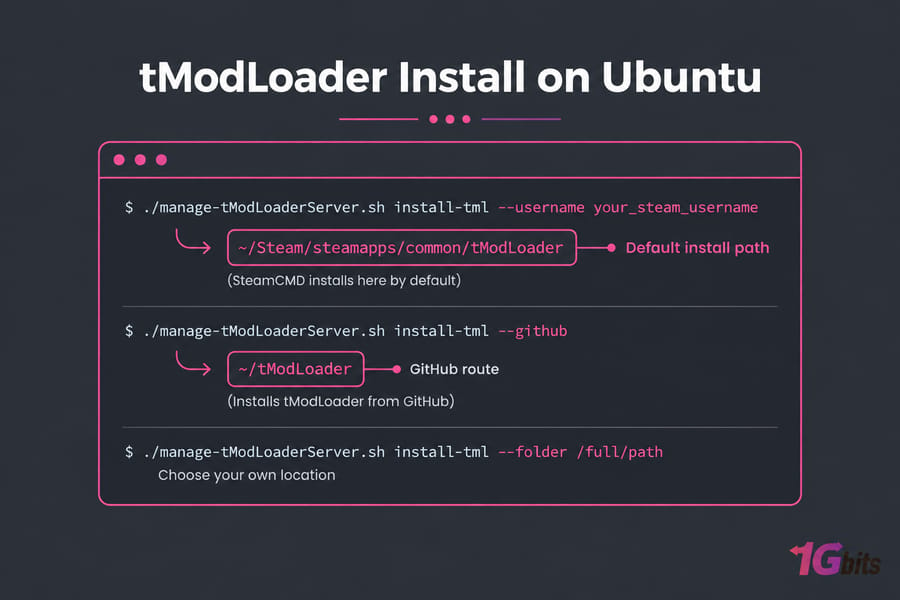
3. Grab the official management script. tModLoader ships a helper called manage-tModLoaderServer.sh that installs the server either from SteamCMD or straight from the GitHub release. It's standalone — no other repo files needed.
./manage-tModLoaderServer.sh install-tml --username your_steam_usernameWith SteamCMD it installs to ~/Steam/steamapps/common/tModLoader by default; add --folder /full/path to choose your own. Prefer to skip Steam login entirely? The GitHub path works too:
./manage-tModLoaderServer.sh install-tml --githubThat drops tModLoader into ~/tModLoader. Handy, but the GitHub route can't pull Workshop mods, so you'd be uploading .tmod files by hand.
4. Write your serverconfig.txt. Same syntax as vanilla Terraria's config. Drop it in your server data folder:
world=/home/terraria/.local/share/Terraria/tModLoader/Worlds/world1.wld
worldpath=/home/terraria/.local/share/Terraria/tModLoader/Worlds/
worldname=CalamityCoop
autocreate=2
difficulty=1
maxplayers=8
port=7777
password=ChangeThisNow
motd=Welcome. Same modpack or no entry.
secure=1
language=en-US
upnp=0
autocreate takes 1 (small), 2 (medium) or 3 (large) and only fires when no world exists at the path. maxplayers accepts 1–255, though I wouldn't push a modded server past about 16 without serious hardware. Set upnp=0 on a VPS — there's no router to negotiate with.
One gotcha worth flagging: savedirectory is a command-line-only parameter, not a config line. Some mods store their data there, so pass -savedirectory ./ at launch if you want everything self-contained in one folder.
5. Start it without losing the process. SSH sessions die. Use screen for quick setups:
screen -S terraria
cd ~/.local/share/Terraria/tModLoader
./start-tModLoaderServer.sh -config serverconfig.txt
Detach with Ctrl+A then D, reattach with screen -r terraria. Our Linux screen command guide has the rest of the shortcuts. For anything long-lived, wrap it in a systemd unit instead so it restarts after a reboot — see managing Linux services with systemctl. Docker images exist too, and they're fine, but treat that as the advanced path rather than the default.
Installing and enabling mods
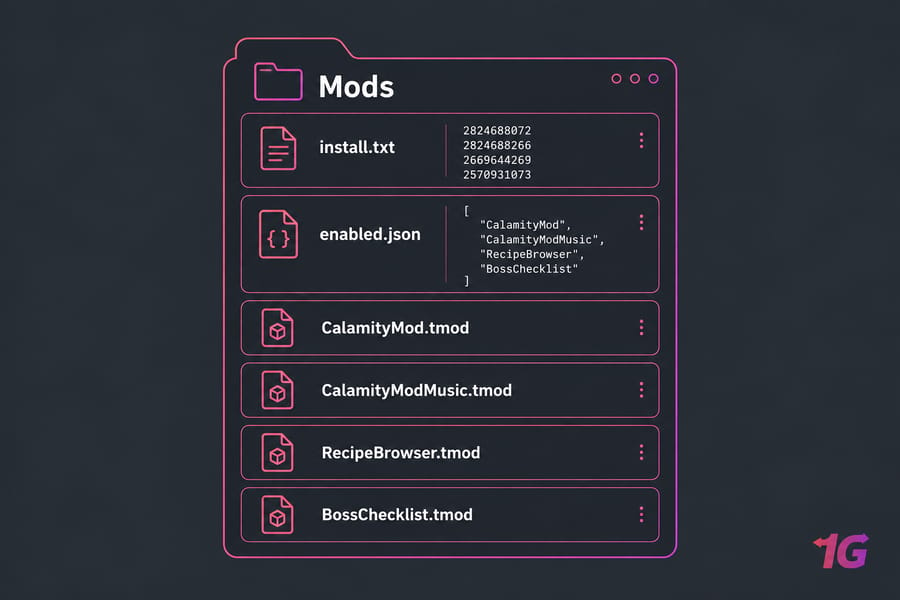
Steam Workshop doesn't identify mods by name — it uses numeric IDs. So the server needs two files inside the Mods folder.
install.txt lists the Workshop IDs, one per line. You'll find the ID in the Workshop URL. Calamity's is 2824688072:
2824688072
2824688266
2669644269
2570931073
enabled.json lists the internal mod names that should actually load:
[
  "CalamityMod",
  "CalamityModMusic",
  "RecipeBrowser",
  "BossChecklist"
]
Don't type these by hand. Build the modpack in the tModLoader client first: Workshop → Mod Packs → Save Enabled as New Mod Pack → Open Mod Pack Folder. Both files are generated for you, correctly named, and they match exactly what your players are running. Copy them to the server with scp, then run:
./manage-tModLoaderServer.sh install-modsRestart the server and watch the console during load. Mods that fail announce themselves loudly. Test with one client before you invite six people — the ten minutes you spend here is the cheapest insurance available.
Port 7777, firewalls, and getting people connected
Terraria and tModLoader use TCP port 7777 by default. Open it in two places, because forgetting the second one is the single most common reason "the server runs but nobody can join."
- OS firewall:
sudo ufw allow 7777/tcpthensudo ufw statusto confirm - Provider/cloud firewall: add the same rule in your host's control panel
- Home hosting only: forward TCP 7777 from the router to your PC's local IP
- Verify:
ss -tlnp | grep 7777— if nothing's listening, the server never bound
Players connect with Multiplayer → Join via IP, entering your public IP and 7777. Find it with curl ifconfig.me. Full firewall walkthrough here: how to configure a firewall on your VPS.
Performance tips for a lower-lag modded server
First, separate the two failure modes. A performance problem degrades smoothly — rubber-banding, delayed block placement, stutter during autosave. A compatibility problem is binary: crashes, refused connections, mods failing to load. Different fixes entirely.
For genuine performance:
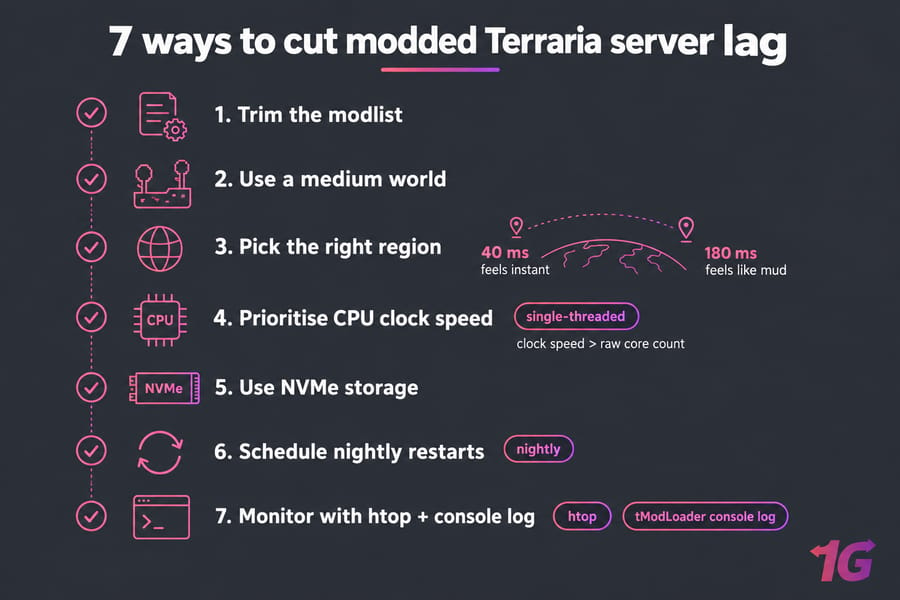
- Trim the modlist. Forty mods isn't automatically worse than twenty, but every extra content mod adds NPC AI, projectiles and world-gen hooks to each tick. Drop the ones nobody uses.
- Don't default to a large world. A medium world is plenty for a group of six and cuts memory and save time noticeably.
- Pick the right region. Host near your player base. 40 ms feels instant; 180 ms feels like mud, no matter how fast the CPU is.
- Prioritise clock speed and NVMe over raw core count, for the single-thread reason above.
- Restart after major changes. Long-running modded servers accumulate memory pressure. A nightly scheduled restart is cheap and effective.
- Watch the numbers.
htop, plus the tModLoader console log. Our guide on improving VPS server speed covers proper monitoring. - Consider attack surface. Public servers get hit. A DDoS-protected VPS handles what a firewall rule can't.
Quick summary: lag on a modded Terraria server almost always traces back to mod conflicts, a weak single-thread CPU, a distant hosting region, or slow storage. In roughly that order.
Updates, backups, and rollback
Mods update constantly, and a mod update can break a pack that worked yesterday. So never update a live modded server without a backup. Ever.
Back up these four things:
- The
Worldsfolder (.wldand.twldfiles — you need both) - The
Modsfolder including every.tmodfile enabled.jsonandinstall.txtserverconfig.txt
tar -czf terraria-backup-$(date +%F).tar.gz \
  ~/.local/share/Terraria/tModLoader/Worlds \
  ~/.local/share/Terraria/tModLoader/Mods
Schedule it — daily at minimum, and always before any change. Here's how to schedule automatic backups on a Linux server. The update sequence I use: stop the server, back up, update tModLoader, update mods, start, load the world, confirm no errors, then tell players it's live. If it breaks, restore the archive and you've lost ten minutes rather than a playthrough.
Troubleshooting the usual suspects
| Problem | Likely cause | Fix | Prevention |
| Server runs, nobody can join | Port 7777 closed at provider level | Add the rule in both UFW and the panel firewall | Test with an external port checker after setup |
| "Version mismatch" on connect | Client tModLoader auto-updated | Match builds; pin the client version in Steam if needed | Agree on one build with all players |
| Player kicked for missing mods | Their modpack differs | Share the exported modpack folder | Distribute one canonical pack |
| Crash on startup | Mod conflict or missing dependency | Halve the modlist, retest, repeat to isolate | Add mods in small batches |
| Server won't find the world | Wrong world/worldpath |
Use absolute paths, check permissions | Keep worlds in one known directory |
| Freeze during autosave | Slow disk or huge world | Move to NVMe, reduce world size | Size storage properly upfront |
| World won't load after update | Mod updated its save format | Restore backup, roll the mod back | Back up before every update |
| Random disconnects for one player | Their connection, not the server | Compare ping across players | Host near the player base |
Read the logs before you reinstall anything. The tModLoader console usually names the offending mod outright. If you need a refresher on where Linux keeps its diagnostics, start with Linux log files.
Picking hosting you won't outgrow in a month
Small friends-only server? A modest Linux VPS handles it comfortably. Growing community with a chunky pack? Step up to NVMe and more cores. Sixteen-plus players on a Calamity-scale pack with multiple worlds? That's dedicated territory.
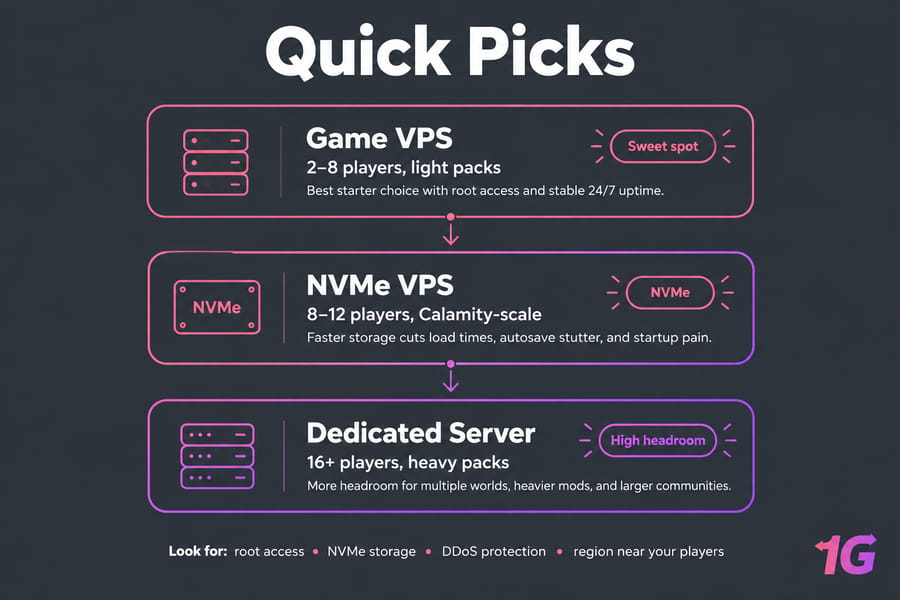
What actually matters when you compare providers: full root access (panel-only hosts make mod debugging miserable), NVMe storage, a datacenter near your players, DDoS protection, and clear uptime. Ignore "unlimited" anything.
Ready to move off your desktop? Compare 1Gbits VPS plans for small and mid-size modded worlds, or go straight to a Terraria dedicated server if your pack is already pushing limits. Root access, NVMe options, DDoS-protected plans, and global locations — pick the region closest to your group and your ping does the rest.

Leave A Comment