
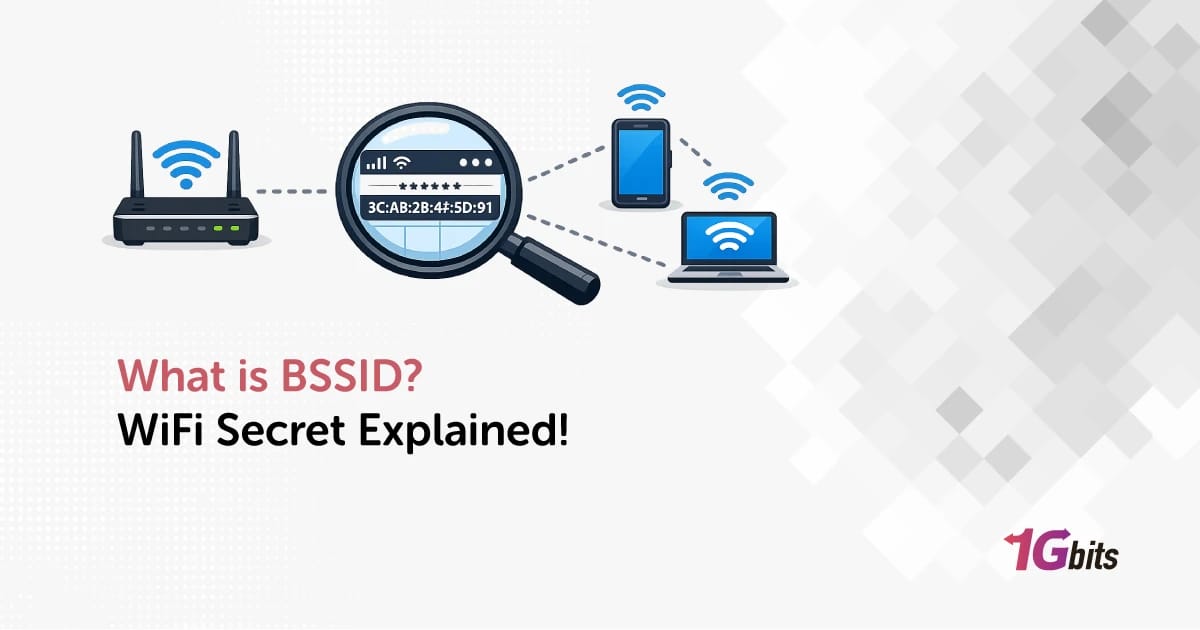
What is BSSID in Wi-Fi?
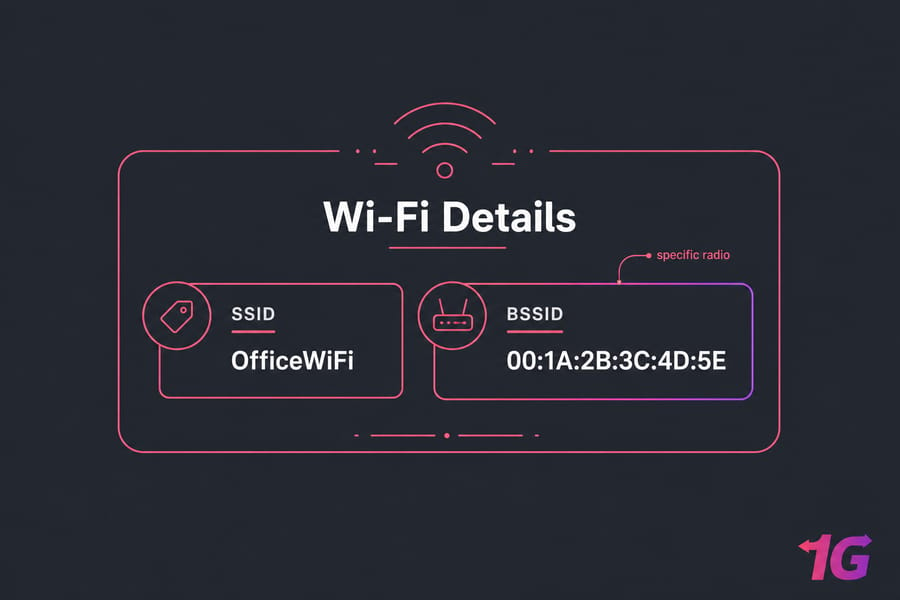
BSSID stands for Basic Service Set Identifier. In Wi-Fi, it is the unique identifier of a specific access point or radio, usually the MAC address of that wireless interface. While an SSID is the network name users see, a BSSID identifies the exact Wi-Fi device your phone or laptop is connected to.
If you've ever opened Wi-Fi details and wondered what that colon-separated value means, that's usually it. The BSSID often looks like a MAC address such as 00:1A:2B:3C:4D:5E, while the SSID is the friendly name like OfficeWiFi.
So, what is BSSID in Wi-Fi in plain English? It's the identifier for the specific radio your device is talking to, not just the network name. That's why it shows up in analyzer apps, router panels, Android Wi-Fi details, and desktop wireless tools.
For the basics behind the visible network name, see what is SSID. If you want the hardware-address side of this topic, this guide on what is a MAC address helps too.
BSSID meaning and full form explained
The BSSID full form is Basic Service Set Identifier. Yeah, it sounds more intimidating than it really is.
In IEEE 802.11 terms, a Basic Service Set is basically one wireless cell: one access point radio and the client devices associated with it. Put more simply, it's one AP interface serving nearby phones, laptops, and tablets.
I usually explain it like this: the SSID is the name on the building sign, and the BSSID is the exact door you walked through. Same place, more precise entry point.
This matters inside a home router, a mesh setup, or a larger wireless LAN. If you're brushing up on broader network basics, it also helps to review what is LAN.
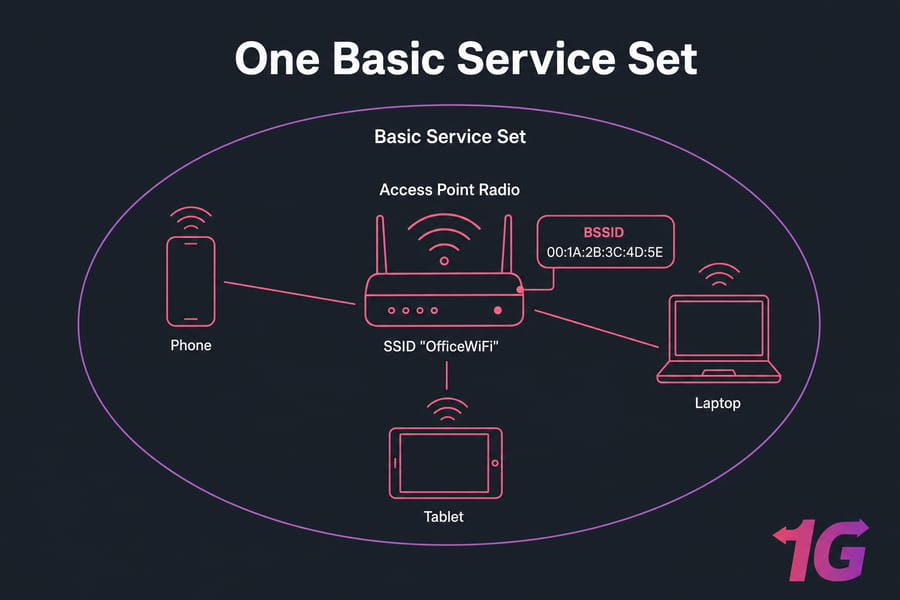
How BSSID works in a wireless network
When your device scans for Wi-Fi, it doesn't just see a network name. It also sees technical details such as BSSID, channel, band, and signal strength. That's how it decides what to connect to.
- Your phone or laptop listens for beacon frames from nearby access points.
- Those beacons advertise the SSID, BSSID, channel, security settings, and other details.
- Your device compares signal quality and picks a specific AP radio.
- It associates to that BSSID, not to some vague idea of the network.
- If you move, roaming may shift you to another BSSID with the same SSID.
That's the practical side of 802.11. You don't need packet captures to get the idea. The BSSID tells your device, "connect here."
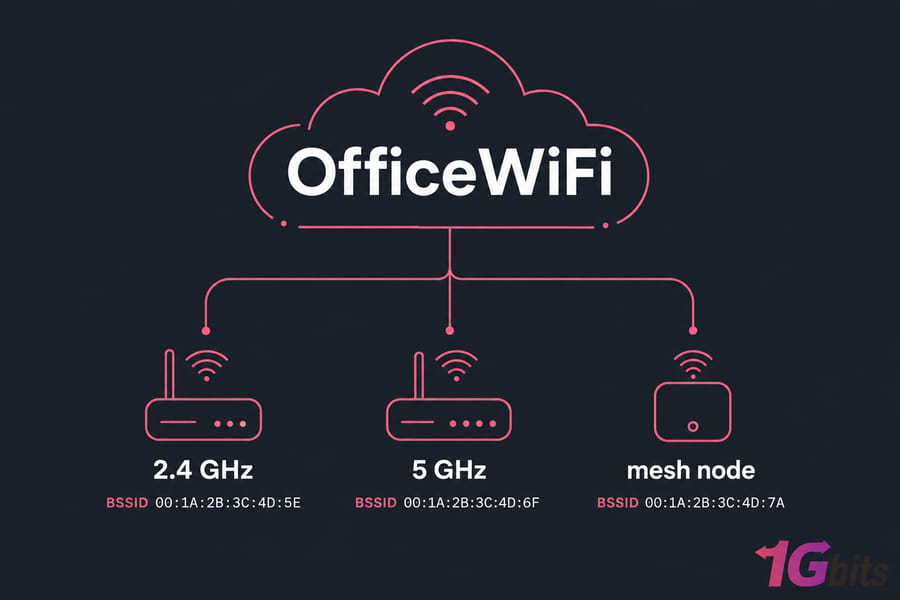
In mesh Wi-Fi and enterprise WLANs, this gets more interesting. You may see one SSID across the house or office, but several BSSIDs underneath it. Each node or access point has its own identity, and sometimes each band does too.
This is also why Wi-Fi troubleshooting can feel confusing at first. Two APs can both broadcast OfficeWiFi, but one may be on channel 36 with a strong signal and another on channel 149 with weaker RSSI. Same name. Different radio. Different BSSID.
If you use discovery tools, these concepts show up fast. 1Gbits has a helpful roundup of advanced IP scanner tools, and for the admin side there's a broader guide to network management.
BSSID vs SSID vs MAC address
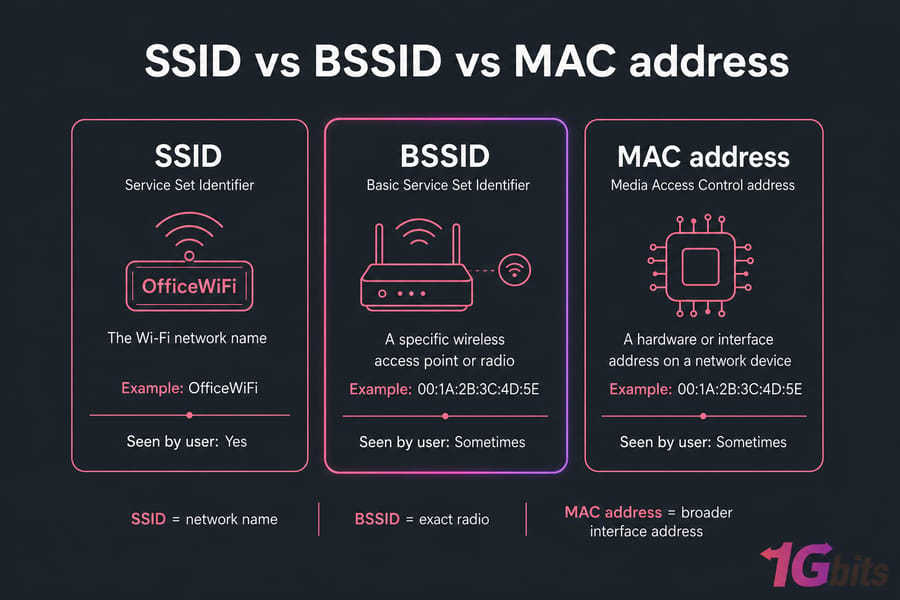
This is where most confusion happens, honestly. The three terms are related, but they are not interchangeable.
| Term | Full Form | What It Identifies | Example | Seen By User? |
| SSID | Service Set Identifier | The Wi-Fi network name | OfficeWiFi | Yes |
| BSSID | Basic Service Set Identifier | A specific wireless access point or radio | 00:1A:2B:3C:4D:5E | Sometimes |
| MAC address | Media Access Control address | A hardware or interface address on a network device | 00:1A:2B:3C:4D:5E | Sometimes |
SSID is the name you pick in Wi-Fi settings. It is not globally unique, and lots of places can use the same name.
BSSID is the identifier for the exact AP or wireless interface you're connected to. That's why the BSSID vs SSID difference matters: one names the network, the other identifies the actual radio.
MAC address is the broader hardware/interface address concept. In many normal Wi-Fi setups, the BSSID is the MAC address of the wireless interface broadcasting that network. But I wouldn't say they're always identical in every context without nuance. Real gear can get weird.
If you want a deeper comparison, these articles on what is a MAC address and IP vs MAC address are good next reads.
Multiple BSSIDs on one Wi-Fi network
One SSID can absolutely have multiple BSSIDs. That's normal.
A dual-band router may broadcast the same SSID on 2.4 GHz and 5 GHz, but each radio has a different BSSID. A tri-band setup can do this across 2.4 GHz, 5 GHz, and 6 GHz. Mesh systems do it across several nodes. Enterprise Wi-Fi does it across many APs on the same floor — or five floors.
The benefit is better coverage and smoother roaming. Your device keeps seeing the same network name, while the infrastructure quietly shifts you between radios and access points.
The downside? Analyzer apps can look cluttered. You may think you're seeing duplicate networks when you're really seeing one SSID backed by several BSSIDs.
How to find BSSID on Windows, Mac, Android, and iPhone
If you're wondering how to find BSSID, the fastest path depends on the device.
| Device/OS | Where to Find BSSID | Notes |
| Windows | netsh wlan show interfaces |
Usually the quickest method |
| macOS | Option-click Wi-Fi icon or Wireless Diagnostics | Labels can vary by version |
| Android | Wi-Fi network details | Depends on vendor skin |
| iPhone/iPad | Router app/dashboard or limited device details | iOS often hides it |
| Router dashboard | Wireless or client details page | Good for AP-specific info |
Windows
- Open Command Prompt.
- Run the command below.
- Look for BSSID in the current wireless interface details.
netsh wlan show interfaces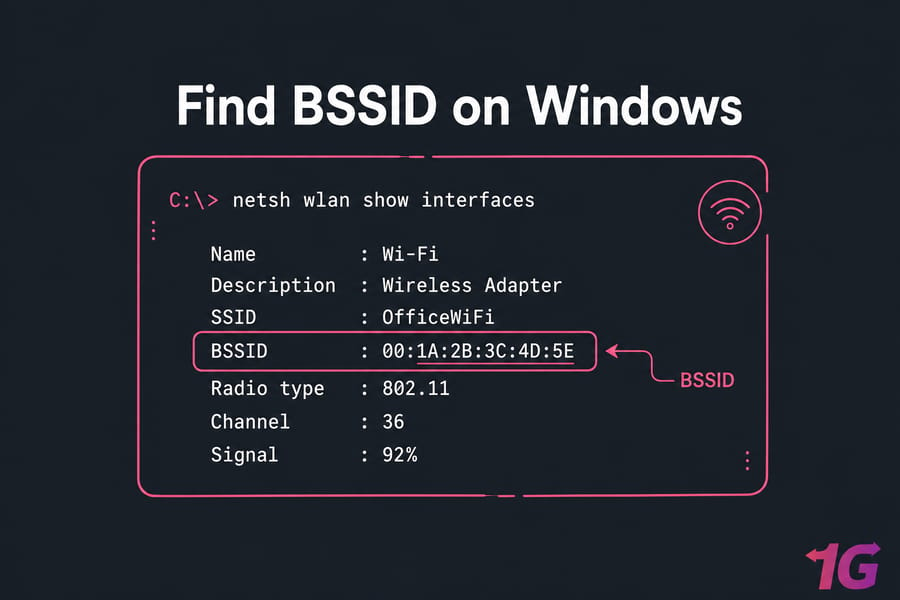
macOS
- Hold Option and click the Wi-Fi icon in the menu bar.
- Check the connection details for BSSID.
- If needed, open Wireless Diagnostics or System Information for more detail.
Android
- Open Wi-Fi settings.
- Tap the connected network.
- Look for details such as BSSID, frequency, and security.
iPhone or iPad
Native iOS screens often don't expose BSSID clearly. In practice, you may need your router app, AP controller, or a companion network tool depending on the iOS version.
Router or access point dashboard
Log in to the router admin panel and look under wireless status, connected clients, or radio settings. The wording varies a lot by vendor, so don't expect identical labels.
Need more core networking guides? Browse the Network Basics & Tutorials library.
BSSID for Wi-Fi troubleshooting and network management
This is where BSSID stops being trivia and starts being useful.
| Symptom | What BSSID Helps You Check | Example |
| Weak signal in one room | Which AP you are actually using | Laptop stuck to hallway AP instead of nearby node |
| Slow roaming | Whether device switched BSSID | Phone clings to old AP while walking upstairs |
| Band steering confusion | Which radio you joined | Device landed on 2.4 GHz instead of 5 GHz |
| Duplicate network names | Whether they are separate APs | Analyzer shows same SSID with three BSSIDs |
| Coverage survey | Signal by access point and channel | Comparing node placement in a mesh |
A Wi-Fi analyzer uses BSSID, signal strength, and channel data to map what your device is seeing. That's incredibly handy for sticky roaming, weak coverage, or figuring out why one corner of the office feels terrible while everything else is fine.
And if you're managing more than a home setup, this overlaps with general network management.
Common BSSID mistakes and misconceptions
- Myth: BSSID is the Wi-Fi name. Fact: That's the SSID.
- Myth: Everyone on the network has the same BSSID. Fact: In mesh Wi-Fi or enterprise setups, users on the same SSID may be on different access points.
- Myth: BSSID tells you speed or security quality. Fact: It identifies an AP/radio; it doesn't rate the connection by itself.
- Myth: Average users never need it. Fact: You may not check it daily, but it's great for diagnostics.
Related basics that often come up next: what is DHCP and what is a DNS server.
Final thoughts on BSSID and Wi-Fi basics
The easiest memory hook is this: SSID is the Wi-Fi name, BSSID is the specific access point identity. Once that clicks, a lot of wireless troubleshooting starts to make more sense.
If you're building out your networking knowledge, explore the full Network Basics & Tutorials section. And if your learning path goes beyond Wi-Fi into infrastructure, you can also explore VPS hosting.

Leave A Comment